
FL Studio Keyboard Shortcuts You'll Actually Use
A practical shortcut guide for FL Studio users who want faster playback, editing, arrangement, and Mixer navigation.
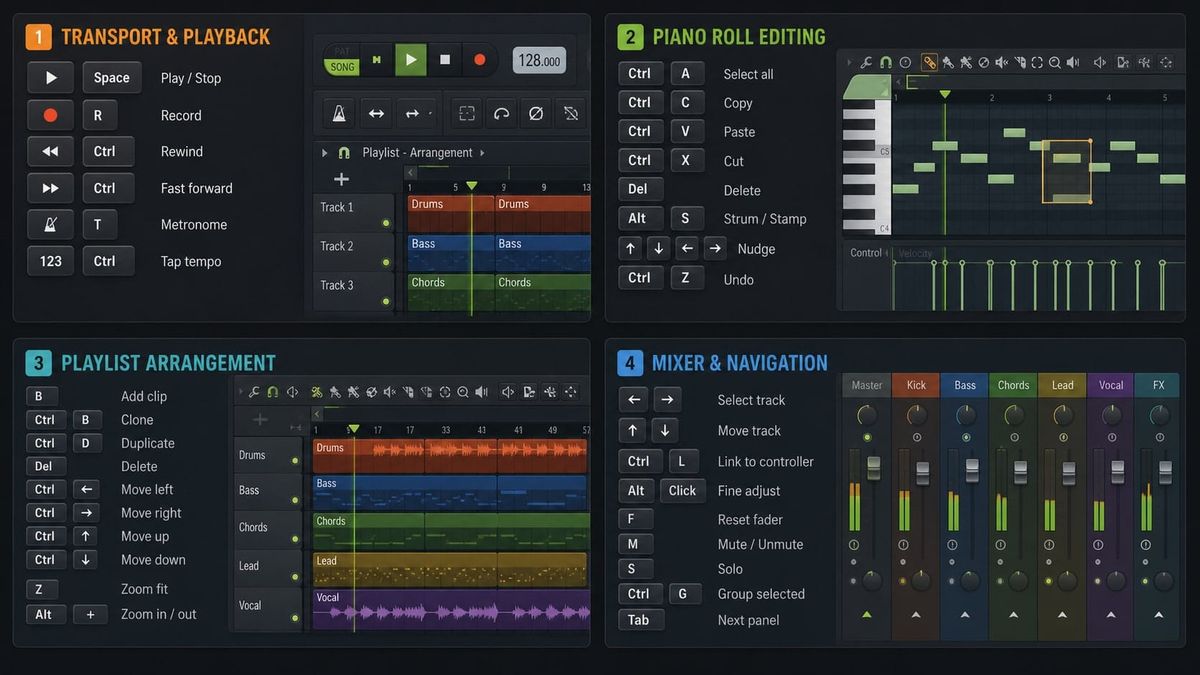
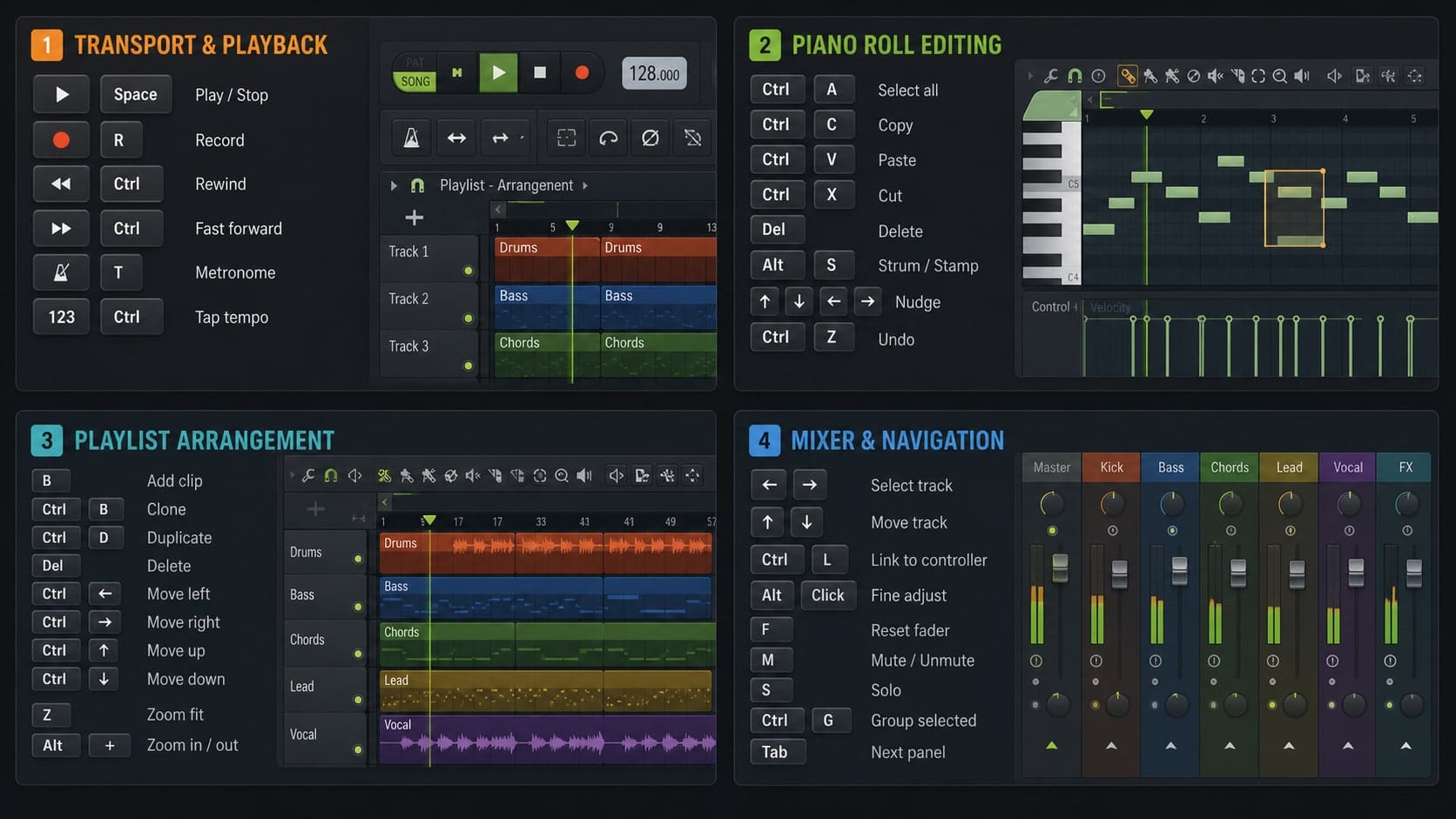
If a four-bar loop takes you six hours, it isn't the plugin. It's the mouse. Every time you reach for the toolbar to switch from Paint to Slice, every time you right-click a pattern and scroll to Clone, every time you click the tiny Mixer button to open channel 7, you burn three seconds and break flow. Stack those across a session and that's why the beat never finishes. The fix isn't memorising the entire FL Studio manual. It's owning maybe thirty shortcuts that fire constantly. Below are the ones working producers actually hit, grouped by where you are when you need them. Mac users: Cmd replaces Ctrl in nearly every case noted.
Transport (Play, Stop, Loop, Record)
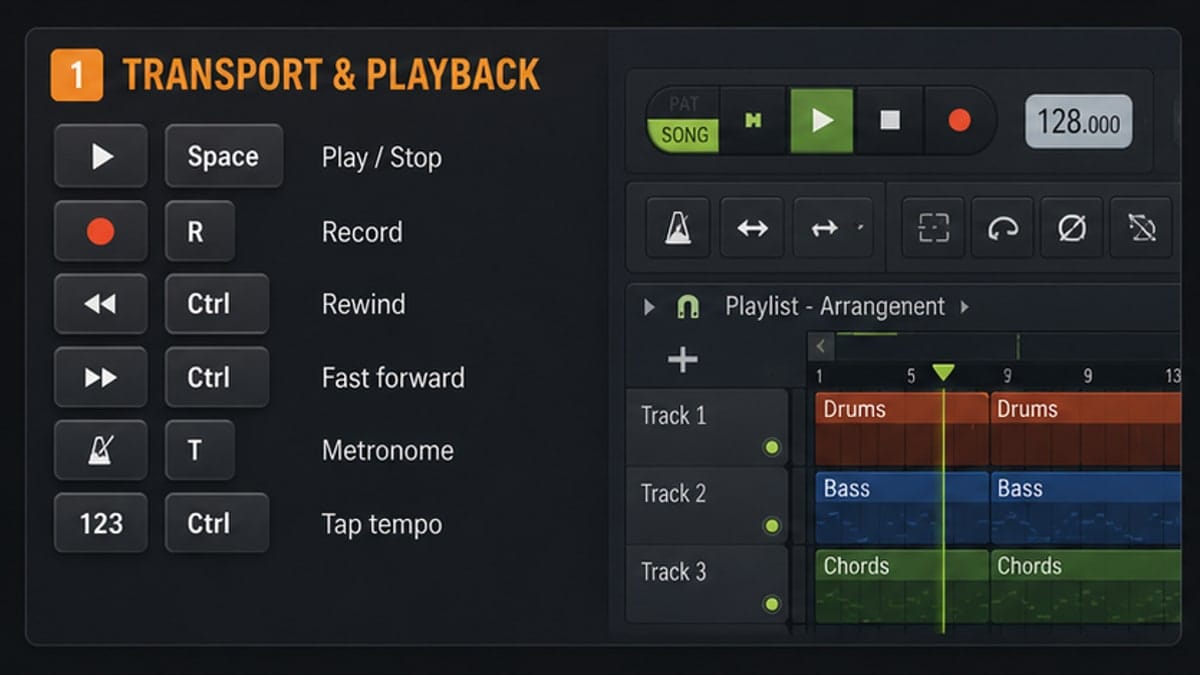
Transport keys are the first ones to burn into muscle memory. They work from anywhere in FL Studio as long as no text field has focus.
| Shortcut (Win) | Shortcut (Mac) | What it does | When you use it |
|---|---|---|---|
| Space | Space | Play / Stop | Every two seconds, forever |
| Ctrl+Space | Cmd+Space | Play song from start | Auditioning a full arrangement |
| L | L | Toggle Song / Pattern mode | Switching between writing a pattern and arranging it |
| R | R | Toggle record | Recording automation or live MIDI |
| 0 (numpad) | 0 (numpad) | Stop and return to start | Hard stop with playhead reset |
| Backspace | Delete | Toggle line / none snap for playback | Switching loop behaviour mid-jam |
Channel Rack Speed
The Channel Rack is where most beats are built. Stop right-clicking. Learn these and patterns come together in minutes.
| Shortcut (Win) | Shortcut (Mac) | What it does | When you use it |
|---|---|---|---|
| F6 | F6 | Open Channel Rack | Anytime it's buried under other windows |
| Ctrl+L | Cmd+L | Route selected channel(s) to selected mixer track | Sending a kick to a dedicated mixer insert |
| Alt+L | Alt+L | Route selected channel(s) to next free mixer track | Mixing a fresh project, one channel at a time |
| Shift+M | Shift+M | Group selected channels | Collapsing all hats into one group entry |
| Ctrl+A | Cmd+A | Select all channels | Before any group action |
| Alt+G | Alt+G | Group selected into a new pattern group | Organising twenty channels into Drums / Bass / Lead |
Playlist Cuts and Clones
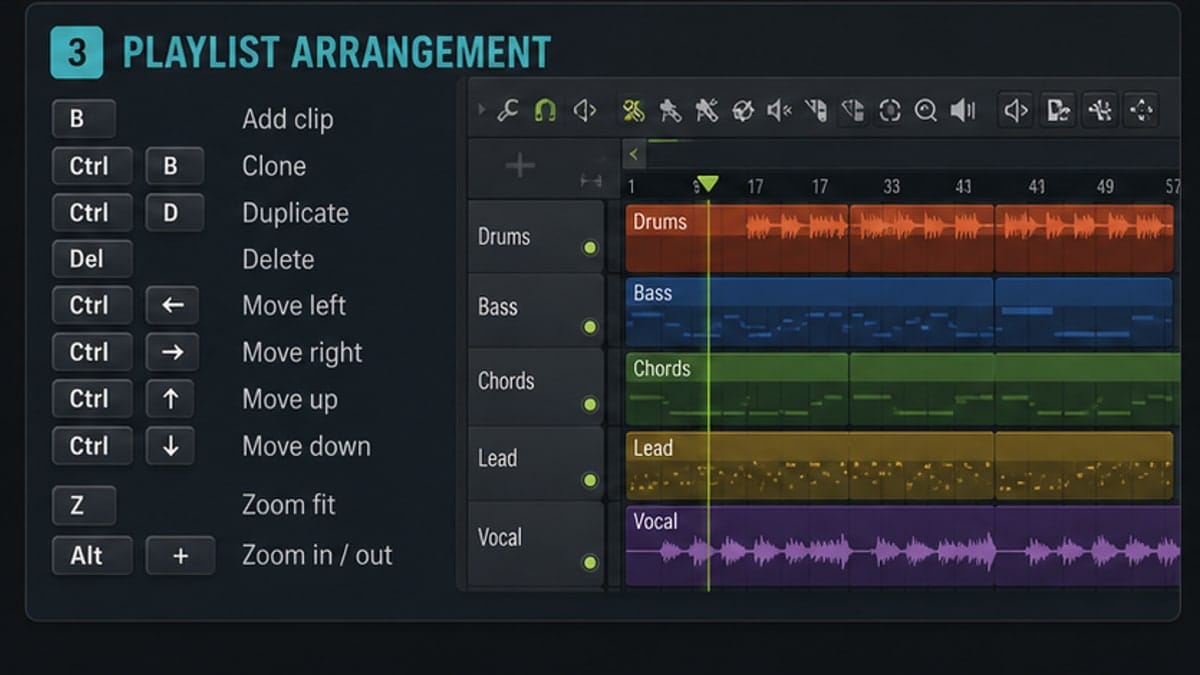
The Playlist is where arrangements live or die. Cloning, slicing, and dragging copies without breaking sync is the difference between a sketch and a song.
| Shortcut (Win) | Shortcut (Mac) | What it does | When you use it |
|---|---|---|---|
| F5 | F5 | Open Playlist | Constantly |
| B | B | Paint tool | Stamping patterns across the timeline |
| P | P | Draw tool | Placing one clip at a time, precisely |
| S | S | Slice tool | Chopping a long audio clip into reusable pieces |
| D | D | Delete tool | Mass-removing wrong clips |
| Ctrl+B | Cmd+B | Clone selected clips | Doubling a chorus instantly |
| Ctrl+drag | Cmd+drag | Clone clip by dragging | Copying a verse loop further down the timeline |
| Shift+drag | Shift+drag | Constrained move (lock to one axis) | Moving a clip horizontally without slipping a track |
Piano Roll Power Moves
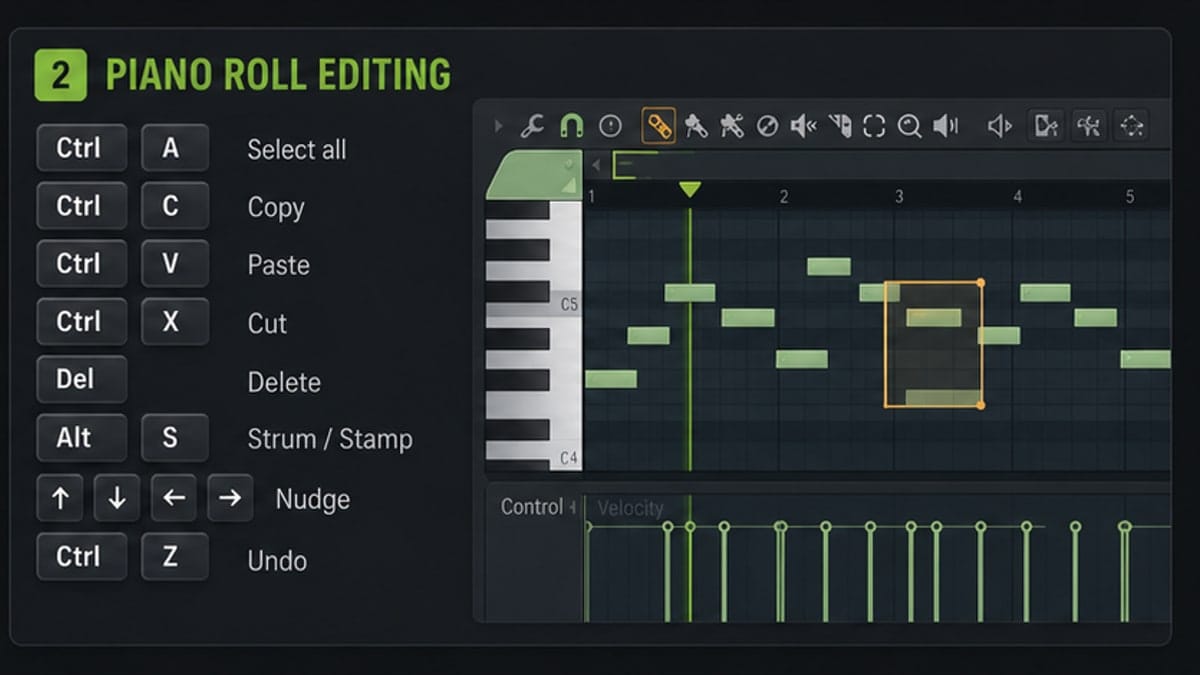
The Piano Roll is where most time is wasted clicking. These shortcuts shave hours off a week.
| Shortcut (Win) | Shortcut (Mac) | What it does | When you use it |
|---|---|---|---|
| F7 | F7 | Open Piano Roll for selected channel | Jumping straight into MIDI editing |
| Ctrl+A | Cmd+A | Select all notes | Before transposing or shifting |
| Ctrl+D | Cmd+D | Deselect all | Clearing selection before a new edit |
| Shift+Up / Down | Shift+Up / Down | Transpose selected notes by one octave | Doubling a melody an octave up |
| Alt+drag | Alt+drag | Move note(s) ignoring snap | Sliding a snare 2 ticks off the grid for groove |
| Ctrl+C / Ctrl+V | Cmd+C / Cmd+V | Copy and paste notes | Repeating a riff in a new pattern |
| Q | Q | Quick quantize start times | Tightening a live-played MIDI take |
Mixer Routing in One Keystroke
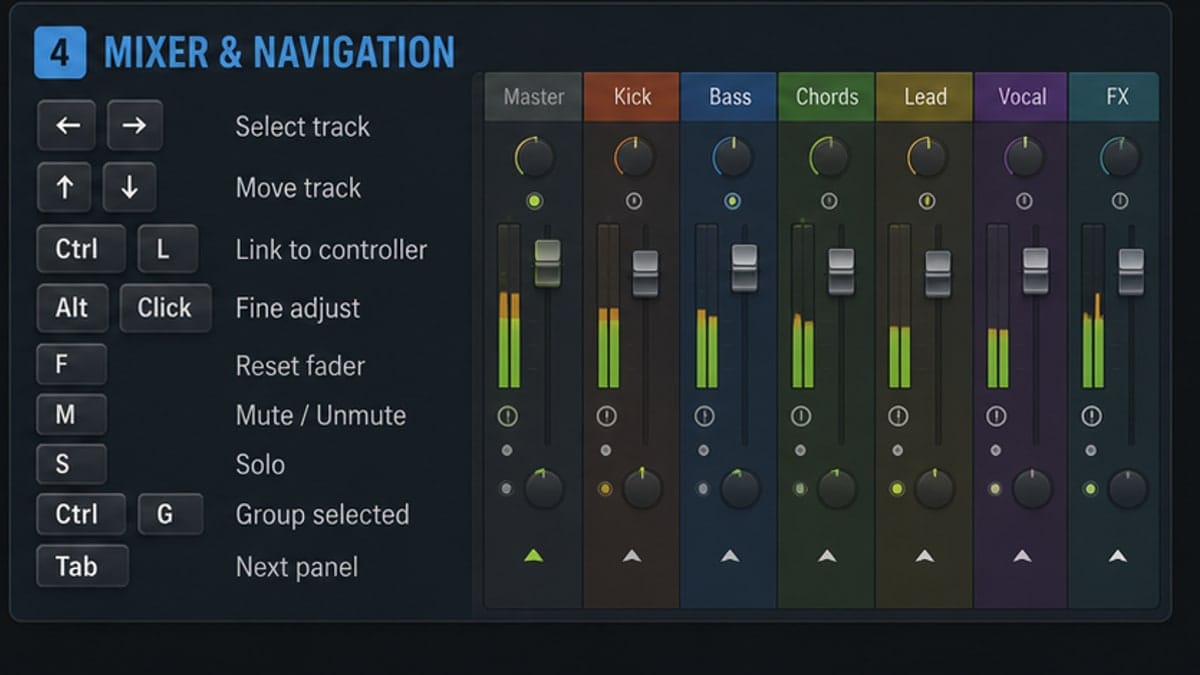
The Mixer is where mixes get made or murdered. Speed here means fewer interruptions when an idea is hot.
| Shortcut (Win) | Shortcut (Mac) | What it does | When you use it |
|---|---|---|---|
| F9 | F9 | Open Mixer | Whenever it's hidden |
| Ctrl+L (from Channel Rack) | Cmd+L | Route channel to currently selected mixer track | Manual routing one at a time |
| Alt+L (from Channel Rack) | Alt+L | Route channel to next free mixer track | Batch routing a fresh session |
| S | S | Solo selected mixer track | A/B'ing a bus in isolation |
| Alt+S | Alt+S | Solo with sends (keep reverb/delay returns audible) | Checking a vocal in its true space |
| Ctrl+drag fader | Cmd+drag fader | Fine fader control | Dialling 0.3 dB without overshooting |
Browser and File Wrangling
The Browser is FL Studio's secret weapon. Most producers ignore its shortcuts and lose minutes per drag.
| Shortcut (Win) | Shortcut (Mac) | What it does | When you use it |
|---|---|---|---|
| F8 | F8 | Open Browser / Plugin Picker | Hunting a sample or VST |
| Ctrl+F | Cmd+F | Focus the Browser search box | Typing "kick" to filter 40,000 samples |
| Ctrl+S | Cmd+S | Save project | Every two minutes if you've been bitten before |
| Ctrl+Shift+S | Cmd+Shift+S | Save as | Versioning before a destructive change |
| Ctrl+Z | Cmd+Z | Undo | After every wrong click |
| Ctrl+Alt+Z | Cmd+Alt+Z | Redo | When the undo was the wrong choice |
| F11 | F11 | Open project info / notes | Logging BPM, key, version notes |
| F12 | F12 | Close all windows | Resetting a cluttered workspace |
Bonus: Tools, Zoom and Navigation
These don't fit one context but fire everywhere. Worth knowing cold.
| Shortcut (Win) | Shortcut (Mac) | What it does | When you use it |
|---|---|---|---|
| E | E | Select tool | Lassoing notes or clips |
| T | T | Mute tool | Muting a single Playlist clip |
| Z | Z | Zoom tool | Drag-zooming a region |
| C | C | Color tool | Tagging clips by section |
| Ctrl+Wheel | Cmd+Wheel | Horizontal zoom | Zooming in on the kick transient |
| Shift+Wheel | Shift+Wheel | Vertical zoom | Seeing more tracks on screen |
| Middle-click drag | Middle-click drag | Scroll / pan | Sliding across a long arrangement |
Customising Shortcuts (Yes, You Can)
The defaults aren't sacred. FL Studio lets you rebind nearly any key. Open Options → General Settings and click the Shortcut tab. You'll see a searchable list of every command grouped by context (General, Playlist, Piano Roll, Mixer, Browser). Click a command, press the key combination you want, hit Accept. Conflicts surface immediately so nothing gets silently overwritten. Export your map to an XML file once you've tuned it. That same file imports cleanly on a fresh install or a second machine, which matters when you've spent a year training your fingers.
Sources and reference pages
Image-Line keyboard and mouse shortcuts manual.
FAQ
What are the most useful FL Studio shortcuts?
The most useful shortcuts are the ones you use constantly: playback, record, undo, copy, paste, delete, Piano Roll editing, Playlist movement, and zoom.
Should beginners memorize every FL Studio shortcut?
No. Beginners should learn a small daily set first, then add shortcuts when a repeated action starts slowing them down.
Where is the official FL Studio shortcut list?
Image-Line keeps the official keyboard and mouse shortcut reference in the FL Studio Online Manual.
Do shortcuts change between FL Studio versions?
Some shortcuts can change or depend on focus, so check the official manual when a shortcut does not behave as expected.