 FL Studio
Turn patterns and samples into a finished timeline
Fix timing without flattening the groove, make clips independent before destructive edits, and keep the project organized as the loop becomes a complete arrangement.
Make the dependency clear before touching the clip
Many FL Studio editing mistakes are really ownership mistakes. One Pattern Clip can appear several times while every instance still points to the same pattern. One Audio Clip can be placed throughout the Playlist while its channel settings still affect every copy. A quick edit feels local, then changes the chorus, intro and drop at once.
The useful habit is to ask what the item controls before editing it: notes inside a pattern, an Audio Clip channel, one Playlist instance, or the source audio file itself. The official Playlist manual explains why FL Studio’s tracks can hold Pattern, Audio and Automation Clips rather than behaving like fixed instrument channels. This route turns that flexibility into predictable work.
Use FL Studio in the order the song develops
You do not need every tool at once. Prove the musical idea, learn the few repeated actions that slow you down, add movement with automation, then combine more complex routing only when the project calls for it.
 Build the first complete loop
FL Studio Tutorial for Beginners: Make Your First Song
Connect the Channel Rack, Piano Roll, Playlist and Mixer inside one small project so every window has a clear job.
Make the first track
Build the first complete loop
FL Studio Tutorial for Beginners: Make Your First Song
Connect the Channel Rack, Piano Roll, Playlist and Mixer inside one small project so every window has a clear job.
Make the first track
 Remove repeated friction
FL Studio Shortcuts: Keyboard Commands Worth Learning
Learn shortcuts by action after the workflow is familiar instead of memorising a long list with no project context.
Use practical shortcuts
Remove repeated friction
FL Studio Shortcuts: Keyboard Commands Worth Learning
Learn shortcuts by action after the workflow is familiar instead of memorising a long list with no project context.
Use practical shortcuts
 Create controlled movement
FL Studio Automation: Clips, Curves and Plugin Controls
Link a parameter, shape an Automation Clip and keep the control range predictable across the arrangement.
Build automation
Create controlled movement
FL Studio Automation: Clips, Curves and Plugin Controls
Link a parameter, shape an Automation Clip and keep the control range predictable across the arrangement.
Build automation
 Combine a reusable process
How to Use Patcher in FL Studio: 3 Practical Builds
Use Patcher when a signal-flow idea needs several instruments, effects or controls, not as decoration around a simple chain.
Build a Patcher chain
Combine a reusable process
How to Use Patcher in FL Studio: 3 Practical Builds
Use Patcher when a signal-flow idea needs several instruments, effects or controls, not as decoration around a simple chain.
Build a Patcher chain
Snap guides the next move; quantize changes existing timing
Snap controls how notes and clips move against the grid. Quantize repositions material that already exists. Use the lightest correction that solves the problem, and audition it in the track rather than judging the red grid lines alone. A full-strength correction can remove a deliberate pickup or push-pull feel, while a wrong snap value can make later edits appear inconsistent even when the performance was fine.
Choose the edit, not a random tool
Guides are added here in workflow order as they become public. Scheduled pages remain hidden until they are available, so every card below opens a live article.
FL Studio Tutorial for Beginners: Make Your First Song
A practical FL Studio beginner tutorial that takes one idea from the Channel Rack to the Playlist, Mixer and a finished WAV or MP3 export.
Open the workflow guide
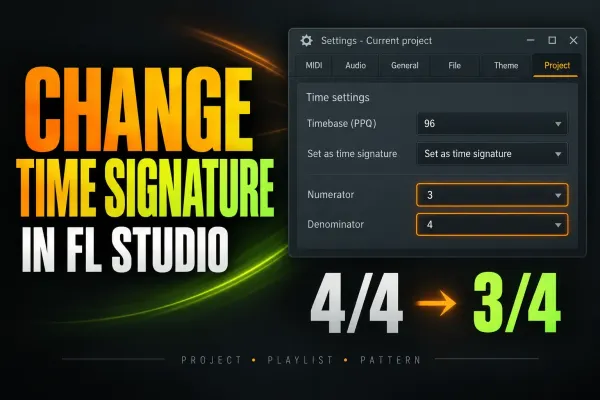 How to Change Time Signature in FL Studio
Change the whole project meter, add a temporary time-signature section, or set a Pattern meter without moving notes or confusing the Playlist grid.
Open the workflow guide
How to Change Time Signature in FL Studio
Change the whole project meter, add a temporary time-signature section, or set a Pattern meter without moving notes or confusing the Playlist grid.
Open the workflow guide
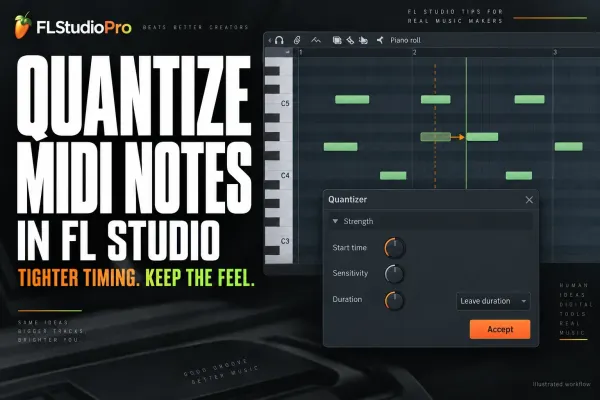 How to Quantize in FL Studio Without Killing Groove
Tighten recorded MIDI with the right Snap value, quick commands or the full Quantizer while keeping note length, velocity and deliberate timing under control.
Open the workflow guide
How to Quantize in FL Studio Without Killing Groove
Tighten recorded MIDI with the right Snap value, quick commands or the full Quantizer while keeping note length, velocity and deliberate timing under control.
Open the workflow guide
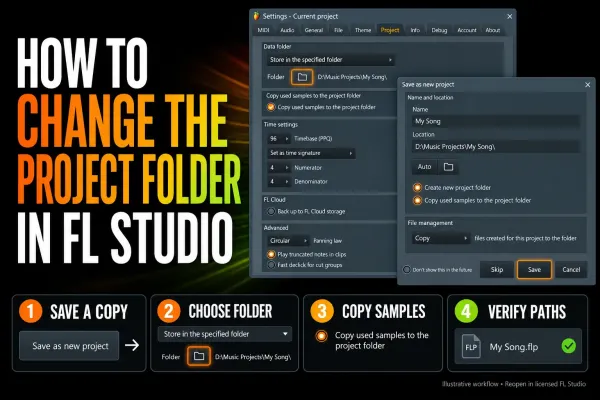 How to Change an FL Studio Project Folder Safely
Move an FL Studio project without losing recordings or samples: set the new data folder, copy supported assets, reopen the moved copy and verify dependencies.
Open the workflow guide
How to Change an FL Studio Project Folder Safely
Move an FL Studio project without losing recordings or samples: set the new data folder, copy supported assets, reopen the moved copy and verify dependencies.
Open the workflow guide
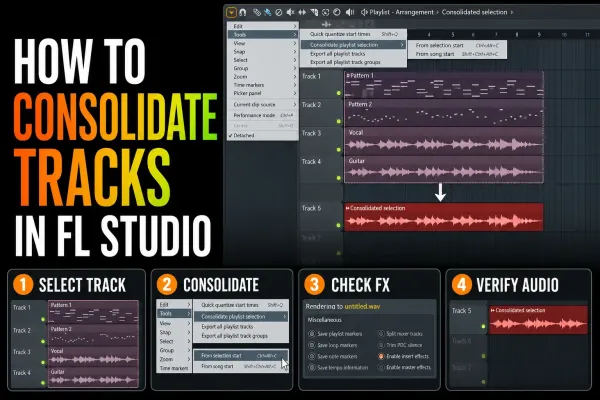 How to Consolidate Tracks in FL Studio Without Surprises
Turn Playlist clips into dependable audio without baking the master twice, losing tails or shifting alignment. Choose the right start point and verify the render.
Open the workflow guide
How to Consolidate Tracks in FL Studio Without Surprises
Turn Playlist clips into dependable audio without baking the master twice, losing tails or shifting alignment. Choose the right start point and verify the render.
Open the workflow guide
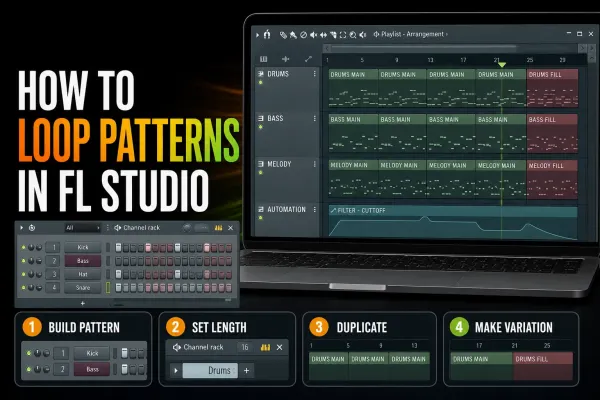 How to Loop Patterns in FL Studio Without a Static Beat
Repeat Pattern Clips with Paint or Ctrl/Cmd+B, set the real pattern length, create variations safely and fix the loops that restart early or stack notes.
Open the workflow guide
How to Loop Patterns in FL Studio Without a Static Beat
Repeat Pattern Clips with Paint or Ctrl/Cmd+B, set the real pattern length, create variations safely and fix the loops that restart early or stack notes.
Open the workflow guide
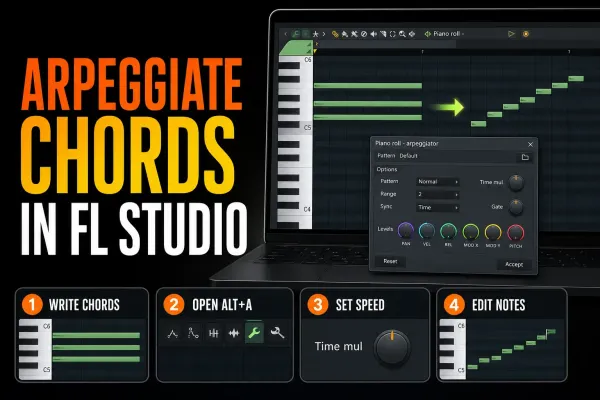 How to Arpeggiate in FL Studio: Two Built-In Ways
Turn held chords into editable notes or a live arpeggio, then shape speed, direction, range, gate and variation without losing the harmony.
Open the workflow guide
How to Arpeggiate in FL Studio: Two Built-In Ways
Turn held chords into editable notes or a live arpeggio, then shape speed, direction, range, gate and variation without losing the harmony.
Open the workflow guide
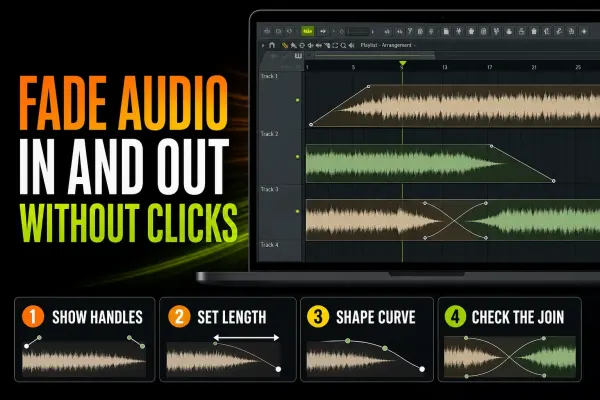 How to Fade In and Out in FL Studio Without Clicks
Use Audio Clip fade handles for local edits, crossfades for joins and automation for arrangement-level moves without clicks or surprise level jumps.
Open the workflow guide
How to Fade In and Out in FL Studio Without Clicks
Use Audio Clip fade handles for local edits, crossfades for joins and automation for arrangement-level moves without clicks or surprise level jumps.
Open the workflow guide
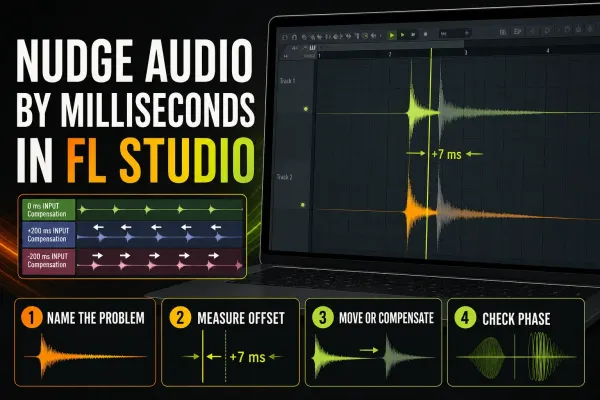 How to Nudge Audio by Milliseconds in FL Studio
Move one clip for feel, align a recorded source with input compensation, or correct a delayed Mixer path without applying the wrong timing fix.
Open the workflow guide
How to Nudge Audio by Milliseconds in FL Studio
Move one clip for feel, align a recorded source with input compensation, or correct a delayed Mixer path without applying the wrong timing fix.
Open the workflow guide
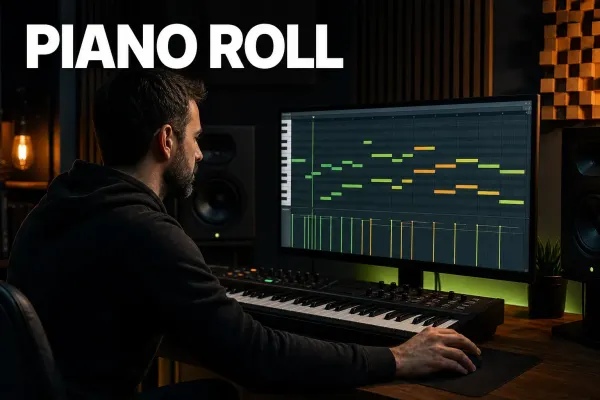 FL Studio Piano Roll: A Practical Beginner Guide
Open the correct Piano Roll, draw and edit notes, control snap and velocity, then turn one Pattern into an arrangement without losing your place.
Open the workflow guide
FL Studio Piano Roll: A Practical Beginner Guide
Open the correct Piano Roll, draw and edit notes, control snap and velocity, then turn one Pattern into an arrangement without losing your place.
Open the workflow guide
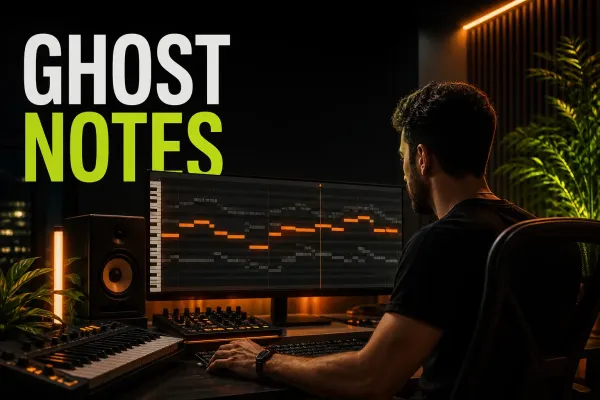 FL Studio Ghost Notes: See Chords Across Patterns
Show notes from other Channels and overlapping Patterns, choose which references appear, edit safely and fix missing Ghost Notes in FL Studio.
Open the workflow guide
FL Studio Ghost Notes: See Chords Across Patterns
Show notes from other Channels and overlapping Patterns, choose which references appear, edit safely and fix missing Ghost Notes in FL Studio.
Open the workflow guide
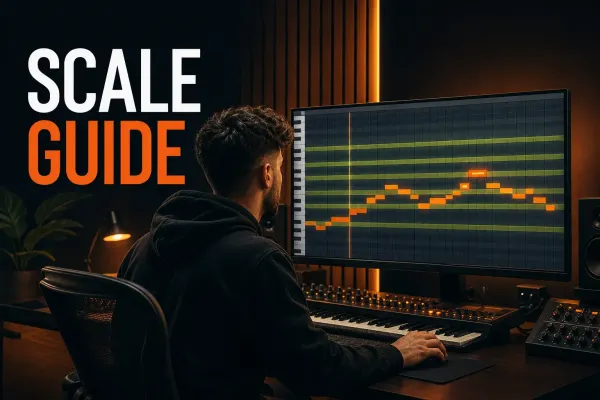 FL Studio Scale Highlighting: Set Keys & Fix Snap
Choose a root and scale, highlight valid Piano Roll lanes, control Snap to scale for edited or incoming MIDI, and fix notes that will not move freely.
Open the workflow guide
FL Studio Scale Highlighting: Set Keys & Fix Snap
Choose a root and scale, highlight valid Piano Roll lanes, control Snap to scale for edited or incoming MIDI, and fix notes that will not move freely.
Open the workflow guide
 How to Humanize MIDI in FL Studio Without Losing Groove
Vary MIDI velocity and timing with intent, use Randomizer for note levels, roll chords with Strum and keep the original groove and feel intact.
Open the workflow guide
How to Humanize MIDI in FL Studio Without Losing Groove
Vary MIDI velocity and timing with intent, use Randomizer for note levels, roll chords with Strum and keep the original groove and feel intact.
Open the workflow guide
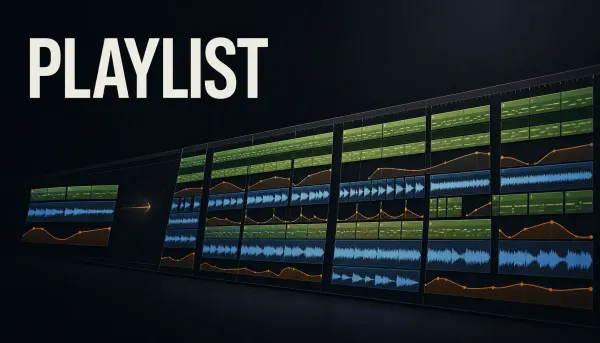 FL Studio Playlist: Arrange a Song Without Losing Control
Turn patterns, audio and automation into a clear FL Studio arrangement, with practical track organization, markers, versions and fixes.
Open the workflow guide
FL Studio Playlist: Arrange a Song Without Losing Control
Turn patterns, audio and automation into a clear FL Studio arrangement, with practical track organization, markers, versions and fixes.
Open the workflow guide
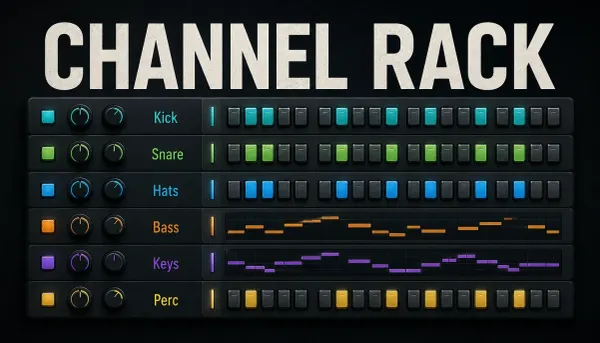 FL Studio Channel Rack Explained
Understand what the Channel Rack stores, how channels and patterns relate, when to use steps or Piano Roll, and how to route and organize safely.
Open the workflow guide
FL Studio Channel Rack Explained
Understand what the Channel Rack stores, how channels and patterns relate, when to use steps or Piano Roll, and how to route and organize safely.
Open the workflow guide
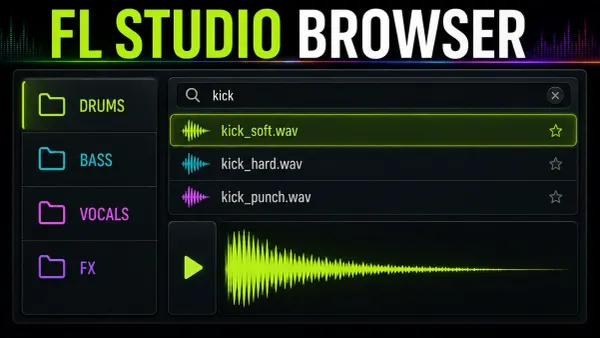 FL Studio Browser: Find Sounds Fast
Find and preview sources in the FL Studio Browser, choose the right loading destination, and separate library paths, favorites and project backups.
Open the workflow guide
FL Studio Browser: Find Sounds Fast
Find and preview sources in the FL Studio Browser, choose the right loading destination, and separate library paths, favorites and project backups.
Open the workflow guide
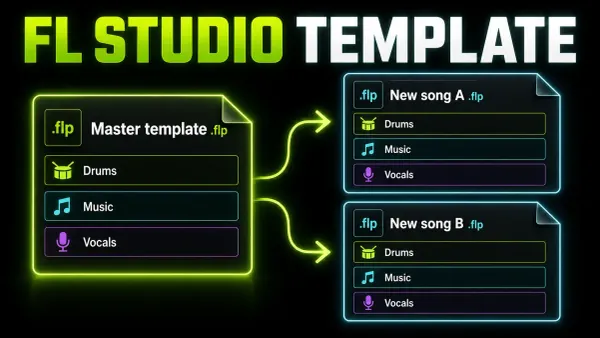 Build a Reusable FL Studio Project Template
Build a lean FL Studio starter with clear lanes, safe Mixer routing and reliable file handling. Save it as a template without carrying old song data forward.
Open the workflow guide
Build a Reusable FL Studio Project Template
Build a lean FL Studio starter with clear lanes, safe Mixer routing and reliable file handling. Save it as a template without carrying old song data forward.
Open the workflow guide
 How to Organize an FL Studio Project
Keep an FL Studio session readable with useful names, clear routes, deliberate versions and known data locations. Review unused objects without risking your recordings.
Open the workflow guide
How to Organize an FL Studio Project
Keep an FL Studio session readable with useful names, clear routes, deliberate versions and known data locations. Review unused objects without risking your recordings.
Open the workflow guide
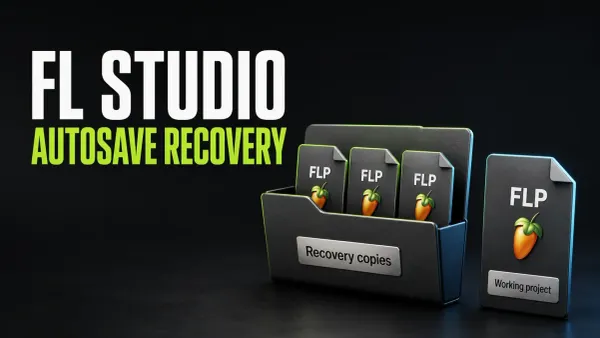 FL Studio Autosave: Set It Up and Recover a Backup
Find the active backup folder, preserve candidates and compare recovery copies. Understand local autosave timing, rotation, missing data and Trial limits.
Open the workflow guide
FL Studio Autosave: Set It Up and Recover a Backup
Find the active backup folder, preserve candidates and compare recovery copies. Understand local autosave timing, rotation, missing data and Trial limits.
Open the workflow guide
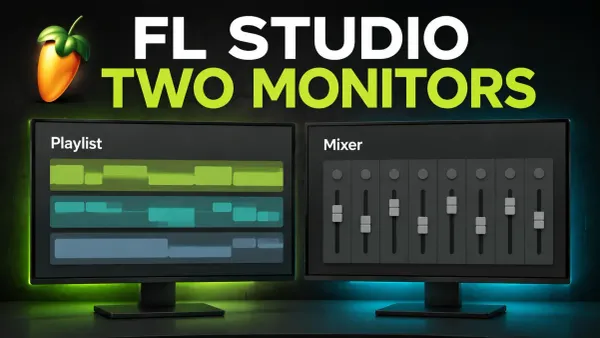 How to Use FL Studio on Two Monitors
Move the Mixer to a second screen, choose detached or stretched layouts, save a custom layout and recover off-screen windows without an unnecessary settings reset.
Open the workflow guide
How to Use FL Studio on Two Monitors
Move the Mixer to a second screen, choose detached or stretched layouts, save a custom layout and recover off-screen windows without an unnecessary settings reset.
Open the workflow guide
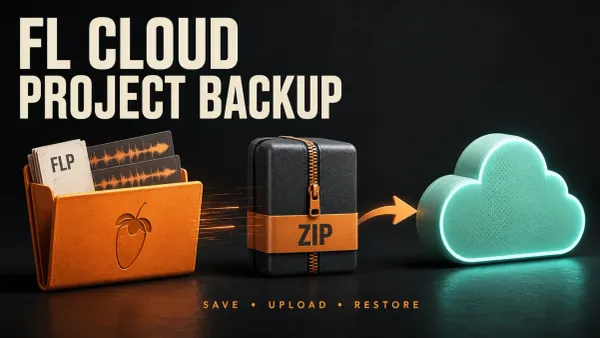 FL Cloud Project Backup: Setup, Limits and Restore
Set up save-triggered FL Cloud project backups, protect named milestones and test a downloaded ZIP while checking storage, dependencies and retention limits.
Open the workflow guide
FL Cloud Project Backup: Setup, Limits and Restore
Set up save-triggered FL Cloud project backups, protect named milestones and test a downloaded ZIP while checking storage, dependencies and retention limits.
Open the workflow guide
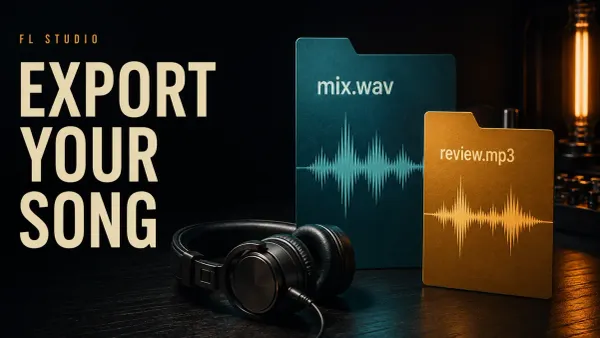 Export a Song from FL Studio: WAV, MP3 and More
Export the finished mix, not an accidental excerpt: check the Master route, effects, range, tail and delivery format, then listen to the actual file.
Open the workflow guide
Export a Song from FL Studio: WAV, MP3 and More
Export the finished mix, not an accidental excerpt: check the Master route, effects, range, tail and delivery format, then listen to the actual file.
Open the workflow guide
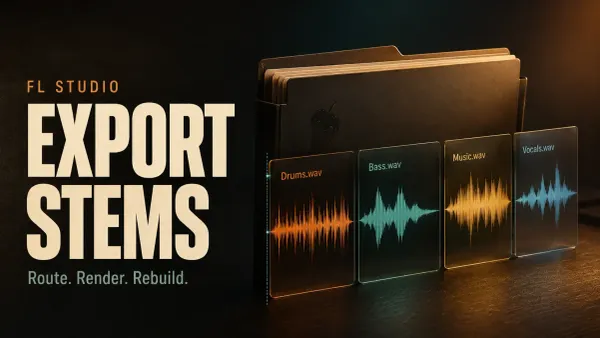 Export Stems from FL Studio: Routes, Effects and Alignment
Choose the files that belong together, preserve the right effects and common start, then check the actual WAV delivery without risking an open Trial project.
Open the workflow guide
Export Stems from FL Studio: Routes, Effects and Alignment
Choose the files that belong together, preserve the right effects and common start, then check the actual WAV delivery without risking an open Trial project.
Open the workflow guide
 FL Studio Export Settings: Bit Depth, Sinc and Dither
Choose the format and depth for the next person, understand what sinc and HQ actually affect, then check the exported file without risking needed Trial work.
Open the workflow guide
FL Studio Export Settings: Bit Depth, Sinc and Dither
Choose the format and depth for the next person, understand what sinc and HQ actually affect, then check the exported file without risking needed Trial work.
Open the workflow guide
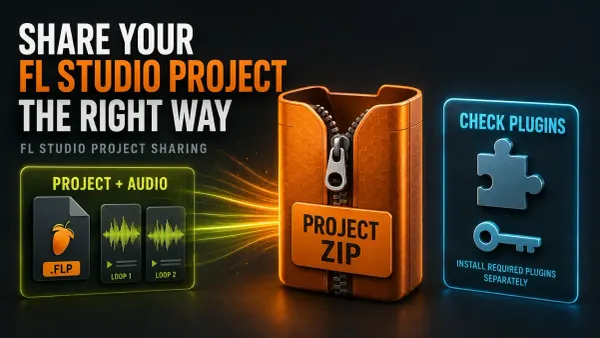 FL Studio Zipped Loop Package: Share Projects Safely
Create an FL Studio Zipped Loop Package, check external libraries and plugin compatibility, then verify and preserve the recipient’s working copy.
Open the workflow guide
FL Studio Zipped Loop Package: Share Projects Safely
Create an FL Studio Zipped Loop Package, check external libraries and plugin compatibility, then verify and preserve the recipient’s working copy.
Open the workflow guide
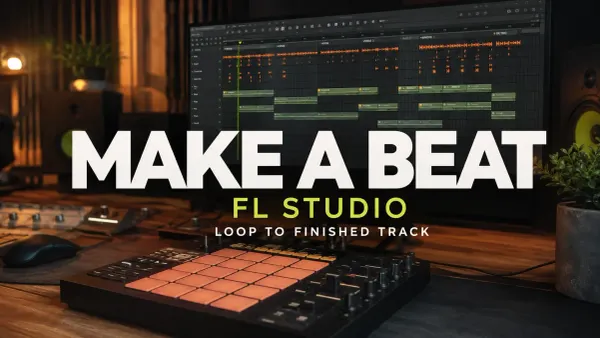 How to Make a Beat in FL Studio: Start to Finish
Build a beat from a counted drum grid and a two-bar melody. Turn the loop into a 32-bar practice arrangement, make a rough balance and check the finished audio.
Open the workflow guide
How to Make a Beat in FL Studio: Start to Finish
Build a beat from a counted drum grid and a two-bar melody. Turn the loop into a 32-bar practice arrangement, make a rough balance and check the finished audio.
Open the workflow guide
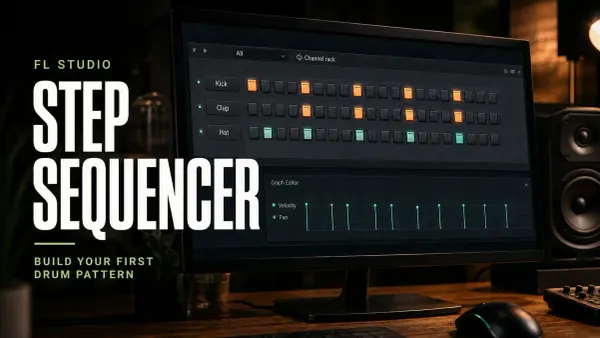 FL Studio Step Sequencer: Steps, Length & Velocity
Program a counted drum loop, control 16- and 32-step lengths, shape velocity and fix missing buttons or unexpected repeats without losing your notes.
Open the workflow guide
FL Studio Step Sequencer: Steps, Length & Velocity
Program a counted drum loop, control 16- and 32-step lengths, shape velocity and fix missing buttons or unexpected repeats without losing your notes.
Open the workflow guide
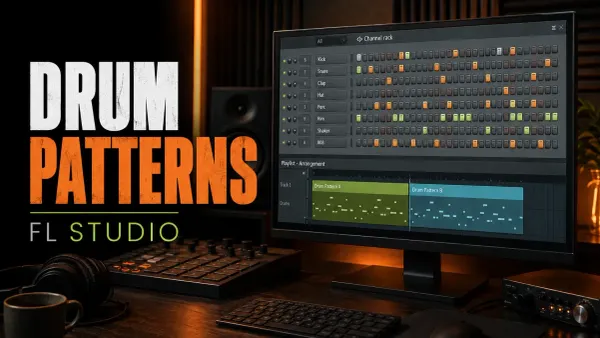 FL Studio Drum Patterns: 3 Grooves, Accents & Fills
Program three counted drum grooves, compare hi-hat accents and turn a one-bar pattern into an A/B phrase without changing the original.
Open the workflow guide
FL Studio Drum Patterns: 3 Grooves, Accents & Fills
Program three counted drum grooves, compare hi-hat accents and turn a one-bar pattern into an A/B phrase without changing the original.
Open the workflow guide
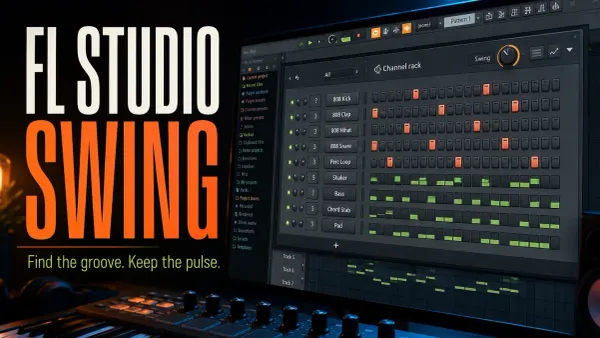 FL Studio Swing: Add Groove Without Losing the Beat
Hear what Global Swing actually moves, set each instrument’s response and choose a groove template or local note edit without changing the wrong Pattern.
Open the workflow guide
FL Studio Swing: Add Groove Without Losing the Beat
Hear what Global Swing actually moves, set each instrument’s response and choose a groove template or local note edit without changing the wrong Pattern.
Open the workflow guide
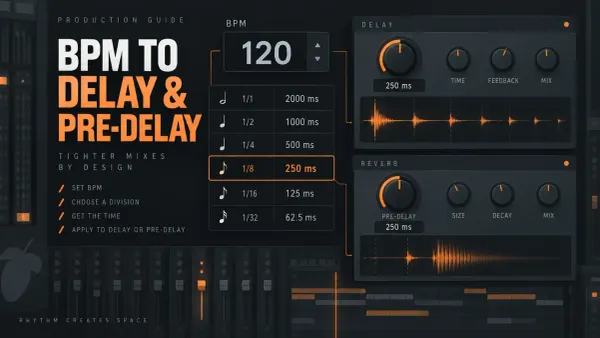 FL Studio Delay and Reverb Calculator: BPM to Milliseconds
Convert your FL Studio project BPM into delay divisions in milliseconds, then place them in Fruity Delay 3 or use the short ones as Fruity Reeverb 2 pre-delay.
Open the workflow guide
FL Studio Delay and Reverb Calculator: BPM to Milliseconds
Convert your FL Studio project BPM into delay divisions in milliseconds, then place them in Fruity Delay 3 or use the short ones as Fruity Reeverb 2 pre-delay.
Open the workflow guide
 How to Use Tap Tempo in FL Studio
Use FL Studio's Tempo Tapper to follow a beat, correct half or double-time readings, nudge a live source, and decide when Detect tempo is the better tool.
Open the workflow guide
How to Use Tap Tempo in FL Studio
Use FL Studio's Tempo Tapper to follow a beat, correct half or double-time readings, nudge a live source, and decide when Detect tempo is the better tool.
Open the workflow guide
 FL Studio Song Length Calculator: Bars, BPM and Time
Convert BPM and bars to minutes with FL Studio's time-signature math, then check what can change the exported runtime.
Open the workflow guide
FL Studio Song Length Calculator: Bars, BPM and Time
Convert BPM and bars to minutes with FL Studio's time-signature math, then check what can change the exported runtime.
Open the workflow guide
 FL Studio vs Pro Tools: Which DAW Fits Your Workflow?
FL Studio is faster for patterns, Piano Roll work and beatmaking; Pro Tools is stronger for multitrack recording, comping, detailed editing and studio exchange. Here is how to choose—and how to use both safely.
Open the workflow guide
FL Studio vs Pro Tools: Which DAW Fits Your Workflow?
FL Studio is faster for patterns, Piano Roll work and beatmaking; Pro Tools is stronger for multitrack recording, comping, detailed editing and studio exchange. Here is how to choose—and how to use both safely.
Open the workflow guide
 How to Import MP3 or Audio into FL Studio
Import MP3 or WAV files into the FL Studio Playlist or Channel Rack, add permanent Browser folders and fix drag-and-drop, format and tempo problems.
Open the workflow guide
How to Import MP3 or Audio into FL Studio
Import MP3 or WAV files into the FL Studio Playlist or Channel Rack, add permanent Browser folders and fix drag-and-drop, format and tempo problems.
Open the workflow guide
 Pitch Detector: Find Notes, Hz and Cents Online
Identify a note, octave, frequency and cents offset from your microphone, then understand unstable readings and choose the right FL Studio pitch tool.
Open the workflow guide
Pitch Detector: Find Notes, Hz and Cents Online
Identify a note, octave, frequency and cents offset from your microphone, then understand unstable readings and choose the right FL Studio pitch tool.
Open the workflow guide
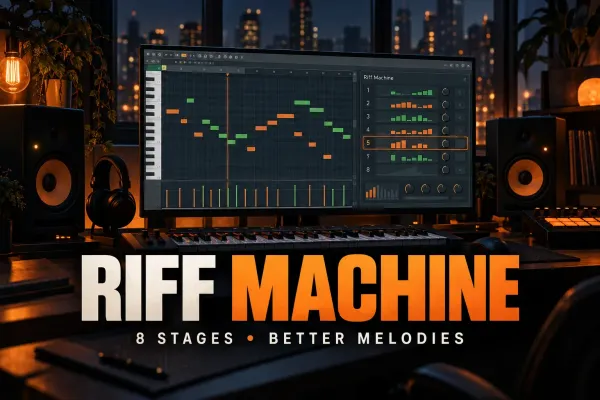 FL Studio Riff Machine: A Controlled Melody Workflow
Use FL Studio Riff Machine without random overload: set Snap, control all eight stages, process existing notes and fix timing, range and density problems.
Open the workflow guide
FL Studio Riff Machine: A Controlled Melody Workflow
Use FL Studio Riff Machine without random overload: set Snap, control all eight stages, process existing notes and fix timing, range and density problems.
Open the workflow guide
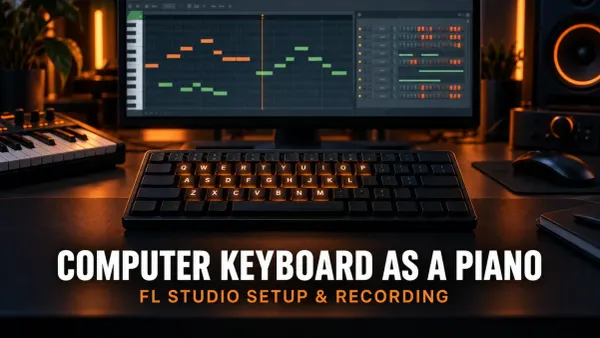 How to Use Your Computer Keyboard as a Piano in FL Studio
Use your computer keyboard as a piano in FL Studio: enable the mode, learn the QWERTY note map, control velocity, record notes and fix latency.
Open the workflow guide
How to Use Your Computer Keyboard as a Piano in FL Studio
Use your computer keyboard as a piano in FL Studio: enable the mode, learn the QWERTY note map, control velocity, record notes and fix latency.
Open the workflow guide
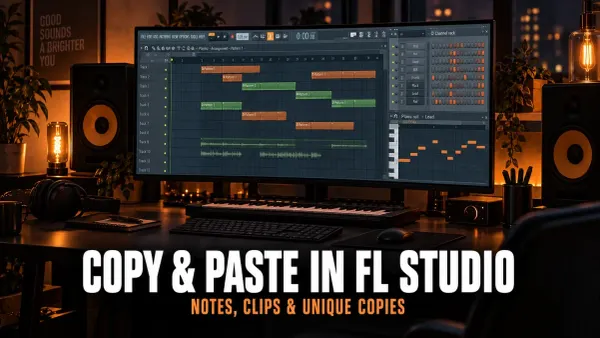 How to Copy and Paste in FL Studio Without Editing the Wrong Part
Copy notes, Clips, Channels, Patterns and automation in FL Studio without pasting in the wrong place or changing every repeated part.
Open the workflow guide
How to Copy and Paste in FL Studio Without Editing the Wrong Part
Copy notes, Clips, Channels, Patterns and automation in FL Studio without pasting in the wrong place or changing every repeated part.
Open the workflow guide
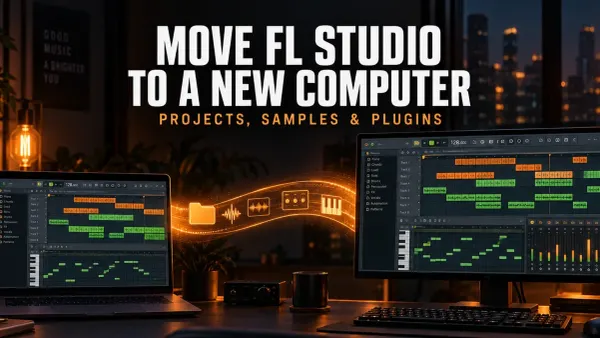 Move FL Studio to a New Computer Without Breaking Projects
Move FL Studio, projects, samples, plugins and presets to a new computer with a controlled checklist that prevents missing files and broken sessions.
Open the workflow guide
Move FL Studio to a New Computer Without Breaking Projects
Move FL Studio, projects, samples, plugins and presets to a new computer with a controlled checklist that prevents missing files and broken sessions.
Open the workflow guide
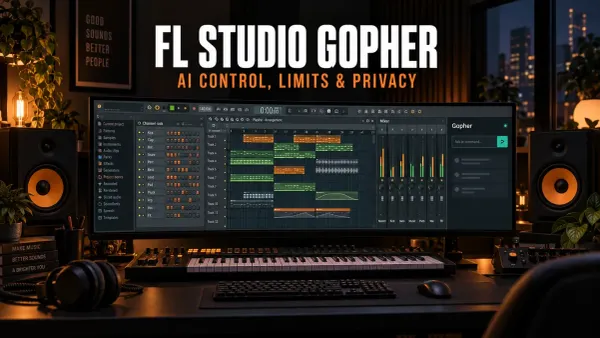 FL Studio Gopher: What the AI Assistant Can and Cannot Do
Use FL Studio Gopher for bounded project actions without missing its experimental controls, plugin limits, approval flow or privacy rules.
Open the workflow guide
FL Studio Gopher: What the AI Assistant Can and Cannot Do
Use FL Studio Gopher for bounded project actions without missing its experimental controls, plugin limits, approval flow or privacy rules.
Open the workflow guide
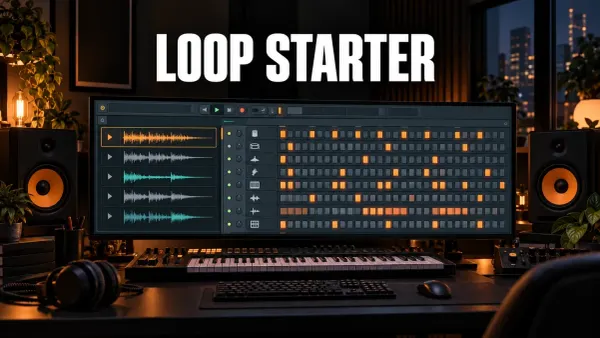 FL Studio Loop Starter: Build an Editable Starting Point
Use FL Studio Loop Starter to build a controlled sketch, lock useful parts, replace weak samples and turn the result into an original Playlist arrangement.
Open the workflow guide
FL Studio Loop Starter: Build an Editable Starting Point
Use FL Studio Loop Starter to build a controlled sketch, lock useful parts, replace weak samples and turn the result into an original Playlist arrangement.
Open the workflow guide
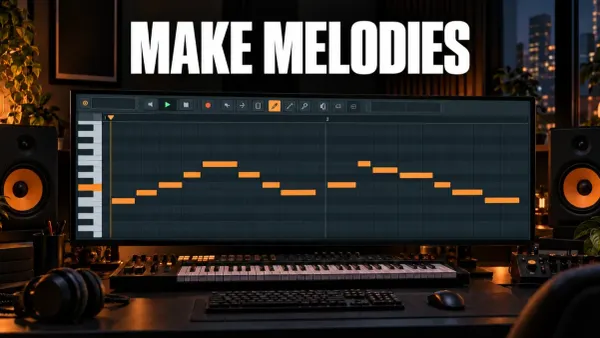 How to Make Melodies in FL Studio Without Guessing
Write melodies in FL Studio with a rhythm-first method: set the grid, build a four-note motif, shape variation and check harmony with Ghost Notes.
Open the workflow guide
How to Make Melodies in FL Studio Without Guessing
Write melodies in FL Studio with a rhythm-first method: set the grid, build a four-note motif, shape variation and check harmony with Ghost Notes.
Open the workflow guide
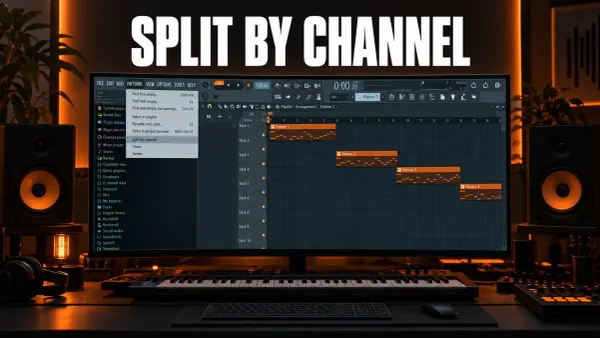 How to Split a Pattern by Channel in FL Studio
Split one FL Studio Pattern into separate Channel Patterns, arrange each part independently, prevent doubled playback and preserve Mixer routing.
Open the workflow guide
How to Split a Pattern by Channel in FL Studio
Split one FL Studio Pattern into separate Channel Patterns, arrange each part independently, prevent doubled playback and preserve Mixer routing.
Open the workflow guide
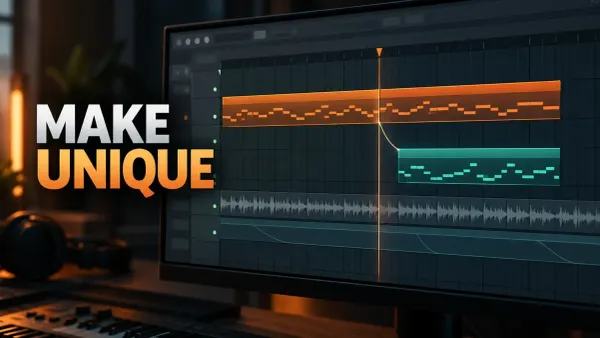 Make Unique in FL Studio: Patterns, Audio Clips and Samples
Learn what Make Unique does in FL Studio, when to use it on Pattern Clips or Audio Clips, and why Make unique as sample is different.
Open the workflow guide
Make Unique in FL Studio: Patterns, Audio Clips and Samples
Learn what Make Unique does in FL Studio, when to use it on Pattern Clips or Audio Clips, and why Make unique as sample is different.
Open the workflow guide
 FL Studio Audio Logger: Recover Audio You Forgot to Record
Recover recent Master output in FL Studio with Audio Logger, choose the right capture position, save the buffer and know when Edison or Playlist recording is safer.
Open the workflow guide
FL Studio Audio Logger: Recover Audio You Forgot to Record
Recover recent Master output in FL Studio with Audio Logger, choose the right capture position, save the buffer and know when Edison or Playlist recording is safer.
Open the workflow guide
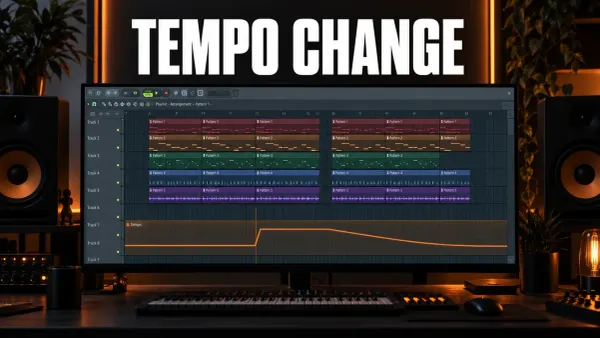 How to Change Tempo Mid-Song in FL Studio
Change BPM partway through an FL Studio song with a Tempo automation clip, set exact values, pick a switch or a ramp and keep audio clips in time.
Open the workflow guide
How to Change Tempo Mid-Song in FL Studio
Change BPM partway through an FL Studio song with a Tempo automation clip, set exact values, pick a switch or a ramp and keep audio clips in time.
Open the workflow guide
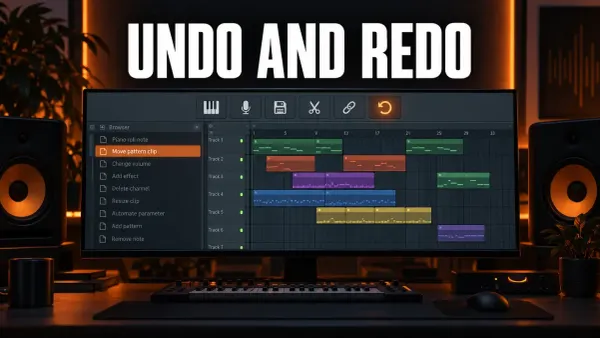 How to Undo and Redo in FL Studio
Undo with Ctrl+Alt+Z, redo with Ctrl+Z, jump back through the History list and fix FL Studio undo that only goes back once or skips knob moves.
Open the workflow guide
How to Undo and Redo in FL Studio
Undo with Ctrl+Alt+Z, redo with Ctrl+Z, jump back through the History list and fix FL Studio undo that only goes back once or skips knob moves.
Open the workflow guide
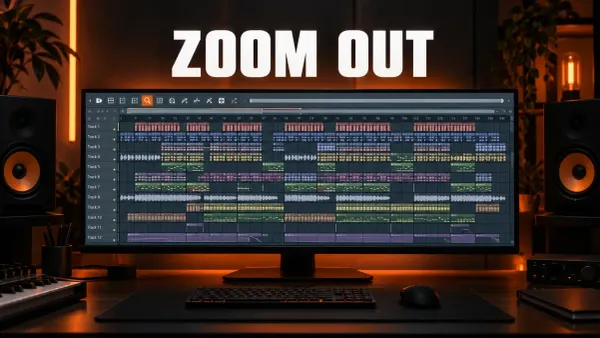 How to Zoom Out in FL Studio and Fix a Stuck Zoom
Zoom out with Ctrl+wheel, Page Down or Shift+4, leave a stuck Zoom tool, resize Playlist tracks and fix an FL Studio window that looks too big.
Open the workflow guide
How to Zoom Out in FL Studio and Fix a Stuck Zoom
Zoom out with Ctrl+wheel, Page Down or Shift+4, leave a stuck Zoom tool, resize Playlist tracks and fix an FL Studio window that looks too big.
Open the workflow guide
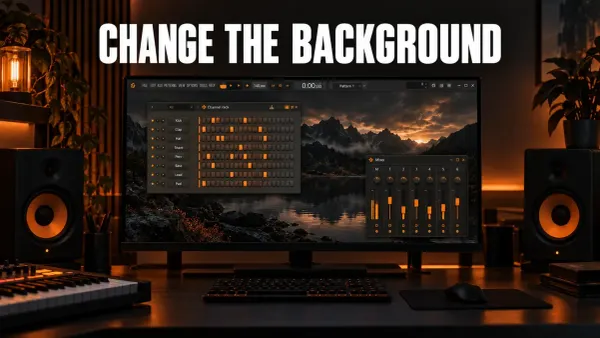 How to Change the FL Studio Background and Theme
Set a wallpaper or plain color behind FL Studio's windows, give the Playlist its own picture, and change, save and share themes with the Theme editor.
Open the workflow guide
How to Change the FL Studio Background and Theme
Set a wallpaper or plain color behind FL Studio's windows, give the Playlist its own picture, and change, save and share themes with the Theme editor.
Open the workflow guide
Before a loop becomes an arrangement
- Patterns and Audio Clips that need different edits have been made independent deliberately.
- Time signature, snap and quantize choices match the musical phrase rather than a default habit.
- Recorded and consolidated audio lives in the project data folder and reopens correctly.
- The Playlist has recognizable sections, transitions and space instead of one repeated block.
- Automation and detailed nudges solve audible problems that survive normal playback.
Capture new material in Recording, build the source itself in Sound Design, and move to Mixing when the structure works and the remaining decisions are level, tone and space.
FL Studio workflow questions
Why did editing one FL Studio clip change other parts of the song?
Several Playlist instances can point to the same Pattern or Audio Clip source. Make the item unique before an edit that should affect only one section, then confirm whether you changed the clip instance, its channel settings or the underlying audio.
Is quantizing the same as changing the snap setting?
No. Snap guides movement against the grid, while quantize changes the timing of existing notes or clips. Use quantize after listening to the performance and keep enough of the original timing to preserve the intended groove.
What should I organize first in a large FL Studio project?
Name the musical roles, keep related clips and Mixer routes easy to trace, and set a project data folder for recorded or consolidated audio. Color helps, but dependable ownership and file location matter more.