FL Studio
An organized FL Studio project lets you find the lead vocal, see where it's routed and pick the right working version without opening twenty files. Start with useful names, a handful of consistent colors and a saved version before any risky edit. Hold off on deleting anything until you know what each object does.
The Channel Rack, Playlist and Mixer each describe a different part of the song. Matching labels across them helps you find your way around, but a label doesn't connect anything. Saving another FLP works the same way: it preserves the project state, and it doesn't give you an independent copy of every audio file on disk.
Organize an FL Studio project in nine steps
- Give the song a recognizable identity. Save the working FLP with a useful name and check its project data folder before creating more recordings.
- Name by musical role. Identify important Channels, Patterns, Playlist lanes and Mixer tracks. A multi-instrument Pattern may need a section name rather than one instrument's name.
- Choose a small color vocabulary. Repeat a few families for rhythm, tonal parts, vocals and automation. Keep text labels useful without color.
- Verify the relationships. Check actual Channel-to-Mixer assignments and any Track Mode links. Matching names or lane numbers are not routing.
- Preserve the current state. Use Save new version before structural edits. Separately copy required audio before any operation that could remove files from disk.
- Write useful project notes. Add handoff context in Project Info, including retained alternates and important plugin dependencies.
- Review at a musical checkpoint. Tidy when the song changes direction or moves into recording, mixing or handoff, rather than interrupting every edit.
- Review before removing. Check all Arrangements, source Channels and control dependencies. Distinguish selection tools from commands that immediately remove objects or files.
- Validate and save the result. Play the relevant Arrangements through their endings, save, then reopen the saved copy on a licensed installation. In the standard Trial, keep validation in the open session; reopening your saved project requires purchase and unlock.
That last limitation matters before you close anything. Image-Line's standard time-unlimited Trial explanation confirms that you can save, but reopening those saved projects stays restricted until purchase. A check inside the open session is still worth doing. It just proves nothing about whether the saved file will reopen.
Think in three levels, not one color palette
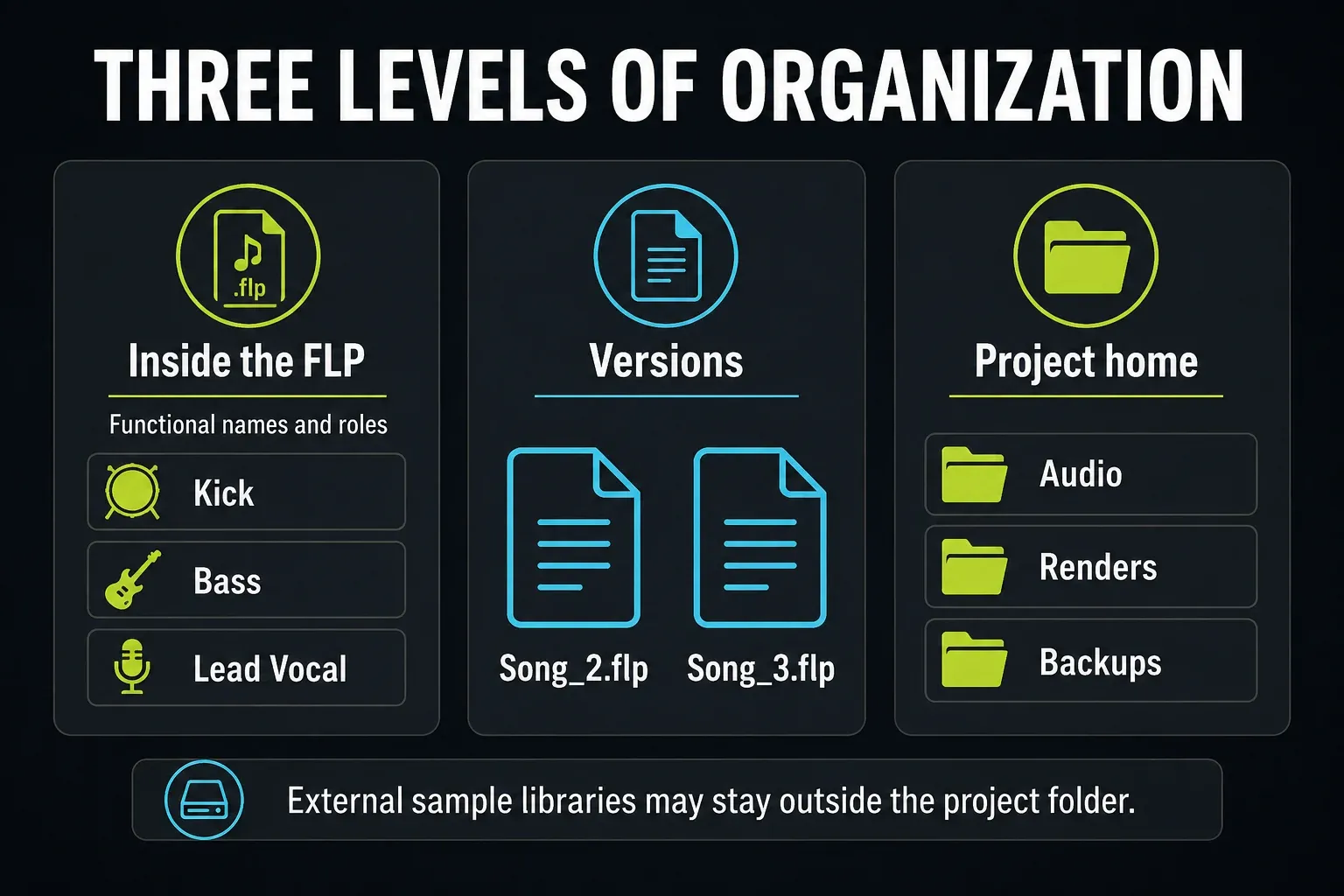
Inside the FLP, make the musical objects easy to understand. Next to it, keep versions that preserve your decisions. Around both, know where your recordings, renders and referenced samples live. A beautifully colored Playlist can't bring back a missing recording, and a tidy folder tree can't explain eighty anonymous Mixer inserts.
This guide covers organizing a song that's already taking shape. If you want a starting layout to reuse before the next song begins, build a project template. Fitting windows across several displays is a separate problem, and the FL Studio multiple-monitor guide handles it. More screen space won't make an unnamed part any easier to recognize.
Name objects when their role becomes clear
Rename a sound once it earns its place in the song. Kick, Bass Main, Lead Vocal, Drum Bus and Vocal Delay all describe jobs. If the preset or sample filename matters, it can live in your notes. It doesn't have to be the only label you see while arranging.
For Patterns, try names such as Verse Drums, Bass Fill or Hook Chords. The Patterns menu includes Rename and color. A Pattern can hold note and automation data across several Channels, so calling a full drums-and-bass Pattern “Kick” hides what's inside. If that distinction still feels fuzzy, start with Channels versus Patterns in the Channel Rack.
Pick a small palette you can remember: maybe warm colors for drums, blue for tonal parts and green for vocals. Those are only examples, and FL Studio imposes no color rules. Keep the names informative for anyone who can't tell those colors apart. Color should help you find a family of parts. It should never be the only warning that a track is muted or that an alternate take must stay.
Align Channel Rack, Playlist and Mixer without inventing links
A Channel, a Playlist lane and a Mixer track can all be called Lead Vocal. That's a handy naming convention, but it proves nothing about where the audio goes. In a free-form project, check the source Channel's Mixer destination, then any bus or send routes after it.
The Playlist documentation explains how unassigned lanes differ from the Instrument and Audio Track modes, which deliberately tie Playlist tracks to sources and Mixer destinations. Don’t switch on a new mode just to make the numbering look neat. Work out the existing arrangement and routing first.
To rename or color a Playlist lane, right-click its track header. Auto name clips applies the track's name and color to its clips, so use it only when that shared label really describes them. If one lane holds several roles, I'd stick with individual labels.
The Channel Rack's Sort by > Track number command orders Channels by their Mixer assignment, and the manual notes that Generator and Layer channels stay at the top. Sorting changes the order of the list. It leaves the assignments alone. If clutter is the problem, use Channel groups or filters instead of deleting a source you just don’t want to see.
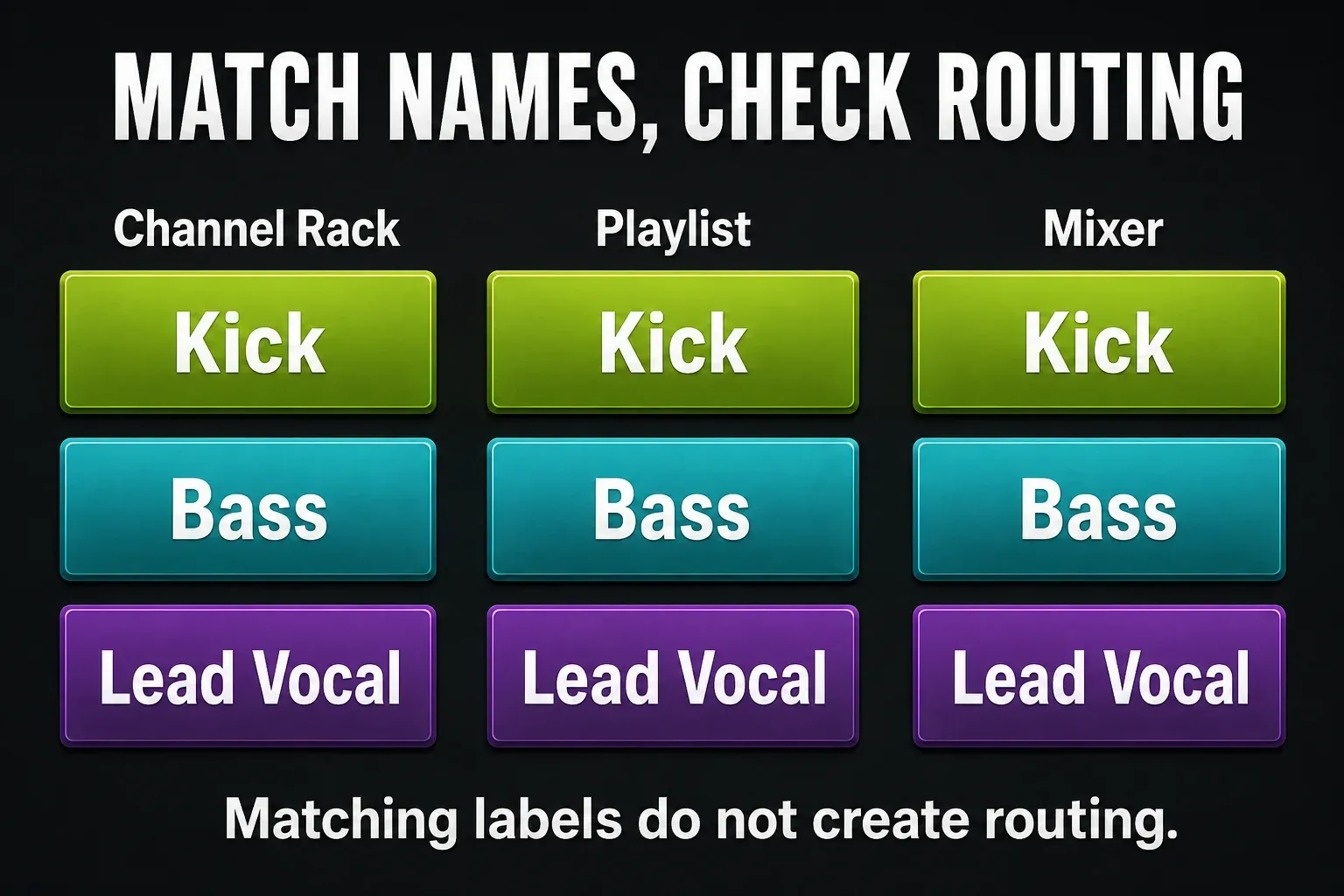
The Playlist workflow guide covers grouping and arranging clips, and the Mixer routing guide handles audio connections. For this guide, success means you can identify a part and trace where it really goes. You don't have to force every window into the same numbered grid.
Use Save, Save As and Save new version for different jobs
Pick the command by what you want to keep. Image-Line's File menu reference treats these as three separate operations:
| Command | What it does | A useful moment |
|---|---|---|
| Save | Updates the current project file | Keep ordinary edits in the working copy |
| Save new version | Creates a numbered version such as Song_2.flp, then Song_3.flp | Before rerouting, removing sources or trying a different direction |
| Save as | Lets you choose another name, location or format | Create a clearly named milestone such as Song_pre-mix.flp |
Ctrl/Cmd+N is Save new version, and Ctrl/Cmd+Shift+S is Save as. The official shortcut reference confirms the difference. Treat the example filenames as suggestions only. FL Studio doesn't require any particular naming syntax.
A version number records the order of saves. It says nothing about approval, and Song_19.flp isn't automatically the mix the client signed off on. Put a meaningful status in a milestone name or your handoff notes, and keep the earlier version whenever a change might need undoing.
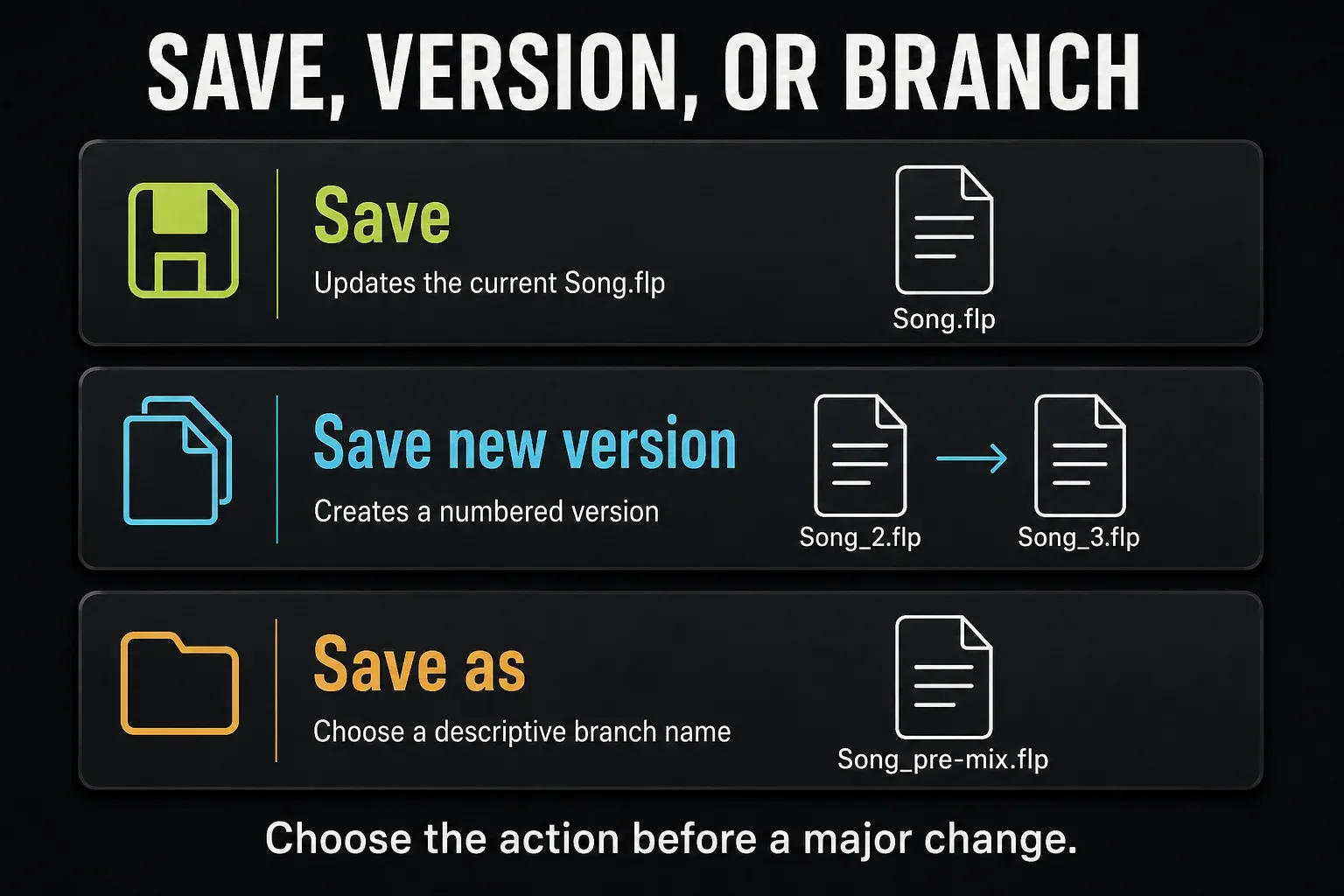
A numbered FLP doesn't back up your audio. Several versions can point to the same recording, so deleting that recording can break every one of them. Before any disk cleanup, copy the required project data and external assets to a separate safe location.
Use autosave and backup recovery for emergencies, but keep making deliberate milestones alongside it. If you rely on FL Cloud project backup, check when it triggers on save and what the package contains. It doesn't capture every edit continuously in the background.
Give each active song one project home
For a new song, one clearly named project home is an easy place to start. With an existing song, check Options > Project general settings before you move anything. The current Project settings documentation separates three setups: no data folder, storage relative to the project file, and storage in a specified folder.
Keep the working FLP and its versions with the intended project data. Scattering version files into new subfolders is risky. With relative storage, the project's location matters; with specified storage, the recorded path does. Image-Line's invalid project data folder guidance explains how moving a file or its data folder separately can break that link.
A project folder doesn't automatically collect every sample you've loaded. A sound added through the FL Studio Browser may still point to your separate library. When you gather the session, review Copy used samples to the project folder, then check the files themselves and any libraries that plugins manage internally.
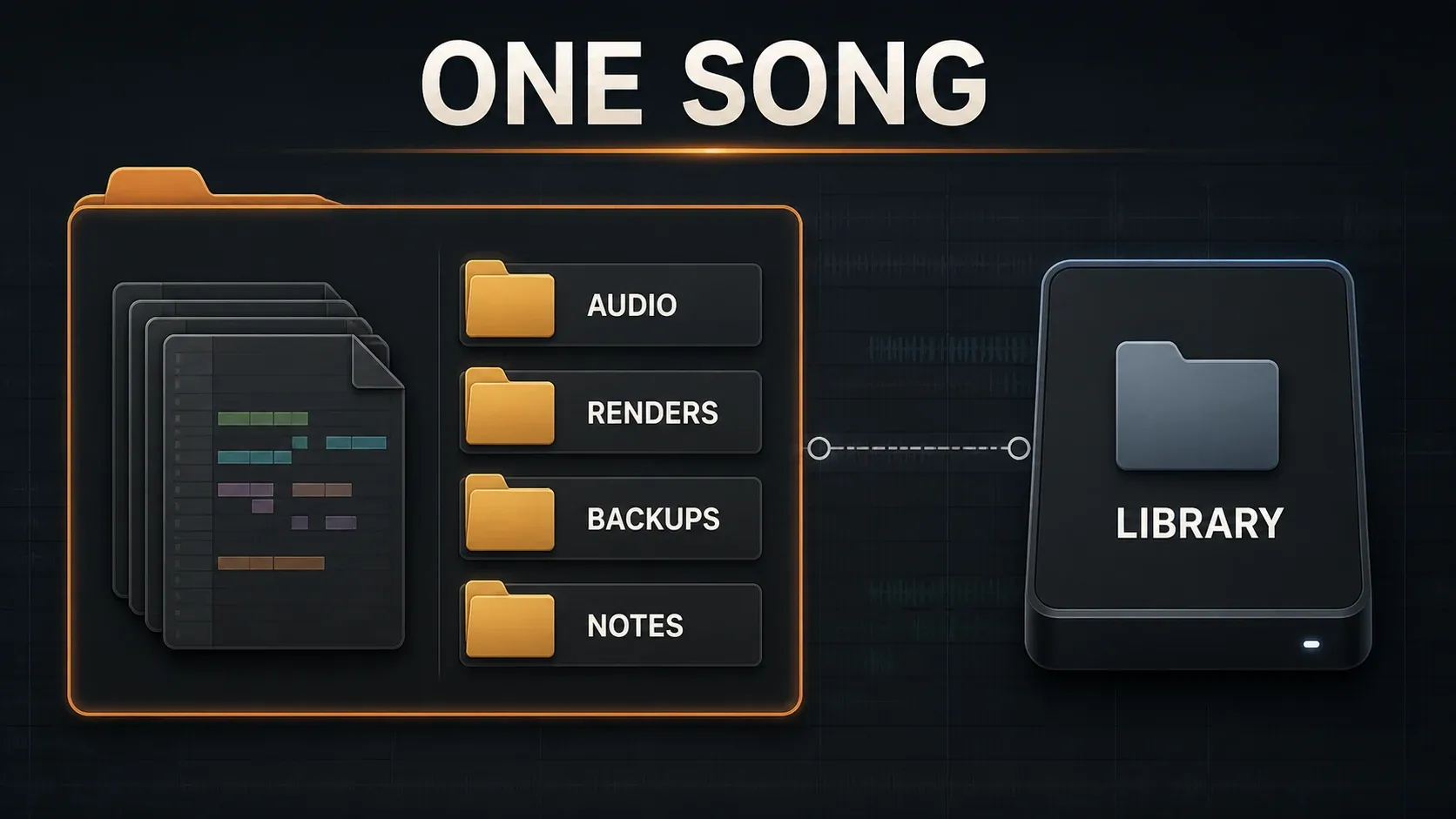
Keep recordings, renders and backups easy to tell apart, because a delivered stereo mix can't replace the source takes. An optional Notes folder can hold your own text documents, though FL Studio doesn't require one.
The project-format reference explains the packaging limit: a zipped loop package gathers the FLP and the samples used by Sampler Channels and Audio Clips. Third-party plugin libraries stay behind unless the plugin embeds the content it needs. For a handoff, Image-Line also recommends matching plugin formats and versions, or bouncing unavailable instruments to audio. A tidy ZIP filename tells you nothing about compatibility.
If the session has to move, follow the project folder migration guide. Don't rename or delete library files just to make one song's folder tree look cleaner, because that will break other projects.
Use Project Info for handoff context, not legal storage
Press F11 to open Project Info. The Project Info reference describes the Title, Genre, Author, Info and URL fields. For a handoff, a useful Info note can read: Milestone: vocal edit approved · FL Studio 2026 · VST3/AU · required libraries: Kontakt + pack name · alternates retained in “Safety” · reference: songname_v3.wav. Genre and Author also end up in WAV/MP3 metadata, so check them before you send exports.
Write notes that answer the next person's first questions: which reference mix to compare against, which alternate vocal has to stay, what delivery sample rate was requested, or which plugin and version are needed. Typing a sample rate into the Info field doesn't change the export setting. It only reminds you to check it.
Show it on Open displays the project information when the song loads. The working-time figure is approximate activity tracking, so never use it for billing. Keep contracts, approvals and the only copy of client instructions outside the FLP. Never put passwords or license keys in a project you might share.
Tidy at musical checkpoints instead of after every edit
Review the session when the work itself changes. You can move through these stages in any order:
- Idea: name the song, important Patterns and sources that are staying.
- Arrangement: make sections and alternate versions recognizable; keep experiments you may want back.
- Recording: identify takes and preserve the source recordings behind the comp.
- Pre-mix: check actual Channel destinations, bus and send roles, and any hidden sources.
- Handoff: create a named milestone, gather required data and plugin information, and validate the saved deliverable on a licensed installation. In the standard Trial, document what you checked in the open session without claiming a reopen test.
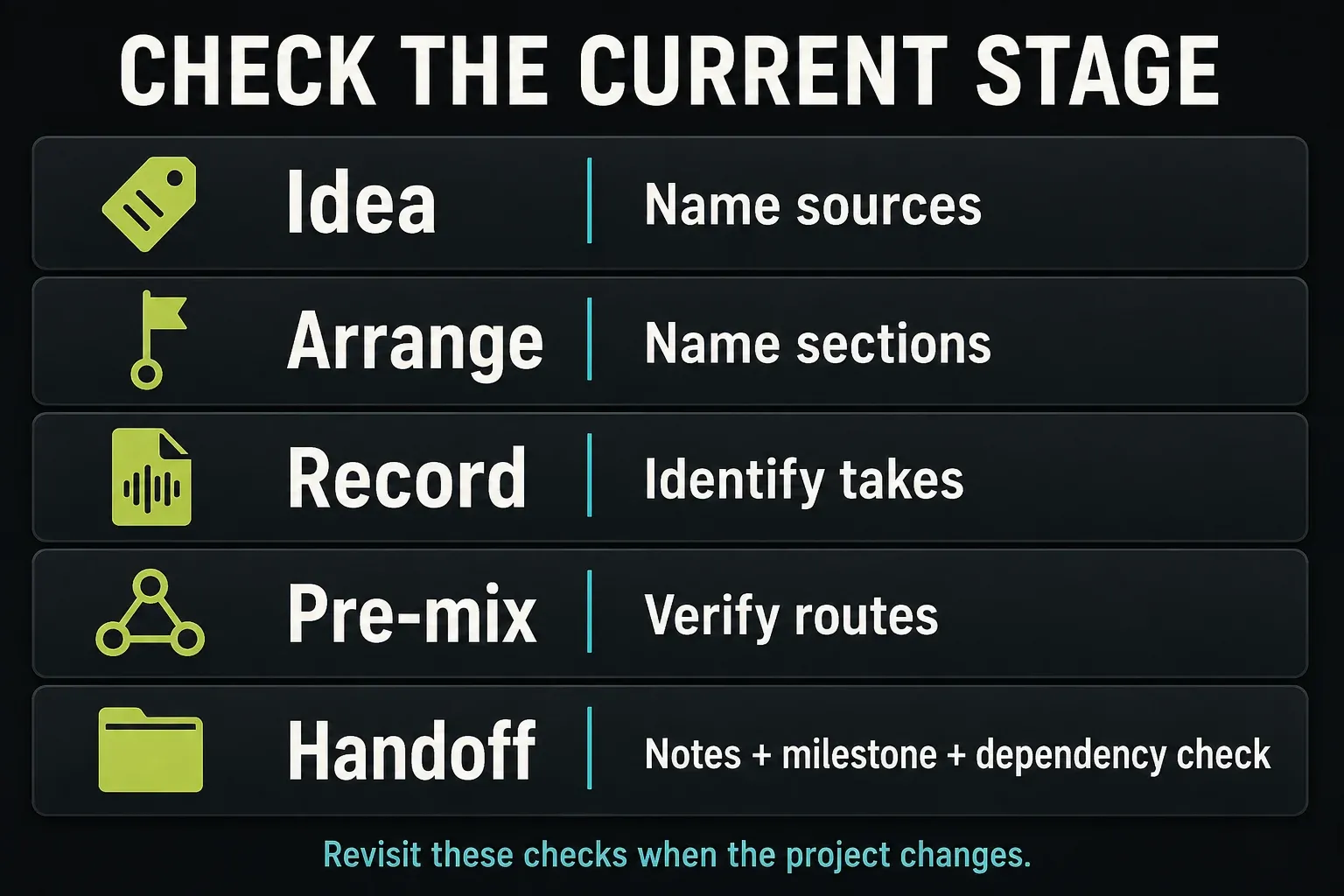
There's no universal tidying schedule that makes sense here. Labeling three new takes and untangling a large inherited session are completely different jobs. Stop once the next decision is clear. Not every empty lane needs a custom icon.
Clean unused state only after preserving the project and its data
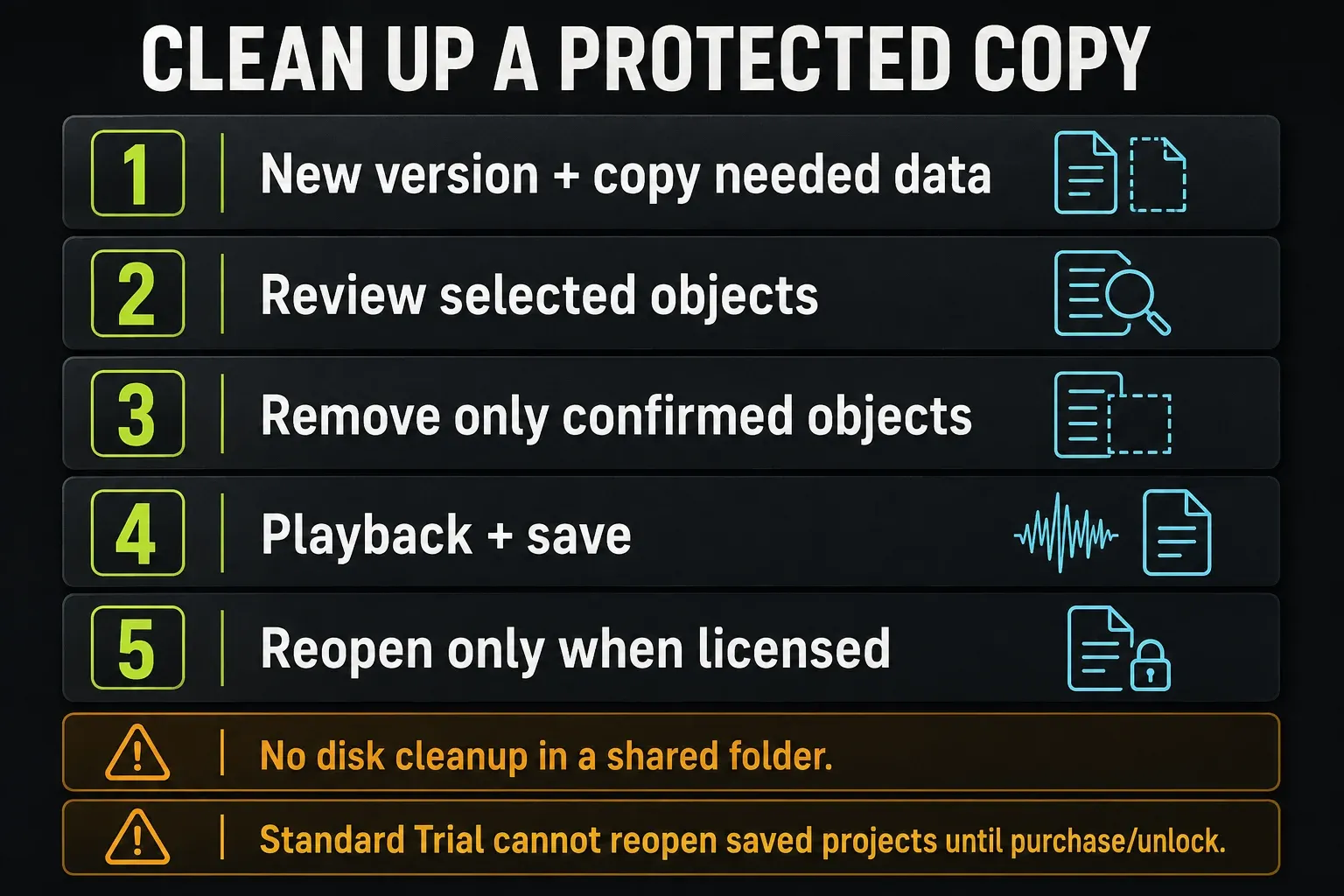
Start with a new project version. Before you delete anything on disk, keep an independent copy of the audio you need. Then handle four very different operations separately. Image-Line's Tools menu documentation spells out what each macro does.
| Operation | What the criterion means | What to check first |
|---|---|---|
| Select unused channels | Selects Channels with no Step Sequencer or Piano Roll notes in any Pattern | A no-note Channel may still have a control role, useful state or a planned part. Selection is for review, not automatic permission to delete. |
| Picker panel: Select unused | Selects unplaced Pattern, Audio or Automation sources | Review every Arrangement and any non-Playlist triggering. Unplaced is not the same as disposable. |
| Purge unused audio clips | Removes Audio Clip channels with neither associated note data nor Playlist use | This is a removal command, not a selection preview. Preserve the project and inspect its sources before invoking it. |
| Delete unused files and save project | Removes qualifying files from the project Audio/Samples folders and saves | Do not use it in a shared project folder. Older versions and other songs may still need those files. |
For a normal organizing pass, review objects and remove only the ones whose role you understand. You don't need a disk-deletion macro to make the Playlist readable. A new version cannot restore a recording that the macro deleted. Even a song's older FLPs can depend on audio that its current version no longer uses.
Check every Arrangement before you decide a source is unused, because they all share the project's Channel Rack and Mixer. Automation Clips also have note-triggering and initialization behavior that a quick look at the active timeline can miss. After a small, deliberate removal, check the affected parts and play each relevant Arrangement through to its ending. Then save and run the licensed reopen test.
Fix common project-organization problems
Playlist Track 12 is not reaching Mixer Insert 12
That can be perfectly normal. Check the source Channel's assigned Mixer destination or its deliberate Track Mode link. A matching lane number or color doesn't create that route.
The Channel Rack order no longer matches the Mixer
Confirm the destinations first, then use the Channel Rack menu's Sort by > Track number option if that order helps. Keep the documented Generator/Layer exceptions in mind, and remember that sorting won't repair routing.
There are dozens of numbered FLPs and no obvious current version
On a licensed installation, open the likely candidates without overwriting them, find the state you want and save a descriptive milestone. Keep the history until the chosen copy passes playback and reopening checks. If you're on the standard Trial, keep the files and notes from the current session, because reopening saved candidates requires purchase and unlock.
A clip is gone, but a control still resets on playback
Removing an Automation Clip instance from the Playlist can leave its source Channel behind. A stored initial value can survive deleting or unlinking the Automation Clip, too. Check Browser > Current project > Patterns > Initialized controls, find the specific unwanted entry and right-click it to choose Delete event. Image-Line's parameter-reset guidance also covers recorded event automation. Don’t clear every initialization, since some starting values may be intentional.
The project folder contains files used by several songs
Leave disk cleanup alone for now. First work out which files each song and its retained versions need. Then copy the required data and verify the resulting projects through the migration workflow. A macro that evaluates the current song can't protect the references in every other project.
Project organization checklist
- The working FLP and its data location are identifiable.
- Important sources, Patterns, lanes and Mixer tracks have functional labels.
- Colors support the names instead of replacing them.
- Actual routing and Track Mode relationships have been checked.
- A pre-edit version exists, with an independent data copy before disk deletion.
- Useful alternates and dependencies are documented.
- All relevant Arrangements and control roles were reviewed before removing objects.
- The cleaned session plays through its endings and has been saved.
- Licensed users have reopened the saved deliverable; Trial users have recorded the limits of their in-session check.
Once the session is ready for its next production step, carry on through the Workflow hub. If you hit missing data or a loading fault, go to the troubleshooting routes before you reorganize any more files.
Frequently asked questions
How should I name an FL Studio project?
Choose a name you and your collaborators will recognize. Use Save new version for numbered working states, and Save as for a descriptive milestone when a branch or approval needs to stand out. No date, BPM or key formula is required.
Does Save new version replace autosave?
No. Save new version creates a deliberate numbered project copy. Autosave provides separate recovery states. Neither a numbered FLP nor an autosaved FLP guarantees an independent copy of all referenced audio.
How do I make the Channel Rack, Playlist and Mixer match?
Use consistent role names and colors, then verify the actual Mixer assignments and any Track Mode links. Sort by Track number can help organize the Channel Rack, with documented Generator/Layer exceptions, but matching labels or numbers do not route audio.
Can I safely delete every unused Channel and Audio Clip?
No. Having no notes or no Playlist placement is only a limited test of whether something is unused, so review every Arrangement and dependency first. The Select unused channels command only makes a selection, while Purge unused audio clips removes qualifying Audio Clip channels. Preserve the project before removing anything and copy the data you need separately before disk cleanup.
Does an FLP contain all samples used by the project?
No. An FLP does not automatically include every external sample. A zipped loop package gathers samples used by Sampler Channels and Audio Clips, but third-party plugin libraries need separate attention unless the plugin embeds the content.
Can I reopen an organized project in the Trial?
The standard time-unlimited Trial can save projects, but reopening those saved projects requires purchase and unlock. Check the organization while the session is open and preserve your files; do not describe that as a completed saved-file reopen test.
If the saved project still will not load, stop deleting or renaming files and follow the project recovery guide. Keep the original data until you know why the copy failed.