FL Studio
FL Cloud Project Backup uploads a ZIP of your saved FL Studio project. It’s handy for keeping a copy off your computer or moving a session to another machine. Two details matter before you switch it on, though: uploads happen when you save, not on every edit, and uploading under the same project name replaces the previous cloud copy.
Start with a project you can afford to experiment on. Keep its original files, upload a separately named copy, then check what comes back. Seeing the project in the cloud list is a good first sign. Only hearing the restored song play correctly tells you the backup works.
Before you back up, check the version and license
Project Backup arrived in FL Studio 2026. Having FL Cloud sounds or mastering doesn’t mean your installed version has project storage. If you can’t find the project-backup controls, follow the FL Studio install and update guide.
You don’t need a paid FL Cloud subscription for the Free storage allowance. The main FL Cloud FAQ also says you can create backups in FL Studio Trial but need a full FL Studio license to open and restore them. The separate Storage FAQ, though, still says you need a license even to upload. Since the two official pages disagree about Trial uploads, don’t count on restoring anything in the Trial: the download-and-reopen checks below assume a licensed installation. If work you need is still open in the standard Trial, get your saves and exports somewhere safe before you close it. A Cloud subscription alone won’t unlock the DAW.
Set up and test FL Cloud Project Backup in eight steps
- Keep the original project and its data. Make a separate test version before changing your backup routine. Do not move or delete its source samples.
- Check the account and available storage. Sign in to the intended Image-Line account. In Settings, open Account and check
Storage space used. Use a licensed FL Studio installation for the restore test. - Give the test project a distinct local name. Use
File > Save as, for exampleNightDrive_backup_test.flp, so the upload will not replace a valuable cloud item with the same name. - Upload one checkpoint. Choose
File > Save and back up to FL Cloud. Keep the local copy while the upload runs. - Find the uploaded item. In the Browser's All tab, expand
FL Cloud > Project backupsand locate the expected project name. - Download into a separate local folder. Right-click the cloud item and choose
Download. Keep the downloaded ZIP apart from your working project and preserve that ZIP unchanged. - Open and check a working copy of the ZIP. On the licensed installation, open it in FL Studio. Listen to the arrangement and check samples, automation, routing and important plugin sounds. Resolve missing dependencies before treating it as a usable backup.
- Check a local save, then choose the ongoing method. Save the restored work under a new local name with its required data, close and reopen that copy on the licensed installation, and listen again. Once satisfied, enable save-triggered Cloud backups on the working project if wanted. Keep the original and an independent backup.
The File menu documentation lists the save commands and the Cloud route. The eight-step test above is the check I'd run before trusting any backup, and a plugin-heavy project deserves a longer listen than a simple beat.
Choose one-time backup or backup on every save
| Method | Trigger | Use it when |
|---|---|---|
File > Save and back up to FL Cloud | You run the command | You want a deliberate checkpoint or transfer copy |
Settings > Project > Back up to FL Cloud Storage | You manually save that project with the setting enabled | You want its cloud copy updated as you save |
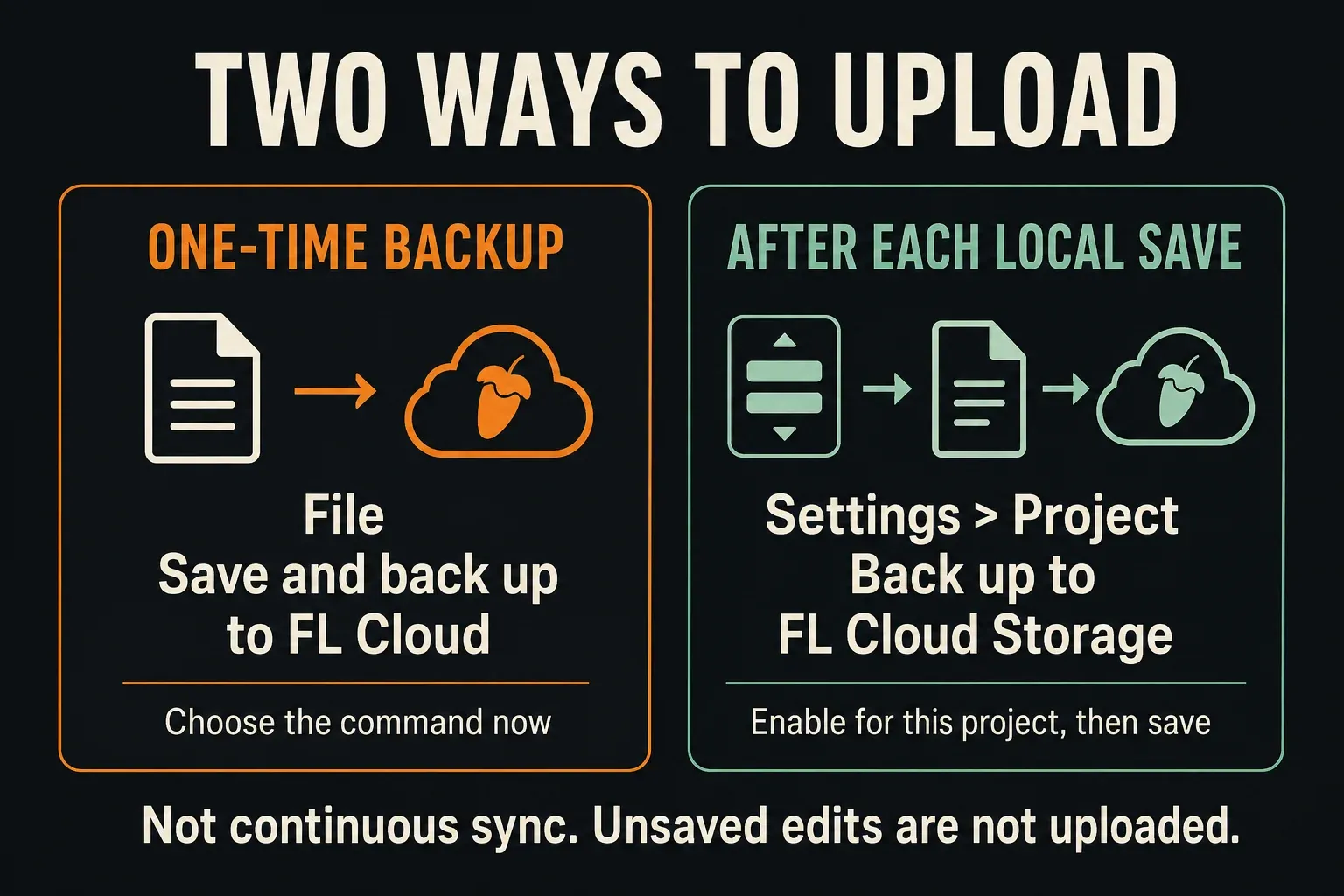
The Project General Settings manual ties the automatic upload directly to a manual project save. Flip the switch on and unsaved notes, recordings or edits still won’t stay in constant sync. Local timed Autosave is a separate system, so its timer tells you nothing about whether your latest work reached FL Cloud.
In a busy session, make checking the cloud item part of your wrap-up. If you can’t confirm the upload, hang on to the local project and its data. A save on disk and a usable remote copy are two different things, and you need to check both.
Name versions before the next upload overwrites one
The Browser manual's Cloud section describes one cloud copy per project name. Upload NightDrive.flp twice and you don't get two recoverable versions: the later upload replaces the earlier one.
Before you replace a vocal take or try a new arrangement, save a clearly named milestone such as NightDrive_v07_before_vocals.flp. Upload that version, then keep working under a different name. When you’re recovering, a label like “before vocals” tells you far more than a folder full of “final” files. The project-organization guide shows how to keep those names manageable across a whole session.
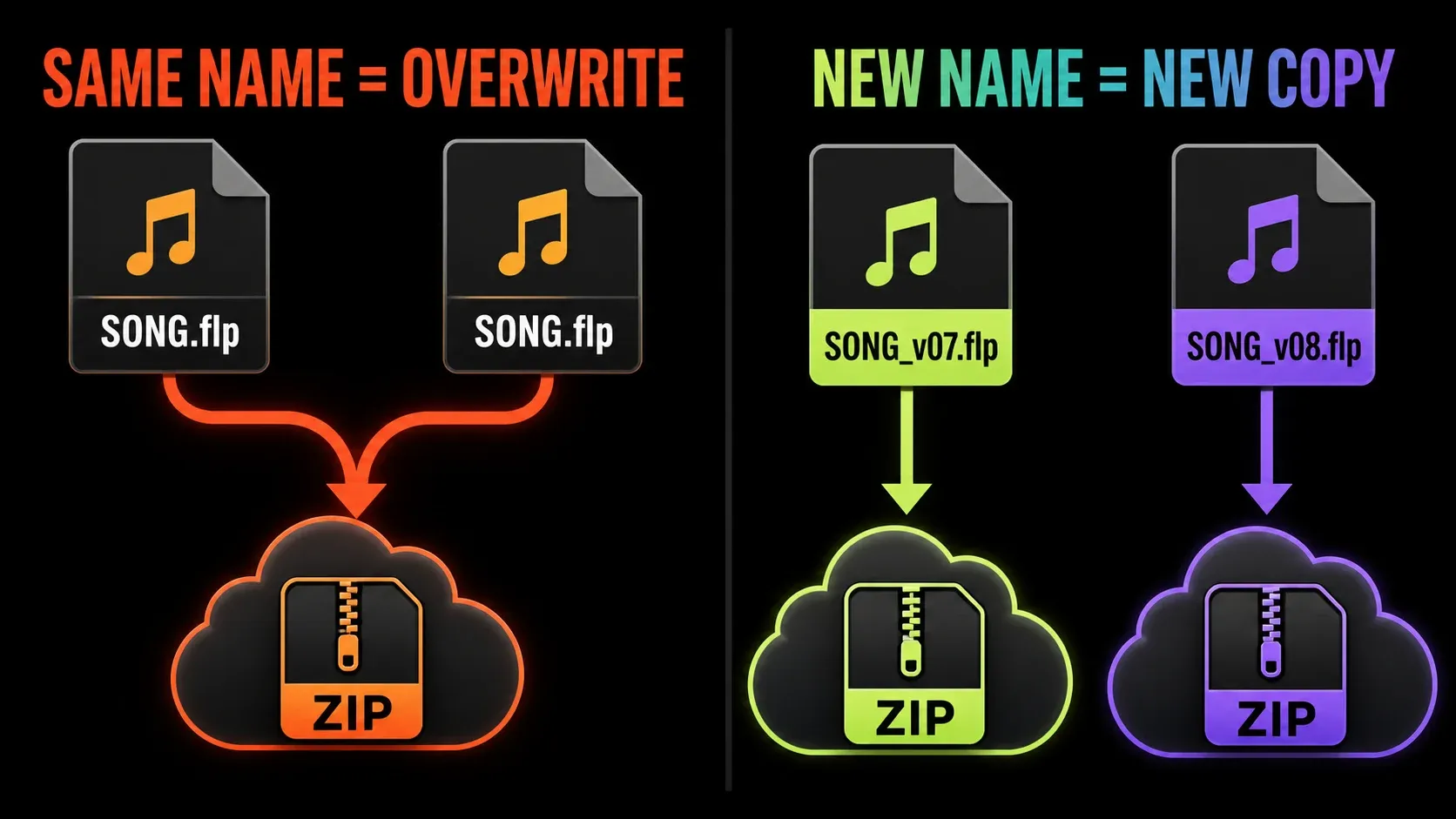
A new name only protects a distinct cloud state once that version has finished uploading. Several FLPs on the same disk help with creative decisions, but they do nothing for their shared samples if that disk fails.
Know what the cloud ZIP includes
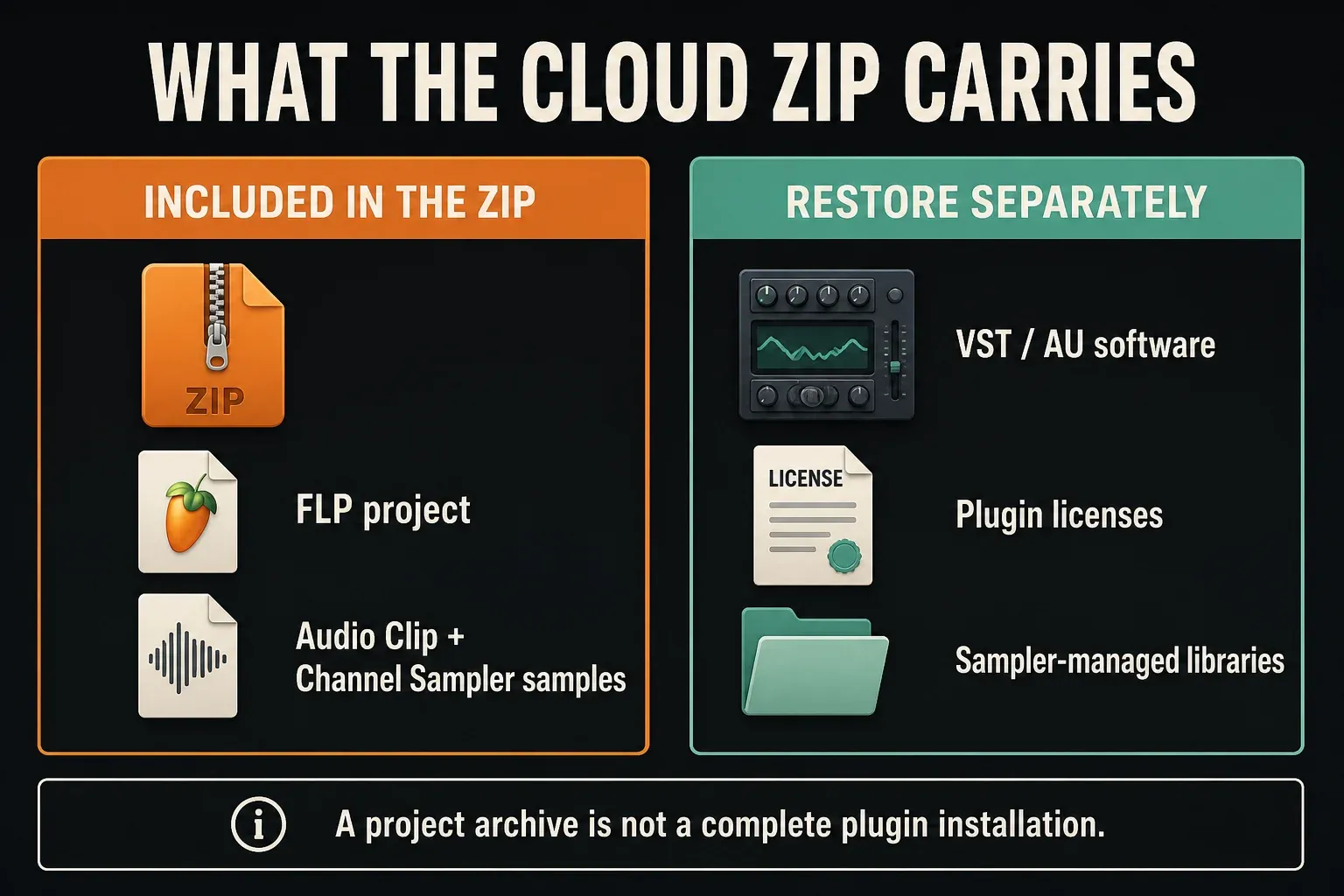
FL Studio builds the cloud ZIP for you, so there’s no need to convert your normal local FLP first. The project-format documentation says the ZIP includes the FLP and the samples used by Sampler Channels and Audio Clips. A plain FLP doesn’t carry those sample files.
Third-party sampler libraries need their own check. The project ZIP doesn’t normally collect their samples, though a plugin-specific format that embeds its sample data can be an exception. The ZIP also won’t install or authorize your VST/AU plugin software. Check what each instrument saves; “samples included” doesn’t mean every dependency travels with the project.
For a long-term archive, keep a stereo WAV reference and, where useful, separate audio renders next to the editable project. If an old instrument disappears one day, they still let you hear the intended result. They can’t preserve editable plugin controls, MIDI or arrangement decisions the way an FLP does, though.
Check storage and retention before you rely on it
Image-Line's FAQ lists these storage allowances per plan:
| FL Cloud plan | Project-backup storage |
|---|---|
| Free | 500 MB |
| Plus | 5 GB |
| Pro | 1 TB |
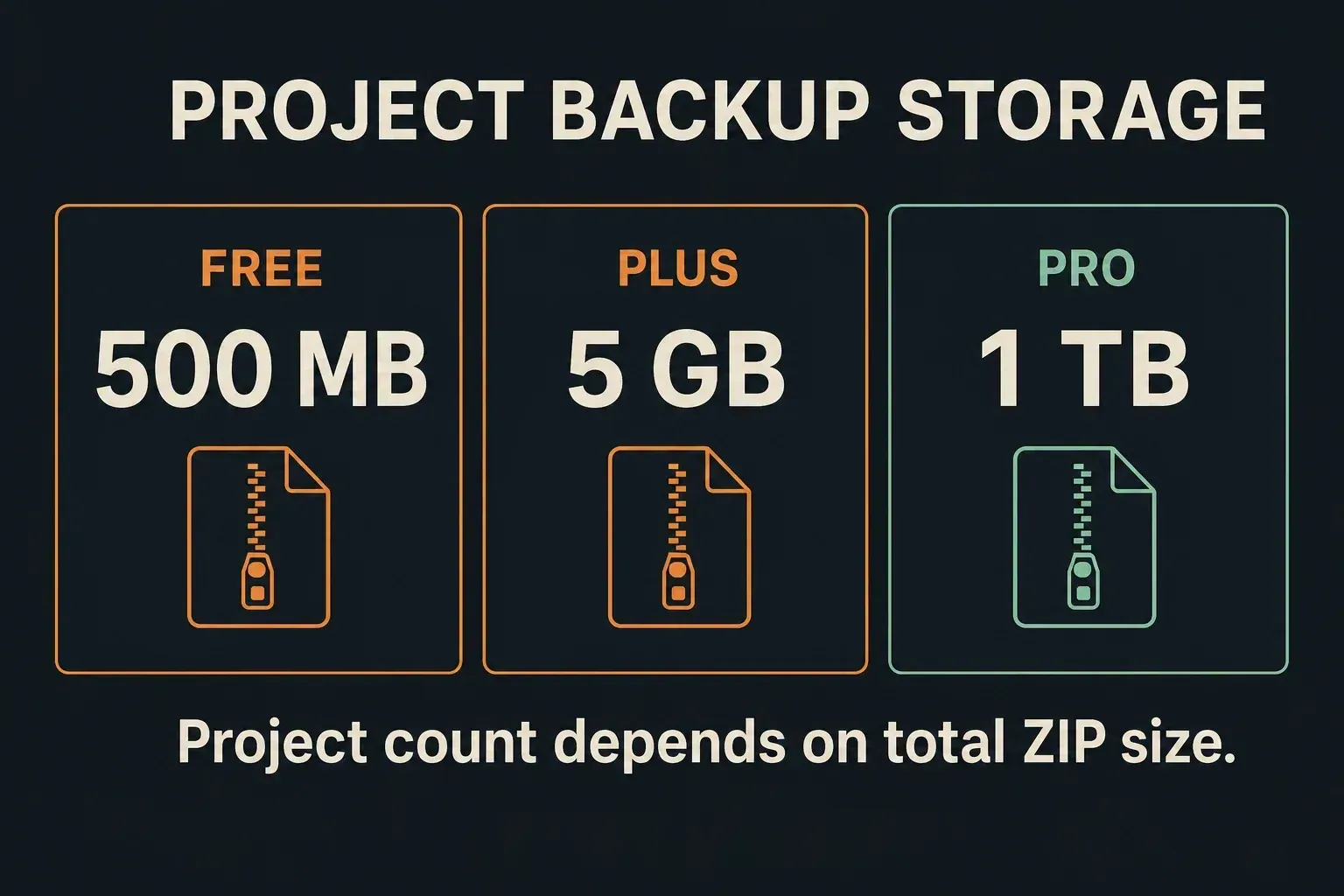
The limit covers total storage; there’s no fixed project count. A sample-heavy song can take far more space than its FLP size suggests, so check Storage space used on the Account settings page. If an otherwise active account hits its quota, new backups are blocked until space frees up or the allowance grows. Existing files stay accessible.
Cancellation is not indefinite free archiving. According to the main FAQ, stored files are kept for 12 months after a subscription ends, then deleted unless you resubscribe. The Storage FAQ covers inactivity separately: after more than 12 months without qualifying account or FL Studio activity, Image-Line may ask for activity within 90 days, and it reserves the right to remove storage content after 455 inactive days. Those are two different conditions. Don’t add them together into one long grace period.
The FL Cloud Storage terms also restrict new uploads during a termination grace period and let its length and conditions change. Terminating an account can mean immediate deletion. Follow account notices and the applicable terms, because neither the quota table nor the inactivity rule guarantees any minimum storage lifetime. Before you cancel or step away from an account, download important projects and their dependencies to independent storage. Freeing up 500 MB won’t necessarily lift every upload restriction after cancellation.
Restore on another computer without overwriting the source
You need the same Image-Line account and a licensed FL Studio installation that’s compatible with the project. Open Browser > All > FL Cloud > Project backups, right-click the item you want and choose Download. That’s the project-backup list; the Sounds tab is a different thing. If the navigation panel itself is hidden or filtered, the FL Studio Browser guide will help.
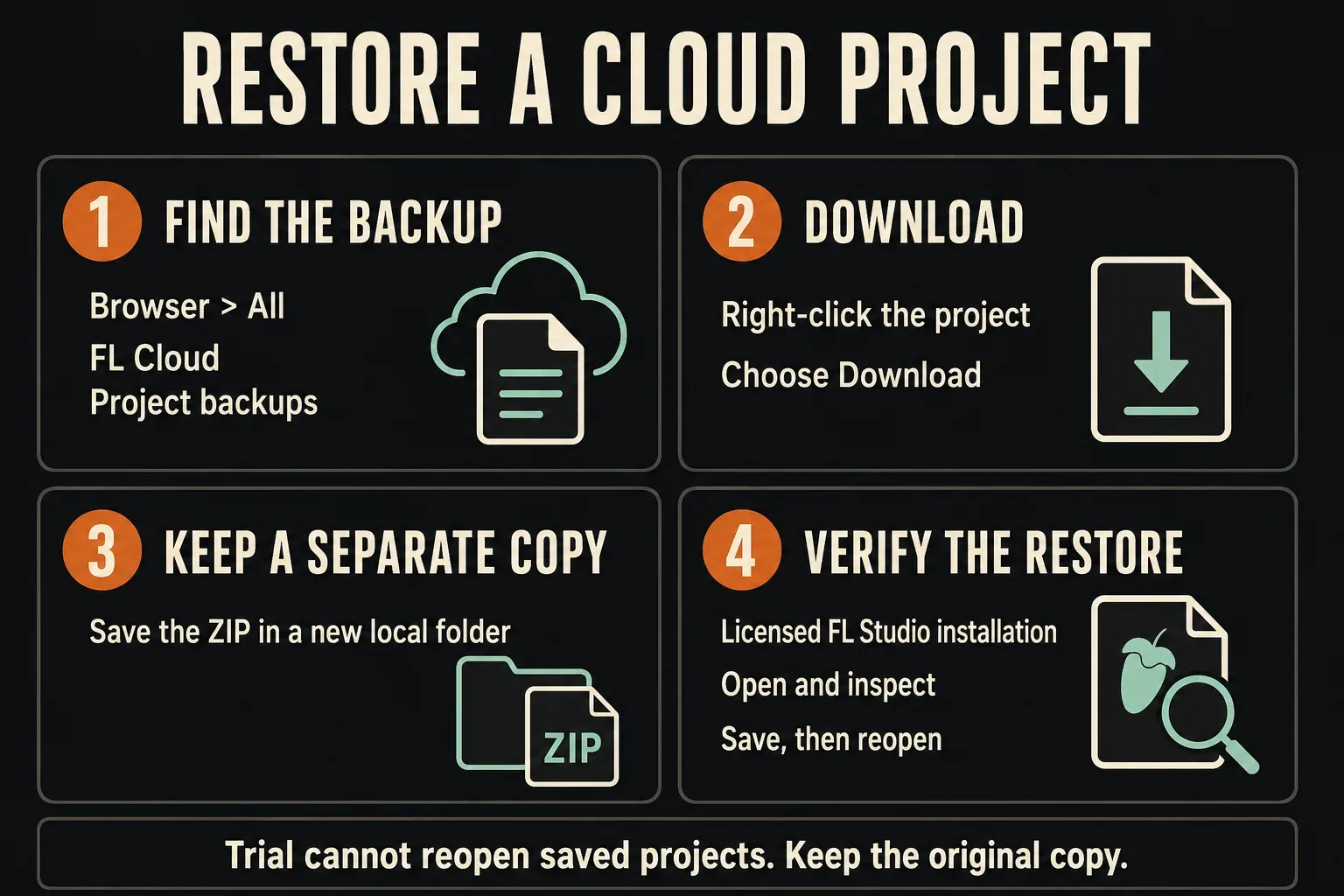
Leave the downloaded ZIP untouched and test a copy in its own local folder. FL Studio opens ZIP projects directly and extracts their project data. Save whatever you need from your current session before you open another project, because the standard Trial can’t reopen saved projects until you purchase and unlock it.
Play the restored song all the way through, including the most recently edited section and the ending, and compare it with your audio reference. Check that vocal recordings start in the right place, chopped samples still play the right slices, automation moves the intended controls and important instruments load the expected preset and library. File size alone won’t tell you any of that.
On the licensed installation, save the checked work under a distinct local name and confirm where its samples will live before you close and reopen it. The project-folder guide shows how to collect and relocate that data. Even after the first open succeeds, hold on to the downloaded ZIP, the original project and the source library.
Moving between Windows and macOS adds a plugin check. Image-Line's cross-platform project guidance says the project format is shared, but you have to install the matching plugin format. An AU won't load on Windows, and it isn't automatically swapped for a VST equivalent. Use the same or a newer compatible FL Studio version, since a newer project's format may not open in an older one. Edition and plugin entitlements matter too.
Download and check before deleting cloud files
The cloud item's Delete command permanently removes that remote backup and leaves local copies alone. Before you free up space, keep an independent download and finish the licensed restore check above. If you only have the standard Trial, you can't complete the reopen test yet, so keep both the cloud item and the downloaded files. Don't rely on an untested ZIP as your only recovery copy.
Decide what to delete by what you can recover elsewhere. Age alone is a poor guide: an older milestone from before a destructive edit can be worth more than the current project. Delete only the specific cloud item you meant to remove, and leave its source-sample folder out of the same cleanup.
Keep local Autosave and independent copies
The File Settings manual describes local Autosave as rotating recovery files, with triggers that depend on the mode. It can rescue you after a bad edit or a crash, but it doesn’t collect sample data or copy it off the working disk. To pick intervals and find older recovery files, use the FL Studio Autosave guide.
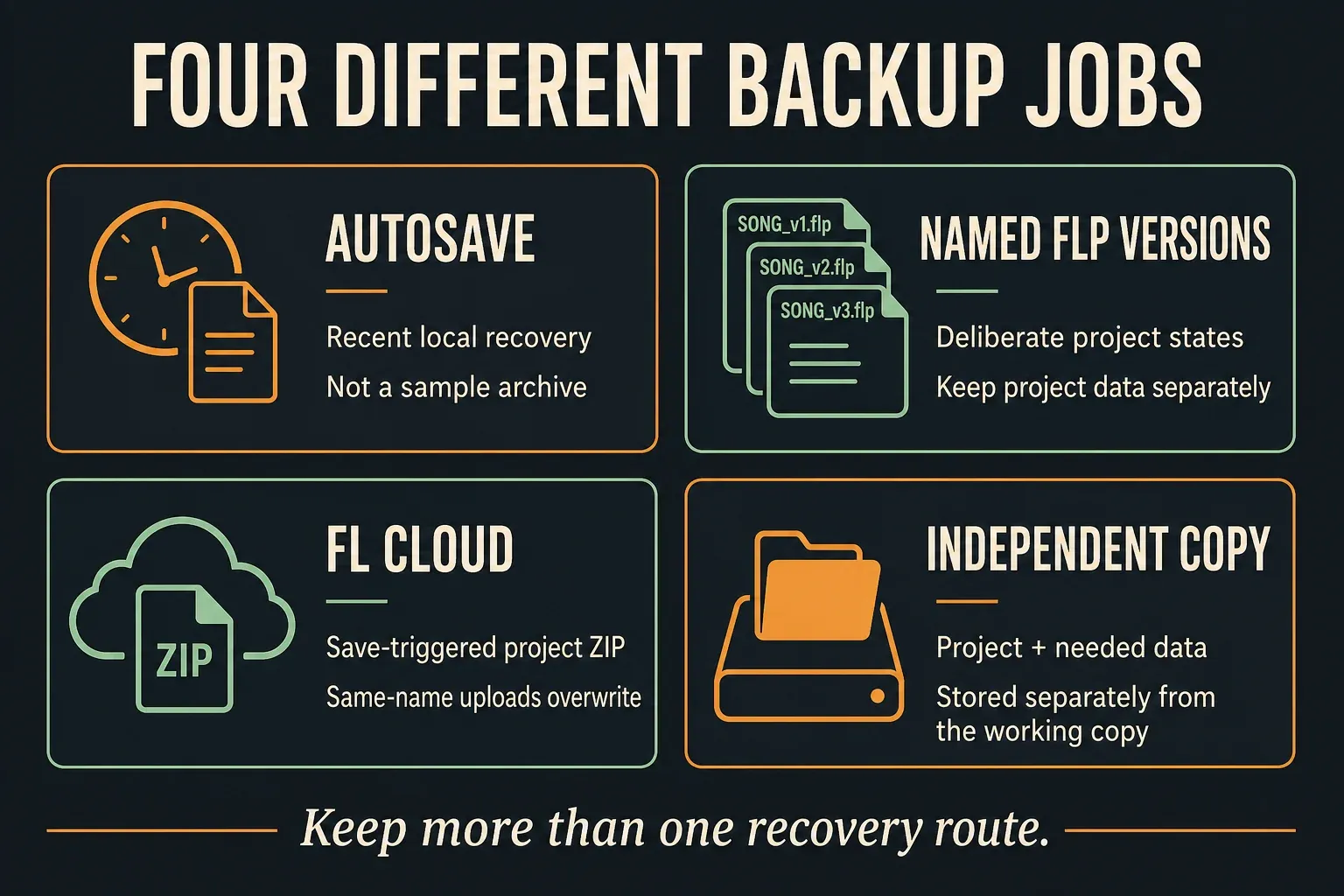
FL Cloud's managed project upload is also different from syncing the live User data folder through OneDrive, iCloud or Dropbox. Image-Line's third-party cloud-sync guidance warns that simultaneous access to files FL Studio is using can cause problems. Instead, it suggests copying data into a separate backed-up folder while you keep working from the original local locations, then bringing copies back into a local working folder when you need to recover. Don’t move the live User data folder into a sync service to imitate Project Backup.
Privacy and sharing have specific boundaries
According to Image-Line, project backups are private to your account, downloads use time-limited tokens and SSL/TLS protects transfers. Its creative-data policy bans using uploaded content for AI training and limits processing to providing storage or meeting legal obligations. Those are the provider's own stated policies, so I'd still keep an independent copy of anything I can't afford to lose.
FL Cloud Storage isn’t a shared project workspace right now. To work with a collaborator, set up a separate, deliberate file handoff and make sure you’re allowed to share any included samples. Never hand over your account login. The recipient still needs the right software, plugin formats and licenses.
Fix common FL Cloud backup problems
| What went wrong | Check next | Keep safe |
|---|---|---|
| The newest edits are absent | Was there a manual save after enabling the project switch, and did its upload complete? | Keep the current local project; the switch is not continuous sync |
| A previous cloud state disappeared | Did another upload use the same project name? | Check independent versions; another same-name upload will not restore history |
| The second computer shows no backup | Check the account, All tab and Project backups list, then verify the source machine's upload | Do not delete the only local copy to force a refresh |
| New uploads fail | Check connectivity, storage used, account notices and any post-subscription restriction | Save locally and preserve data; do not assume buying space fixes an unrelated error |
| A restored project lacks samples or plugins | Identify the exact missing file, plugin format or library; compare with the original machine | Work on a copy and preserve slicing/preset state before replacing anything |
If the project itself won’t open, follow the FL Studio project-recovery workflow. A missing dependency doesn’t by itself mean the FLP is corrupt. Write down the filename, FL Studio version and exact error for support, and don’t upload a damaged state over a backup that still works.
FL Cloud Project Backup checklist
- The correct account has enough storage and no unresolved upload restriction.
- The local name will not overwrite a milestone I need.
- I have deliberately saved and confirmed the cloud item, not merely enabled a switch.
- I have preserved a downloaded ZIP and tested a copy on a licensed installation.
- The restored song, samples, plugins and local data location have been checked.
- I understand cancellation and inactivity can lead to deletion.
- I still have an independent copy of the project and the data it needs.
With that routine in place, head back to the Workflow hub for arranging and managing your next session.
Frequently asked questions
Does FL Cloud Project Backup sync continuously?
No. The one-time File command backs up when you choose it. With the project's Back up to FL Cloud Storage option on, uploads follow manual project saves. Unsaved edits and local Autosave timers prove nothing about a new cloud copy.
Does FL Cloud keep every project version?
No. A later upload with the same project name replaces its previous cloud copy. Save milestones under distinct local names and confirm that each has uploaded if you need separate cloud states.
Does the ZIP include plugins and all their samples?
The project ZIP includes the FLP and samples from Sampler Channels and Audio Clips, not VST/AU plugin software. Third-party sampler libraries usually remain separate unless their sample data is embedded by a suitable plugin format. Restore the required software, libraries and licenses separately.
How much storage does FL Cloud Project Backup include?
Free gives you 500 MB, Plus 5 GB and Pro 1 TB. The quota limits total storage rather than a fixed project count. Account and subscription restrictions can also affect new uploads.
Can I restore a backup in FL Studio Trial?
The standard Trial cannot reopen saved projects, and restoring requires a full FL Studio license. The main FL Cloud FAQ allows creating backups in the Trial, while the separate Storage FAQ still says uploading requires a license. Either way, don’t close needed Trial work expecting a cloud restore to get around that restriction.
Are my backups kept forever after I cancel FL Cloud?
No. The main FAQ specifies 12 months of retention after a subscription ends, followed by deletion unless you resubscribe. Separate inactivity and termination terms also apply, and grace-period conditions can change. Download important projects and their dependencies before relying on continued account access.
How do I restore a backup on another computer?
Sign in to the same account, open Browser > All > FL Cloud > Project backups and right-click the item to Download. Preserve the ZIP and test a copy in a separate local folder on a licensed, compatible FL Studio installation. Check the song and dependencies, then save and reopen the local copy without overwriting your original.