FL Studio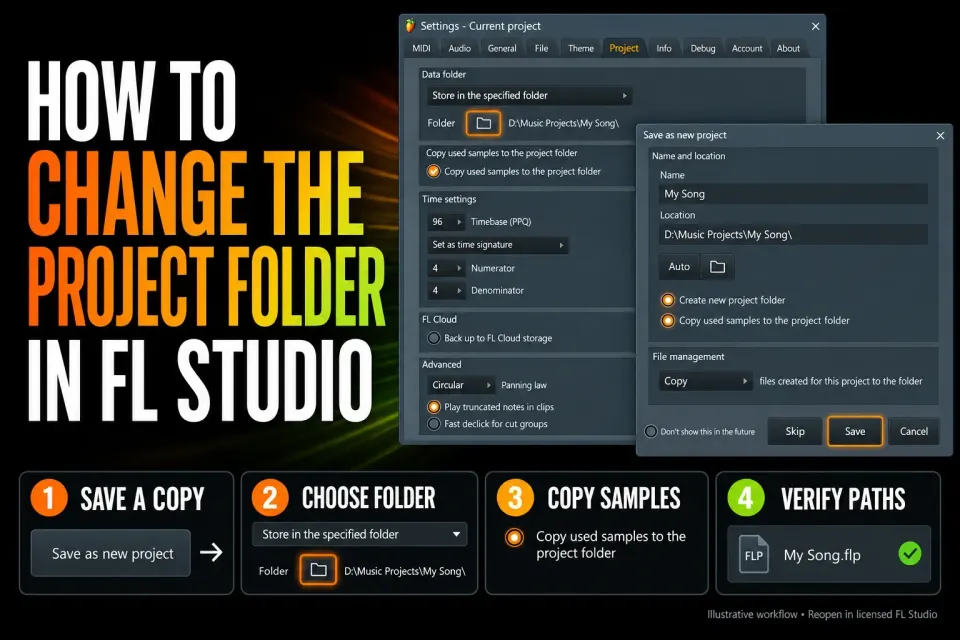
Moving an FL Studio project safely means moving more than the FLP. The project file holds the arrangement and plug-in state, while recordings, one-shots and third-party libraries can live somewhere else. Set the destination, copy the supported audio, save the project there and verify the moved copy before you remove anything. The reopen checks below need licensed FL Studio, so if you're on Trial, read the warning before closing your session.
Decide whether you are moving one project or all FL Studio data
FL Studio has two storage ideas with confusingly similar names. A project data folder belongs to the current song. The global User data folder holds projects, recordings, presets, the plug-in database scan and other user files for FL Studio as a whole. Changing one doesn't do the other's job.
Use Project General Settings when one song needs a new folder or drive. Use Options > File settings only when you really mean to relocate the whole Image-Line user-data tree. Image-Line advises keeping User data on a local, permanently connected drive, away from iCloud, OneDrive, Dropbox, network paths and drives that can vanish in the middle of a write.
Make a rollback copy before the move
In FL Studio Trial, save is not the same as reopen. You can save a project, but you can't reopen that saved project until you purchase FL Studio. Render any audio you need before saving or leaving the session. Check for trial plugins too, even if you own FL Studio, and unlock them before reopening so their original settings survive. Leave the original FLP untouched, because reopening and re-saving before unlocking can lose those plugin settings. Image-Line’s Trial and trial-plugin documentation treats these as separate restrictions.
In licensed FL Studio, open the project from where it is now and use File > Save new version before changing any paths. Note any missing-file warning that already appears, since moving the project can't bring back an asset that's already gone. Check that third-party instruments and their libraries load. Keep just one project window open so you don't save changes into the wrong copy by accident.
Create the destination on a drive with plenty of free space. Don't put a live working folder inside a directory that syncs to the cloud automatically. Cloud storage is fine for a closed archive, but a session that's recording, rendering and saving backups needs predictable local writes.
Set the new Project Data Folder
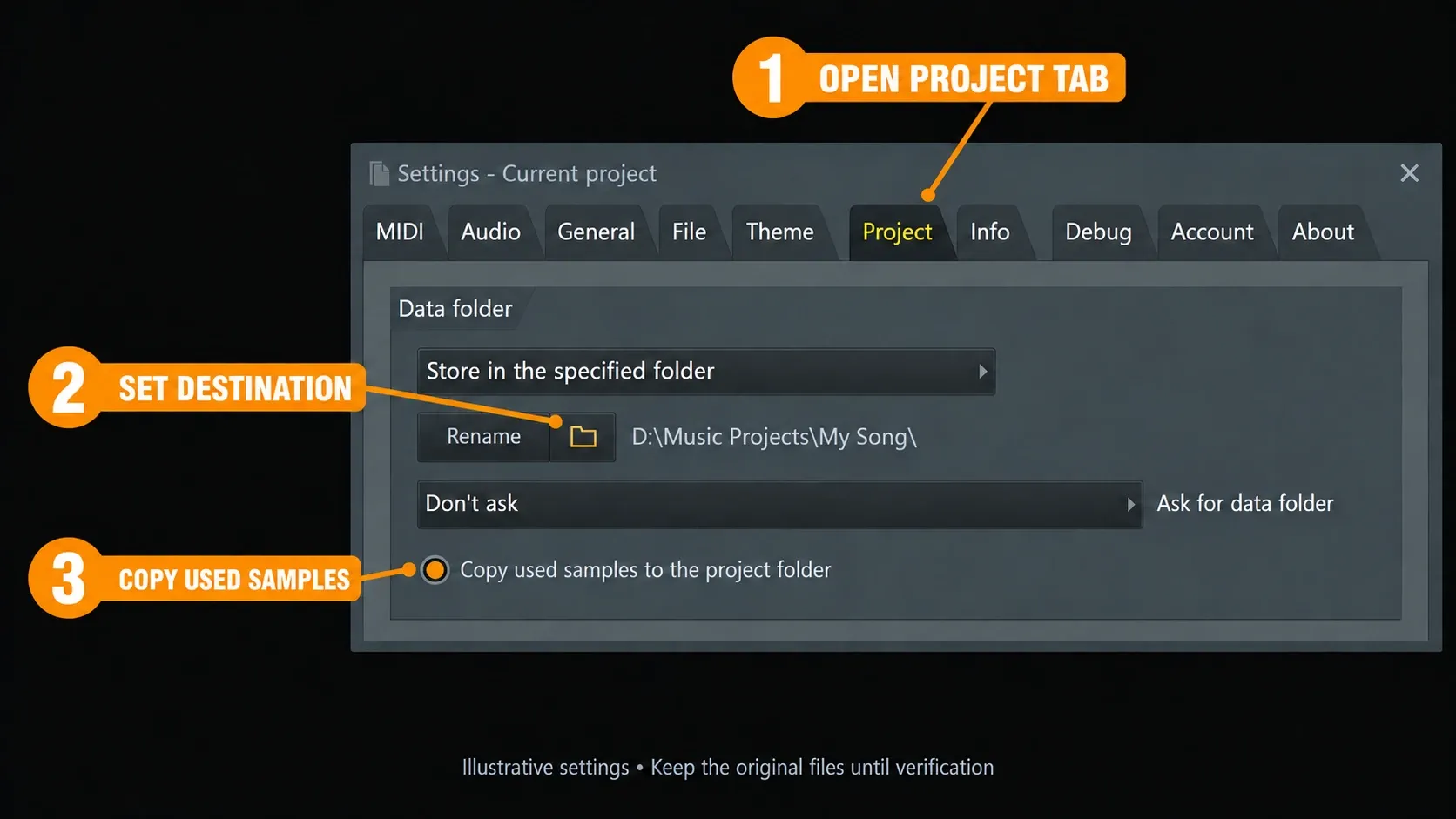
Open Project General Settings and find Project Data Folder. The current manual offers three modes:
- Don't use a data folder keeps using the global user-data and common locations.
- Store relative to the project file creates a folder named for the project, with the FLP and project-data subfolders kept together. Image-Line calls this the cleanest long-term project-management choice.
- Store in the specified folder lets you choose an explicit destination and is useful for a dedicated project drive.
Pick relative storage when you want to move the whole project folder as one unit, or a specified folder when you need a fixed destination. A project folder can hold the FLP plus Audio, Renders and Backups subfolders. The setting is saved with the project, so save after you choose it. Backup files may still go to the global location; check that setting separately below.
Copy used samples and created files
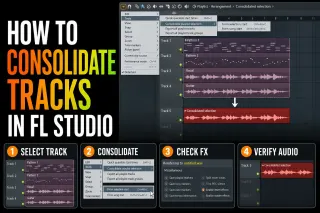
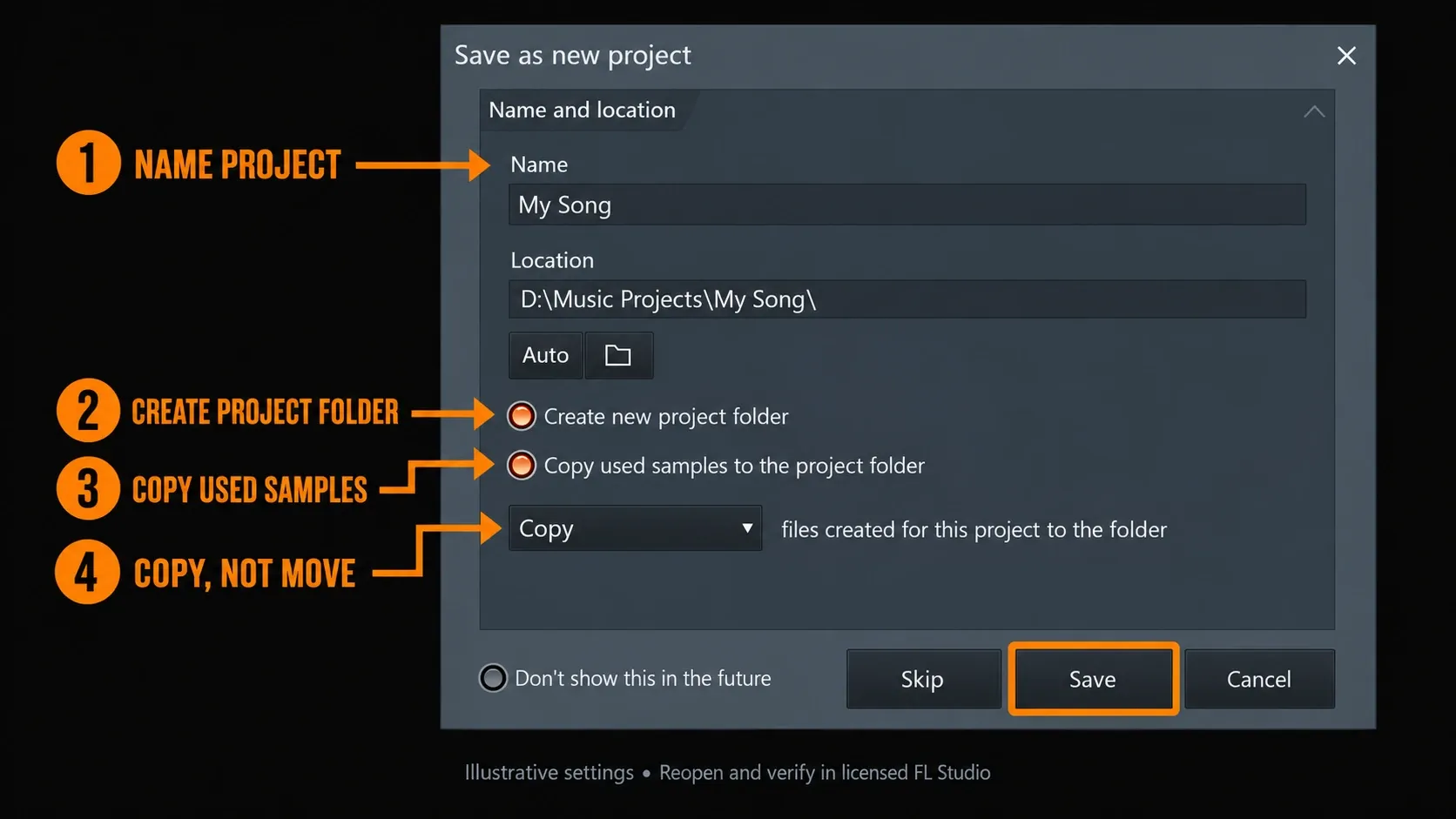
Use Copy used samples to the project folder in Project Settings. In the File management choice next to it, decide whether recordings, rendered audio, slices and other files the project creates should be copied or moved. That includes audio created when you consolidate Playlist tracks for editing or delivery. Copy is the safer choice during a migration, because the original stays behind as a rollback source.
Samples dragged in from the Browser or elsewhere normally stay where they were until you copy or package them yourself. The official Project General Settings documentation separates those referenced samples from recordings and dragged data created inside the project. Watch the destination folder fill up. An empty Audio folder can mean some source files never got collected.
Save As to the destination and close the original
Use File > Save As and save a clearly named FLP in the destination shown by the project-folder dialog. A temporary name such as My Song_movecheck.flp helps you tell the copies apart. Check the resulting folder path instead of assuming it matches what you typed. In licensed FL Studio, close the application and reopen the FLP by browsing to that new folder, so you're not guessing which Recent projects entry is the moved copy.
A fresh launch makes FL Studio and its plug-ins find the files again, but it does not prove the new folder is self-contained, because the old locations may still be searchable. Look at the actual source paths as well as listening. Keep vendor libraries external when that's how the instrument manages them, and check those dependencies separately.
Verify the moved project before deleting anything
- In licensed FL Studio, open the new FLP after a complete restart.
- Play every section of the song. In a test copy, audition muted alternate clips on purpose, then restore their mute states.
- Look at the Sampler and Audio Clip source paths. Confirm the collected files point to the new location, and not just to the original folder that happens to still exist.
- Open third-party samplers and check their instruments and external libraries separately.
- If your edition supports audio recording and an input is configured, record a short test take into the test copy and check its actual destination.
- Render a short WAV and check the output folder you chose, instead of trusting a remembered default.
- Save and reopen once more. Check the backup location setting and confirm a backup really gets written where you expect.
If a sample is missing, don't overwrite the last FLP that worked. Find the original file, copy the asset into the new project location and resolve the reference before repeating the check. Stop if the two folder trees don't contain the files you expect. A restart that happens to find audio in the old folder doesn't mean the migration is finished. The project recovery guide covers wider failures when the problem goes beyond a missing asset.
Resolve an invalid project data folder warning
If FL Studio says the project data folder doesn't exist, first find out which path it expects. A moved FLP, a moved specified folder or a changed drive letter can all break that link. Don't reset paths just to make the warning go away.
If you know where the right folder is, use Browse for project data folder. Use Set to current project’s folder only when the FLP already sits inside the right folder. If you don't know, choose Do nothing, check the path in Project General Settings and find the folder before changing anything. Image-Line’s invalid-folder instructions cover these cases separately. Resetting the project data folder removes the association; it won't restore missing samples.
Know what an FLP, project folder and ZIP contain
A normal FLP keeps the project data, but the referenced audio samples stay outside it. A project folder keeps the project-created data together with the supported samples you choose to copy. A zipped loop package includes the FLP and the samples used by Sampler Channels and Audio Clips. It's handy for transfers, but the same third-party library limit applies.
The current FL Studio project-file documentation is explicit: samples inside third-party sampler plug-ins aren't collected automatically unless the relevant format stores them within the preset. Keep those libraries, plus the plug-in installations and licences they need, available separately. For the packaging steps, follow the zipped loop package guide. An FL Studio-exported ZIP opens directly, while a project folder you compress yourself has to be extracted before you open the FLP inside.
Move the global User Data Folder only when you mean it
To move FL Studio’s global user files, open Options > File settings and use User Data Folder. FL Studio can offer to copy the existing data to the new location; if it doesn't, you'll have to copy it yourself. Check the expected Image-Line folder structure before relying on it, then restart and test the Browser, favourites, templates, recordings and several projects. This won't automatically move every separately stored third-party sample library or plug-in installation.
Don't pick the application install directory, the root of a disk or a temporary external drive. The current File Settings manual explains the default location and the risks of cloud-synced, network and removable storage. The installation guide deals with host updates, and it's no shortcut for moving user files.
Move the project to another computer without guessing
A project folder can carry the FLP and copied audio, but not every instrument, effect or licence needed to rebuild the session. The receiving computer needs the same or a newer FL Studio version, plus matching third-party plug-in formats and versions. Image-Line’s project-sharing checklist recommends verified plugin scans and sending the entire project folder instead of the FLP on its own.
Open the copied project on the second computer before you touch the original. Check for missing samples, silent instruments and unavailable plugins. AU is macOS-only, so a Windows recipient needs compatible VST, VST3 or CLAP versions; changing an AU search path won't help. If the recipient can't recreate an instrument, also export aligned audio stems as an audible fallback. Printed audio can't be edited like the original instrument.
Build a project-folder habit for future sessions
Choose the folder when the song starts, before recordings get scattered across common directories. Keep alternate FLPs as sequential versions and check the destination before each important export. Under File settings > Backup > Location, choose whether backups go to the global folder or to the project data folder when there is one. The autosave and backup guide explains those recovery copies. They're only kept for so long and don't replace a separate offline or versioned backup.
Before a long recording day, check the data folder and the audio device together. The audio-settings guide handles the driver and buffer side, the clean recording route checks where each new take is written, and the beginner workflow keeps the first session tidy. Continue through the Workflow hub once the storage move is stable.
Frequently asked questions
Can I move an FL Studio project by moving only the FLP?
Only if every referenced sample and third-party library stays available at a path the software can find. For a reliable move, copy supported assets and verify their paths in the moved project. The reopen test requires licensed FL Studio.
What is Store relative to the project file?
It keeps the FLP and the data the project creates together in a folder named after the project, with data subfolders. Image-Line recommends this relative setup for long-term project management. Move the whole folder, not only the FLP.
Does a zipped project include every third-party library?
No. It packages the FLP and supported project samples, but content loaded inside a third-party sampler may stay external and needs its own backup.
Should I put my FL Studio User data folder in OneDrive or iCloud?
Image-Line advises against cloud-synced, removable and network locations for live User data, because files can be locked, moved or written late. Use local storage that's always connected and back it up separately.
When can I delete the old project folder?
Keep the original until the moved project passes playback, resolved-file-path, plug-in/library, save and reopen checks in licensed FL Studio, and until a separate backup exists. A successful reopen isn't enough on its own if it's still finding audio in the old folder.