FL Studio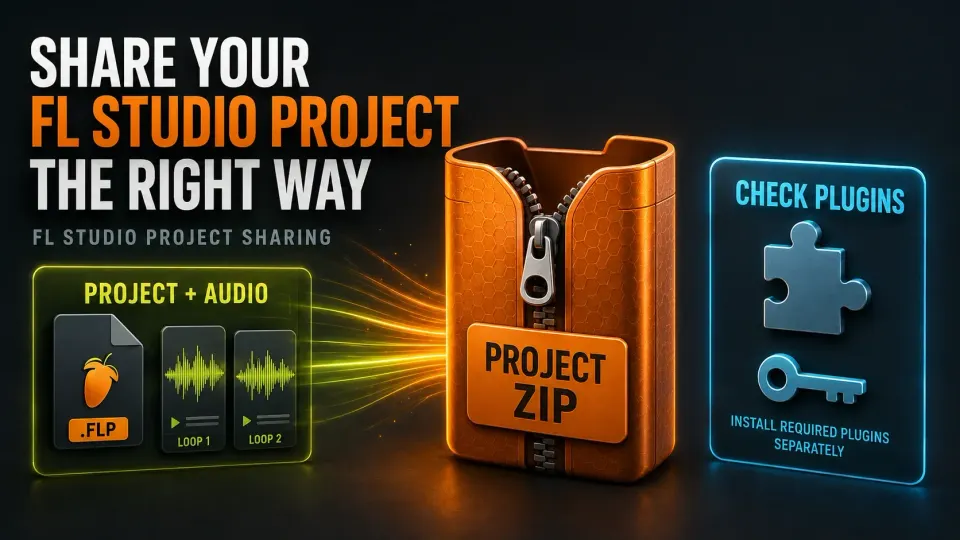
A collaborator opens your FLP and two things are wrong: the vocal is gone and the lead instrument makes no sound. Those are separate problems. An audio file never arrived, and a plugin or its library may be missing on their side. A ZIP can fix the first one. It won't touch the second.
To create an FL Studio Zipped Loop Package, use File > Export > Zipped loop package. The native package bundles the FLP with the samples used by Sampler Channels and Audio Clips, and the recipient can open that ZIP straight in FL Studio. Plugins, licenses and sampler data managed outside FL Studio still need their own check, because a package alone can't promise the session will sound the same on another computer.
Using the standard time-unlimited Trial? You can save projects and export audio, but you can't reopen saved projects until purchase and unlock. The edition you buy also has to cover the features and plugins the project uses. Keep the session open until every export you need is finished, and don't close it just to try reopening it. Image-Line spells out these limits in its Trial guidance.
Choose a project package or an audio delivery
Start by asking what the recipient actually needs to change. Someone editing notes and automation needs different files from someone mixing recorded parts in another DAW.
| Recipient's task | Useful delivery | What still needs checking |
|---|---|---|
| Edit the FL Studio session | Zipped Loop Package or a complete collected project folder | FL Studio version, edition, plugins and external data |
| Mix without your instruments | Aligned audio stems and a reference mix | Included effects, routing, timing and delivery specification |
| Listen or approve the arrangement | A WAV or another agreed listening format | Correct version, complete song and audible tails |
| Keep an editable archive | Project package, separate dependency records and audio fallbacks | Future access to plugins, licenses and required files |
A Zipped Loop Package is a project, and rendered stems are a different delivery. If the recipient needs audio parts, follow the stem-export workflow; if they only need to listen, export the finished song. Project Bones is a third tool again: it exports components such as presets and scores for reuse, and it doesn't replace a full session handoff.
Know what a Zipped Loop Package includes
The project-format documentation names Sampler Channels and Audio Clips as the sample sources that go into the ZIP. In practice that covers ordinary sample-based drum channels plus audio clips like recordings or consolidated parts, as long as the project can still find them.
An FLP holds project data and plugin state. Don't treat it as a copy of every external audio file. There are exceptions where audio is embedded: the FLP save reference explicitly includes audio held in Edison. That exception doesn't make your other Audio Clip files, or an external sampler library, self-contained.
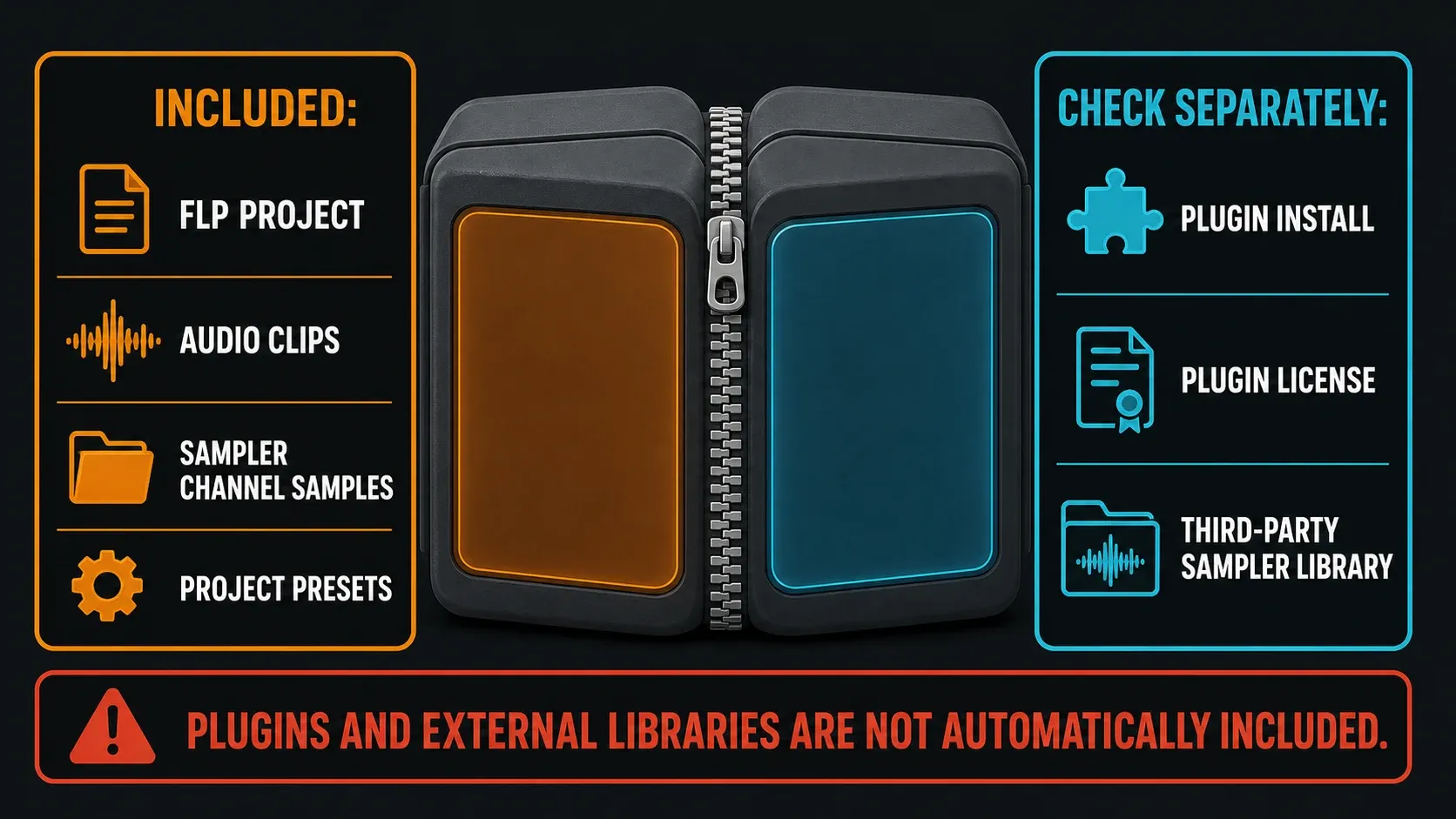
Plugin installers and licenses never travel inside the project package. Samples managed by another plugin also fall outside the normal collection rule, unless that plugin saves the audio inside its preset data. Image-Line gives DirectWave's Monolithic mode as an example. Check the instrument and save format you actually used, and don't assume every sampler has a similar option.
Exporting a new ZIP won't bring back a source file that's already missing. Fix the missing data on the sender's computer first, then package the corrected project. Keep separate copies of important recordings and source files alongside the project file.
Agree on compatibility before sending files
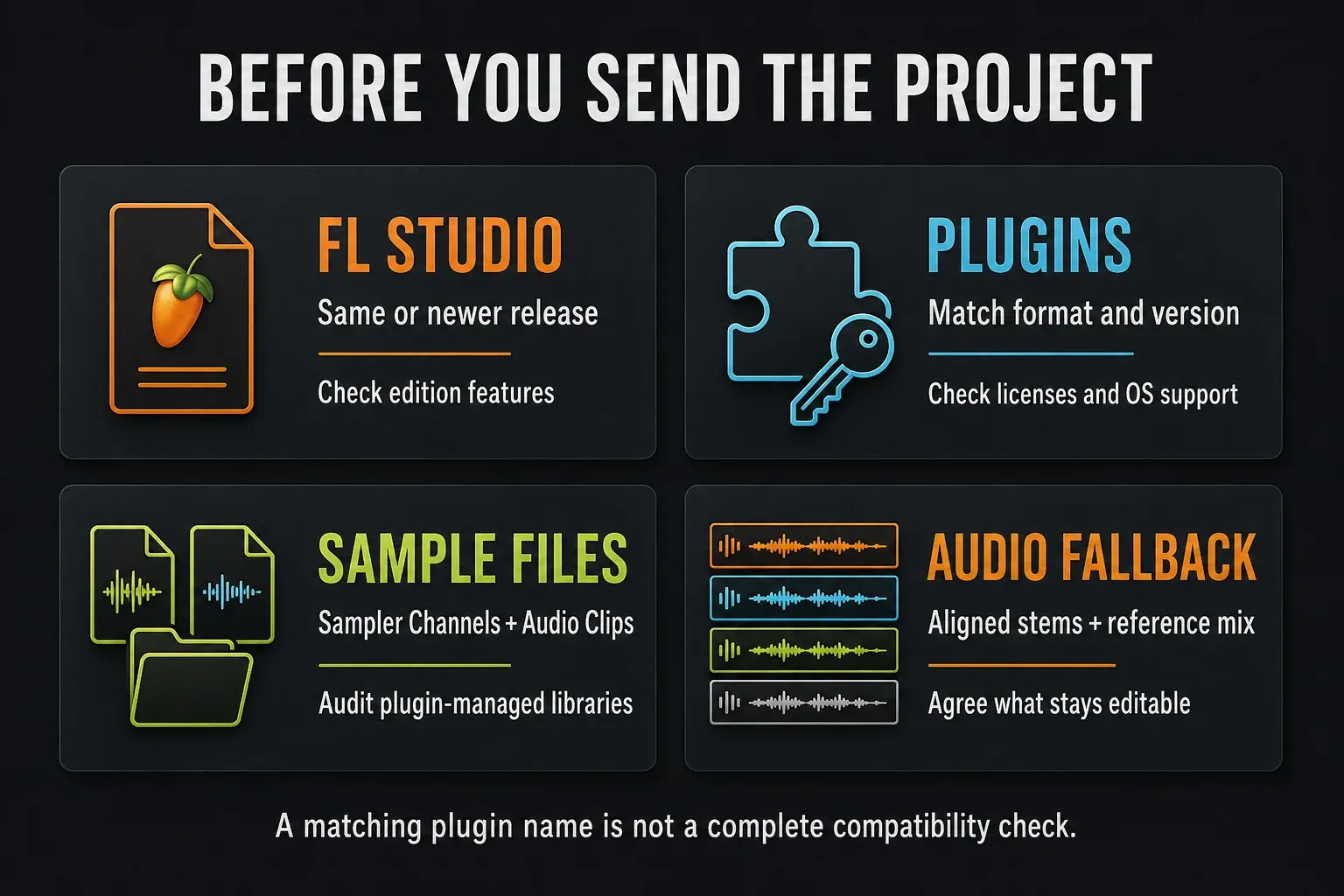
Run these four checks before you spend time uploading a large package. The official project-sharing guide covers both moving a project to another computer and collaborating with another FL Studio user.
- FL Studio release and edition. Note the version shown in
Help > About. The recipient needs the same version or a higher one, because a project saved in a newer version won't open in an older one. Don't make an unreleased beta a requirement unless you've both agreed to it. Check edition features and native plugin ownership too. - Plugin identity. List the product, format and version. Image-Line recommends the identical plugin format and version on both systems. If the project used a VST instance, a VST3 installation won't automatically stand in for it.
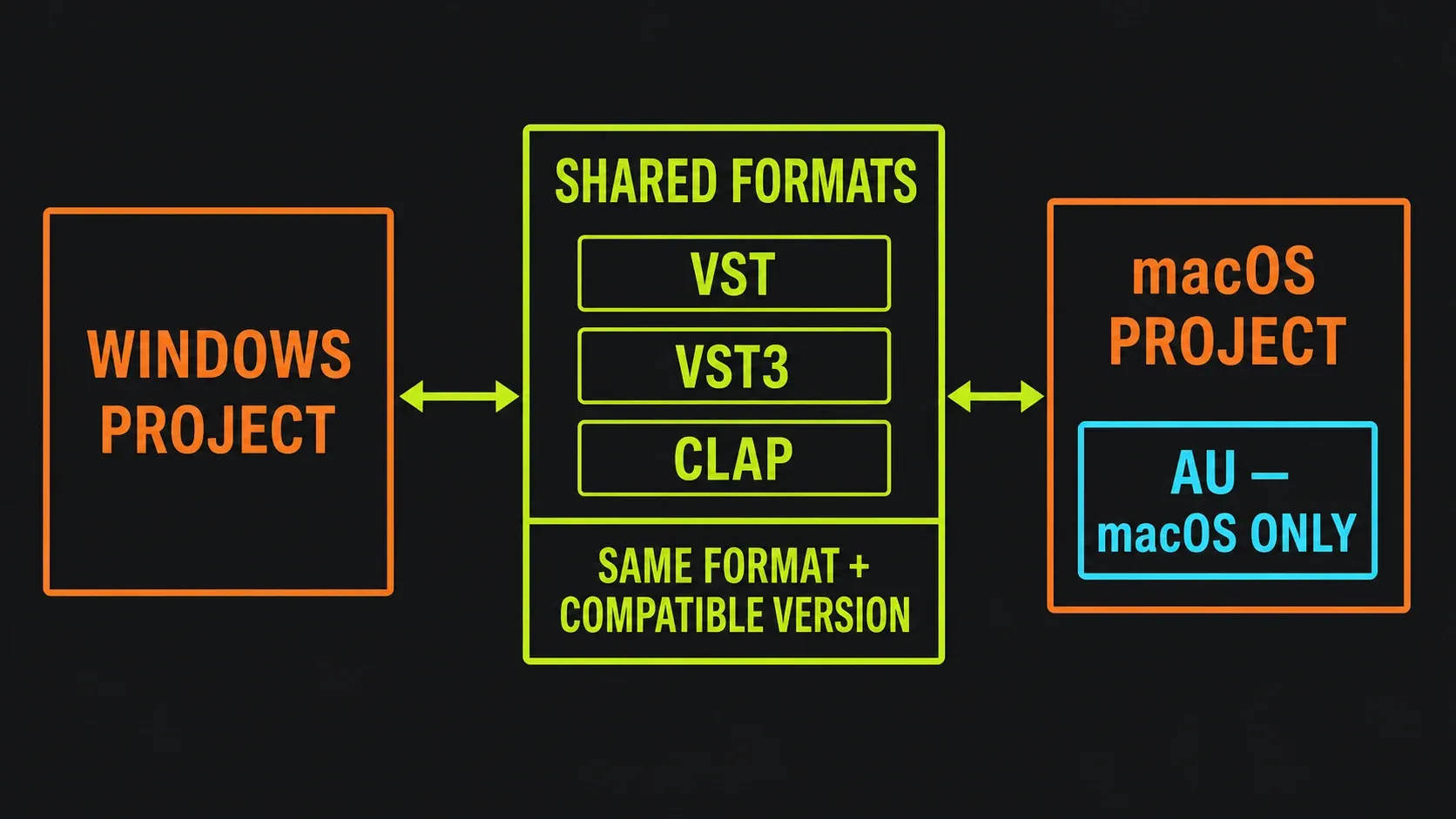
- Operating system and available builds. For Windows/macOS sharing, use matching VST, VST3 or CLAP versions that the vendor provides for each system. AU is not the cross-platform option. Install the build that fits the recipient's OS and processor; copying a Windows plugin binary over doesn't make a Mac installation.
- Data and permission to share. Find any external sampler files and check whether the recipient has the content and licenses to use them. Only send material you're allowed to distribute. When a dependency can't be supplied, agree on a rendered audio substitute instead.
To help FL Studio recognize plugins, scan with Verify plugins enabled in Plugin Manager. The scan identifies what's installed; it doesn't install missing software or grant a license. The plugin installation guide covers setup and discovery. Sticking to an available stock instrument or effect can make a collaboration simpler, but still confirm the recipient owns it. A free plugin also needs the correct installation and format.
Prepare the handoff without disturbing the original
Save a clearly named project version before you make any collaboration-specific edits. A name like Harbor_handoff_v03.flp keeps it apart from your working mix. File > Save new version creates a new project filename, but it doesn't duplicate the recordings or library files that project references. The File menu reference documents that distinction.
Leave original assets where they are. Don't rename, move or delete shared sample folders to make a test harder. If you want an independent handoff folder, copy the required data into it and keep the originals. Renaming the project file on its own is not an asset backup.
Name the important Channels, Playlist parts and Mixer tracks so the recipient can follow the arrangement. For each substituted instrument, leave a short note: which source it replaces, where its audio starts, and whether effects are printed. The Mixer routing guide helps you decide what a rendered fallback should contain.
Export a reference mix of this exact version. It gives the recipient something to compare against for missing parts, balance and arrangement, though it can't prove the transferred project is identical. Agree on the listening format with the export-settings guide. If you include a mastered reference, say so, because it may sound different from the editable project without that final processing.
Create and send a Zipped Loop Package in nine steps
- Save a named handoff version. Preserve the working project and its source audio. In standard Trial, finish needed exports before closing the session.
- Resolve missing files on the sender's system. Check load warnings and confirm that the intended recordings and samples play before packaging.
- Check plugin and library dependencies. Record the required FL Studio edition/version, plugin formats/versions and external data. Render agreed fallbacks for unavailable parts.
- Export the reference mix. Use this same project version and label any final processing that is not included in the editable delivery.
- Choose the native ZIP export. Select
File > Export > Zipped loop packagein FL Studio. - Save a distinct archive. Give the ZIP a clear versioned name and avoid overwriting the original handoff package.
- Check the exported package. On a licensed installation, open the ZIP directly and check the warnings and playback. In standard Trial, hold off on this reopening test until purchase/unlock. Checking on the same computer is useful, but it can still find the original source files.
- Send the package and handoff notes. Include the reference, compatibility list and any separately supplied data or audio fallbacks that the recipient is allowed to receive.
- Verify and preserve the receiving copy. On a compatible licensed installation, check dependencies and listen against the reference. Keep the received archive. Before relying on a standalone FLP, export a separately named working ZIP or collect a complete working project folder.
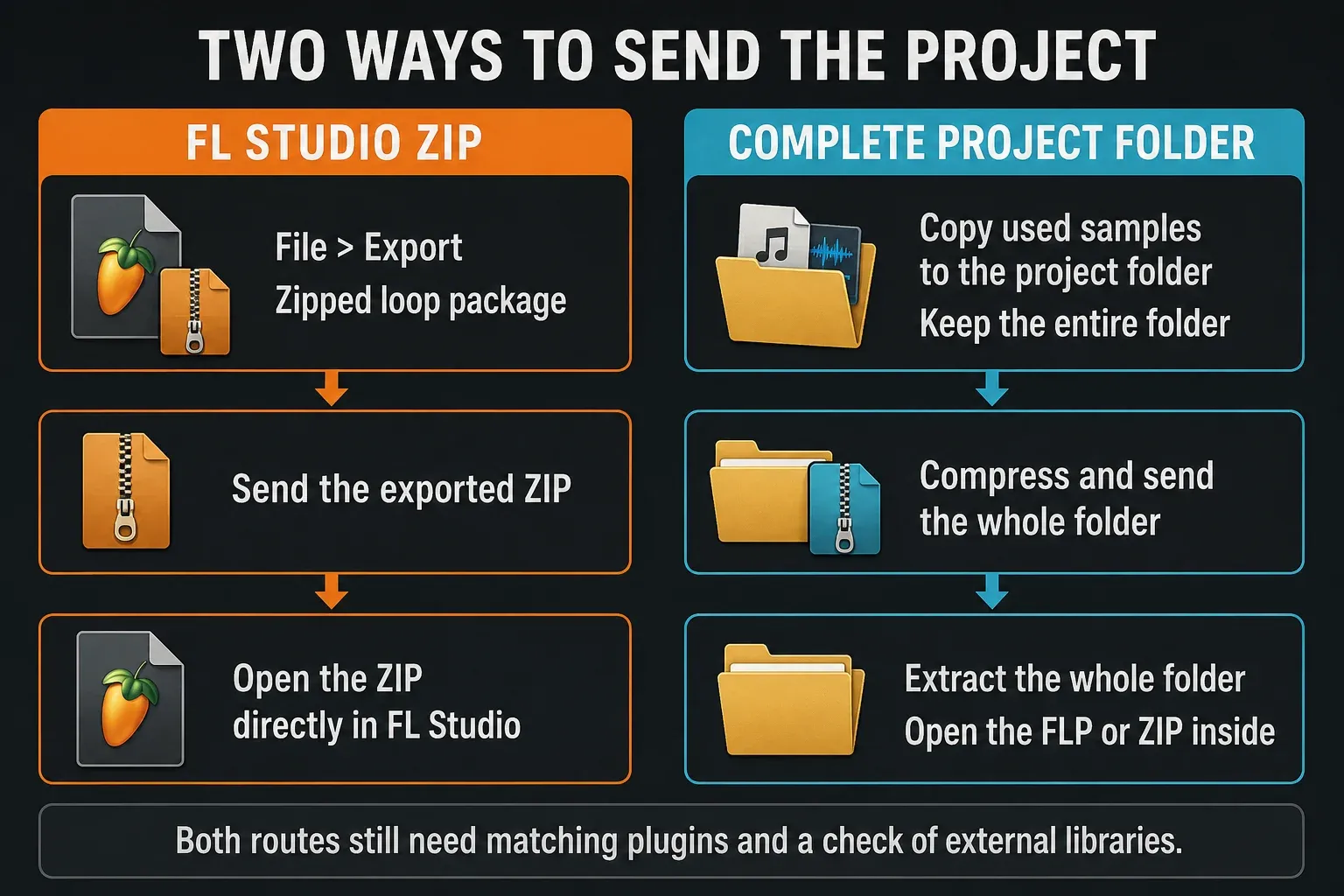
For a native Zipped Loop Package, use File > Open and select the ZIP itself. Previewing the archive in your operating system is not the same as loading the project in FL Studio. A manually zipped complete project folder is a second valid route, and that one does need extracting, as explained below.
Handle external sampler data and audio fallbacks
Open each sample-based instrument and find out where its sounds live. A Kontakt instrument, for example, can depend on files that FL Studio's own Sampler/Audio Clip collection doesn't manage; Kontakt's sample-saving documentation explains its file-reference choices. Use that instrument's documented save or relocation method instead of copying a random folder and hoping the preset finds it.
If the plugin supports an embedded or portable save format, check which files that format really contains. If it doesn't, supply the authorized external assets with clear folder instructions, or have the recipient use their own licensed copy of the same content. Putting your FLP in a ZIP doesn't make those requirements go away.
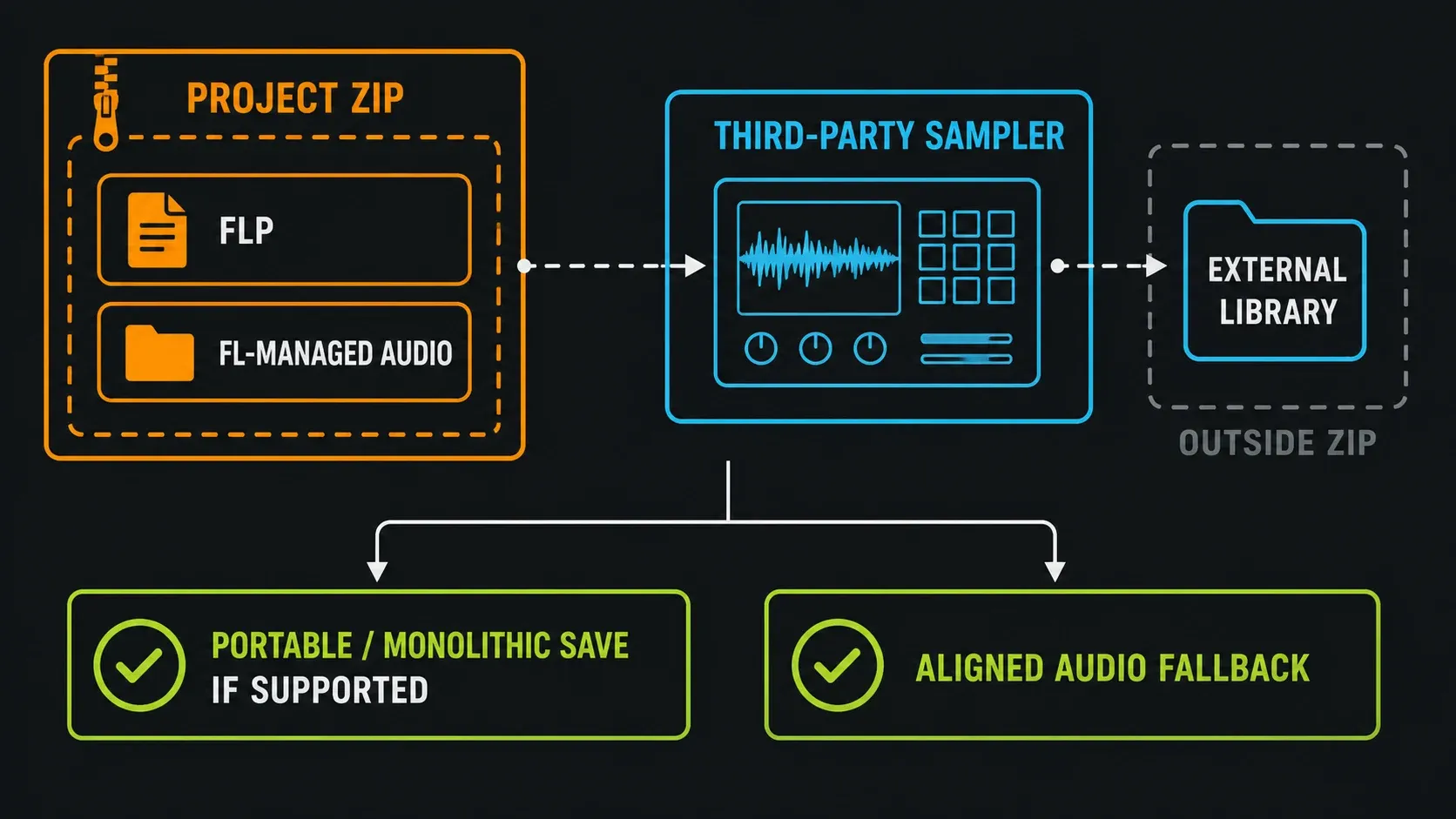
When the recipient can't run the instrument, render the part to audio from an agreed common start. Keep the editable notes in the original project in case you need changes later. Say whether the delivery is dry, processed, or comes with a separate effect return, since doubling processing that's already printed can change the result. The stem guide handles routing and alignment; a project ZIP is not an audio render.
Check the project on the recipient's computer
The receiving system is the real portability test, because it normally doesn't have the sender's original search folders. Even there, a project that seems to open fine isn't enough. Read the warnings and listen. A silent, unused section can hide a missing sound until much later.
- Confirm the intended FL Studio version and edition are running. If an older installation opens by default, start the correct version first and use
File > Open. - Read every missing-file, missing-plugin or Trial-plugin warning. Look at red Channels, empty replacements and silent parts instead of clicking past them.
- Check external sampler content from inside the instrument itself. A plugin that loads can still be missing its library.
- Listen to the intro, a busy section, the transitions and the ending. Check important recordings and rendered substitutes, then compare with the reference at a sensible listening level.
- Keep the received archive. To continue working, export a separately named Zipped Loop Package or build a complete collected working folder with
Copy used samples to the project folder. Saving a new standalone FLP doesn't automatically embed its external audio. Don't delete original assets or throw away the delivery to test this.
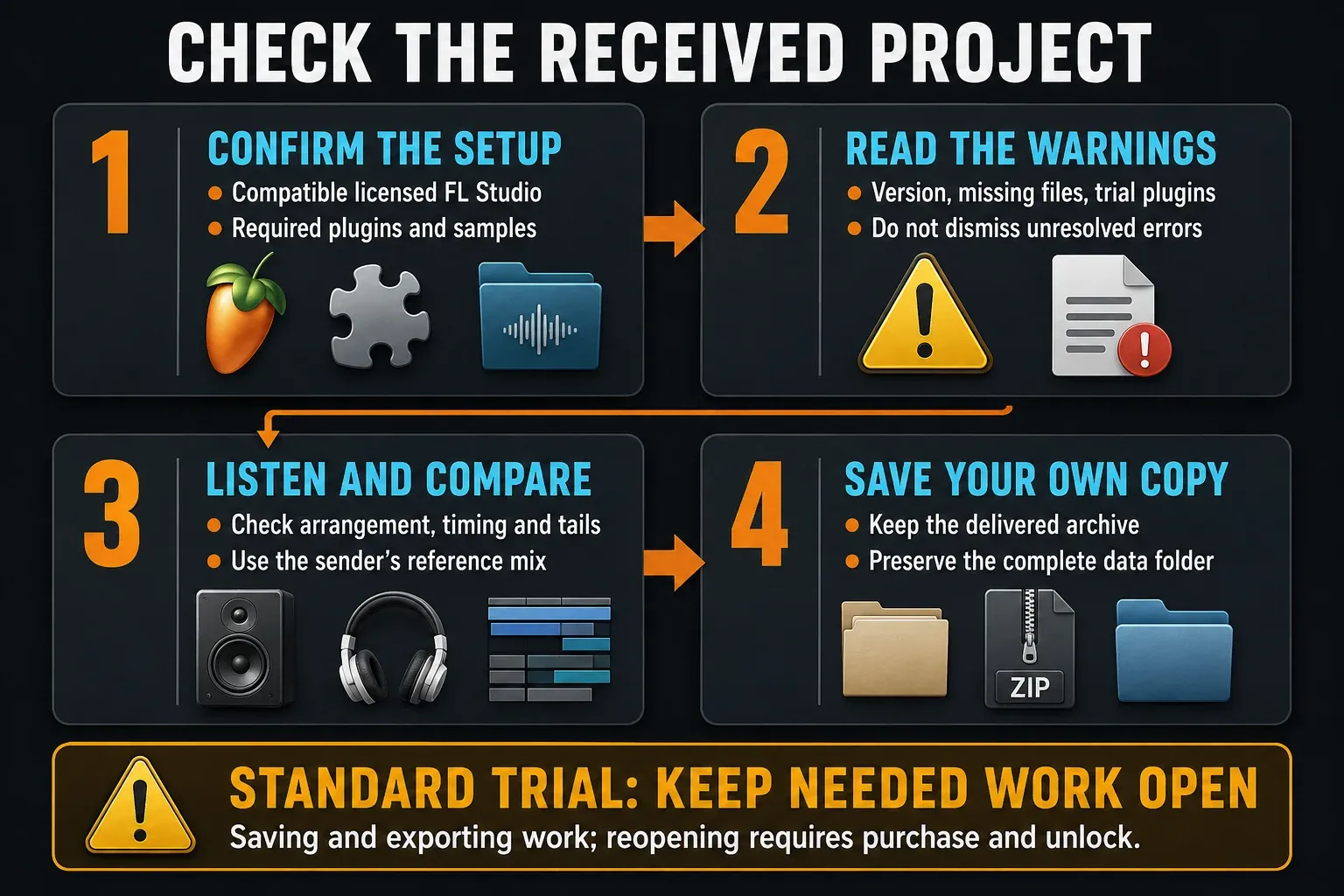
If the recipient is still on the standard Trial, agree on audio delivery or wait for purchase/unlock before counting on project reopening. Installing FL Studio alone doesn't lift the Trial restrictions. The installation guide covers setup, and the license and plugin checks stay part of this handoff.
Alternative: collect and zip the complete project folder
For ongoing collaboration, a collected folder can be easier to maintain than sending one package after another. In Options > Project general settings, look at the Data folder location. Store relative to the project file keeps the relationship with the project location; if you use a specified folder instead, account for that path when you move the project.
The Project Settings manual separates newly recorded or generated audio from samples imported from the Browser, which stay in their original locations by default. Turn on Copy used samples to the project folder to gather the sample dependencies FL Studio manages. That still leaves the external-sampler limits above in place.
Where File management offers Copy, Move and Don't move or copy for audio created in the project, pick the behavior on purpose. Choose copying when the handoff must leave the existing source files where they are. Check what's actually in the folder, and what external data is required, before you archive the whole project folder.
Image-Line's sharing guide explicitly supports zipping that complete folder by hand. The recipient extracts the whole folder, keeps its structure intact and opens the FLP or native project ZIP inside it. Don't send only the FLP from that folder and expect the neighboring Audio, Renders or other required files to follow.
Fix missing samples, plugins and ZIP errors by cause
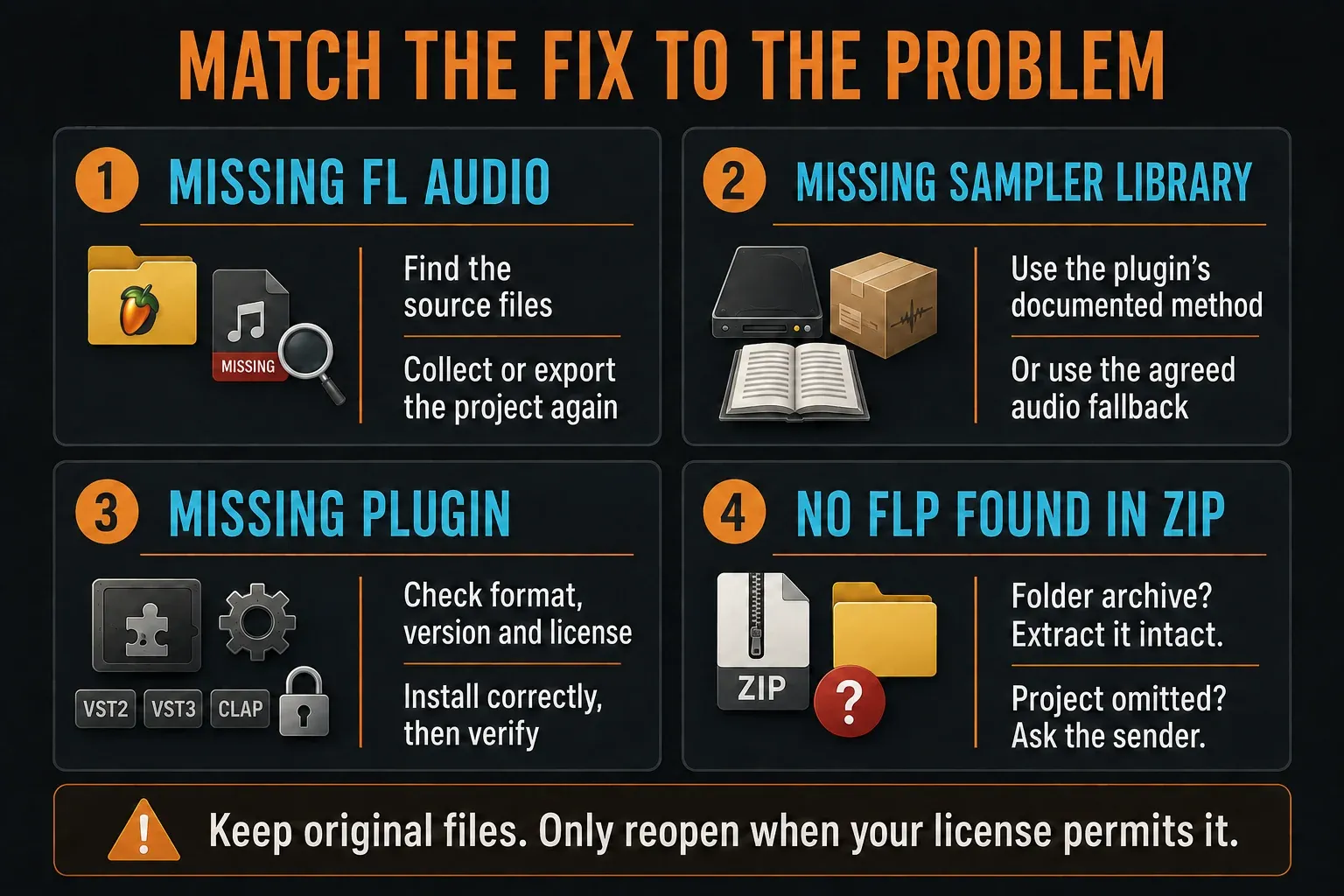
| Symptom | Check first | Useful next action |
|---|---|---|
| Missing FL-managed audio | Was the source available when the sender packaged the project? | Locate the required files, correct the project and export or collect it again |
| Plugin loads but its instrument is silent | External sampler library, preset data and authorization | Restore the plugin's required content using its own documented method, or use the agreed audio fallback |
| Missing plugin or placeholder | Exact plugin format/version, installation, license and Trial status | Install the correct build and verify recognition; do not substitute a different format blindly |
| No FLP found in ZIP | Is it a sample pack, a complete-folder archive, or an incomplete project delivery? | Extract the appropriate folder archive, or ask the sender for the missing project/native package |
The missing-files troubleshooting page explains red Channels and empty plugin replacements. Point Browser search folders at the real audio locations. Avoid leaving a whole drive as a permanent search folder, because broad searches can slow project loading. For plugin discovery, the manual recommends Verify plugins with Rescan previously verified plugins and Rescan plugins with errors. None of these settings can supply a missing license or sample library.
If the warning is about the project data folder, check its saved path before changing anything. Image-Line's data-folder troubleshooting guide treats finding the real folder and resetting its association as separate steps. Resetting the association won't recover missing audio. Protect the source data, and only use a close/reopen step once the Trial limitation no longer blocks reopening.
“Could not find any FLP project in this zipped archive” means FL Studio found no project inside the ZIP. A sample-only pack isn't a broken FLP: extract its audio to a normal folder and import the samples. For a manually zipped complete project folder, extract the whole folder and open the project inside it. If the sender meant to export a native project package but left out the FLP, ask them to export it correctly.
Frequently asked questions
Does a Zipped Loop Package include every sample?
It collects the samples used by Sampler Channels and Audio Clips. Sampler data managed outside FL Studio isn't covered by that rule unless the plugin embeds it in its preset format. Fix missing sources before export and check external dependencies separately.
Do I need to unzip an FL Studio project package?
A native Zipped Loop Package can be opened directly in FL Studio. A manually zipped complete project folder should be extracted as a whole, then you open the FLP or native project ZIP inside it. Sample-only archives should also be extracted before importing their audio.
Are plugins and licenses included in the ZIP?
No. The project can keep plugin state, but the recipient still needs the right installed plugins, licenses and content. Match the plugin format and version, and use rendered audio for any part the recipient can't run.
Can I reopen the ZIP in the standard Trial?
The standard time-unlimited Trial cannot reopen saved projects until purchase and unlock. Save your work and complete needed audio exports before closing it. The purchased edition and additional plugin licenses must cover what the project uses.
Can a Windows project open on a Mac?
FL Studio projects can move between Windows and macOS, but dependencies still have to match. Use the same or a higher FL Studio version, suitable edition features and identical plugin formats and versions available for both systems. Use VST, VST3 or CLAP for this workflow, not AU.
Does reopening on the sender's computer prove the package is complete?
No. The sender's system may still find the original files through its search paths. Check on the receiving system, read its warnings and compare playback with a reference. Don't delete or rename original assets to force a test.
Should I send a project ZIP or stems?
Send the project package when the recipient needs to edit the FL Studio session and can meet its dependencies. Send aligned stems when they need audio parts without running your instruments, especially in another DAW. Either way, a reference mix shows the result you intended.
Keep the compatibility note with each handoff version. For the next task, use the Export & Collaboration guides; for keeping project versions and source data organized between deliveries, follow the Workflow guides.