FL Studio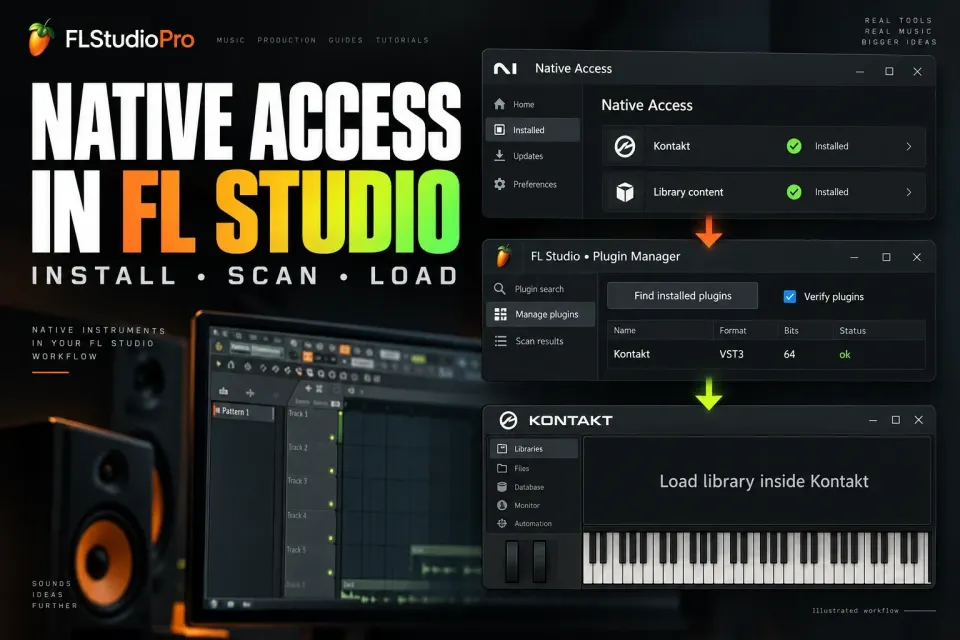
Native Access installs and activates Native Instruments products; it is not a plug-in you add to FL Studio. You install the instrument or effect, scan its plug-in in FL Studio, then load it where it belongs. Kontakt works a little differently: install the library separately and open it inside Kontakt, instead of looking for it as another Channel Rack instrument. And if Kontakt already opens, a missing library points to a content or licensing problem, not to a failed FL Studio scan.
Use the correct three-stage setup
- Sign in to Native Access with the Native ID that owns the product. Check the product’s operating-system requirements before you install or update anything.
- Install Kontakt and the Kontakt library you want to use as separate products. For another NI instrument or effect, install that product instead.
- Start Kontakt as a standalone application once so it can build its database, then close it before you scan in FL Studio.
- Open Options > File settings > Manage plugins in FL Studio. Enable Verify plugins and click Find installed plugins.
- Open Kontakt from Add > More plugins and load it in the Channel Rack. An NI effect belongs in a Mixer effect slot instead.
- Choose the installed library inside Kontakt and load an instrument. Play a few notes, then run the licensed-project recall check below before you rely on the setup.
Check Native Access locations before installing
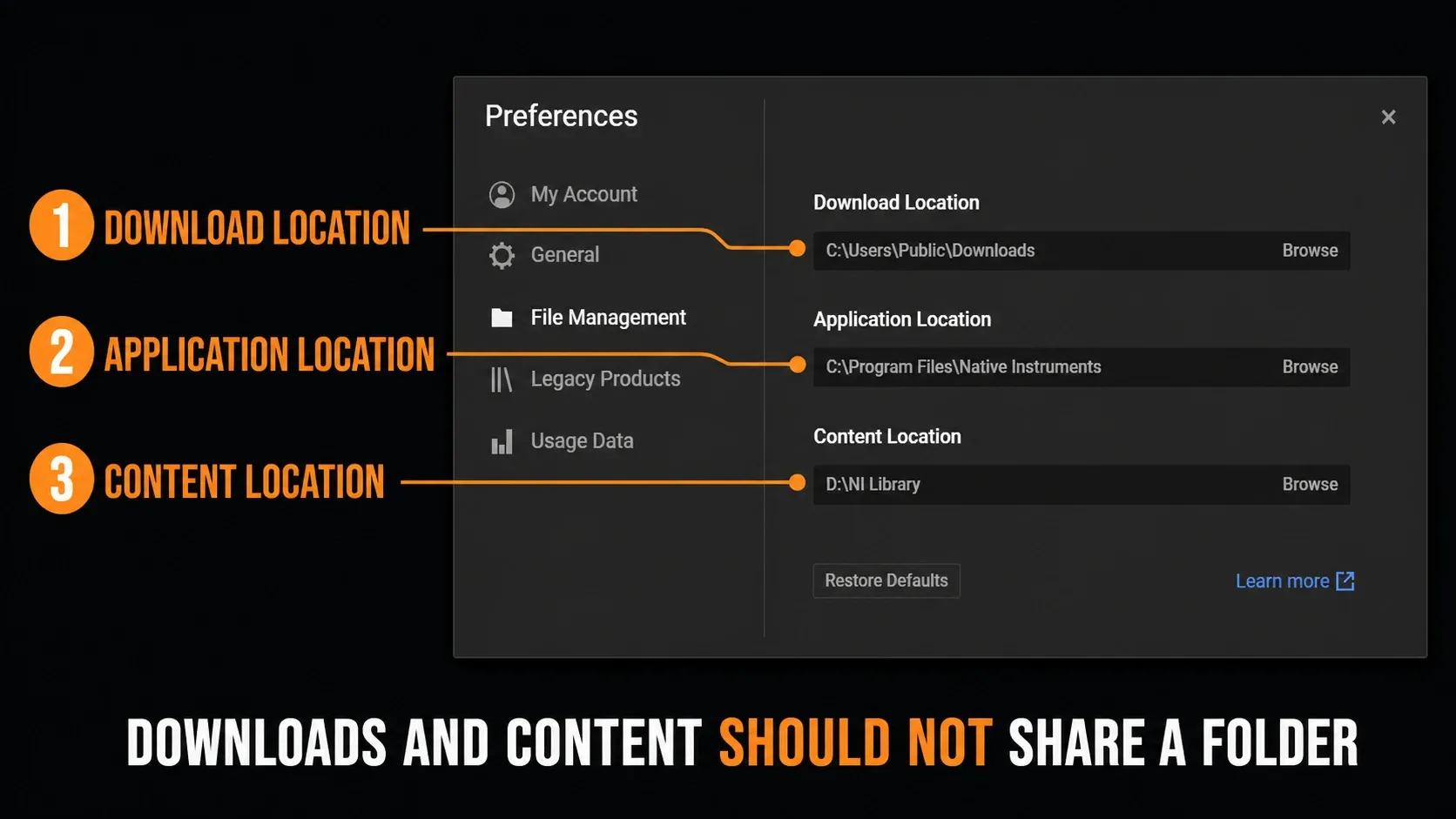
In Native Access 2, open Preferences > File Management. Download Location is temporary installer storage. Application Location holds standalone applications. Content Location holds large libraries, Reaktor instruments and expansions. Native Instruments’ current install-location guidance explicitly warns against using the same folder for Downloads and Content.
Leave Application Location at its default unless you have a real reason to change it. Put Content on a fast internal or external drive with enough space, in a dedicated folder such as NI Libraries. A content drive isn’t a VST folder, so don’t add it wholesale to FL Studio’s Plugin Manager.
Changing these preferences affects future installations; it won’t move existing libraries. Keep Downloads separate from Content, because Native Access can remove temporary installation files after installation. If you move an installed Kontakt library, follow the version-specific repair steps below instead of changing preferences and expecting the old path to update itself.
Know the plug-in paths FL Studio should scan
On 64-bit Windows, the standard VST3 folder is C:\Program Files\Common Files\VST3. On macOS, it is /Library/Audio/Plug-Ins/VST3; AU components use /Library/Audio/Plug-Ins/Components. Native Access does not offer a custom VST3 location. Its content-folder setting is not a substitute for one.
Older NI products may also install VST2, for example in the Native Instruments VSTPlugins 64 bit folder on Windows. Check that product’s Installation Paths instead of assuming every current product still ships VST2. Kontakt 8 supports VST3, AU and AAX; use VST3 in FL Studio, or AU on Mac. AAX isn’t an FL Studio format, and AU can’t be used in a Windows project.
VST3 and AU belong in their standard system locations. Image-Line recommends custom Plugin Manager search paths mainly for VST2 or a truly custom legacy install. Don’t move a VST3 file into a sample folder to make it “easier.” The current Image-Line plug-in installation guide documents the expected locations and scan behavior.
Run a verified FL Studio plug-in scan
Open the FL Studio Plugin Manager through Options > File settings > Manage plugins. Leave the default VST3 locations in place, add only the exact VST2 folder if Native Access shows a custom VST2 installation, and enable Verify plugins. Then click Find installed plugins.
Verification actually opens and identifies the plug-in instead of just listing its file. The Plugin Manager reference documents Rescan previously verified plugins for an existing entry and Rescan plugins with errors for a failed scan; both depend on Verify plugins. Let any authorization dialog appear and answer it, because suppressing scan pop-ups can cause an error on its own.
When the scan finishes, find the product by name and check its Type and Status. Use the F favourite column for the version you plan to load; that’s separate from a Browser star or category entry. Instruments go in the Channel Rack, and effects such as Guitar Rig go in a Mixer effect slot. The general plug-in installation guide covers the host-side scan in more detail.
Understand Kontakt plug-in versus Kontakt library
Kontakt is the plug-in FL Studio scans. Native Instruments documents the same host relationship: load Kontakt as the plug-in in the DAW, then choose the library inside Kontakt. A piano, orchestra or drum collection built for Kontakt is content that Kontakt loads. Electric Mint, a sampled piano or an orchestral library won’t normally show up as separate VST3 files just because Native Access lists them as installed.
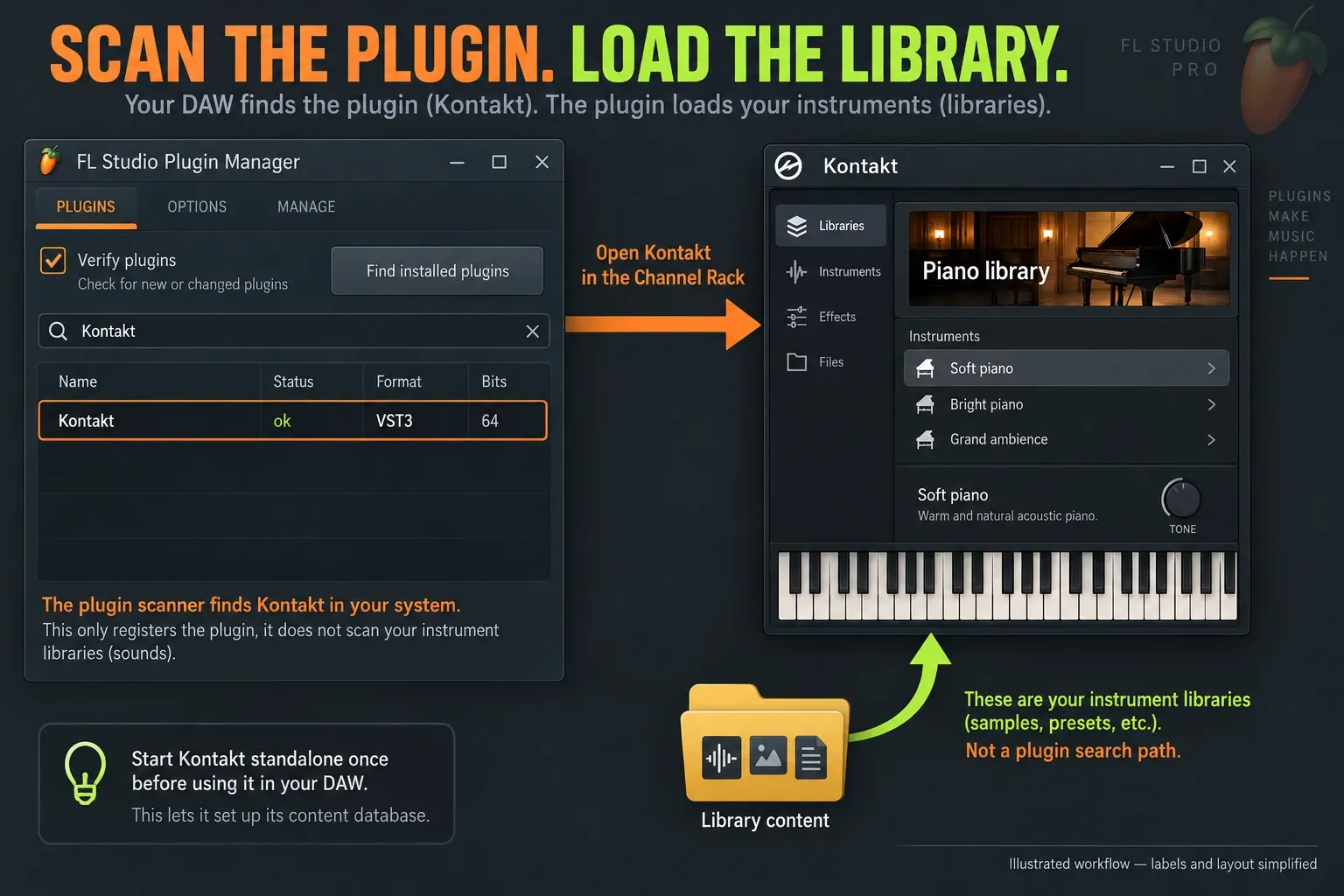
NI requires one standalone Kontakt launch to build the database before loading its libraries in a DAW. After that, open Kontakt in the Channel Rack and choose the library and instrument. In Kontakt 8.8’s interface, the header’s Library button opens that browser; older releases have a different layout, so the exact button placement depends on your version.
For a third-party library, check whether it is licensed for Kontakt Player. A Player-compatible library can run in Player; a non-Player library requires full Kontakt. This distinction describes the developer’s Player licensing, not whether you paid for the download. NI’s third-party setup instructions distinguish a serial registered in Native Access, an Install button, and Add Product for content supplied by the developer. A library without a serial follows its developer’s file-loading instructions. Kontakt 7 and 8 can also import non-Player content into the browser; do not assume that every such library must remain invisible there.
Repair a library after moving content
Start by checking that the content drive is connected and mounted. If you’re moving a library on purpose, close FL Studio, Kontakt and other audio applications before you move its folder. For Kontakt 7 and 8, NI’s documented relocation sequence is Native Access Library > Installed > Kontakt, then the affected library’s Repair control, Repair again, and the folder symbol beside Locate. Select the library’s new root folder and finish with Done. Kontakt 6 and earlier use the older Locate workflow inside Kontakt, so don’t expect identical screens.
Don’t add the entire sample drive to FL Studio’s plug-in paths. FL Studio is looking for plug-in binaries, and Kontakt is looking for its library content. Mixing those two jobs gives you long scans and still leaves the library missing.
Fix Native Access or Kontakt not showing in FL Studio
The product is installed but no VST appears
First work out what the product is: an actual plug-in, a Kontakt library, or content for another instrument such as Reaktor? For a plug-in, inspect its Installation Paths in Native Access and confirm the installed format, then run the verified FL Studio scan for that file. A library has no separate VST3 for the scanner to find.
Kontakt appears in Plugin Manager but not Add
Look in More plugins and check the F favourite column. A verified Kontakt entry should be an instrument, not an effect. Plugin Manager won’t let you manually change the Type of a verified entry, so use a verified rescan if an earlier fast scan left the entry unclassified. Reinstalling its sample library won’t bring back a hidden favourite.
Kontakt opens but the library is absent
Check the account, installation and library requirements before you touch any folders. NI’s missing-product checklist says to use the same email that registered the product and to refresh Native Access after registration. Look for individual products instead of the Komplete bundle name, and remember that incompatible products may be hidden. If the library has moved, repair its location; if it hasn’t, relocating it again and again won’t help.
If a library stopped loading after an update, compare the Kontakt version it requires with the instance actually loaded in FL Studio. NI documents that updated libraries can require a newer Kontakt version. Use a compatible combination. On an older supported setup, check NI’s available compatible library versions before updating everything blindly.
The scan reports Error
Record the exact product, format, version and scan status. Close standalone instances, allow authorization prompts and rescan the error. Check compatibility before installing an update. On Apple Silicon, use a compatible native build where available; current FL Studio can also bridge Intel VST plug-ins. If you change between native and Rosetta host modes, rescan in each mode. The Apple Silicon plug-in guide separates those cases; do not move old binaries between folders hoping to change their architecture.
The plug-in loads but the project is heavy
Large sample libraries can push memory and disk activity up. The high-CPU guide separates CPU load from disk, buffer and plug-in behavior before you start disabling random options.
Record the installed versions before archiving a project
Native Access can update the product, while FL Studio remembers the plug-in instance the project used. Before archiving or handing off an important session, write down the product name, plug-in format and version that actually opens in Plugin Manager. “Kontakt installed” isn’t precise enough when the computer also holds an older Kontakt generation, a standalone application and several library products with similar names.
Keep the presets and an audio reference the session depends on. A Kontakt library’s samples stay in its content folder; loading Kontakt doesn’t copy them into the FLP. Another computer needs its own valid product access, the library files and compatible plug-in versions. Test an updated project as a copy before you replace the archive.
Don’t uninstall an older Kontakt generation to force FL Studio to swap in the newest one. NI’s automatic migration host list doesn’t include FL Studio and warns against using that migration procedure in unsupported DAWs. Keep the older version and original format available for sessions that ask for them.
Keep the setup maintainable
Stick to one current plug-in format where you can, keep VST3 in its standard folder, keep content in a dedicated library location, and write down any custom VST2 path. On a new machine, install product versions compatible with the archived project before saving over it, and keep installers and backups for critical work.
When both VST2 and VST3 appear, resist swapping formats inside an established project just to make the database look tidier. FL Studio identifies plug-ins by more than the visible name, and an old project may ask for the exact format it was saved with. Keep the legacy entry around until important projects have reopened and saved correctly with the replacement you want. For new projects, favor the current supported format and name the favorite clearly enough that you know which one you loaded.
In an unlocked FL Studio installation, load one preset, play MIDI, save a separate FLP, close it and reopen it. Confirm that the same plug-in and library return without a locate dialog. If Kontakt responds but the project stays silent, trace the audio path from Channel to output instead of reinstalling the library.
For an effect, route a test sound through its Mixer slot and repeat the recall check. FL Studio Trial can save but cannot reopen an FLP until purchase, so export any needed audio before closing a Trial session. NI demo or activation restrictions are a separate licensing check; a successful scan does not prove that an NI product is fully licensed.
A good final check is specific. Which Kontakt generation and format loaded, where does the content live, does the intended instrument play, and can your licensed project recall it? Keep those answers with the project. They’ll tell you far more than a screenshot of Native Access saying Installed.
The FL Studio installation guide covers the host itself. If you’re still choosing tools, compare included stock plug-ins with free third-party options. The Plugins hub ties that choice to installation and troubleshooting.
Frequently asked questions
Do I add Native Access itself to FL Studio?
No. Native Access installs and activates products. FL Studio scans the installed instrument or effect plug-in, such as Kontakt, Massive or Guitar Rig.
Why is my Kontakt library not listed as an FL Studio plug-in?
A Kontakt library is content, not a separate VST. Load Kontakt in FL Studio, then choose the library inside Kontakt’s browser.
Where does Native Access install VST3 on Windows?
The standard 64-bit Windows VST3 location is C:\Program Files\Common Files\VST3. FL Studio scans that default system folder.
Should I add my Native Instruments content drive to Plugin Manager?
No. Add only a valid custom VST2 plug-in folder when necessary. Kontakt and Native Access manage the content drive.
Why did changing Content Location not move existing libraries?
Native Access preferences affect future installations. For an existing Kontakt 7 or 8 library, move its folder with audio applications closed, then use the documented Native Access Repair and Locate sequence to register the new root folder. Check that the content drive is mounted first.