FL Studio
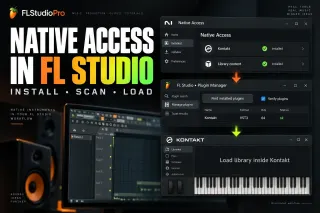
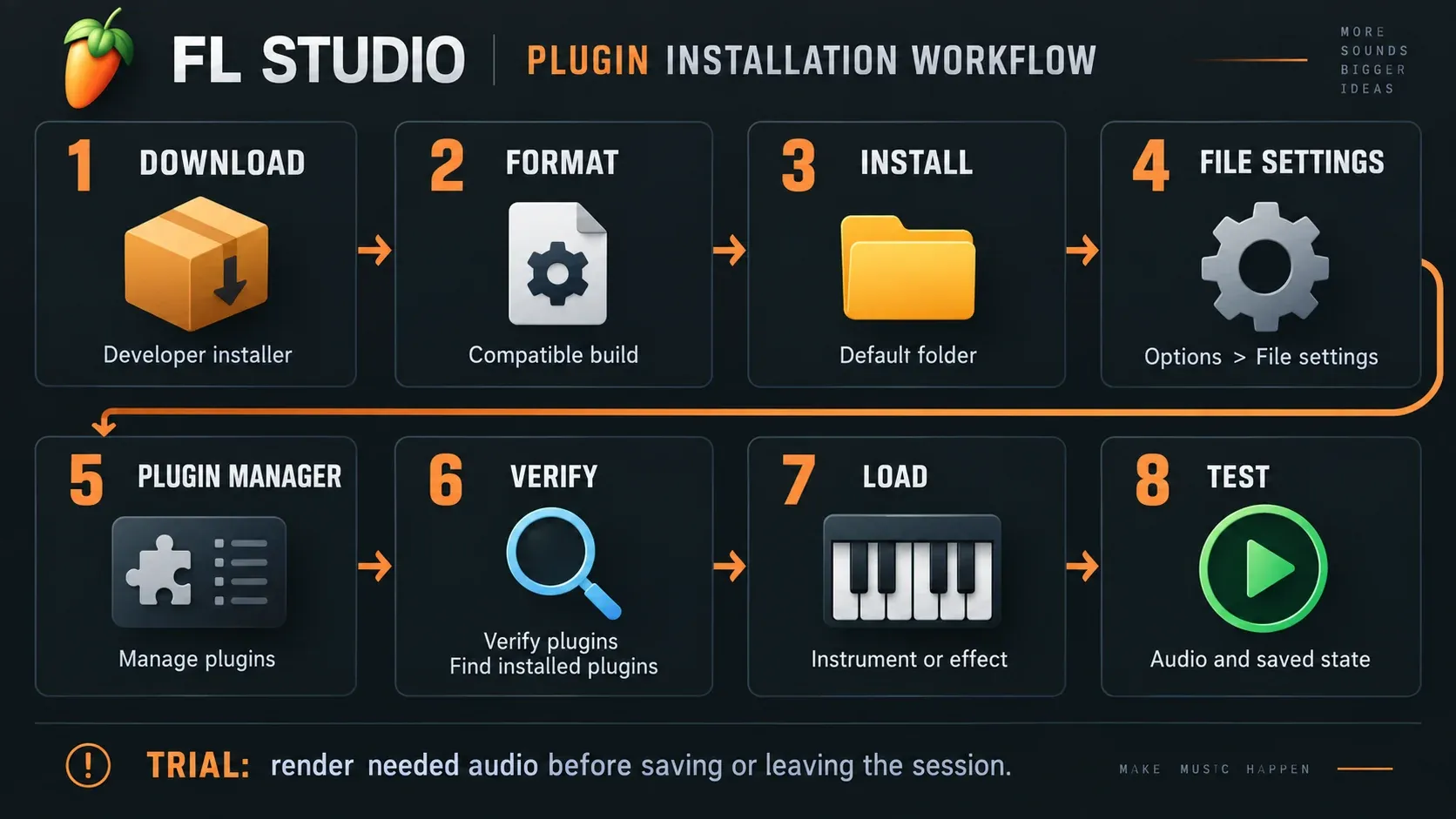
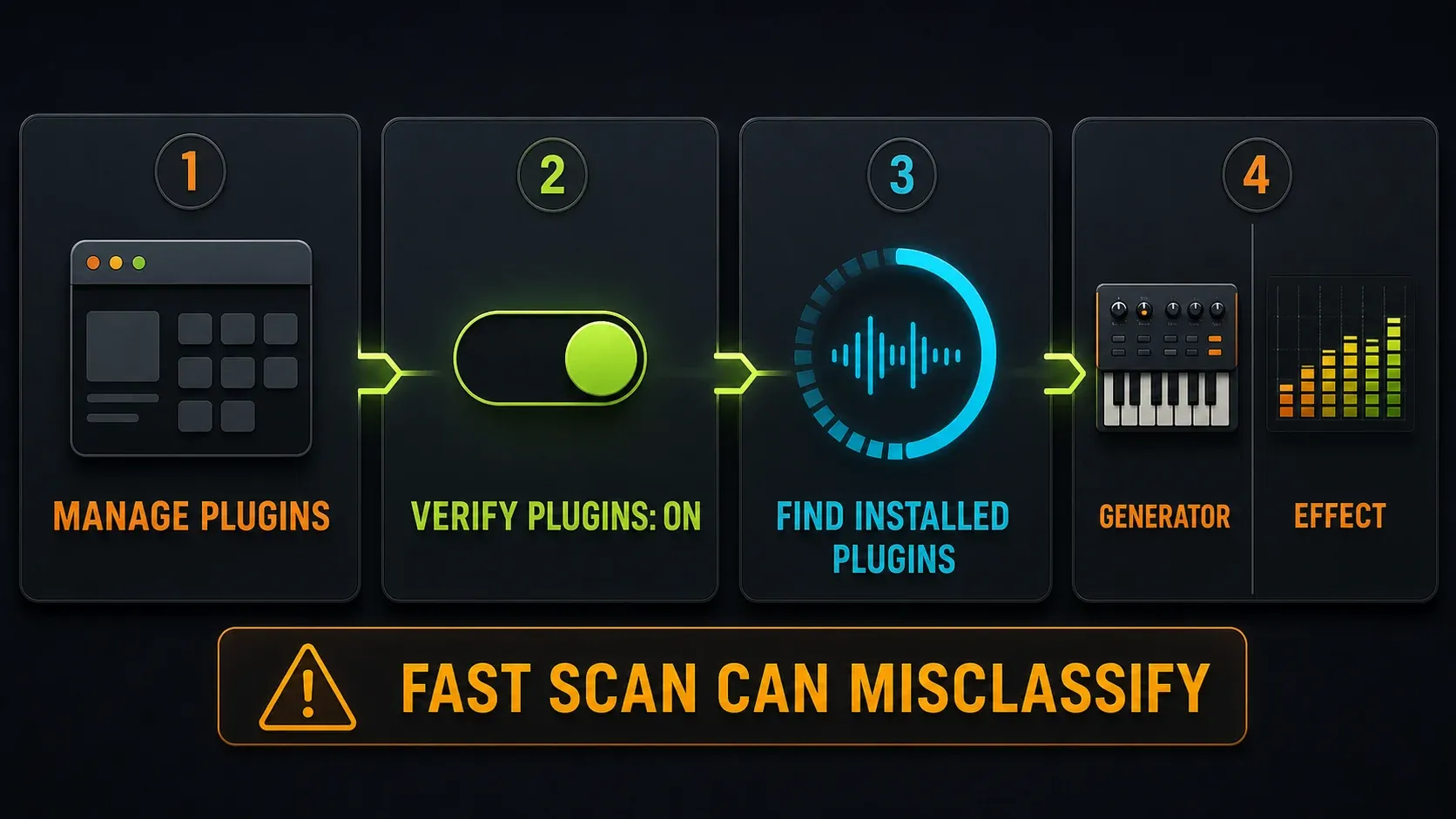
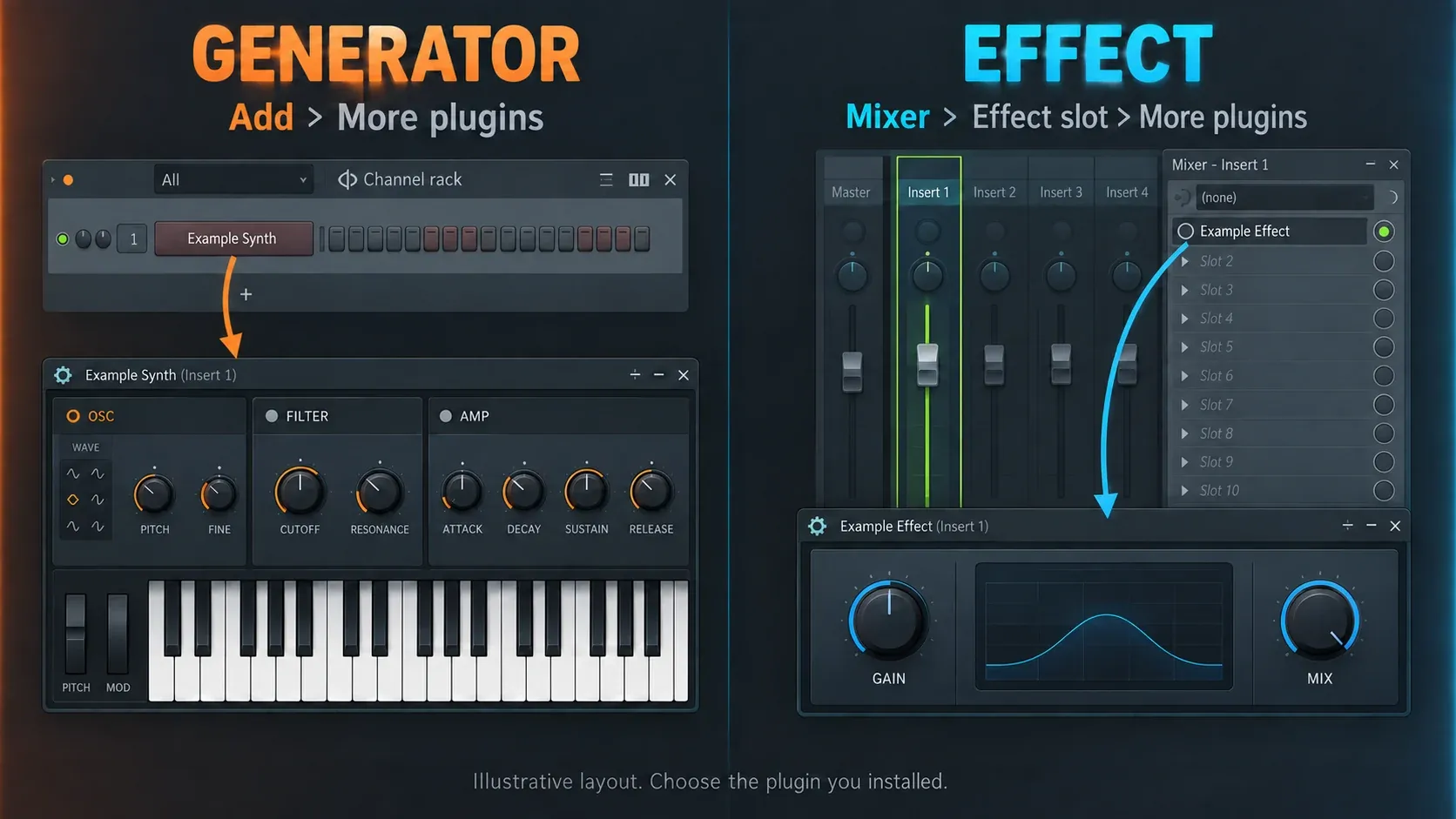
To install a plugin in FL Studio, run the developer's installer, keep its standard plugin location, then open Options > File settings > Manage plugins. Enable Verify plugins, click Find installed plugins and let the scan finish. Load an instrument from Add > More plugins or an effect from a Mixer effect slot. A file sitting in the right folder and a working instance on your screen are two separate checks.
For a new plugin, VST3 is usually the easiest place to start when the developer supports it on your system. AU is Mac-only, and current FL Studio also supports CLAP. Pick the build for your operating system and processor, and don't go by the product name alone. If an existing project needs another format, keep that version installed instead of swapping it out blindly.
Using FL Studio Trial? Don't close useful work just to run the saved-project test below. Image-Line's Trial limitations let you save but block reopening saved projects until purchase. Render any audio you need before saving or leaving the session. A third-party plugin's own trial or activation rules are a separate matter.
Install a plugin in FL Studio in eight steps
- Get the right download. Use the developer's current installer and check its operating-system and processor requirements. If the developer ships files without an installer, follow its manual-install instructions.
- Choose the format. Normally start with a compatible 64-bit VST3 build. AU is macOS-only; CLAP is another supported choice. Preserve any older format required by existing projects.
- Finish installation. Keep the default plugin folder. If the product has a separate content library, follow its instructions for that location as well, and leave the plugin binary where it is when you move samples.
- Open File settings. In FL Studio, choose Options > File settings, then Manage plugins. Browser sample folders and Plugin Manager search paths are two different lists.
- Check the search scope. Confirm that any VST2 folder you chose on purpose is listed. Leave VST3 and AU in their standard locations and skip broad or improvised search paths.
- Run a verified scan. Enable Verify plugins and click Find installed plugins. Let the scan finish and answer any legitimate vendor dialogs. If you updated a plugin or are retrying an earlier error, use the matching rescan option.
- Load one instance. Open a generator from Add > More plugins, or load an effect through a Mixer slot. Make sure it's the exact product and format you installed.
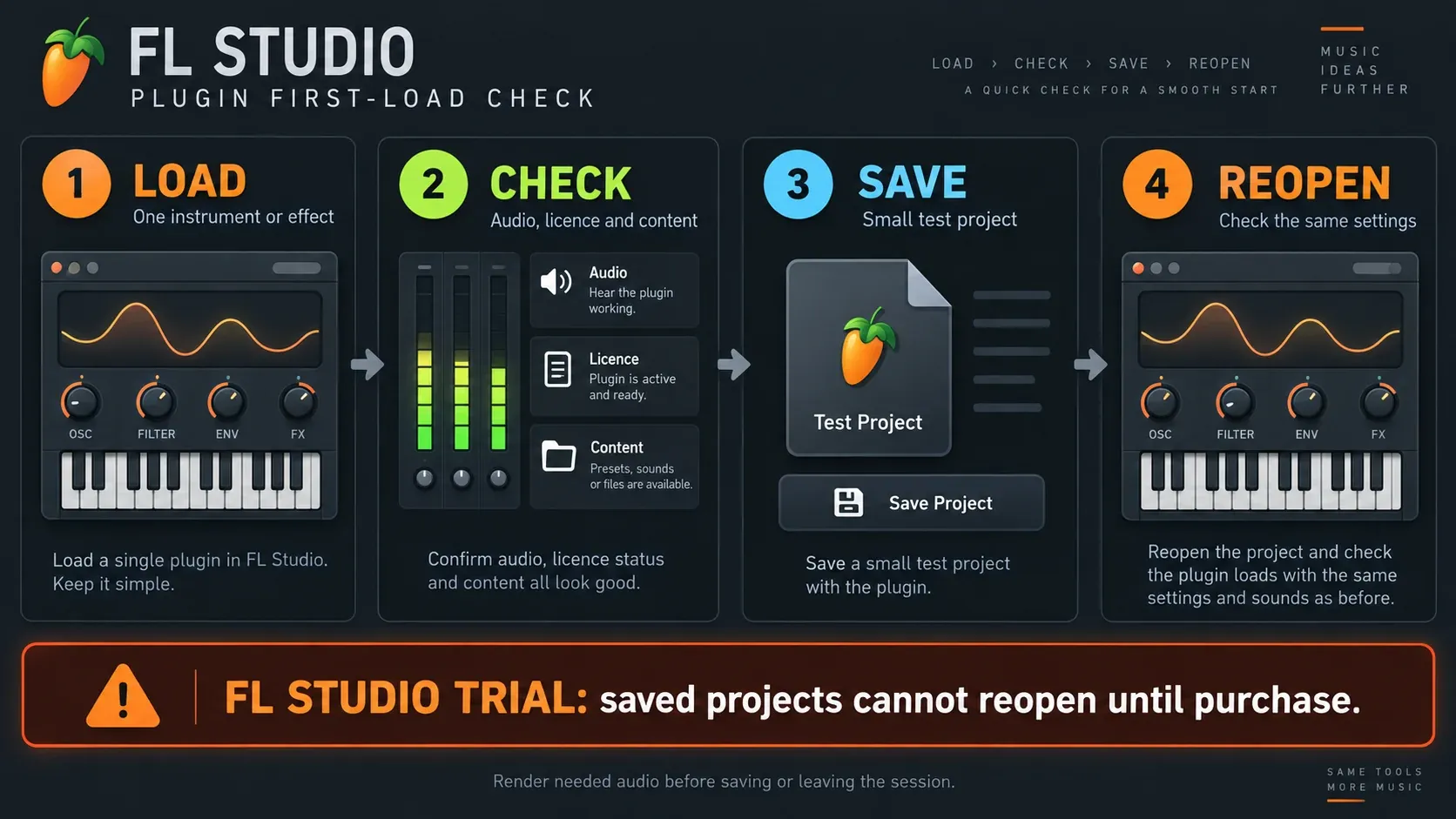
- Test audio and saved state. Play notes into an instrument or run audio through an effect. In licensed FL Studio, save a small test project and reopen it to check the settings came back. In Trial, render needed audio before saving or leaving, because saved projects cannot reopen until purchase.
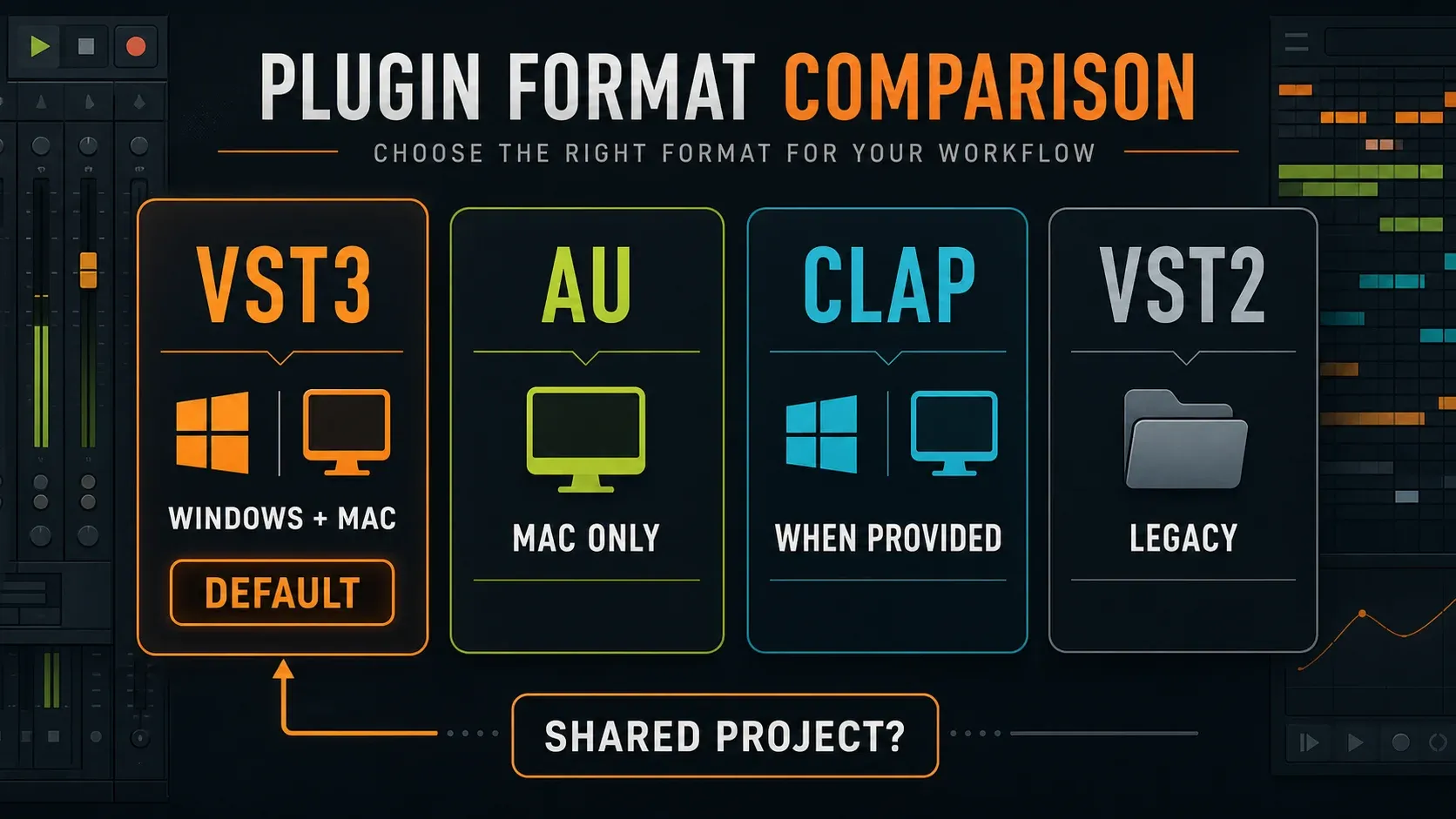
Choose VST3, AU or CLAP before downloading
| Format | Windows | macOS | When to choose it |
|---|---|---|---|
| VST3 | Supported | Supported | A practical default for a new install, especially when sharing with Windows and Mac users |
| AU | Not supported | Supported | A Mac-only alternative when the vendor recommends it or that build works better for you |
| CLAP | Supported | Supported | When your FL Studio version and the developer's build support the workflow you need |
| VST2 | Supported | 64-bit builds supported | Existing projects or products that still need this format |
The table shows what the host supports; it doesn't mean every plugin exists for both systems. Image-Line's installation manual recommends VST over AU when you share projects between Windows and Mac. You still need the developer's matching installer on each computer and a compatible plugin version. A Windows plugin file won't run as a Mac build.
When FL Studio opens a project, AU instances aren't automatically swapped for their VST counterparts. The manual also says AU plugins don't send MIDI output to FL Studio. CLAP support arrived in FL Studio 2024.1, so an older installation may need an update before that format is available.
Don't uninstall a working VST2 or AU just because VST3 is now installed. Check first whether your older projects use it. For a new product, installing every available format tends to clutter the picker without fixing any compatibility problem.
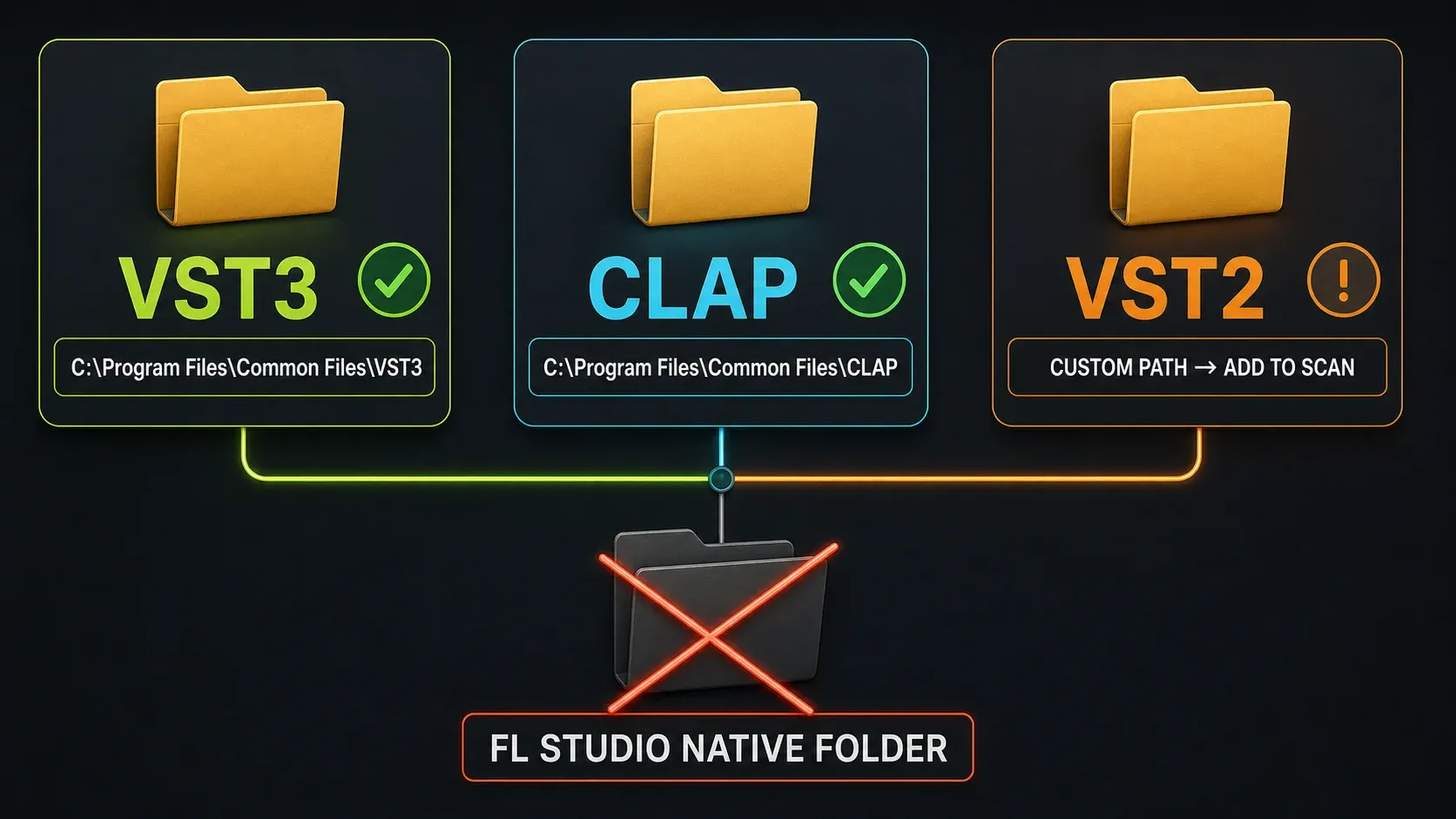
Use the correct plugin folder on Windows
| Format | Documented 64-bit location | Practical check |
|---|---|---|
| VST3 | C:\Program Files\Common Files\VST3 | Keep the installer default; Image-Line also documents C:\Program Files\VST3 |
| CLAP | C:\Program Files\Common Files\CLAP | Use the standard folder supplied by the installer |
| VST2 | C:\Program Files\Common Files\VST2 | If the vendor uses another deliberate VST2 folder, check that exact search path |
Image-Line's Plugin Manager path rules treat extra VST1/VST2 search locations differently from VST3 and AU discovery. Dropping a VST3 binary on a random sample drive and adding that folder won't make it work. The plugin's sound library can live elsewhere, but the binary belongs in its standard place.
Avoid the old Image-Line\FL Studio\Plugins\VST folder. The installation manual reserves it for legacy native FL Studio plugins, so third-party installs don't go there. Windows can bridge some older 32-bit VST plugins, but that's a compatibility route and brings no gain in audio quality. For a new installation, prefer the current 64-bit build.
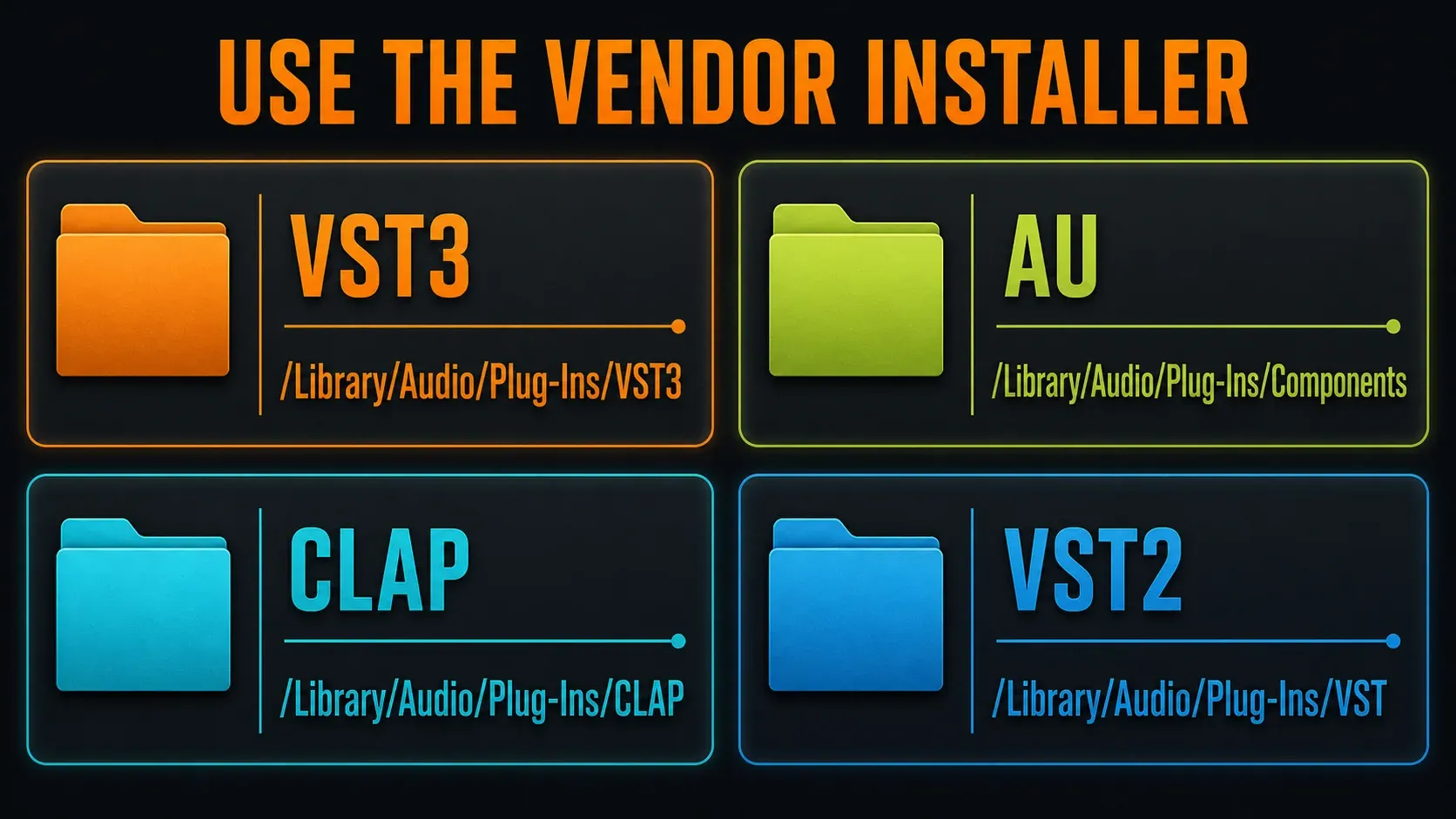
Use the correct plugin folder on macOS
| Format | System location |
|---|---|
| VST3 | /Library/Audio/Plug-Ins/VST3 |
| AU | /Library/Audio/Plug-Ins/Components |
| CLAP | /Library/Audio/Plug-Ins/CLAP |
| VST2 | /Library/Audio/Plug-Ins/VST |
Let the vendor's installer place the component. Some products use a matching folder inside your user Library, so follow the product's instructions instead of moving files after installation. The system Library above and your user Library are two different locations.
The current supported-format list requires 64-bit plugins on macOS. Intel versus Apple Silicon is a separate compatibility question, covered below, and a 64-bit label alone doesn't prove native Apple Silicon support. If FL Studio itself won't run, check its system requirements before troubleshooting any single plugin.
What if the download has no installer?
Some developers ship a plugin file or bundle for manual installation. Read the included instructions, extract the download if needed and put the complete component in the documented folder. Renaming a Windows .dll to .vst3, or copying it to a Mac, won't convert anything; the extension isn't a format converter.
A preset, sample pack or content library isn't always a standalone plugin. Install the instrument that reads that content first, following the vendor's instructions. AAX isn't on FL Studio's list of plugin formats, so when a download offers AAX next to VST3 or AU, pick a supported build.
For products managed by a vendor application, use that application and leave its internal files alone. For example, Waves' FL Studio instructions separate installed software, version-specific activation requirements and scanning. Those details are specific to Waves and won't apply step for step to every synth.
Run Plugin Manager with Verify plugins
Open Options > File settings > Manage plugins. If you picked a custom VST2 folder, add that exact directory. Don't add your Downloads folder, a whole drive or a big sample tree just to see what the scanner turns up.
Enable Verify plugins and click Find installed plugins. Verification opens components, sorts them into generators and effects, and records architecture and input/output information. A fast scan can leave instruments and effects listed in both categories. Verification is the recommended starting point, though some third-party plugins may still fail to scan or run correctly.
For a new plugin, you normally don't need to re-verify all the older entries. After an update, use Rescan previously verified plugins together with Verify plugins. If you've fixed an earlier failed installation, Rescan plugins with errors retries those entries. Pick the option that matches what changed instead of running the same scan over and over.
Some scans pop up a vendor authorization or setup dialog. Answer a legitimate prompt so scanning can continue, and don't assume a quiet-looking scan has frozen. Image-Line notes that suppressing pop-ups can itself cause errors when a plugin is waiting for an answer.
Find the new generator or effect
Newly scanned plugins show up in the Browser under Plugin database > Installed > Generators > New or Effects > New. Verification helps sort them correctly. For an instrument, use Add > More plugins; for an effect, open a Mixer effect slot and its More plugins list. FL Studio loads supported external formats through Fruity Wrapper.
The Installed list isn't your curated favorites collection. Plugin Manager's F/Favorite selection adds plugins to the relevant menus, and adding a plugin through Add to plugin database (flag as favorite) can also save its preferred opening state and thumbnail. The Browser's star tag is a separate feature that moves an item into its Starred tab.
These database entries don't install or uninstall the underlying binary. Once the plugin works, the Plugin Database organization guide handles categories and thumbnails. If the Installed branches are missing entirely, check the Browser navigation guide before you assume another installation is needed.
Test the plugin before organizing it
For an instrument, load one instance in a small test project, pick a factory preset if there is one and play a few notes. For an effect, send a known signal through one Mixer insert and compare a clearly audible setting with bypass at a sensible listening level. A neutral effect can sound unchanged, so silence or no obvious difference is something to investigate before you reinstall.
Check any license prompt and confirm the product can find its content. In licensed FL Studio, save and reopen the small project and check that the same plugin and settings come back. That tests this particular setup; it can't vouch for every preset or future project. In FL Studio Trial, finish needed audio renders before saving or leaving, and leave the reopening check until the application is licensed.
Keep the installer, plugin binary and content library separate in your head. A sampled instrument may have a small VST3 component in the system folder and a much larger library on another drive. If the library is missing, use the developer's content-location procedure inside the instrument or companion app, and leave its VST3 file where it is.
If the instance loads but the project overloads, follow the high-CPU diagnosis. If no MIDI reaches an instrument that otherwise works, check the MIDI input route. Installation can't fix every playback problem.
Handle Apple Silicon as a separate compatibility layer
On an Apple Silicon Mac, look for the developer's native or universal build first. FL Studio can run natively or under Rosetta where that mode is available. Image-Line documents automatic bridging of Intel VST plugins in native FL Studio, but bridging can't make an older installer, license manager or plugin work if it's incompatible.
The Apple Silicon support instructions require a separate verified scan the first time you use each runtime mode, including the previously verified and error rescan options. You don't need to switch modes routinely once a native setup works. Intel-to-ARM compatibility is also a different question from support for obsolete 32-bit Mac plugins.
For mode selection, old projects and migration checks, continue with the Apple Silicon plugin guide. This page gets a suitable component installed and discovered, and that guide takes on the wider compatibility decision.
Installing from FL Cloud is a different route
If the plugin comes from the FL Cloud catalog, open Tools > FL Cloud > Plugins and use the FL Cloud Plugins application. The official installation guide describes its install, update and repair controls. Unlike a regular third-party installation, this route can add the plugin to the Plugin Database with its thumbnail automatically.
Check what your plan actually entitles you to instead of assuming the whole catalog is included. An FL Cloud subscription and an FL Studio license are separate purchases, and a Cloud subscription won't unlock FL Studio Trial. Keep that in mind before relying on the saved-project test.
Plugin support is not an edition upgrade
Image-Line's current edition comparison includes third-party VST2, VST3, AU and CLAP support in every edition, within the operating-system limits above. All Plugins Edition doesn't bundle every third-party product, which may still need its own license or subscription. Don't upgrade FL Studio just to get Plugin Manager to scan a vendor synth.
If you're deciding what to buy, use the edition comparison guide. If you haven't picked a plugin yet, look at the stock tools already available or a specific tool from the free-plugin selection. Install the one that solves your task, then test it.
Final installation checklist
- The download is from the developer and matches the operating system and processor.
- The selected format is supported, and older project dependencies have been preserved.
- The binary stayed in its documented location; any separate content library is available.
- Plugin Manager searched the correct scope with Verify plugins enabled.
- The expected generator or effect loads and produces or processes audio.
- License or content prompts have been checked rather than hidden.
- Licensed FL Studio can reopen the small test with the intended state; Trial work is protected before leaving the session.
If the plugin you expect is still missing, use the plugin-not-showing diagnosis to pin down the specific failure. For your next tool or organizing job, follow the plugin guides; for a different technical fault, use the troubleshooting routes.
FL Studio plugin installation FAQ
Where do I install VST3 plugins for FL Studio on Windows?
Use the vendor's standard VST3 location, normally C:\Program Files\Common Files\VST3. Image-Line also documents C:\Program Files\VST3. Keep the plugin in a supported location instead of inventing a custom VST3 search path.
Where do I install plugins for FL Studio on Mac?
The system folders are /Library/Audio/Plug-Ins/VST3 for VST3, /Library/Audio/Plug-Ins/Components for AU, /Library/Audio/Plug-Ins/CLAP for CLAP and /Library/Audio/Plug-Ins/VST for VST2. Follow the vendor installer; some products use a matching user-Library location.
Should I install VST3 or AU on a Mac?
VST3 is a practical default when the vendor supports it, especially for projects you share with Windows users. AU is a Mac-only alternative and won't automatically swap in for a VST instance in a project. Keep any format your existing projects rely on.
Does FL Studio support CLAP plugins?
Yes. CLAP support was introduced in FL Studio 2024.1 and is listed for current Windows and macOS versions. Use a compatible developer build and the documented CLAP folder, then run a verified scan.
Why should I enable Verify plugins?
It opens discovered components, sorts them into generators and effects, and records architecture and input/output information. A fast scan can list instruments and effects in both categories. Verification is recommended, but an OK scan still leaves audio, license and saved-state checks to do.
Which rescan option should I use after updating a plugin?
Use Rescan previously verified plugins together with Verify plugins to recheck an updated component. Rescan plugins with errors is for entries that failed earlier. Pick the option that matches what changed instead of repeating a scan for no reason.
Can I install a plugin without an installer?
Yes, when the developer supplies a compatible component for manual installation. Follow its instructions and keep the whole file or bundle intact. Renaming an extension won't convert formats, and a preset or library still needs the instrument that reads it.
Do I need All Plugins Edition for third-party plugins?
No. Every current edition supports third-party plugin formats within its operating-system limits. A third-party product may need its own license, and buying a higher FL Studio edition doesn't include that product automatically.
Why can the scan succeed but the plugin still fail to open?
The loaded instance can still run into authorization, missing-content or compatibility problems. Test one instance with audio and read the exact error. In licensed FL Studio, check that a small saved project reopens too; Trial cannot reopen saved projects until purchase.
Can I save and reopen the test in FL Studio Trial?
You can save in Trial, but you cannot reopen that saved project until you purchase FL Studio. Render needed audio before saving or leaving the session. A plugin's own license or trial doesn't lift the FL Studio application restriction.