FL Studio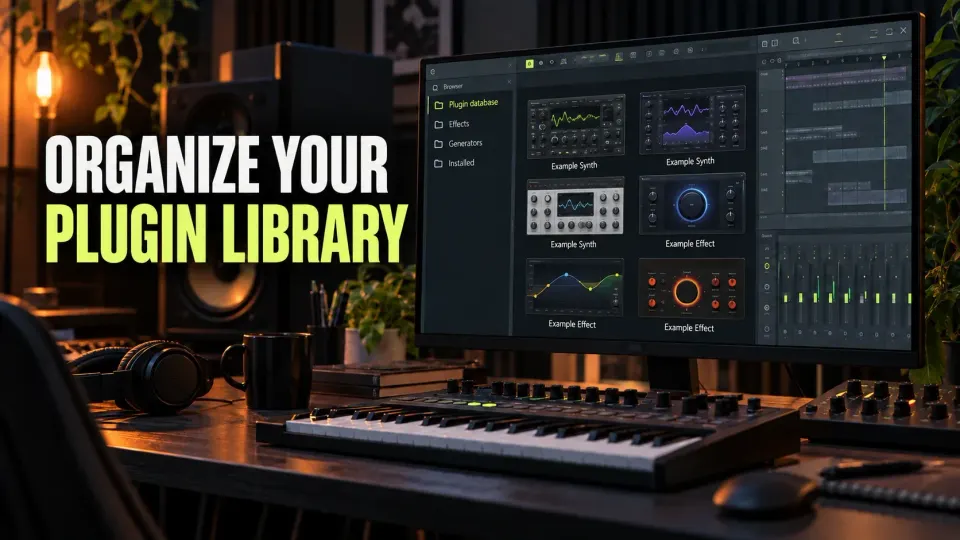
Your plugin loads fine, but finding it means scrolling past tools you never touch. To organize the FL Studio Plugin Database, curate its Effects and Generators favorites folders and leave the installed plugin binaries exactly where they are. Start with one useful category and back up the database. Then add a working plugin with the opening state you want.
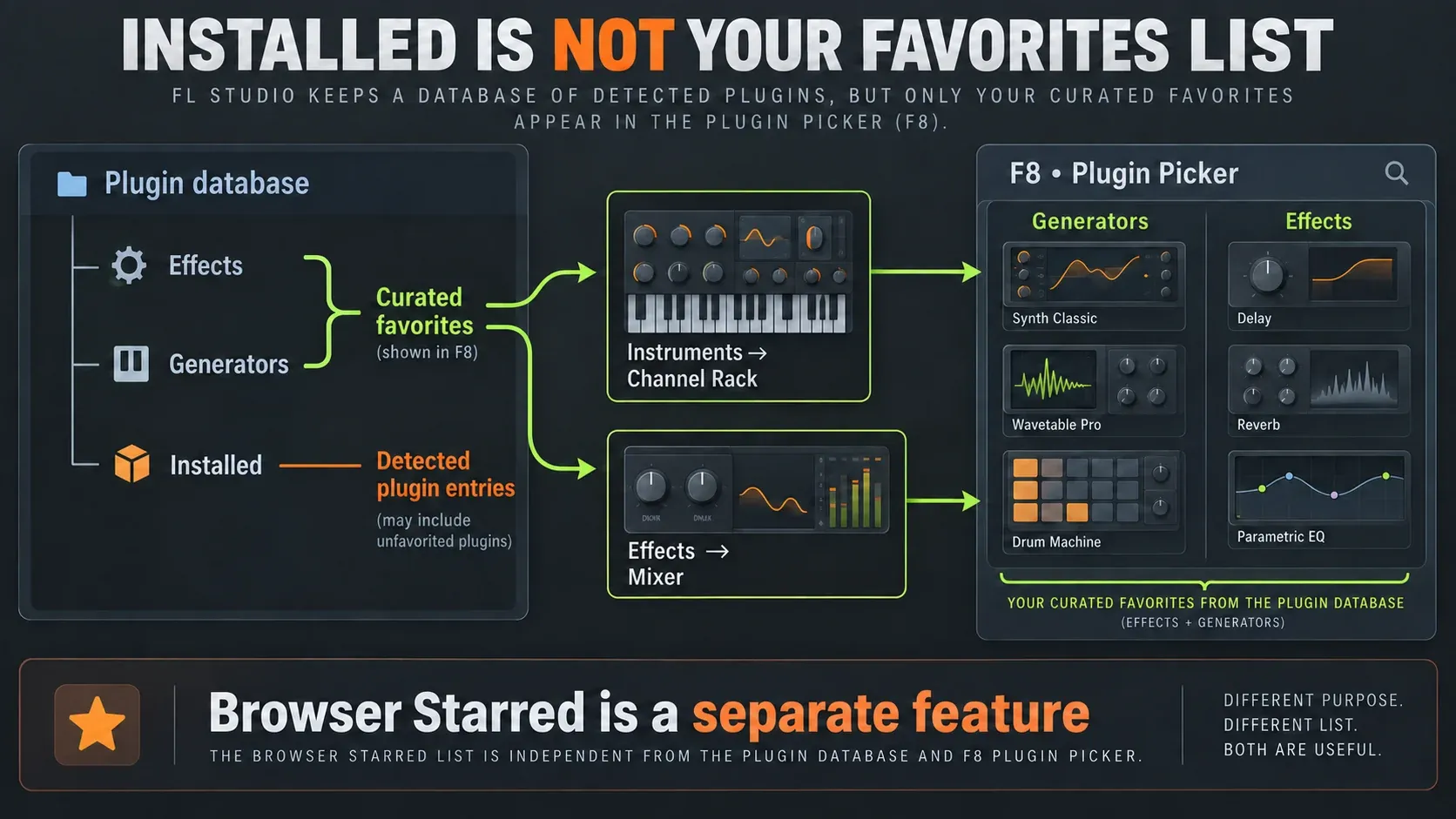
Keep one distinction in mind. Installed holds the entries FL Studio detected, while your favorites feed the Plugin Picker and loading menus. Tidying folders should never turn into a reinstall.
What does the FL Studio Plugin Database control?
Image-Line’s Browser documentation separates the top-level Effects and Generators favorites from the entries inside Installed. Those first two folders hold your curated choices. Installed is the discovery inventory, and it’s the wrong place to build your own category tree.
| Location or action | What it changes | What it does not do |
|---|---|---|
| Plugin database → Installed | Entries discovered by scanning; verification identifies the plugin type | Create your ideal shortlist automatically |
| Plugin database → Effects / Generators | Favorite presets, categories and associated thumbnails | Move or install a VST3, AU, CLAP or VST2 component |
| Browser star | Add a file to the Starred tab | Perform the plugin-favorite command |
| Refresh content | Reread Browser files and folders | Run a verified plugin scan |
For a plugin that has never loaded, finish its installation and first verified scan first. If an entry you expect is missing or shows an error, work through the missing-plugin diagnostic. This guide picks up once discovery works.
Choose plugin categories around the job
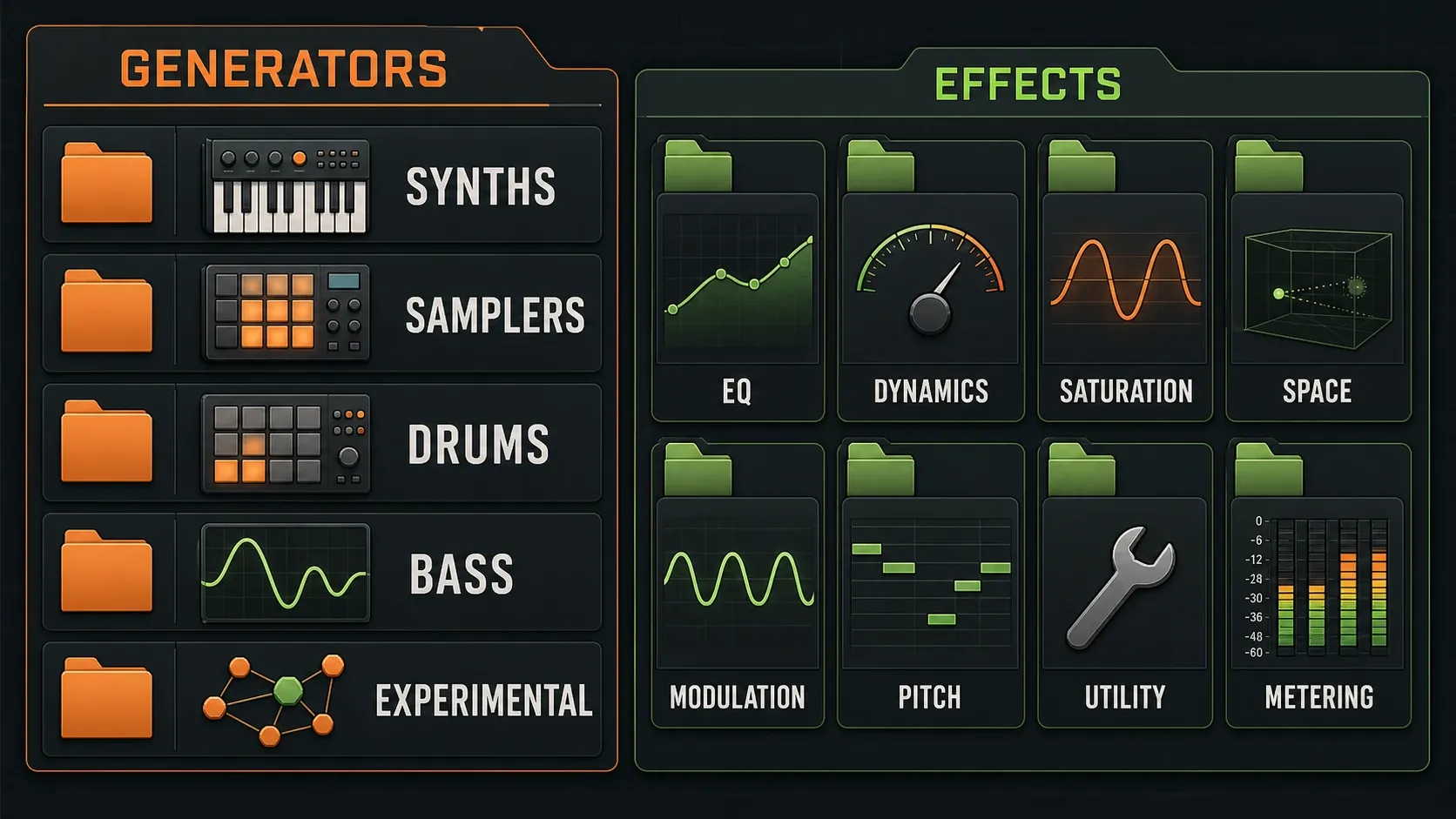
Vendor folders help when you remember the manufacturer. For finding an EQ, a category named after the job usually gets you there faster. I’d try six starting groups across the two branches: Generators → Synths, Samplers and Effects → EQ, Dynamics, Space, Utility. They’re only suggestions, and FL Studio doesn’t require these folder names.
Add Drums, Bass, Saturation or Metering only when your own collection needs the split, and keep the existing categories that already work. Two well-chosen reverbs don’t need an elaborate filing system. A big sound-design collection might justify separate Reverb and Delay folders.
Pick a few entries from your stock-plugin toolkit before adding more downloads. A small free-plugin rack can cover a missing job without turning every scan result into a favorite.
Find and back up the active Plugin Database folder
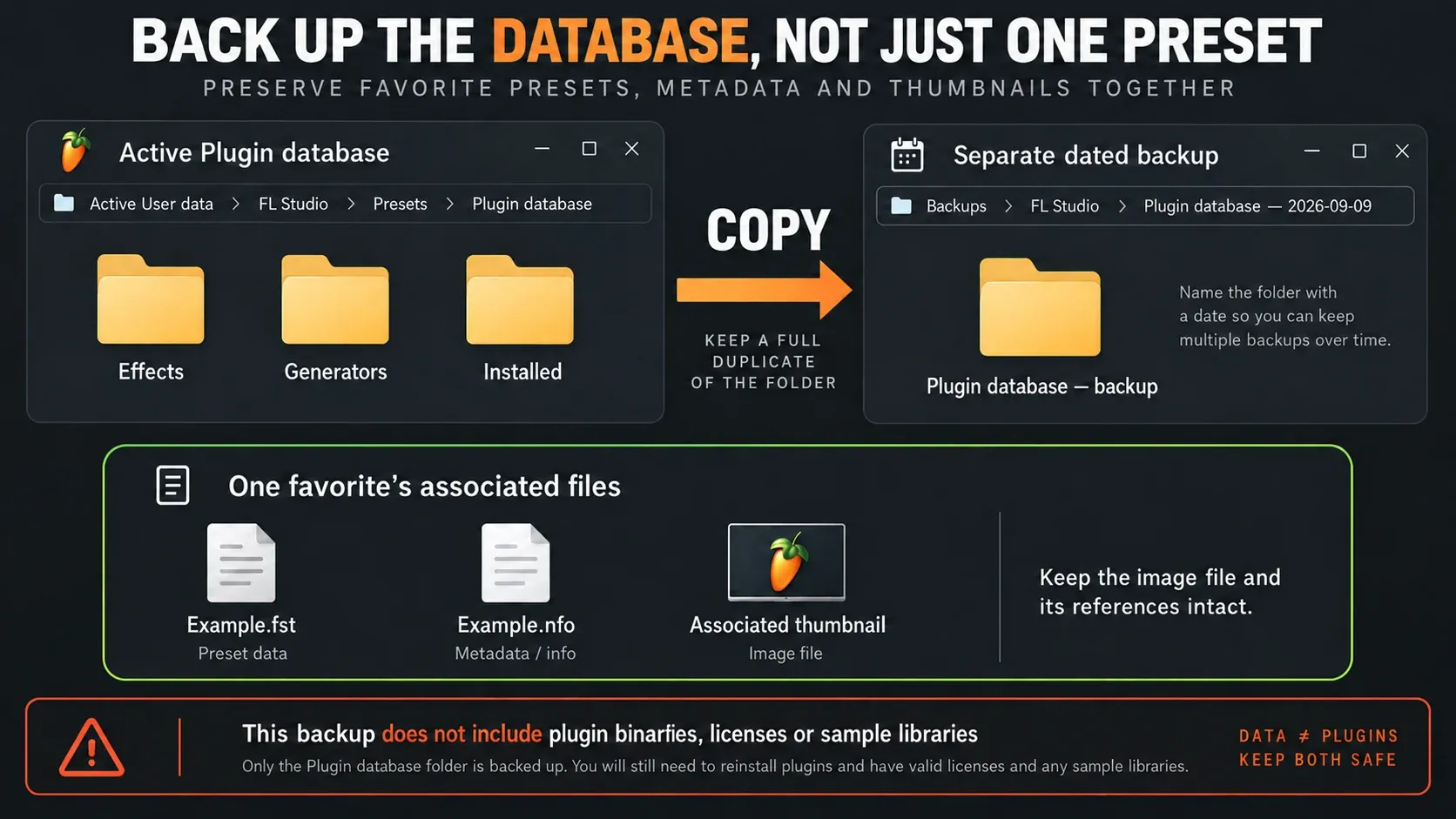
Right-click Plugin database in the Browser and choose Open to bring up that folder in Explorer or Finder. Before you move, rename or remove anything, copy the whole folder to a dated backup outside the active database. For everyday organizing, leave the active parent folder’s name and location alone.
The usual location is Documents/Image-Line/FL Studio/Presets/Plugin database. A custom User data folder changes that, so trust the folder FL Studio opens for you over any guess. Older tutorials may point inside the application installation. The current database normally lives in your user data.
Each favorite is an .fst preset plus its metadata and image files, when those exist. The Browser manual describes .nfo and .bmp, but existing collections may hold a .png thumbnail instead. Keep whatever bundle you find. Don’t convert image extensions or throw a file away because it differs from an example.
Keep your active User data on a reliable local drive. Image-Line’s User data guidance warns against iCloud, OneDrive and other cloud-synced locations for active data. A separate archived backup is fine; the problem is letting a sync service manage the working database.
Organize the Plugin Database in eight steps
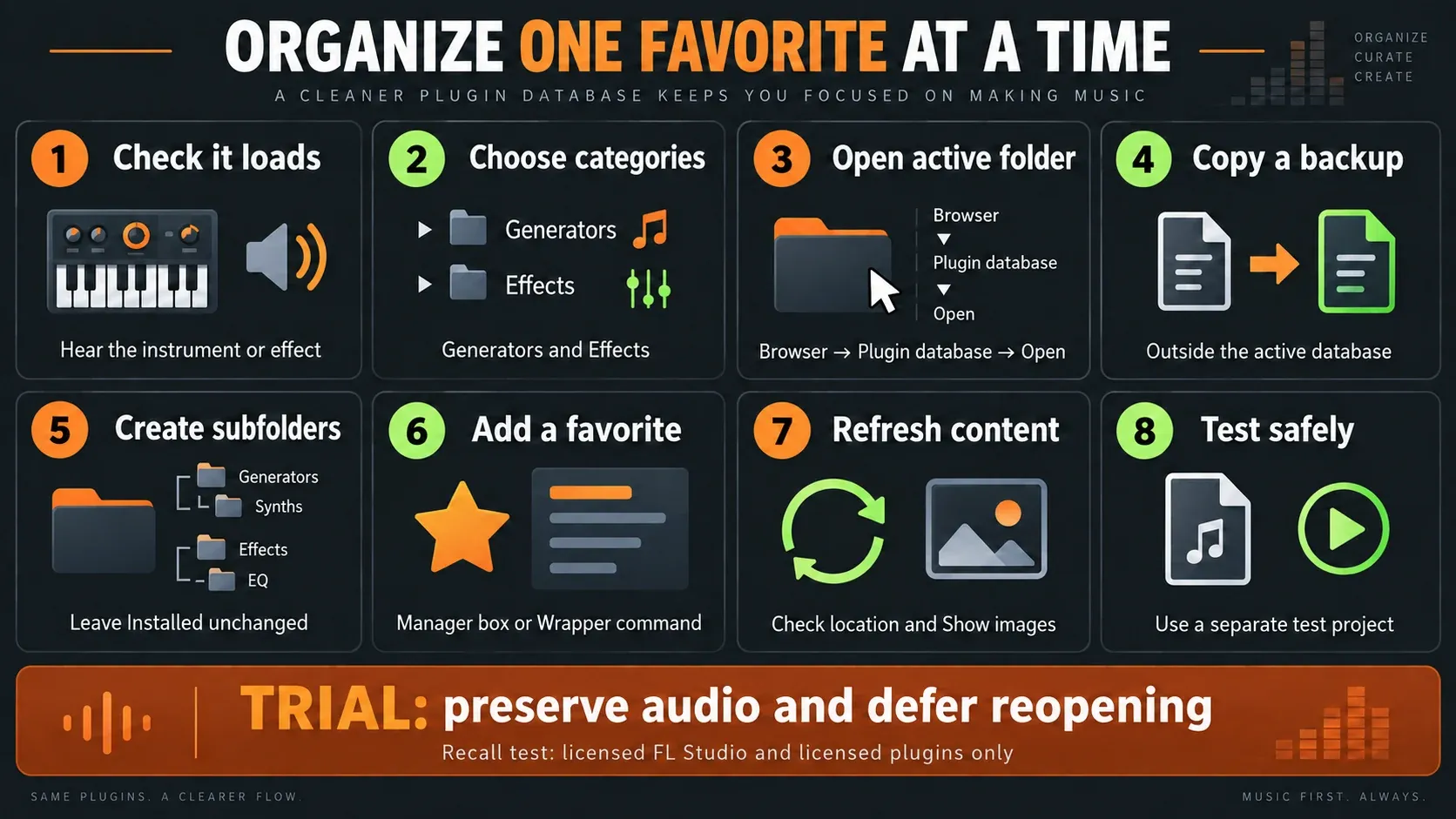
Before a close-and-reopen test: FL Studio Trial can save a project but can’t reopen it until you buy FL Studio, so export any work you need to keep before closing. Even in a licensed host, native plugins you don’t own can still be in Trial. They may reopen as empty Channels or FX Slots, and resaving before you unlock them loses their saved settings. Don’t use that project as a cleanup test. Image-Line explains the separate host and plugin Trial restrictions.
- Check one working plugin. Load an instrument or effect from Installed and confirm sound at a sensible listening level. Do not troubleshoot scanning by moving database files.
- Choose a small category plan. Separate instrument jobs under Generators from processing jobs under Effects. Start with categories you will actually use.
- Open the active folder. Right-click Plugin database in the Browser and choose Open. Confirm that this is the database used by your current FL Studio installation.
- Make a dated backup. Copy the complete Plugin database folder outside the active location. Keep it unchanged while testing.
- Create the needed subfolders. Add a category inside the top-level Effects or Generators branch. Leave Installed and the plugin binaries alone.
- Add a favorite deliberately. Use the Plugin Manager Favorite box for a quick entry, or open the desired Browser category and use Add to plugin database (flag as favorite) from the loaded plugin’s menu.
- Refresh and inspect. Use Browser Refresh content after file changes. Check the destination and, for a thumbnail, the tab’s Show images setting.
- Test loading and recall safely. Check F8, the appropriate Add choice, Channel Rack and Mixer. Test a separately named saved project only with a licensed host and licensed plugins; Trial users should preserve audio and defer reopening.
Add favorites with or without a thumbnail
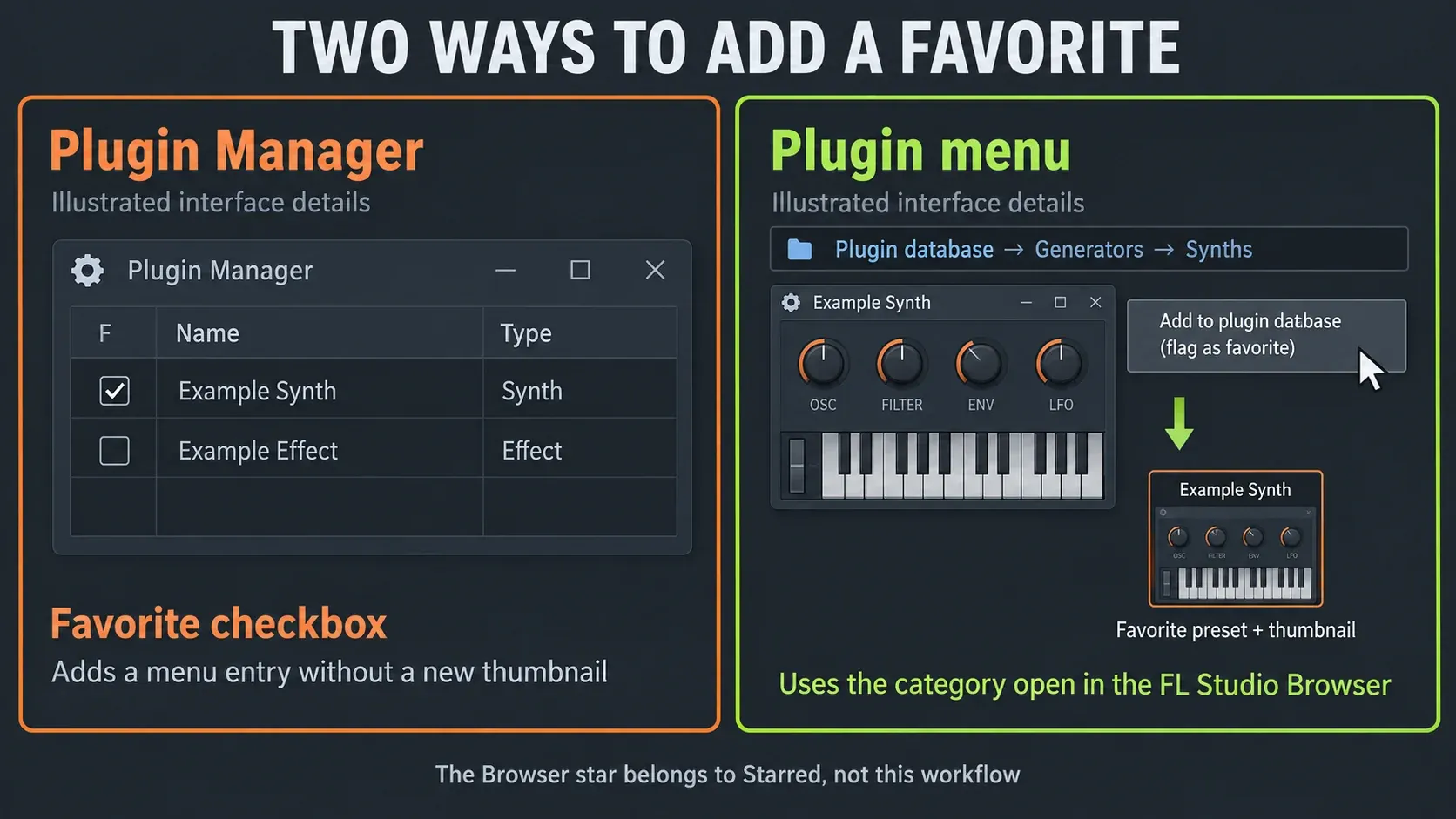
For the quick route, open Options → Manage plugins and tick the plugin’s F (Favorite) box. Per the Plugin Manager instructions, that adds a favorite but doesn’t create a thumbnail. If the product shows separate VST2, VST3 or other entries, pick the format you plan to use.
For a favorite with a picture, load the plugin, set the starting state you want and open the target subfolder under Plugin database → Effects or Generators. Then choose Add to plugin database (flag as favorite) from the loaded plugin’s top-left menu and confirm the destination. The Wrapper command uses whichever database location is open at that moment.
If FL Studio asks you to choose a subcategory, open the category inside its Browser and try again; Finder or Explorer won’t do. Check the destination before accepting. When a plugin really serves two jobs you can repeat this in a second category, but skip duplicates that only make the list longer.
The Browser star is no substitute. Image-Line explicitly distinguishes plugin favorites from starring files: the star feeds the Starred tab and has nothing to do with the plugin loading-menu favorites.
Capture a useful thumbnail and opening state
The .fst saves a starting state, so it’s more than a link to the plugin. For a neutral instrument, load its initial patch before adding it. If a particular analyzer range or GUI scaling matters, set that on purpose. Capture yesterday’s extreme effect settings, and that’s exactly what tomorrow’s “fresh” instance will open with.
Some GUI options are stored in the preset itself instead of the Wrapper’s ordinary per-plugin options. Load the new favorite into a fresh slot to check it, because not every vendor setting comes back the same way. If you set Channel color and icon before creating the favorite, those can be kept too.
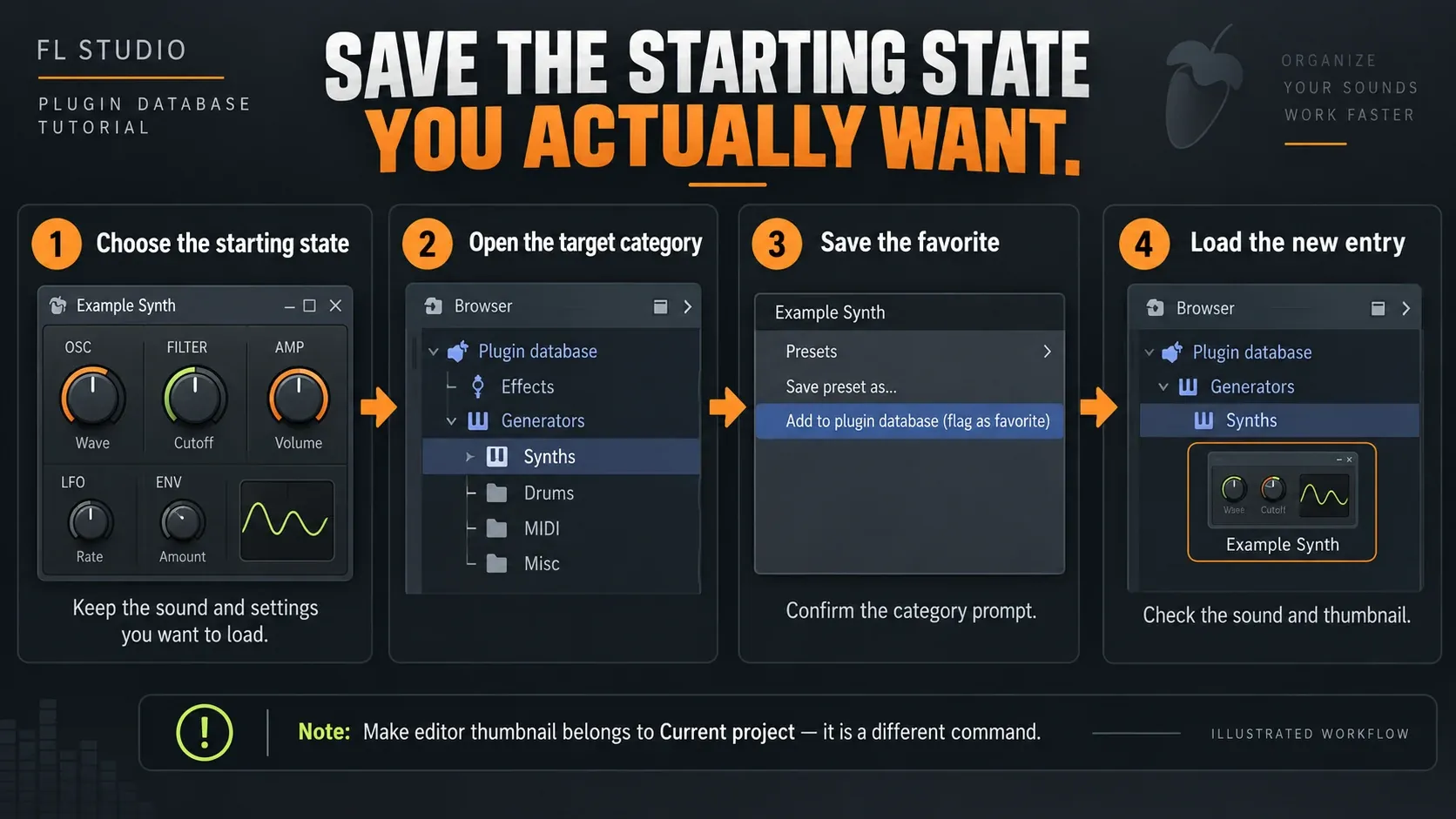
Make editor thumbnail is a different command, and its image shows up under Browser → Current project. It isn’t the usual way to add a Plugin Database favorite. For the database, run the favorite command with the plugin interface visible. Then check Show images on the Browser tab and refresh its content.
Move, rename or remove favorites without uninstalling
To move a favorite to another category, keep its .fst, the matching metadata and the thumbnail together, and work only inside the curated Effects or Generators branch. Move one bundle, then refresh and load it before you move the next. You don’t need to rebuild the Installed tree to mirror your categories.
Renaming a category folder is easier than renaming a favorite’s individual files. The metadata may refer to the thumbnail by filename, so changing only the visible preset name can leave the image behind. Keep the original filenames for routine organizing. If you need custom names, back up first and check the associated metadata instead of blindly renaming three files. When a working preset has a missing picture, fix its thumbnail; reinstalling the plugin won’t help.
The Plugin Manager also has a Name field on its Plugin tab that changes a plugin’s display name in the database. That’s separate from renaming the installed component. Once you’ve changed it, check the newly created favorite and its image, since separately saved custom entries may keep their old names.
To remove a favorite, right-click its entry in the curated Effects or Generators folder and choose Delete file. Read the confirmation and check the target. According to Image-Line, this removes the database entry and leaves the installed plugin alone. Don’t confuse it with Delete in the Wrapper’s top-left Plugin Menu, which removes an instance from the current project. The Delete control in Wrapper options is different again: it clears saved options.
A second entry may be a different format or a state you saved on purpose. Check which one you use before you remove the unwanted favorite. Uninstalling an older plugin version just to shorten a menu can leave older projects without a component they need.
Test F8, loading menus and project recall
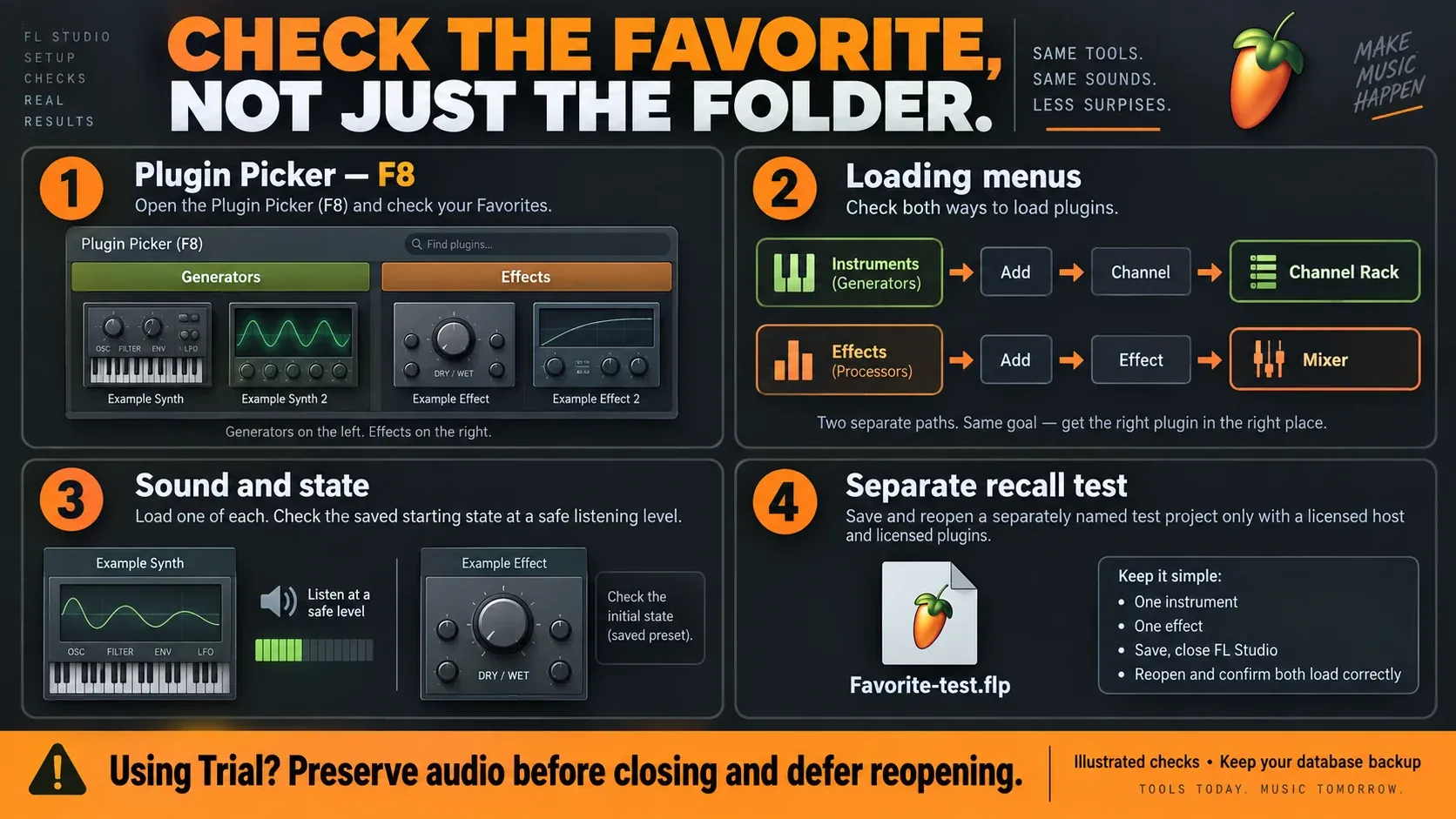
Press F8 to open the Plugin Picker, with generators on the left and effects on the right. Type part of a name to narrow the list. If a plugin or your operating system grabs that key, use Add → View plugin picker instead. The shortcut reference covers other navigation commands.
The current Add menu separates Channel for a generator from Effect for the Mixer, so check both with the matching favorite. In the Browser, switch deliberately between Simple, Categories and Tree views before moving files; the same library can look different without being lost. Look at the chosen view before you decide a category has vanished.
| Symptom after organizing | First check |
|---|---|
| Folder changes are absent | Confirm the active User data location, then Refresh content |
| Favorite exists but its picture is hidden | Show images, the associated image file and favorite capture |
| Entry opens with unwanted settings | The saved favorite state; preserve the original before replacing it |
| Only one loading menu lacks the entry | Instrument/effect destination and menu display mode |
| Nothing loads, or a scan reports Error | Plugin discovery or compatibility—not folder decoration |
In a licensed host with licensed plugins, build a small, separately named project with one instrument and one effect loaded through the new favorites. Save it, reopen it, and keep the original database backup. If you’re on Trial, follow the warning above and put off recall testing instead of risking a session.
Move your favorites to another computer
A Plugin Database backup carries presets and their associated files. Third-party binaries, licenses and full sample libraries stay behind. On the destination computer, install the required plugins and libraries, authorize them and scan as needed. Back up the existing database before you copy your curated folders over. Test a small selection before merging the rest, and never overwrite another working library blindly.
For a complete move, follow Image-Line’s FL Studio migration procedure. Cross-platform projects also need matching plugin formats and versions. Copying an AU favorite’s folder won’t turn it into a Windows VST3 preset.
For architecture issues, use the Apple Silicon compatibility guide. If a loaded plugin causes processing spikes, troubleshoot high CPU. Putting a plugin in a category doesn’t change its processing cost or its license. Your FL Studio edition and separate purchases still decide what’s unlocked.
When should you reset the default Plugin Database?
Resetting is meant for a damaged or missing default structure. Routine sorting never calls for it. Check the active folder and your backup first. Image-Line’s database reset procedure copies the default Effects or Generators content from the installation resources into user data, and those defaults don’t include your custom plugins.
The source is Data/System/Plugin databases inside the Windows installation. On macOS, use Show Package Contents on FL Studio, then go to Contents/Resources/FL/Data/System/Plugin databases. Pick the default structure you need, back up the affected user-data branch, then replace only that branch. The support procedure deletes the folders it replaces, so keep an external copy you can restore.
After that recovery, the procedure calls for Options → Manage plugins with Verify plugins, Rescan previously verified plugins and Rescan plugins with errors. You don’t need that full recovery scan every time you create a category. Once the default library checks out, restore your own favorites from backup, and test before deleting any recovery copies.
FL Studio Plugin Database FAQ
Where is the FL Studio Plugin Database folder?
Right-click Plugin database in FL Studio’s Browser and choose Open. The usual path is Documents/Image-Line/FL Studio/Presets/Plugin database, but a custom User data location changes it.
What is the difference between Installed and favorites?
Installed holds the plugin entries FL Studio detected. The top-level Effects and Generators folders hold the curated favorites that the Plugin Picker and loading menus use, so organize those and leave the Installed tree alone.
How do I add a plugin thumbnail?
Load the plugin and set its desired starting state. Open the target Effects or Generators subfolder in FL Studio’s Browser, choose Add to plugin database (flag as favorite) from the plugin menu, and confirm the destination.
Why does starring a plugin not add it to the menu?
The Browser star adds a file to the Starred tab. Use the Plugin Manager Favorite box or Add to plugin database (flag as favorite) for plugin loading-menu favorites.
Can I organize plugins without moving VST files?
Yes. Work with favorite presets, metadata and associated images inside Effects or Generators. Leave VST2, VST3, AU and CLAP components in their installed locations.
Does deleting a favorite uninstall the plugin?
No. Delete file on a curated database entry removes that entry, not the installed plugin. Check that you selected the intended favorite and keep a backup before removing it.
Why does a favorite open with the wrong sound?
A favorite recalls the state saved when you created it. Load the patch or settings you actually want and recreate that favorite, keeping a backup before replacing the old entry.
How do I refresh the Plugin Database?
Use Browser Refresh content after changing files. It rereads the folders and is no substitute for a verified plugin scan. If a thumbnail is hidden, also check Show images for that Browser tab.
Can I copy the database to another computer?
You can transfer favorites and their associated files, but the destination still needs compatible plugins, licenses and libraries. Back up its existing database before merging, then test loading and project recall with licensed software.
Should I reset the database to fix a messy menu?
No. Start with category organization, menu display options and the correct active folder. Reserve the default-database reset for damaged or missing structure, and back up first, since it can replace your custom content.
Keep the favorites you actually reach for, hold on to a recoverable copy and test the real loading menus. For samples, search scopes and tabs outside this plugin branch, continue with the FL Studio Browser guide. The Plugins library ties these setup tasks together, and Troubleshooting covers failures that no amount of organizing can fix.