FL Studio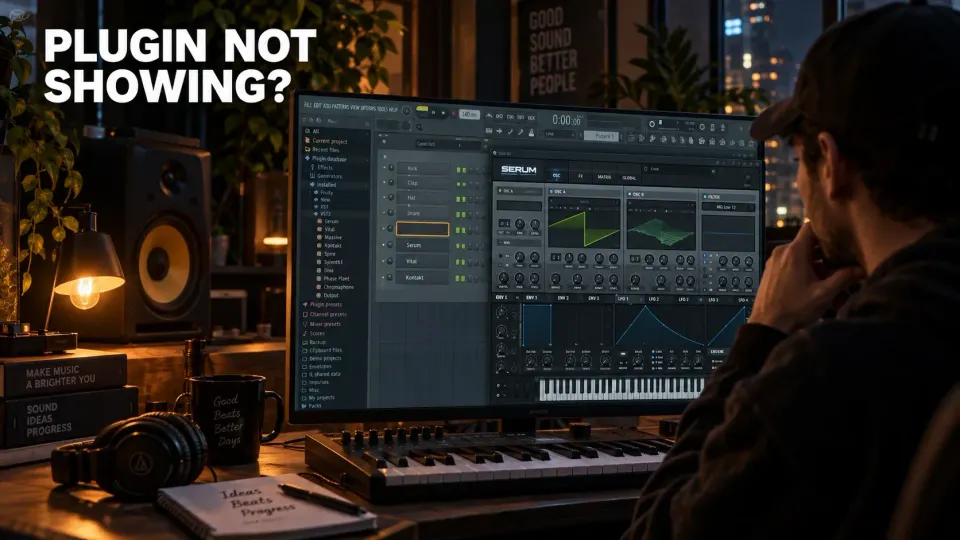
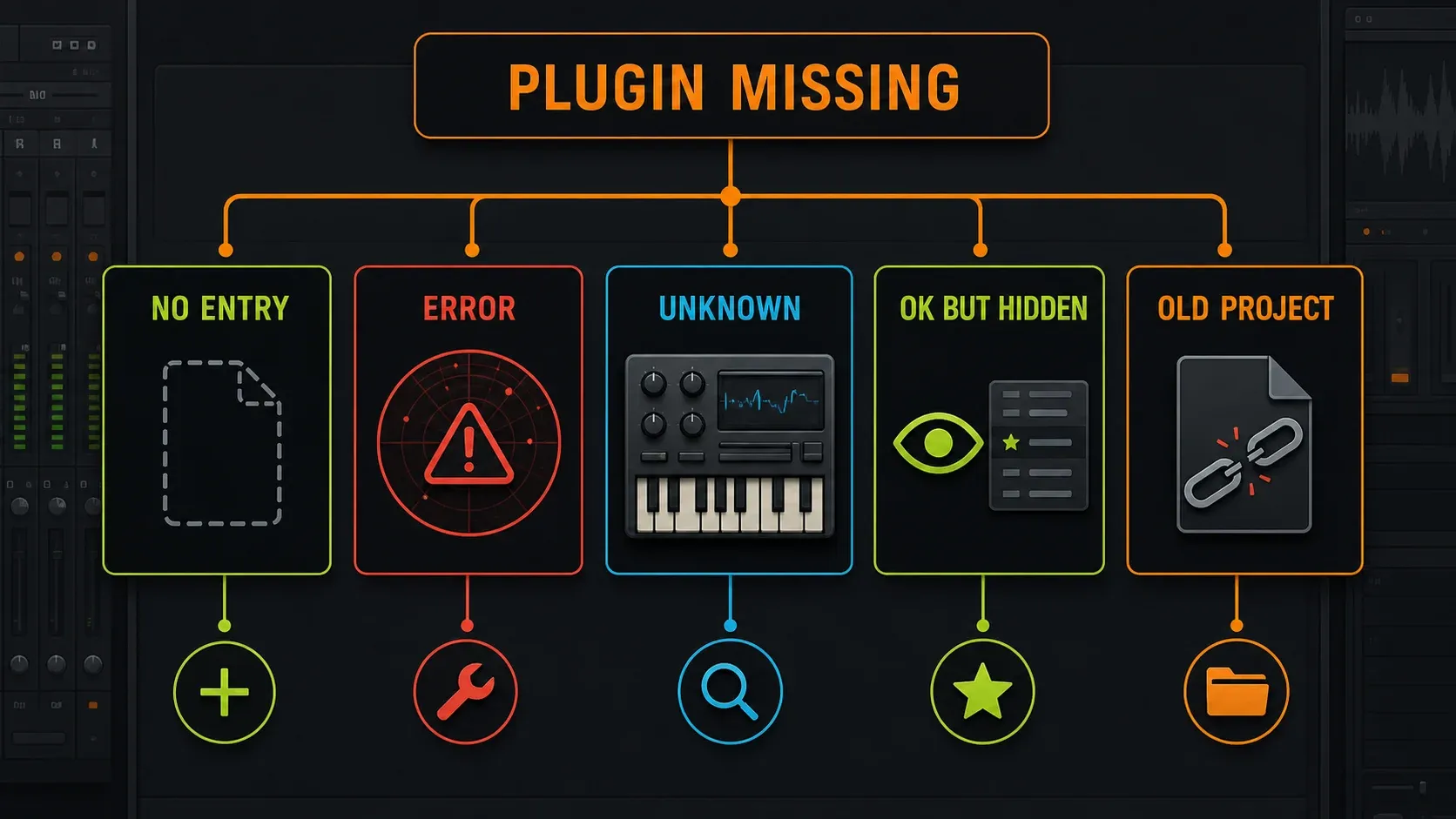
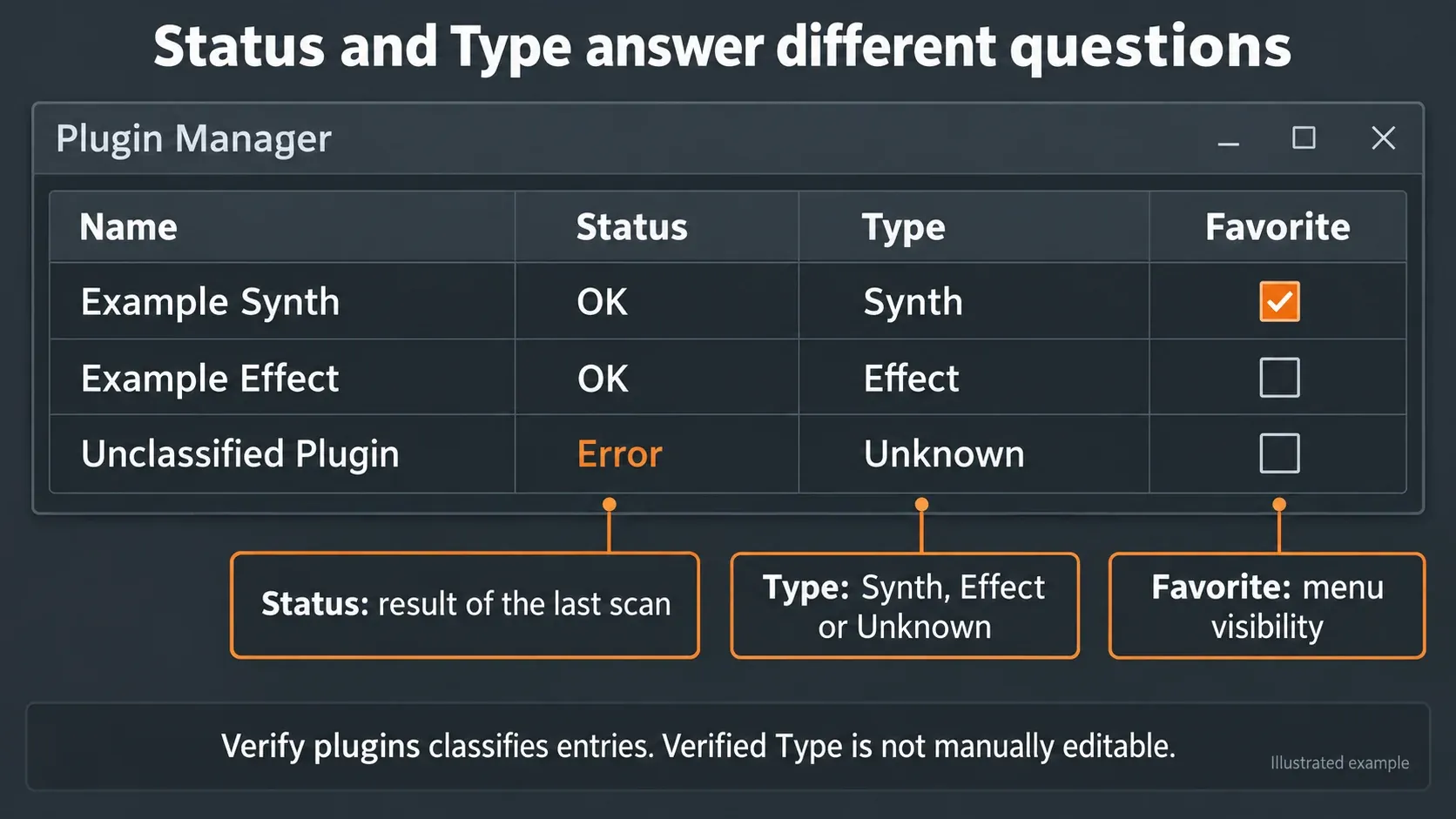
If a plugin is not showing in FL Studio, first search its name in Options > File settings > Manage plugins. No entry points you toward the installed file and scan location. Status: Error means the last scan failed; Type: Unknown means the entry has not been classified. An OK entry missing from a menu usually needs a different check: its type, loading location or Favorite setting.
Those are separate problems. Reinstalling everything before you've pinned yours down can leave you with the same missing instrument plus a second set of files to untangle. This guide is for a plugin you've already installed; if you've only downloaded its installer, use the plugin installation guide.
Match the symptom before changing anything
| What you see | What it tells you | First useful check |
|---|---|---|
| No matching entry in Plugin Manager | The expected component has not been found under that identity | Installed file, operating-system build and format-specific folder |
| Status: Error | The last scan was unsuccessful | Authorization dialogs, compatibility and a verified error rescan |
| Type: Unknown | FL Studio has not classified the entry as Synth or Effect | Verify plugins; manual Type only for an otherwise working, unclassified component |
| Status: OK, but absent from a menu | The scan found it, but that does not settle where you should load it | Synth versus Effect, More plugins and Favorite |
| Missing only in an older project | The project may need a different identity, format or licensed plugin | Exact missing name, original format and any Trial-plugin warning |
Before closing a project: FL Studio Trial can save projects, but it cannot reopen those saves until you buy FL Studio. Render anything you need to keep before saving and closing. A separate issue affects native plugins running in Trial inside a licensed edition: after reopening, they can become empty slots, and re-saving before unlocking them loses their settings. Image-Line explains both restrictions in its Trial and plugin-licensing guidance. Neither problem is fixed by another folder scan.
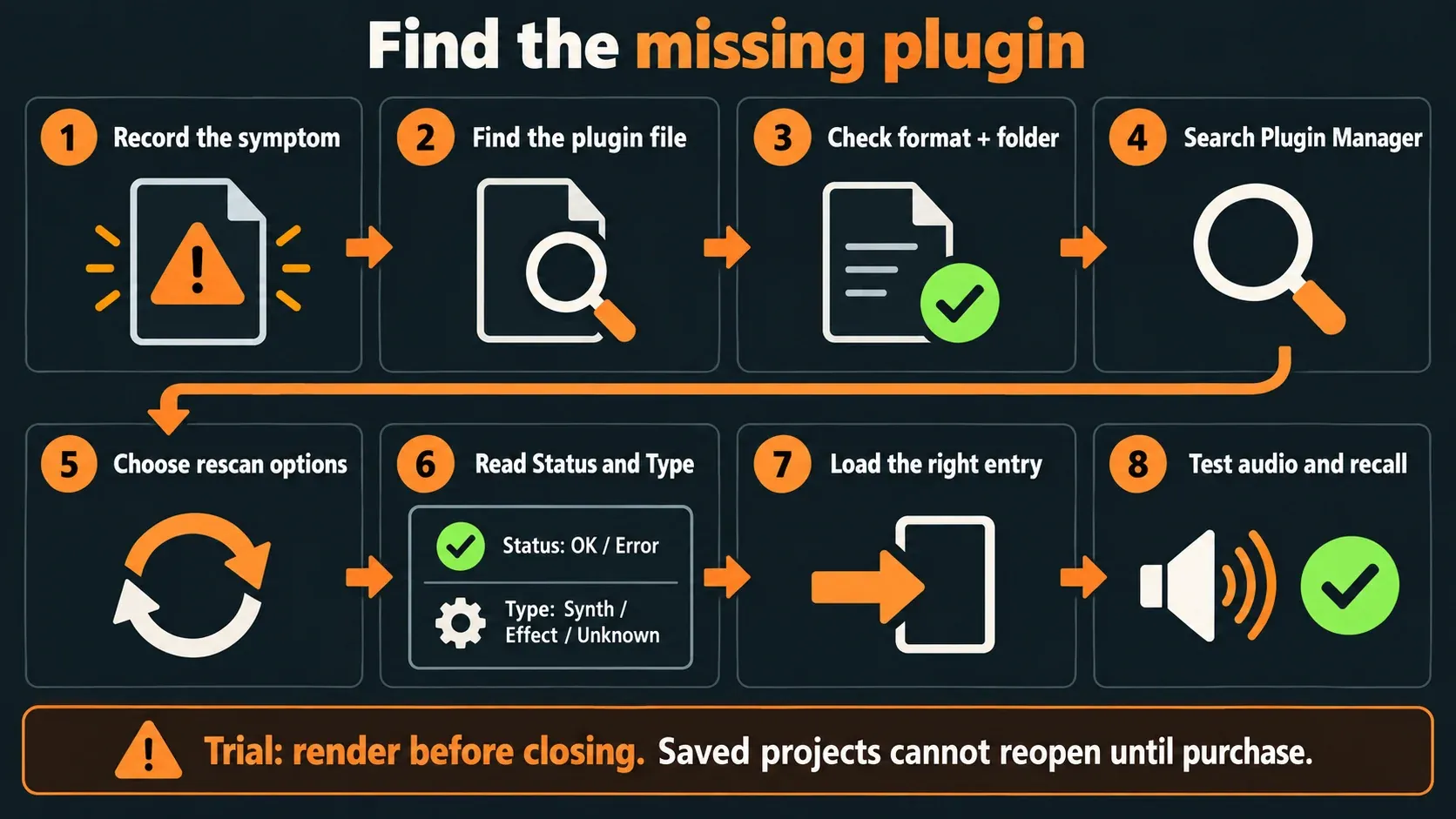
Fix a missing plugin in eight steps
- Record the symptom. Note the exact plugin name, FL Studio build, operating system and any error. On an M-series Mac, also note whether FL Studio is in Apple Silicon or Intel mode.
- Find the installed component. Locate the plugin file or bundle, not its installer, preset or sample library. Check that the vendor supports your operating system and processor.
- Check the format and folder. Use the documented system location for VST3, AU or CLAP. For a custom VST2 installation, add the containing folder to Plugin Manager search paths.
- Search Plugin Manager. Open Options > File settings > Manage plugins and look for the exact name. Read Status and Type as separate fields.
- Choose the rescan options. Enable Verify plugins. Add Rescan previously verified plugins for an updated or previously known component, and Rescan plugins with errors for failed entries. Old-project recovery and a first switch of Mac runtime mode can require both.
- Scan and watch for dialogs. Start Find plugins, called Find installed plugins in some documentation. Answer legitimate vendor setup or authorization prompts, then read the resulting Status and Type.
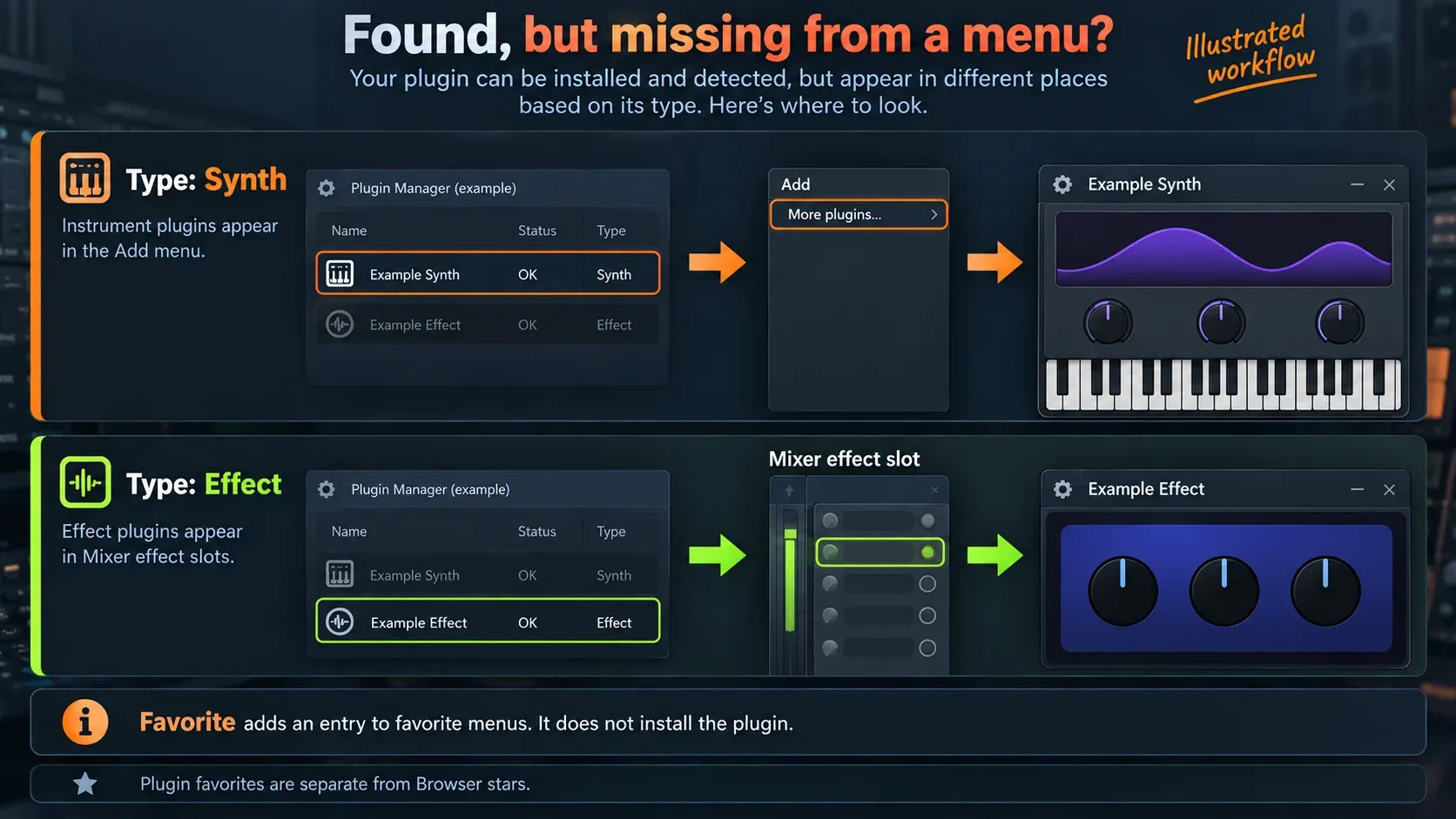
- Load the right entry. Load a Synth through Add > More plugins, or an Effect through a Mixer effect slot. Use Favorite for favorite-menu visibility; do not try to edit a Type already set by verification.
- Test audio and recall safely. Check one instance in a small project. In licensed FL Studio, with the required plugins unlocked, save a separate test copy and reopen it to check settings. In FL Studio Trial, render before saving and closing; reopening saved projects requires purchase.
Find the plugin file, not the download
A ZIP, disk image, standalone app or preset doesn't prove the DAW component is installed. On Windows, look for the product's .vst3 or VST2 .dll. On macOS, look for .vst3, VST2 .vst or AU .component; CLAP uses .clap. Some vendors bundle several plugins behind one shared component, so follow their installer or support instructions if the individual product name doesn't appear as its own file.
For a new installation, go with the vendor's supported 64-bit build. That doesn't mean “Windows can't load a 32-bit VST,” though: FL Studio can bridge legacy Windows VSTs automatically. FL Studio on macOS needs 64-bit VST/AU plugins. The supported plugin formats and installation and bridging instructions explain these cases. Intel versus Apple Silicon is a separate compatibility question, not another way of saying 32 versus 64 bit.
A Windows VST3 won't work as a Mac VST3, so download the right platform build. Check the vendor's requirements as well as FL Studio's system requirements. If only a sample library moved to an external drive, use the plugin's own content-location controls, because adding the library as a VST search path won't reinstall its engine.
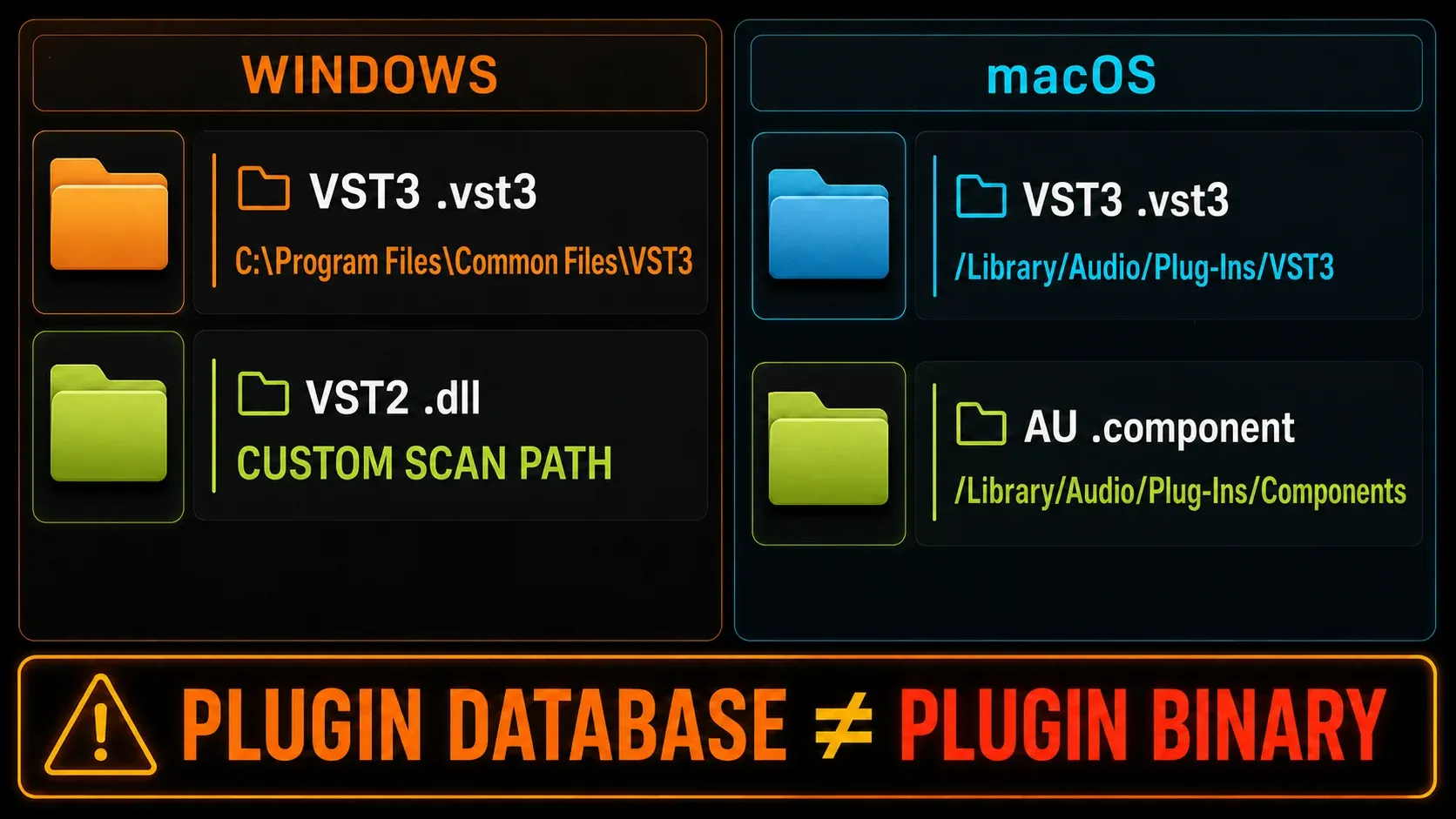
Check the scan folder by format
Stick with the plugin installer's default location where you can. The current File Settings reference limits custom Plugin Manager search paths to VST1 and VST2, so pointing it at some external-drive folder won't turn that folder into a valid VST3 or AU location.
| Component | Where to check first |
|---|---|
| 64-bit Windows VST3 | C:\Program Files\Common Files\VST3; Image-Line also documents C:\Program Files\VST3 |
| Windows VST2 | The vendor's chosen .dll folder; add that folder as a custom search path if needed |
| macOS VST3 | /Library/Audio/Plug-Ins/VST3; also check ~/Library/Audio/Plug-Ins/VST3 for a per-user installation |
| macOS AU | /Library/Audio/Plug-Ins/Components |
| macOS VST2 | /Library/Audio/Plug-Ins/VST or the vendor's documented custom location |
| CLAP | Windows: C:\Program Files\Common Files\CLAP. macOS: /Library/Audio/Plug-Ins/CLAP |
Here, C: represents a typical Windows system drive and ~ means your Mac user folder. For a legacy 32-bit Windows VST3, check the corresponding documented Program Files (x86) location. CLAP support began in FL Studio 2024.1; an older FL Studio build needs an update or a different supported format from the vendor.
Don't put third-party files into FL Studio's own Plugins\VST installation folder, and don't add a whole drive as a plugin path. The Plugin Database stores scan information and favorites, not the installed third-party binary. Likewise, Browser folders and search do a different job from Plugin Manager's scan paths.
Read Status and Type before another scan
Status reports OK or Error from the last scan. Type decides whether the entry is a Synth or an Effect; Unknown is an unclassified Type, not a third Status. A fast scan can list a component without working out its role. Verify plugins actually opens components and collects classification, bitness and input/output information, which makes it the right next test when a fast scan left you guessing.
Leave Try to prevent popup windows off while you diagnose a new installation. A hidden, unanswered authorization or setup dialog can cause a scan error. Respond only to prompts from the vendor you meant to install. If the scan keeps stalling on the same component, write down that name and check the vendor's supported build and installation requirements before running the same scan again.
Choose a targeted rescan
- New plugin: start with Verify plugins. You normally do not need to re-verify every previously working entry.
- Updated, reinstalled or still-missing known plugin: also enable Rescan previously verified plugins. This switch has no effect without Verify plugins.
- Previous Error: enable Rescan plugins with errors. That switch also applies to fast scans, but use verification here to learn more than the filename.
- Missing plugins in an old project: Image-Line's recovery procedure calls for Verify plugins with both rescan switches. The first scan after changing between Apple Silicon and Rosetta modes also warrants that combination.
After recovery, keep the extra rescan switches off for routine new-plugin scans unless you have a reason to revisit those entries. That also protects any manual classification you set on purpose. One changed condition and one observed scan result are far easier to diagnose than several reinstalls at once.
When Error or Unknown needs a narrower fix
If a component actually opens and works but remains unclassified, Image-Line's Plugin Manager Error guidance offers a manual workaround: select the entry, open the Plugin tab, change Type from Unknown to Synth or Effect, then apply the change. Disable the two rescan switches on later routine scans if you need to preserve that custom classification.
This won't repair a crashing or incompatible binary. Type isn't editable everywhere either: the manual says a classification set by Verify plugins can't be changed by hand. If verification assigns the wrong role or the plugin can't initialize, check the vendor's guidance instead of forcing an Error entry to look successful.
Vendor-specific cases need vendor-specific evidence. For example, Waves' missing-plugin procedure separates installation, version-dependent license checks and rescanning. That doesn't mean every plugin uses Waves Central or needs the same activation steps.
If you installed through FL Cloud, check the separate plugin application under Tools > FL Cloud > Plugins. A catalog listing isn't an installed component, so check the product's status and use its Repair action when an existing installation needs fixing. FL Cloud plugins and the native plugins bundled with your FL Studio edition are two separate groups.
Fix an OK plugin that is hidden from menus
For a Synth, use Add > More plugins. For an Effect, open a Mixer effect slot and choose from its plugin list. Check the entry's Type first, since hunting for a synthesizer in the effect-slot list tells you nothing about installation. OK means the scan succeeded, and it doesn't promise every preset, license, sample path and audio route is ready.
Use the Plugin Manager's Favorite setting if you want the entry in favorite menus. That's separate from starring a file in the Browser, which puts it in the Starred tab. Once the plugin loads, the Plugin Database organization guide covers categories, thumbnails and preferred opening states. A cosmetic database reset isn't the first fix for a missing binary.
When only an old project reports a missing plugin
Leave the original project untouched and write down the exact missing name. Was it VST2, VST3 or AU? Did you install a different major version, rename the file or move to a Mac? A product with the same marketing name isn't automatically the component the project refers to. AU and VST versions aren't interchangeable across a Windows/Mac project, and VST2-to-VST3 migration depends on the product and how the host behaves.
Use Image-Line's missing-plugin recovery procedure: run a verified scan with both rescan switches, then look for the exact old component if it's still missing. Fast-scan filename matching can break after renaming, while verified scans collect plugin identifiers that help in that situation. Don't rename a different file just to match the warning.
In licensed FL Studio, reopen a separate project copy after restoring the required licensed plugin. Check the preset and automation as well as the disappearance of the warning. If the empty slot came from a native Trial plugin, unlock it before reopening the original save; do not re-save a stripped project over that original. FL Studio Trial itself cannot reopen its saved projects until purchase.
Handle Apple Silicon scan problems separately
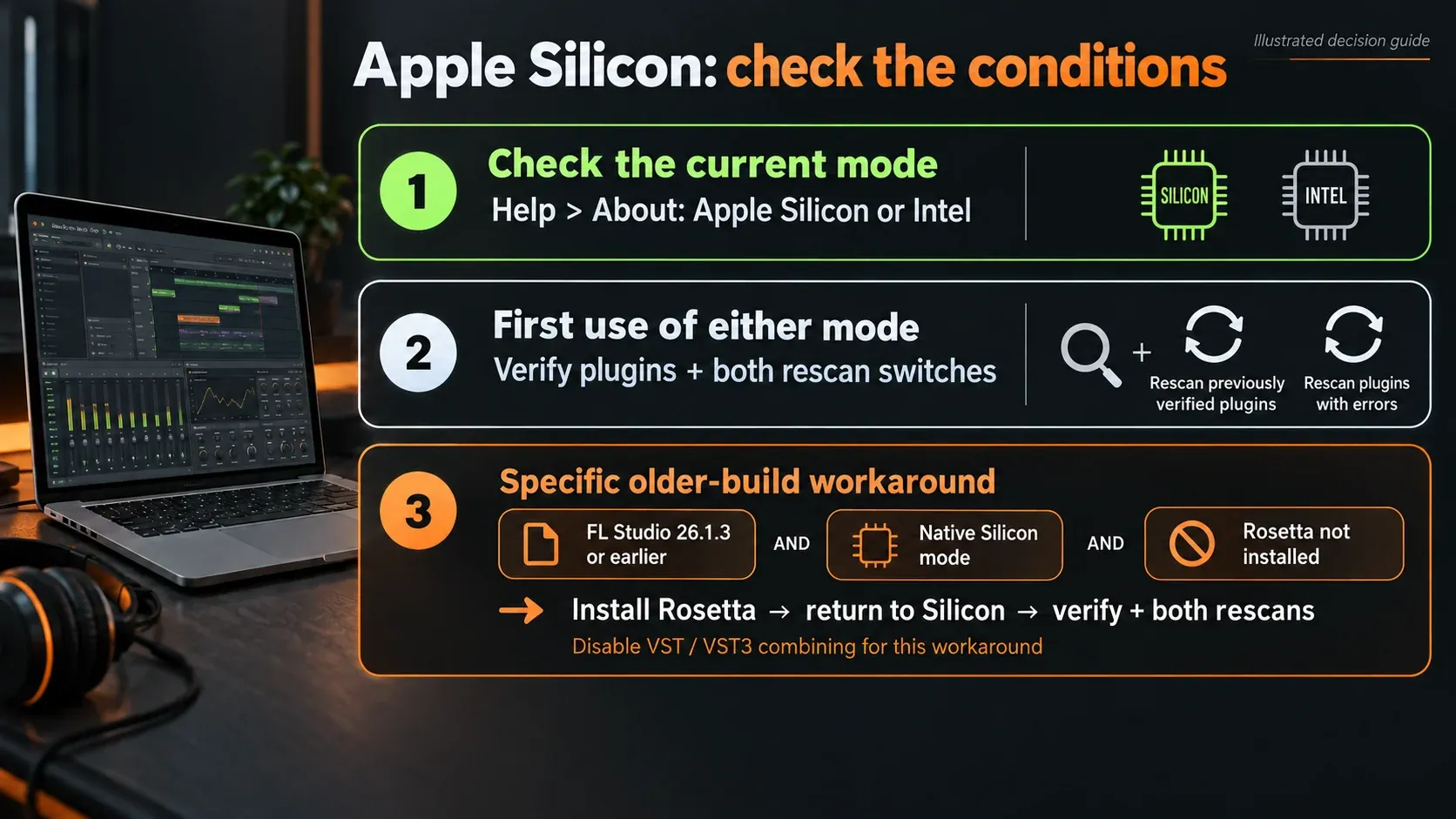
On an M-series Mac, Help > About identifies FL Studio's Apple Silicon or Intel mode. Check the plugin vendor's compatible build first. Native FL Studio can bridge Intel VST plugins, and running the whole app through Rosetta is another compatibility route, but neither is a guaranteed fix. The Apple Silicon plugin guide covers the broader migration decision.
Image-Line's Apple Silicon instructions call for a fresh verified scan the first time you use each mode, with both rescan switches on. A plugin list built in one mode doesn't tell you enough about the other.
There is also a specific, older-build case in the Error guidance linked above: some users on FL Studio 26.1.3 and earlier encounter Plugin Manager problems in native Silicon mode when Rosetta is not installed. Its workaround is to close FL Studio, use Finder's Applications > FL Studio > Get Info > Open using Rosetta to install Rosetta when prompted, then uncheck that option to return to Silicon. Reopen FL Studio and scan with Verify plugins and both rescan switches on, and the option combining VST and VST3 versions off.
Use that workaround only when those conditions match. The KB doesn't show that every later build has the same fault, and an Intel-only plugin may still need a different runtime choice. Don't change the plugin formats in all your projects to solve one scanner error.
Prove the plugin works before organizing it
Load one instance into a small test project. Play a few notes through a synth, or send a known signal through an effect. Check a factory preset, then a setting you changed yourself. In licensed FL Studio with the required plugins unlocked, save a separate test copy and reopen it; verify sound, settings and any needed content paths. In FL Studio Trial, render the result before saving and closing, because saved projects cannot be reopened until purchase.
If the instrument opens but gets no notes from your keyboard, move on to MIDI input diagnosis. If it loads but the session overloads, use the high-CPU checks or the crackling-audio guide. In those cases, scanning has already done its job. For Vital's own first launch and content setup, use the Vital setup guide.
Buying a higher FL Studio edition won't fix missing VSTs in general: Image-Line lists third-party format support across editions, while individual plugin licenses stay separate. The edition comparison explains what an upgrade really adds.
Send a useful support report
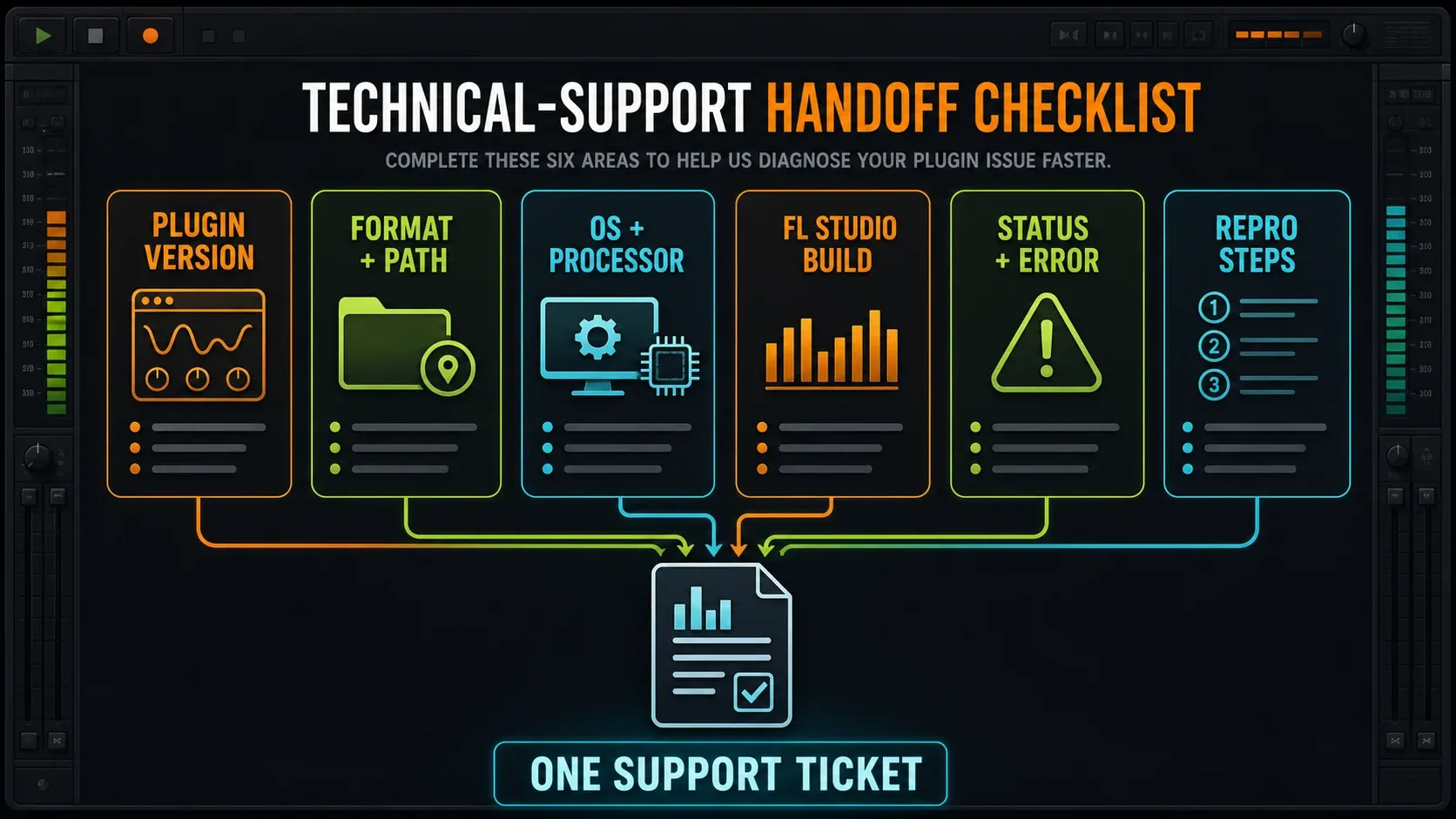
If the correct component still fails to initialize, send its developer the product version, format, installed path, operating system, processor mode, FL Studio build, Status/Type and a short sequence that reproduces the failure. For Image-Line support, its Diagnostics instructions direct licensed users to Help > Diagnostics, select “I have a technical problem,” start the report and describe the steps. That submission route is not available in FL Studio Trial.
Keep follow-ups in the same ticket. Share requested logs through the official support channel, never in a public post with passwords, license keys or unrelated project assets. What helps is one reproducible failure, not a folder full of guesses.
Once the plugin works, the Plugins hub helps you pick the next setup or organization step. If what's left is an audio, performance or input problem instead of a discovery one, use the Troubleshooting hub to choose the right diagnostic route.
FL Studio plugin not showing FAQ
Why is my VST3 not showing in FL Studio?
Check that the correct operating-system build is actually installed in a documented VST3 system folder. Then run Verify plugins, adding the relevant rescan switches for an existing or failed entry. An arbitrary custom search path does not fix a misplaced VST3.
What does Error mean in Plugin Manager?
Error reports an unsuccessful last scan, not a diagnosis of permanent damage. Check vendor dialogs, the installed build and compatibility, then use Verify plugins with Rescan plugins with errors. If it still fails, record the component and error before trying another change.
What does Type: Unknown mean, and can I change it?
Unknown means the entry has not been classified as Synth or Effect. Run verification first. A manual Type change is an option for an otherwise working, unclassified plugin, but a Type set by Verify plugins is not manually editable.
Why is an OK plugin missing from Add or the Mixer?
Check the loading location: a Synth belongs in Add or generator locations, an Effect in a Mixer effect slot. Favorite controls favorite-menu visibility. It neither installs the component nor guarantees that the loaded plugin is licensed and working.
Should both rescan switches always be on?
No. Use Rescan previously verified plugins for known entries that need rechecking and Rescan plugins with errors for failures. The official old-project recovery and first Mac-mode scan procedures use both with Verify plugins. Routine new-plugin scans usually do not need to repeat every earlier result.
Why is a CLAP plugin missing?
FL Studio added CLAP support in 2024.1. Check your FL Studio version, the vendor's platform build and the documented CLAP folder: Common Files\CLAP under Windows Program Files, or /Library/Audio/Plug-Ins/CLAP on macOS. Then run a verified scan.
Why does an old project still say the plugin is missing?
It may reference another format, name or older component, or a native plugin that was running in Trial. Preserve the original project, identify the exact dependency and check licensing before recovery. In licensed FL Studio, test a separate copy; FL Studio Trial cannot reopen saved projects until purchase.
Do I need Rosetta for a missing Mac plugin?
Not for every plugin. Check the vendor's architecture and scan separately the first time you use each FL Studio runtime mode. Image-Line's specific scanner workaround names some native-Silicon users on FL Studio 26.1.3 and earlier without Rosetta installed; it is not a universal current-Mac requirement.
Can I test the plugin in FL Studio Trial?
You can test loading and audio, subject to the plugin's own licensing. Render anything you need before saving and closing. FL Studio Trial can save projects but cannot reopen them until purchase, so failure to reopen is not evidence that Plugin Manager missed the plugin.
Should I delete the Plugin Database to fix this?
Not as a first step. The database holds scan information and favorites, not the third-party plugin binary. Identify whether the problem is discovery, classification, menu visibility or project recall before considering a backed-up, specific database repair.