FL Studio
For new projects, use native FL Studio with current Apple Silicon or Universal plugins. With an older project, I'd keep the working setup intact and test a copy. An Intel-only plugin may run through translation without switching the whole application into Rosetta mode. If that path fails, compare the project in Rosetta before you replace anything.
There's one easy trap here: having Rosetta installed is not the same as running FL Studio through Rosetta. You can install the translation component and still launch the native host. That difference matters for legacy plugins and for a documented Plugin Manager error that affects some older FL Studio builds.
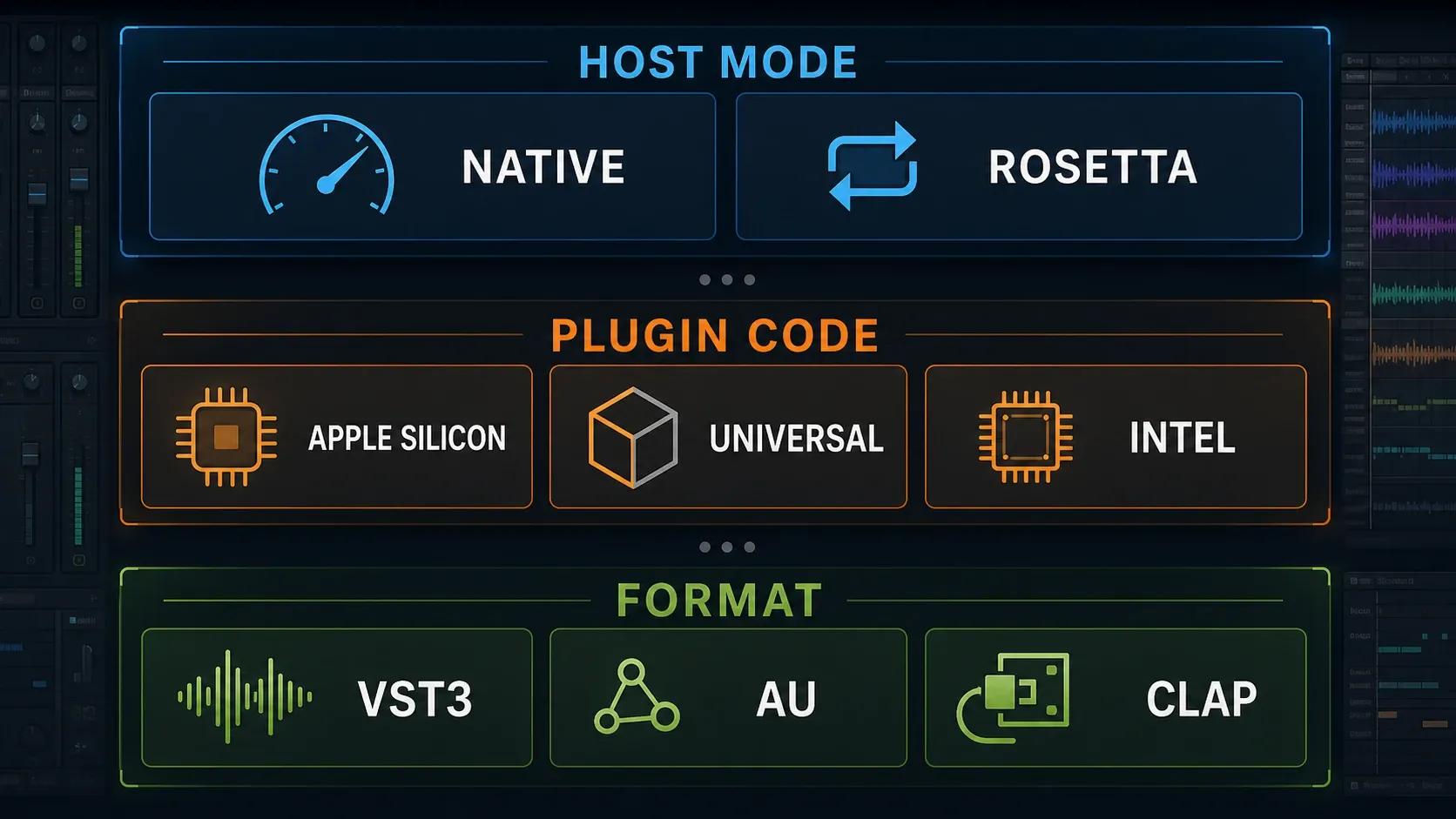
Check the host, plugin build and format separately
FL Studio has run natively on Apple Silicon since 20.8.4. Image-Line's latest-release announcement lists the Mac build as 26.1.7.5421, within FL Studio 2026.1.7b. I'd update to the current official build before blaming any plugin; a version number in an old tutorial is no reason to install an old build.
Write down three things before troubleshooting: the mode FL Studio shows, the architecture of the exact plugin you installed, and the format saved in your project. VST3, AU and CLAP are interface formats, not Apple Silicon compatibility badges. FL Studio for Mac needs 64-bit plugins, but “64-bit” alone won't tell you whether the component holds Intel or ARM64 code. Use the Mac build, too: Rosetta can't load a Windows-only VST file.
A Universal build supports both Intel and Apple Silicon. An Apple-Silicon-only build won't become Intel-compatible when you change the host mode. Check the vendor's download notes for the exact product version, format and supported macOS, and keep in mind that a standalone app, installer and plugin component can each have different requirements.
For example, Arturia's architecture guide explains how its plugin About panel identifies ARM64 or Rosetta builds and lists legacy exceptions. That's useful build-level evidence, but it doesn't mean every product from a brand behaves the same way. Use the FL Studio plugin installation guide if the component isn't installed yet.
Native or Rosetta: choose from the dependency
| What you need | First test | What a pass means |
|---|---|---|
| Current Apple Silicon or Universal plugin | Native FL Studio and the native component | It loads, plays and recalls correctly in a licensed test project |
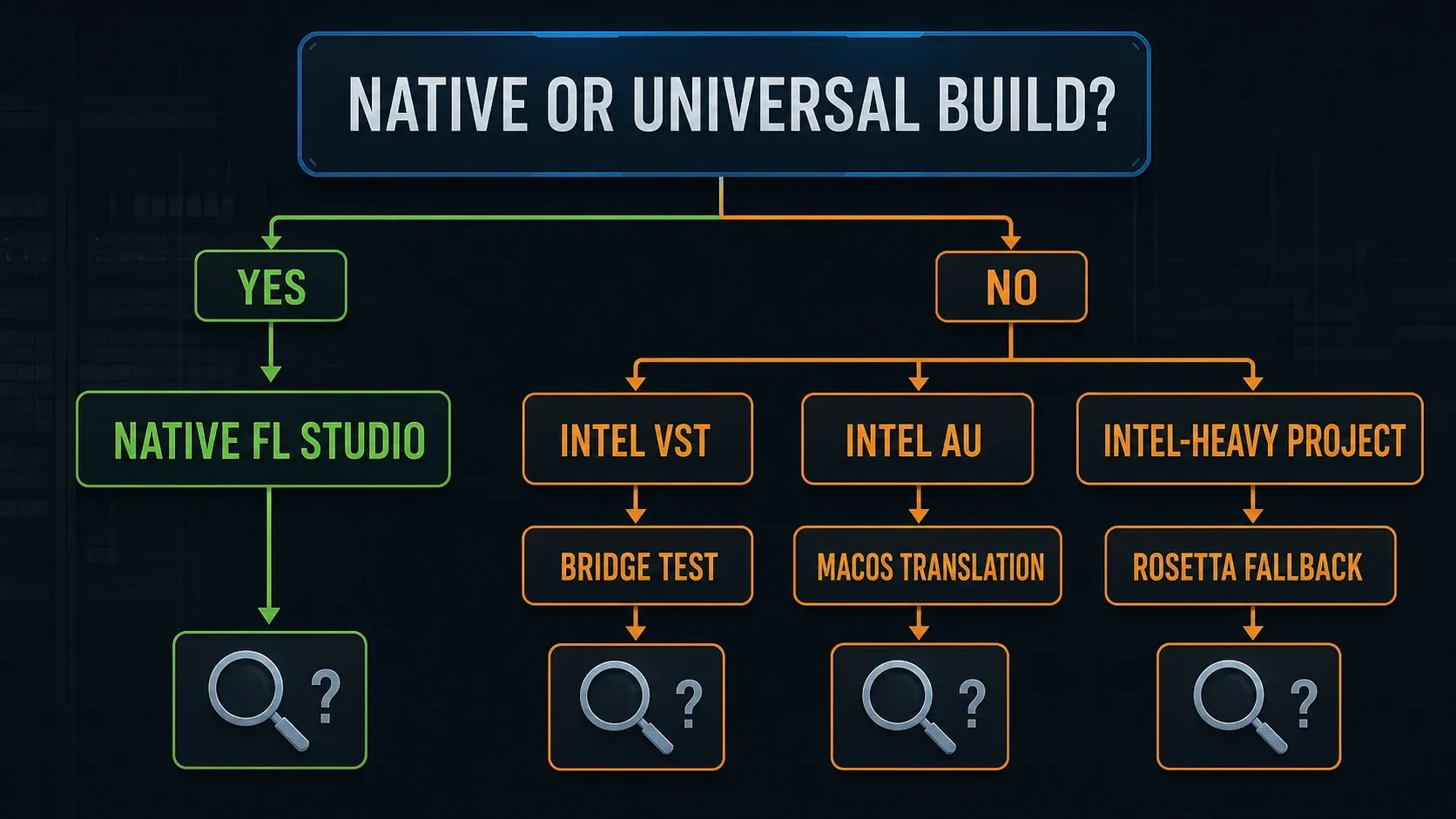
| Intel-only VST | Native host with FL Studio's automatic process bridge; compare Rosetta if unreliable | The interface, automation and sound survive reopening |
| Intel-only AU | Native host with macOS handling Intel translation | The exact AU instance recalls; translation has not made it native code |
| Legacy project that fails in native mode | Copied project in Rosetta, with Intel-compatible versions of its dependencies | The whole project is stable enough to finish or archive |
| Intel-only CLAP | Check the vendor's host-specific support and seek a native build | Do not assume the documented Intel VST bridge covers CLAP |
Image-Line's installation manual distinguishes these runtime paths: native FL Studio bridges Intel VSTs, while macOS handles Intel AUs. In full Rosetta mode, Apple handles both Intel VST and AU execution, and FL Studio doesn't add that bridge. These are compatibility paths, and none of them guarantees every old plugin will work.
A bridge can add overhead, and a project with several Intel plugins may run better in full Rosetta than through separate bridges. On the other hand, staying in Rosetta after you've replaced those plugins is pointless. My rule: let a controlled test choose the legacy project's mode, and never carry it over as the default for your next song.
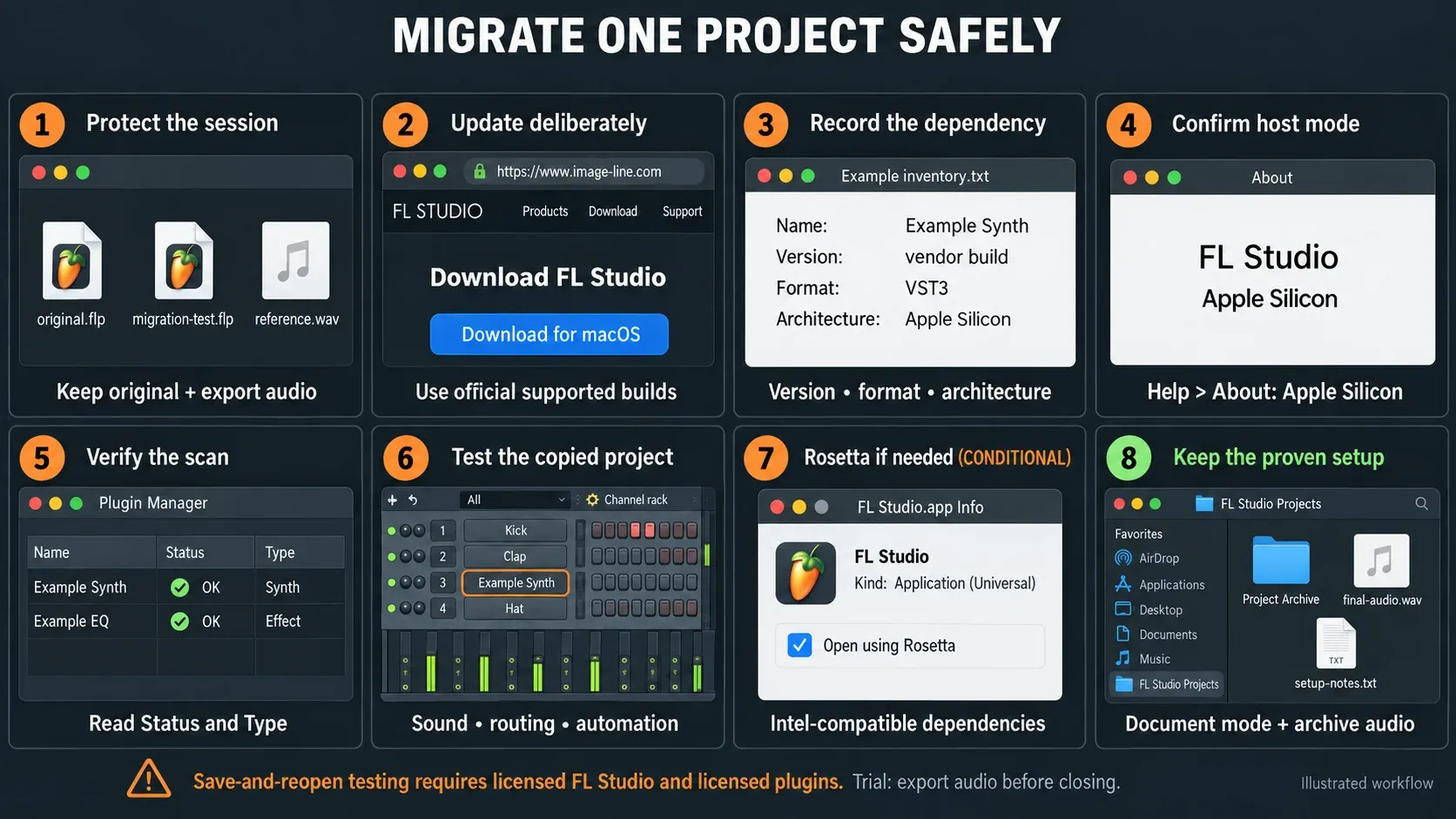
Migrate plugins in eight controlled steps
Before closing anything: FL Studio Trial can save but cannot reopen projects until purchased. Render important audio while the session is still open. Check plugin licenses as well: an unowned native trial plugin can vanish on reopening, and re-saving before you unlock it can lose its settings. That's a licensing problem, not an architecture test. The save-and-reopen steps below assume a licensed host and properly licensed plugins.
- Protect the working session. Save a separately named copy, keep the original untouched, and render a reference plus useful stems before updating or switching modes. Trial users should preserve audio and defer the reopen test.
- Update deliberately. Obtain FL Studio and the plugin's supported build from their developers. Keep a record of the working versions; do not combine an operating-system upgrade with this test.
- Inventory the exact dependency. Note plugin name, version, VST/VST3/AU/CLAP format, architecture, authorization and any required sample library. Preserve the format expected by the old project.
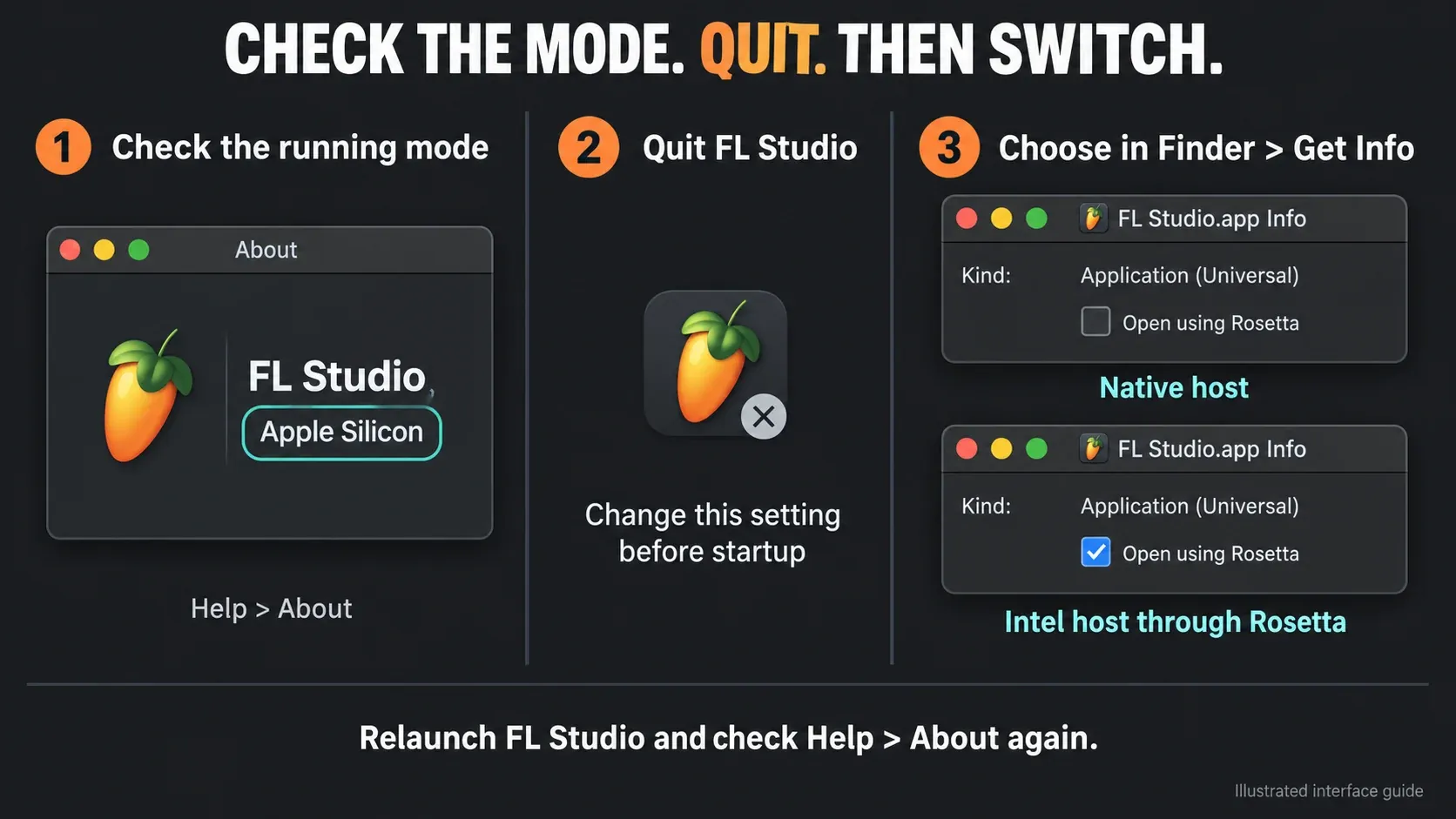
- Confirm native host mode. Check Help > About for Apple Silicon. If changing the setting, close FL Studio first, change Finder's Open using Rosetta checkbox, relaunch and check About again.
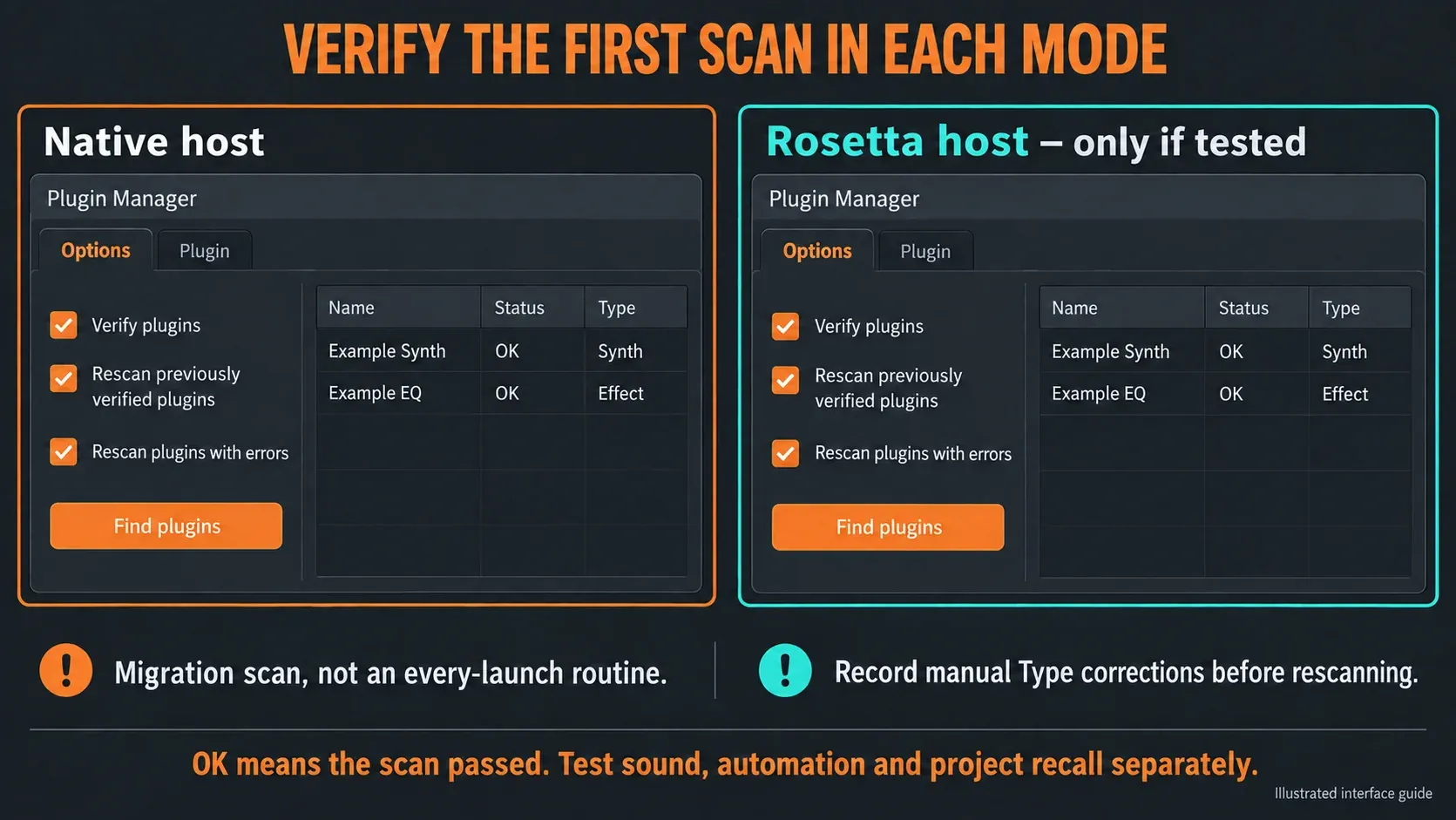
- Scan for the mode you are testing. In Plugin Manager, enable Verify plugins and the two migration rescan options. Read Status and Type, respond to legitimate plugin prompts, and investigate errors before loading the project.
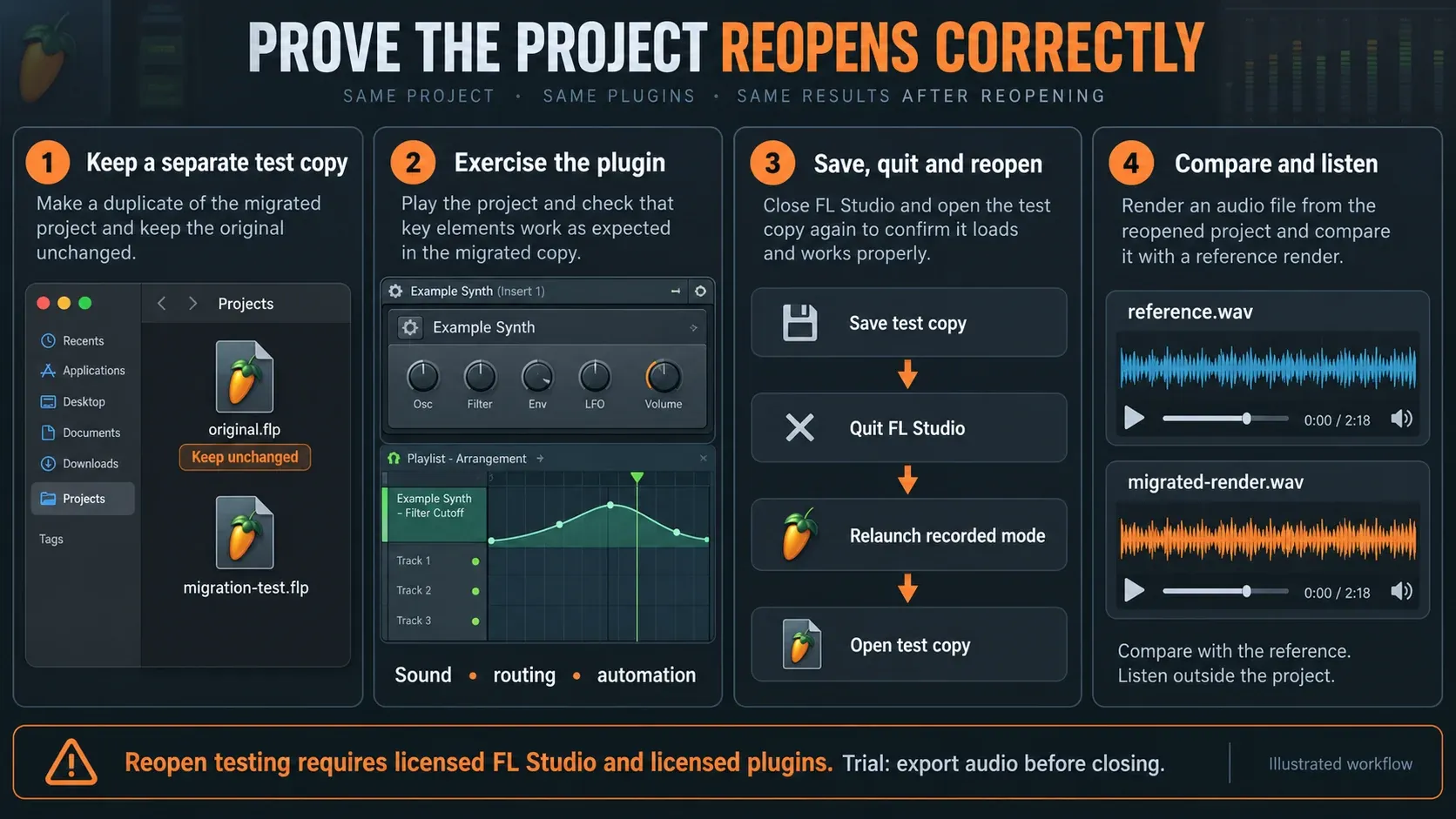
- Test a copied project. Load the exact instance, play audio or MIDI, exercise automation and routing, then save, quit and reopen the licensed copy. Compare its sound and state with the reference.
- Compare Rosetta only when needed. For a failing Intel dependency, switch the closed host to Rosetta, perform its first verified scan, and repeat the same test with Intel-compatible components.
- Keep the proven setup and an audio archive. Record the working mode and versions. Prefer native for new work; document any remaining Intel dependency and replace or render it before losing access to its working environment.
Check and switch FL Studio's mode
Open Help > About and read Intel or Apple Silicon. For the switch, quit FL Studio, locate the actual application in Finder's Applications folder, right-click it and choose Get Info. Select Open using Rosetta for the Intel host; clear it for native Apple Silicon, then relaunch.
The Image-Line mode-switch instructions warn that a later installation may keep your previous Rosetta choice. Check the running mode instead of assuming an update reset it. In Apple's Get Info wording, Universal describes what an application can run as; it doesn't prove which mode is running right now.
If the checkbox is missing, make sure you selected the application itself, then check its Kind and the current developer guidance. Don't change permissions or go hunting for an unofficial replacement build to make the checkbox appear. An Apple-Silicon-only application has no Intel version for that switch to pick.
Rescan after the first switch into each mode
Open Options > Manage plugins, or reach Manage plugins through File settings. Enable Verify plugins, Rescan previously verified plugins and Rescan plugins with errors for the migration scan, then click Find plugins. Image-Line calls for a verified scan the first time you use each host mode because the available results can differ.
The Plugin Manager controls separate a successful scan Status from the Synth/Effect Type. Neither one guarantees that an old project will recall its presets or automation. Let the scan finish and answer legitimate installer or authorization prompts instead of hiding every popup.
These rescan settings have a purpose; they aren't a ritual to run before every launch. Once the migration is settled, ordinary new-plugin scans don't need to revisit every previously verified result. If you manually corrected a known working plugin's Type, write that down first, because rescanning can overwrite the correction. A plugin missing only from a favorite menu belongs to the Plugin Database categories and favorites workflow, not automatically to Rosetta troubleshooting.
A specific exception: native scan errors in older builds
Image-Line's Plugin Manager Error advisory names FL Studio 26.1.3 and earlier: on some Macs, scanning in native mode can fail when Rosetta isn't installed. That's much narrower than “native FL Studio needs Rosetta.” Check your version and update first; the advisory doesn't show that every later build has the same fault.
For the documented case, Image-Line's workaround is to close FL Studio, use Get Info's Rosetta option to trigger installation if needed, then clear the checkbox and return to native mode. Rescan with Verify plugins and both rescan options enabled, with the VST/VST3 combining option disabled. The advisory calls it “Combine VST and VST3 versions of a plugin”; the File settings manual uses “Combine presets for VST and VST3 versions of a plugin.”
Apple explains the Rosetta installation prompt: opening an Intel application can ask for the component when it's missing. Installing it doesn't force every compatible application to run in Intel mode. If the same error sticks around, look at the plugin's installation, license and vendor support instead of flipping the host setting back and forth.
Preserve the old project's plugin identity
Installing a native AU next to an old VST won't automatically replace that VST instance. Keep the original project and exact format available while you test a supported update. Check sound, preset state, automation, tempo sync, sidechain inputs and required libraries. A plugin can open its interface and still load the wrong sound or miss a library.
For Windows collaboration, Image-Line recommends matching VST-format dependencies on both systems, since AU is Mac-only. Its supported-format list also includes CLAP on Windows and macOS, but supporting a format doesn't promise automatic substitution or identical project recall. Agree on the actual plugin version and format, then swap a small test project before moving the session.
Don't rename plugin binaries, replace your only working preset, or overwrite a project after a missing-plugin warning. If discovery itself is failing, the plugin-not-showing diagnostic covers scan paths and classification. This page is about whether the same dependency survives an architecture change.
Compare performance on the same project
Use the same project copy, audio device, buffer, sample rate and playback section for native and Rosetta tests, and keep plugin quality settings and open interfaces comparable. Image-Line's performance guidance favors a native host with native plugins and warns that unnecessary bridging adds work. I wouldn't promise a fixed CPU saving for your collection, so let your own project decide.
Use Plugin performance monitor to find a heavy instance, and treat macOS Activity Monitor as a separate system-level view that doesn't map onto FL Studio's audio-load percentage. A setup that plays one loop with a lower meter but loses automation on reopen has failed the migration test.
Don't disable the bridge an Intel VST needs to run inside the native host. Remove an unnecessary forced-bridging setting only for a compatible native component. If problems continue with native plugins, move on to FL Studio high CPU troubleshooting or crackling and underruns; buffer, device and sample-rate issues are separate possibilities.
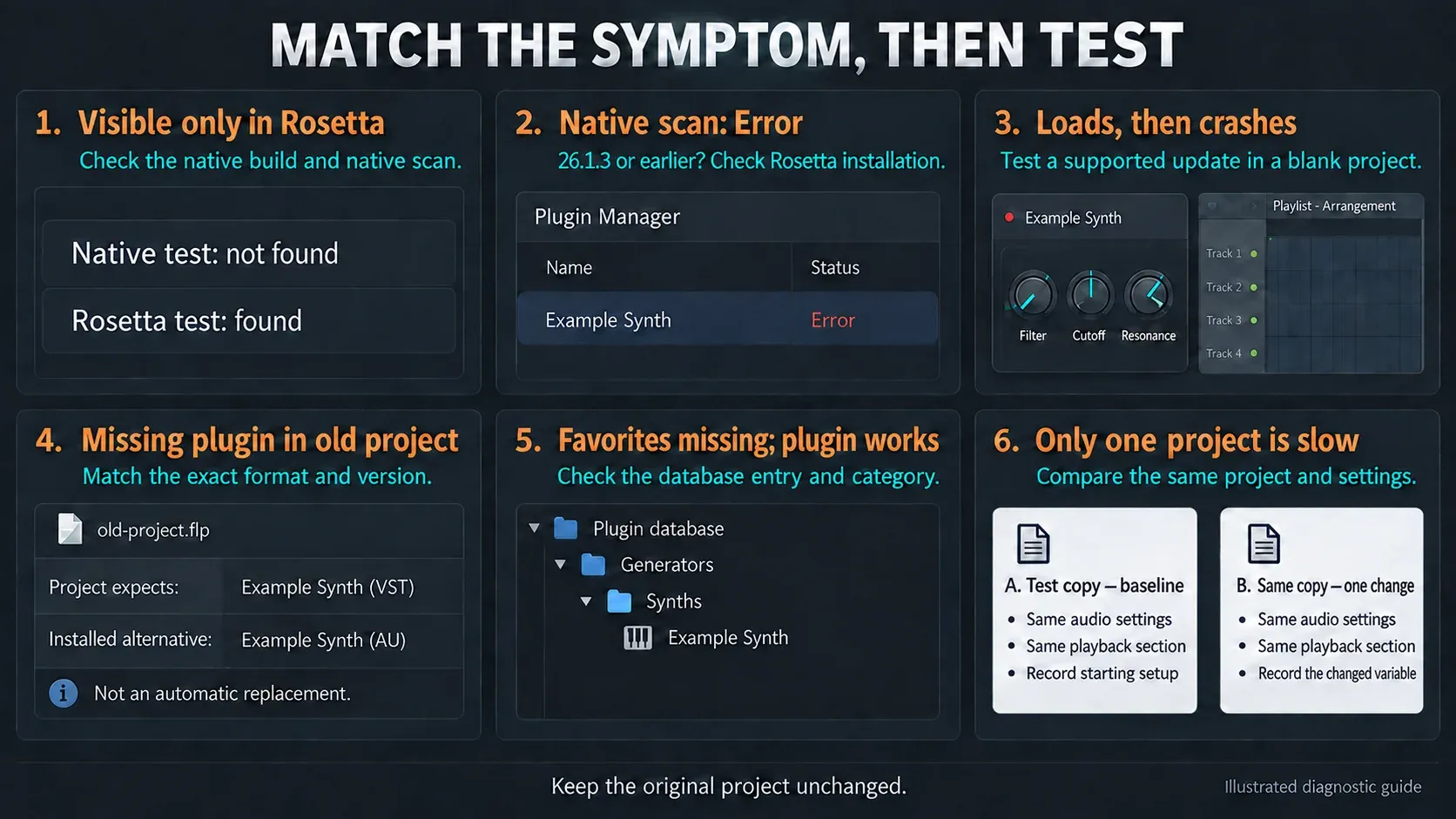
Use the symptom to choose the next check
- Visible only in Rosetta: check the installed component's architecture and native-mode scan. The product name alone does not identify the build.
- Native scan reports Error: check version and the specific older-scanner advisory above before assuming the plugin is Intel-only.
- Loads, then crashes: test the updated component in an empty project. Try another vendor-supported format there, without replacing the old project's instance blindly.
- Old project reports a missing plugin: match its exact format, version and authorization. A new AU is not automatically the missing VST.
- Favorites missing, plugin works: check its database entry and category. Browser starring and plugin-menu favorites are different features.
- Only one project is slow: compare that project's routing, settings and dependencies. Do not change every project's architecture to address one unexplained meter reading.
If the plugin is found but its samples are missing, use the Browser and content-navigation guide together with the vendor's library instructions. Rosetta won't install a missing sample library or grant a license.
Prepare old projects before Rosetta's support narrows
Apple's published Rosetta timeline keeps general availability through macOS 27. From macOS 28, what remains is limited to certain older, unmaintained games that use Intel-based frameworks. That exception doesn't promise Intel audio plugins will keep working, so I'd treat macOS 27 as the last stop for any Intel-only plugin in a working studio.
Plan the transition before you upgrade a working studio to a system that can't run its dependencies. Keep useful rendered audio, installer and version records and license information with your project archive. Ask the vendor about a maintained native replacement while you can still compare against the old sound, and don't count on a full-host Rosetta switch as a permanent fallback.
For a smaller new-project collection, start with FL Studio stock instruments and effects that your license includes. Use the Vital setup guide for that specific synth, not as proof about unrelated plugins. Hardware selection belongs in FL Studio system requirements; buying a higher FL Studio edition does not rebuild a third-party Intel binary.
Finish with a licensed project's reopen test
Save a named test copy, quit FL Studio, relaunch in the mode you recorded and open that copy. Compare the actual sound, routing and automation with your reference, and listen to the rendered file outside the project as well. Leave the original untouched until the migrated copy has proven reliable. If neither mode works, keep the evidence and contact the plugin vendor instead of piling on compatibility tools.
The Plugins hub takes you from installation to a usable collection. If the migration uncovers a wider device or playback fault, use the Troubleshooting hub to choose the right next test. This migration is done when the project recalls correctly, and a green scan result on its own doesn't count.
FL Studio Apple Silicon plugin FAQ
Does FL Studio run natively on Apple Silicon?
Yes, native support began with FL Studio 20.8.4. Use a current supported Mac build and check Help > About for Apple Silicon. The host's support does not prove that every installed third-party plugin is native.
Does installing Rosetta make FL Studio run in Intel mode?
No. Installation adds the translation component. The Universal FL Studio application's Open using Rosetta setting selects the host mode; clear it and relaunch to use native Apple Silicon. Some Intel dependencies can still require translation.
Can native FL Studio load an Intel VST?
FL Studio can attempt to load it through an automatic process bridge. Check interface behavior, audio, automation and licensed-project reopening. A successful scan does not guarantee a stable plugin.
Are Intel AU plugins native when they load in native FL Studio?
No. macOS handles the Intel AU translation; the binary has not become Apple Silicon code. Installing a current native or Universal component removes that particular legacy dependency when the vendor supports it.
Why can plugins scan as Error in native mode?
There are several causes. Image-Line specifically documents some Macs using FL Studio 26.1.3 and earlier failing when Rosetta is absent. Update first; for that case, install Rosetta, return to native mode and follow the advisory's verified-rescan settings. Do not apply the diagnosis to every Error result.
Why does a plugin appear in only one host mode?
The installed build and scan results can differ by mode. Verify the exact component's architecture and complete the first verified scan in the mode you intend to use. A missing favorite menu entry is a separate database issue.
Should I use VST3, AU or CLAP on an M-series Mac?
Choose a vendor-supported native or Universal component and preserve the format expected by existing projects. The format name does not prove its CPU architecture. For Windows collaboration, match plugin versions and formats; AU is Mac-only, and a different format is not an automatic replacement.
Can I do the save-and-reopen test in FL Studio Trial?
Not fully: Trial saves projects but cannot reopen them until FL Studio is purchased. Export important audio before closing. Check plugin licenses too; do not mistake an unowned native trial plugin's recall limitation for an Apple Silicon fault.
Will Rosetta keep Intel-only audio plugins working indefinitely?
No. Apple's published plan keeps general availability through macOS 27, then limits macOS 28 functionality to certain older unmaintained games. Preserve audio and migrate important Intel-only plugin dependencies before upgrading beyond their working environment.
Is native FL Studio always faster than Rosetta?
Native host with native plugins is the best starting point, but it isn't a fixed performance promise. A legacy project with several bridged Intel VSTs can behave differently. Compare the same settings and project section, and count stability and recall as part of the result.