FL Studio
You don't need 150 FL Studio shortcuts in your head. A useful FL Studio keyboard shortcut guide starts with the ten commands that remove the same interruptions from every session, then adds a few for whichever window you're actually working in.
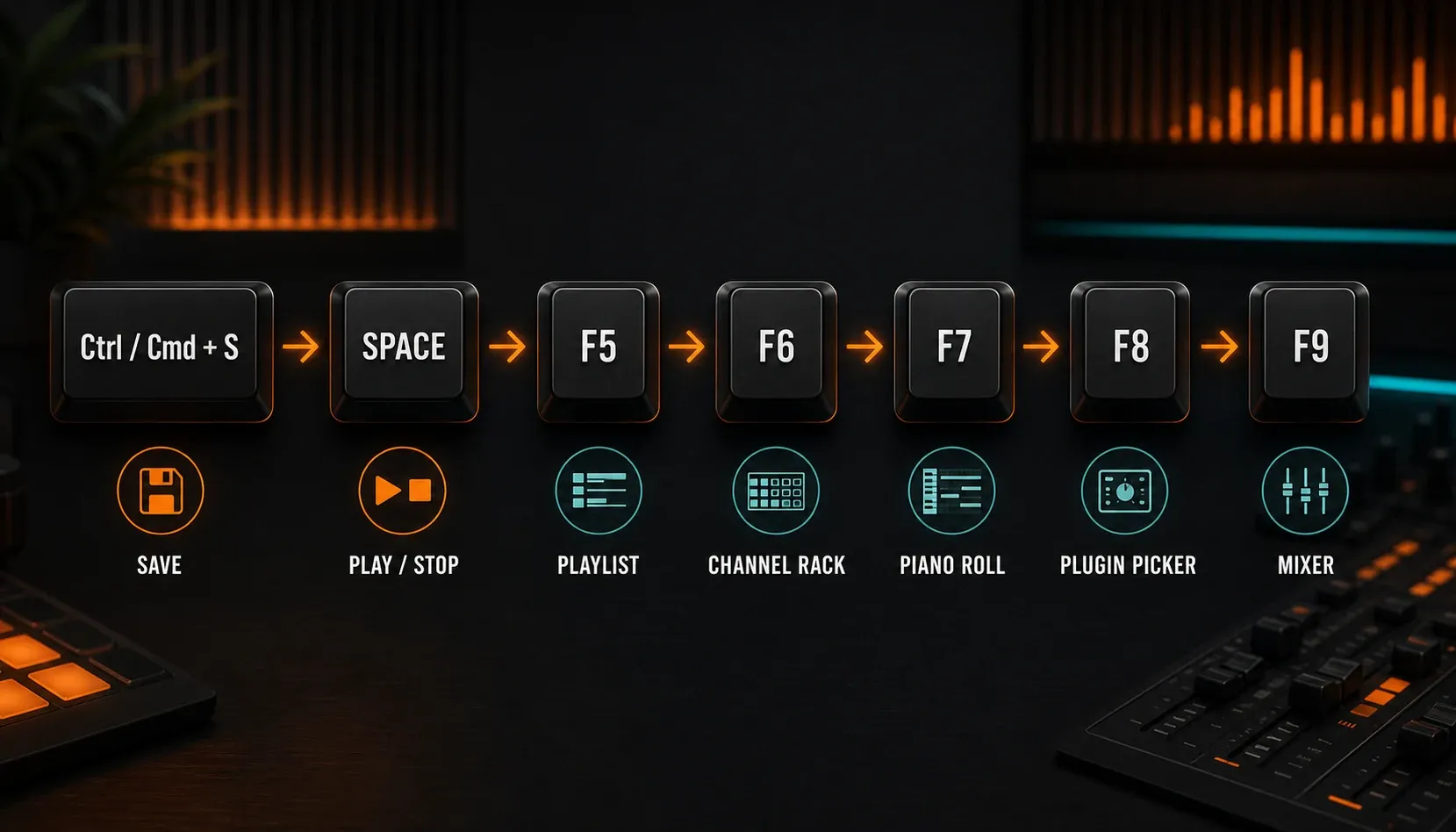
Start with Space, Ctrl/Cmd+S, and F5 through F9. Add Ctrl/Cmd+B for duplication and Shift+Up/Down for semitone moves in the Piano Roll, then pick up selection commands once those actions start slowing you down. This guide follows that order: the small set worth learning first, then practical reference tables for the Playlist, Piano Roll, Channel Rack, and Mixer.
Find the command you need: Essentials, Transport and recording, Playlist, Piano Roll, Channel Rack and Mixer, Mac keys, or Fix a shortcut.
The FL Studio shortcuts to learn first
| Action | Windows | macOS | Why it earns a place |
|---|---|---|---|
| Play or stop | Space | Space | You use it constantly |
| Save project | Ctrl+S | Cmd+S | Make saving a reflex |
| Undo or redo the last edit | Ctrl+Z | Cmd+Z | FL Studio toggles the most recent edit |
| Undo step by step | Ctrl+Alt+Z | Cmd+Option+Z | Walk back through edit history |
| Playlist | F5 | F5 | Jump to the arrangement |
| Channel Rack | F6 | F6 | Return to patterns and channels |
| Piano Roll | F7 | F7 | Edit notes for the selected channel |
| Plugin Picker | F8 | F8 | Find and load a generator or effect |
| Mixer | F9 | F9 | Reach routing, levels, and effects |
| Duplicate selection to the right | Ctrl+B | Cmd+B | Fast in Playlist and Piano Roll |
That list alone changes how a first project feels. If the basic windows still feel unfamiliar, work through the beginner FL Studio tutorial once, then come back and learn the commands in the order your hands need them.
One shortcut can do different things in different windows
This rule is why FL Studio shortcut lists seem to contradict each other. The current Image-Line shortcut reference says assignments depend on context. FL Studio looks at the active window, the current selection, and sometimes where your pointer or keyboard focus sits.
You'll see the same commands called hotkeys, key commands, or keyboard shortcuts. The name doesn't matter; the active FL Studio window is still part of the instruction.
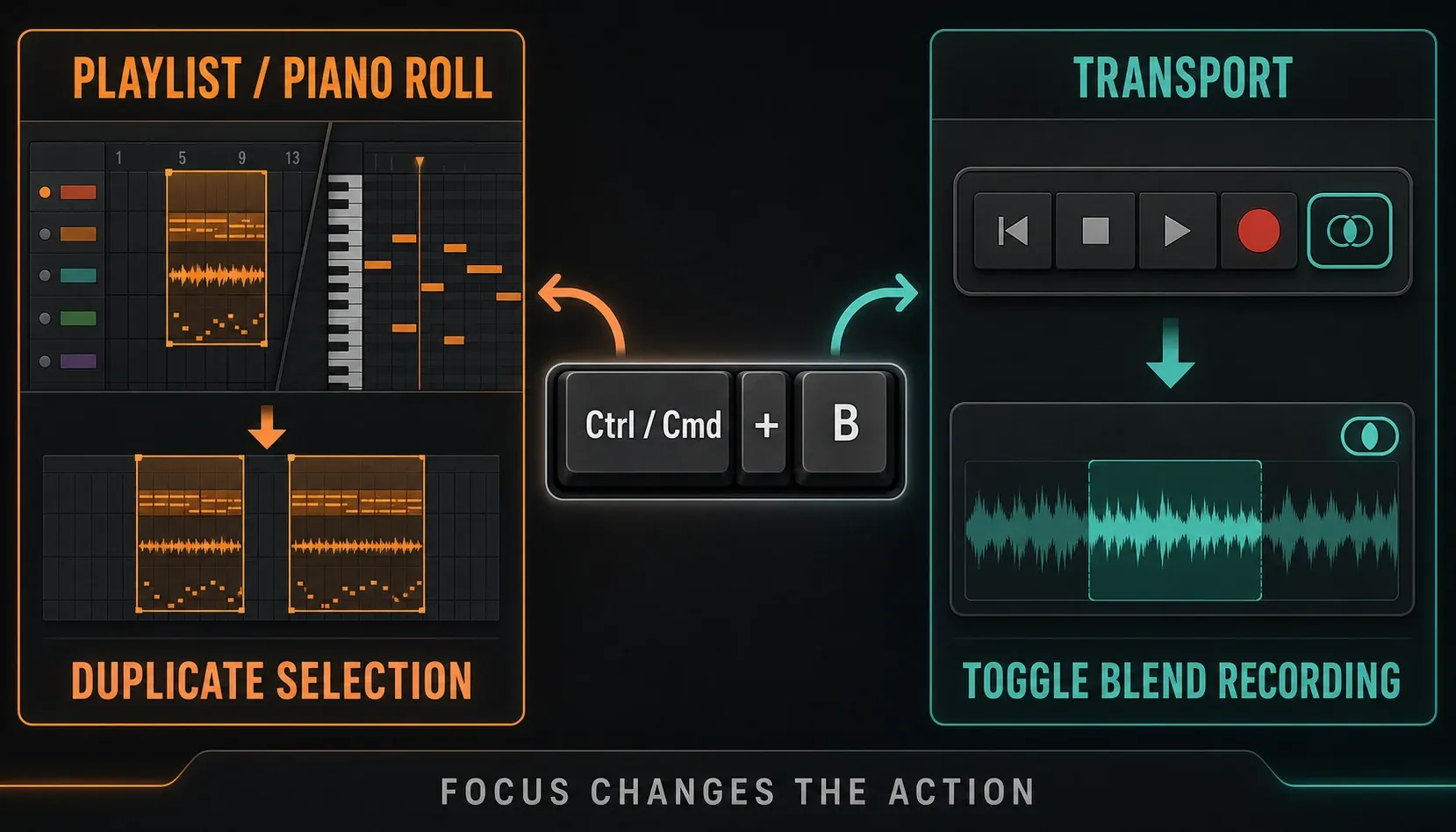
Ctrl/Cmd+B is the clearest example. In the Playlist or Piano Roll, it duplicates the current selection to the right. In the transport controls, the same combination toggles Blend recorded notes (overdub). Click the window you mean to edit before you press it, and learn each key together with its context.
Single-letter commands add another layer. When Typing keyboard to piano keyboard is on, letters are reserved for playing notes. Press Ctrl/Cmd+T to switch that mode off when you want B, C, P, R, or L to work as commands.
Project, transport, and recording shortcuts
| Action | Windows | macOS | Watch for |
|---|---|---|---|
| Open project | Ctrl+O | Cmd+O | Opens an existing file |
| Save project | Ctrl+S | Cmd+S | Saves to the current file |
| Save As | Ctrl+Shift+S | Cmd+Shift+S | Lets you choose name and location |
| Save new version | Ctrl+N | Cmd+N | This does not create a blank project |
| Export WAV | Ctrl+R | Cmd+R | Opens WAV render options |
| Export MP3 | Ctrl+Shift+R | Cmd+Shift+R | Opens MP3 render options |
| Play or stop | Space | Space | Returns to the start position when stopped |
| Start or pause | Ctrl+Space | Cmd+Space | macOS may give this combination to Spotlight |
| Toggle recording | R | R | Typing-piano mode must be off |
| Switch Pattern/Song mode | L | L | Typing-piano mode must be off |
| Toggle metronome | Ctrl+M | Cmd+M | Transport command |
| Stop stuck sound | Ctrl+H | Cmd+H | The FL Studio “panic” command |
Ctrl/Cmd+N deserves special attention, because plenty of generic DAW lists call it New Project. In FL Studio it saves a new numbered version. That's handy before a risky edit: keep the working project open, save a new version, and experiment without overwriting what you had.
Window navigation without chasing panels
The function keys form a simple left-to-right mental map: arrangement, channels, notes, plugins, mix. F5 opens the Playlist; F6 the Channel Rack; F7 the Piano Roll; F8 the Plugin Picker; and F9 the Mixer.
The Sample Browser is different from the Plugin Picker. Use Alt+F8 on Windows or Option+F8 on Mac to show or hide it. F12 closes all FL Studio windows when the workspace becomes a stack of panels, while Ctrl/Cmd+Shift+H rearranges them. F1 opens context-sensitive help for the focused FL Studio window or native plugin.
Playlist shortcuts for arranging faster
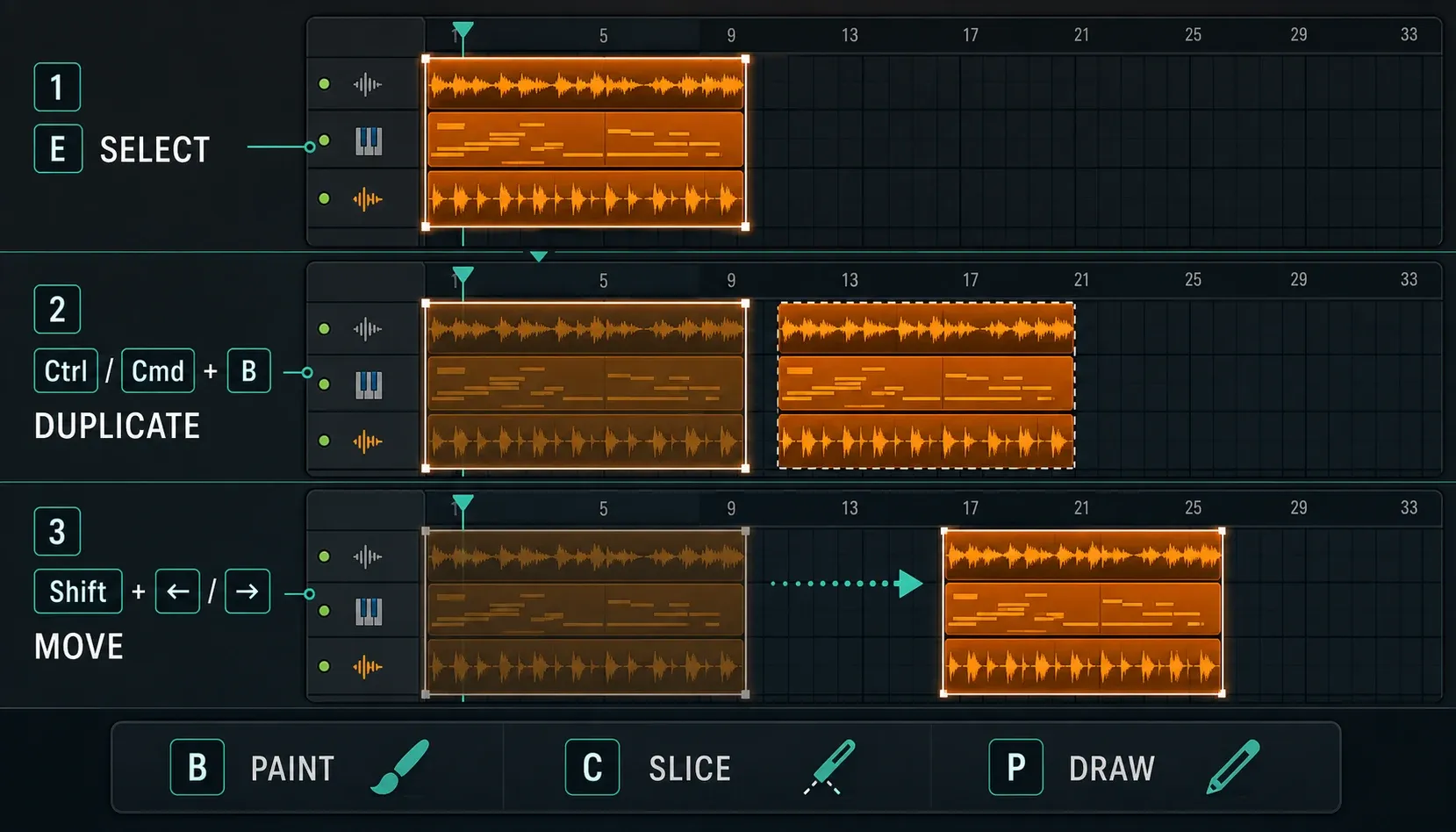
Don't try to memorize every Playlist tool letter. Start with the three moves you repeat most: select, duplicate, and move. Add Slice or Paint once your editing style calls for them.
| Action | Shortcut | Practical use |
|---|---|---|
| Select tool | E | Box-select clips before moving or copying |
| Draw tool | P | Place clips and automation points |
| Paint tool | B | Paint repeated pattern or audio clips |
| Slice tool | C | Choose the blade for clip cuts |
| Duplicate selection right | Ctrl/Cmd+B | Repeat a bar, hook, or section immediately after itself |
| Move selection left or right | Shift+Left/Right | Nudge the selected clips by the current grid relationship |
| Move selection up or down | Shift+Up/Down | Change Playlist lane without dragging |
| Quick-quantize clip starts | Shift+Q | Align selected clip start times |
| Select all clips from the same source | Shift+C | Find every instance of one pattern or clip |
| Consolidate selected clips | Ctrl/Cmd+Alt/Option+C | Render the selection from its first clip |
If you search “how to cut in FL Studio,” two different answers can both be right. Ctrl/Cmd+X cuts the current selection to the clipboard, while C picks the Playlist Slice tool so you can split clips. Decide whether you mean a clipboard cut or audio/pattern slicing before you blame the shortcut.
Piano Roll shortcuts for notes, chords, and timing
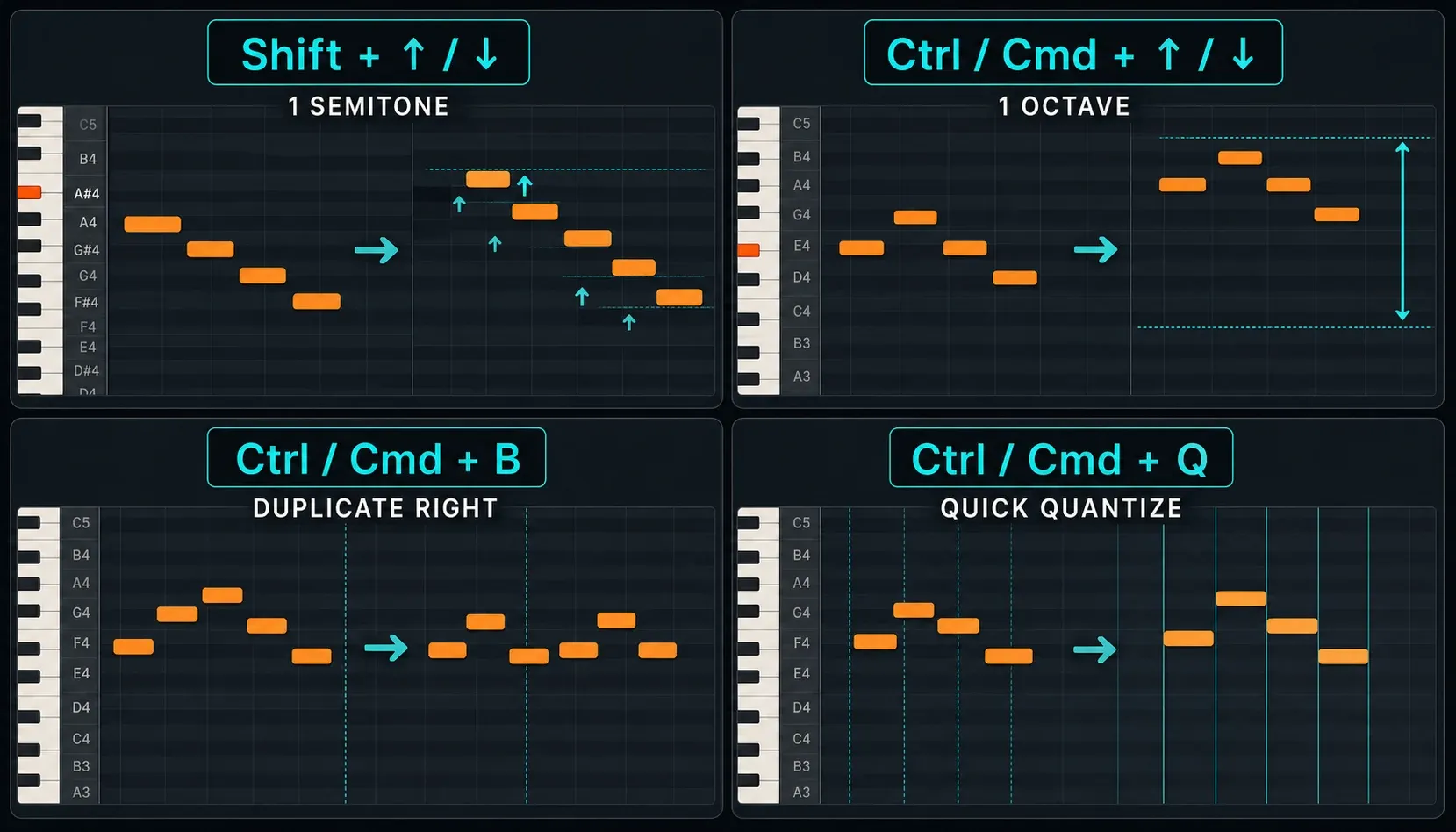
Piano Roll commands are easiest to learn in pairs: semitone versus octave, quick quantize versus the full Quantize tool, and duplicate versus copy-paste.
| Action | Windows | macOS |
|---|---|---|
| Move selected notes one semitone | Shift+Up/Down | Shift+Up/Down |
| Transpose selected notes one octave | Ctrl+Up/Down | Cmd+Up/Down |
| Duplicate selected notes to the right | Ctrl+B | Cmd+B |
| Quick-quantize selected notes | Ctrl+Q | Cmd+Q |
| Open the Quantize tool | Alt+Q | Option+Q |
| Nudge note position | Alt+Arrow | Option+Arrow |
| Quick legato | Ctrl+L | Cmd+L |
| Quick chop | Ctrl+U | Cmd+U |
| Toggle ghost channels | Alt+V | Option+V |
| Open note properties | Double-click a note | |
Quick Quantize applies the immediate command, and Alt/Option+Q opens the Quantize tool when you need more control. The difference matters with recorded playing, because an instant grid correction and a deliberate groove treatment are two separate musical decisions. The FL Studio quantize guide handles strength, start-time, duration and groove choices; this page handles the keys.
Channel Rack and Mixer shortcuts that prevent routing clicks
Context matters most here. In the Channel Rack, Ctrl/Cmd+L routes selected channels to free Mixer tracks. In the Mixer, Ctrl/Cmd+L links selected channels to the currently selected Mixer track. Same keys, different routing result.
| Window | Action | Shortcut |
|---|---|---|
| Channel Rack | Clone selected channel | Alt/Option+C |
| Channel Rack | Move selected channels up or down | Alt/Option+Up/Down |
| Channel Rack | Route selected channels to free Mixer tracks | Ctrl/Cmd+L |
| Channel Rack | Focus Playlist | Ctrl+Enter / Cmd+Return |
| Mixer | Solo current track | S |
| Mixer | Rename selected track | F2 |
| Mixer | Link selected channels to selected track | Ctrl/Cmd+L |
| Mixer | Move selected tracks left or right | Alt/Option+Left/Right |
The routing commands only save time when the selection is right, so glance at the highlighted channel and Mixer track before you use them. The dedicated FL Studio Mixer tutorial covers routing decisions; this page sticks to the keyboard reference.
Windows and Mac shortcuts are close, not identical
Image-Line maps Windows Ctrl to macOS Command, and Windows Alt to macOS Option. That covers most tables above. Apple’s function-key guidance explains why a Mac may require Fn or the Globe key to send F5 through F12, depending on Keyboard settings and whether those keys control brightness, volume, or other system features.
Windows Delete maps to Fn+Delete on many Mac keyboards. System shortcuts can also win the race before FL Studio sees a command; Apple assigns Cmd+Space to open or close Spotlight by default. Change the macOS system shortcut or use FL Studio's regular Space start/stop behavior instead of assuming the DAW is broken.
If a key list suddenly looks different after moving to a new computer or build, check the installed version and update path before you rebuild your habits. The FL Studio installation and update guide covers that part, so this reference doesn't turn into another setup article.
Why an FL Studio shortcut is not working
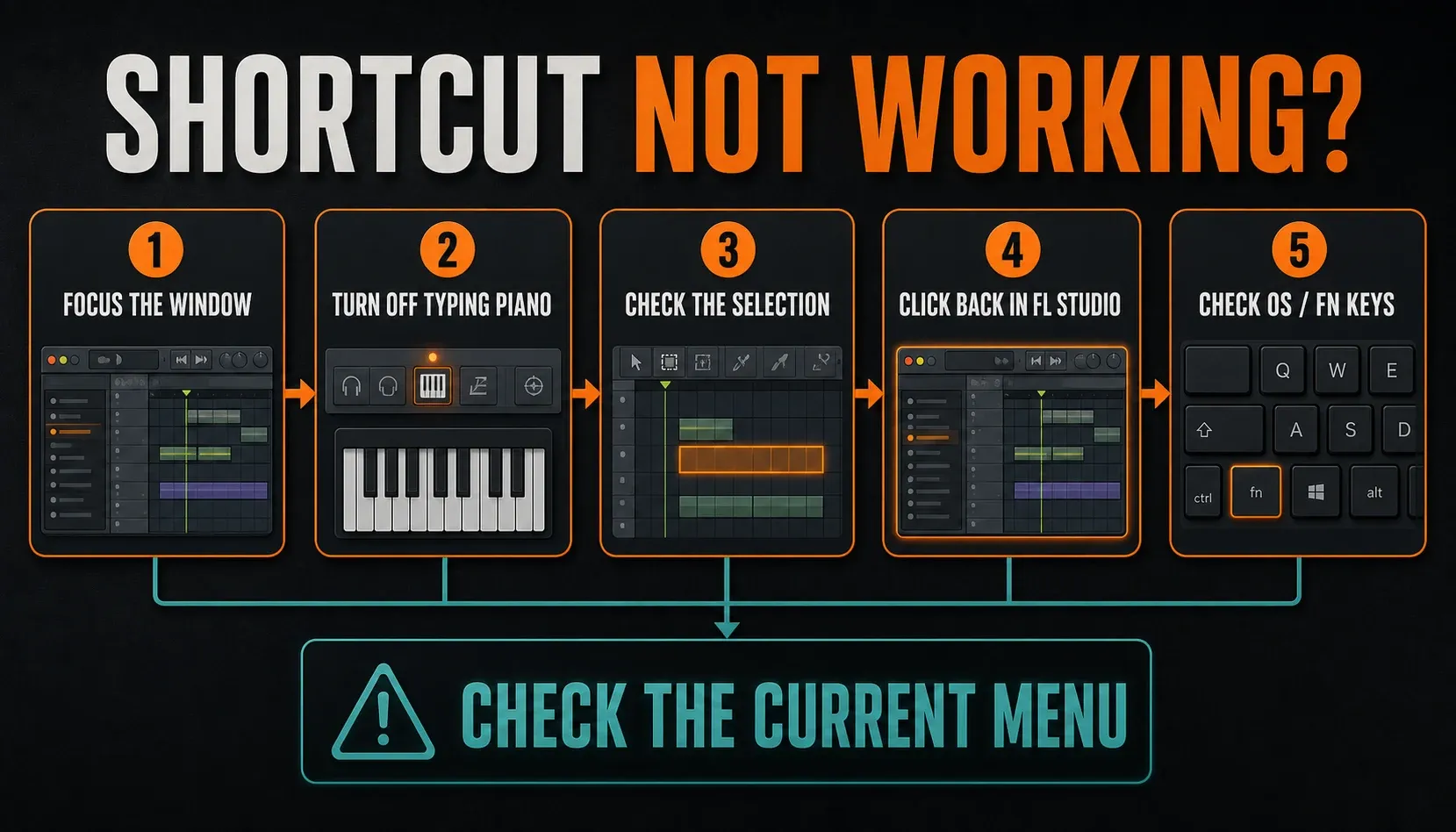
- Focus the intended window. Click inside Playlist, Piano Roll, Channel Rack, or Mixer and try again.
- Turn off Typing keyboard to piano. Press
Ctrl/Cmd+Tif letters play notes instead of selecting tools or transport modes. - Check the selection. Duplicate, move, quantize, and routing commands need the correct clips, notes, channels, or tracks selected.
- Close or unfocus a plugin. A third-party plugin can capture keys before FL Studio receives them.
- Check function-key behavior. On a laptop, try
Fn+F7instead ofF7. - Check the operating system. Spotlight, accessibility tools, keyboard utilities, remote-desktop software, and custom firmware can intercept combinations.
- Check the current menu. Keyboard layout and FL Studio version can affect punctuation and less common commands. The visible menu or current Image-Line manual is safer than an old PDF.
FL Studio now has Manage shortcuts in General Settings, but the current General Settings manual says it covers a limited number of interfaces and functions, including Browser and picker actions. So don't expect to remap every command in the application. Learn the defaults first, then customize only what the current settings screen actually offers.
Learn the shortcuts in five short sessions
- Session one: use only
Space,Ctrl/Cmd+S, andF5–F9. - Session two: add
Ctrl/Cmd+Bin Playlist and Piano Roll. - Session three: practice
Shift+Up/Downfor semitones andCtrl/Cmd+Up/Downfor octaves. - Session four: add the two tool letters you actually use, such as
EandC. - Session five: notice one repetitive click, find its current official shortcut, and write it beside your keyboard.
This works far better than memorizing a poster. Learn a command once a real action starts costing you clicks; your own repeated workflow decides which shortcuts are essential.
If playback responds but feels delayed, the keyboard probably isn't to blame, so work through the FL Studio audio settings and latency guide. For your next production skill after shortcuts, use the FL Studio guide library instead of collecting random tips from search results.
Frequently asked questions
What is the shortcut to save in FL Studio?
Press Ctrl+S on Windows or Cmd+S on macOS. Ctrl/Cmd+Shift+S opens Save As, while Ctrl/Cmd+N saves a new version rather than creating a blank project.
How do I move notes up one semitone in FL Studio?
In the Piano Roll, select the notes and press Shift+Up or Shift+Down. Use Ctrl+Up/Down on Windows or Cmd+Up/Down on Mac to move the selection by a full octave.
What does Ctrl+B do in FL Studio?
In the Playlist and Piano Roll, Ctrl+B on Windows or Cmd+B on Mac duplicates the selection to the right. In the transport context, the same combination toggles Blend recorded notes (overdub), so focus matters.
What is the shortcut for the FL Studio Mixer?
Press F9 to show or hide the Mixer. On a MacBook or laptop that reserves function keys for system controls, you may need Fn+F9.
How do I cut in FL Studio?
Ctrl/Cmd+X cuts the current selection to the clipboard. In the Playlist, press C to choose the Slice tool when you want to split a clip. The letter command needs Typing keyboard to piano to be off.
Can I change FL Studio keyboard shortcuts?
Only a limited set. Current FL Studio General Settings includes Manage shortcuts for selected interfaces and functions, not universal remapping of every command. Check the options your installed version exposes.
Why do FL Studio shortcut letters play notes?
Typing keyboard to piano is enabled. Press Ctrl+T on Windows or Cmd+T on Mac to toggle it off, then focus the window you want to control.