FL Studio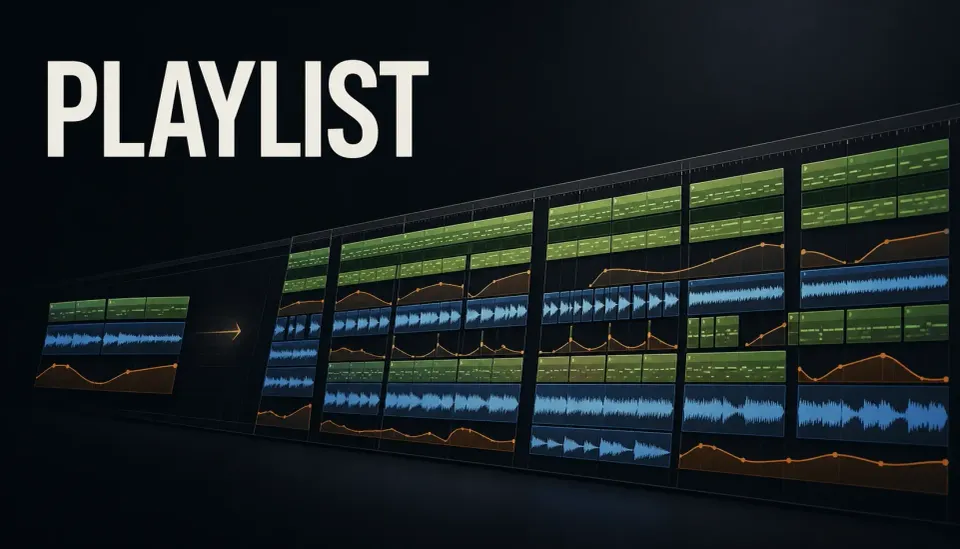
The FL Studio Playlist is where separate patterns, recordings and parameter moves turn into a song. Press F5 to open it, switch the transport to Song mode, and lay Pattern, Audio and Automation Clips along the horizontal timeline. One detail is easy to miss: by default, a Playlist lane isn’t a Mixer insert. It’s a flexible home for clips, and Channel Rack routing decides where the sound enters the Mixer.
Start with the main section and one contrasting section instead of painting the same four bars all the way to the end. Mark their boundaries, place the fewest parts that make each section recognizable, then change density, register, rhythm or texture. Name the lanes while there are still only a few to keep track of.
This guide describes the desktop Playlist. Image-Line lists full Playlist functionality and audio recording with Producer Edition and above; Fruity Edition has limits on Audio Clips and no audio recording. Use the controls your edition includes. In the standard time-unlimited Trial, you can save an FLP but cannot reopen it until you purchase and unlock FL Studio.
Arrange a complete song in eight steps
- Open the Playlist and choose Song mode. Press F5, then switch the transport from Pattern to Song so playback follows the timeline.
- Audit the available sources. Open the Picker Panel and identify the Pattern, Audio and Automation Clips you actually intend to use.
- Mark the structure. Add time markers for an intro, main sections, contrast section and ending; use names that describe function rather than copying a fixed formula.
- Place the smallest musical skeleton. Put the core rhythm, bass, harmony or lead in the sections where each one matters.
- Duplicate deliberately. Copy stable material. Make a Pattern unique before changing its notes independently; for audio, check whether Clip Properties already provides the per-instance edit you need.
- Add transitions and automation. Put fills, risers, drops and Automation Clips near the sounds they explain.
- Name, color and group the lanes. Use a repeatable system for drums, music, vocals and effects instead of random colors.
- Play from the top and remove dead weight. Check every handoff between sections, mute competing ideas and keep an alternate Arrangement before a major structural change.
Understand the three clip types before moving anything
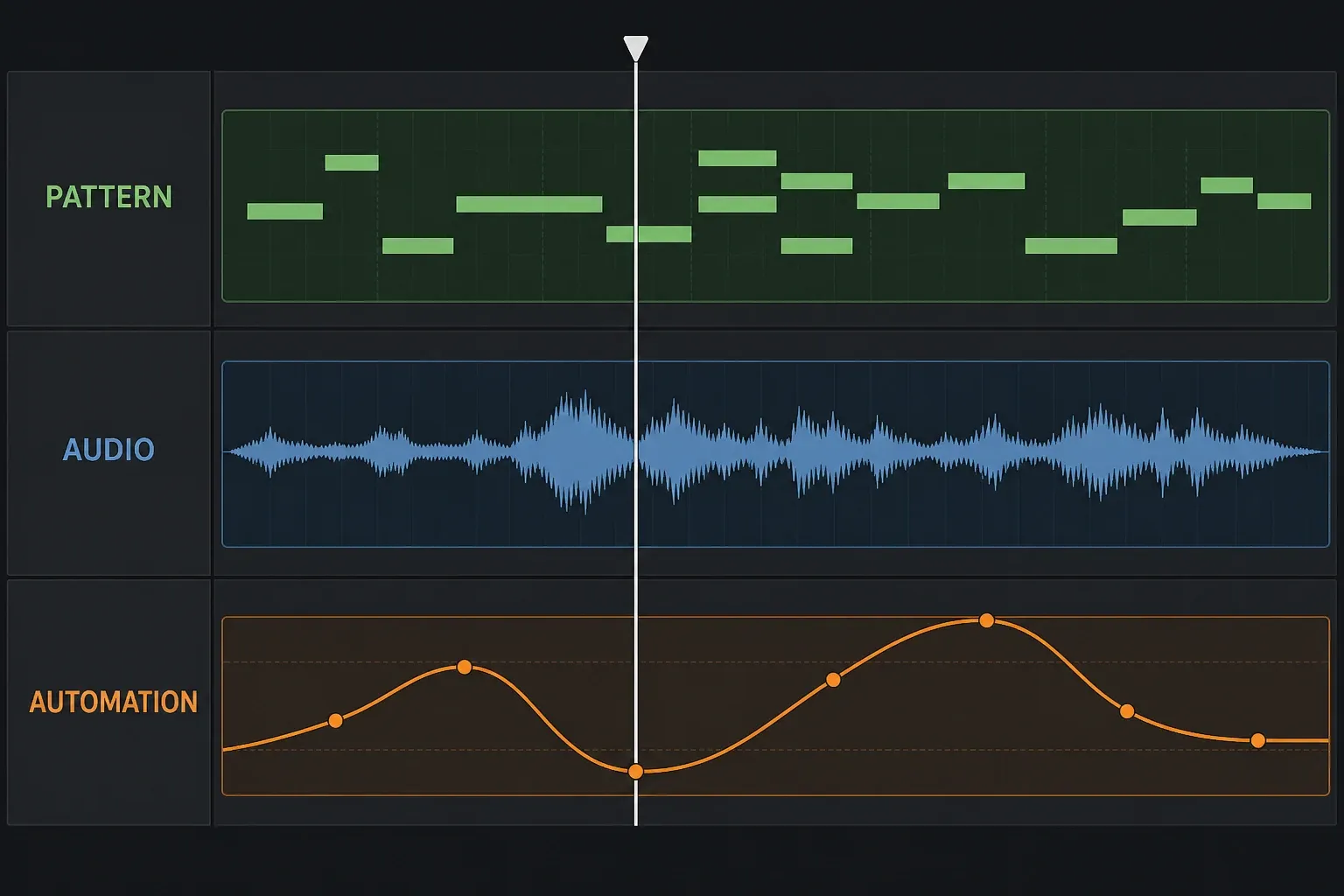
Image-Line’s current Playlist manual defines three clip types. A Pattern Clip plays note data or event automation stored in a pattern. An Audio Clip plays a recording or imported audio. An Automation Clip changes a linked parameter over time. They can share lanes and even overlap, but just because they can doesn’t mean they should: a readable project usually gives related material predictable homes.
A Pattern Clip isn’t necessarily one instrument. One pattern can hold several Channel Rack instruments and so feed several Mixer inserts. If that surprises you, step back to the Channel Rack mental model, or use the current Piano Roll guide for note-level editing. The Playlist decides when the source plays; those other windows decide what the source contains.
Choose free Playlist lanes or Track Mode
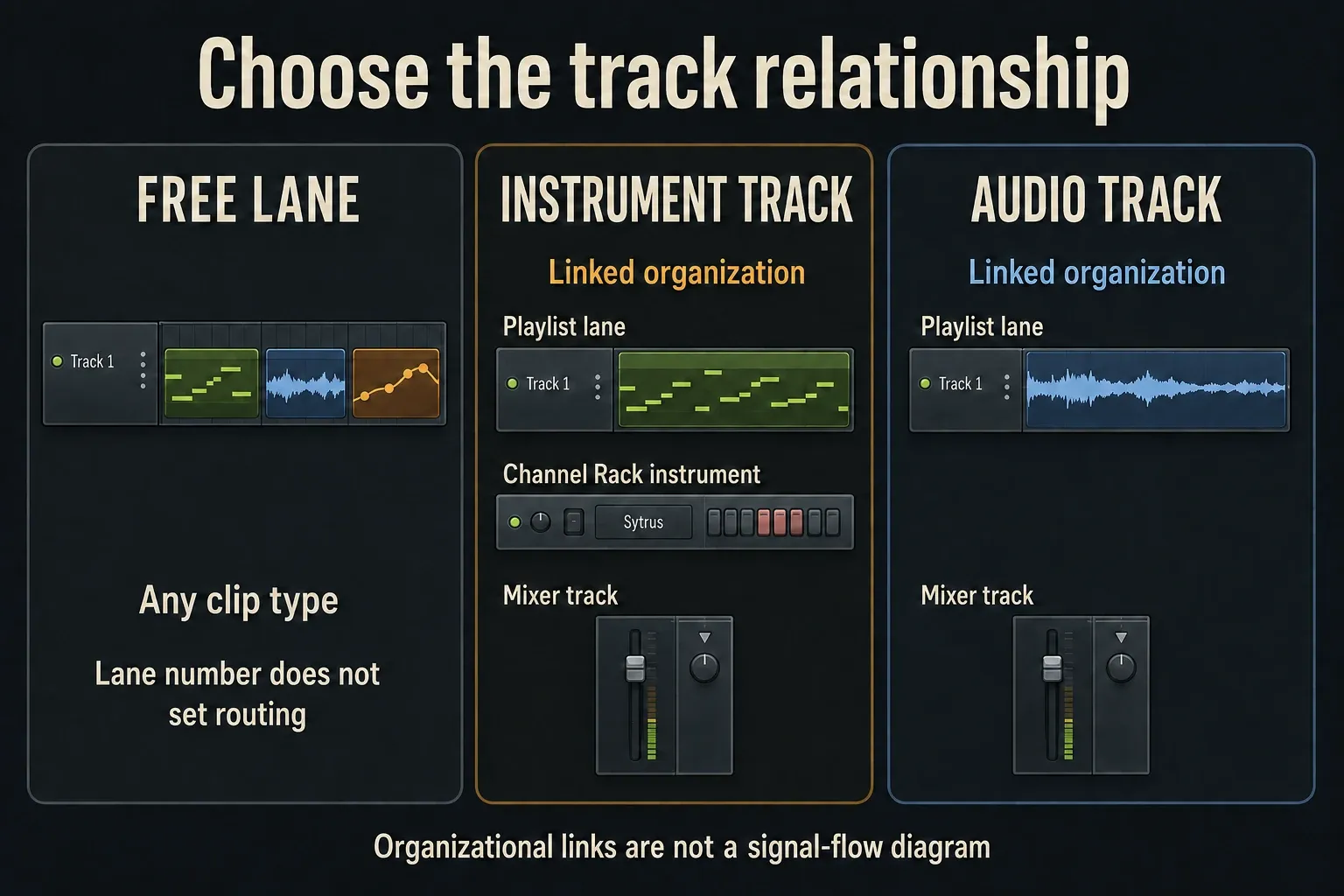
In the free-form workflow, any lane can hold any clip type. Track 4 doesn’t automatically mean Mixer Insert 4, and a lane name doesn’t prove where its sound goes. A template may already contain linked tracks, so check the actual track mode instead of assuming a new project is unassigned. Image-Line’s Mixer routing documentation puts the audio path at the source Channel’s routing selector, not at the default Playlist lane position.
Track Mode creates linked components. Right-click a Playlist track header and choose Track mode → Instrument track, then select an instrument; Use existing can associate an instrument already in the project. An Instrument Track links that Channel Rack instrument, the Playlist lane and a Mixer track, and creates a default Pattern. Name, color and icon changes can follow the linked group, but the Pattern is excluded from that ripple behavior.
For audio, choose Track mode → Audio track and a Mixer destination. If you prefer dragging audio onto a header, first check Playlist menu → Edit → Drop audio on track headers: As audio tracks creates the linked path; As audio clips does not; As instrument tracks loads a Sampler and Pattern instead. Dropping an instrument plugin on the header is another Instrument Track route.
| Workflow | Best when | Watch for |
|---|---|---|
| Free lanes | You want to combine clip types freely or sketch quickly | Lane number and Mixer insert number are unrelated by default |
| Instrument Track | You want one linked instrument, Playlist lane and Mixer path | The group changes rerouting behavior and creates a default Pattern |
| Audio Track | You want recordings or dropped audio to follow one linked Mixer path | Drop behavior depends on the active Playlist edit options |
Free lanes suit flexible arranging, and Track Mode suits a project that benefits from explicit links. If a linked group blocks a routing change you need, right-click its header and choose Track mode → Unassigned before rerouting. For the actual insert, bus and send work, use the FL Studio Mixer guide.
Find the right source instead of painting the wrong clip
Open the Picker Panel with Alt/Opt+P. It splits sources into Pattern, Audio and Automation, lets you rename or color them, and helps you find a clip already used in the Playlist. The Clip Source menu and Project Picker offer other views, but one visible source list is usually all you need while arranging.
The Picker Panel chooses among sources already available to the project. When the missing piece is still on disk, or you need to audition samples and presets first, find it through the FL Studio Browser workflow, then return to the Playlist with the right source rather than a placeholder.
Select a source, choose Draw or Paint, and place it in empty Playlist space. If clicking a lane keeps adding an unexpected clip, right-click that lane’s header and check Lock to content; disable it on that lane when you want free placement. To find a source already on the timeline, select it in the Picker and press Shift+C. For stacked clips, the Pattern, Audio and Automation Clip Focus icons bring the chosen type to the front for selection.
Build a section map before adding detail
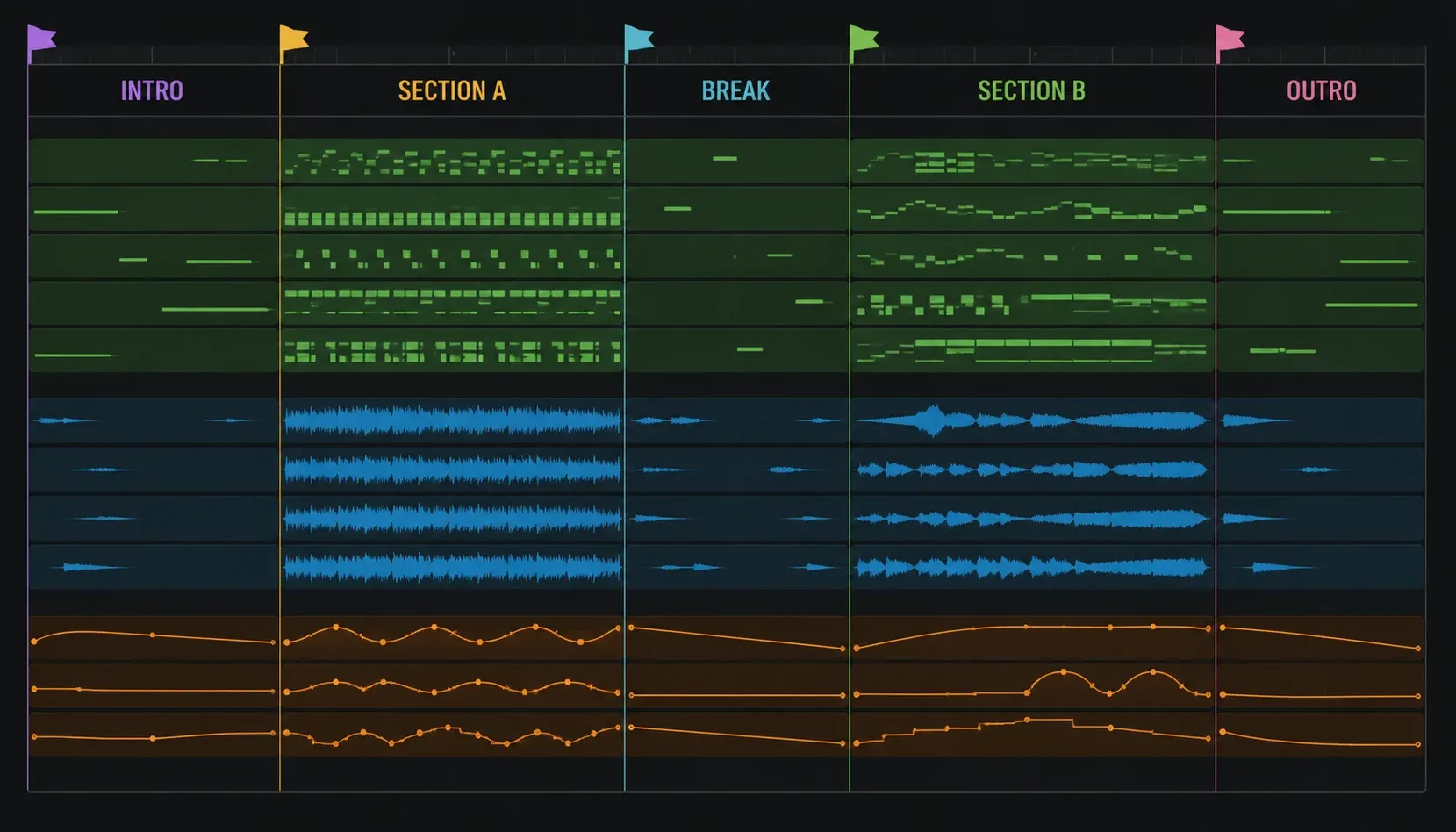
With the Playlist focused, press Alt/Opt+T, type a marker name and press Enter. Drag the marker to the required position, or use Time markers → Add marker in the Playlist menu. The default None action makes it a label; loop, skip and other marker actions can change playback. Intro, Section A, Break, Section B and Outro are useful example labels, not a structure every song needs.
Next, place only the clips needed to identify each section. A useful first pass might have drums and bass in the main section, a stripped-back rhythm in the break, and a final section with one new counterline. Listen to the transitions before you decorate the middle of every block. If two neighboring sections hold the same sources at the same density, you might see the boundary but you won’t hear it.
If everything is still inside one multi-instrument Pattern, select that Pattern and choose Patterns → Split by channel. The Patterns menu reference says this creates one new Pattern for each active Channel, named after that Channel. Select the results in the Picker and drag them onto lanes at the same starting position. Keep parts together when they need to move as one; splitting is an option, not an arrangement requirement.
Then change one audible feature at each handoff: drop the kick, shorten the bass phrase, expose the vocal, delay the lead entrance or let a reverb tail carry across the cut. Listen for whether the next section adds or removes something a listener will actually notice.
Keep Pattern, Audio and Automation Clips close to their purpose
Put a Pattern Clip where its notes should play and an Audio Clip where its waveform starts in musical time. Place an Automation Clip next to the sound or group it controls, not six screens down in an anonymous lane. This is about organization only: moving an automation lane next to a synth doesn’t change the link target.
Recordings arrive through their own capture workflow. If the source has not been recorded cleanly yet, stop arranging and use the audio recording guide. MIDI performances belong in the MIDI recording workflow. Imported note files need the MIDI import checks before their resulting patterns can be trusted on the timeline.
The Playlist can position and repeat an existing Automation Clip. For creating the parameter link and editing its curve, use the FL Studio automation guide. A nearby lane is a useful visual reminder of the target, but it does not establish the link.
Duplicate a section without making every copy identical forever
With the Playlist focused, select the clips and press Ctrl/Cmd+B to duplicate them to the right. A separate timeline selection sets the repeat interval; the clip selection decides what is copied. For a four-bar section with a silent last bar, select the full four-bar interval so the gap survives. Check the selection first: with none selected, Duplicate can copy all clips. The detailed repetition workflow is in the FL Studio loop and pattern guide.
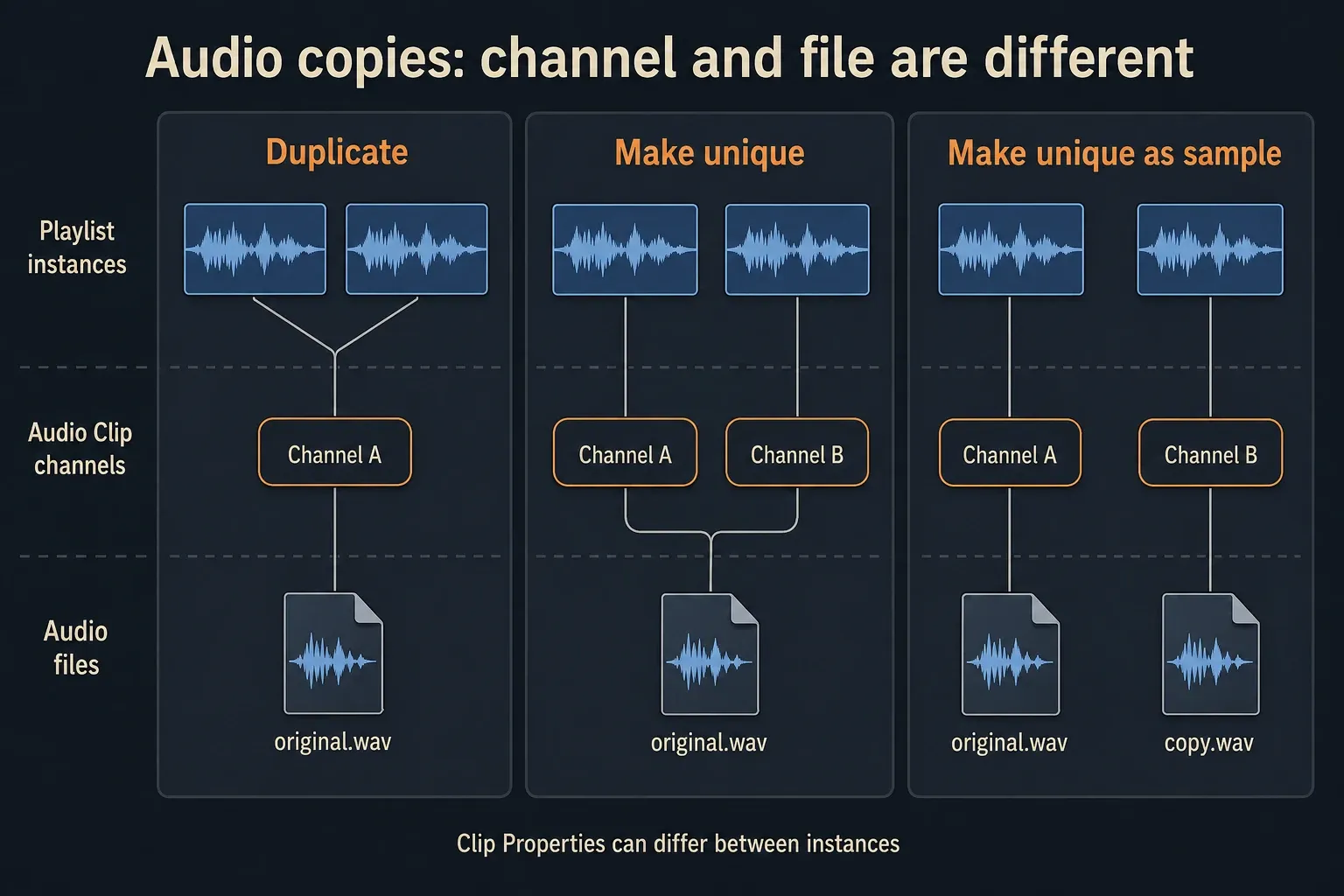
Repeated Pattern Clips refer to the same Pattern source. To change one fill, chord or ending independently, open the small Clip menu at the top-left of that copy → Make unique, then edit the new Pattern. Moving or trimming a placed instance is different from changing the source notes. Do not make every repeat unique while you still want shared edits.
Audio needs a more precise distinction. Make unique creates a new Audio Clip channel but reuses the same file on disk. Make unique as sample creates a new Audio Clip channel and a separate sample file; choose a new filename when prompted. Use that file-copy option when the sample data itself must change independently.
You do not need a new Audio Clip channel for every variation. Current Audio Clip Properties can apply gain, pan, pitch, mute and reverse changes to individual instances. The Channel Settings remain shared; all instances of an Audio Clip use one Stretch Mode. The default shortcut for Clip Properties is Alt/Opt+double-click, but General Settings can swap the double-click actions.
Stretching also has its own option: Create variants when stretching audio clips, under the Playlist Edit menu or the Stretch control’s right-click menu. The current Playlist reference says it is on by default and creates a unique variant when stretched; turning it off makes the stretch affect the shared variants. Check that setting before following an older tutorial that requires Make Unique for every stretch.
Use only the Playlist tools that solve the current edit
| Tool | Shortcut | Use it for |
|---|---|---|
| Draw | P | Place or move one selected clip |
| Paint | B | Place repeated instances quickly |
| Select | E | Box-select clips for a section edit |
| Slice | C | Cut clips at a deliberate boundary |
| Slip | S | Move source content inside fixed clip edges |
Click the Playlist before you use these shortcuts. As the official shortcut reference notes, single-letter tools need Typing keyboard to piano to be off. You can also just click the tool icon. The Ctrl/Cmd and Alt/Opt notation covers Windows and Mac modifiers.
Local Playlist Snap controls movement against the grid; Main uses the global Snap setting. Hold Alt/Option temporarily to bypass it. If an existing offset survives a Snap change, select the clip with the Playlist focused and use Alt/Opt+Q; the Playlist manual identifies this as resetting the remembered grid offset of the last touched clip. Zoom in and inspect the result instead of treating every offset as an intentional performance choice.
Slicing or trimming a clip leaves source data outside the visible edges. For an Audio Clip, check the Stretch switch before dragging an edge: stretching changes playback duration, while a trim changes the visible window. Slip moves source content within fixed boundaries after a clip has been shortened. Zero-cross can move an audio cut to a nearby waveform crossing, so disable it only when an exact cut position matters more than that automatic adjustment. Listen for clicks after changing the cut.
Group tracks and group clips for different reasons
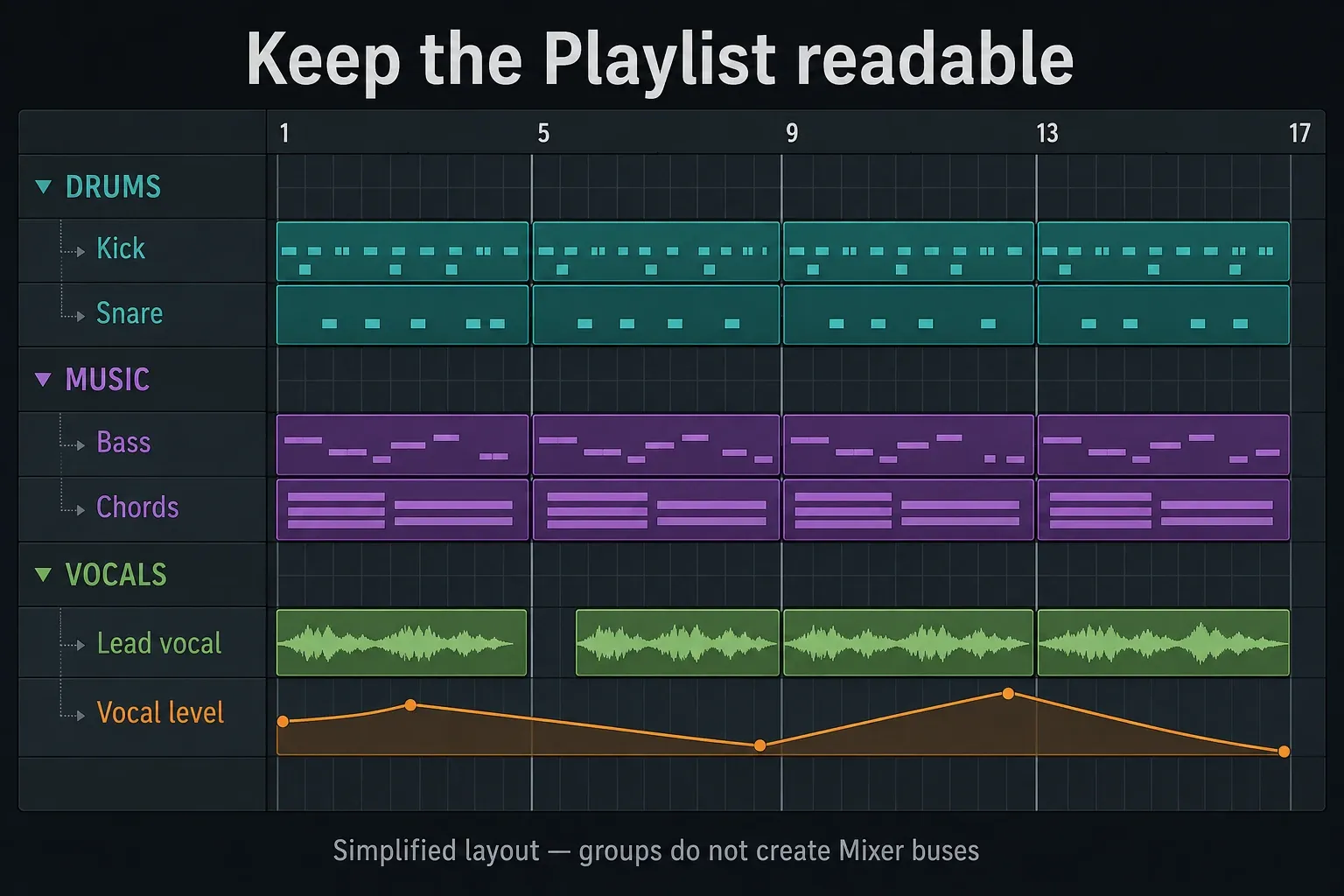
A track group builds a lane hierarchy. Right-click a child track header and choose Group with above track, or drag its divider upward until it joins the lane above. Name the parent Drums, Music, Vocals or FX. Alt/Option+left-click a member’s mute control to mute or unmute the group. This isn’t a Mixer bus, and it doesn’t sum the audio into one signal path.
Clip grouping ties selected clip objects together for selection, movement and deletion. Select the clips and press Shift+G, or choose Playlist menu → Group → Group. The toolbar’s Grouping Notes & Clips switch enables or temporarily disables group behavior; switching it off does not erase the group. This is separate from a parent lane and from Track Mode associations.
Name each lane for what a collaborator needs to find, not for where it happened to land. Reuse a small color vocabulary: maybe one family for rhythm, one for tonal material, one for vocals and one for automation. Random colors make a busy project look organized from across the room while carrying no meaning at all.
When the same empty lanes, colors and Mixer handoffs keep proving useful across several songs, move that recurring skeleton into a reusable FL Studio project template. Leave one song’s clips, automation and mix decisions out of the starter.
Use time markers and Arrangements for different kinds of change
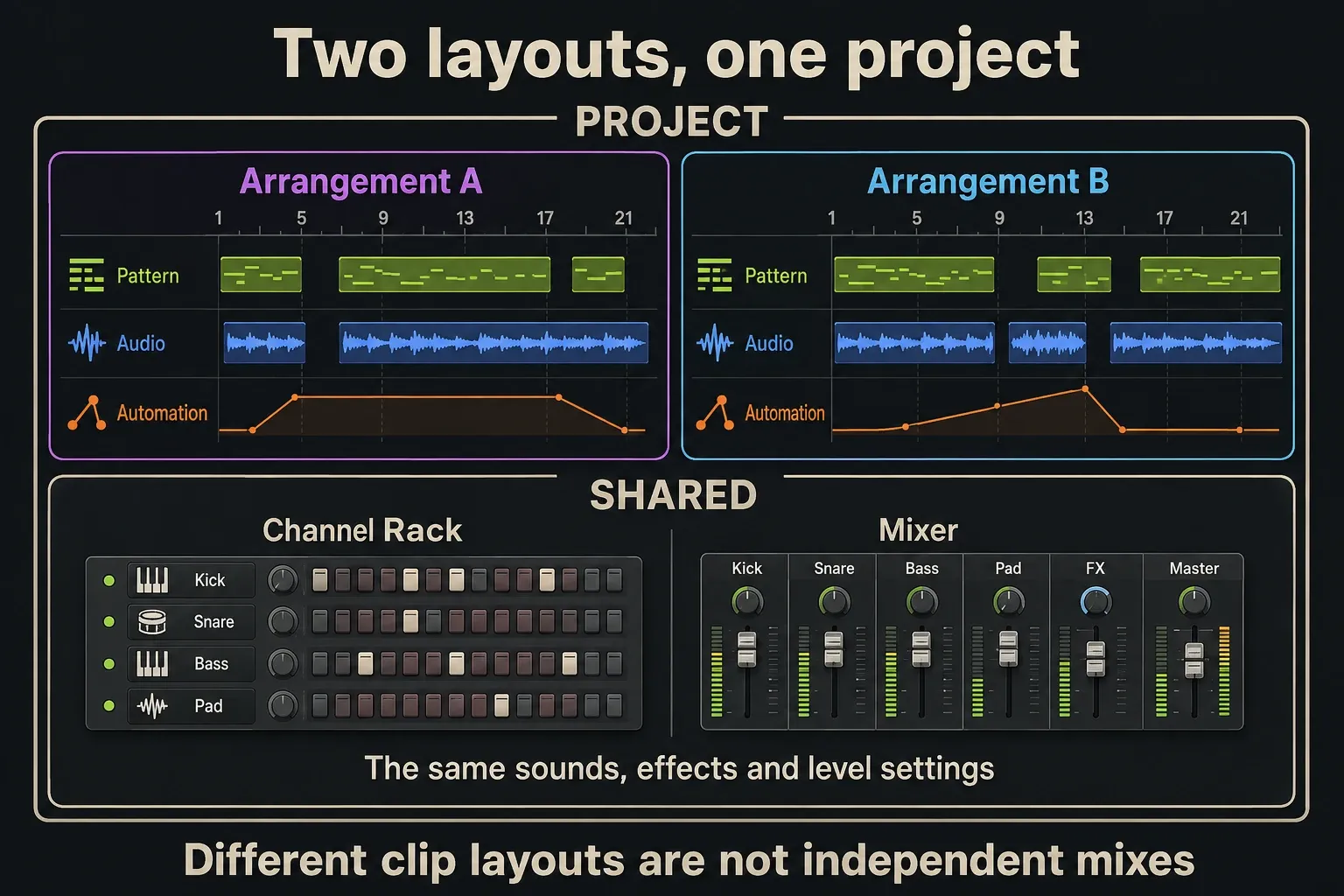
Time markers split one Playlist layout into named regions. An Arrangement is a complete layout of Pattern, Audio and Automation Clips. Open the Arrangements menu in the Playlist title bar to clone the current layout, rename it or add an empty one. Clone before a big structural experiment: “Short intro” and “Long intro” are much easier to compare than two piles of muted clips on one timeline.
Alternative Arrangements share the project’s Channel Rack and Mixer. Deleting a Channel, swapping an effect, changing routing or adjusting a Channel/Mixer level can affect every Arrangement, and shared Pattern-source edits stay shared too. Cloning gives you another timeline layout, not an isolated sound-design or mix version.
For an independent project state, use File → Save as with a different FLP name or File → Save new version. The project-format documentation warns that an FLP does not contain its sample files. Keep those sources; copy a sample separately before destructive file edits. A different FLP name alone is not an audio-file backup.
The standard Trial can save but cannot reopen projects before purchase and unlock. If you’re still on that Trial, do your arrangement comparisons inside the open session and don’t close it just to test a saved version.
Fix the five Playlist problems that waste the most time
The Playlist is visible, but only one pattern repeats
Switch the transport from Pattern to Song. Image-Line's current basic workflow identifies Song mode as the mode that plays the Playlist arrangement. If nothing plays after that, check whether the relevant clips or their lanes are muted.
A clip is on Track 5, but its sound uses another Mixer insert
That’s normal in the default free workflow. Check the source channel’s Mixer routing or deliberately create an Instrument/Audio Track link. Moving the Playlist clip to a lane with another number won’t reroute it on its own.
Editing one repeated Pattern Clip changes every section
The instances still share one pattern source. Use Make Unique on the copy that needs a different fill, chord or ending, then edit that new source. Don’t make every instance unique in advance, because shared edits are handy while the part is still evolving.
A clip will not land on the expected grid line
Focus the Playlist, check local Snap and release Alt/Option. Select the clip and use Alt/Opt+Q for the remembered grid-offset reset described in the Playlist manual, then inspect at a closer zoom. This concerns clip placement. If the performance inside is late, correct its note or audio timing rather than only moving the container.
A stacked clip seems missing or impossible to select
Use the Clip Focus icons to bring Pattern, Audio or Automation Clips to the front, then locate the source from the Picker Panel. Also confirm that you are viewing the intended Arrangement. Track mute and the Mute tool affect different states, so inspect both before deleting anything.
Run an arrangement cleanup
- Play in Song mode from the first marker to the last audible tail.
- Rename every lane whose purpose is not obvious in one glance.
- Check that colors repeat by function rather than by accident.
- Put automation near the controlled source and name the target.
- Check that Pattern-note variations use the intended Pattern source; for audio, distinguish local Clip Properties from shared Channel Settings.
- Collapse or remove unused lanes without deleting channels needed by another Arrangement.
- Listen to transitions with your eyes away from the screen.
- Save a separate FLP before changing shared Channel Rack or Mixer state; keep referenced samples and remember the standard Trial reopening limit.
FL Studio also has a live-triggering system called Performance Mode. It can launch clips out of timeline order and follows a one-active-clip-per-track model. That’s a separate performance workflow, and you don’t need it for linear song arrangement; the current Performance Mode manual is the place to go when live clip launching is the real goal.
Frequently asked questions
What is the Playlist in FL Studio?
The Playlist is FL Studio's song timeline. It sequences Pattern, Audio and Automation Clips to create the final arrangement. Default Playlist lanes are flexible containers and are not automatically bound to the same-numbered Mixer inserts.
Why is my FL Studio Playlist not playing?
Switch the transport from Pattern mode to Song mode, then check whether the clip, its Playlist lane or its source channel is muted. Song mode follows the Playlist timeline, but it cannot fix a muted Mixer path or disconnected audio output. Check those if the arrangement still stays silent.
Should I use Track Mode in the FL Studio Playlist?
Use Track Mode when a linked instrument or audio source, Playlist lane and Mixer path makes the project easier to understand. Keep free lanes when flexible placement is more useful. You can unassign a linked track before rerouting it.
What does Make Unique do in the FL Studio Playlist?
For a Pattern Clip, Make unique creates a separate Pattern source. For audio, it creates a new Audio Clip channel while reusing the file; Make unique as sample also copies that file. Current Audio Clip Properties can make some per-instance changes without either command.
What is the difference between time markers and Arrangements?
Time markers label regions inside one timeline. Arrangements store alternative Playlist layouts, but those layouts still share the project's Channel Rack and Mixer, so routing, effects and level changes can affect every version.
If this is your first complete project, go back to the beginner workflow for the surrounding steps. For the next production decision after arrangement, continue through the Workflow hub.