FL Studio
Your notes are in time, but every hit lands with exactly the same weight. To humanize MIDI in FL Studio, shape the accents first, then nudge selected supporting notes or roll stacked chords with Strum. Leave the beats that hold the part together where they are. Random variation can help, but it can’t decide which notes deserve the emphasis.
Start with the problem you can hear. Flat dynamics need velocity work. Chords that land like a rubber stamp need their start times spread a little. A stiff groove may only need two or three supporting notes moved, and the rest of the Pattern can stay put. Some electronic parts are meant to be exact, so leave those alone.
How to humanize MIDI in FL Studio: start with a copy
Humanizing changes note data. Select the Pattern, use Patterns → Clone and name the copy so you can compare it with the original. The Patterns menu documentation confirms that Clone makes a separate copy. Placing another instance of the same Pattern won’t give you independent notes.
- Clone the Pattern and clearly name the original and edited versions.
- Select only the notes that need to feel less mechanical.
- Build an order of strong and weak velocities before you touch timing.
- Move a few supporting notes and keep the rhythmic anchors easy to follow.
- Use Randomizer Levels or Strum only for the property each tool actually controls.
- Compare one version at a time in the full arrangement, and pull the changes back if they distract from the phrase.
If selecting and editing notes still feels slow, work through the FL Studio Piano Roll guide first. Check your selection before previewing any tool, because many Piano Roll operations hit the whole score when nothing is selected.
Build velocity around accents, not random numbers
In the lower note-property editor, choose Velocity from Target control. Drag the top of a note’s velocity stem to change its value. For notes that start together, select the one you mean first, because their stems can overlap. Image-Line’s note-property instructions explain this selection-based editing. Decide which events carry the phrase before you change their levels.
Try a short exercise with four evenly spaced hits. Keep their pitches, starts and lengths the same, and give hits 1 and 3 more weight than 2 and 4. Compare that shape with four equal velocities. It’s an accent exercise, and real drum patterns won’t all follow it. Then try stronger on-beats and lighter in-between hits in your actual hat part, adjusting the exceptions by ear.
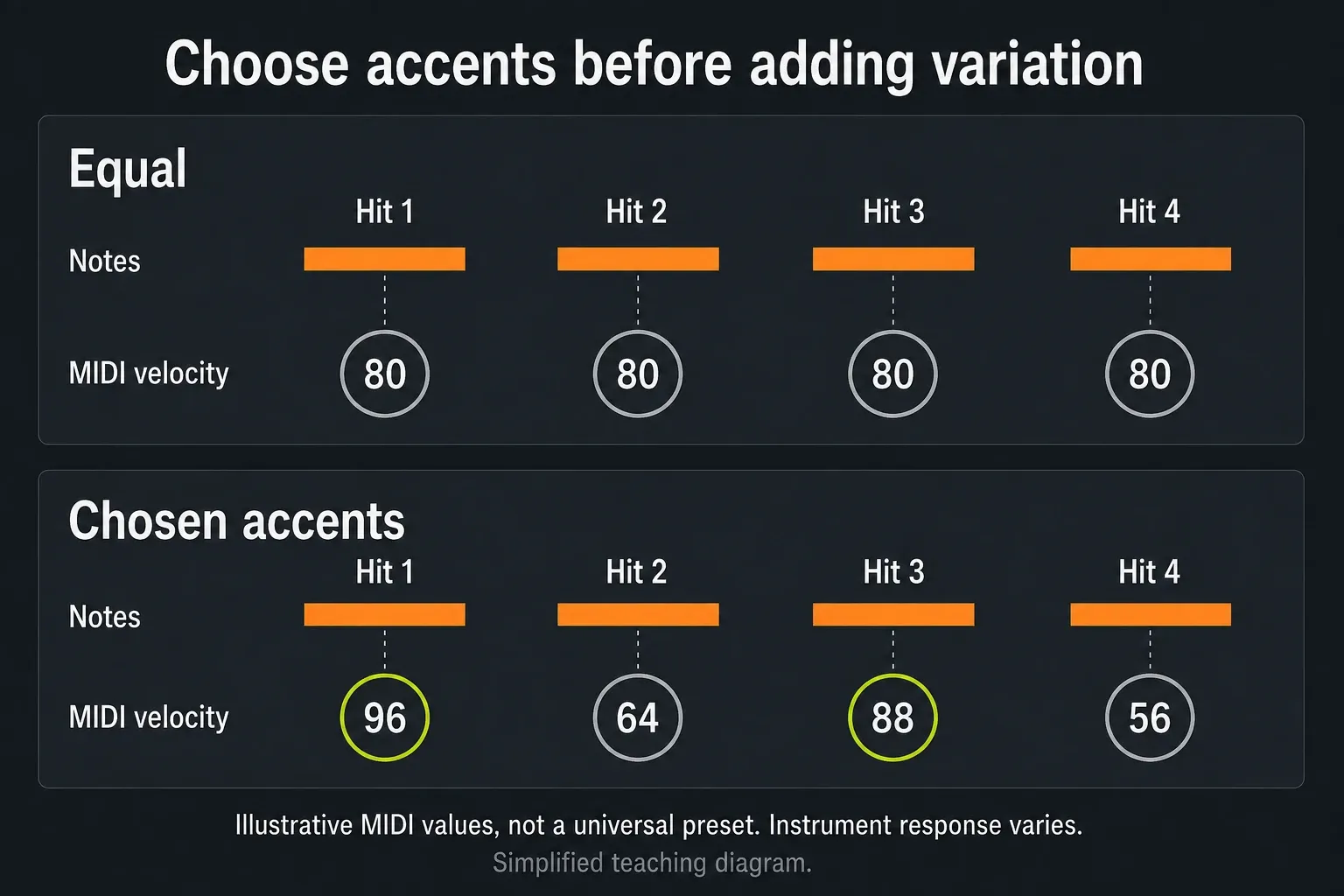
Velocity doesn’t promise a fixed change in loudness. A preset may use it for volume, filter response or choosing a sample layer, so trust your ears over the height of the bars. Sustained orchestral dynamics can work differently: Spitfire’s controller guide separates dynamics on CC1 from expression on CC11. Check your own library’s mapping instead of applying those assignments to every instrument.
Correct bad timing before you add deliberate timing
Humanizing won’t rescue a performance whose important attacks miss the beat by accident. Fix the broad timing first with the FL Studio quantize workflow, using enough strength to steady the phrase without flattening it. Then build the feel from a solid reference.
Keep the kick, the snare backbeat or another rhythmic anchor where it belongs. Move selected hats, percussion, bass pickups or inner chord notes only when their relationship should push ahead or lay back. Drag the body of the note, not its resize edge, when you want to keep the length. Hold Alt/Option while dragging to skip time Snap for a moment, or set the local Snap to (none).
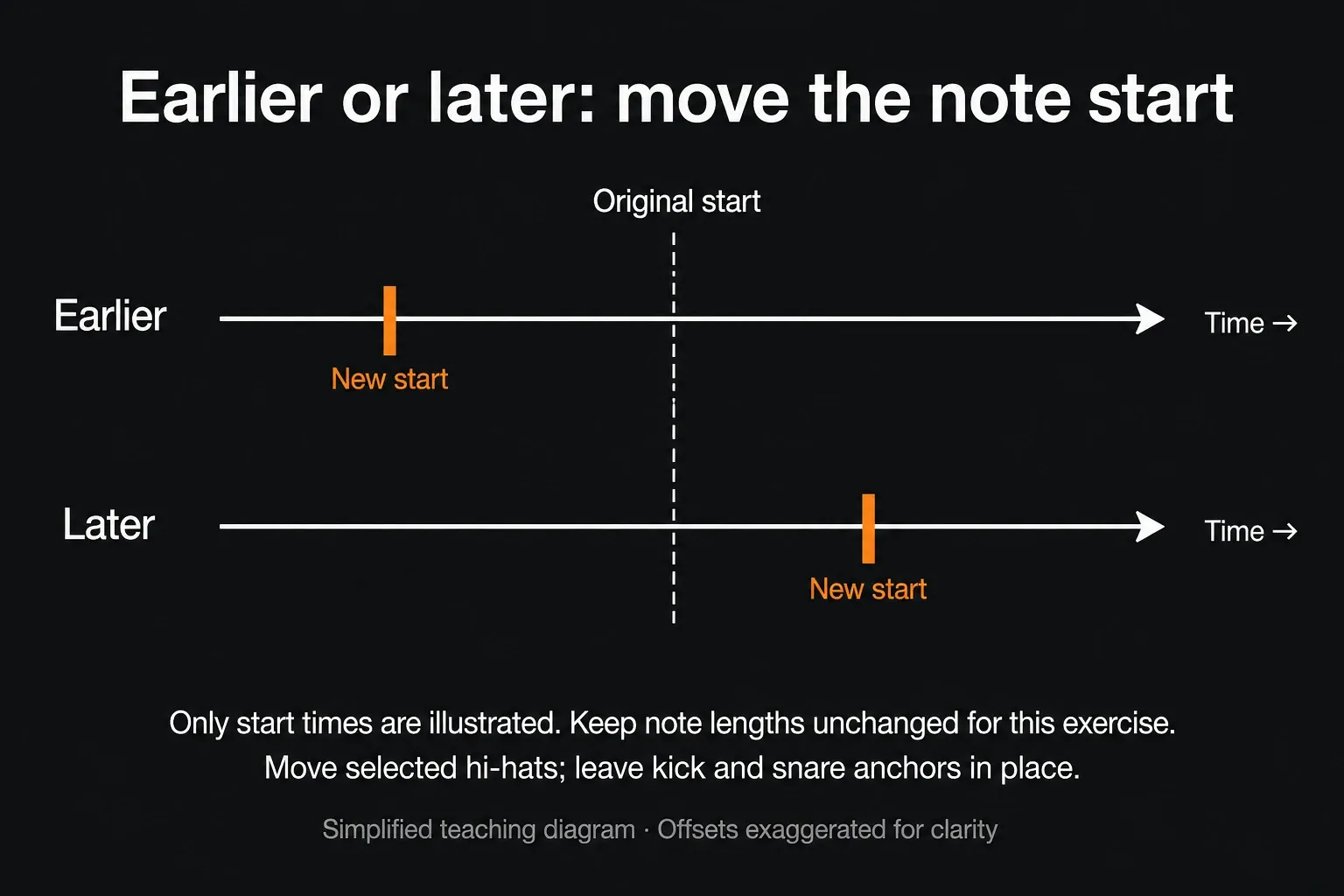
Don’t apply one arbitrary millisecond value to every tempo and instrument. A short hat can take a different shift than a slow piano chord, and a sampled library may react badly when notes overlap or lose their intended legato connection. The right amount is the smallest move that changes the relationship you hear.
Use Randomizer for documented note levels
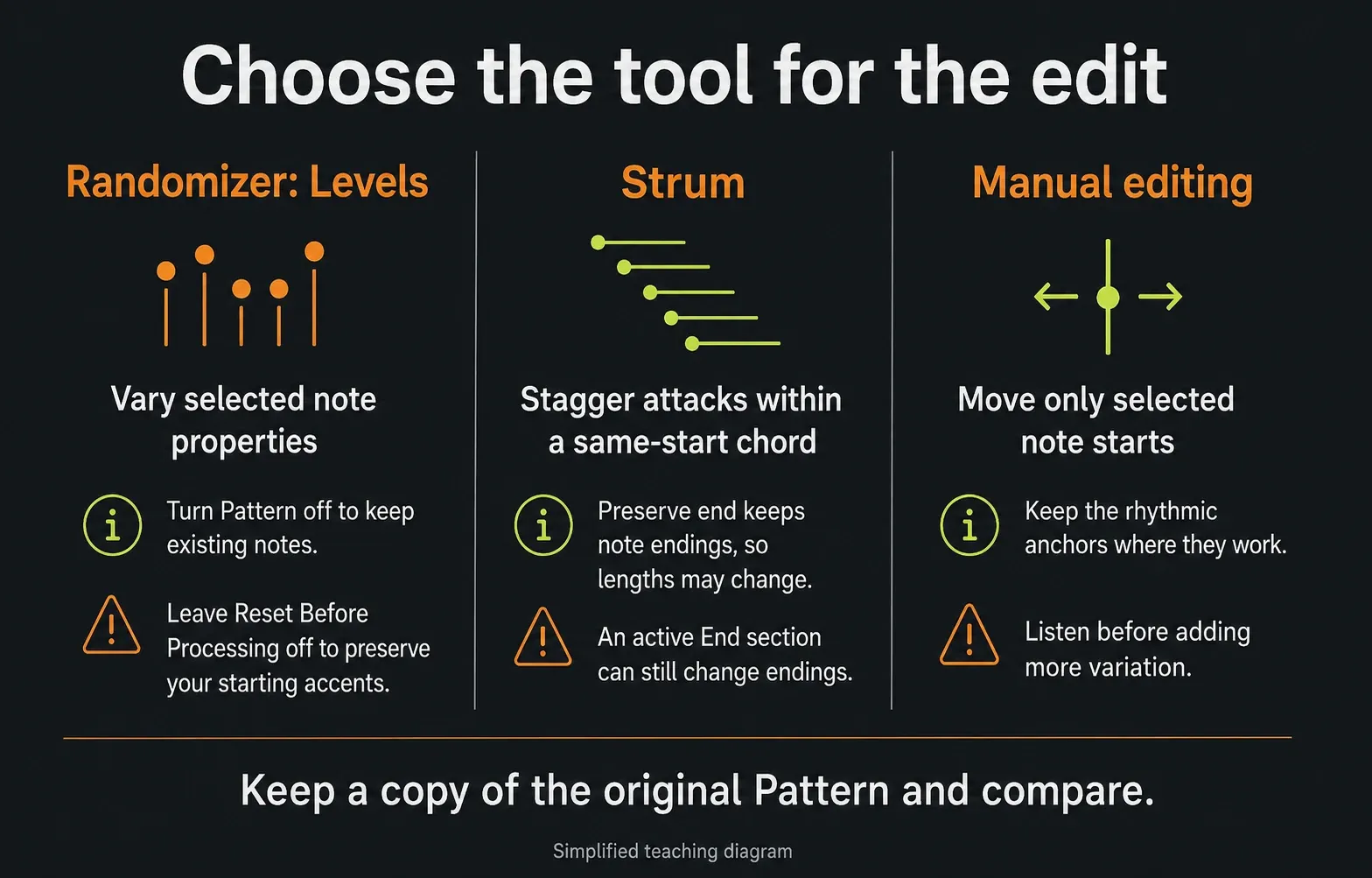
Select the intended notes and open Tools → Randomize: Alt+R on Windows or Option+R on macOS. The Image-Line Randomizer manual separates Pattern generation from Levels. Turn Pattern off and Levels on when you want to change existing note properties without generating any notes.
Leave the unrelated Levels wheels at 0% and start with a small velocity amount. Bipolar lets values vary above and below the originals. Use the Levels Seed arrows to compare alternatives while the loop plays, and keep only an accent shape that suits the phrase.
Leave Reset Before Processing off if you want to keep the starting levels, because it resets them to defaults before applying variation. Don’t add pitch or pan changes just because the controls are there. Listen to how the instrument handles each property before you keep it.
Varying the length of generated notes is a different job from randomizing the start times of your existing melody. Randomizer’s documented jobs are generating notes and changing note levels. For existing-note timing, edit by hand or use a Piano Roll script whose behavior you’ve checked.
Use Scale Levels after the accent pattern exists
The Level Scaling tool can raise, lower or reshape the velocity of selected notes while keeping their relative differences. It’s handy when the phrase has the right accents but hits the instrument too softly or too hard overall.
Open Tools → Scale levels with the intended notes selected. Multiply changes the spread, Offset shifts the values and Tension reshapes the curve. Build the accent pattern first, because scaling a flat row just gives you another flat row.
Roll stacked chords with Strum
When every note of a chord starts at exactly the same point, use Tools → Strum or Alt/Option+S. Image-Line’s Strum documentation says the tool treats overlapping notes with the same start as one chord and can shape their relative start time, velocity and end time.
Switch on Strum’s Start section and use a small Time offset. A positive value rolls from low notes to high notes, and a negative value reverses the order. Leave velocity shaping alone unless the chord also needs its intensity to change across the roll.
Keep an eye on Preserve end: it holds the original endings while the starts move, so note lengths change. The separate End section can still move those endings when it’s on. Switch End off when you want to hear Start on its own, then check the move into the next chord. If your patch needs legato, check that the new starts still overlap the held notes.
Change note length when articulation calls for it
Identical lengths can sound stamped on repeated keys or short strings. Shorten a supporting note or let the end of a phrase breathe, but check the instrument first, since a legato patch may need overlap. For a concrete counterexample, the FL Studio Sampler normally keeps playing after note release unless its volume envelope is active, so shortening the MIDI note alone may not shorten the sound.
Release velocity, pan, fine pitch and Mod X/Y are note properties too, and what they do depends on the plugin. Add one at a time. If velocity and timing already fix the stiffness, extra randomness just makes the edit harder to follow.
Use different recipes for drums, keys and bass
Drums: preserve the backbeat
Keep the kick and main snare steady, shape hat or percussion velocity around an accent pattern, and move only the supporting hits. If the rhythm itself needs work, use the FL Studio drum-pattern guide before you adjust its feel.
Keys: phrase before randomizing
Draw a velocity arc along the melodic line, then use Strum on chords that need rolled attacks. Shape that phrase with velocity and timing before you experiment with per-note pan.
Bass: protect the kick relationship
Decide whether the bass should lock with the kick, lead it or follow it. Move pickups and connecting notes before you shift the main downbeat. Varying note length can tidy overlaps without touching the attack.
Programmed electronic parts: keep useful precision
A rigid sequenced ostinato or club kick may be exactly right as written. Humanize only the layer that needs contrast. For a timing feel that runs through the whole groove, use the Swing and Groove guide, because that’s a different decision from moving two single notes.
Chord Progression: use its own Humanize controls
If you’re already writing inside the Chord Progression Tool, its Performance → Humanize mode has Timing depth, Dynamics depth and Strum controls. It’s a real built-in Humanize option, but it belongs to the chord-generation workflow. Check how it treats existing notes before using it on a finished melody, because it works differently from Randomizer Levels.
Treat Piano Roll scripts as code, not magic presets
Current FL Studio supports factory, downloaded and user-made Piano Roll scripts. The official scripting reference confirms that scripts can change note time, length, velocity and other properties. So a Humanize script you’ve reviewed is a valid way to get repeatable start-time ranges.
Open Piano Roll menu → Tools → Script... and look at the installed list. The options depend on the script, so don’t expect a tutorial’s Humanize window to match yours. Duplicate the Pattern, read the controls and test a short selection. Check that unselected notes, lengths and velocities stay the same when they’re supposed to. Only run code from a source you trust.
Fix a humanization pass that made the part worse
The groove sounds drunk rather than relaxed
Put the anchors back on the grid and move fewer notes. Timing variation should make a push/pull feel clearer, never bury the beat.
Velocity jumps feel unrelated to the phrase
Undo the random pass, draw the main accents by hand and randomize only the quieter supporting notes within a smaller range.
Chords became too short or lost legato
Review the Strum Preserve end and End settings. Restore the original chord copy and adjust the starts without losing overlaps the patch needs.
Randomizer created new notes
The Pattern section was switched on. Undo, select the intended notes, reopen Randomizer and turn off Pattern generation before changing Levels.
The instrument barely reacts to velocity
Check the preset or plugin mapping. Use whichever property really controls dynamics, maybe modulation or expression, instead of pushing velocity values wider.
Every loop sounds identically “random”
Randomizer writes note data once and doesn’t invent a new performance on every playback. Edit the resulting notes, or set up live processing on purpose when you want variation that keeps evolving.
Frequently asked questions
Does FL Studio have a MIDI humanize button?
Yes: the Chord Progression Tool has a Performance Humanize mode, and installed Piano Roll scripts can offer humanization controls. For an existing part, pick by task: Randomizer Levels for note properties, Strum for chord attacks, or hand edits and a reviewed script for start-time variation.
Can Randomizer humanize note timing?
The documented Randomizer changes generated notes and note levels, not the start times of an existing melody. Move those starts by hand or use a reviewed Piano Roll script. Strum can change the relative starts inside chords.
How much timing variation should I add?
Use the smallest move that creates the push, relaxation or separation you want while the anchors still read clearly. No single millisecond value works for every tempo and instrument.
Should I humanize drums and piano the same way?
No. Drums usually need a steady backbeat and accent pattern, while piano often gains from phrased velocity, rolled chords and note lengths that suit the articulation.
Should I quantize before humanizing MIDI?
Fix accidental timing first, then bring back deliberate feel. Skip quantizing when the recorded performance already has the timing relationship you want.
Stop when the part does its job without drawing attention to the edit. The MIDI recording guide helps you capture a performance to work from. Carry on with the beginner project tutorial, or pick another editing task in the Piano Roll & MIDI hub.