FL Studio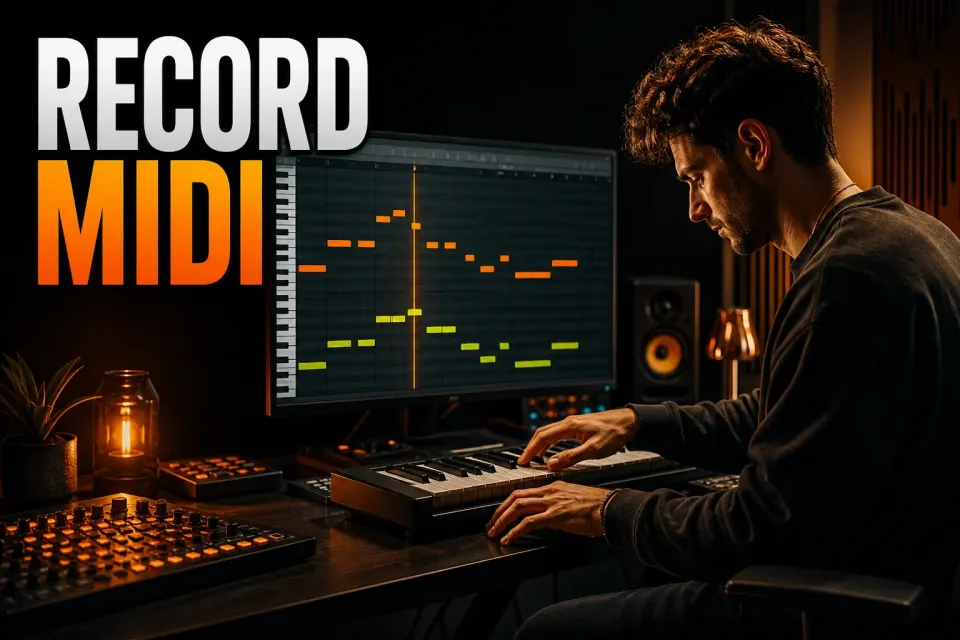
To record MIDI in FL Studio, enable your controller in Options → MIDI settings, select an empty Pattern and the instrument you want to play, then right-click Record and enable Notes. Turn Step Editing off, choose input timing settings and start recording. What you play turns into editable notes in that Pattern. No audio file is created.
Hearing the keyboard is only half the check. The instrument can respond while the recording filter throws the notes away, or while a different Pattern catches the take. This guide gets a live keyboard or pad performance into the right Piano Roll and shows what to check before you replace anything.
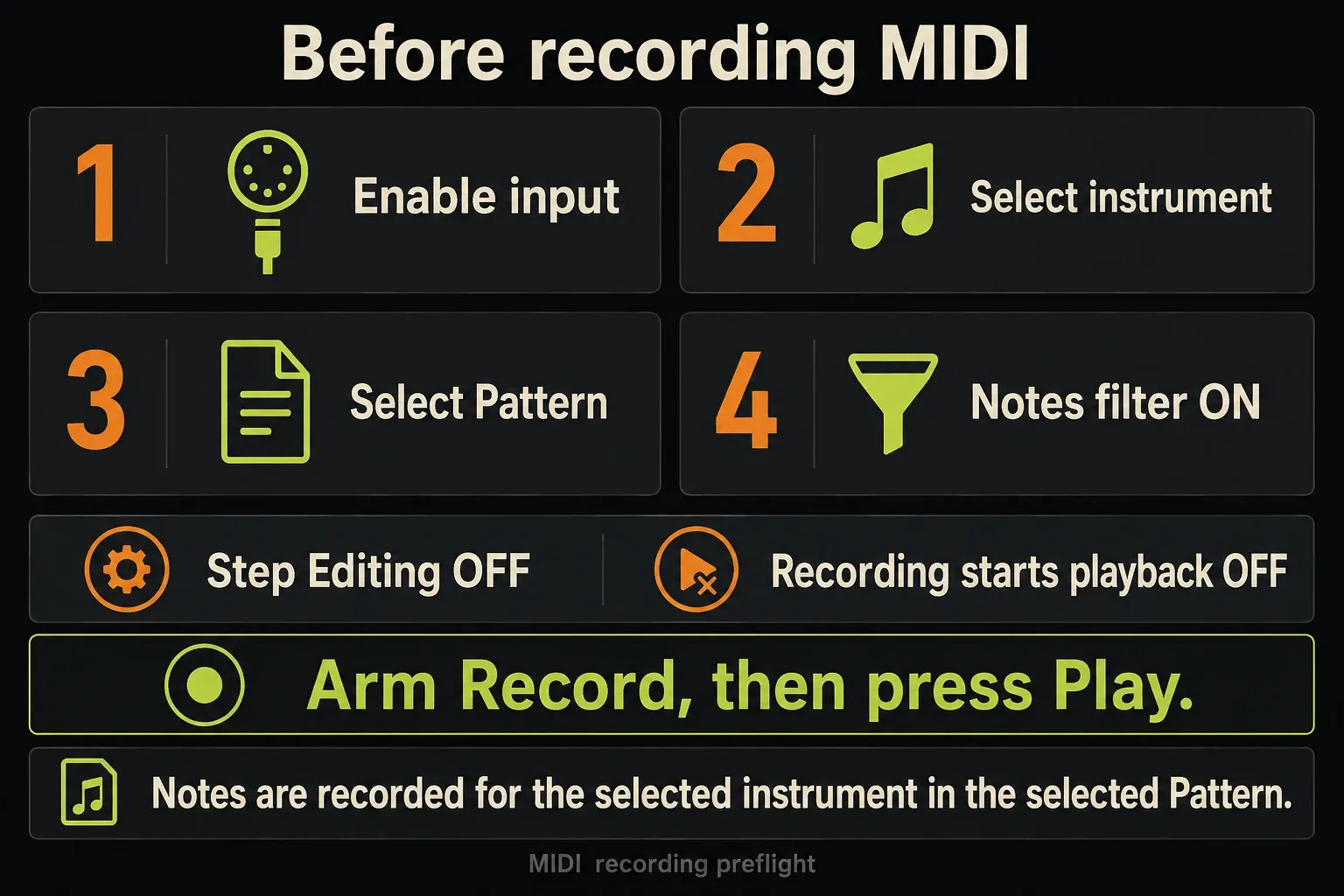
Use this seven-step MIDI recording sequence
- Enable the MIDI controller in Options → MIDI settings and confirm the activity indicator responds.
- Create or select the Pattern that should own the take.
- Select the Instrument Channel you want to play and confirm it sounds.
- Right-click Record, enable Notes and leave Automation off unless the take needs linked controller movement.
- Turn Step Editing off, choose Global Snap, and set a count-in if needed. For the separate Record-then-Play sequence, disable Recording starts playback and Wait for input.
- Arm Record, press Play and perform after the count-in; release the last note and pedal, then press Stop.
- Open the selected Pattern's Piano Roll, review the take and save a new project version before any big edits.
If the controller doesn't show up or the activity indicator stays dark, stop here and work through the FL Studio MIDI detection checklist. This guide picks up once FL Studio is receiving note input.
Connect and enable the controller
Open Options → MIDI settings or press F10. Select the keyboard or pad controller in the Input list and click Enable. Play a few notes, and the MIDI activity indicator should react. That movement proves data is arriving; it doesn't prove the right instrument or recording destination is ready.
Choose a dedicated controller type or MIDI Script if the device has one. A generic controller that already works doesn't need a special script just to send notes. Don't copy port numbers from someone else's setup: ordinary note input doesn't need every Input and Output port to match, though specially supported controllers may come with their own instructions.
You don't need a hardware keyboard. FL Studio can turn the typing keyboard into a note keyboard: enable Typing keyboard to piano keyboard and follow the same Pattern, instrument and recording-filter steps.
Select the Pattern and instrument before arming
Create a fresh Pattern for each separate take. In the Channel Rack, use the instrument’s Channel selector and play a note to confirm where the notes will go. Clicking its name can open the plugin without selecting it when Auto select linked modules is off, so a visible plugin window on its own isn't a reliable recording check.
If the keyboard still plays another sound, look at Receive notes from in the Channel button’s right-click menu. A controller locked to an Instrument Channel keeps playing that Channel even when you change the selection. The steps here assume one intended instrument, without a multi-Channel layer or split.
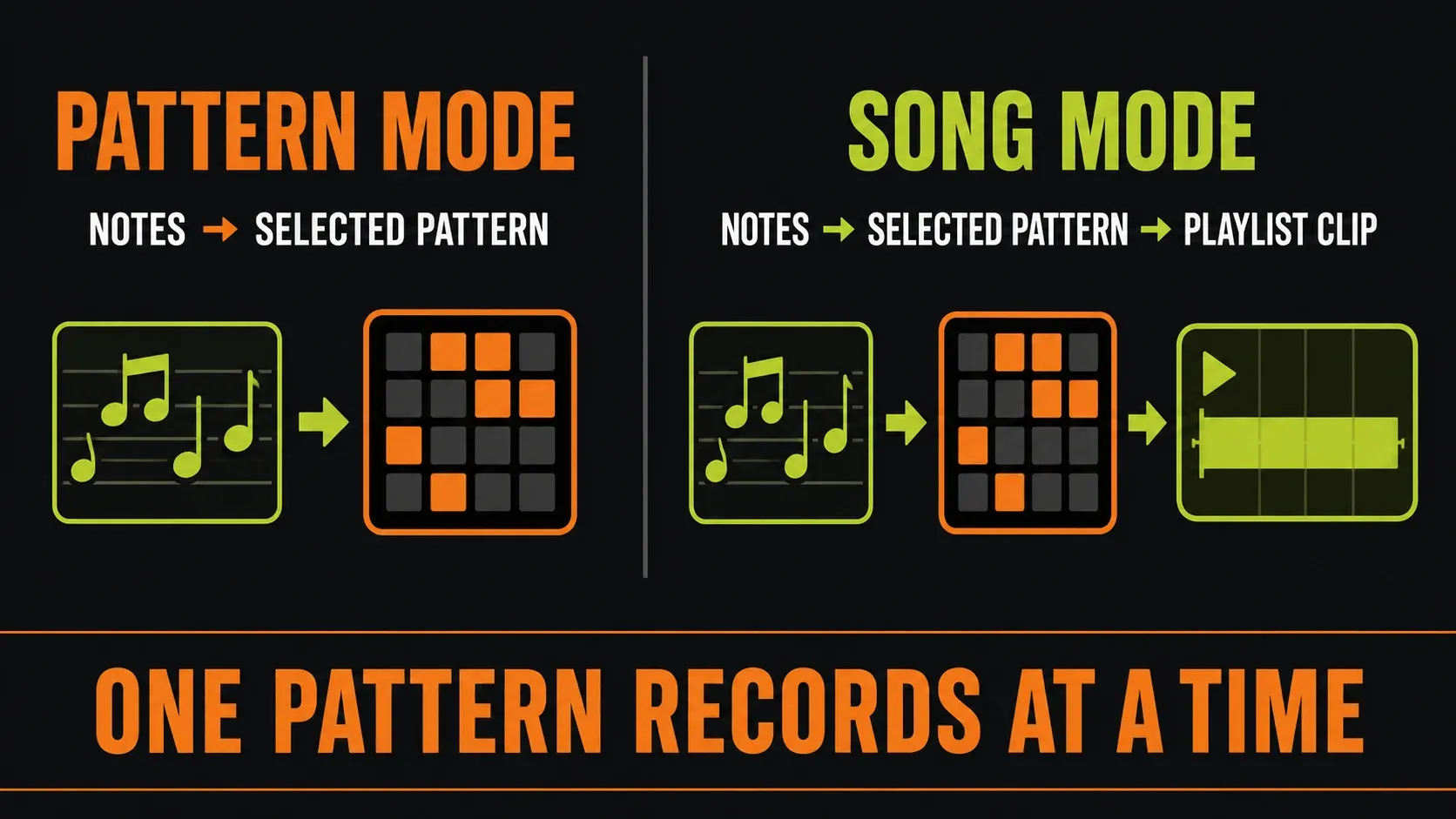
Only one Pattern receives a MIDI recording at a time, though that Pattern can hold data for more than one instrument. Name it before the take so you can find the performance later without guessing which numbered Pattern was active.
For a deliberate overdub, enable Options → Blend recorded notes, also called Recording Blend on the Toolbar. Blend adds notes to existing ones; with it off, recording can overwrite them. Use a new Pattern or a saved copy when you compare takes, because simply keeping the same Pattern selected won't protect what's already there.
For repeated practice, Recording Loop repeats the Pattern or a selected region. Set the region and Blend behavior before you play, then do a short test. Turn looping off for an open-ended first take, and don’t expect a looping pass to create an independent MIDI take for you.
Choose Pattern mode or Song mode
In Pattern mode, note data goes into the currently selected Pattern and shows up in the selected Channel's Piano Roll preview. It's the direct route for a loop, drum groove, bassline or phrase you'll arrange later.
In Song mode, the notes still belong to the selected Pattern. When recording stops, FL Studio places its Pattern Clip where playback began. If the Clip has to land on a particular Playlist track, the manual recommends placing an empty Clip for that Pattern at the intended start before you record. The Pattern Clip then grows to fit the recorded data.
Song mode adds arrangement placement on top of the same Pattern-based storage. The MIDI stays MIDI; you won't get an Audio Clip. Once the take is saved, use the FL Studio Playlist workflow to arrange its Pattern Clip with the rest of the song.
Set the recording filter and turn Step Editing off
Right-click the Transport Record button and enable Notes; the older Note Recording page calls this filter Note. Automation recording is a separate filter. Turn it on when you want to keep linked knob, wheel or parameter movements, and check that each movement reaches its intended target before the take. A working keyboard doesn't prove every controller message is linked or recorded.
Turn Step Editing off for a played performance. Step input enters notes one after another while playback is stopped, so your live rhythm is lost. Also leave Record to step sequencer off unless you specifically want input-quantized, zero-length step events. They're two different controls, and the names don't refer to one mode.
The recording overview separates Notes, Audio, Automation and Performance Clips. If you need the actual sound from a microphone, guitar or hardware-synth output, use the FL Studio audio recording guide, because capturing MIDI notes won't create an Audio Clip.
Choose input quantize before the take
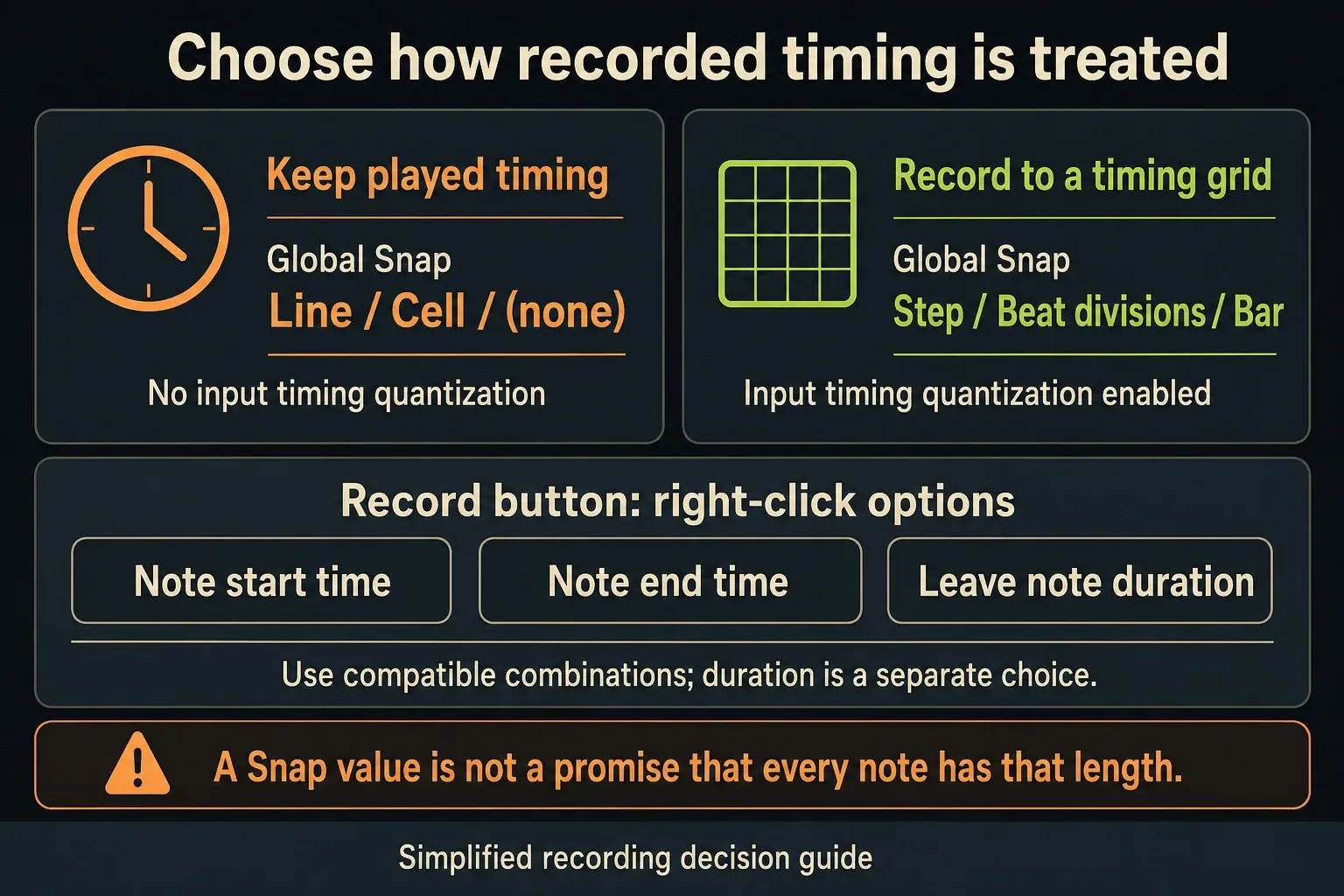
Input quantize changes the timing as it's recorded. On the main Toolbar, Global Snap values based on steps, beats or their subdivisions, plus Bar, turn on grid quantization. Line, Cell and (none) leave incoming timing alone. The Global Snap and recording controls are separate from the Piano Roll’s local editing Snap, so changing only the Piano Roll setting can leave input quantization switched on.
Right-click Record for Note start time and Note end time, which decide whether attacks, releases or both get quantized. Leave note duration can keep the played length when the start moves, though not every combination of these options works together. For an expressive first take, keep input timing unquantized and decide on corrections after you've listened.
If the part needs strict timing, pick the smallest grid that makes musical sense. Bar-level input quantize can crush a melody into obviously wrong positions. The full FL Studio quantize guide covers strength, groove and note-length control after recording.
Record with a useful lead-in
Turn on the metronome and Recording Count-in when you want a lead-in, and right-click the count-in control to set the number of bars. With Recording starts playback off, arm Record first, then press Play. With it on, Record starts playback by itself. Check which way it's set before you put both hands on the keys.
Wait for input, called Start on input in the Options menu, is another deliberate choice: after you press Play, transport waits for input instead of running straight away. Switch it off for the count-in sequence above. If FL Studio seems to be waiting instead of recording, check this switch before you troubleshoot the controller again.
Let the final note and sustain pedal release before Stop, then disarm Record if you only want to listen. For a MIDI-only take you intend to discard, inspect the last action and undo that recording before making other edits. Don’t apply blanket Undo or Cancel advice to a simultaneous audio take: those actions can affect its audio files. Save a version you want to keep first.
Find the recorded notes
Select the Pattern you recorded into, then right-click the intended Channel button and choose Piano roll. In Song mode, its Pattern Clip should also appear after Stop. Check the Pattern name and the Channel together, because the right Pattern viewed through the wrong instrument can look empty.
If the Piano Roll is empty, check the Pattern, receiving Channel, Notes filter, Step Editing and transport settings before you unplug any hardware. Check Performance Mode too: Piano Roll recording is disabled in that mode. Triggered Performance Clips are a separate recording task.
Separate a hardware synth's notes from its sound
A hardware synthesizer can send MIDI and make sound at the same time, but those are two separate signals. MIDI carries notes and control data, never the patch’s audio. To capture the real hardware sound, set up an audio input path as well as the MIDI connection. An ordinary analog output goes into an audio-interface input; use the audio connection documented for your model. Playing an FL Studio plugin from that keyboard doesn't record the hardware patch.
Decide which one you need before arming. Record MIDI when you want editable pitches, timing and velocity. Record audio when the hardware patch, onboard effects or performance output has to be kept. For both, do a short test and confirm that the notes and the sound start together before committing to a full take. That stops a missing audio cable from looking like a MIDI-recording problem, and stops an audio waveform from being mistaken for editable Piano Roll notes.
Fix notes that are missing, short or shifted
The instrument plays, but nothing is recorded
Enable Notes in Record’s right-click menu, check the intended Pattern and receiving Channel, and make sure transport is running in record mode. The indicator can blink while the filter is off, or while Wait for input is still waiting for the kind of input it accepts.
Every note became a short step
Switch off Step Editing and disable Record to step sequencer in the Record menu. That mode deliberately creates zero-length steps and throws away the note lengths you played.
The take snapped to the wrong grid
Look at Global Snap and at Record’s Note start time / Note end time options. Pick Line, Cell or (none) for a new take with unquantized timing. If note positions are still consistently early or late, see Image-Line’s recording-timing troubleshooting. Rule out input quantization first. A Playback tracking Offset isn't a general groove control or a cure-all for every controller.
The recorded pitches changed
Timing quantization and pitch correction are two different things. In current versions, Snap incoming MIDI can lock live or recorded input to the chosen scale, typing-keyboard input included when that's enabled. Switch it off if you want the pitches you actually played. The scale highlighting and snapping guide explains where visual shading ends and these pitch-changing controls begin.
Sustain behaves differently from the keyboard
In MIDI Settings, Foot pedal controls note off lets pedal release decide where recorded notes end. While it's on, FL Studio catches CC64 instead of passing it to the plugin. Turn it off when a VST needs the sustain message itself, then check both the live response and recorded playback. If the pedal only works live, look at its controller link and Automation recording, because a long Piano Roll note is different data from a separate sustain-pedal event.
In the same way, if notes play back but pitch bend or modulation doesn't, check the project’s wheel links and Automation filter. Image-Line’s pitch-bend and mod-wheel setup explains the relevant links and plugin range settings. Don’t rewrite the notes to make up for a missing control assignment.
Recover an idea with Score Logger
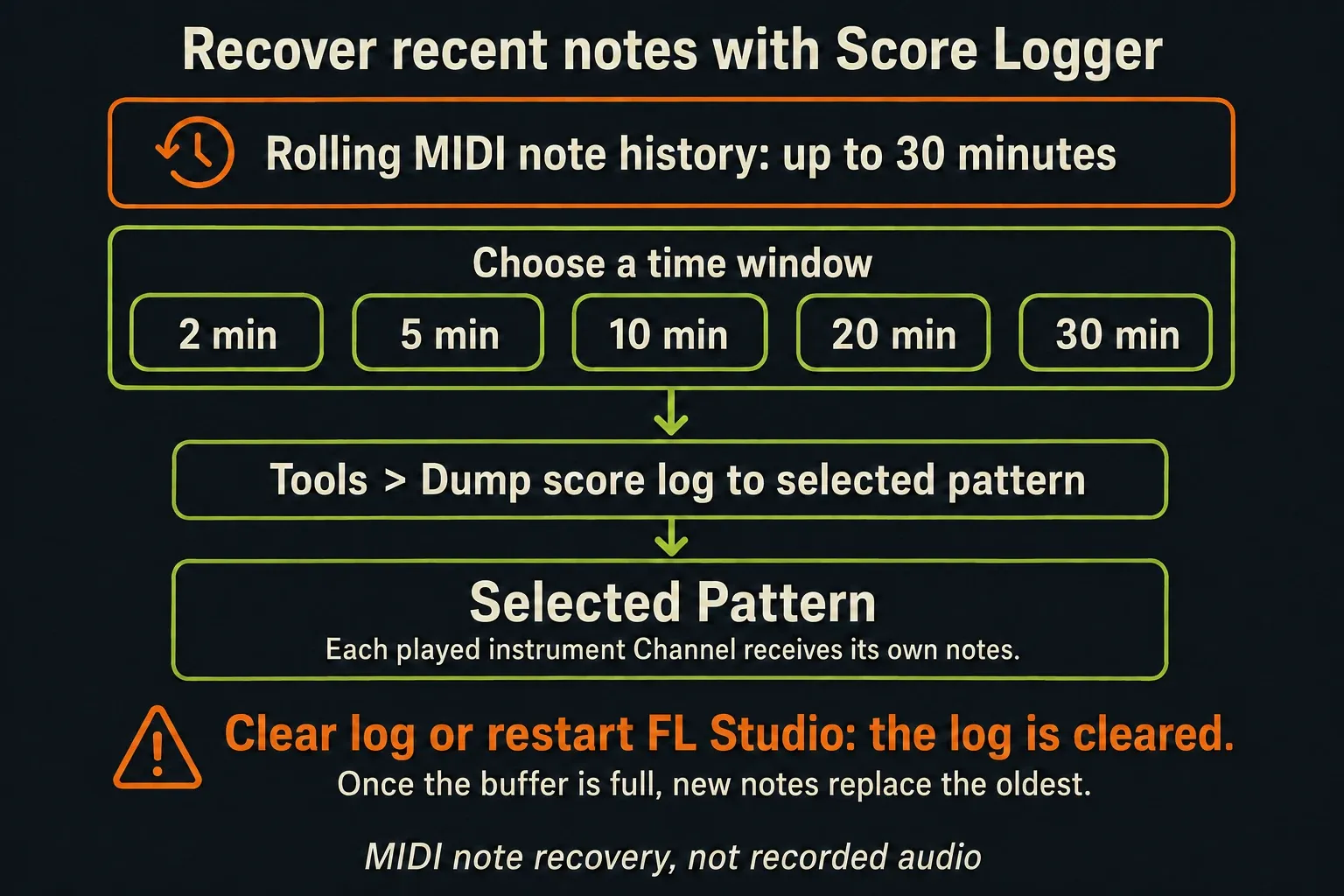
Played something worth keeping before you hit Record? Use Tools → Dump score log to selected pattern. The current Tools reference documents a rolling 30-minute MIDI log, with recovery choices of 2, 5, 10, 20 or 30 minutes. It captures note activity from external controllers and from Typing keyboard to piano.
Select an empty Pattern first, choose the time window, then look through the recovered Piano Rolls. Data is kept per instrument, so each Channel you played during that window gets its own notes in the selected Pattern. Trim the useful phrase and save it. The log overwrites old activity as it rolls and is cleared when FL Studio restarts or you use Clear log, so treat it as neither a saved backup nor an audio recording.
If you've seen a three-minute limit elsewhere, the online Note Recording and recording-overview pages still carry that older figure. The dedicated Tools entry specifies the longer selectable history. Check which choices your installed build offers, and recover the idea before closing FL Studio.
Review the take before correcting it
Listen once without touching any notes. Check the first attack, note releases, velocity range, pedal behavior, overlaps and the move across the loop boundary. A performance can sit slightly off the grid and still feel right. Only turn to the MIDI humanization workflow when the part really needs more variation or when stiff editing has stripped out useful feel.
Name the take, save a new project version and carry on editing with the FL Studio Piano Roll guide. Loading an existing .mid file is covered by the MIDI import workflow, and sending a finished part to another project by the MIDI export workflow. For permanent knob, pad and fader assignments, use the controller-mapping guide.
On the standard time-unlimited trial? Save the project, but remember that trial-saved projects cannot be reopened until FL Studio is purchased and unlocked. Keep any MIDI and audio exports you need before ending the session, because saving alone doesn't lift that restriction.
Frequently asked questions
Why is FL Studio not recording MIDI notes?
Confirm the MIDI input, the receiving instrument and the intended Pattern. Enable Notes in Record’s right-click menu, turn Step Editing off and start transport in record mode. Check Wait for input if playback doesn't begin. Hearing the instrument doesn't prove that the recording filter or destination is right.
Where does FL Studio put recorded MIDI?
It stores the note data in the selected Pattern, normally in the selected Channel's Piano Roll. In Song mode, FL Studio also places that Pattern Clip where playback began after recording stops.
How do I stop FL Studio quantizing MIDI while I record?
Set the main Toolbar’s Global Snap to Line, Cell or (none), and check Record’s Note start time / Note end time options. Switch off Record to step sequencer to keep normal played lengths. These settings affect input timing only; incoming pitch snapping and the Piano Roll’s editing grid are separate.
Can I record MIDI without a hardware keyboard?
Yes. Enable Typing keyboard to piano keyboard, select the intended instrument and Pattern, turn on the Notes filter and use the same recording sequence. Check Wait for input and Recording starts playback if your transport behaves differently from the separate Record-then-Play sequence.
How far back does FL Studio Score Logger recover MIDI?
The current Tools reference specifies a rolling 30-minute log and recovery choices of 2, 5, 10, 20 or 30 minutes. Older recording pages still say three minutes. Recover into an empty Pattern before you restart FL Studio: restarting and Clear log wipe the history, and old activity rolls out of the buffer.
The Piano Roll & MIDI hub links recording with note editing, expression and file transfer. Keep the original take while you decide on the next edit.