FL Studio
To map a MIDI knob in FL Studio, right-click a native software control, choose Link to Controller and move the hardware knob. Start with one project-level link. When you want to assign several targets in order, use Multilink controllers; for a reusable layout that follows window focus, use Override global links.
Teaching FL Studio a knob is the easy part. The tricky bit is knowing what that knob will control after you switch windows or open another song. This guide sorts out those choices, then covers plugin parameters, pads, value jumps and getting rid of a bad assignment.
Map your first knob in seven steps
- Open Options → MIDI settings, enable the correct Input and confirm the main-panel MIDI activity indicator responds.
- Choose one native channel pan control as a low-risk test target, rather than master volume.
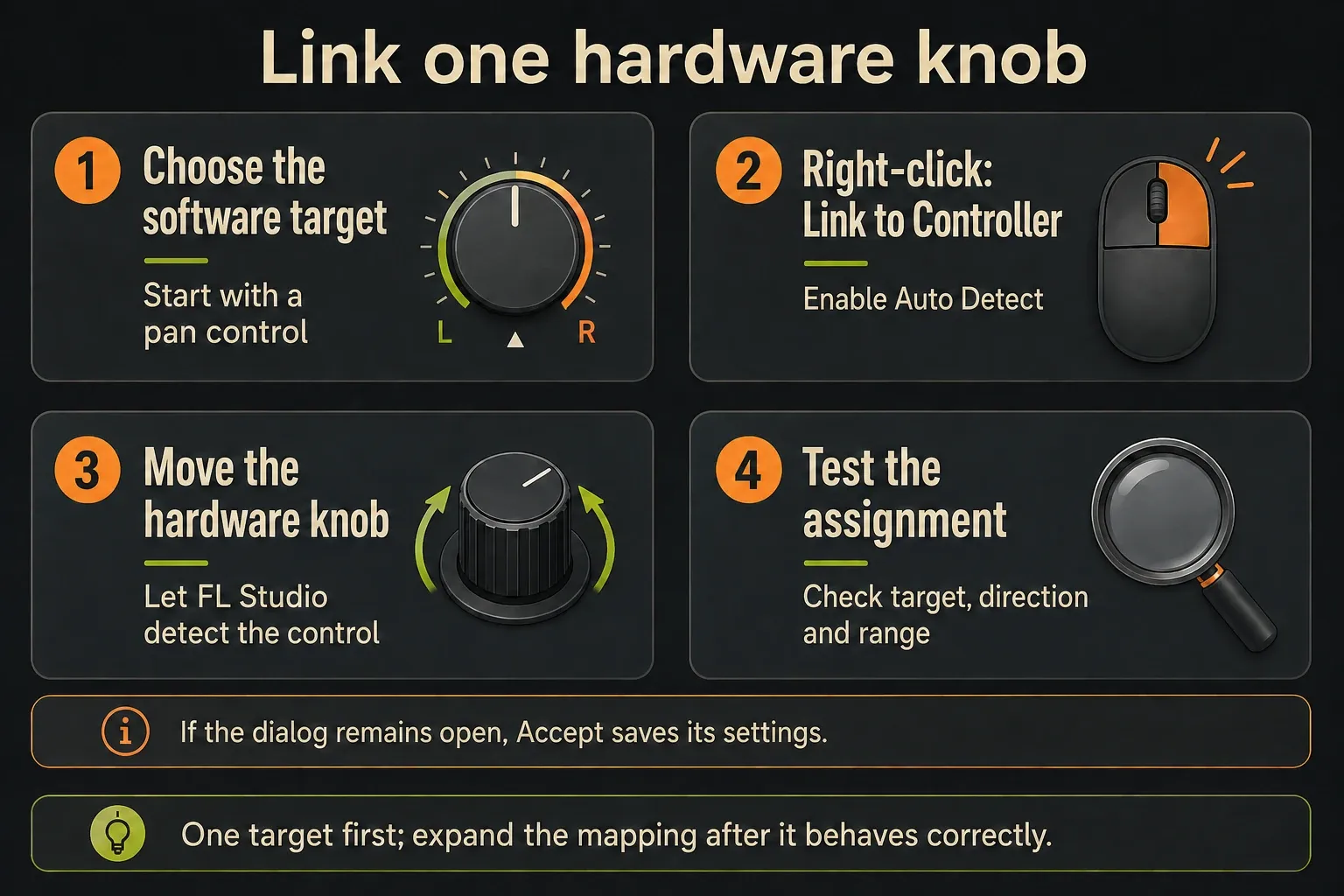
- Right-click that software control and choose Link to Controller.
- Enable Auto Detect in Remote control settings. Keep Omni off for this fixed instrument-Channel example.
- Move the intended hardware knob. If the dialog remains open, click Accept to save its settings.
- Test the target, direction and range, then switch windows and confirm the same target still responds.
- Save the FLP. In an unlocked paid edition, reopen it to check the assignment. In the standard Trial, test within the open session and keep assignment notes instead.
The standard time-unlimited FL Studio Trial can save projects but cannot reopen them until you purchase and unlock it. So don’t close a working Trial session just to test whether links persist. Save that reopening check for a licensed installation.
With an empty Input list or an activity indicator that stays dark, work through the FL Studio MIDI detection checklist first. Mapping only starts once the software receives the controller's messages, and it can't fix a missing USB connection.
Choose the scope before touching Multilink
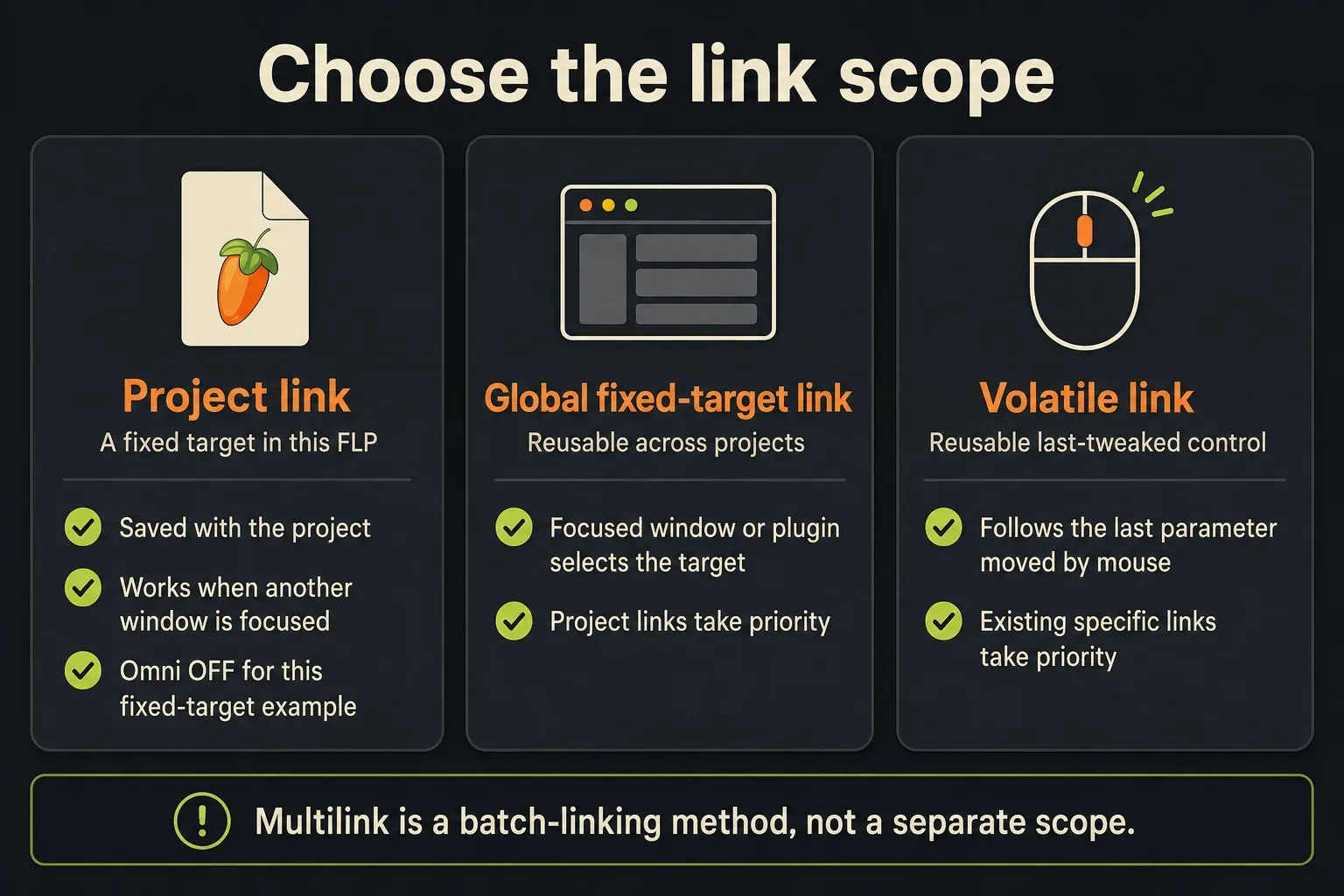
| You need | Use | What to expect |
|---|---|---|
| One fixed target in this song | Project link: Link to Controller | Saved in the FLP; remains active across window-focus changes |
| Several fixed targets in this song | Project links made with Multilink | Software targets and hardware controls pair in touch order |
| A reusable layout for a window or plugin | Override global links | Persists across sessions; the focused window or plugin selects the target set |
| One knob following the parameter just touched | Override volatile link | Persists across sessions; follows the last mouse-tweaked parameter unless a specific link takes priority |
Image-Line's controller-linking reference confirms that project links take priority over Global Links. If the layout belongs to one song, save the project. For a fixed starting layout in future songs, save a project template that contains those links. And “global” doesn't mean the same target responds no matter what has focus.
Map one native knob or fader
After you choose Link to Controller, let Auto Detect learn the hardware message. When you need to enter or check the incoming source by hand, Port, Channel and Controller identify it. Keep your eyes on the software target, since the lights on the device can mislead you.
Test at a modest listening level. Sweep through the minimum, midpoint and maximum, then bring the control back to a useful value. Pan makes a good first target, since it spares you the shock of learning master volume at full level. If the wrong knob got learned, fix that one link before you build the rest of the layout.
Omni is a separate choice. On instrument-Channel controls, Omni can make the same function follow whichever Channel is selected instead of staying on one Channel. Leave it off for the fixed-target test above. And selecting a Channel in the Channel Rack isn't the same action as focusing a plugin window for a Global Link.
Map several controls with Multilink
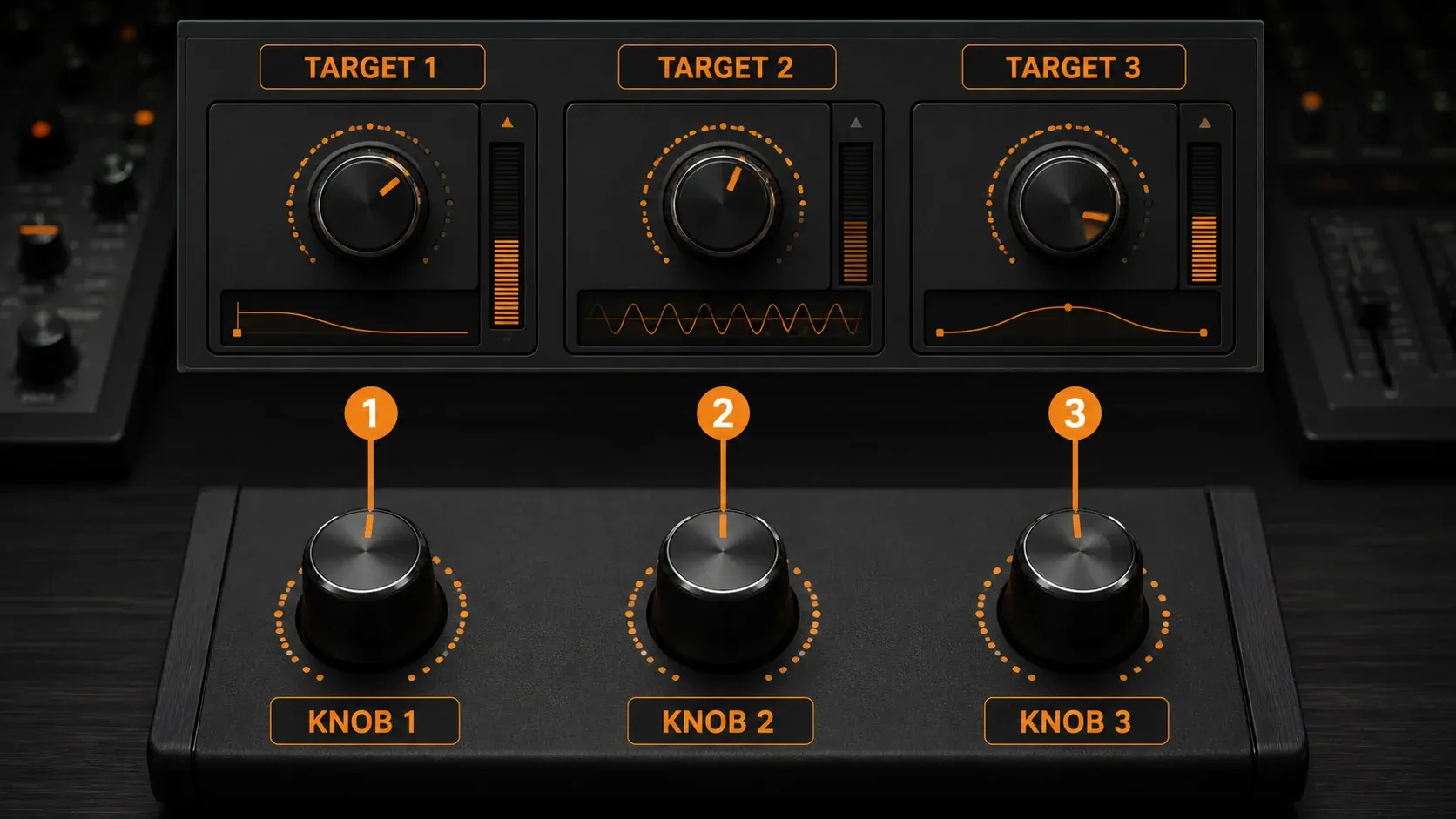
Turn on Multilink controllers in the toolbar (the manual also lists Ctrl+J). Only then move the software targets, in a deliberate order such as cutoff, resonance, drive. Next, move three hardware knobs in that same order. FL Studio pairs the first software target with the first hardware control, then the second pair, then the third, and the process closes once the counts match.
Work left to right, or write the pairs down. If you hit the wrong target mid-batch, right-click Multilink, choose Cancel and start over. That's easier than working out which of six assignments got crossed. Image-Line's Multilink toolbar instructions describe both the ordered sequence and Cancel.
Map a VST or AU parameter
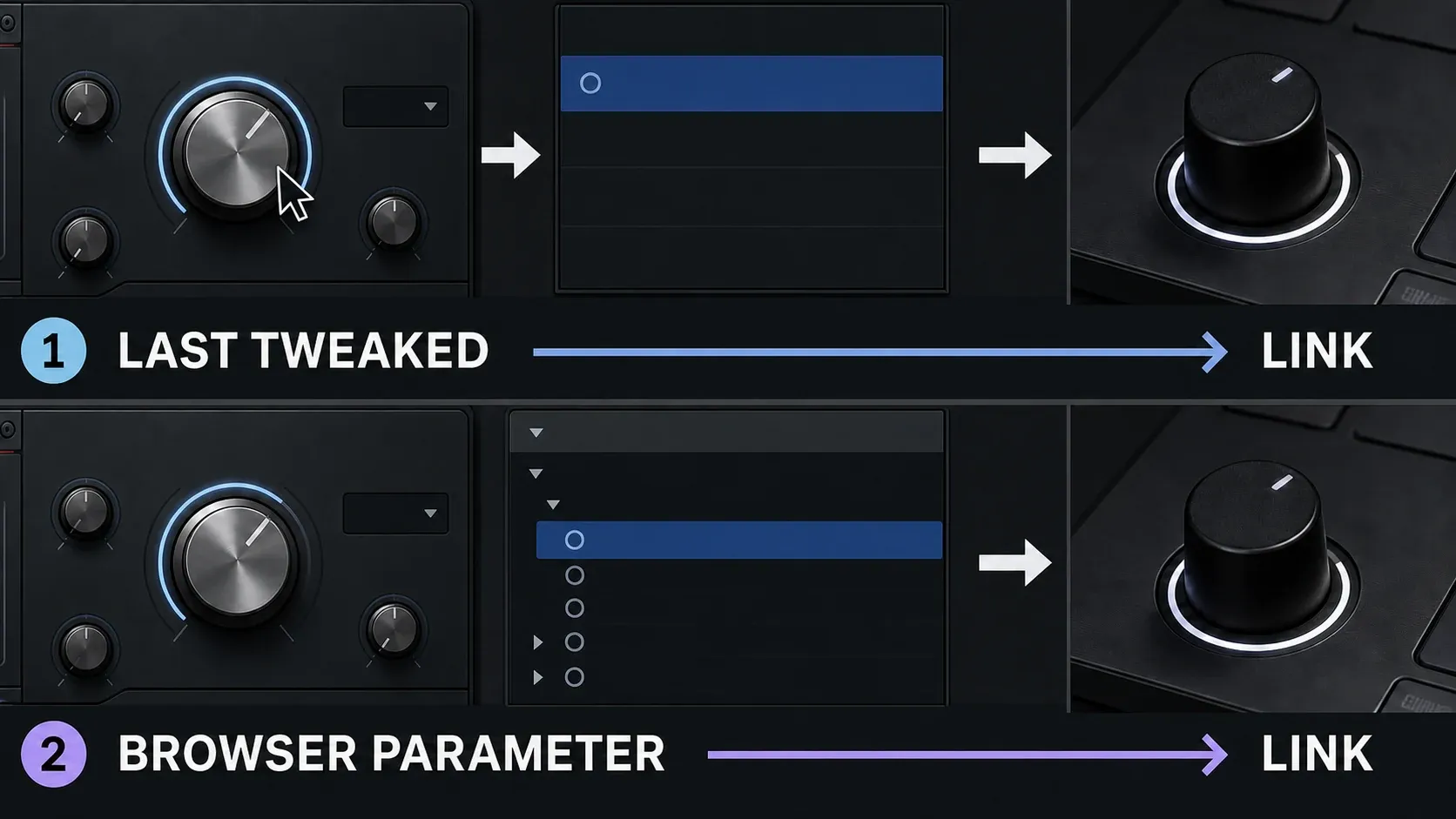
A third-party plugin may not give you FL Studio's native right-click menu. Move the parameter you want, then choose Tools → Last tweaked → Link to controller. Before you move the hardware control, check the parameter name at the top of the Last tweaked menu. The Tools menu reference shows that name along with the linking command.
When Last tweaked finds nothing useful, open the Wrapper's Browse parameters command. You can also expand Browser → Current project → Generators or Effects, then the relevant plugin instance, right-click the automatable parameter you need and choose Link to controller. With Multilink already active, clicking parameters in that list collects an ordered batch instead.
The Browser's Current project controls keep the plugin instance you've loaded separate from the Plugin database. If the plugin doesn't expose a parameter, this list can't invent one. The Wrapper documentation also describes embedded CC parameters for plugins that accept CC directly. It warns, too, that plugins which keep reporting parameter changes can confuse Last tweaked. Check the plugin's own MIDI documentation before you choose a CC number.
Make a Global Link when focus is useful
Turn on Multilink, move the software target or targets, then right-click Multilink and choose Override global links. Move the matching hardware controls in the same order. The assignments come back across projects and sessions, but whichever window or plugin has focus decides which programmed targets respond.
Test this on purpose: focus the plugin, turn the knob, then focus another window. A map that follows focus lets a small controller cover several plugins. But a filter you need to reach while you're editing elsewhere is better off on a fixed project link.
When a global map stops working after a setup change, check two things: the controller type selected in MIDI settings and the hardware's MIDI channel. The mapping remembers the CC and MIDI channel, and switching controller type can produce odd assignments. Before you create yet another global assignment, look for a higher-priority project link too.
Use a volatile link for one roaming knob
Right-click Multilink, choose Override volatile link, then move the dedicated hardware knob. From then on it follows the last interface parameter you moved with the mouse, across projects and sessions. A control that's already assigned to a specific target ignores volatile linking until that assignment is cancelled.
An endless encoder can suit this job. Endless rotation alone doesn't prove the device sends the relative-message format your mapping expects, though, so check its preset or editor. Keep fixed links for controls you need to reach without touching the mouse first.
Map pads by their messages, not their shape
Depending on its preset, a square pad might send notes, momentary CC messages or toggling CC messages. Novation's FLkey custom-mode instructions, for example, let that device's pads send notes or switch CC between momentary and toggle behavior. That's one device, though, and it promises nothing about every controller.
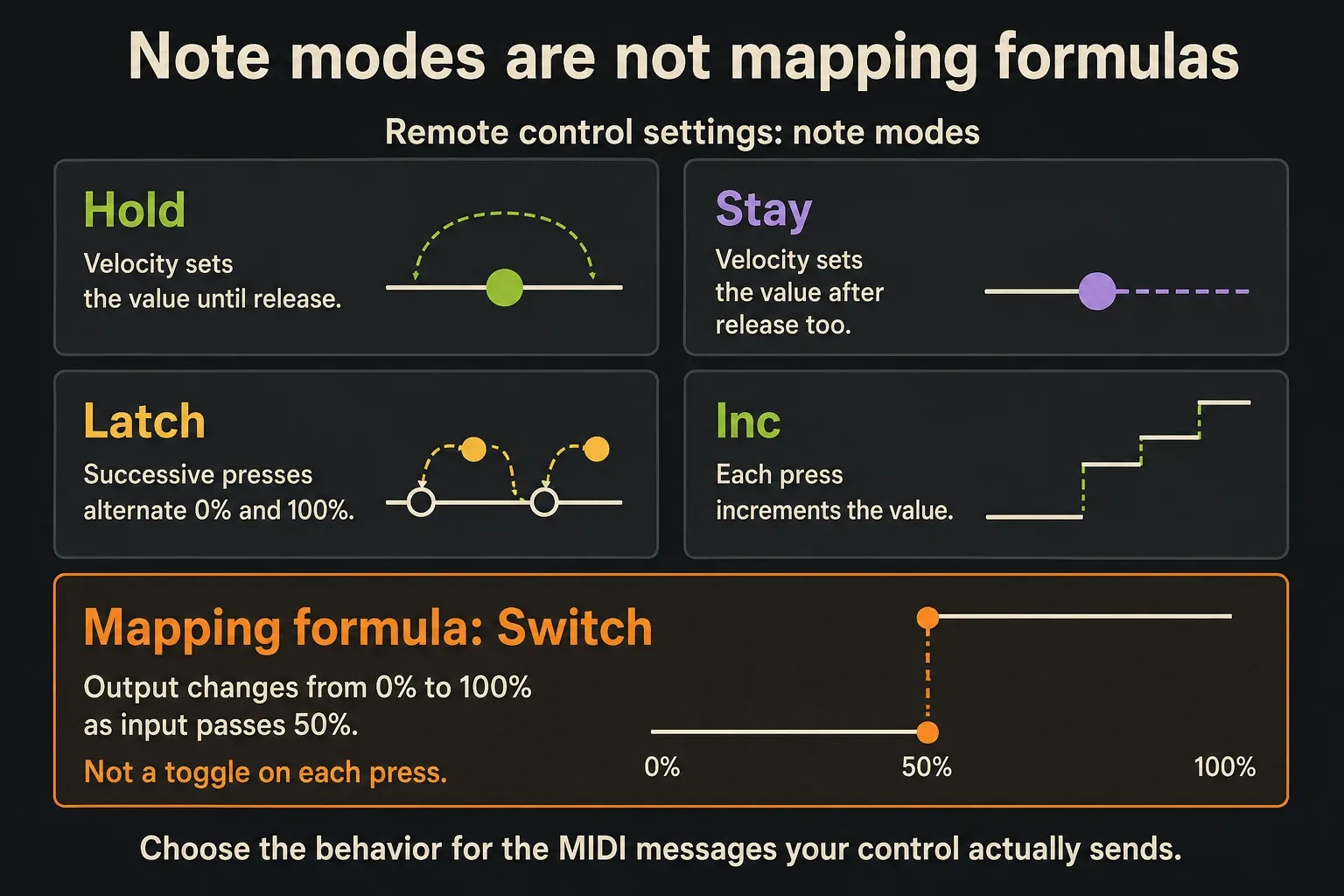
For a note input used as a controller, Remote control settings offers these modes:
| Note mode | Response | Useful check |
|---|---|---|
| Hold | Note velocity sets the value until release | Press softly, press harder, then release |
| Stay | The velocity-derived value remains after release | Release and watch whether the value remains |
| Latch | Successive presses alternate 0% and 100% | Test two complete press/release cycles |
| Inc | Each press increments the value | Check whether the resulting steps suit the target |
Switch is not a fifth note mode. It's a mapping formula that flips the output from 0% to 100% as the input crosses 50%, and that threshold isn't a “toggle once per press” instruction. For a CC button, check which values it sends on press and release. Don't reach for a note mode just because the physical control looks like a pad.
Transport commands, feedback lights and motorized controls may depend on the manufacturer's integration or a supported MIDI script. Image-Line's MIDI scripting reference includes transport and device-output functions. A manual parameter link won't set up every hardware feature.
If the pad should play a drum or a pitched note, keep it in the note-playing workflow and shape those notes afterward with the FL Studio Piano Roll guide.
Prevent first-touch jumps with Pickup
For a fixed-position knob or fader, enable Pickup (takeover mode) in Options → MIDI settings. According to the MIDI Settings manual, the software value waits until the hardware reaches it. With Pickup off, the target jumps straight to the incoming value. So if nothing moves for that first stretch, it may just be pickup doing its job.
Pickup won't fix a reversed direction, or a relative encoder that's being read as absolute values. For those, check the controller's output mode and the link's Remote control settings. The incremental options there are meant for relative messages, and their speed and response depend on the device.
On a project link, a mapping formula changes the response, while smoothing changes how quickly the control follows. For Global Links, the documentation contradicts itself: the linking reference says formulas and smoothing are supported, and the toolbar reference says they aren’t. Don’t build a global layout around a formula you haven’t checked. Look at the options and response in your installed version, or use a project link for that part of the setup.
Fix the symptom before relearning everything
- No MIDI activity: check the enabled input, connection and driver. Linking is not the first repair.
- Activity but no target movement: check the learned Port, Channel and Controller, Pickup position, plugin focus and any existing assignment.
- Wrong targets after Multilink: compare both touch sequences. Cancel an unfinished batch; repair completed wrong links individually.
- A new link broke an old one: check Remove conflicts. When enabled, the new assignment replaces a conflicting existing link.
- The wrong instrument Channel responds: check Omni as well as the selected Channel; do not confuse it with Global Link window focus.
- A pad will not toggle: identify note versus CC output first. For note input, test Latch; for CC input, inspect press/release values and the chosen formula.
Remove one bad assignment safely
For a project link, reopen the target's Remote control settings, click Reset, then Accept, and save the FLP. Reset also clears the formula and smoothing settings in that dialog, so write down any custom setup first. You can also open an existing assignment from the Browser's Current project → Remote control list. To replace the link instead of removing it, relearn the intended source.
If only a few Global Links are wrong, it's usually easier to reassign them than to edit configuration text. When you really do need to remove a saved mapping, start by finding the configured User data folder. Inside it, look in FL Studio/Settings/Mapping/Generic/ and the relevant controller subfolder, where Image-Line documents individual BY TARGET.flmapping files.
Wait until it's safe to end the current session, especially in the standard Trial, where your saved project can't be reopened yet. Then close FL Studio, back up that folder and move only the file you've positively identified as unwanted to a recoverable location. Restart FL Studio and check the global assignment. Never wipe the whole mapping folder over one wrong knob, because unrelated assignments may sit right next to it.
Mapping is not recording
A link decides what a hardware movement controls right now. On its own, it doesn't record notes or knob movement. To capture a keyboard or pad performance, use the MIDI note-recording workflow.
To capture a mapped knob with a separate Record-then-Play sequence, first turn off Recording starts playback in the Record button's right-click menu, and switch off the toolbar's Wait for Input. Select the destination Pattern, enable Automation in the Record button's recording filter, arm Record, press Play and move the linked control. Then stop and check the result. According to the controller-recording instructions, that movement goes into the selected Pattern's Event data. It doesn't go straight into an Automation Clip.
The FL Studio automation guide shows how to edit that movement and convert it when that helps. Once that's done, arrange the recorded parts in the Playlist. For an existing .mid file, use the MIDI import workflow instead. Sending a score to another DAW is a job for the MIDI export workflow.
Keep the layout small enough to remember
Start with a handful of controls for one real job, like instrument macros, a channel strip or a live filter. Name the hardware preset, and jot down each target and its link scope. On a licensed installation, test project links by reopening their FLP, and test Global Links in a clean project with the intended window focused. In the standard Trial, finish your checks in the open session so closing it doesn't cost you access.
For commands that don't deserve a dedicated knob, use keyboard shortcuts alongside the controller. If your next job is combining plugins behind a macro, move on to Patcher's Control Surface and routing. MIDI assignment is only one part of instrument design.
Frequently asked questions
How do I assign a MIDI knob to a control in FL Studio?
Right-click a native control, choose Link to Controller, enable Auto Detect and move the hardware knob. Accept if the dialog stays open, then test and save the project. For a third-party plugin, move its parameter and use Tools → Last tweaked → Link to controller.
How do I map several MIDI knobs at once?
Activate Multilink controllers, move the software targets in order, then move the same number of hardware controls in matching order. FL Studio pairs the two sequences position by position.
Why does my mapping work only when a plugin is focused?
Fixed Global Links are tied to specific windows and plugins. When one target has to keep responding as focus changes, use a project link saved in the FLP. For a fixed instrument-Channel control, also make sure Omni is off.
How do I keep a MIDI mapping across projects?
Activate Multilink, touch the software targets, right-click Multilink and choose Override global links, then move the hardware controls. Global Links persist across sessions, but focus selects the target set and project links take priority.
How do I stop a MIDI knob from jumping?
For a fixed-position knob, enable Pickup (takeover mode) in Options → MIDI settings, and the software will wait until the hardware reaches the current value. For a relative encoder, check its output format and incremental mapping, because Pickup alone may not solve it.
For the next step in playing, recording or editing controller input, head back to the Piano Roll & MIDI hub.