 FL Studio
Write the notes first, then make the performance feel played
Learn the Piano Roll as a musical workspace, keep parts in key, use other channels as context, shape timing and velocity, and move MIDI into or out of a project without losing the instrument logic.
Start with one instrument and one short phrase
The Piano Roll becomes confusing when every editing tool is introduced before you can hear what one note is doing. Begin with a single instrument, draw a two-bar phrase, and learn how pitch, note length, timing and velocity change that phrase. Once those four ideas are clear, ghost notes, scale guides and MIDI recording stop feeling like separate tricks.
The current Image-Line Piano Roll manual describes the editor as the place that sends note and automation data to the selected instrument channel. That boundary matters: MIDI notes are instructions, not audio, and the instrument still determines the sound.
Follow the order in which a MIDI part is built
Use the main Piano Roll guide as the map. Add key and scale support when pitch choices need structure, reveal ghost notes when another channel supplies context, then humanize only after the rhythm already works.
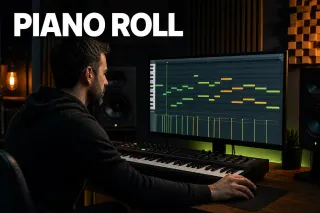 Learn the Piano Roll
FL Studio Piano Roll: A Practical Beginner Guide
Edit pitch, length, timing and velocity while keeping the selected instrument and pattern clear.
Open the Piano Roll guide
Learn the Piano Roll
FL Studio Piano Roll: A Practical Beginner Guide
Edit pitch, length, timing and velocity while keeping the selected instrument and pattern clear.
Open the Piano Roll guide
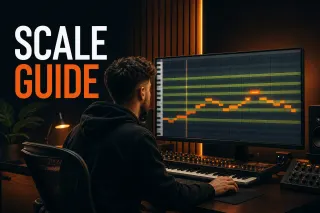 Set key and scale guides
FL Studio Scale Highlighting: Set Keys & Fix Snap
Use scale support as a writing constraint without pretending every highlighted note creates a good phrase.
Set scale highlighting
Set key and scale guides
FL Studio Scale Highlighting: Set Keys & Fix Snap
Use scale support as a writing constraint without pretending every highlighted note creates a good phrase.
Set scale highlighting
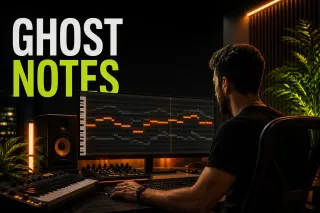 Write against another part
FL Studio Ghost Notes: See Chords Across Patterns
Show notes from other channels so bass, chords and melody can answer one another without being merged.
Use ghost notes
Write against another part
FL Studio Ghost Notes: See Chords Across Patterns
Show notes from other channels so bass, chords and melody can answer one another without being merged.
Use ghost notes
 Shape the performance
How to Humanize MIDI in FL Studio Without Losing Groove
Adjust timing and velocity in small amounts after the pattern works on the grid.
Humanize the MIDI
Shape the performance
How to Humanize MIDI in FL Studio Without Losing Groove
Adjust timing and velocity in small amounts after the pattern works on the grid.
Humanize the MIDI
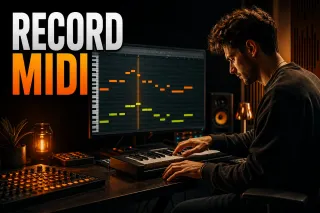 Record a controller performance
How to Record MIDI in FL Studio Without Losing the Take
Capture notes and controller movement, then correct only what the take actually needs.
Record MIDI
Record a controller performance
How to Record MIDI in FL Studio Without Losing the Take
Capture notes and controller movement, then correct only what the take actually needs.
Record MIDI
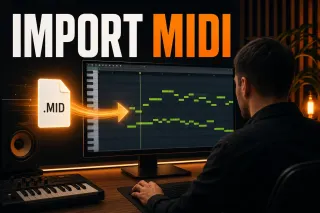 Bring a MIDI file into the project
How to Import MIDI Files into FL Studio Safely
Choose the destination and keep channel, tempo and instrument expectations separate.
Import MIDI
Bring a MIDI file into the project
How to Import MIDI Files into FL Studio Safely
Choose the destination and keep channel, tempo and instrument expectations separate.
Import MIDI
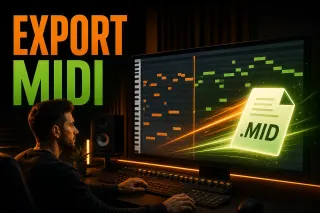 Hand the notes to another session
How to Export MIDI from FL Studio Without Losing Work
Export the required note data and verify it by reopening the file before delivery.
Export MIDI
Hand the notes to another session
How to Export MIDI from FL Studio Without Losing Work
Export the required note data and verify it by reopening the file before delivery.
Export MIDI
Before calling the MIDI part finished
- The notes belong to the intended Pattern and instrument channel.
- Snap supports the rhythm instead of moving every gesture to the same grid value.
- Velocity changes are audible and do not merely make the editor look varied.
- Scale guides and ghost notes provide context without replacing listening.
- An exported MIDI file has been re-imported into a blank test project.
Move to Beatmaking & Drums when the notes need a full rhythm section, or to Workflow when the Pattern is ready for the Playlist.
Open the guide for the task in front of you
This list includes every live guide assigned to this route. Scheduled and draft pages stay out until readers can open them.
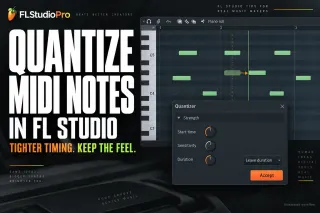 How to Quantize in FL Studio Without Killing Groove
Tighten recorded MIDI with the right Snap value, quick commands or the full Quantizer while keeping note length, velocity and deliberate timing under control.
Open the guide
FL Studio Piano Roll: A Practical Beginner Guide
Open the correct Piano Roll, draw and edit notes, control snap and velocity, then turn one Pattern into an arrangement without losing your place.
Open the guide
FL Studio Ghost Notes: See Chords Across Patterns
Show notes from other Channels and overlapping Patterns, choose which references appear, edit safely and fix missing Ghost Notes in FL Studio.
Open the guide
FL Studio Scale Highlighting: Set Keys & Fix Snap
Choose a root and scale, highlight valid Piano Roll lanes, control Snap to scale for edited or incoming MIDI, and fix notes that will not move freely.
Open the guide
How to Humanize MIDI in FL Studio Without Losing Groove
Vary MIDI velocity and timing with intent, use Randomizer for note levels, roll chords with Strum and keep the original groove and feel intact.
Open the guide
How to Import MIDI Files into FL Studio Safely
Bring single phrases or multitrack MIDI into FL Studio, choose the correct settings, assign instruments and keep notes and controller data aligned.
Open the guide
How to Export MIDI from FL Studio Without Losing Work
Export one Piano Roll part or a complete multichannel MIDI file from FL Studio, protect the original project and verify the handoff before sending it.
Open the guide
How to Record MIDI in FL Studio Without Losing the Take
Record a keyboard or pad performance into the right FL Studio Pattern, preserve intentional timing and recover an unrecorded idea with Score Logger.
Open the guide
How to Quantize in FL Studio Without Killing Groove
Tighten recorded MIDI with the right Snap value, quick commands or the full Quantizer while keeping note length, velocity and deliberate timing under control.
Open the guide
FL Studio Piano Roll: A Practical Beginner Guide
Open the correct Piano Roll, draw and edit notes, control snap and velocity, then turn one Pattern into an arrangement without losing your place.
Open the guide
FL Studio Ghost Notes: See Chords Across Patterns
Show notes from other Channels and overlapping Patterns, choose which references appear, edit safely and fix missing Ghost Notes in FL Studio.
Open the guide
FL Studio Scale Highlighting: Set Keys & Fix Snap
Choose a root and scale, highlight valid Piano Roll lanes, control Snap to scale for edited or incoming MIDI, and fix notes that will not move freely.
Open the guide
How to Humanize MIDI in FL Studio Without Losing Groove
Vary MIDI velocity and timing with intent, use Randomizer for note levels, roll chords with Strum and keep the original groove and feel intact.
Open the guide
How to Import MIDI Files into FL Studio Safely
Bring single phrases or multitrack MIDI into FL Studio, choose the correct settings, assign instruments and keep notes and controller data aligned.
Open the guide
How to Export MIDI from FL Studio Without Losing Work
Export one Piano Roll part or a complete multichannel MIDI file from FL Studio, protect the original project and verify the handoff before sending it.
Open the guide
How to Record MIDI in FL Studio Without Losing the Take
Record a keyboard or pad performance into the right FL Studio Pattern, preserve intentional timing and recover an unrecorded idea with Score Logger.
Open the guide
 Map MIDI Knobs and Pads to FL Studio Controls
Assign hardware controls to FL Studio and plugin parameters, choose the right link scope and fix jumps or bad assignments without wiping the whole map.
Open the guide
Map MIDI Knobs and Pads to FL Studio Controls
Assign hardware controls to FL Studio and plugin parameters, choose the right link scope and fix jumps or bad assignments without wiping the whole map.
Open the guide
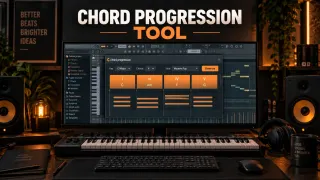 FL Studio Chord Progression Tool: Build Chords That Fit Your Track
Use the FL Studio Chord Progression Tool to generate or analyze chords, lock good choices, fix voicing and bass, protect existing notes, add performance and Accept a clean Pattern.
Open the guide
FL Studio Chord Progression Tool: Build Chords That Fit Your Track
Use the FL Studio Chord Progression Tool to generate or analyze chords, lock good choices, fix voicing and bass, protect existing notes, add performance and Accept a clean Pattern.
Open the guide
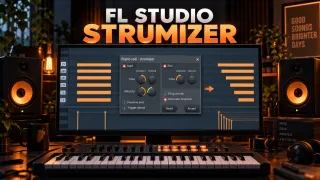 FL Studio Strumizer: Hotkey, Controls and Natural Chords
Use the FL Studio Strumizer with Alt/Option+S, set strum direction and tension, shape velocity, control note endings, chop overlaps and alternate successive chords.
Open the guide
FL Studio Strumizer: Hotkey, Controls and Natural Chords
Use the FL Studio Strumizer with Alt/Option+S, set strum direction and tension, shape velocity, control note endings, chop overlaps and alternate successive chords.
Open the guide
 How to Pitch Bend in FL Studio: Automation, Slides and Wheels
Automate the instrument's Channel Pitch, set RANGE first and add a neutral return. For one moving chord voice, use same-color slide notes with a native instrument.
Open the guide
How to Pitch Bend in FL Studio: Automation, Slides and Wheels
Automate the instrument's Channel Pitch, set RANGE first and add a neutral return. For one moving chord voice, use same-color slide notes with a native instrument.
Open the guide
Piano Roll and MIDI questions
Are MIDI notes audio in FL Studio?
No. MIDI notes tell an instrument what pitch, timing and velocity to play. The instrument generates the audio, so changing the plugin or preset can change the sound without changing the notes.
Should every MIDI performance be quantized?
No. Correct notes that miss the intended rhythm, then listen in context. Full-strength quantizing can remove useful push, pull and pickup timing from a performance.
Why do imported MIDI files sound different?
MIDI does not normally carry the original plugin, preset or processing chain. Match the intended instruments, channel assignments, tempo assumptions and controller data before judging the import.