FL Studio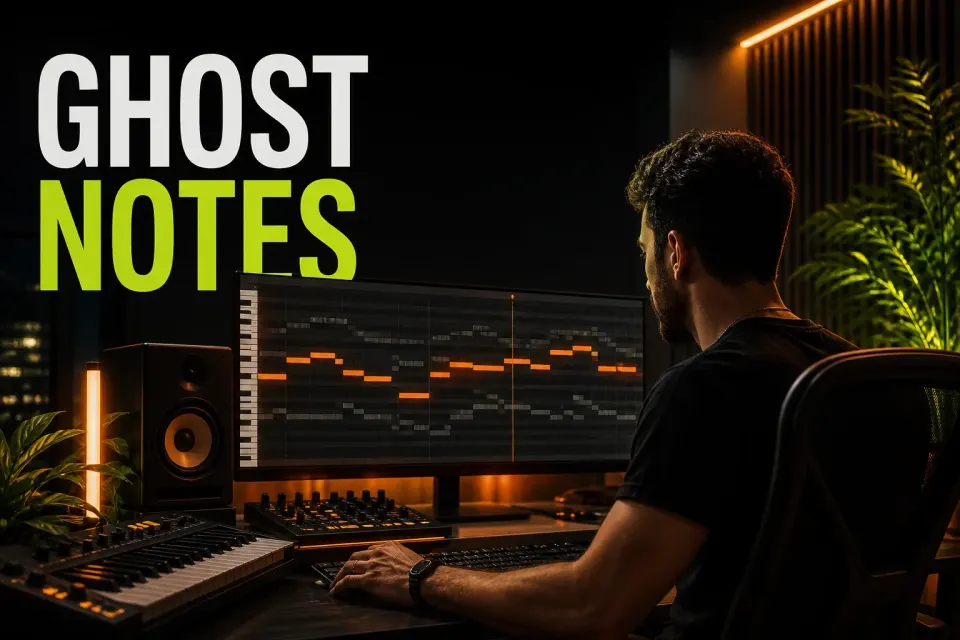
FL Studio Ghost Notes are reference notes from another Channel or Pattern, drawn behind the notes you’re editing. Turn them on, pick the sources you want to see, then write the new part against those pitch and rhythm positions. The grey or outlined blocks don’t create a second performance; the source notes still belong to their original Channel and Pattern.
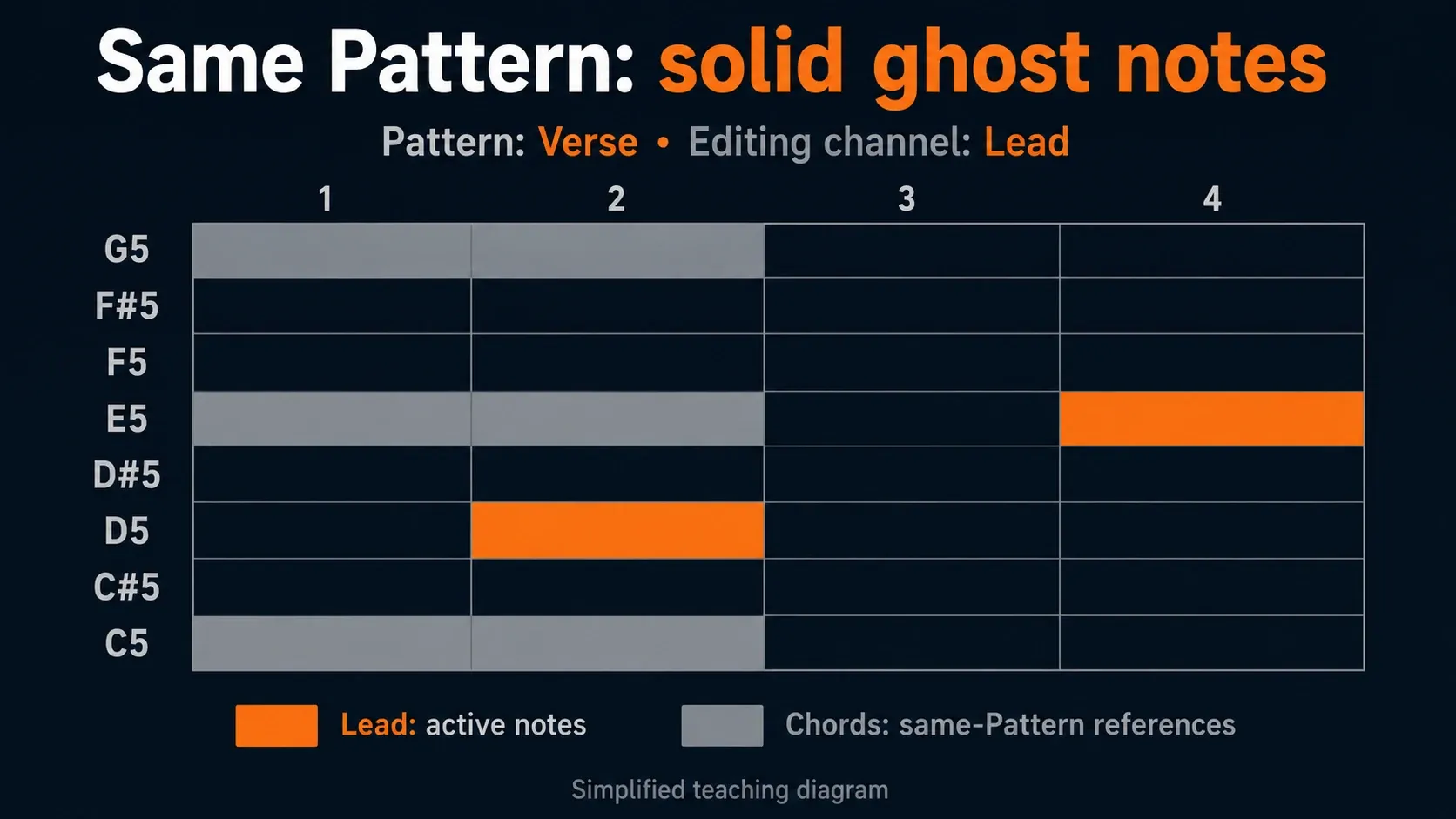
Current desktop FL Studio has two kinds of Ghost Notes. Solid blocks come from another Channel inside the same Pattern, and open blocks come from another Pattern Clip that overlaps the clip you opened in the Playlist. Work out which kind you need before you change any visibility settings.
Turn on Ghost Notes and prove the simple case first
Start with two instrument Channels and write their notes in the same Pattern. That takes Playlist timing out of the picture and lets you check Ghost Note visibility on its own. If the FL Studio Piano Roll workflow still feels unfamiliar, start there; this guide assumes you can select a Channel and draw notes.
- Create or choose one Pattern.
- Add notes to the first instrument’s Piano Roll.
- Open a second instrument’s Piano Roll without changing the Pattern.
- Enable Ghost Notes with Alt+V on Windows or Option+V on macOS, or use the Ghost Note control in the Piano Roll.
- Confirm that the first instrument’s notes appear as solid grey blocks behind the active editor.
- Write the second part while treating the grey blocks as references to the original notes, not newly created copies.
Image-Line’s Piano Roll Menu reference documents the Ghost channels switch and its Windows/Mac shortcuts. If both Channels have notes in the same Pattern and nothing appears, check visibility, the selected Pattern and the target Channel. Left-click the Ghost Note toolbar control to open the Channel selector, then include the reference Channel.
Read solid and open blocks differently
A solid Ghost Note has a direct same-Pattern link with the editor you opened. Double-right-clicking it switches the Piano Roll to its source Channel. That’s often the safest way to make a correction, because the interface shows you which instrument now owns the active notes.
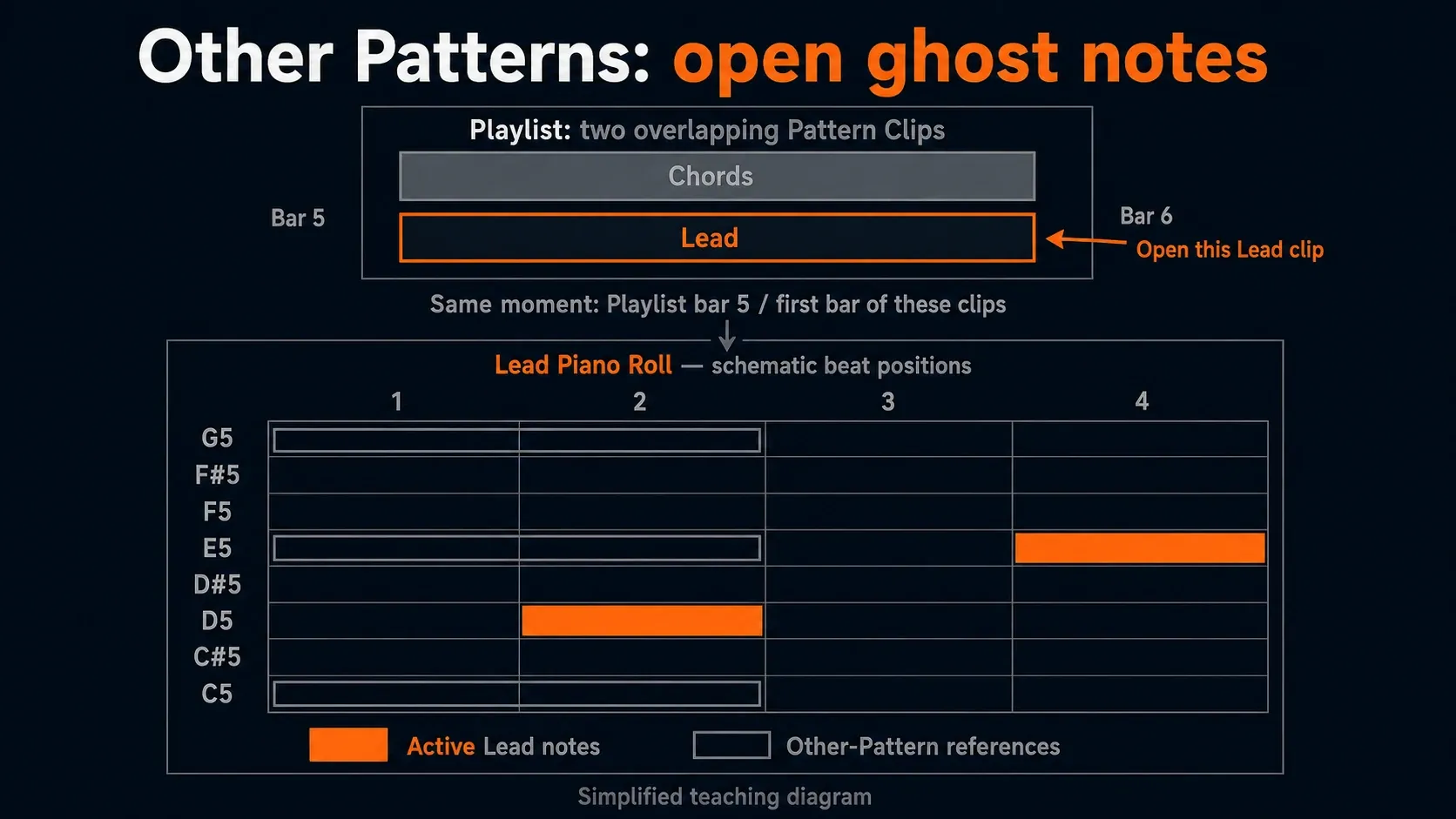
An open Ghost Note comes from an overlapping Pattern Clip. Image-Line’s current Piano Roll reference says these blocks follow the relative Playlist timing: move a Clip and the reference moves through the Piano Roll. Open blocks cannot use the same double-right-click switch/edit route as same-Pattern notes.
Cross-Pattern viewing arrived in FL Studio 2024.2, released on 28 November 2024. Older tutorials may tell you to merge Patterns before viewing their notes together, but current desktop versions don’t need that workaround for the overlapping-clip method. If you’re on an older installation, check its version before hunting for the newer controls.
Show Ghost Notes from overlapping Patterns
Cross-Pattern Ghost Notes depend on the Playlist, so the clip you open matters. FL Studio treats that clip as the editing context and works out which overlapping Patterns sit above or below it.
- Place the chord Pattern Clip in the Playlist.
- Place the melody or bass Pattern Clip so it overlaps the chord clip in time.
- Double-click the exact Pattern Clip you want to edit, rather than opening an unrelated copy from the Picker Panel.
- Open the intended Channel’s Piano Roll.
- Enable Ghost Notes, select the reference Channel in the panel, and include the relevant Track or clip instance in the Ghost Note menu.
- Look for open outline blocks at the time positions covered by the overlapping clip.
Overlap means shared time, not just two clips on neighboring Playlist Tracks. A chord clip at bars 1–5 can’t serve as an overlapping reference for a melody clip at bars 9–13. Use the FL Studio Playlist guide if you need help placing or selecting clips before going back to the Piano Roll.
Choose which Channels and clips stay visible
A helpful reference can turn into grey clutter once five instruments overlap. Use the Ghost Note panel to show only the Channels that answer the musical question in front of you. For a bass line, that might be chords and kick. For a counter-melody, it might be the lead and the top notes of the chords.
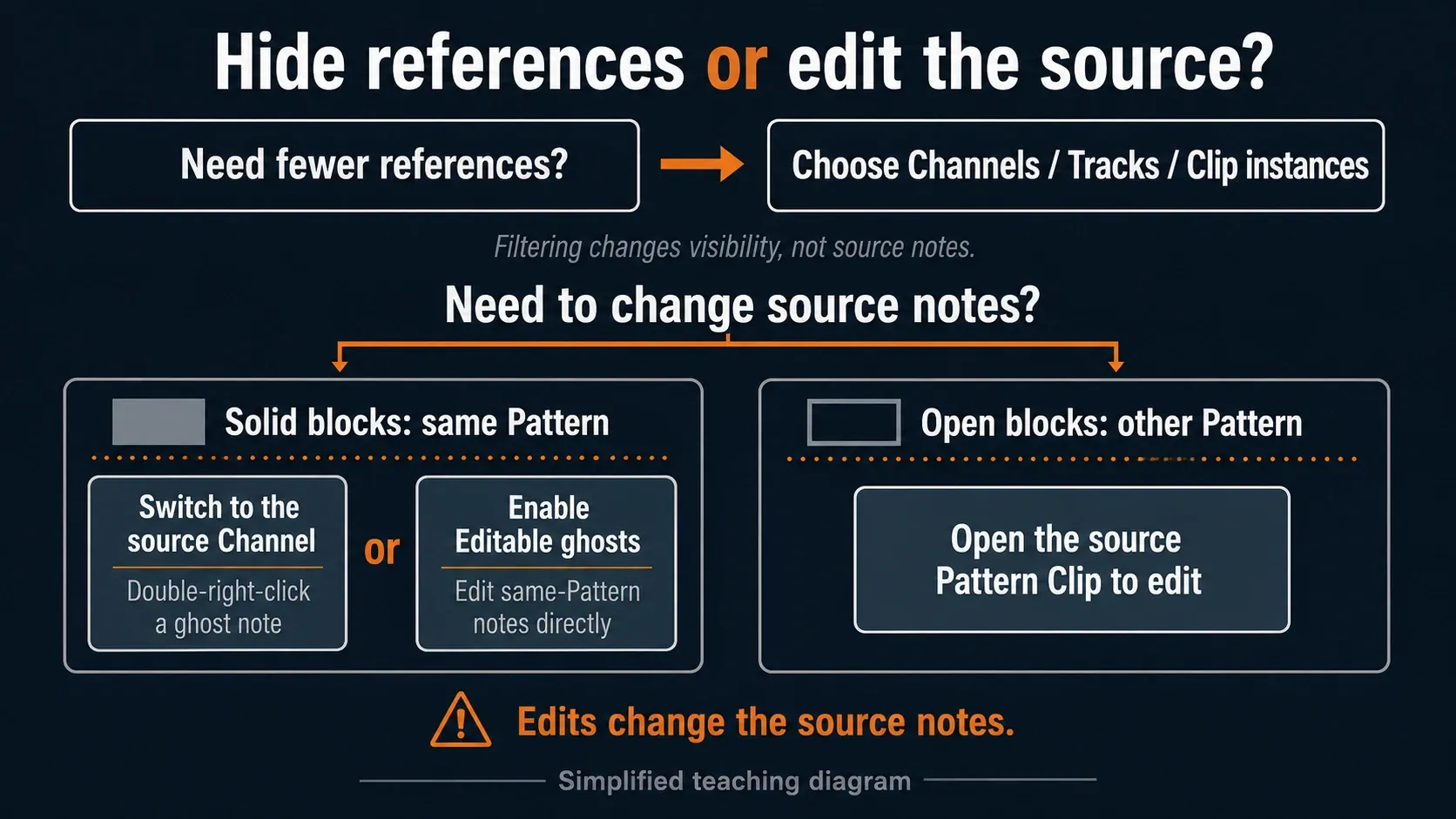
Right-click the Ghost Note toolbar control for the menu. Alongside Show All and Show None, it offers Ghost tracks and Ghost pattern clips controls for Playlist Tracks and individual clip instances. Track visibility can also be changed from a Playlist Track header’s right-click menu. Hide parts that do not help the decision; hiding a reference is not the same as muting its source instrument.
Ghost Notes won’t tell you whether a pitch belongs to the song’s key. They show the notes other parts actually use. For root, scale shading and forced pitch constraints, use the dedicated FL Studio scale highlighting guide. The two tools work nicely together, but they answer different questions.
Switch Channels before you enable direct editing
For same-Pattern solid blocks, double-right-click the Ghost Note to switch to its source Channel, edit the notes that are now active, then go back to the part you were writing. That keeps ownership visible and cuts the risk of shortening a chord while you thought you were adjusting a melody.
Editable ghosts enables direct interaction with same-Pattern Ghost Notes. Its documented shortcut is Ctrl+Alt+V on Windows or Command+Option+V on macOS. If several reference Channels overlap on the same pitch, switch to the source Channel instead so you can see exactly which part you are changing. For an open block from another Pattern, open its source Pattern Clip and edit that Channel there.
Click inside the Piano Roll before using its shortcut, or use the named menu control if keyboard focus is somewhere else. Double-right-click means two clicks with the right mouse button, without holding Ctrl. Check the FL Studio shortcuts guide for the broader editing controls.
Use Ghost Notes for musical decisions, not decoration
Write a bass line around the chord roots
Show the chord Channel, then place bass notes against the roots and the important chord changes. You can still use passing tones on purpose; the reference just makes that choice visible instead of accidental.
Keep a melody out of crowded chord voicings
Use the top chord notes as landmarks. A melody doesn’t have to dodge every chord tone, but it does need room to speak. Ghost Notes show where a sustained note will double an existing voice and where an open register is waiting.
Align an 808 with the kick without copying it
Show the kick rhythm as a reference, then decide which attacks should line up with it and which should leave space. Copying every kick gives you one relationship, while seeing the kick as you write lets you choose several.
Check a counter-rhythm against the lead
Filter the panel to the lead Channel and look for gaps. Try letting the counter-part answer the lead instead of repeating every start. If a recorded performance needs tighter timing, use the FL Studio quantize guide; changing Ghost Note visibility won’t move the performance.
One terminology trap is worth clearing up: producers also call quiet snare strokes “ghost notes.” Those are audible, low-intensity drum hits, while FL Studio Ghost Notes are visual references in the Piano Roll. Same phrase, two different ideas.
Fix Ghost Notes that do not appear
The other instrument is in a different Pattern
Solid blocks require the same Pattern. For separate Patterns, place their Clips so they overlap in the Playlist and use the open-block workflow.
The clips are on nearby Tracks but do not overlap in time
Check the clips’ start and end positions. For a quick test, use a separate test Pattern and lay its clip over the reference. Don’t move or stretch a finished musical part just to make an overlay appear, because that changes the arrangement and not just the display.
You opened the wrong Pattern Clip
Return to the Playlist and double-click the exact clip you mean to edit. The opened clip defines the out-of-Pattern Ghost Note context.
The needed source is filtered out
Open the Ghost Note panel or menu and enable the source Channel, Playlist Track or Pattern Clip instance. Use Show All briefly to diagnose, then reduce the view again.
The grey notes seem to play twice
The overlay doesn’t create another note. Check whether the source Pattern or Channel is playing, whether notes were copied into the active Channel, or whether two Pattern Clips play the same source in the Playlist.
You cannot edit an open outline block
Out-of-Pattern Ghost Notes do not use the same direct switch/edit behavior as solid same-Pattern notes. Open the source Pattern Clip and edit its Channel there.
Frequently asked questions
How do I turn on Ghost Notes in FL Studio?
Press Alt+V on Windows or Option+V on macOS, or use the Ghost Note control in the Piano Roll. Then confirm that the source Channel or overlapping Pattern Clip is included in the visibility selector.
Why are some Ghost Notes solid and others open?
Solid blocks come from another Channel in the same Pattern. Open outline blocks come from another Pattern Clip that overlaps the clip you opened in the Playlist.
Can FL Studio show Ghost Notes from different Patterns?
Yes. Current FL Studio can show open-block Ghost Notes from Pattern Clips that overlap in Playlist time. Open the exact clip you want to edit so FL Studio uses the correct context.
Can I edit Ghost Notes directly?
Editable ghosts allows direct interaction with same-Pattern Ghost Notes. Switching to the source Channel first is safer when several parts overlap. Out-of-Pattern open blocks need to be edited from their source Pattern.
Do Ghost Notes keep a melody in key?
No. They show pitches used by other parts, which can guide harmony, but they do not validate the song key. Scale highlighting and Snap to scale are separate Piano Roll tools.
Use Ghost Notes until they’ve answered one concrete question, then simplify the view. The Piano Roll & MIDI hub connects the next note-editing steps. For the full route from Pattern to arrangement, continue with the first-project tutorial or pick another production task in the FL Studio Workflow hub.