FL Studio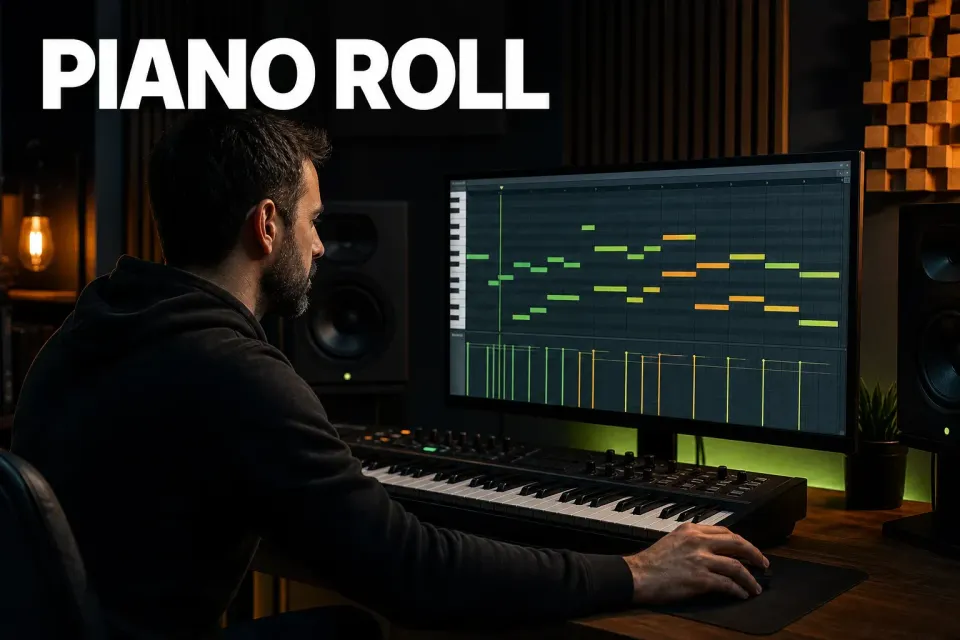
The FL Studio Piano Roll is where one instrument plays notes inside the current Pattern. Pick the instrument you want to edit, open its Piano Roll, draw or record a short phrase, then put that Pattern in the Playlist. That first step is easy to skip. A Pattern can hold notes for several Channels, so the right Pattern with the wrong Channel still puts you in the wrong editor.
You don’t need every tool on day one. Get the link between Pattern and Channel straight, then get comfortable with note position, length, selection, Snap and velocity. The more specialized jobs, like quantizing, arpeggiating, Ghost Notes and scale control, come much easier once those basics feel ordinary.
Open the Piano Roll for the instrument you intend to edit
The safest route starts in the Channel Rack, because there you can see which instrument you’re targeting. The current Image-Line Channel Rack manual confirms that Patterns can contain Step Sequencer, Piano Roll and automation data for more than one Channel.
- Choose an existing Pattern or create an empty one from the Pattern selector.
- Open the Channel Rack with F6.
- Add an instrument if the project does not already have one.
- Right-click that instrument’s Channel and choose Piano roll. You can also select the Channel and press F7.
- Draw a few notes and play them in Pattern mode before you arrange anything.
- Open the Playlist with F5, place the Pattern Clip where the phrase should play, then switch to Song mode to hear the arrangement.
On a Mac, F5–F7 may control system features unless you hold Fn. Image-Line’s Mac function-key guidance explains this setting; Fn+F7 is the quick check. If you prefer to play the phrase on a controller, follow the MIDI recording guide for the recording filter and capture workflow, then return here to edit the notes.
Glance at the Piano Roll title before editing. It should name the instrument you expect. If you double-click a Pattern Clip in the Playlist and see grey notes or hear the wrong sound, switch the target Channel instead of moving notes around blindly.
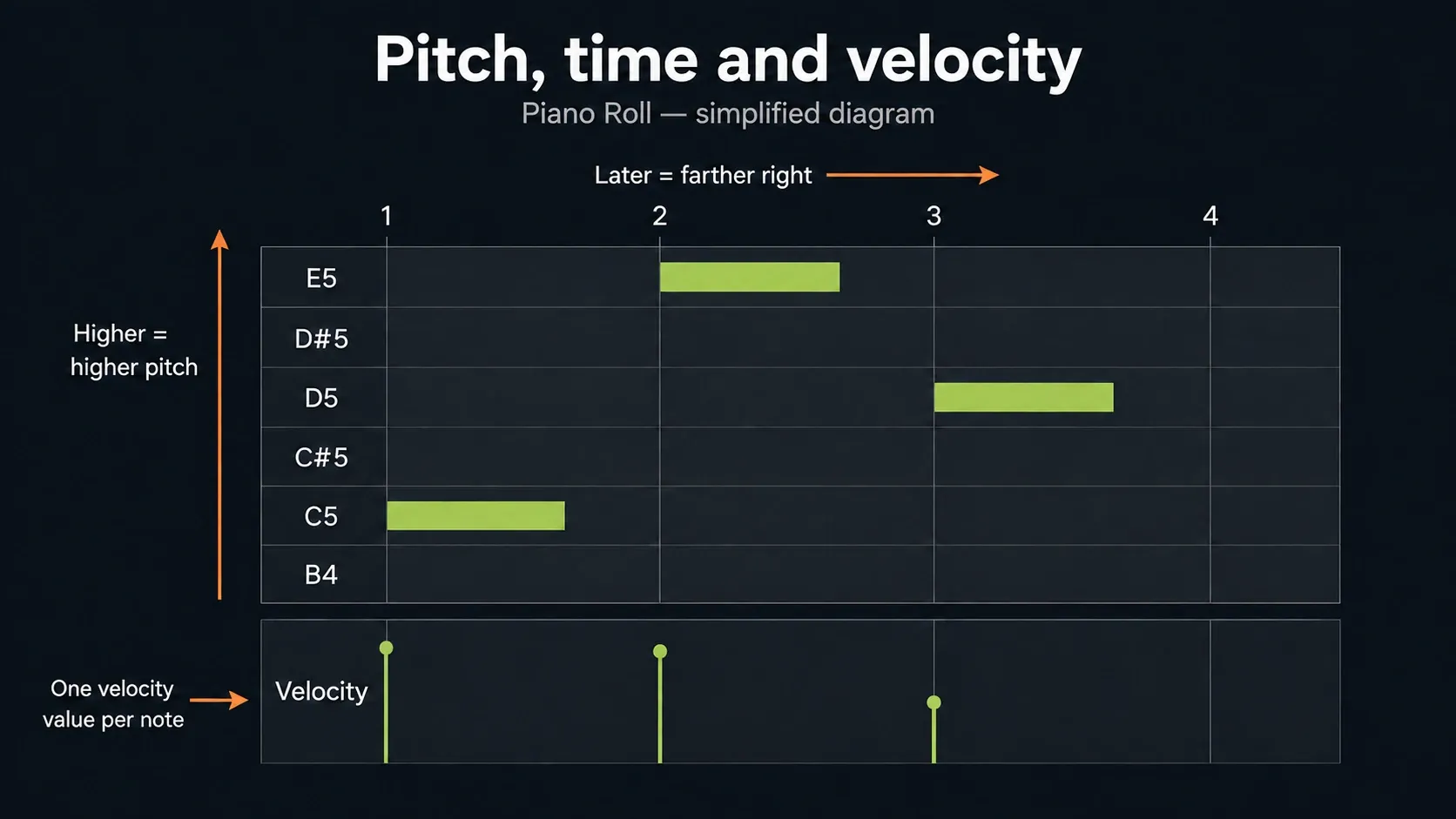
Read the grid as pitch, time and expression
Pitch runs vertically: drag a note up to raise it, down to lower it. Time runs left to right. The ruler across the top marks bars and beats, and the local Snap setting decides which smaller positions notes land on when you draw, move or resize them.
The lower editor belongs to the notes above it. It usually shows velocity, but the selector can also expose pan, release velocity, Mod X, Mod Y, note pitch and other event data. The official Piano Roll reference notes that support varies by instrument. A velocity change is data sent to the instrument, so don’t expect every preset to get louder in exactly the same way.
There’s one more layer to keep straight: the Pattern. A four-bar melody in Pattern 3 isn’t part of the song until Pattern 3 appears in the Playlist. Editing in the Piano Roll changes the Pattern data. Moving the Pattern Clip changes where that data plays in the arrangement.
Draw, delete and resize notes without fighting the mouse
With the Draw tool active, left-click an empty part of the grid to create a note. Drag a note to change its pitch or start time. Move the pointer to its right edge and drag when the cursor changes to resize mode. Right-click a note to delete it.
New notes normally take the last note length you worked with. That makes repeated hi-hats or a steady bass rhythm quick to enter, but it’s confusing when every new note suddenly comes out too long. Resize one note to the duration you want, then place the next. Right-click the Snap to grid control to set the default note length; left-clicking it opens the grid snapping menu.
Left-edge resizing is off by default in FL Studio. If you need to move a note’s start while keeping its end in place, use Piano roll menu → Edit → Allow resizing from left. It’s a precision mode, and most phrases won’t need it.
Select the musical idea before applying a command
Hold Ctrl on Windows or Command on macOS and drag to box-select a phrase. Selected notes show you exactly what the next operation will touch. That matters, because many Piano Roll commands apply to the whole score when nothing is selected.
Once the phrase is selected:
- Ctrl/Cmd+B duplicates it immediately to the right.
- Shift+Up/Down moves it by one semitone.
- Ctrl/Cmd+Up/Down moves it by one octave.
- Shift+Left/Right moves it by the current Snap unit.
- Delete (Fn+Delete on Mac) removes the selection.
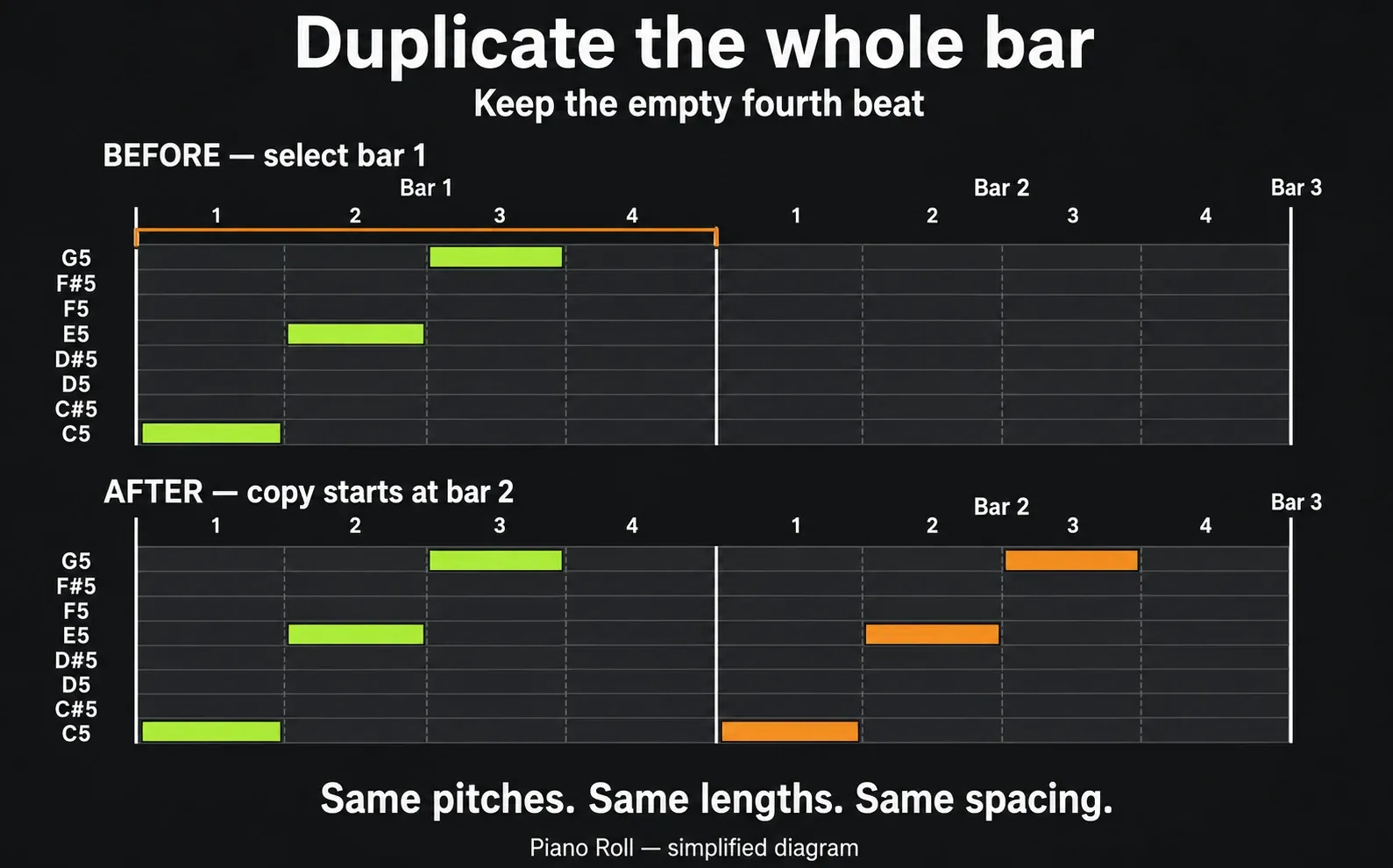
Keep the silence when you duplicate a bar. Select the notes you want, then hold Ctrl/Cmd and drag across one complete bar on the top time ruler. Ctrl/Cmd+B uses that time range as the repeat interval, even when the last note ends early. The note selection decides what to copy; the time selection decides how far the copy moves.
Image-Line’s current Piano Roll menu documentation lists these commands. If a single-key tool shortcut plays a note instead, turn off Typing keyboard to piano and try again. The FL Studio shortcuts guide explains why shortcut context matters.
Stretch a selected phrase instead of redrawing it
Once notes are selected, a Stretch Handle appears on the selection. Drag it to scale the whole phrase in time: note lengths and the gaps between notes grow or shrink together. Hold Alt/Option while you drag when the new length shouldn’t land on the Snap grid.
For a half-time version of a phrase, this is the quickest route. Select a two-bar melody, drag the handle until the phrase fills four bars, and every note doubles in length while keeping its place relative to the others. I’d stretch rather than redraw because the pitches, velocities and small timing choices you already made survive the move. Image-Line’s Piano Roll toolbar and editing reference lists the handle under selection editing.
Switch toolbar tools when Draw slows you down
Every Piano Roll editing tool has a single-key shortcut. These save the most mouse work:
- Paint (B) adds a line of notes as you drag. Hold Shift for monophonic paint, which replaces the notes underneath instead of stacking a chord.
- Select (E) selects with a plain click or drag, so you don’t need to hold a modifier.
- Slice (C) cuts notes as you drag vertically across them. Select touching pieces and press Ctrl/Cmd+G to glue them back together.
- Mute (T) mutes a note with a click, or several with a drag, without deleting anything.
- Delete (D) removes notes with a click or a drag.
- Play selected (Y) plays notes as you click them and scrubs as you drag.
I’d learn Paint and Mute first. Paint fills a steady hi-hat or bass rhythm in one stroke, and Mute lets you hear whether a note earns its place before you throw it away.
Set Snap for the rhythm you are actually writing
Snap is a placement rule. It won’t give you groove on its own. A coarse setting suits chord changes and kick anchors, while a finer one suits fast hats, pickups and short melodic notes. When the local Piano Roll Snap is set to Main, it follows the Global Snap selector in the main toolbar.
1/4 beat is a clear starting point for straight sixteenth-note placement, 1/2 beat works for eighth notes, and a triplet division suits phrases that really are built on triplets. Line changes with horizontal zoom, so it can feel different after you zoom in or out.
Hold Alt/Option while dragging to bypass Snap for a moment. That helps with a pickup or a deliberately late note, but it doesn’t replace picking a sensible grid. If every note needs a manual nudge, the current Snap value probably doesn’t match the rhythm.
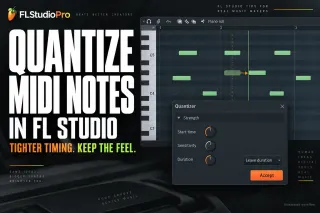
Snapping while you edit is also a different job from fixing a recorded performance. If the notes already exist and their timing needs repair, use the dedicated FL Studio quantize workflow. It explains Quick Quantize, start-time-only correction and the full Quantizer, so you can tighten timing without flattening the performance.
Shape note properties before adding another effect
Open the lower property selector and choose Velocity. A row of identical bars often sounds flat and mechanical when the instrument responds to velocity. Skip randomizing everything and decide which notes carry the phrase: maybe the first note of each bar, the snare backbeat or the top note of a chord.
Drag individual property bars, or sweep across several bars in one controlled gesture to draw a contour. For an exact value on one note, deselect the other notes first, then double-click the target to open Note Properties. That’s handy when chord notes start together and their bars overlap. If the note is part of a selection, changes in that dialog can apply to every selected note.
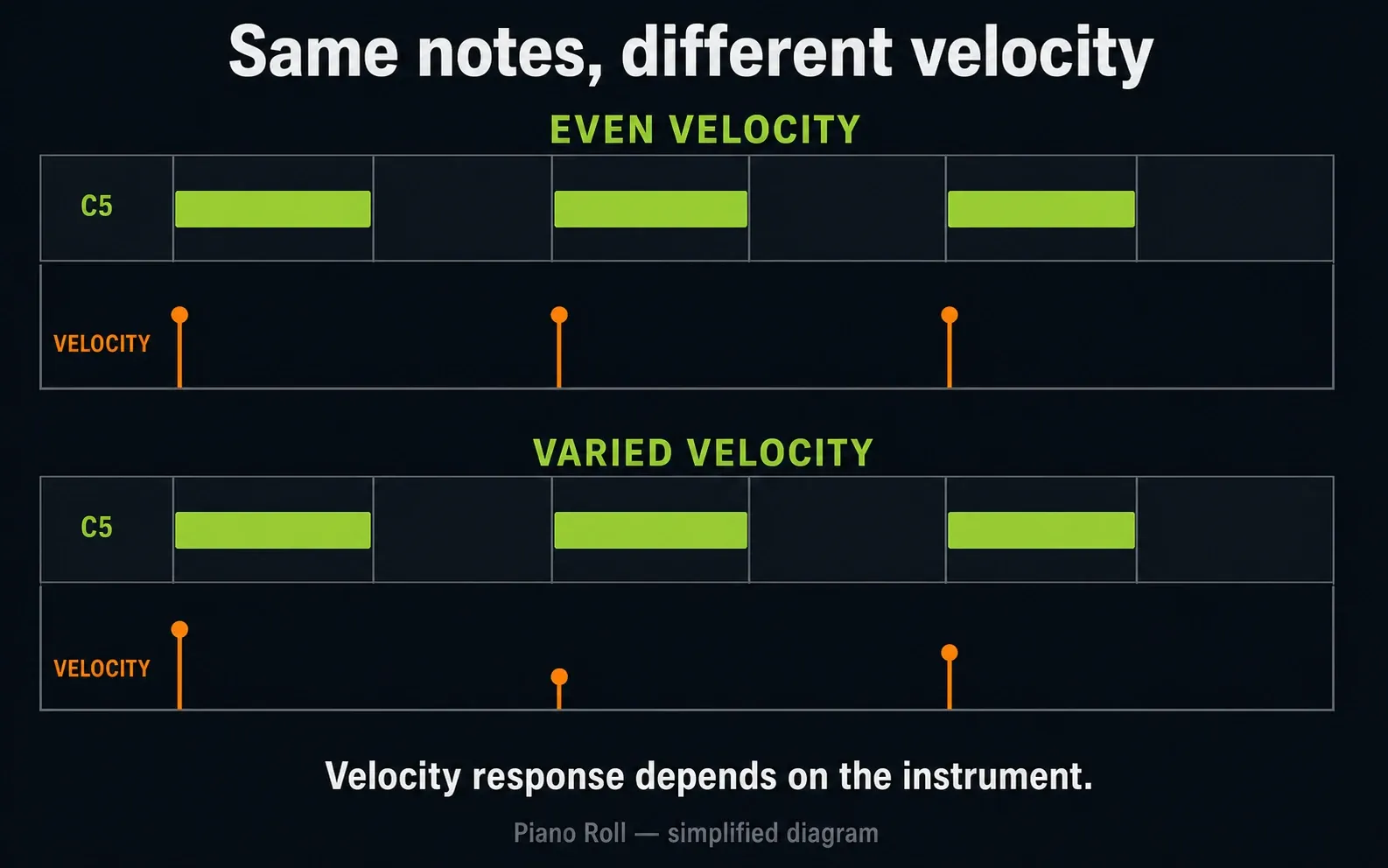
Pan and Mod X/Y are not universal MIDI controls. Image-Line’s per-note parameter guidance for VST instruments separates ordinary note velocity from native FL Studio properties. A VST preset may need its own velocity mapping before you hear any change, and its pan or Mod X/Y may ignore these bars entirely. Try the instrument before editing a whole phrase. For deliberate timing and dynamics changes, use the MIDI humanization guide.
Note properties and the Event Editor hold different data
The lower area of the Piano Roll edits more than velocity. Its target selector reaches note pan, pitch and filter cutoff as well as automation events, and Shift+F cycles through the targets. Note properties belong to individual notes and move with them. Automation events belong to a control, such as a synth’s cutoff knob, and play back as a curve over time.
To create event data, select the Pattern that should hold it, right-click the control and choose Edit events. The Event Editor opens on that parameter and shows data from the selected Pattern only; its Target menu switches to another data set. Image-Line’s Event Editor manual spells out the main limit: event automation is bound to its Pattern, so every clip of that Pattern plays the same movement. The Interpolate tool (I) works only on this event data, not on note-property bars.
I’d keep event data for movement that belongs to the riff itself, like a filter wobble that should repeat whenever the Pattern plays. When a sweep has to run across a whole section, use the Event Editor’s Edit menu → Turn into automation clip, or start with an Automation Clip. The FL Studio automation guide covers clips, recording and that conversion.
Use Piano Roll tools as editors, not idea substitutes
The Tools menu has enough generators and processors to reshape a phrase beyond recognition. The real skill is reaching for the smallest tool that fixes the musical problem in front of you.
- Quantize corrects timing toward a grid or groove target.
- Strum offsets chord notes so they do not begin at the same instant.
- Arpeggiate turns held chord tones into a repeating sequence. The built-in arpeggiation guide walks you through the complete technique.
- Quick legato extends selected notes toward the following notes.
- Chop divides longer notes according to a pattern.
- Chord Stamp places a chord shape using the current root, scale and Snap context.
Keep an untouched copy of the Pattern before applying a generator. A useful tool should leave a change you can name: tighter starts, a playable strum, a repeated rhythm or connected note lengths. A busier screen doesn’t count as an improvement.
Riff Machine: steer the generator instead of rolling dice
The Riff Machine sits in the same Tools menu (Alt+E on Windows, Option+E on macOS), and middle-clicking the Tools button opens it directly. It passes a phrase through eight steps: Note Progression, Chord Progression, Arpeggiation, Mirroring, Levels & Panning, Articulation, Groove and Fit. Each step has its own on/off switch. Throw dice generates a new random seed, and Accept keeps the current riff.
Draw your own chord progression first, then turn on Work on existing score at the bottom of the window and switch off the steps that would rewrite your harmony. That way the machine decorates your idea instead of replacing it. Set Snap before you open it as well: new notes take the current Piano Roll Snap length, and the Length and Variation controls stop working when Snap is (none). Image-Line’s Riff Machine page documents each step, and the dedicated Riff Machine guide walks through them with fixes for the usual problems.
Keep other parts and the song key visible without merging their jobs
Ghost Notes show other Channels in the same Pattern and, in current FL Studio, notes from overlapping Pattern Clips. They help you fit a bass line against chords or leave room for a counter-melody. Same-Pattern ghosts are solid blocks; out-of-Pattern references are open blocks. To edit safely, switch to the source Channel and Pattern. Editable ghosts lets you work directly with same-Pattern ghost notes, but it won’t make every overlapping Pattern editable from here. The Ghost Notes guide covers visibility, Channel filtering and source-Pattern selection.
Scale highlighting shades the grid for a chosen root and scale. Snap to scale goes further and constrains notes you edit or play in. If FL Studio suddenly refuses to put a note on a chromatic pitch, check the scale-snap control before you blame the mouse. The scale highlighting guide explains where visual guidance ends and forced snapping begins.
Slide notes are their own case. Image-Line documents Piano Roll slide and portamento behavior for native FL Studio instruments, and ordinary VST instruments don’t automatically follow those native slide notes. With a third-party instrument, use the synth’s own glide controls or suitable pitch automation.
Turn one Pattern into a useful four-bar practice loop
A short exercise teaches more than memorizing the toolbar:
- Load a simple instrument, create a new Pattern and use a 4/4 project for this exercise.
- Set Snap to 1 beat and draw three quarter notes in bar 1: C5 on beat 1, E5 on beat 2 and G5 on beat 3. Leave beat 4 empty.
- Select those notes and select the full interval from bar 1 to bar 2 on the top time ruler. Press Ctrl/Cmd+B to place the exact phrase in bar 2, preserving the final rest.
- Now select the notes in bars 1–2 and the two-bar time range from bar 1 to bar 3. Duplicate once more to fill bars 3–4.
- Change the ending of bars 2 and 4 so you don’t end up with four identical copies.
- Shape velocity so the phrase has a clear accent.
- Place the Pattern in the Playlist, switch to Song mode and listen against the rest of the project.
The exercise is small on purpose. Selection, duplication, Snap, note length, variation and Pattern placement all end up in one result you can hear. The complete beginner project tutorial picks up from this note-level work and moves on to arranging, routing and export.
Fix the Piano Roll problem before rewriting the notes
The Piano Roll opened on the wrong instrument
Check the target Channel in the Piano Roll title and the Channel Rack. One Pattern can hold notes for several instruments. Select the correct Channel, and don’t copy grey reference notes into the wrong instrument just to make them editable.
Notes only land on certain pitches
Snap to scale is probably on. Switch it off when you need chromatic notes, or check that the selected root and scale match the song.
Notes will not move between grid lines
Hold Alt/Option for a temporary free move, or pick a finer Snap value. If the part was recorded and sits broadly late, look at quantization or recording latency instead of dragging every note by eye.
Grey notes cannot be edited
For Ghost Notes in the same Pattern, switch to their source Channel or deliberately enable Editable ghosts. For notes from another overlapping Pattern, open that source Pattern Clip and then choose its Channel. Changing the Channel alone does not change the Pattern.
A MIDI keyboard produces no notes
The Piano Roll isn’t where this gets fixed. Work through the MIDI input and controller checklist, then come back once FL Studio is receiving note data.
A command changed every note
You probably ran it with nothing selected. Undo, select the phrase you meant and run the command again on that smaller scope.
Frequently asked questions
How do I open the Piano Roll in FL Studio?
Select the Channel you want and press F7, or right-click the Channel in the Channel Rack and choose Piano roll. On a Mac where the function keys control system features, use Fn+F7. Check the Piano Roll title so you know which instrument you’re editing.
How do I add and delete notes?
With the Draw tool active, left-click the grid to add a note and right-click a note to delete it. Drag the note to move it, and drag its edge to change its length.
How do I copy notes in the Piano Roll?
Select the phrase and press Ctrl+B on Windows or Command+B on macOS to duplicate it to the right. For an exact one-bar repeat, also select one full bar on the top time ruler; that time selection defines the repeat interval, including silence after the last note. Use copy and paste for a different destination.
Why is the Piano Roll playing the wrong sound?
The current Pattern can hold note data for several Channels. Switch the target Channel and confirm the instrument name in the Piano Roll title before editing.
Does the FL Studio Piano Roll work with VST instruments?
Yes, the Piano Roll can sequence VST instruments. Some native FL Studio behaviors, native slide notes in particular, don’t carry over automatically to ordinary VST instruments, so use the plugin’s own glide or pitch controls where you need them.
Your next step depends on what sounded wrong. Use the Piano Roll & MIDI hub for note editing, harmony and performance, or head to the FL Studio Workflow hub once the Pattern is ready to arrange. The Piano Roll works best as one part of a Pattern, an instrument and a song, rather than as a drawing exercise on its own.