FL Studio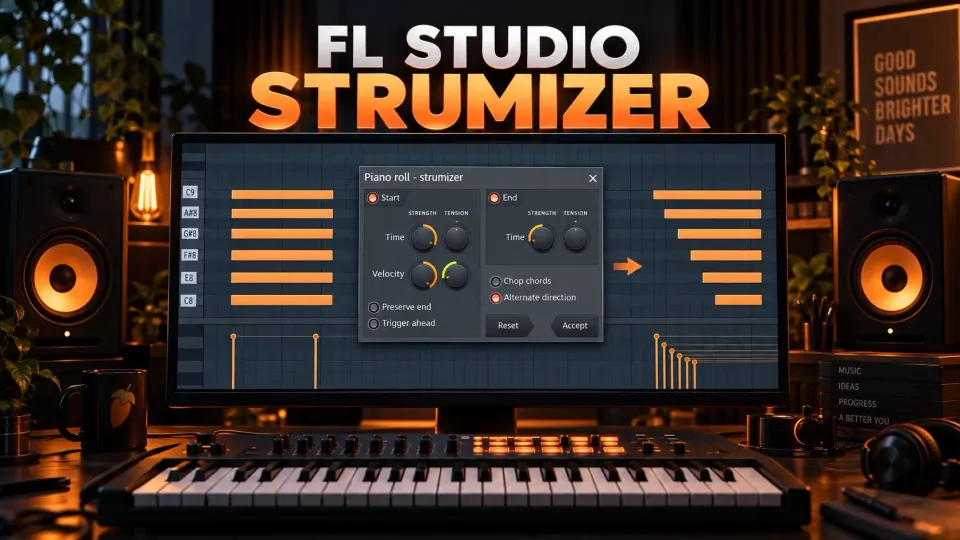
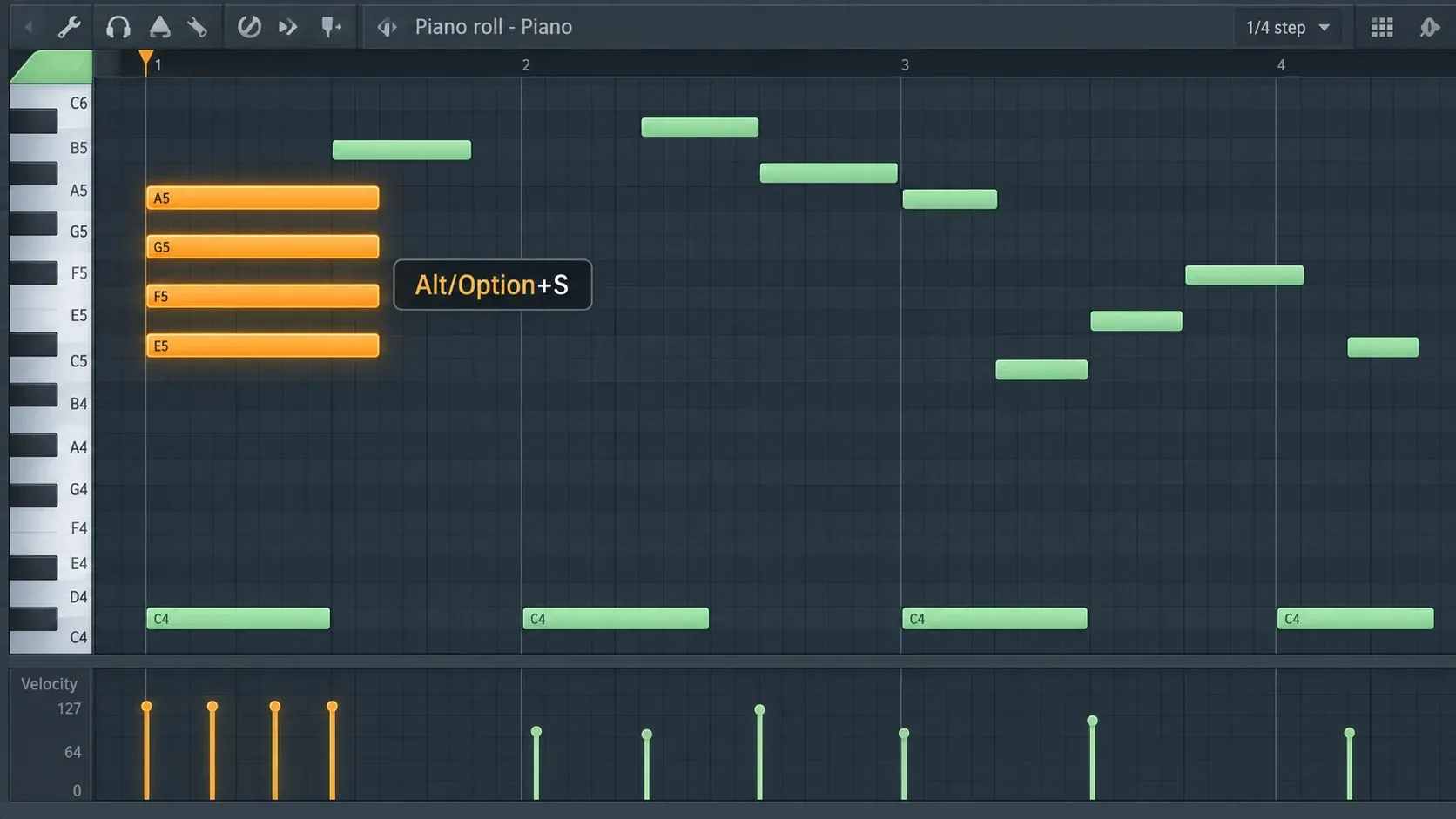
To strum chords in FL Studio, select the chord notes in the Piano Roll and press Alt/Option+S to open the Strum tool, the window tutorials call the Strumizer. A positive Start Time plays the chord from low to high notes, like a guitar downstroke, and a negative value plays it from high to low, like an upstroke. Start Tension shapes how the gaps grow or shrink across the chord, and every FL Studio edition includes the tool.
The manual marks Strum with its Fruity Edition and up badge, which covers the Fruity, Producer, Signature Bundle and All Plugins editions, and the FL Studio editions guide compares those tiers. Velocity, Preserve end, End, Chop chords and Alternate direction handle narrower jobs. I set them only after the attack order sounds right, because the velocity slope follows the strum order and Preserve end reacts to the moved starts. The working order runs selection, direction, spread, tension, velocity, note endings, sequence options, then Accept.
Select the chord notes the Strumizer should treat together
Strum treats overlapping notes that share one start time as one chord. If four notes start together and overlap, they form one strum event. A note that starts later is a separate event even when it belongs to the same harmony, and a short note that ends before the others begin stays out of their group. The same rule explains why a chord that has already been strummed no longer counts as a chord: its notes stop sharing a start.
I select only the chord notes before I press Alt/Option+S, because the Piano roll menu reference says most operations work on the selection, or on the whole Piano roll when nothing is selected. The FL Studio Piano Roll guide covers selection, snapping and note editing for the bigger picture.
Start from a clean block chord. Equal starts make the result easy to read, because every changed attack came from the tool and none from timing that was already there. Open Strum with Alt/Option+S or pick it from the Piano Roll Tools menu.
Read the window as Start, End and sequence options
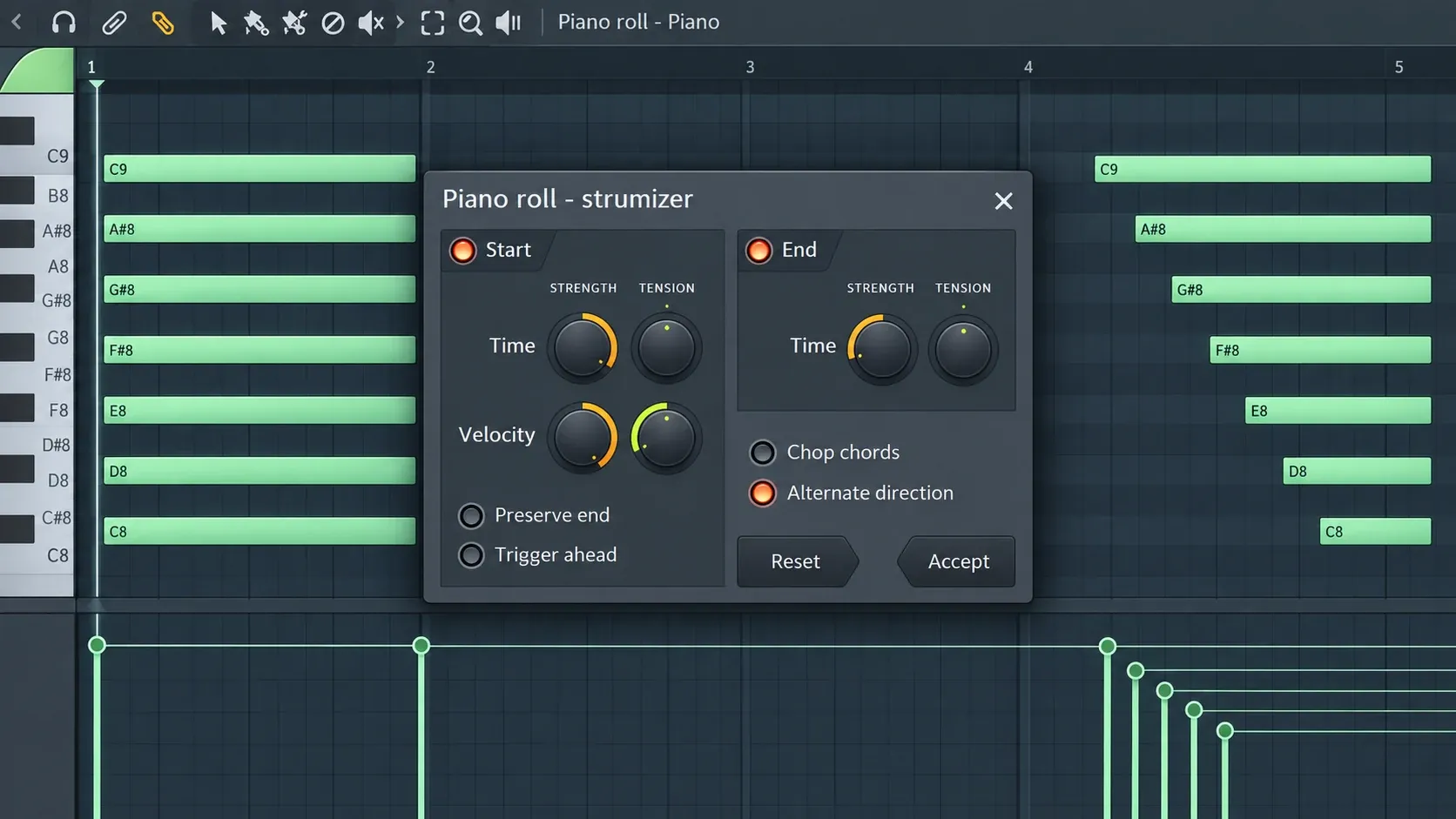
The Strum window has two main panels. Start handles attack timing and velocity, and End handles note endings on its own. Each panel has an enable light in its top left corner, so a knob can hold a value without that section touching the notes.
Under Start, Time and Velocity each have a Start knob and a Tension knob. Preserve end and Trigger ahead sit below them. The End panel has its own Time Start and Tension controls. Chop chords and Alternate direction apply to the sequence rather than to one knob curve. Reset returns the tool to its default state, and Accept keeps the changes and closes the tool.
The official Image-Line Strum Tool manual names every control. Match the controls by their labels in your FL Studio version, not by the look of an older tutorial. The table sums up what the sign of each Start knob does.
| Control | Positive value | Negative value |
|---|---|---|
| Start Time | Low to high notes, a downstroke | High to low notes, an upstroke |
| Start Tension | Accelerates the strum | Decelerates the strum |
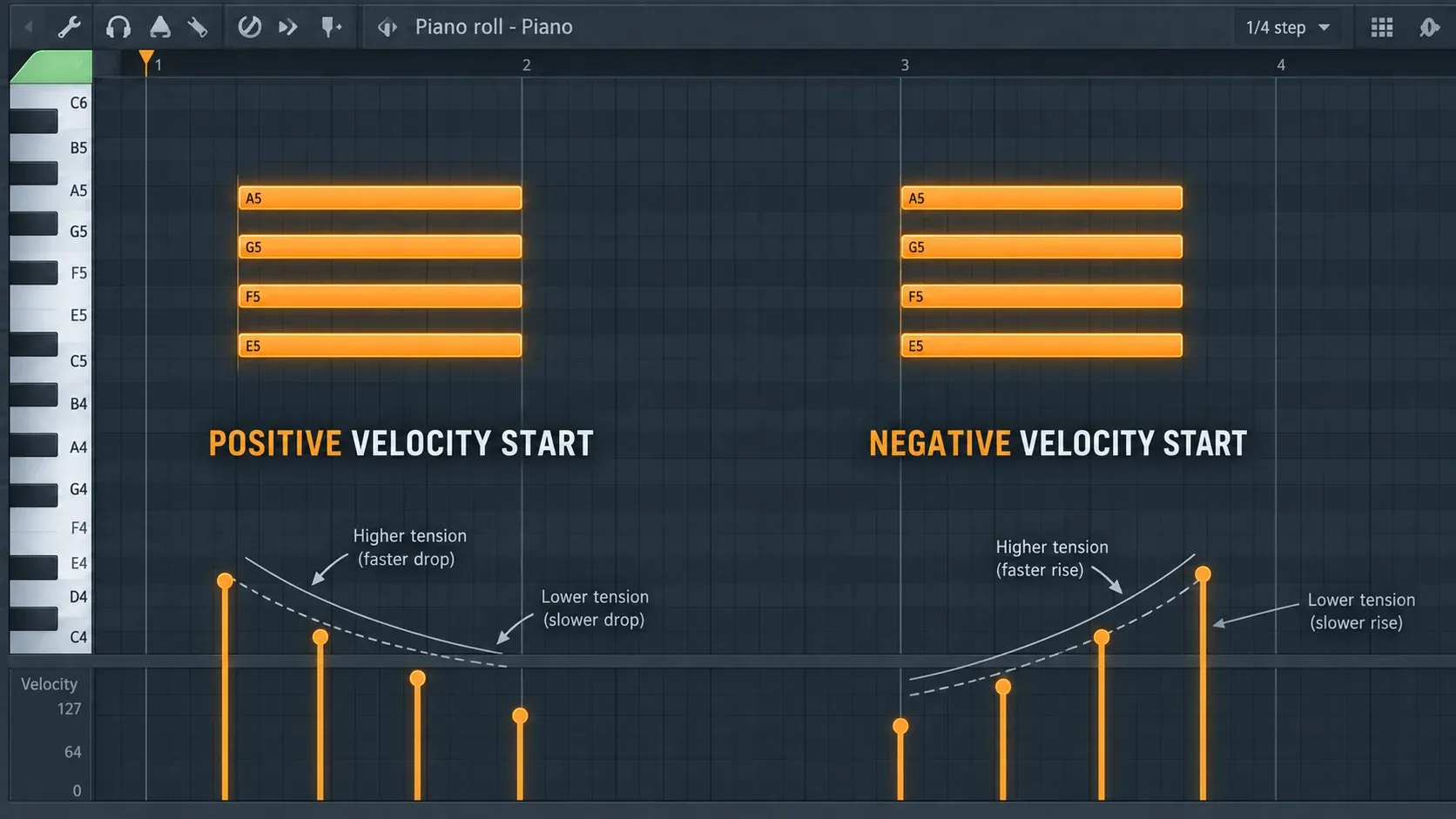
| Velocity Start | Each following note gets softer | Each following note gets louder |
| Velocity Tension | Accelerates the velocity change | Decelerates the velocity change |
Use the sign of Start Time to choose direction
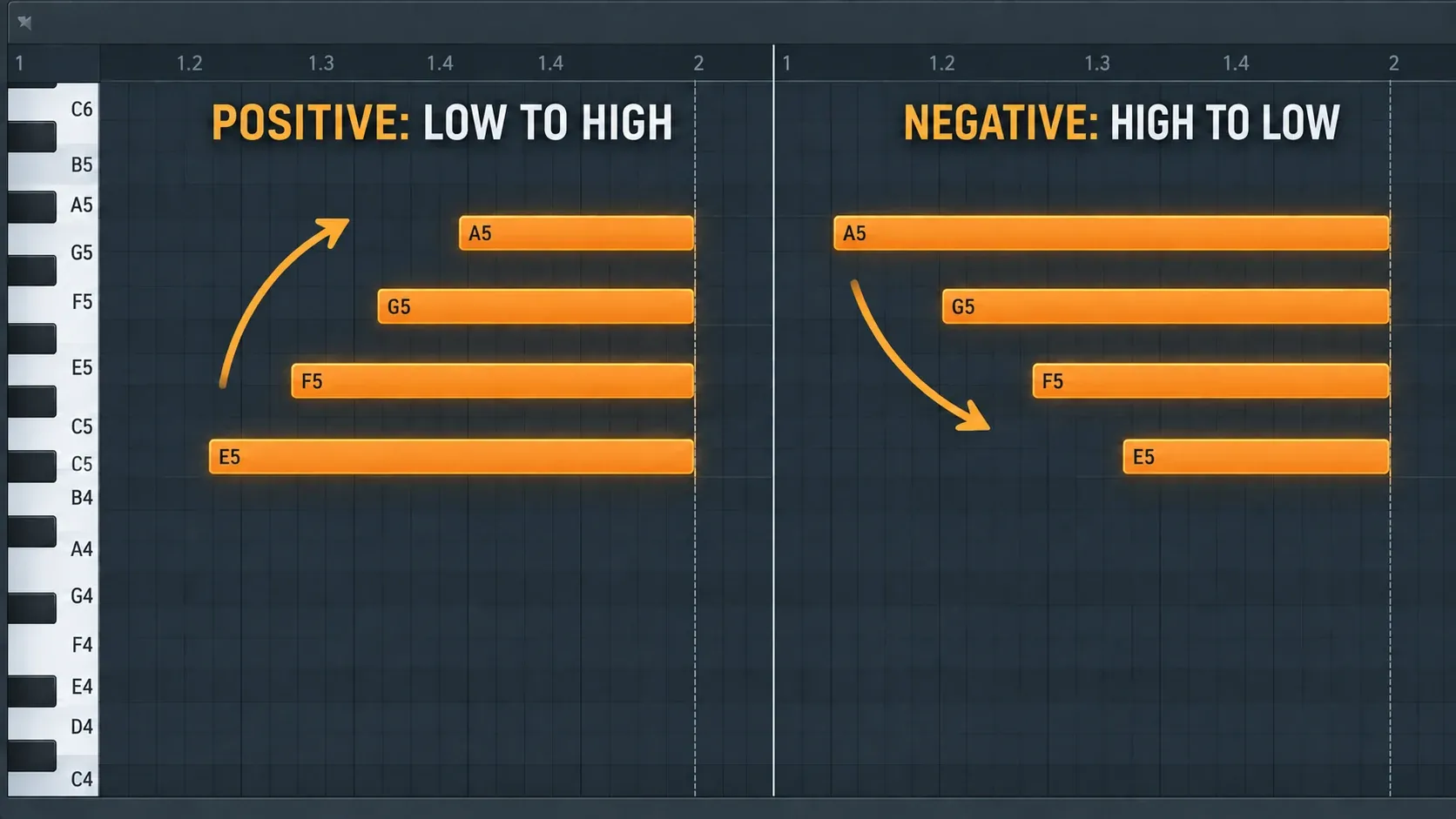
A positive Start Time value runs through the chord from low pitches to high pitches. In the Piano Roll, the lowest note begins first and each higher note follows. A negative value flips that order: the highest pitch begins first and the lower notes follow.
Image-Line ties the sign to a guitar: a downstroke contacts the strings from low to high, and an upstroke from high to low. A positive Start Time is a downstroke and a negative one an upstroke. I pick the sign from the stroke the part needs, because Image-Line maps positive to a downstroke and negative to an upstroke, so a down and up rhythm translates straight into signs. The Piano Roll shows the result: follow the left edges from the bottom note up.
The distance from zero sets the overall spread. A small value separates the attacks while the chord still reads as one event, and a large value turns the notes into an obvious sweep. If the harmony lands late against the beat, pull the amount back before you start repairing notes one by one.
Center the spread with Trigger ahead when the beat must stay anchored
By default, the strum pushes attacks away from their original shared start. Trigger ahead spreads attacks on both sides of that point instead. That can keep the perceived center of the chord closer to the beat, but some notes will begin early. Leave enough room before the chord and check that the early attacks don't bump into the previous phrase.
Use Start Tension to shape spacing, not to set the total spread
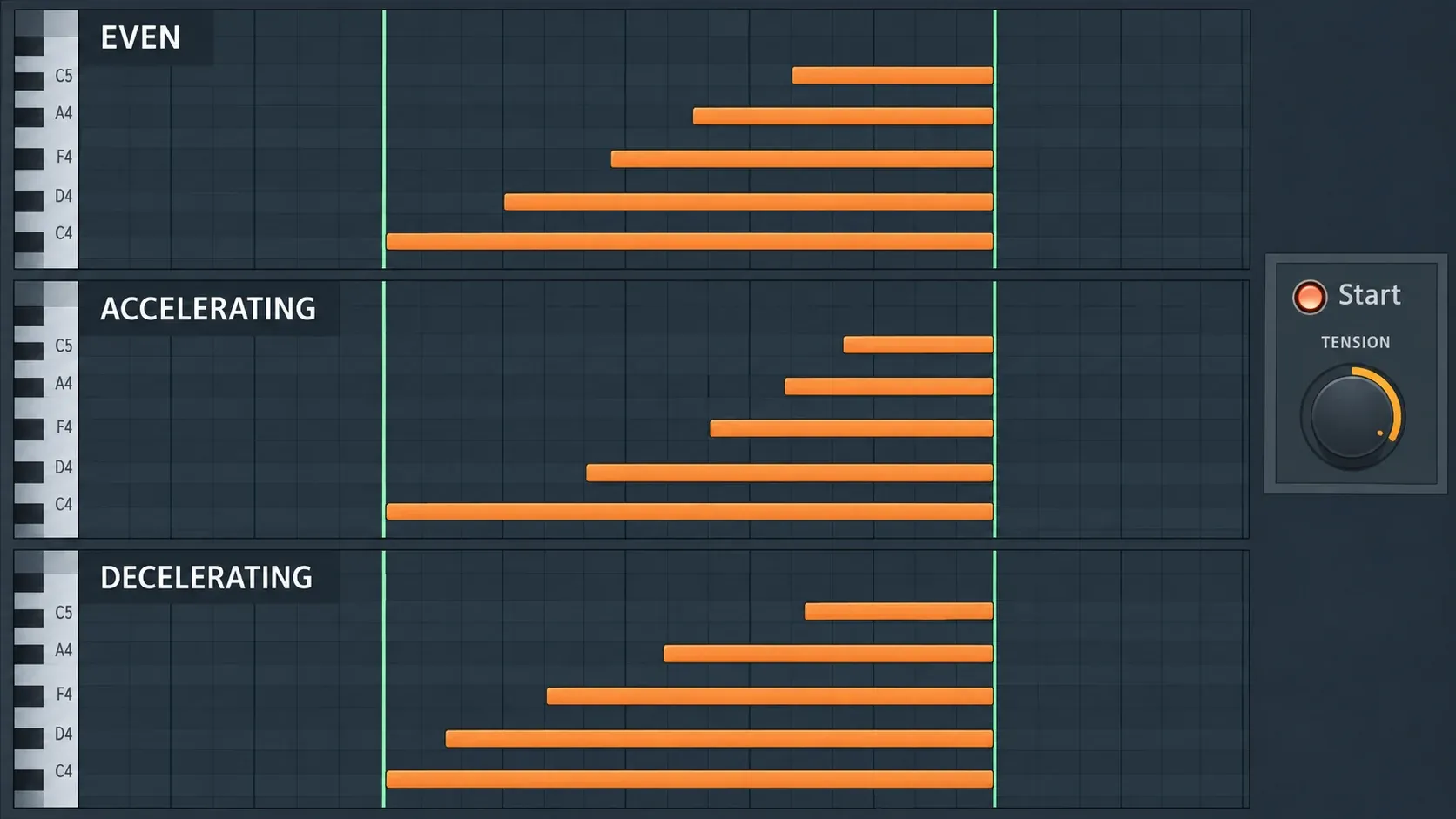
Start Time sets the timing offset, and Start Tension changes the acceleration across the chord. In Image-Line's Strum controls, a positive Tension accelerates the strum and a negative one decelerates it. Keep this timing control separate from the Tension knob in the Velocity section.
Use a chord with several notes so the changes in the inner attacks are easy to follow. Compare the note starts as you move Start Tension. Judge the rhythm of the full sweep instead of assuming the low or high notes always mark its beginning: the sign of Start Time also sets the strum direction.
I set Start Time first and Tension second, because Start Time sets how far the attacks spread, while Tension changes how the gaps inside that spread grow or shrink. If the first and last notes land where the phrase needs them but the middle of the chord feels rushed, Tension is the control to move. If the whole gesture is too long, go back to Start Time.
Shape the velocity slope separately from timing
Velocity Start changes the velocity of the notes that follow the first one in each strummed chord. A positive value lowers the velocity with each note, and a negative value raises it. The slope follows the strum order, so flipping Start Time also flips which end of the chord gets quieter. Check the velocity lane after any direction change.
Velocity Tension changes how quickly that velocity difference builds. A positive value accelerates the change across the notes, and a negative value decelerates it. It works like the timing pair: Start sets the broad amount, and Tension reshapes the curve between the endpoints.
Use velocity to clarify the gesture, not to force a weak sound to act like a different instrument. Steep slopes can make the last note vanish or let one pitch take over the whole chord. For looser variation across a full MIDI part, move on to the FL Studio humanize MIDI workflow once the main strum pattern is settled.
Choose whether starts, lengths or endings should stay fixed
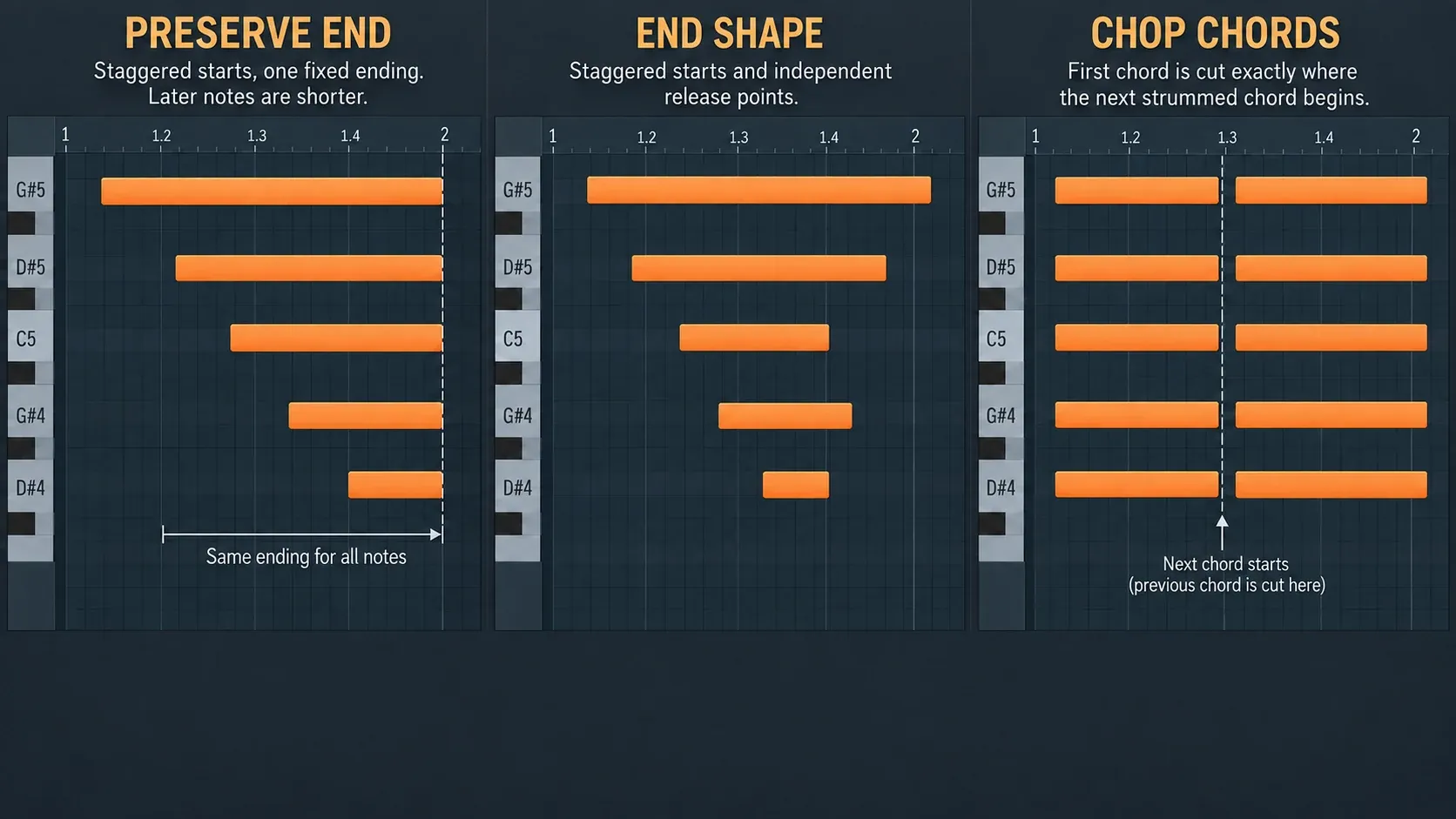
Moving attacks raises a second question: what happens to note endings? With Preserve end on, the original end positions stay put while the starts move, so later attacks become shorter notes. That suits a chord that must release at one shared point, but a wide strum leaves the final note much shorter than the first.
With Preserve end off, each note keeps its length and moves with its shifted start, so the staggered attacks keep a consistent duration. I leave Preserve end off unless the chord has to stop on one shared point, because Preserve end shortens every note that starts later, and the last notes of a wide strum lose the most.
The End panel gives release timing its own Start and Tension controls, and it accepts a negative shift too. It still moves the endings when Preserve end is on. Turn it on only when the endings need a spread of their own, since every extra curve is one more thing to check. After adjusting End, zoom in on short notes so a moved release does not cross its own start.
Use Chop chords when held notes run into the next chord
Chop chords cuts a previously held chord where the next strum begins. It's built for sequences where sustained notes overlap the following chord event. Turn it on when the new attack should cleanly replace the old harmony. Leave it off when the overlap is intentional, such as a pedal-like transition or a shared tone that should keep ringing.
Alternate direction for down and up strokes
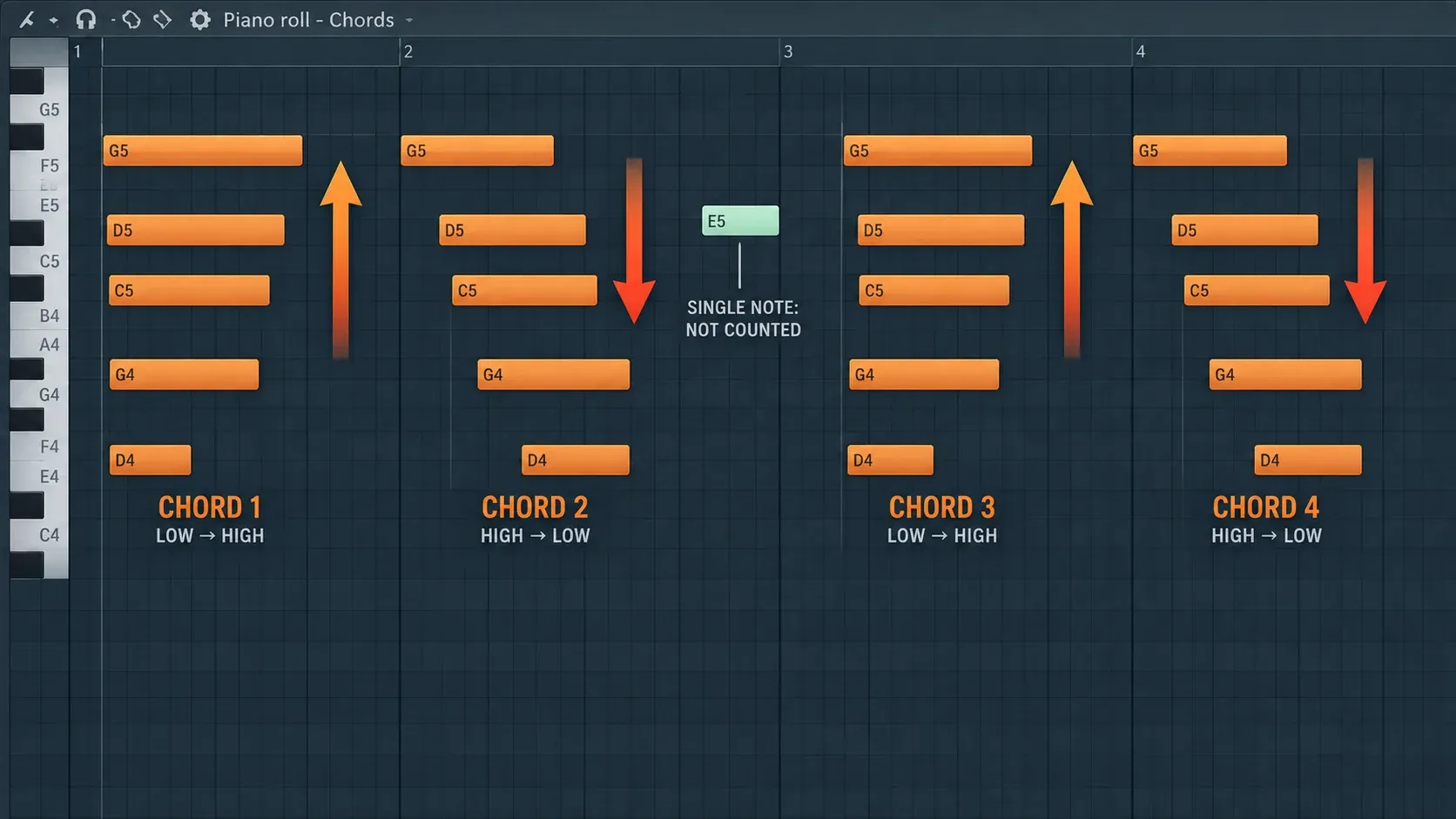
Alternate direction flips successive strum events: one chord runs one way, the next runs the other. FL Studio ignores single notes when it counts reversals, so a melody note between two block chords won't use up the next direction change.
This option works best on a sequence with consistent chord grouping. If notes that belong together have slightly different original starts, the tool can read them as separate events. Line up the block attacks before opening Strum, then treat the alternating result as a phrase-level pattern.
Alternation gives a strummed guitar part its down and up feel. I use Alternate direction for a down and up rhythm part instead of selecting every other chord by hand, because it flips each chord event in one pass and skips single notes when it counts. Switch it off when the harmony needs the same attack emphasis every bar, since constant flips can make a four-chord loop sound mechanical.
A reliable workflow for a natural strum
- Clean the selection. Align the block-chord starts and leave melody, bass and ornament notes out.
- Set direction. Move Start Time positive for a downstroke or negative for an upstroke, then check which pitch starts first.
- Set the spread. Stop while the chord still reads as one gesture, unless the part calls for a pronounced sweep.
- Shape the middle. Move Start Tension once the first and last attacks land where the phrase needs them.
- Add dynamics. Set Velocity Start and Tension while watching the lane for lost or over-accented notes.
- Decide the release. Compare Preserve end with moving lengths, and use End only when the release needs its own curve.
- Resolve overlaps. Enable Chop chords for held notes that should stop at the next event.
- Build the phrase. Switch on Alternate direction only on a clean sequence of chord events.
- Accept and inspect. Check the first and last note, the shortest length and the strongest and weakest velocity.
Fix Strumizer problems at the cause
The shortcut opens Strum but the intended chord does not move
Select the intended notes before opening the tool, and check that their starts match and their lengths overlap. A note that starts later is not part of the same chord event.
Strum does nothing the second time
Strum groups notes that overlap and share one start time. After one pass the starts are spread, so a second Alt/Option+S finds no chord to strum. Press Ctrl/Cmd+Z to bring the original starts back, or select the notes and press Shift+Q, which quantizes the selected start times to the global snap setting. Check that the starts line up again, then open Strum.
I undo before I quantize, because undo restores the exact original starts, while Shift+Q moves each start to the snap grid. The shortcut list gives Ctrl/Cmd+Z as undo and redo of the last edit, so a second press brings the strum back, and Ctrl/Cmd+Alt/Option+Z steps further back through the history.
The strum direction sounds backward
Check which pitch begins first. Positive Start Time runs low to high, a downstroke, and negative runs high to low, an upstroke. If the sample's articulation makes that feel reversed, choose by the attack you hear and keep the pitch rule in mind.
Later notes became too short
Preserve end is holding the old release while the starts move. Reduce the spread, disable Preserve end, or use the End panel to create a release pattern that leaves every note usable.
The previous chord overlaps the next one
Enable Chop chords when the old harmony should stop at the new attack. If only one or two notes should carry across, leave Chop off and edit those endings individually after Accept.
Every chord has the same obvious staircase
Reduce the spread, soften the velocity slope, vary Tension, or use Alternate direction on selected chords. For repeated-note motion rather than one spread attack, use the Piano Roll Arpeggiate tool, which solves a different rhythmic problem.
Accept, then make only the cleanup the phrase needs
Accept keeps the changes and closes the tool. You can still undo the result from the project history or with Ctrl/Cmd+Z, so Accept hands you back to normal Piano Roll editing without locking anything in. The FL Studio undo and redo guide covers the history in more depth.
After Accept, zoom in on the attack edges and the velocity lane. Move a single note only when you can name the problem: an early transient collides with the previous beat, the final attack lands too late, or a note became too short to sound. Don't quantize the whole chord back to one line, because that erases the effect the tool built. If only some attacks need to sit tighter to the grid, use the FL Studio quantize controls with a light touch.
Strum, Flam or Arpeggiate: which Piano Roll tool fits
Three Piano Roll tools change how notes start, and each fits a different part. Strum (Alt/Option+S) spreads the notes of a chord in pitch order. Flam (Alt/Option+F) plays two drum hits in close succession to blur the attack, and the Flam tool manual describes the result as an attack that blurs from bam to flam. Arpeggiate (Alt/Option+A) builds repeated-note patterns from score presets.
I use Flam on drum hits and Strum on chords, because Flam blurs a single drum attack while Strum spreads a whole chord in pitch order. Arpeggiate is the pick when the chord should become a moving pattern rather than one spread attack.
FL Studio Strumizer FAQ
What is the FL Studio Strum shortcut?
Alt/Option+S, with the chord notes selected in the Piano Roll. The Strum tool also sits in the Piano Roll Tools menu.
Is a positive Start Time a downstroke or an upstroke?
A downstroke. A positive Start Time strums from low to high notes, the way a guitar downstroke contacts the strings, and a negative value strums from high to low, like an upstroke.
Why does Strum do nothing the second time?
After one pass the notes no longer share a start time, so the tool finds no chord. Press Ctrl/Cmd+Z, or select the notes and press Shift+Q to quantize their starts, then strum again.
Can a strum be undone after Accept?
Yes. Image-Line notes that accepted changes can be undone from the project history or with Ctrl/Cmd+Z.
Which FL Studio editions include Strum?
Every edition. The Strum page carries the Fruity Edition and up badge, which covers Fruity Edition, Producer Edition, Signature Bundle and All Plugins Edition.
Does Strum change every note in the Piano Roll?
Not when chord notes are selected. Image-Line says most Piano Roll operations work on the selection, or on the whole Piano Roll when nothing is selected, so select the chord notes first.