FL Studio
To undo in FL Studio, press Ctrl+Alt+Z on Windows or Cmd+Opt+Z on a Mac. Each press steps one edit further back. To redo, press Ctrl+Z (Cmd+Z), which steps forward again through the edits you undid. At the newest edit, Ctrl+Z flips that one edit between undone and redone, which is why it seems to undo only once. To jump straight to any earlier point, right-click the Undo button in the toolbar and click a step in the History list.
If you would rather have Ctrl+Z behave the way it does in most other programs, turn on Alternate undo mode in Options > General settings. The rest of this guide covers the default undo model, the History list, the settings that decide what can be undone at all, and the usual reasons undo seems broken.
FL Studio undo and redo shortcuts
Image-Line's Edit menu documentation describes undo as two commands that walk through one shared edit history: Ctrl+Alt+Z steps back, and Ctrl+Z steps forward unless you are already at the latest step, where it works as a one-step undo and redo. The keyboard shortcut reference lists the pair as "Undo step-by-step" and "Undo/Redo last edit" and maps Ctrl to Cmd and Alt to Opt on macOS.
| What you want | Default mode | Alternate undo mode |
|---|---|---|
| Undo, one more step back per press | Ctrl+Alt+Z (Mac: Cmd+Opt+Z) | Ctrl+Z (Mac: Cmd+Z) |
| Redo, one step forward per press | Ctrl+Z (Mac: Cmd+Z) | Ctrl+Alt+Z (Mac: Cmd+Opt+Z), as forum users describe it |
| Ctrl+Z at the newest edit | Undoes or redoes that single edit | Steps back |
| Go to any step directly | Click it in Browser > Current project > History | Same |
| Toolbar Undo button | Left-click undoes the last command; right-click shows History | Same |
The Alternate column needs one caveat. The General settings documentation only says what Ctrl+Z does in that mode. Image-Line does not spell out the redo key, but users who run Alternate undo mode treat Cmd+Opt+Z as redo, for example in this Image-Line forum thread about the Mac redo shortcut.
Why Ctrl+Z only undoes once in FL Studio
Say you add a few notes, move a clip in the Playlist, then delete a Pattern by mistake. Press Ctrl+Z and the Pattern comes back. Press Ctrl+Z again and it disappears again. In the default mode, Ctrl+Z at the newest step is a switch for that single edit, not a walk backward through the project.
To get back to before the clip move, press Ctrl+Alt+Z. The first press restores the Pattern, the second puts the clip back, the third removes the notes. Once you have stepped back, Ctrl+Z moves forward through those same steps, which is FL Studio's redo. There is no Ctrl+Y and no Cmd+Shift+Z for undo or redo in Image-Line's desktop shortcut list, and that is where people coming from other software usually get stuck.
Which mode should you use? If FL Studio is the only program you edit in all day, I would keep the default. The toggle is a quick way to compare a change against the version before it, and Ctrl+Alt+Z covers longer trips back. If you switch between FL Studio and apps where Ctrl+Z always steps back, turn on Alternate undo mode so your hands do the same thing everywhere. Just know that Edison, covered below, has its own undo and no Alternate mode.
Use the History list to jump back to any point
Every undo step is listed in the Browser under Current project > History. Image-Line's Browser documentation calls it the set of possible undo steps and puts the last action you performed at the bottom of the list. When you are not sure how many presses of Ctrl+Alt+Z you need, this list is the faster route.
- Right-click the Undo button in the toolbar. The toolbar documentation describes right-click on that button as the shortcut to History in the Browser. You can also open the Browser with Alt+F8 (Opt+F8) and expand Current project > History yourself.
- Read the list from the bottom up. The newest step is at the bottom unless you have turned on Show recent changes at top.
- Left-click the last step you want to keep. Everything after it is undone.
- If you landed too early, click a later step. The steps you undid stay in the list, which is what Ctrl+Z moves forward through, so the same list works in both directions.
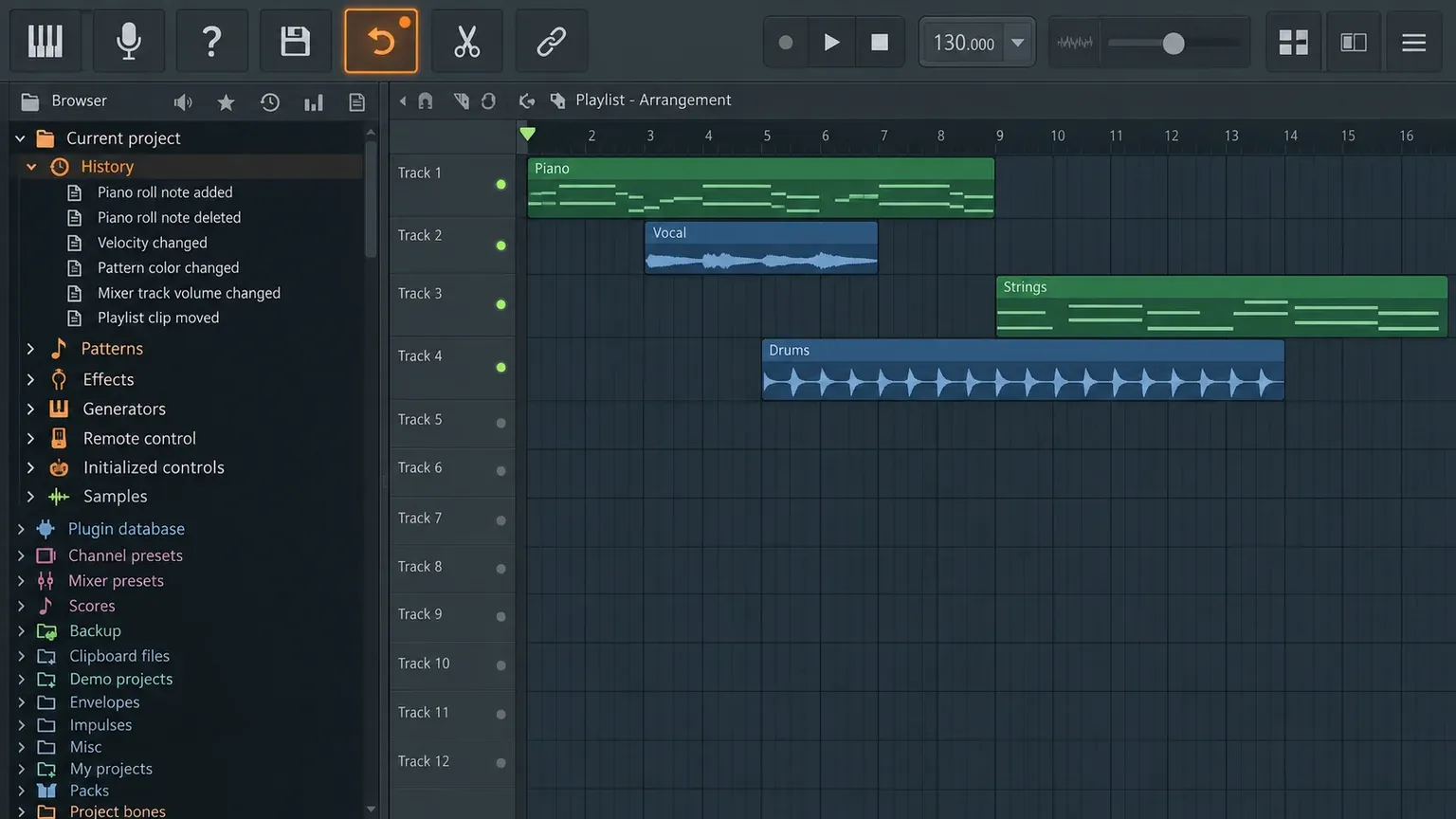
Entries are named after the action, so you can usually find the mistake by reading. Image-Line keeps refining those labels; the 2026.1.3 maintenance update in the FL Studio release notes made stretching an Audio Clip appear as "Stretch" in the Browser.
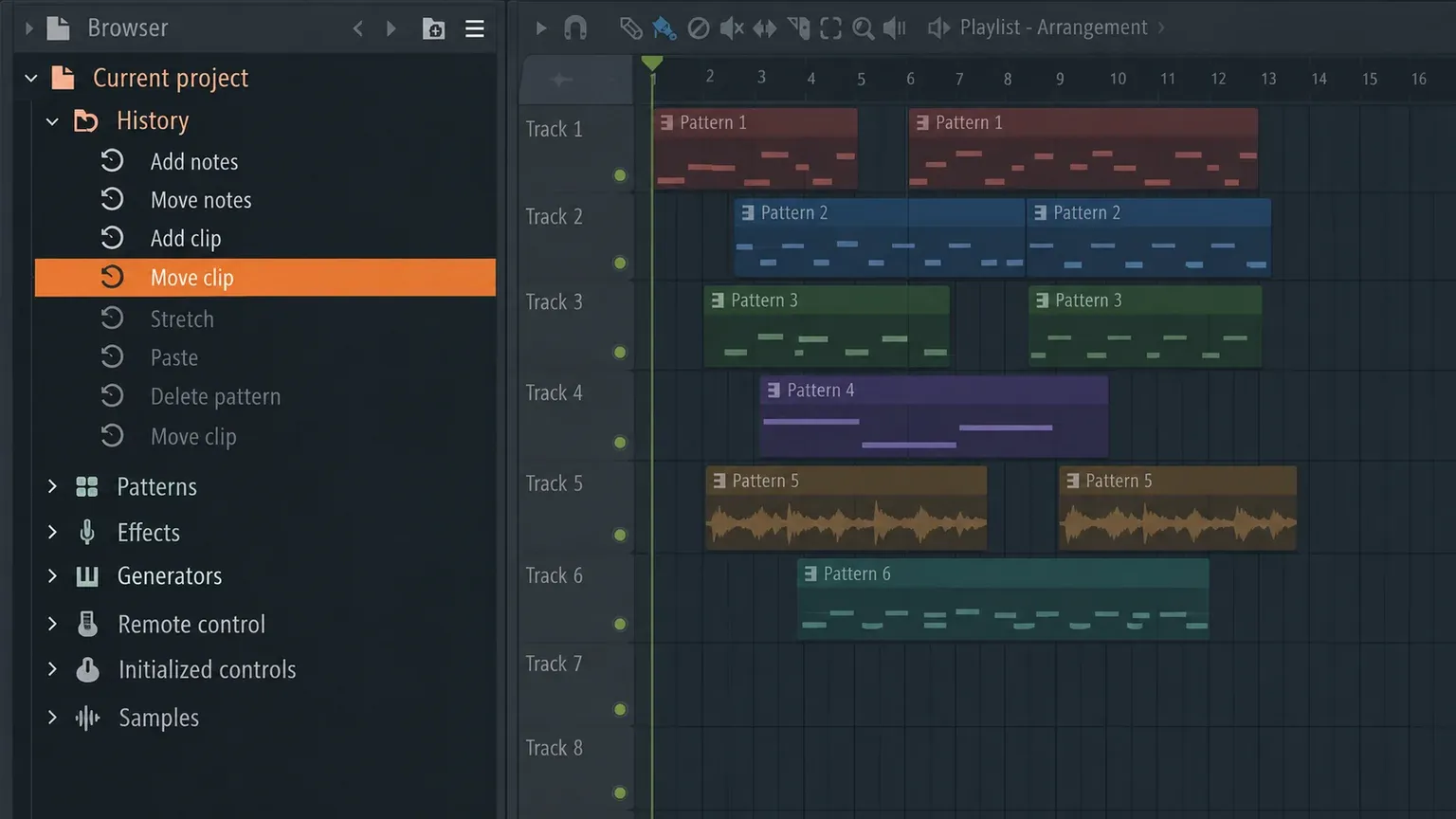
Treat History as a way back through recent edits, not as a backup. Saved versions, covered further down, are the safer rollback point for anything you might want tomorrow, and the FL Studio Browser guide covers what else lives in the Browser.
Undo History settings that change what you can undo
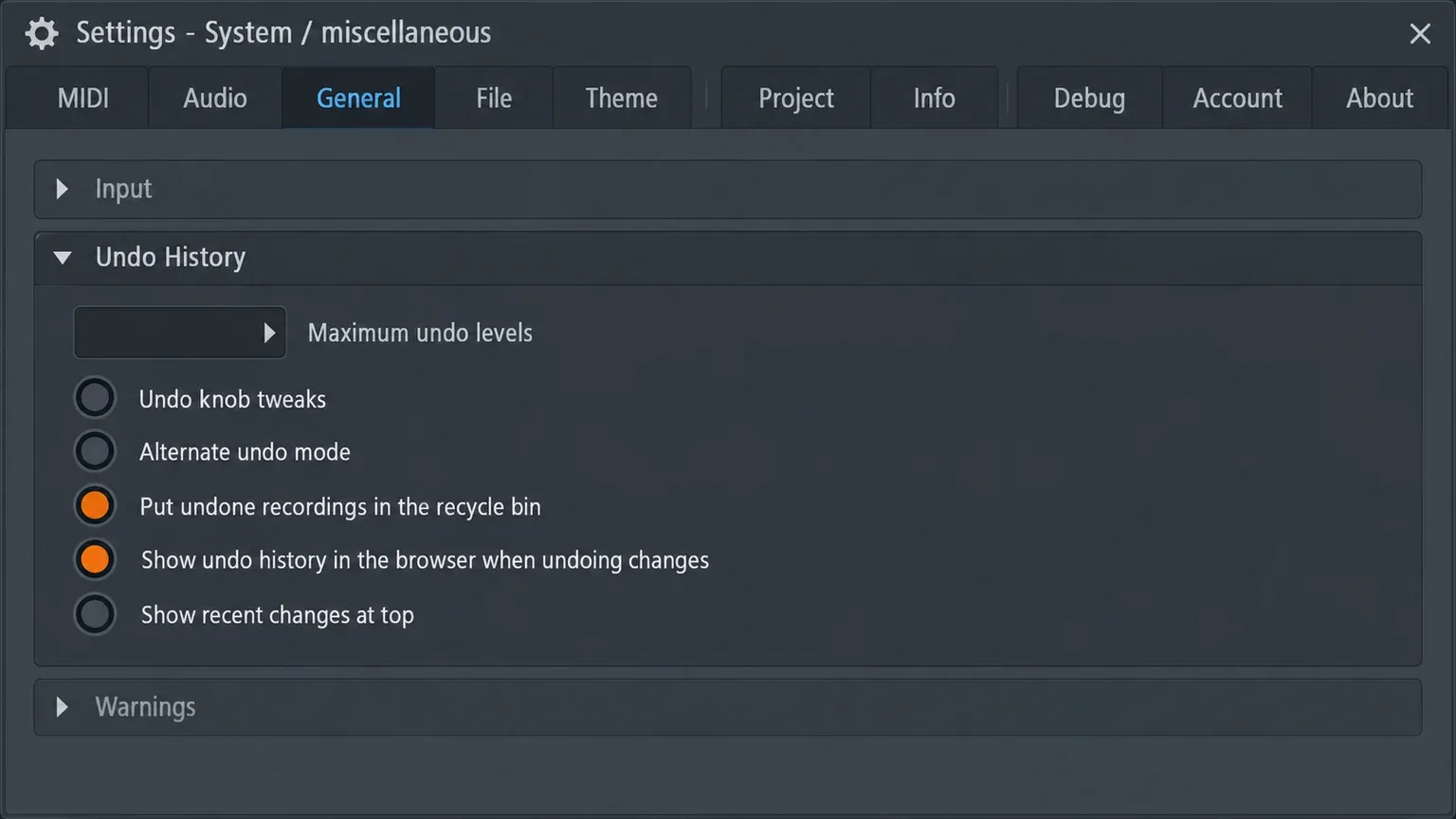
Open Options > General settings and find the Undo History section. Image-Line's General settings documentation describes six options, and two of them explain most "undo didn't catch that" complaints.
| Setting | What it does | My take |
|---|---|---|
| Maximum undo levels | Sets the maximum number of undo steps kept in the history | Raise it if you regularly reach the top of the list before you reach the mistake |
| Undo knob tweaks | Adds changes to automatable controls (sliders, knobs and check boxes) to the history. Off by default because it can cause performance problems with some plugins, such as X-Y Controller and Scratcher | Turn it on if you want mix moves to be undoable; turn it off again if those plugins start misbehaving |
| Alternate undo mode | Ctrl+Z steps back through the history instead of alternating between undo and redo | On for muscle memory from other apps, off to keep the one-step toggle |
| Put undone recordings in the recycle bin | Undone recordings go to the operating system's recycle bin or trash. With it off, undone recordings are lost for good | Leave it on |
| Show undo history in the browser when undoing changes | Switches the Browser to Current project > History when you undo | Worth turning on while you learn the undo model, because you see where each press lands |
| Show recent changes at top | Sorts History from newest to oldest | Personal preference |
Undo not working in FL Studio? Fixes by symptom
Ctrl+Z undoes one edit, then puts it back
That is the default toggle, not a fault. Use Ctrl+Alt+Z (Cmd+Opt+Z) to keep stepping back, click a step in History, or turn on Alternate undo mode.
Ctrl+Z suddenly steps back through several edits
Alternate undo mode is on. In a 2023 Image-Line forum thread, a user whose Ctrl+Z had started behaving like Ctrl+Alt+Z was pointed to the 'Alternate undo mode' option by Image-Line technical support. Turn it off in Options > General settings to get the toggle back.
A knob, fader or plugin move isn't undone
Check Undo knob tweaks first; it is off by default, so control changes never enter the history. For third-party plugins, the plugin wrapper's Notify about parameter changes option is what tells FL Studio which control you touched, and Image-Line's plugin wrapper documentation says that data feeds the undo history when Undo knob tweaks is on. It is normally on, so if a plugin's moves still never show up with both options on, the plugin itself is the likely cause.
The setting covers automatable controls. Controls that cannot be automated are a separate case handled plugin by plugin; FL Studio 2026.1.1, for example, added undo for Love Philter's non-automatable controls. If you need to recall a whole mix state rather than one move, an automation clip or a saved version is more dependable than undo.
Ctrl+Z goes to a plugin instead of FL Studio
When a plugin window has keyboard focus, it can take the keystroke before FL Studio sees it. Work through the wrapper settings in this order:
- Typing Keyboard Priority. When it is selected, the plugin uses keyboard shortcuts first and passes on only the ones it ignores. Deselect it so FL Studio gets first use.
- Allow FL Studio to undo when Ctrl+Z is pressed. This option on the wrapper's Troubleshooting tab decides who handles Ctrl+Z. With it off, the plugin's own undo is used.
- Keep focus. This stops the plugin from stealing keyboard input, though Image-Line notes it won't always work.
- Bridged plugins. A plugin running through the bridge always steals keyboard focus once its window is clicked. The manual's fix is a plugin build that matches FL Studio's bit version; FL Studio for Mac only supports 64-bit VST and AU plugins.
- Patcher. All plugins inside Patcher steal keyboard focus when selected, so click outside the Patcher window before you undo.
- Detached windows and stubborn plugins. A detached plugin is treated as a separate application, and some plugins simply do not forward key presses. Click back into FL Studio first. If a detached window keeps taking the keys, Image-Line's fix is to change its detached state from the plugin window menu; for plugins that never pass key presses on, it suggests contacting the developer.
While you sort it out, the toolbar Undo button and the History list are clicks rather than keystrokes, so they work no matter which window holds keyboard focus.
History runs out before the mistake
Raise Maximum undo levels for next time. For the current mistake, check whether an autosave or a saved version from before the edit exists; the FL Studio autosave and backup guide shows where those files live.
Undo stopped working in one project only
In a 2022 Image-Line forum thread, a user found that Ctrl+Alt+Z, Ctrl+Z and the toolbar Undo button all did nothing in one project while the Browser's History still worked. Image-Line support's reply suggested saving the project as a new version, and the user concluded a third-party plugin was behind it. I would do the same: use History so you can keep working, save a new version, then remove third-party plugins from that copy one at a time until the shortcuts respond again.
Cmd+Opt+Z redo stopped working on a Mac
In July 2025, Mac users who run Alternate undo mode reported on the Image-Line forum that Cmd+Opt+Z had stopped redoing after they installed FL Studio build 25.1.0.4541. Image-Line technical support replied in that thread on July 15, 2025 that it "will be fixed in the next bugfix update." If your Mac is still on that build, update FL Studio, and use the History list to move forward in the meantime.
Alt+Z shrank my Channel Rack rows
Without Ctrl, Alt+Z (Opt+Z) is a Channel Rack shortcut. It zips the selected channels, which switches them to a compact view. Nothing was deleted. Right-click a zipped channel's button to unzip it, or use Alt+U (Opt+U); the Channel Rack guide covers zipping in more detail.
Undid a recording by mistake?
Redo it before you make any other edit. In the default mode, press Ctrl+Z (Cmd+Z). In Alternate undo mode, Ctrl+Z steps further back, so click the later step in History instead. If the take is still missing, look in the Windows Recycle Bin or the macOS Trash. With Put undone recordings in the recycle bin enabled, that is where FL Studio sends undone recordings; with it disabled, the General settings documentation says they are lost forever. If you record in passes, the loop recording guide shows how to keep takes separate, so a single undo costs you less.
Edison keeps its own undo history
Edison does not use the project History. The Edison Edit menu page lists Ctrl+Z for undoing the last action and an Undo history that shows the last 10 actions. On Edison's own toolbar, the Undo button undoes with a left-click and lists those 10 actions with a right-click; click the point you want to return to.
Two details matter for audio work. Undo on samples larger than 16 MB depends on the Enable undo for large samples option, so check it before you edit a long recording. And Edison has no Alternate undo mode; a 2025 request on the Image-Line forum came from a user who runs Alternate mode in FL Studio and has to switch habits inside Edison. For the editing itself, see the Edison guide and the walkthrough on editing samples in Edison.
Save versions before risky edits
Undo is for the last few minutes. For anything bigger, such as deleting Patterns, consolidating clips or rebuilding a mix, press Ctrl+N (Cmd+N) first. Image-Line's File menu documentation describes Save new version as saving the project under a unique name, MyProj_2, then MyProj_3, without overwriting the earlier file. That gives you a checkpoint that survives closing the project. I would make it a habit before any edit you could not rebuild by hand. The project organization guide covers when a new version is worth saving.
Undo and redo in FL Studio Mobile
FL Studio Mobile uses a different scheme. Its keyboard shortcut list gives a plain Undo key and a separate Redo key on each platform:
| Action | Windows | macOS | Android |
|---|---|---|---|
| Undo | Ctrl+Z | Cmd+Z | Ctrl+Z |
| Redo | Alt+Ctrl+Z | Shift+Cmd+Z | Shift+Ctrl+Z |
On a touch screen, the Mobile Playlist has an Undo button for the last action that only appears once you have changed something in the project, and the Wave Editor for Audio Clips has its own Undo for the last edit. If you move projects between the two apps, the Mobile vs desktop comparison lists the other workflow differences.
In desktop FL Studio, learn two keys and one click: Ctrl+Alt+Z to go back, Ctrl+Z to come forward, and a right-click on the Undo button when you need to see the whole trail. Add Ctrl+N before risky edits and you rarely need anything else.