FL Studio
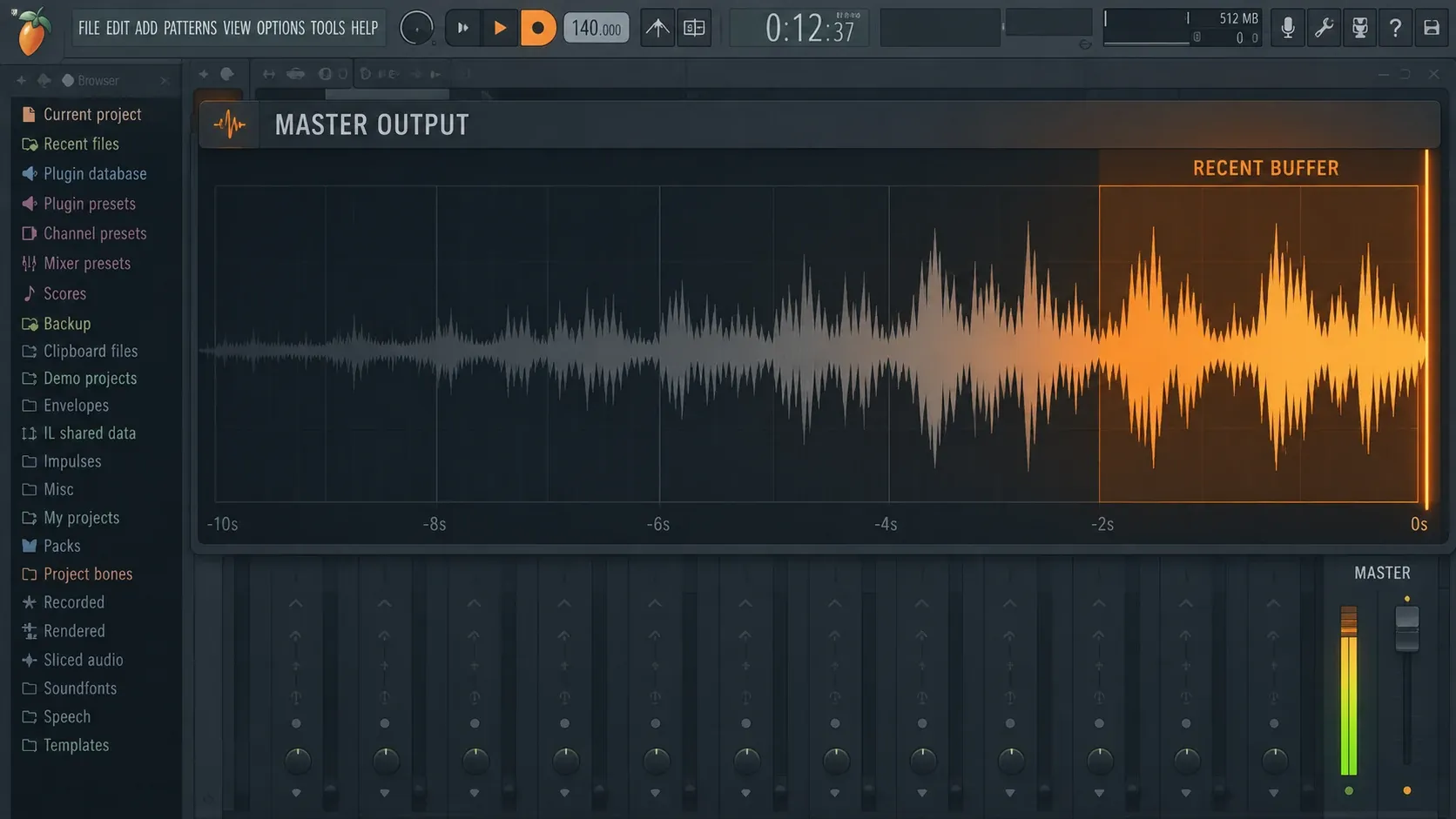
FL Studio Audio Logger keeps a rolling copy of the recent signal leaving the Master Mixer Track, even when you were not recording. It is the recovery tool for the moment when a take, jam or sound-design pass was good but the Record button was never armed. Open it before closing the project, choose the useful part of the buffer, save it, and then decide whether Edison, Playlist recording or a proper export is the better capture method next time.
The important boundary is simple: Audio Logger remembers recent Master output in memory. It does not create a WAV file for every session, it does not preserve the buffer inside the project and it does not replace deliberate recording. That makes it valuable as a safety net, but dangerous if you treat it like an automatic archive.
What Audio Logger actually captures
Image-Line documents Audio Logger under Tools > Audio Logger in its Tools menu manual. The logger captures everything passing through the Master Mixer Track whether FL Studio is actively recording or not. In a normal project, that means the final routed output that reaches Master, including the sounds you played, auditioned or arranged through the Mixer.
It is a rolling buffer. When the selected time window fills, older audio is replaced by newer audio. The available maximum lengths are 1, 2, 5 and 10 minutes. The buffer stays in memory and is not written to disk automatically. Closing FL Studio removes it, and saving the project does not preserve it for the next session.
That gives Audio Logger one job: recover something that happened recently. If you need a recording that survives a restart, a file that another person can open or a clean render of the arrangement, use a deliberate capture workflow instead.
Turn it on and choose a buffer length
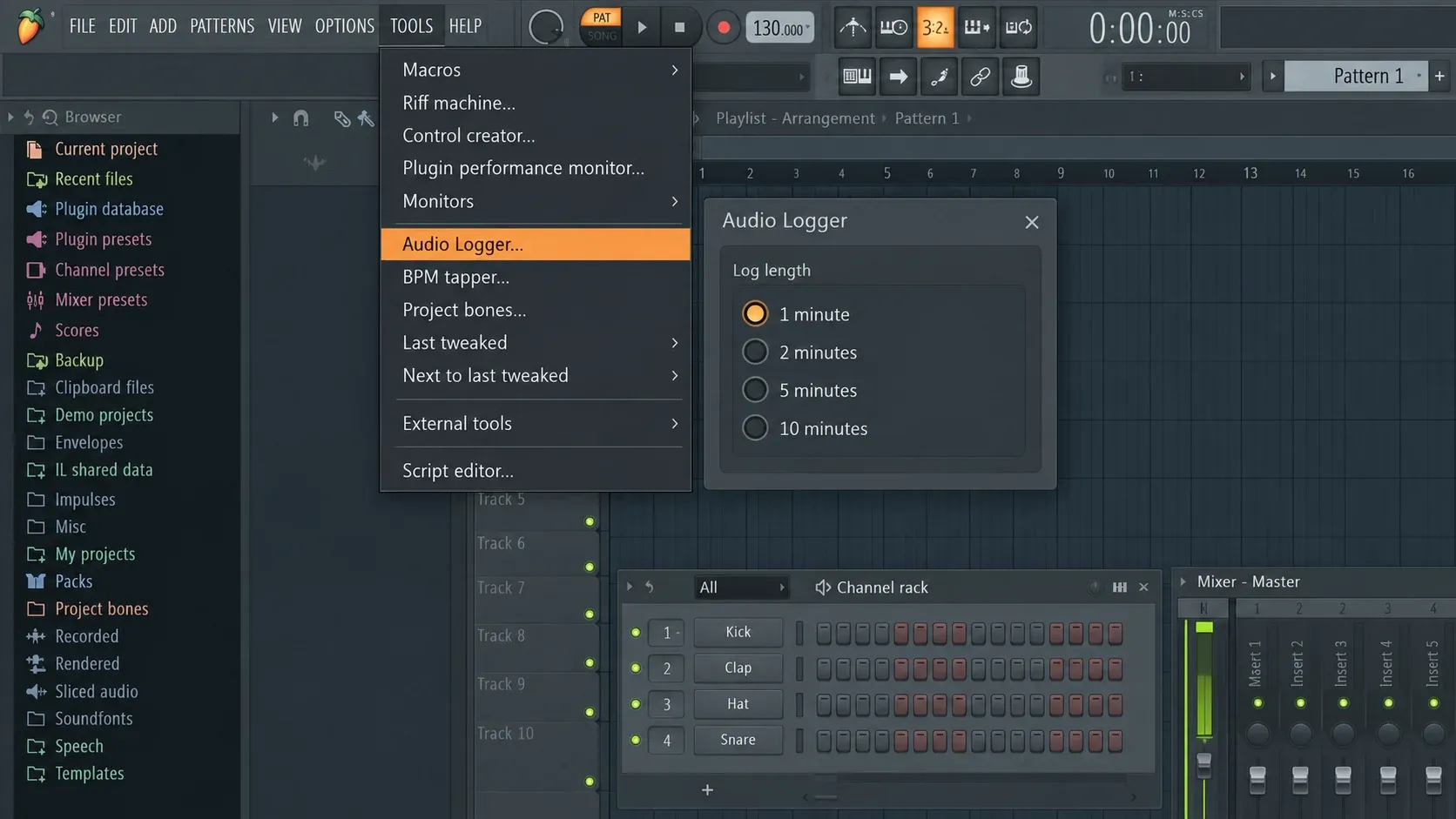
Open the FL Studio menu and choose Tools > Audio Logger. If the logger has been disabled, enable it before you start working. Image-Line lists Audio Logger as enabled by default, but a previous setup or troubleshooting pass may have turned it off.
Choose the shortest buffer that covers the way you work. One minute is enough for a quick audition or a short improvisation. Two or five minutes give you room to find the start of a phrase. Ten minutes is the safer choice for a long sound-design pass, a jam or a project where you may notice the useful idea only after several minutes.
A longer buffer is not a better recording by itself. It only keeps more recent history available in memory. The material is still temporary until you save it, so use the setting as a recovery window rather than as a substitute for naming and saving takes.
How to recover audio you forgot to record
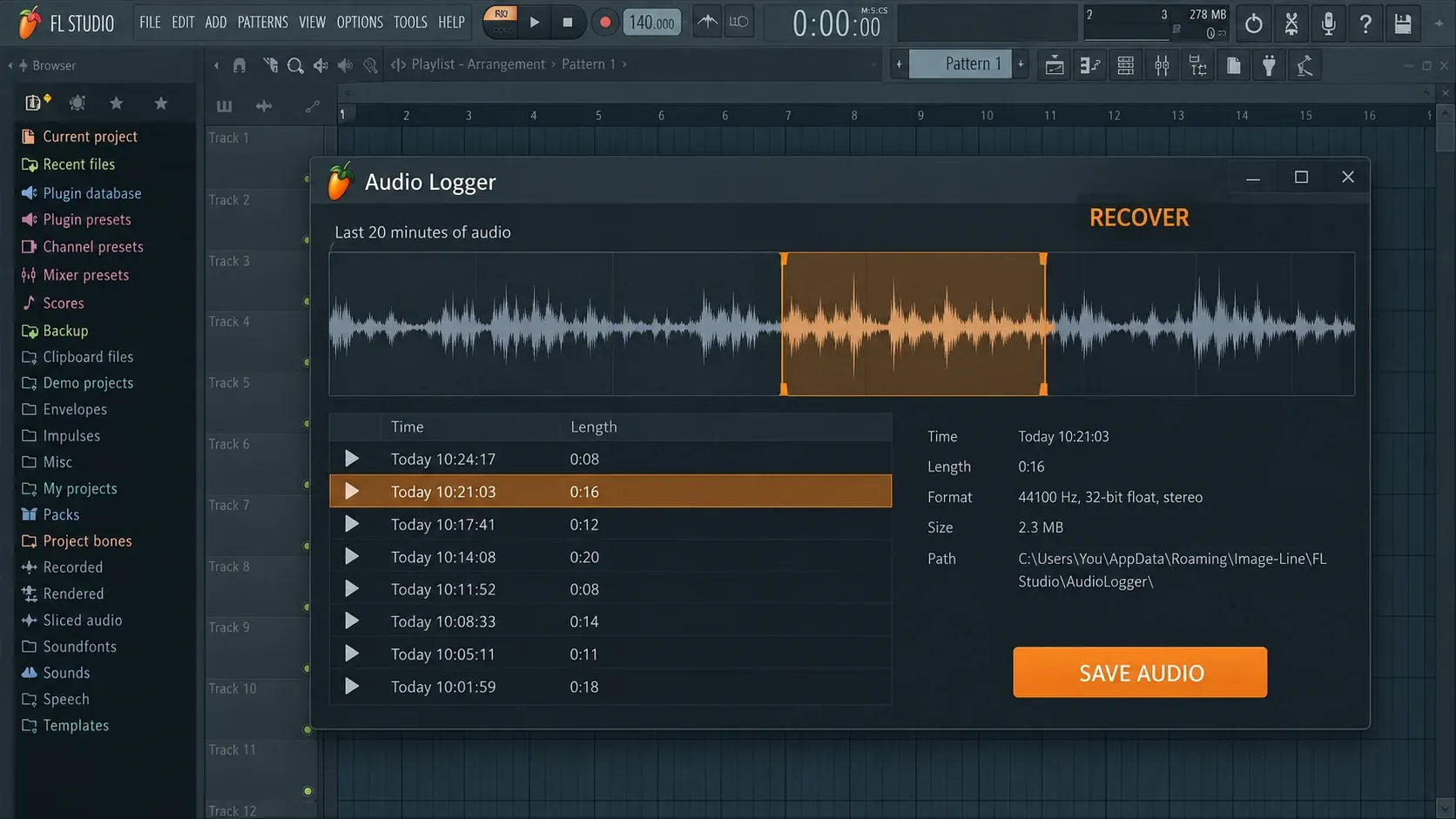
As soon as you realize that the last few minutes matter, stop changing the session and protect the buffer. Do not close FL Studio, reload the project or assume that the audio has already become a file.
- Open Tools > Audio Logger.
- Keep the current logger buffer intact while you inspect the available audio.
- Find the section that contains the performance, loop or sound you want to keep.
- Use the logger’s save command to write that recovered audio to a file or move it into the next editing step.
- Give the recovered file a useful name immediately, then make a normal project backup.
The exact recovery decision depends on what you heard. If you need the whole recent pass, save the complete available range. If only one phrase matters, keep a smaller selection and name it by source and purpose, such as a vocal idea, bass texture or transition. A short, clearly named recovery file is easier to reuse than a ten-minute file called “Audio Logger 1”.
Saving is a separate action from listening. The logger’s memory is not a permanent take, and the project does not carry it forward. Treat the save step as the point where the recovered idea becomes an asset you can back up, edit or drag into a later project.
Pre effects or Post effects, pre fader?
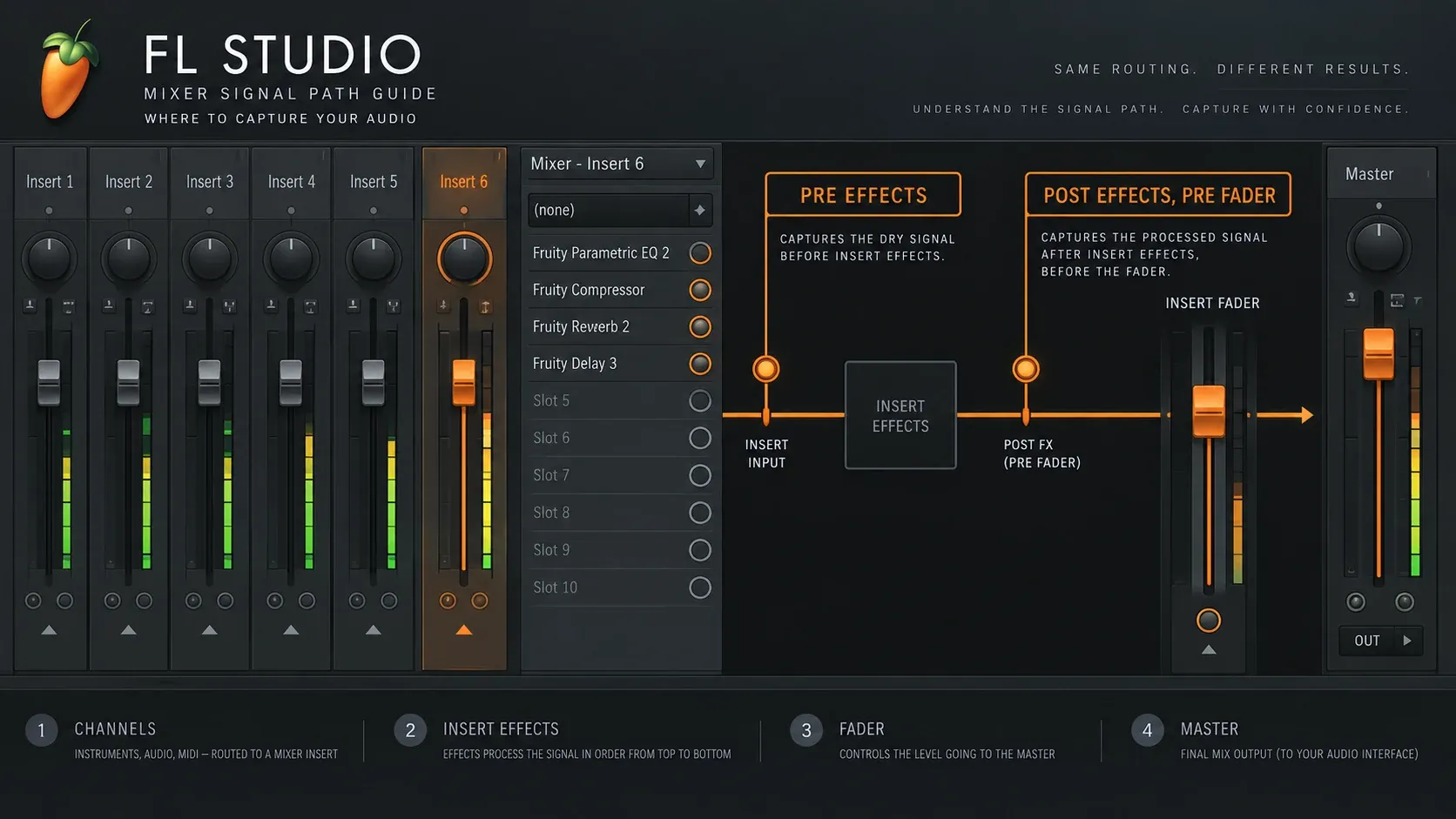
Audio Logger gives you a capture-position choice. The two useful labels are Pre effects and Post effects, pre fader. They describe where the logger listens in relation to the Master insert chain and Master fader.
| Position | What it keeps | Choose it when |
|---|---|---|
| Pre effects | The Master signal before Master insert effects | You want a cleaner recovery point before the Master processing chain changes it |
| Post effects, pre fader | The signal after Master insert effects but before the Master fader | You want the recent audio with the Master insert processing included |
The pre-fader detail matters. A fader move changes monitoring level, but this logger position sits before that fader. Do not describe the recovered file as a complete record of every final-volume move unless the routing and capture point support that conclusion.
A practical choice follows the problem you are solving. For a sound-design idea, pre effects can give you a more flexible source. For a moment that worked because of the Master chain, post effects, pre fader preserves more of that processing. If you are unsure, save the recovery and make a second deliberate capture from the right Mixer point instead of trying to reconstruct the chain from memory.
What Audio Logger does not automatically capture
Audio Logger follows the Master Mixer Track. A microphone, instrument or external source is available to the logger only when it is routed through the FL Studio Mixer and reaches Master. An input that never enters the project’s Mixer path is outside this workflow.
It also does not know which idea you intended to keep. It records the routed Master output, including mistakes, silence, menu auditioning and changes in the session. The buffer is not a collection of named takes and it does not separate instruments into stems.
That is why recovery often needs a second pass. Save the useful audio, open it in Edison if you need trimming or cleanup, and keep the original recovered file until you know the edit is safe. If the phrase should sit in the arrangement on the project timeline, move it into the Playlist as an Audio Clip after saving it.
Audio Logger compared with Edison, Playlist recording and export
These tools overlap at the edges, but they begin from different intentions:
| Tool | Best use | Why it is different |
|---|---|---|
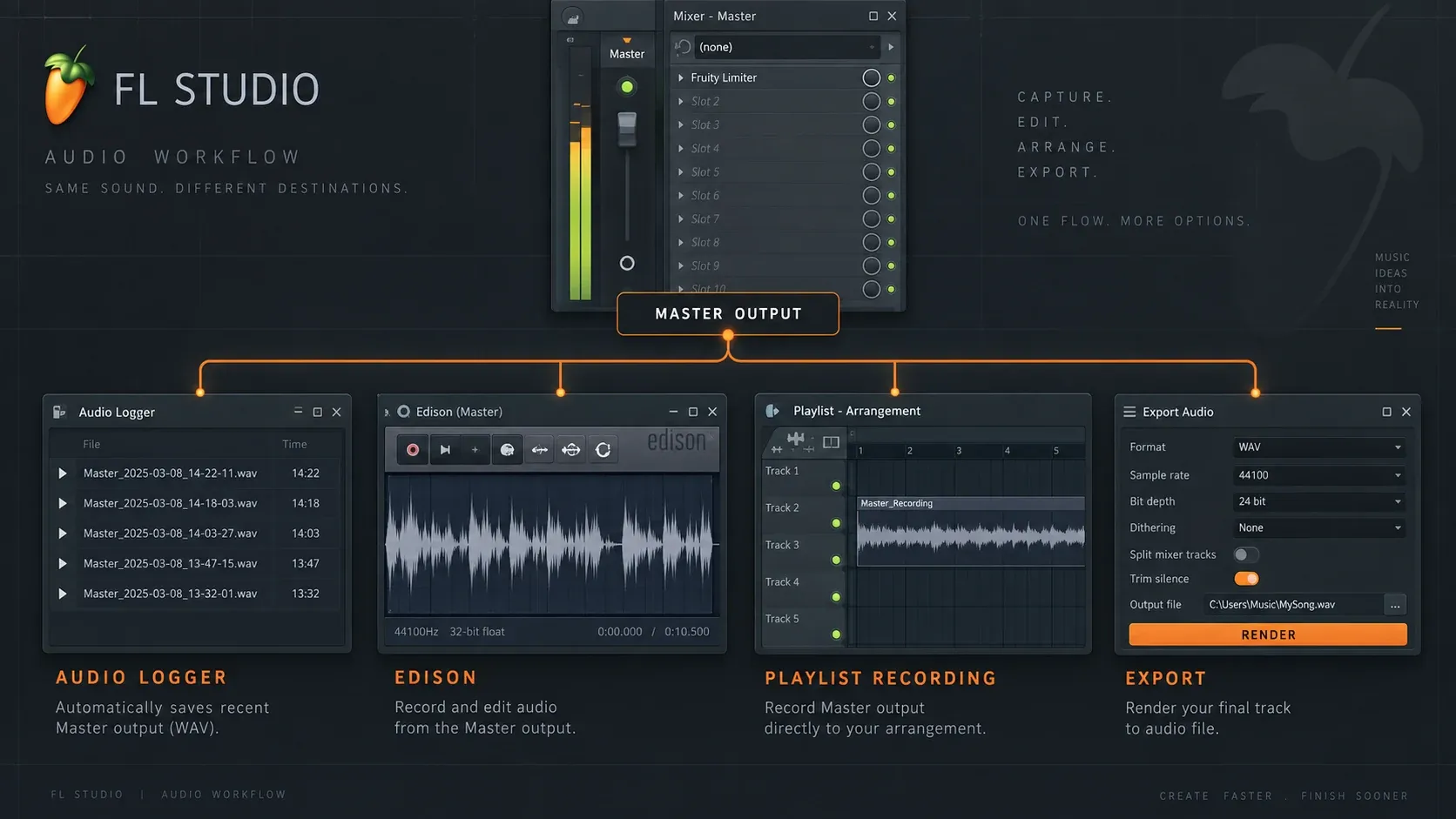
| Audio Logger | Recover recent Master output after you forgot to record | Rolling, memory-only buffer; temporary until saved |
| Edison | Record, inspect and edit a deliberate audio take | Works as a focused recorder/editor and can export selected audio |
| Playlist recording | Record into the arrangement and keep a project-ready Audio Clip | Writes audio to disk and can place the recorded clip in the Playlist |
| Export | Render the project or selected output for delivery | Creates a planned result from the project state rather than a recent memory buffer |
If you already know that a performance matters, record it intentionally. Image-Line’s audio-recording documentation covers Edison, Playlist recording, Mixer recording and export as separate workflows. Audio Logger earns its place when the decision came too late and the useful sound is still inside the recent buffer.
Need a selected-track rolling log?
Audio Logger is a Master-output safety net. If you want a rolling log of one Mixer track, the Mixer has a different route: as described in Image-Line’s Mixer manual, use the Current utility track with Edison. Image-Line describes that setup as a five-minute rolling audio log for the selected Mixer output.
This is useful when you are shaping one vocal, synth or external input and do not want the entire Master mix in the recovery file. It also has a different risk: changes made on Current can affect the selected track. Keep the selected Mixer track visible and confirm the routing before you edit or delete anything.
Use Audio Logger when the question is “what did the whole project output recently?” Use Current plus Edison when the question is “what did this selected Mixer path output while I was working on it?”
Common Audio Logger failure cases
The useful moment is gone
The buffer is rolling. If enough new audio has passed, the older moment has been replaced. A longer buffer helps with the next session, but it cannot restore audio that has already rolled out of memory.
The buffer disappeared after reopening FL Studio
That is expected. The logger is not saved with the project and closing FL Studio clears its memory. Reopen the project, enable the logger and work from a deliberate recording plan.
The recovered audio sounds different
Check the capture position and the Master routing. Pre effects and post effects, pre fader listen at different points in the Master path. A changed insert, bypassed effect or different routing can also change what reaches the logger.
The microphone is missing
Check the input Mixer track first. Audio Logger can only follow audio that enters the FL Studio Mixer path and reaches Master. If the input was never routed there, the logger had no signal to preserve.
The file is not the clean source I wanted
That is a capture-point issue. Save the recovery, then use Edison or record from the selected Mixer track at the point where the source is clean. Audio Logger is designed to recover recent output, not to reconstruct every earlier routing choice.
A safer workflow for the next session
Keep Audio Logger enabled with a buffer length that matches the way you work. Before a vocal pass, resampling idea or long improvisation, start a deliberate recording as soon as the material becomes worth keeping. Save promising fragments immediately, and use project versions so a recovery file never becomes the only copy of a part.
For a selected input, route it through a named Mixer track and decide whether Edison or Playlist recording is the right destination. For a finished song, export from the project after checking the Master path. For an unexpected moment, use Audio Logger first because the buffer may already contain it.
Audio Logger is best understood as a short-term safety net: it can rescue recent Master output that you forgot to record, but only if FL Studio is still open and the passage has not rolled out of the selected buffer. Save the recovery, label it, and then move it into a normal editing or project workflow.
For the surrounding workflow, see our guides to recording audio in FL Studio, Mixer routing and resampling and loop recording.