FL Studio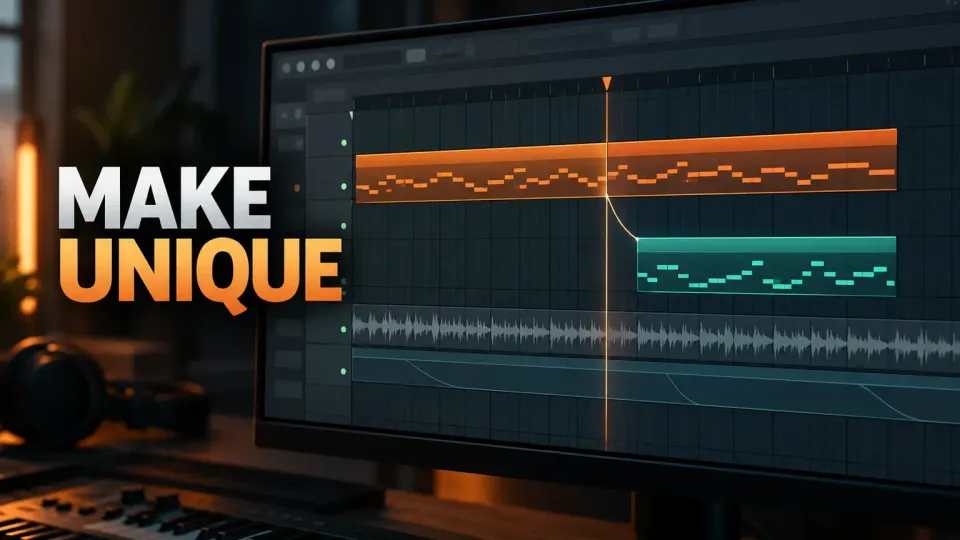
Make Unique in FL Studio creates an independent version of a Playlist clip so you can change one section without changing every other copy of the same source. Use it on Pattern Clips when one part of the arrangement needs different notes or automation, and use Make unique as sample on an Audio Clip when you also need a separate audio file on disk.
The important distinction is what becomes independent. A normal copy can still point to the same Pattern or audio source. Make Unique changes that relationship at the clip level. You keep the original for one section and edit the new version for another.
Where to find Make Unique
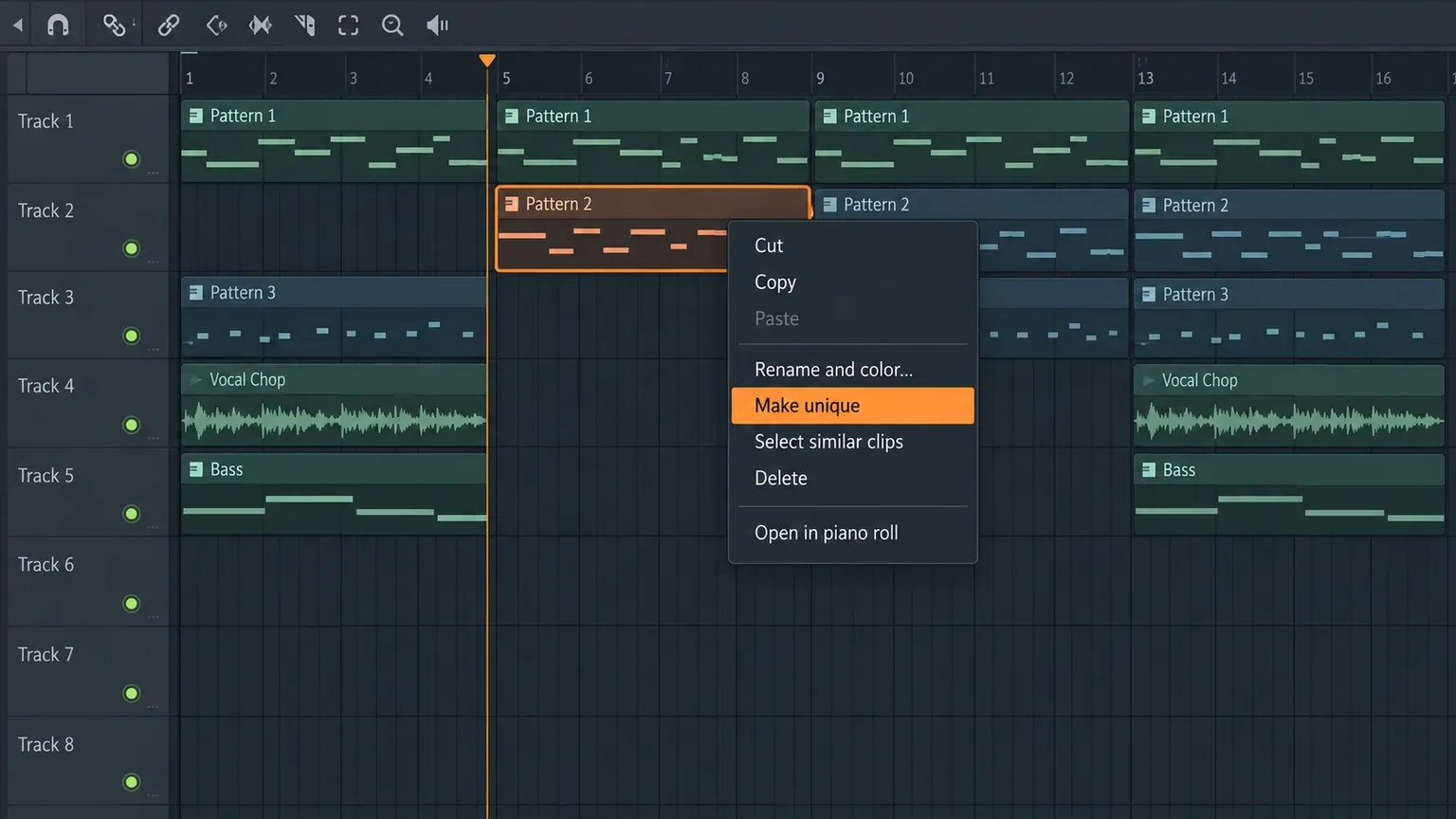
Open the Playlist and find the clip you want to branch. The official Playlist manual places these clip commands in the Playlist workflow. Right-click the small clip menu area in the clip header, then choose Make unique. FL Studio creates a new source for that clip while leaving the other instances connected to the original.
The command is most useful when the same Pattern Clip appears in several sections. For example, keep the original four-bar drum pattern in the verse, then make the chorus copy unique and add a fill, remove a hat or change the final snare. The verse stays unchanged.
What Make Unique changes
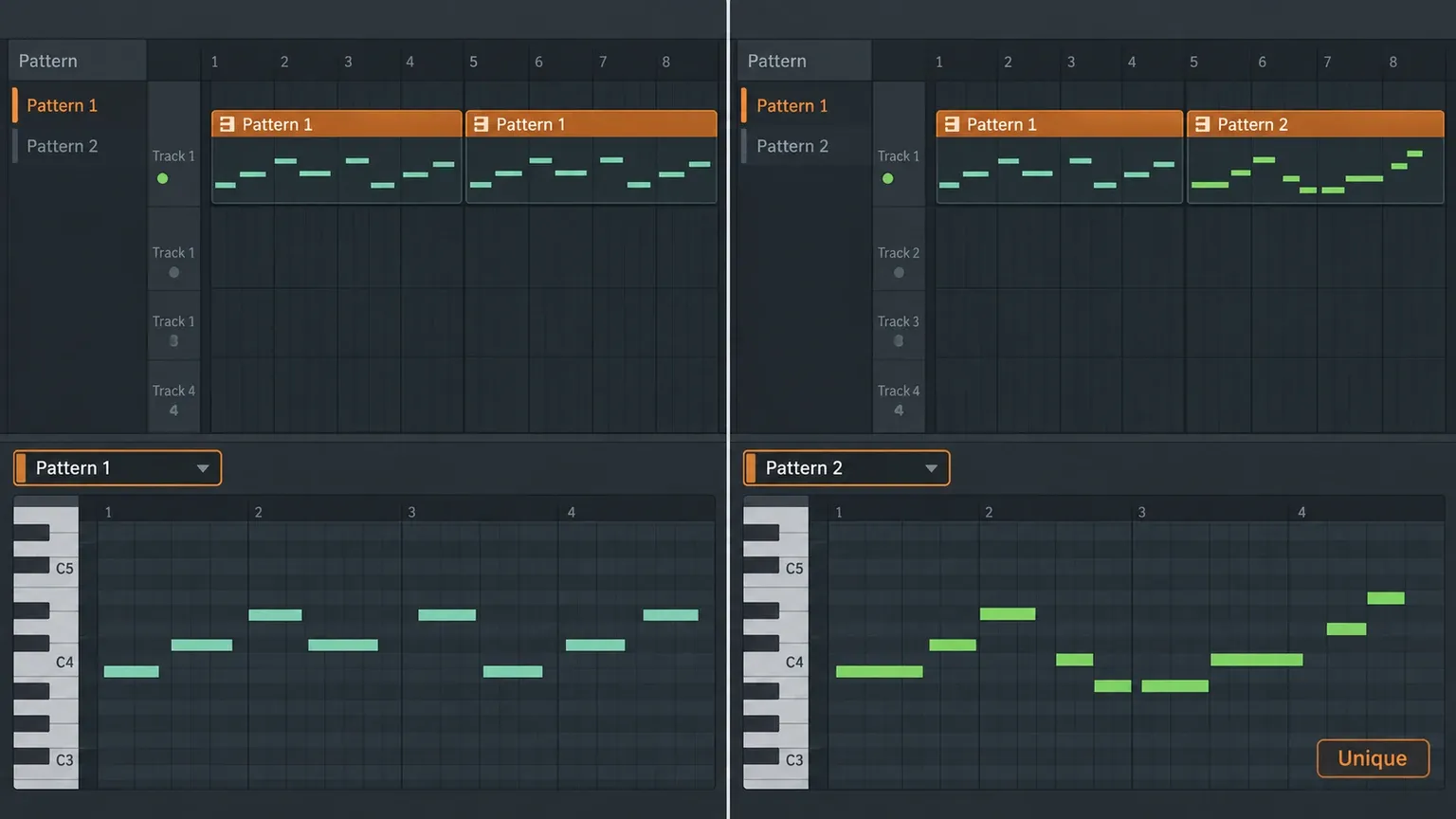
For a Pattern Clip, Make Unique creates an independent Pattern. The new Pattern can contain different MIDI notes and Event Automation from the original. Image-Line explains the Pattern relationship in its Pattern menu documentation. The source Channel Rack instruments remain available, but the clip now points to its own Pattern data.
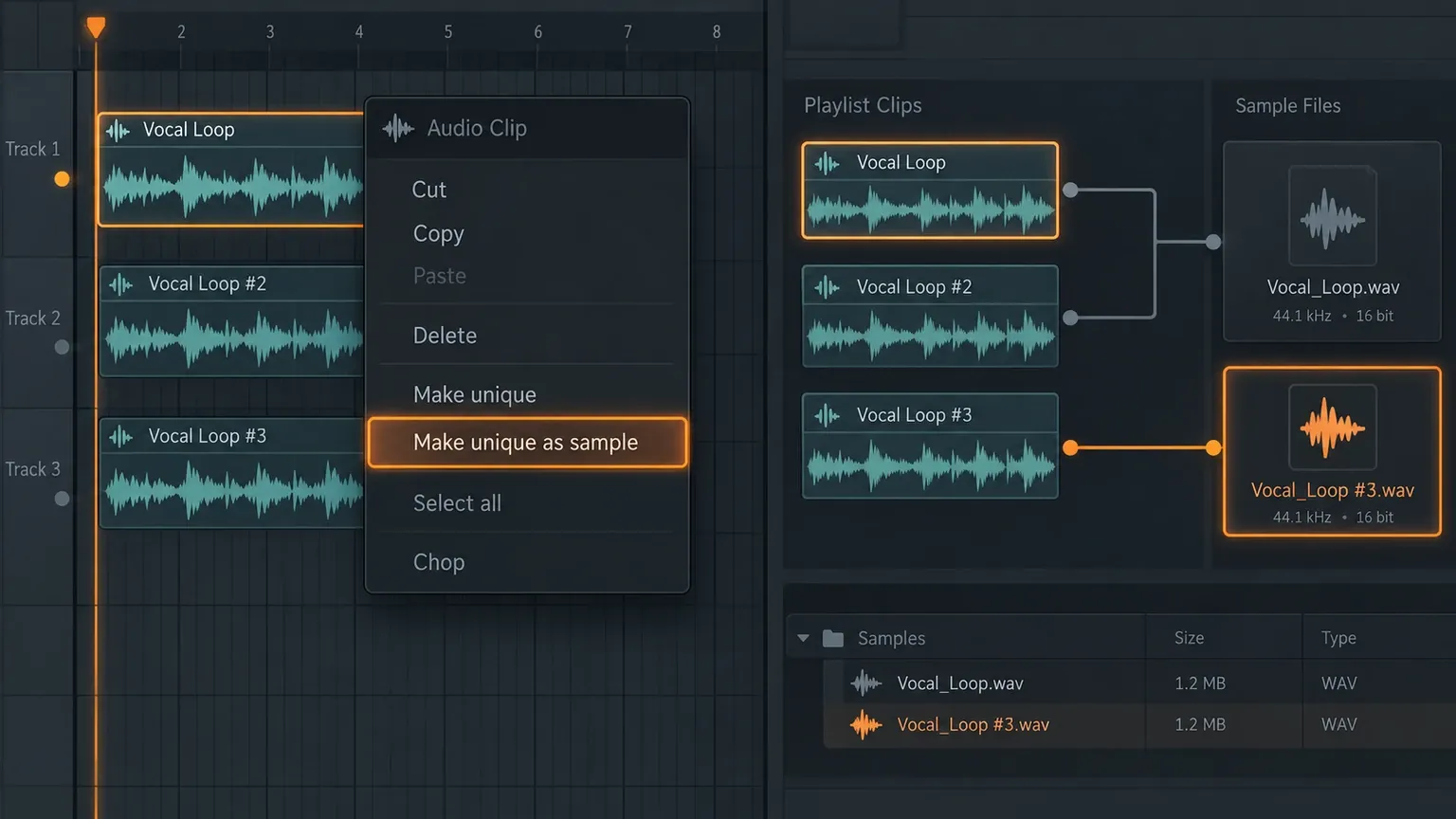
For an Audio Clip, ordinary Make Unique creates another Audio Clip channel that reuses the original audio file. The Audio Clip manual distinguishes that channel relationship from the separate sample-file command. That is enough when you want to change clip-level settings or arrange the audio independently. It does not create a second WAV file just because the Playlist now shows another unique clip.
This is why Make Unique is best understood as a relationship command. It separates the arrangement source you are editing, while the exact data that gets copied depends on the clip type.
Make a Pattern Clip unique
Use this route for drums, instruments and other material stored as Pattern data:
- Place the same Pattern in at least two Playlist sections.
- Right-click the instance that needs a variation.
- Choose Make unique.
- Open the new Pattern in the Piano roll or Channel Rack.
- Edit the notes, steps or Pattern-specific automation.
Think in sections rather than copies. A unique Pattern is useful when the musical role changes: a chorus needs a denser kick, a second verse needs one altered note, or the last bar needs a transition. If the part should remain identical, keep it linked and avoid creating another source.
Pattern Clip or Audio Clip?
The Playlist can contain both Pattern Clips and Audio Clips, but they behave differently after Make Unique.
| Clip | Make Unique does | Use it when |
|---|---|---|
| Pattern Clip | Creates a separate Pattern with its own notes and Event Automation | A section needs a different musical performance or pattern edit |
| Audio Clip | Creates a separate Audio Clip channel that reuses the source file | You need independent clip handling while keeping the same audio data |
| Audio Clip with Make unique as sample | Clones the Audio Clip and the sample file on disk | You plan to edit the waveform or sample data separately |
Playlist Tracks and Mixer Tracks are separate systems. Making a clip unique does not automatically give it a new mixer insert, change the existing routing or create a new effect chain. If the audio needs different processing, change its mixer assignment separately.
Make unique as sample for independent audio
Choose Make unique as sample when you need a physical copy of an Audio Clip’s sample data. Image-Line’s Audio Clips manual describes this option as cloning both the Audio Clip and the sample file on disk.
This matters for destructive edits. If you want to edit, trim or process the copied sample in a way that must not affect the source used elsewhere, make the sample unique first. If your goal is only to place the same audio differently or adjust a clip-level control, ordinary Make Unique is usually enough.
Keep the distinction clear: a second Playlist clip is not automatically a second audio file. Check the channel and file relationship before deleting or replacing anything.
Event Automation follows the Pattern
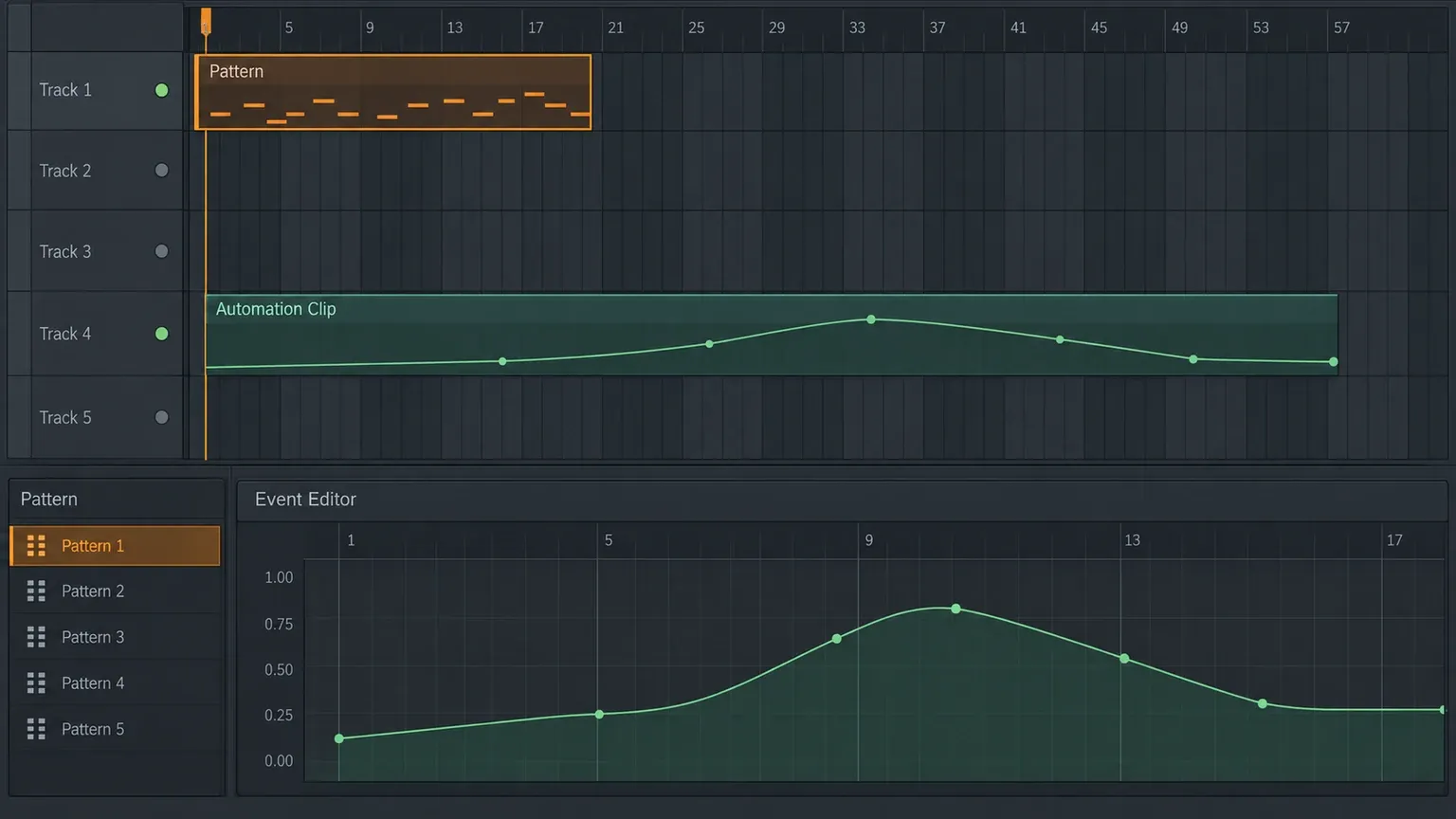
Event Automation is tied to a specific Pattern and Pattern Clip. Image-Line’s Event Editor documentation says the editor shows data from the selected Pattern, while Automation Clips are a separate Playlist generator type.
That difference explains a common surprise. If a Pattern Clip contains recorded or drawn Event data, making the clip unique gives the new Pattern its own automation data to edit. A separate Automation Clip on the Playlist follows its own editing relationship and is not turned into a Pattern just because you made a Pattern Clip unique.
After creating the unique Pattern, select it before opening the Event Editor. Otherwise you may be looking at the original Pattern and conclude that the automation disappeared.
Keyboard shortcuts for faster variations
Image-Line’s 2024 release notes document two useful shortcuts:
- Shift+V, then left-click and drag copies a clip while creating a unique instance.
- Ctrl+Shift+V makes the selected clips unique.
The drag shortcut is helpful when you already know where the variation belongs. Select the source, hold the shortcut sequence and drag the new instance into position. For several selected clips, Ctrl+Shift+V is faster than opening each clip menu one by one.
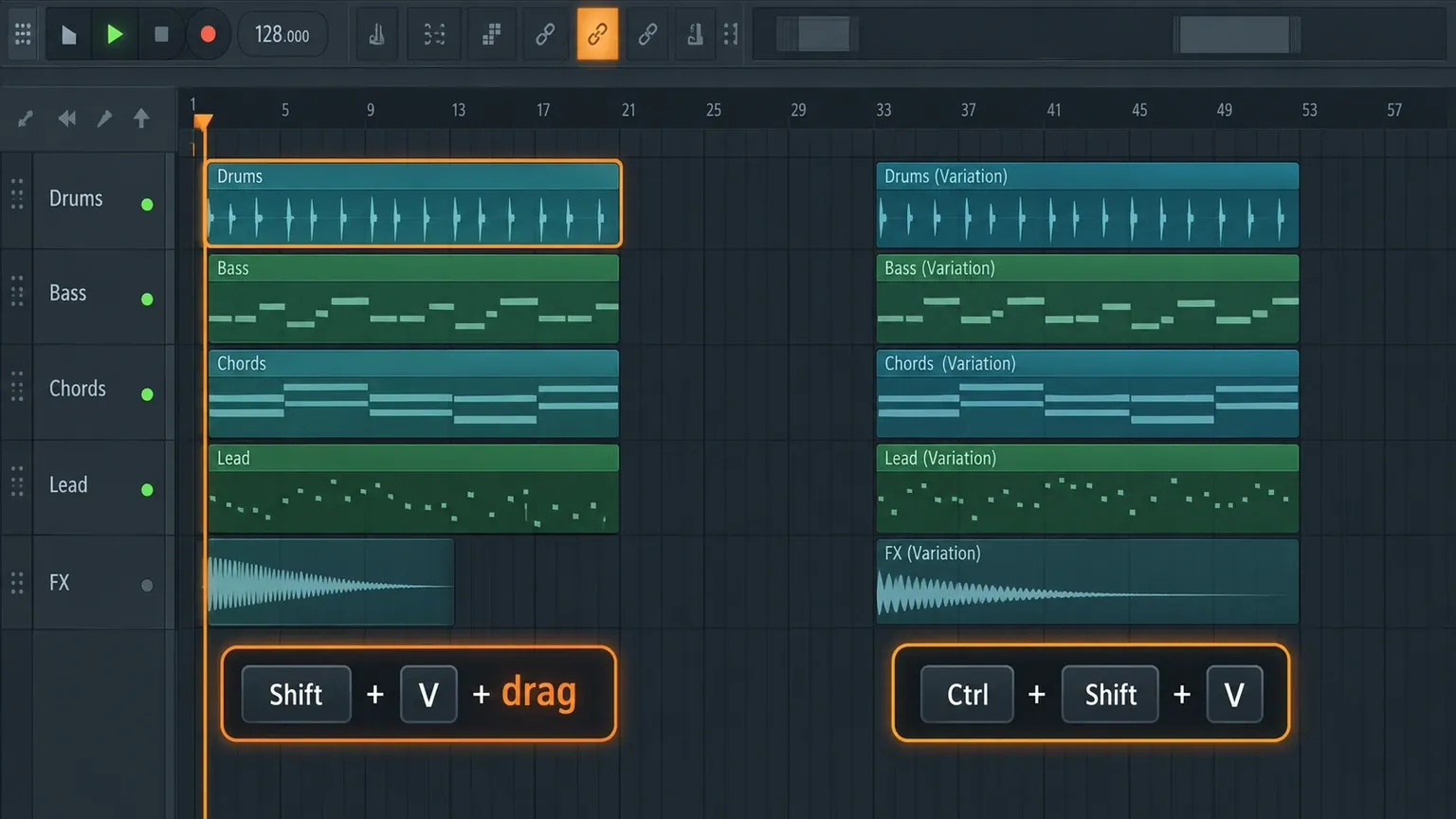
Shortcuts do not change the rule about clip types. A unique Pattern still creates separate Pattern data, and a unique Audio Clip still reuses the original audio file unless you explicitly choose Make unique as sample.
What stays linked after you make a clip unique
Make Unique changes the relationship of the selected Playlist clip to its source. It does not turn every nearby clip into a new source, and it does not reset the project’s mixer, tempo or Playlist position. This is why it is useful for arrangement work: you can branch one musical idea without rebuilding the channel or moving the surrounding section.
Before editing, look at the clip name and the Pattern selector. After editing, compare the new Pattern with the source and ask one simple question: should a change in this section be heard everywhere else? If the answer is no, the unique copy is the right boundary. If the answer is yes, keep editing the shared source instead.
For Audio Clips, make the same check against the sample file. A unique clip can have its own channel relationship while still pointing at the same file. That is normal, and it is the reason the separate Make unique as sample command exists.
Make Unique compared with other copy commands
Copy and paste duplicates a clip placement or source reference according to the operation you use, but it does not always create a new independent Pattern. If you need one copy to diverge, make that copy unique after placing it.
Clone usually refers to creating another Channel or plugin instance. That is a different job: it changes the generator or channel setup, while Make Unique branches a Playlist clip’s source relationship.
Consolidation renders material into audio. It can simplify a section, but it also changes the editing level from notes and Pattern data to a rendered waveform. Use it when you want a committed audio result, not when you still need Pattern edits.
Stems separate rendered song parts for export or mixing. They do not replace Make Unique because they solve a delivery problem rather than a section-variation problem.
Why Make Unique may be unavailable
If you are using the FL Studio Trial, Image-Line support explains that Make Unique is unavailable in the Playlist clip menus. The support explanation links the feature to opening saved project data, which the Trial version does not support in the same way.
In a licensed installation, first confirm that you are opening the clip menu from the Playlist and that you selected a clip rather than an empty grid area. If the command is present but the result seems unchanged, check whether the clip is a Pattern Clip or Audio Clip and inspect the source relationship described above.
How to join Pattern Clips again
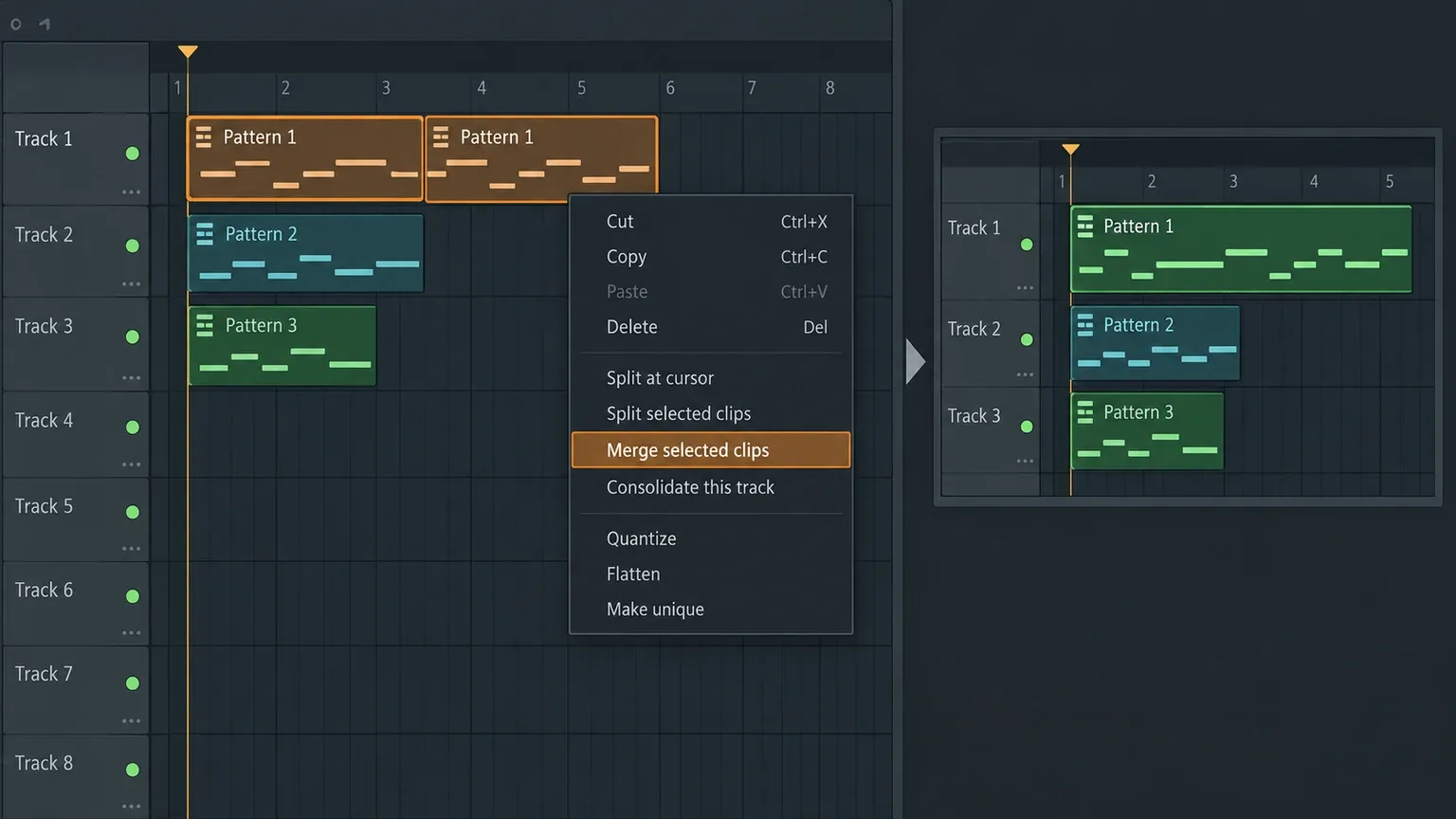
Make Unique is easy to overuse when you are testing variations. If several Pattern Clips now contain material that should become one Pattern, select the relevant Pattern Clips in the Playlist and use Playlist Menu → Edit → Merge selected clips. The Playlist Patterns documentation covers the related Pattern Clip operations.
Merging is a new decision about the data. Review the timing, note ranges and automation before deleting the originals. Keep the merged result only after checking that the section still starts and ends where you expect.
A practical arrangement workflow
Use Make Unique at the moment a section needs a reason to differ:
- Copy the working Pattern or Audio Clip into the new section.
- Make only that section unique.
- Change one musical feature first: the final bar, a note, a drum accent or an automation move.
- Listen to the transition from the original section into the variation.
- Keep the source linked everywhere that should remain identical.
This keeps the project readable. If every clip becomes unique immediately, the Playlist fills with sources that are hard to compare. If no clip becomes unique, the arrangement can sound like one loop repeated without development.
The best variations are small and intentional. A unique Pattern does not need a completely new composition. One missing kick before a drop, a changed bass note at the end of a phrase or a shorter Audio Clip can be enough to make the arrangement move.
Final answer: use Make Unique when one Playlist section needs to change while the other copies should keep their original source.
Use Make Unique when one Playlist section needs to change while the other copies should keep their original notes, Event Automation or clip relationship. Use Make unique as sample when an Audio Clip also needs its own file on disk.
For a Pattern Clip, the result is a separate Pattern. For an Audio Clip, the ordinary command creates an independent Audio Clip channel but reuses the source audio. Mixer routing stays separate, and Event Automation follows the Pattern it belongs to. Once those boundaries are clear, Make Unique becomes a precise arrangement tool instead of a mysterious Playlist command.
For the surrounding workflow, see our guides to the FL Studio Playlist, Channel Rack and latest FL Studio workflow changes.