FL Studio
Edison is FL Studio’s built-in audio recorder and wave editor. Load it into an effect slot on a Mixer track to record whatever reaches that point, or select a Sampler Channel and press Ctrl+E (Cmd+E on a Mac) to edit its sample. It comes with Producer Edition ($179) and every edition above it, not the $99 Fruity Edition, and it isn’t a separate download.
My default for a vocal: Edison in the first slot of the vocal’s Mixer track, above any reverb, recording in Now mode, with the raw take saved under its own name before any edit. Edit a copy, then send only the selection you need to the Playlist. This guide follows that order, then covers the AI repair tools (Declipper, Deverb and the vocal isolator), Mac shortcuts and how long a take Edison’s memory can hold.
Give the recording point and the destination as much attention as the edit itself. Put an Edison instance below a reverb and it records that reverb. Its send button either creates an Audio Clip or replaces a selected source, depending on how you click it, so settle those choices before you commit to a take.
Check your edition and choose the right recording tool
Edison is included in Producer Edition and every edition above it, as Image-Line’s Edison introduction states. At US list prices on the pricing page that means $179 for Producer, $269 for Signature or $449 for All Plugins. You also need Producer or higher to record external audio, so the $99 Fruity Edition covers neither job. Image-Line’s trial lets you pick the edition you want to test at the Welcome Window, so choose Producer or higher to try Edison. The standard trial never expires and can export audio, but it can’t reopen saved projects until you buy a licence, so export what you need before you close the session. The FL Studio editions guide compares the rest of each tier.
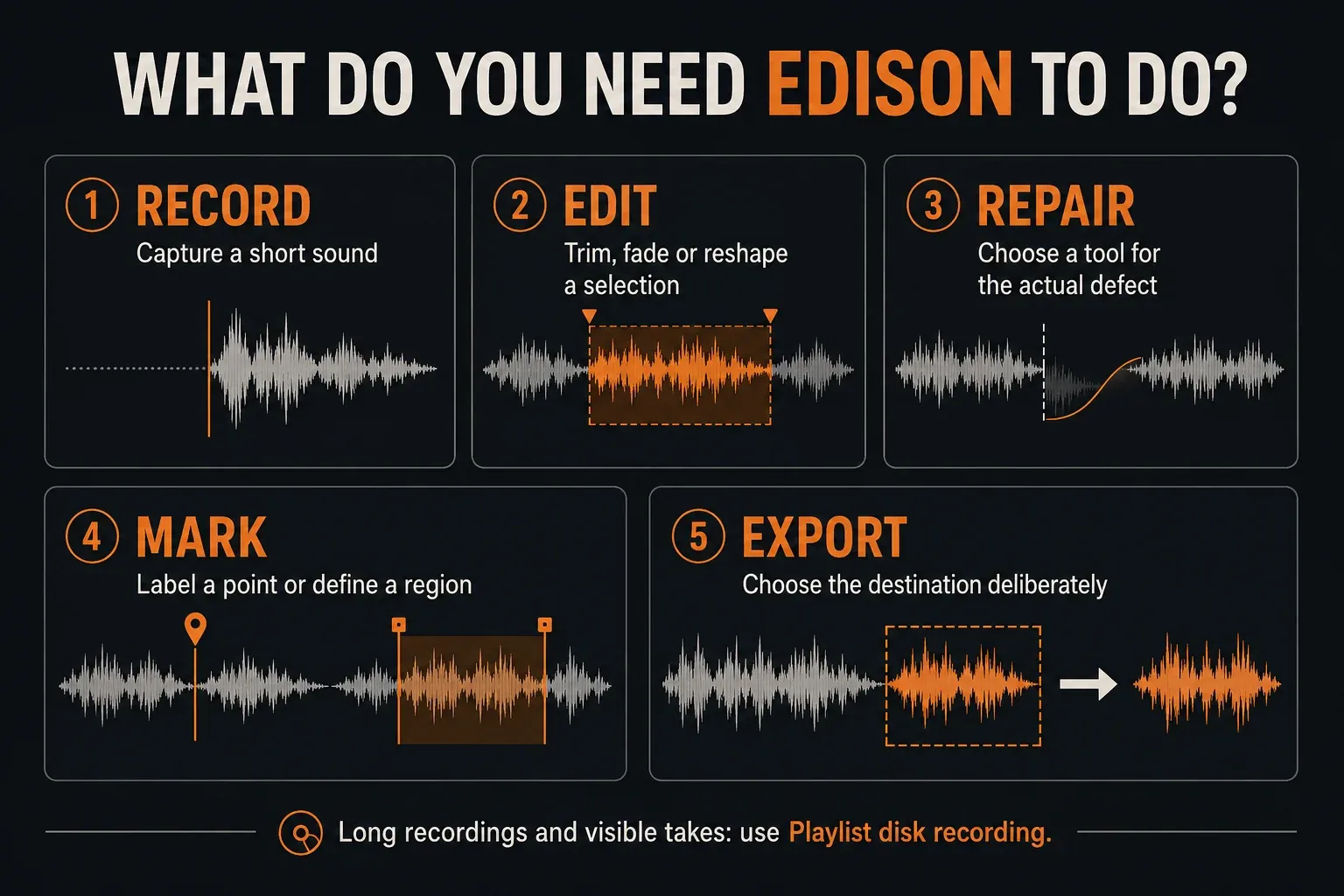
Reach for Edison when one recording or sample needs close attention: a vocal phrase, a drum hit, a short resample or a loop with rough edges. A long performance, or a session where you want to see many takes, belongs in Playlist disk recording. Edison keeps its working audio in RAM, so don’t leave an interview recording running in it for hours.
If your microphone or interface isn’t reaching FL Studio yet, start with the audio-recording setup. This guide takes over once you can route that source to a Mixer track.
Record, edit and export one sample in eight steps
- Choose the source. Decide whether to open an existing file or capture audio reaching a particular Mixer track.
- Protect the original. Keep an untouched file with a distinct name. If a Playlist clip needs its own source file, use Make unique as sample before changing that file.
- Place Edison deliberately. For recording, load it into the chosen Mixer effect slot, before or after the effects you intend to capture. For file editing, load the intended sample into Edison.
- Check the recording controls. For a new capture, verify the input, monitoring, start mode and For duration. Make a short test, stop recording and listen before the full take.
- Save the raw capture. After recording, disable Edison Record and save the unedited audio under a separate raw filename.
- Select and edit. Select the exact range, audition its start and tail, then trim or process only what the sound needs.
- Choose the destination. Send a new Audio Clip to the Playlist, drag-copy to a compatible target, replace a verified selected source or save a separately named file.
- Check the handoff. Audition the destination in context, verify the first transient and tail, and save the project with its required samples. In standard Trial, do not close needed work expecting to reopen the project before purchase.
Edison tools and shortcuts at a glance
Most of what people search for sits in Edison’s Tools menu. These are the routes I’d learn first, from the Tools menu reference; the shortcuts work while Edison has focus.
| Job | Where in Edison | Windows | Mac |
|---|---|---|---|
| Edit a Sampler Channel’s sample | Select the channel in the Channel Rack | Ctrl+E | Cmd+E |
| Load Edison ready to record with playback | Select the Mixer track | Shift+E | Shift+E |
| Normalize peaks | Tools > Amp > Normalize | Ctrl+N | Cmd+N |
| Fade in / fade out | Tools > Amp | Ctrl+F / Alt+F | Cmd+F / Option+F |
| Reverse a selection | Tools > Time > Reverse | Alt+Left | Option+Left |
| Time stretch or pitch shift | Tools > Time | Alt+T | Option+T |
| Remove steady noise, clipping or clicks | Tools > Spectral > Clean up (denoise) | Ctrl+U | Cmd+U |
| Remove reverb | Tools > Spectral > Deverb | Menu only | Menu only |
| Isolate or remove a vocal | Tools > Spectral > Vocal denoise / isolator | Menu only | Menu only |
| Paste insert / paste replace | Edit menu | Ctrl+V / Alt+V | Cmd+V / Option+V |
| Send the selection to the Playlist | Tools > Sequencing > Send to Playlist as audio clip | Shift+C | Shift+C |
On a Mac, Ctrl becomes Cmd and Alt becomes Option, according to Image-Line’s shortcut table. Two parts of the Noise Removal Tool differ on macOS: its Declicker is Windows only, and its Denoiser shows Smoothing where Windows shows Threshold.
Open Edison for a sample or for a Mixer recording
The clearest way to record is to select the Mixer track you want and load Edison into an empty effect slot. That way you can see exactly where it sits. The Edison overview documents shortcut routes too, though they depend on context.
- Editing a Sampler file: with the Sampler Channel as your context,
Ctrl+Eopens its sample for editing. This is not a universal shortcut for every instrument’s generated sound. - Preparing a Mixer capture: select the Mixer track and press
Shift+E. Edison loads into the first empty FX slot with host-slaved playback andOn playrecording enabled. Check that first empty slot: it may be below effects already on the track. - Opening an existing audio file: use
File > Load sampleinside Edison, or drag the file from the Browser and drop it on Edison. A plain drop loads the file. HoldShiftwhile dropping to append it after the audio already in Edison, orAltto replace the selected region; Edison adds a slice marker named after the dropped sample at the join. - Editing a Playlist recording: a disk recording becomes an Audio Clip in the Playlist and a file on disk, by default in the Recorded folder the Browser shows, unless you chose another recording location. Right-click that file in the Browser and choose
Edit in audio editor, or open the clip’s Channel Settings, right-click the waveform preview and chooseEdit. Either route opens the recording in Edison, and the clip stays as it was until you send or save the edit, as described below.
Open Edison on a Mac
The routes are the same on macOS: an empty FX slot on a Mixer track, Cmd+E on a selected Sampler Channel or Shift+E on a selected Mixer track. If a shortcut does nothing, click the channel or Mixer track first so FL Studio knows where Edison should go. The FX slot menu works whatever is selected, which is why I’d start there when unsure.
Loading a source file isn’t the same as recording how it sounds in the song. To capture Mixer effects, record at the right Mixer position, because opening the original WAV won’t include them. If you’re stuck choosing the right Sampler or instrument, see the Channel Rack guide.
Choose what reaches the Edison slot
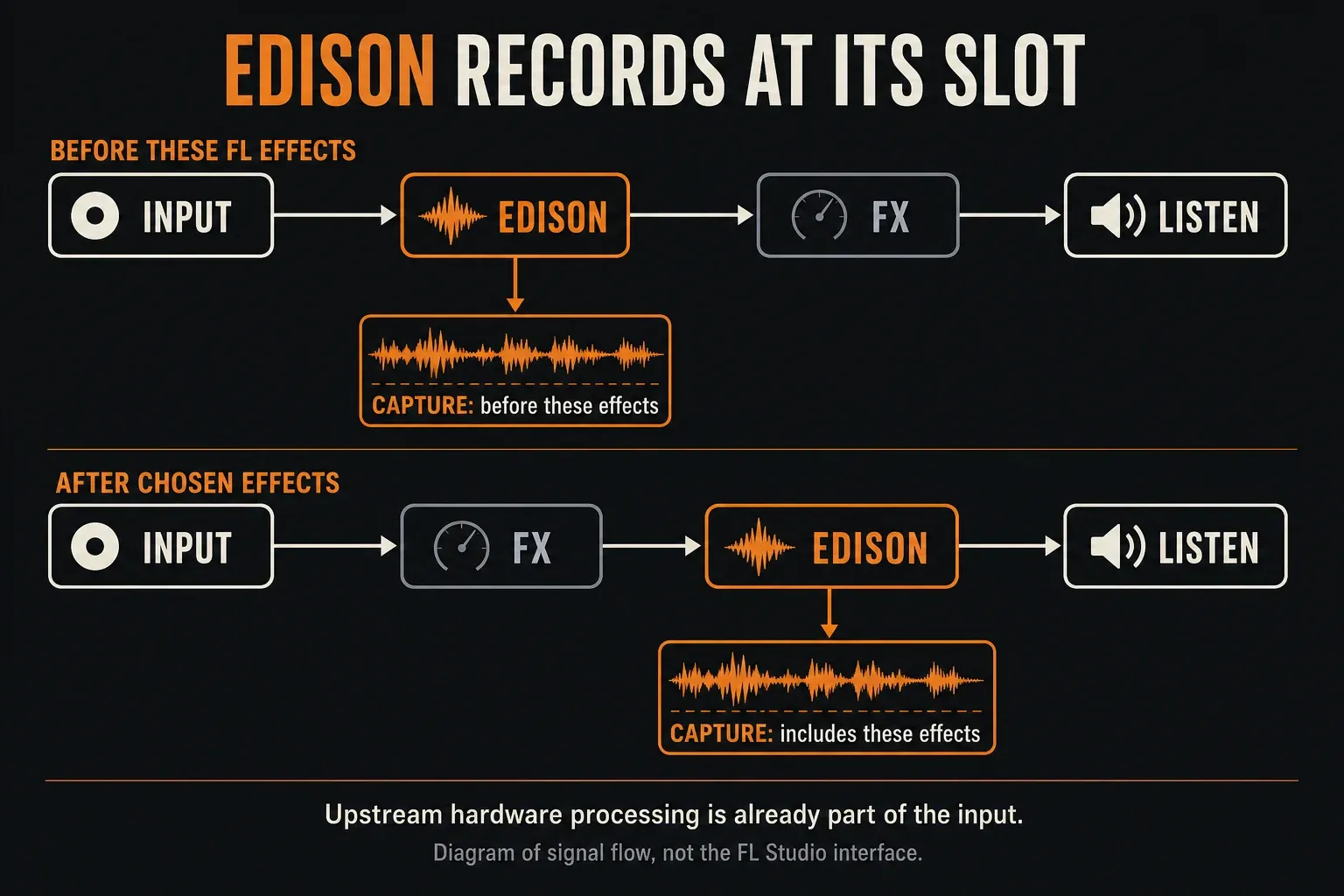
Mixer effects run top to bottom, from the upper slots down to the lower ones. Edison captures audio at its own slot, before the track fader. Put it ahead of any effects you want to leave out, or after the ones you want to print. Moving the track fader doesn’t change the level that Edison instance records.
With a microphone or instrument, “dry” here means before those FL Studio effects. Any processing that external hardware or an interface’s incoming DSP path has already applied stays in the signal. So set the source and input gain correctly before you record. The audio-recording manual explains the external input requirements and Edison’s FX-slot route.
Check the live-input path separately from disk recording
Edison records the signal at its FX slot, and the Mixer’s EXT disk-recording pickup doesn’t choose what it captures. For a basic Edison session monitored on headphones, choose the correct Mixer input, set Monitor external input > On and leave Edison’s Mute input unmuted. Don’t add a second direct-monitor feed from the interface. Keep the speakers down so the microphone can’t feed back.
Those Mixer monitoring controls are separate from Edison’s own input and transport controls. If you set up direct monitoring for the Playlist earlier, don’t assume the same setup works for Edison. Check that audio reaches the plugin first.
Record a short test in Now mode, turn off Edison Record and listen back. Check that you hear the source you want and not the beat, unless you meant to capture it. For Edison-only recording, leave the Mixer’s disk-record arm off so you don’t make a second recording by accident. If a bus or return is feeding unexpected audio into the insert, trace it with the Mixer signal-flow guide.
Do not apply an effect twice while judging the recording
When you play audio from Edison, it still runs through the effects after that slot. To hear the captured file without those extra effects, bypass them while you compare, then restore your listening chain. A printed reverb running through the same reverb again tells you nothing reliable about the saved sound.
Choose Now, On input, Input or On play
With Edison Record armed, the start selector decides how capture behaves. Match it to the performance in front of you, and don’t pick a mode just because another tutorial used it.
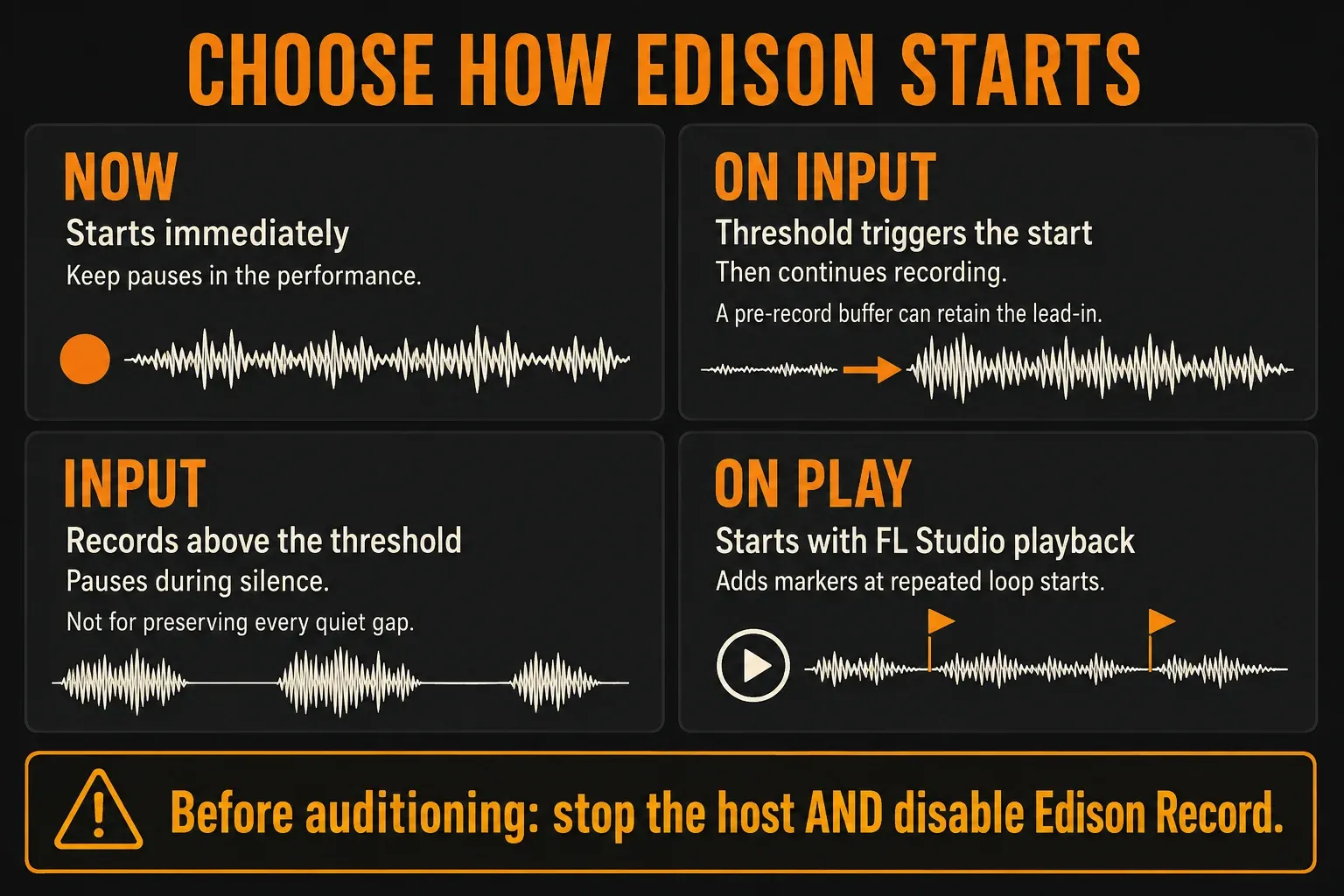
Nowstarts immediately. It is an uncomplicated choice for a short test or a capture you will trim afterward.On inputwaits for audio to cross the threshold, then continues recording. Edison uses a pre-record buffer to preserve the opening transient; you do not need a separate loud trigger sound.Inputpauses during silence and resumes when input returns. Avoid it when quiet gaps must keep their original duration.On playstarts from FL Studio’s main playback transport and adds song-start markers when playback starts/stops or the Playlist loops.
The recording-options reference explains the threshold and pre-record buffer. Test with a quiet phrase, and don’t assume one threshold suits speech, a guitar and a noisy room alike.
Stop the recorder, not just playback
Once the take is done, turn off Edison’s Record button. In an On play session, stop the main FL Studio transport too. Do both before you start playback to review a take. The loop-recording guide covers marked repetitions and the separate Playlist take workflow.
Set For before an important take
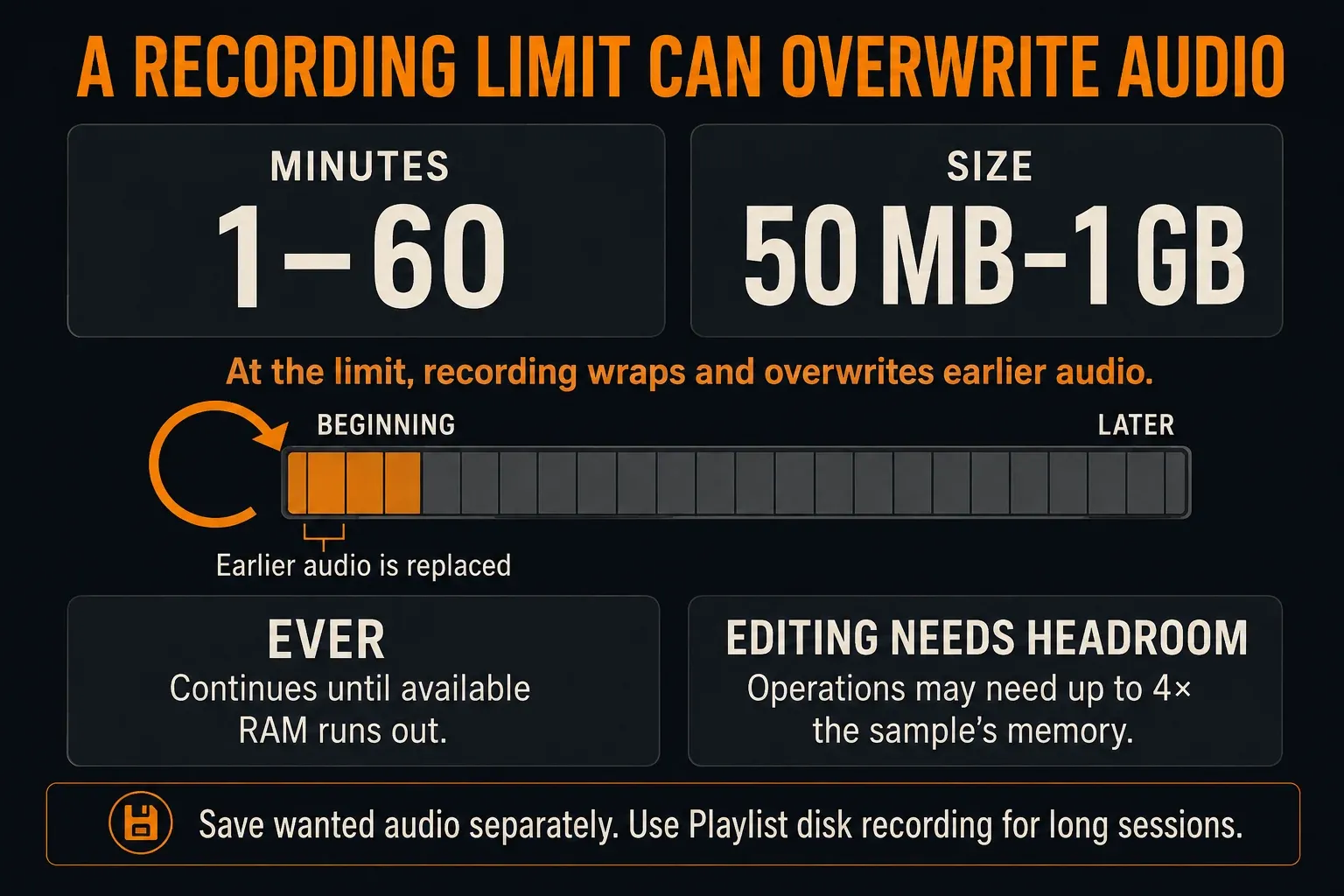
The For control sets a recording buffer. It doesn’t promise to stop safely and keep every minute. The finite settings offer 1–60 minutes or 50 MB–1 GB, and once you hit that limit, Edison wraps around and overwrites earlier audio. Ever is limited by available memory, and it still doesn’t turn Edison into disk recording.
Save any audio you want to keep before you record over it. For a long interview, rehearsal or concert, use Playlist disk recording and bring only the sections that need detailed editing into Edison. A bigger finite buffer just delays the overwrite. It’s not an archive.
Keep the source file, Edison edit and Playlist clip distinct
When you open a sample in Edison, you get working audio to edit. Each trim doesn’t overwrite the disk file, and other Playlist clips don’t magically pick up your edit. Nothing gets handed off until you save, send or replace audio.
If an Audio Clip needs its own file, the Playlist’s copy commands cover two cases. Make unique creates a separate clip source that still uses the original audio file, while Make unique as sample also copies that file on disk. Use the second one before you deliberately change a file that other clips shouldn’t share.
Use names like vocal-take-03-raw.wav and vocal-take-03-edit.wav. Check the path and filename before you save, because overwriting the only raw file defeats the whole point. Before you replace a selected Audio Clip or Sampler, check which source is selected and where else it’s used. Undo is great for experimenting, but it can’t stand in for keeping the raw capture.
Select the range before cutting or pasting
In waveform edit mode, left-drag horizontally across the audio you want to work on. Zoom in on both boundaries and listen to the transition. Leave a little context until you’re sure the breath, attack or decay just outside the obvious peak can go.
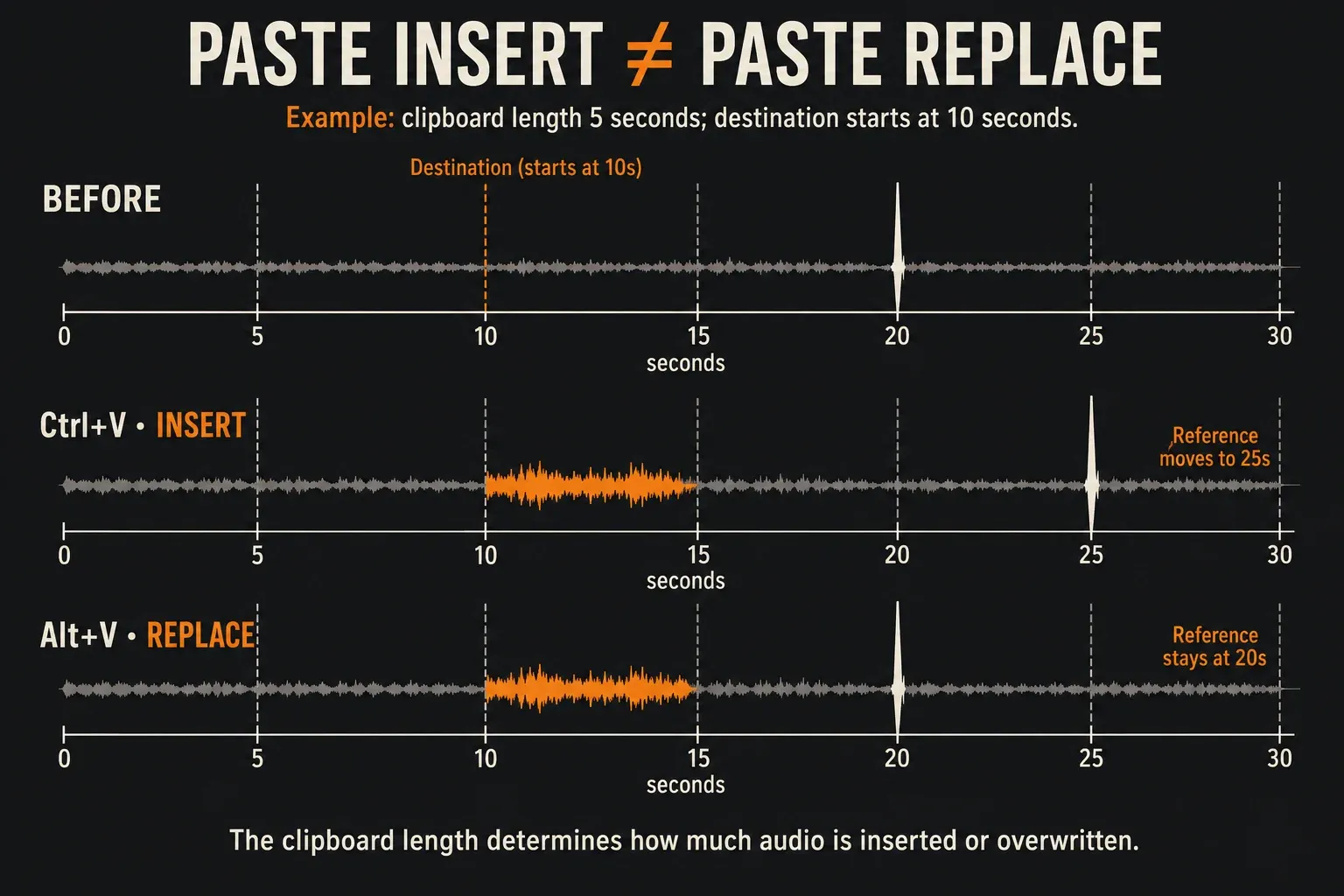
For a precise paste, start a small selection at the insertion point. The selection’s start sets where the paste begins, but its length doesn’t limit how much clipboard audio gets pasted. The sample-edit reference spells this out.
Ctrl+V, Paste insert: inserts the clipboard audio at the selection start and moves the existing audio at and after that point later.Alt+V, Paste replace: writes the clipboard audio from the selection start over the existing audio. It does not shift the later material, but it can overwrite beyond a small destination selection because the clipboard’s duration determines the affected length.
Clear, Delete and Trim solve different problems
Edit > Clear silences the selected range and keeps the sample length. Edit > Delete removes the range and shortens the sample. Edit > Trim removes everything outside the selection. When timing matters, work out whether you want silence, a shorter file or just the selected excerpt before you pick one.
Use fades and processing only where they help
A short fade can soften a click at an edit boundary, but a long one can weaken a drum’s attack. Preview the result at normal speed and in the song. Edison’s editing buttons split left-click fades from right-click declick operations, and the two gestures do different things. If a click survives a short fade, try the Declicker module described below before you lengthen the fade.
Normalize is peak scaling, not a finished mix
Tools > Amp > Normalize scales the waveform so its highest sample hits the maximum level. It doesn’t remove background noise, repair clipped peaks or even out the words in a performance. You may just end up with a louder version of the same problem.
Click-free editing still needs listening
The Click free editing switch adds short fades around selected, cut and processed regions. Listen extra carefully to sharp attacks. A zero crossing can reduce a discontinuity at the boundary, but neither the switch nor the waveform can tell you if you’ve sliced a consonant in half.
Keep noise removal a separate decision
A gate silences audio below a threshold. A denoiser uses a noise profile to reduce steady background noise inside the recording you want to keep. Heavy denoising can strip useful detail. The official Noise Removal Tool instructions recommend previewing the removed sound and backing off if you hear wanted audio in it.
Follow the FL Studio noise-removal guide for that process. If a short file needs trimming, fades or other targeted repairs, use the sample-editing workflow instead. Neither job means running every Edison effect.
Repair clipping, reverb and noisy vocals with the AI tools
Edison also includes three AI-based repair tools. Each one rewrites the audio you select, so save the raw take first. I’d treat them as a rescue for a recording you can’t redo, not a step for every sample.
Declipper: rebuild flattened peaks
The Declipper lives in the Noise Removal Tool (Tools > Spectral > Clean up, Ctrl+U) next to the Denoiser and Declicker, and you can run all three in one pass. It offers two models: pick Vocal for a solo vocal and General for music or a vocal with music behind it. The first time you switch it on, FL Studio asks you to download the feature; the Noise Removal Tool manual documents that prompt, so it’s expected. It rebuilds peaks flattened by an overloaded converter or over-saturated tape, and it lowers the overall level to make room for them. Apply it to the whole recording rather than one phrase, or the processed part drops in volume. If the clipping happens inside your FL project, fix the gain at its source with the FL Studio clipping guide instead.
Declicker and Denoiser: clicks and steady noise
The Declicker (Windows only) targets vinyl crackle and short noises such as lip clicks and smacking on vocals, and works best on clicks of 10 ms or less. The Denoiser handles steady hiss, hum and air-conditioning rumble; it isn’t built for a door slam or bird song. Switch on Output noise only to hear what is being removed, raise the setting until you hear wanted sound in it, then back off a little. With no region selected the whole sample is processed, which Image-Line says is usually what you want.
Deverb: dry out a roomy recording
Deverb (Tools > Spectral > Deverb) removes room sound with an AI model. Choose General for music and percussion or Vocal for speech and singing, then set the balance between original and processed audio. The Tools menu reference says the model is tuned for typical reverb on samples under 30 seconds, and long pre-delay or unusual reverbs can give unexpected results. On a long take I’d process phrase by phrase and listen to the joins. You can also run Deverb from an Audio Clip’s menu in the Playlist.
Vocal isolator: keep or remove the voice
The Vocal Denoiser Tool (Tools > Spectral > Vocal denoise / isolator) analyses the selection first. Its Mix knob runs from -100% (only what isn’t vocal) to +100% (only the vocal), and 0% is the original. Preview a setting, then Accept replaces the selection. A partial setting can lift dialogue above background music while keeping a little ambience. To split a whole song into vocals, drums, bass and the rest, use stem separation instead, and for timing or key changes see the time-stretching guide.
Use markers, regions and loop points deliberately
A marker identifies one position; a region adds an end boundary. Loop points mark a range for repeated playback, and a downbeat marker helps with rhythmic placement. They do different jobs, even when they sit over the same waveform.
The region menu reference documents Add marker, Add region, Set loop and Set first downbeat. Name each phrase for what it is: “verse double clean” is far easier to find later than “Region 5.” Preview its boundaries before you export it.
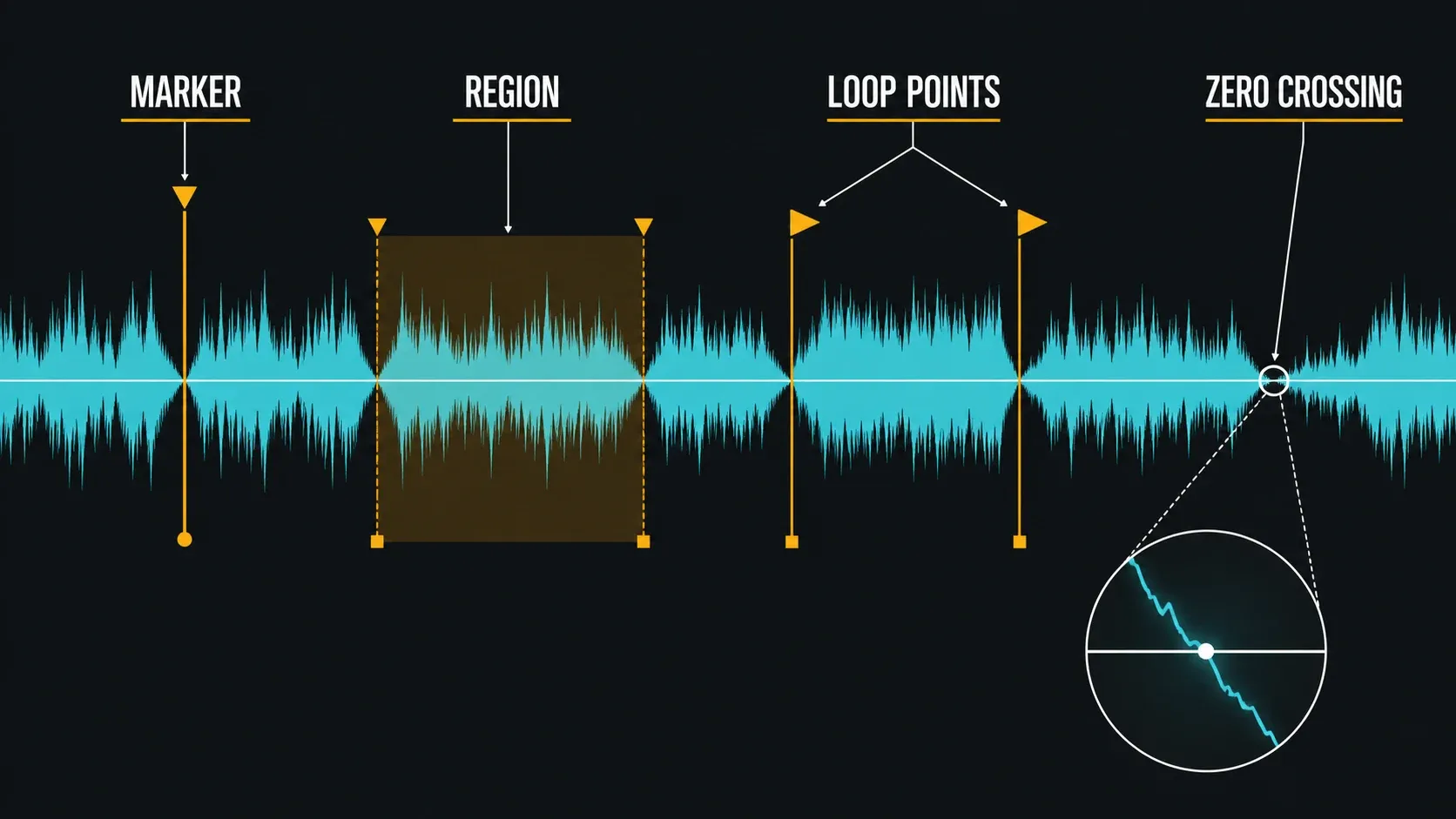
To get separate files from marked sections, use File > Export regions, which offers outputs for common use and for samplers. If you want playable chops mapped across notes, move on to the Slicex workflow. A region on its own isn’t a finished instrument.
Send or save the result without replacing the wrong source
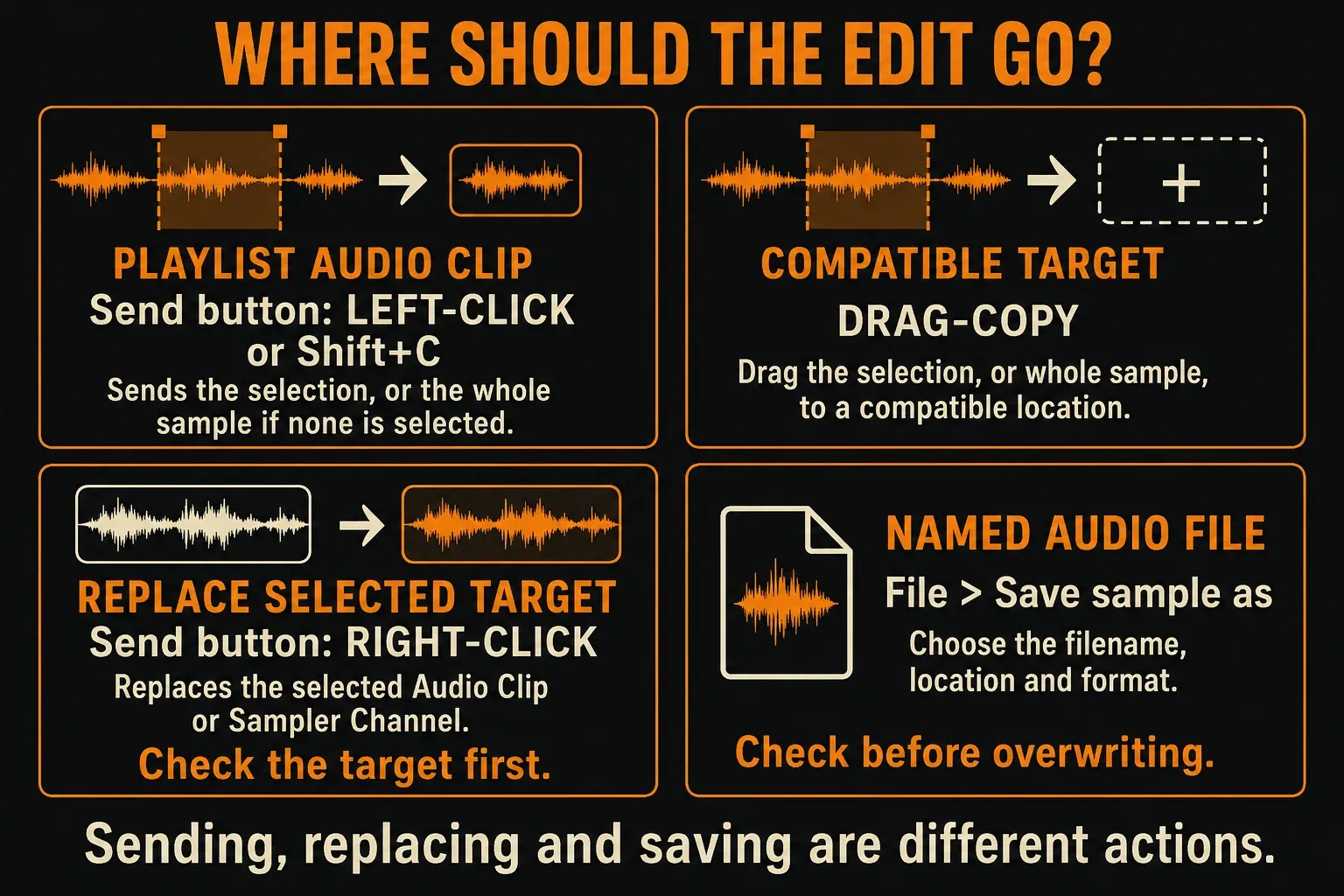
Make your selection and audition it first. With nothing selected, the send button’s left-click and drag-copy use the whole sample, so check the highlighted range before you hand the audio off.
- New Playlist Audio Clip: left-click
Send sample to Playlist, or useTools > Sequencing > Send to Playlist as audio clip(Shift+Cwith Edison focused). - Compatible destination: left-drag the
Drag / copy sample / move selectionbutton to the intended Playlist location or compatible sampler target. Confirm the target rather than dropping over an existing source by habit. - Replace an existing source: right-click the send button to replace the selected Audio Clip or Sampler Channel with Edison’s sample or selection. The
Send to selected channelsequencing command is also a selected-target handoff, not a promise of a new independent channel. - Separate named file: choose
File > Save sample as, check the destination and select the format. Use an uncompressed Microsoft WAV for an ordinary editing handoff; inspect the chosen bit depth and sample rate instead of assuming the source format survived processing unchanged.
Audition the audio where it landed, and don’t stop at the Edison window. Check the first transient, the tail and the level in context. If a rhythmic file behaves oddly after a tempo change, check its tempo properties with F2. Markers alone don’t give you a complete tempo-sync setup.
Budget memory and keep the project’s samples together
Edison works in RAM, and editing may need up to four times the sample’s memory. Image-Line’s overview recommends keeping samples under about 500 MB, and its recording guidance says to leave enough free memory for the editing overhead. Treat that as guidance, though. Not every machine can safely edit a 500 MB file.
How many minutes fit in Edison
Edison converts what it records to 32-bit float, according to its recording options page, which is 4 bytes per sample on each channel. That turns the 500 MB guideline into minutes:
| Recording | Memory per minute | Minutes at 500 MB |
|---|---|---|
| Mono, 44.1 kHz | 10.6 MB | About 47 |
| Stereo, 44.1 kHz | 21.2 MB | About 23.6 |
| Stereo, 48 kHz | 23.0 MB | About 21.7 |
| Stereo, 96 kHz | 46.1 MB | About 10.9 |
So a 10-minute stereo take at 48 kHz uses about 230 MB, and with up to four times that for editing it can need around 920 MB. My rule: anything longer than a song goes to Playlist disk recording, and only the parts that need detail come into Edison. The audio recording guide covers that route.
To keep a project organized, the Project Data Folder options can collect recordings and dragged Edison edits. Imported samples may stay where they were unless you explicitly copy or package them, so check the files you need, not just the folder name.
The FLP format reference warns that external wave samples aren’t stored inside the project file itself, so save your edited audio as well as the project. And since the standard Trial still can’t reopen a saved project before purchase, finish the exports you need while the session is open.
Troubleshoot Edison by the stage that failed
The recording contains the whole beat
Check whether Edison is sitting on the Master or on a bus that receives the arrangement. Move the capture to the source insert you want, then inspect the incoming routes. Switching a disk pickup to EXT doesn't move Edison's FX-slot capture point.
On input never starts, or Edison receives nothing
Start by confirming the input and the signal reaching Edison, including monitoring and its Mute input control, then run a short Now-mode test. If that works, look at the threshold. If the live source never reaches FL Studio at all, go through the microphone input checklist instead of changing Edison effects at random.
Quiet gaps disappear or the beginning is missing
Two different settings can cause this: Input can pause during silence, and a finite For buffer can overwrite earlier recording once it wraps. They’re separate faults. Stop, save what’s left, and don’t count on getting an overwritten beginning back.
A paste moved the following audio
Undo the insert. If you meant to replace audio, start the selection at the point you need and use Paste replace. Check the full clipboard duration before you overwrite anything.
Other clips changed, or the old audio still plays
Check the clip’s selected source, and whether you sent or saved the edited audio at all. A shared clip source, a replaced Sampler and an overwritten disk file are three different possibilities. Compare against your raw copy before you make another replacement.
An exported slice clicks
Listen to both edges, move the boundary to where it makes musical sense and try a short fade. Then check the slice against the next sound in the Playlist. Normalizing or denoising can’t make up for a poor edit boundary.
Once the handoff works on one short sample, use the Samples & Audio Editing hub to pick your next repair or slicing task. Head back to the Recording hub when the problem starts at the microphone, interface or take setup.
Frequently asked questions
What is Edison used for in FL Studio?
Edison is FL Studio’s built-in recorder and wave editor. Use it for short recordings, precise cuts, fades, noise and click repair, Deverb, markers, regions and sample exports. It loads into a Mixer effect slot and works in RAM, so long sessions belong in Playlist disk recording.
Is Edison free in FL Studio?
Edison comes at no extra cost with FL Studio Producer Edition ($179) and every edition above it. It isn’t in the $99 Fruity Edition, and there’s nothing extra to download because it installs with FL Studio. You can try it in the free trial by choosing Producer or a higher edition at the Welcome Window.
How do I open Edison in FL Studio?
Load it from an empty FX slot on a Mixer track, select a Mixer track and press Shift+E to load it ready to record with playback, or select a Sampler Channel and press Ctrl+E to edit its sample. You can also drag an audio file from the Browser onto Edison.
How do I open Edison on a Mac?
The routes are the same. Cmd replaces Ctrl and Option replaces Alt, so Cmd+E opens a Sampler Channel’s sample and Shift+E stays Shift+E. On macOS the Declicker isn’t available, and the Denoiser shows Smoothing instead of Threshold.
How do I record with Edison?
Load Edison on the Mixer track that receives your microphone or instrument, above any effects you don’t want printed. Choose Now for a simple take, arm Edison’s Record button and perform, then turn Record off and save the raw take before editing. Shift+E sets it up to start with FL Studio’s playback instead.
Should Edison go before or after effects?
Place Edison before the FL Studio effects you want excluded, or after the effects you want printed. It captures at its own slot before the track fader. Processing already applied by external hardware is still part of the incoming signal.
What is the difference between On input and Input?
On input waits for a threshold trigger and then continues recording, with a pre-record buffer for the opening transient. Input pauses during silence and resumes with audio, so quiet gaps may not keep their original duration.
Why did Edison overwrite the beginning of my recording?
A finite For setting can wrap and overwrite earlier audio once its time or file-size limit is reached. Ever is limited by available RAM. Save useful captures separately and use Playlist disk recording for long sessions.
Why does the Declipper ask me to download something?
The Declipper uses AI models that FL Studio downloads the first time you activate it. Accept the prompt, then switch the module on in the Noise Removal Tool (Ctrl+U). Apply it to the whole recording, because it lowers the overall level while it rebuilds clipped peaks.
Can Edison remove reverb or isolate a vocal?
Yes. Tools > Spectral > Deverb removes room reverb with a General or Vocal model and works best on samples under 30 seconds. Tools > Spectral > Vocal denoise / isolator blends from only the vocal to everything except the vocal, and Accept replaces the selection.
How do I send only a selection to the Playlist?
Select and audition the range, then left-click Send sample to Playlist or press Shift+C with Edison focused. With no selection, the send button uses the whole sample. Check the resulting Audio Clip’s first transient and tail.
Does editing in Edison automatically update every Playlist clip?
Not automatically. An in-memory Edison edit does not overwrite the file on its own. Check how you hand the audio back, because replacing a shared source or overwriting its file can affect every other use. Keep a raw copy, and use Make unique as sample when an Audio Clip needs its own file.