FL Studio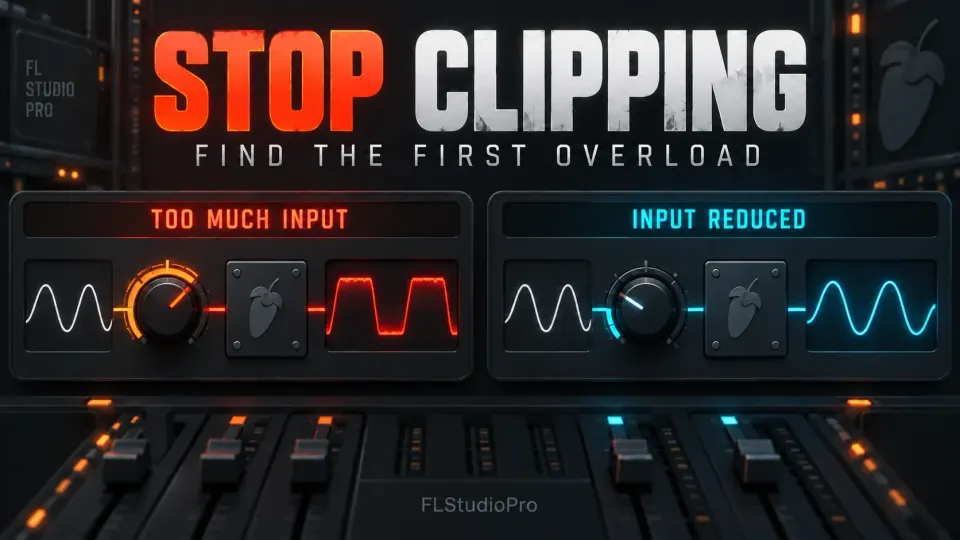
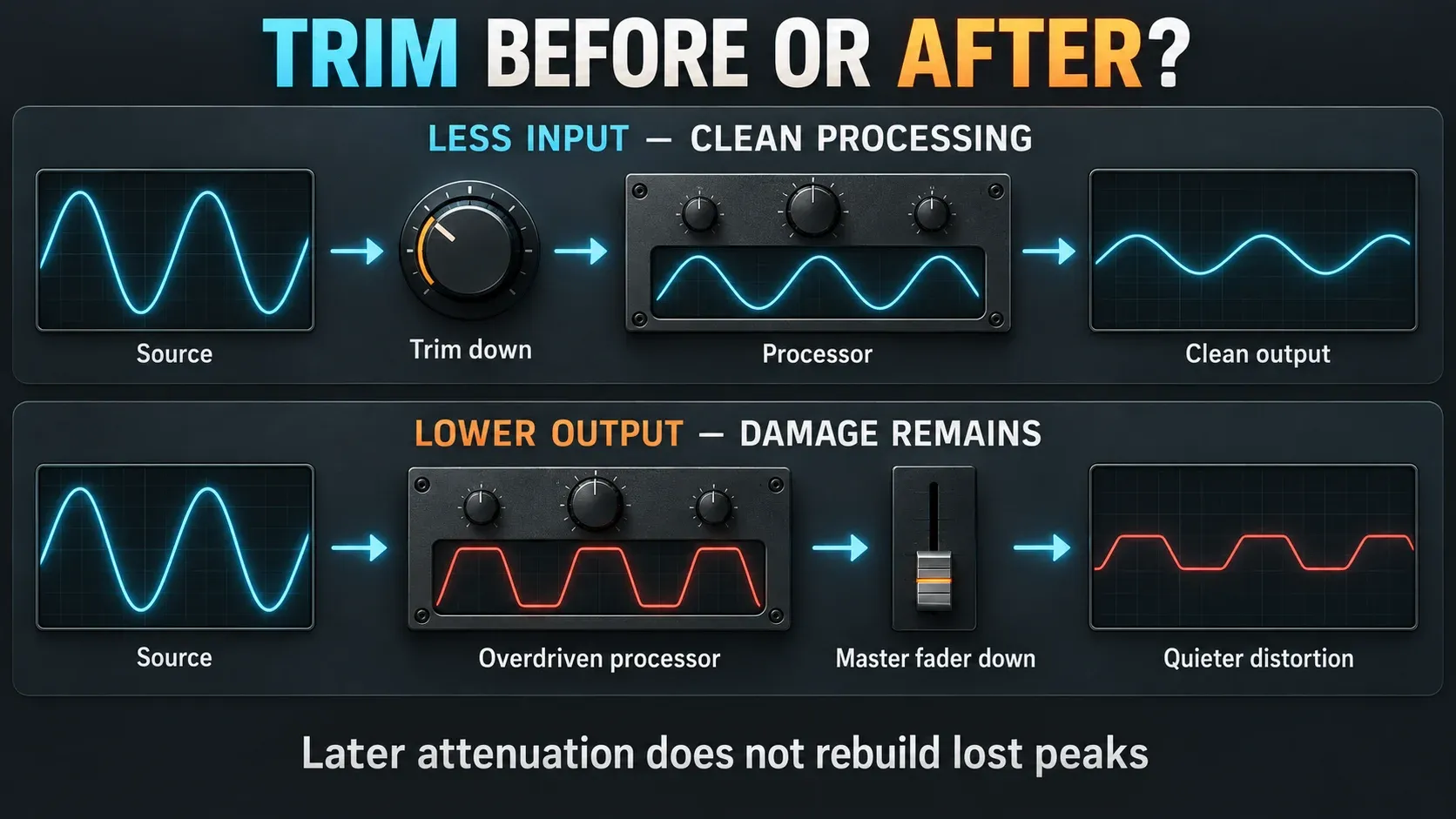
To stop clipping in FL Studio, find where a clean signal first becomes distorted, then lower the level going into that stage. Start at the Master and work back through its effects, the buses feeding it and the loudest source tracks. Pulling down a fader after the damage only makes the distortion quieter; the lost peaks stay lost.
Don't diagnose it by color alone. An orange Insert meter can be harmless inside FL Studio's floating-point mixer, while a plugin can distort even with the final meter below zero. The useful test is to compare the sound before and after each processor, then check a short export.
Find and stop clipping in eight checks
- Lower your listening level. Turn the monitor or headphone level down before you bypass anything, because disabling a limiter can make playback jump in volume.
- Loop the loud section. Use the same short passage for every comparison and watch whether the Master peak goes over 0 dBFS.
- Check the Master effects. Start with the last slot and bypass one processor at a time. Switch it back on after each comparison and keep the final output under control.
- Follow the shared routes. Check the buses and effects returns that feed the Master. Listen to the contributing sources on their own, then together.
- Inspect the suspect Insert. Work back through its effects toward the instrument or imported recording. If a bypass changes the sound, treat that as a clue; it doesn't prove the cause yet.
- Confirm the first damaged stage. Compare the signal right before and right after it at similar listening levels. Make sure a gain change hasn't simply stopped a later stage from clipping.
- Reduce the input that causes it. Lower an upstream output, input trim or drive control as needed, switch the other processors back on and recheck the whole route.
- Render and replay a test. Export the loud passage with the intended effects and format, then play it in another player at a comfortable level. Check the full song again before delivery.
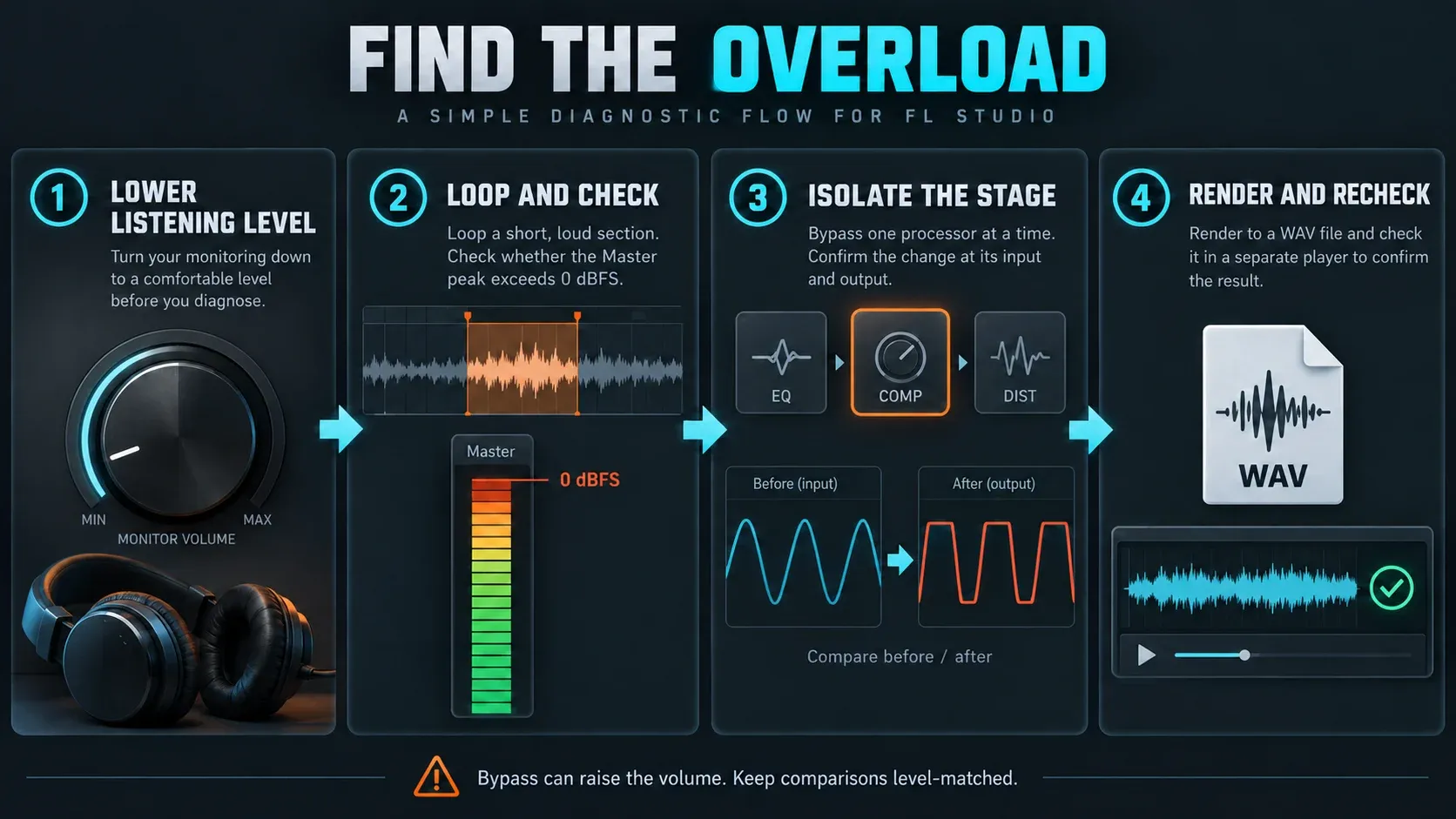
The diagrams below show how the signal paths work; your project's own levels will differ. If you're still getting used to track routing, start with the FL Studio Mixer walkthrough.
What clipping changes—and what a red meter cannot tell you
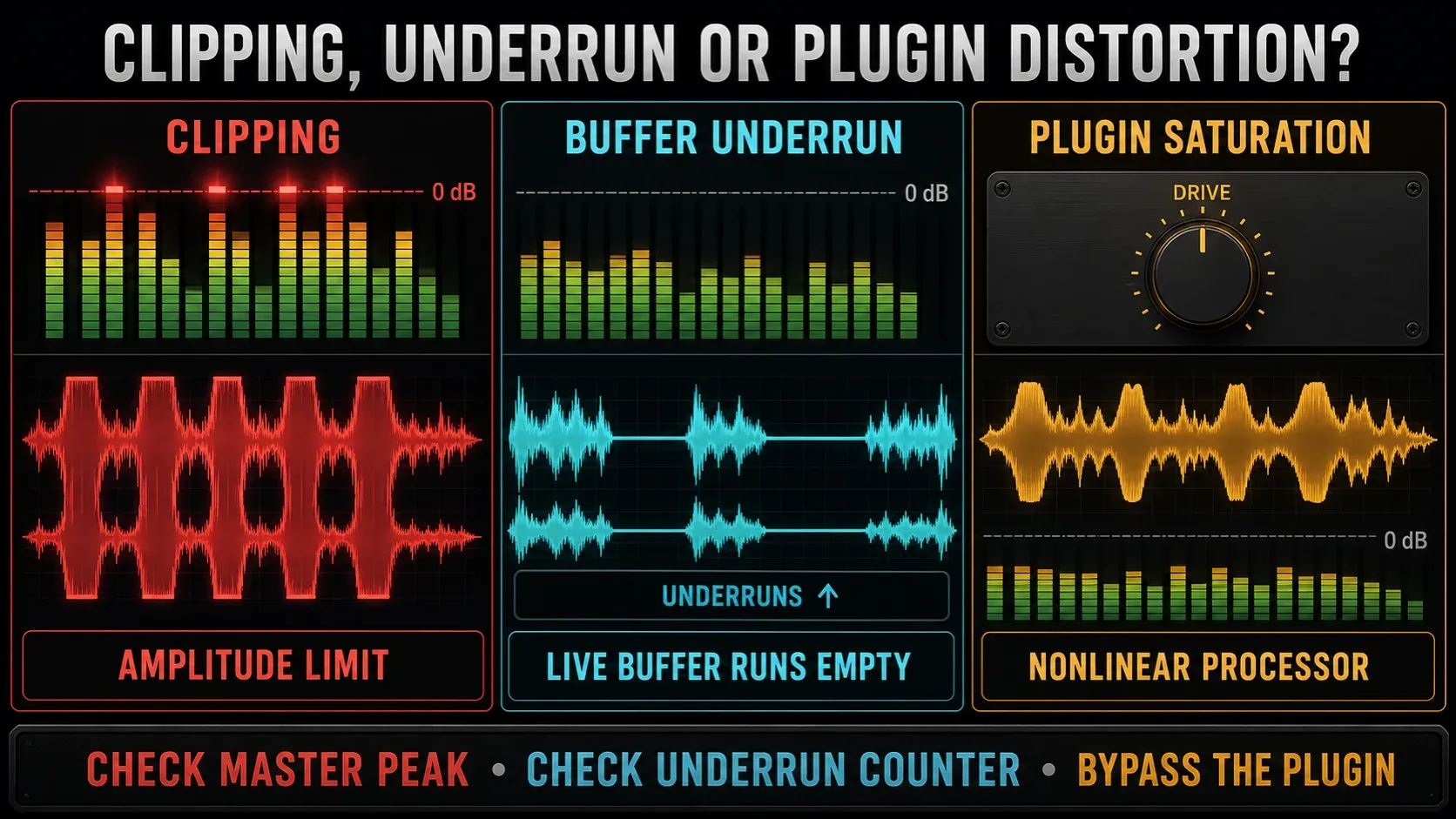
Hard clipping chops off waveform peaks at an amplitude limit and adds harmonics that can sound harsh, fuzzy or crackly. A fixed-point digital output has a full-scale ceiling at 0 dBFS. Image-Line's levels and clipping explanation separates that ceiling from the far larger headroom inside FL Studio.
That difference matters, because “too loud,” “distorted” and “above zero” are three separate diagnoses. A synth patch might use saturation on purpose. A recording might already have clipped peaks baked in. A missed live audio buffer can cause clicks without any overload at all. And a distorted signal can end up with perfectly safe output peaks once someone turns it down.
An orange Insert is different from an overloaded output
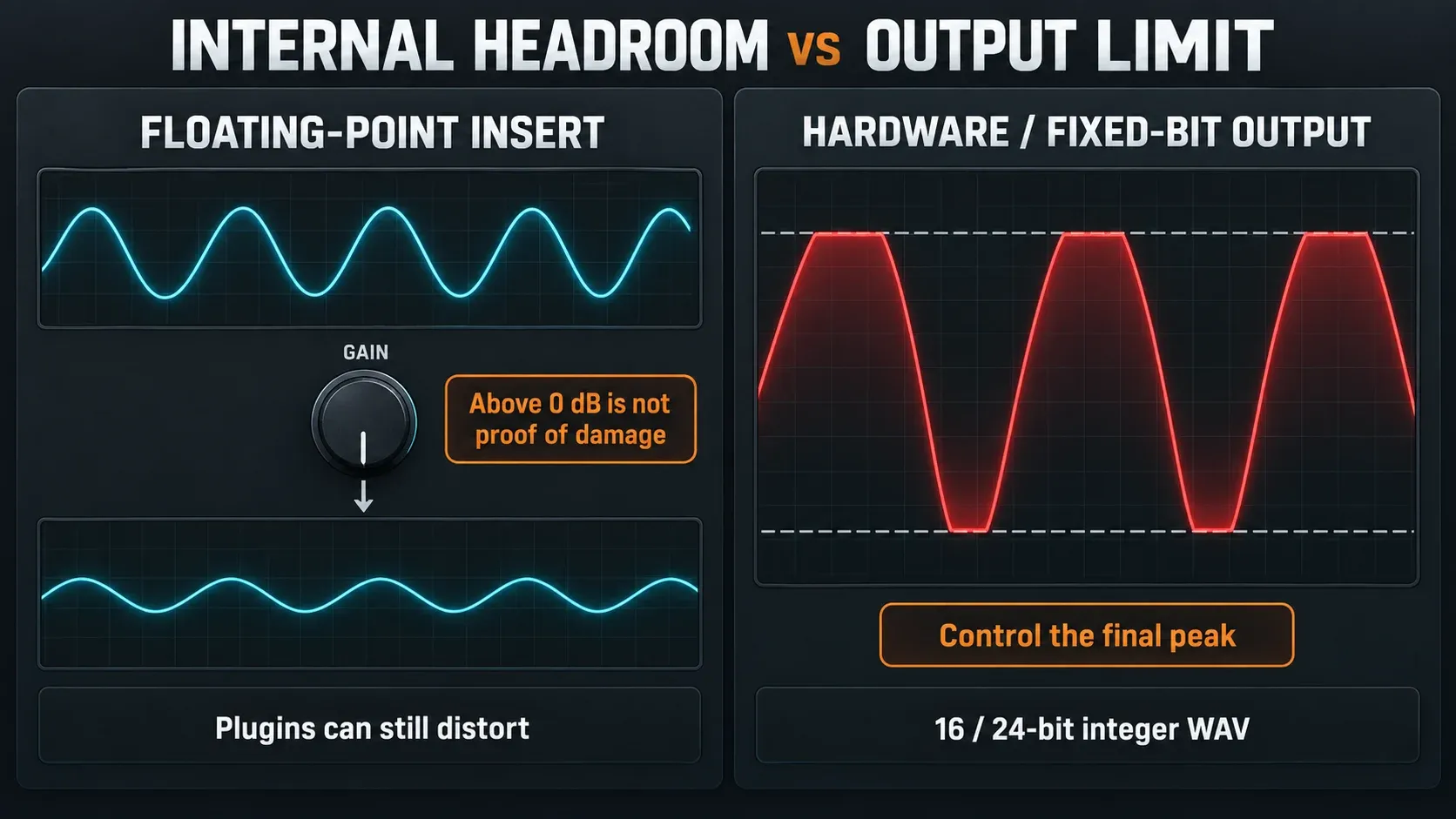
FL Studio handles internal audio with at least 32-bit floating-point precision. In practical mixing, an Insert going over 0 dB doesn't run out of that mathematical headroom. The number still helps you balance the mix, but it doesn't prove the waveform has been cut off.
Keep the exceptions separate: a plugin on that Insert may distort internally, an Insert routed straight to a hardware output hits a real output ceiling, and a 16-bit or 24-bit integer export can't keep peaks above full scale. The Master usually feeds your audio device, so keep its final level under control instead of leaning on the internal mixer headroom.
You don't have to push every track close to zero. For sensible working levels before problems start, use the gain-staging guide. The question here is narrower: does an orange meter point to unwanted distortion, or just a hot internal signal?
Find the first damaged stage, not just a helpful bypass
Save a project copy before you change the chain. On the Master, start at the bottom of the effects stack. Use the slot's enable/disable switch on one processor, listen, then switch it back on before the next test. Image-Line's effects-slot reference confirms that bypass disables that effect without muting the audio passing through the track.
A cleaner-sounding bypass can mislead you. Say an EQ adds output gain and drives a later saturator too hard. Bypassing the EQ stops the distortion, yet the saturator is where the waveform actually changes. The reverse happens too: bypassing a limiter can expose an output overload it was holding back. Turn your listening volume down first, keep the final output safe and compare at similar perceived loudness.
Once you have a suspect, compare what goes into it with what comes out. A meter or analyzer placed just before and after the processor helps you spot a level jump, and your ears tell you whether the change is unwanted. Check the input, makeup gain, drive and output controls. If the signal is already damaged at the input, move upstream instead of blaming that plugin.
Use the same process on a bus, return or Insert. Keep track of which route you're actually hearing, because muting a source can also cut its feed to an effect return. Once the isolated sound is clean, check it again in the full mix.

Lowering input and lowering the Master do different jobs
If a synth is overdriving its first effect, lower the synth's output or add a suitable trim before that effect. If one processor's makeup gain overloads the next, lower that makeup gain or the next processor's input. For a bus processor, turn down the feeds going into it or put a trim before it. Don't assume a track's fader comes before its effects.
In the normal Mixer path, audio passes through effect slots 1–10 before it reaches the track's built-in controls and fader. An Insert fader can lower the level sent to the next track, but it can't undo distortion already created in its own effects stack.
The Master fader helps when the combined mix is clean and only the final output is too hot. Lowering it rescales that output, and Image-Line describes this use directly. Master effects sit before the Master fader too, though. If a saturator or limiter is already producing unwanted distortion, pulling the fader down afterward just makes that result quieter.
A limiter or clipper is a processor, not an eraser
A limiter can control peaks, but driving it harder can reshape transients or cause audible distortion. Compare the processed sound with a level-matched bypass instead of simply comparing louder against quieter. The Fruity Limiter compression guide separates input level, gain reduction and output control.
The Fruity Limiter signal-flow reference holds a useful detail: GAIN sits after the compressor and before the limiter, with SAT further along the path. So turning GAIN down doesn't reduce the signal going into its compressor. Know exactly which stage you mean to change.
Fruity Soft Clipper applies soft limiting and saturation above its threshold. That can be a tone you want, but it won't always be transparent protection. Its POST control changes level after the compression. Neither a limiter nor a soft clipper can rebuild peaks that were already lost upstream.
Once the accidental distortion is gone, the stock-plugin mastering workflow will help you decide how much final peak control suits the music. A project that was clipping doesn't need a clipper added just for that reason.
Check kick, 808, buses and effect tails together
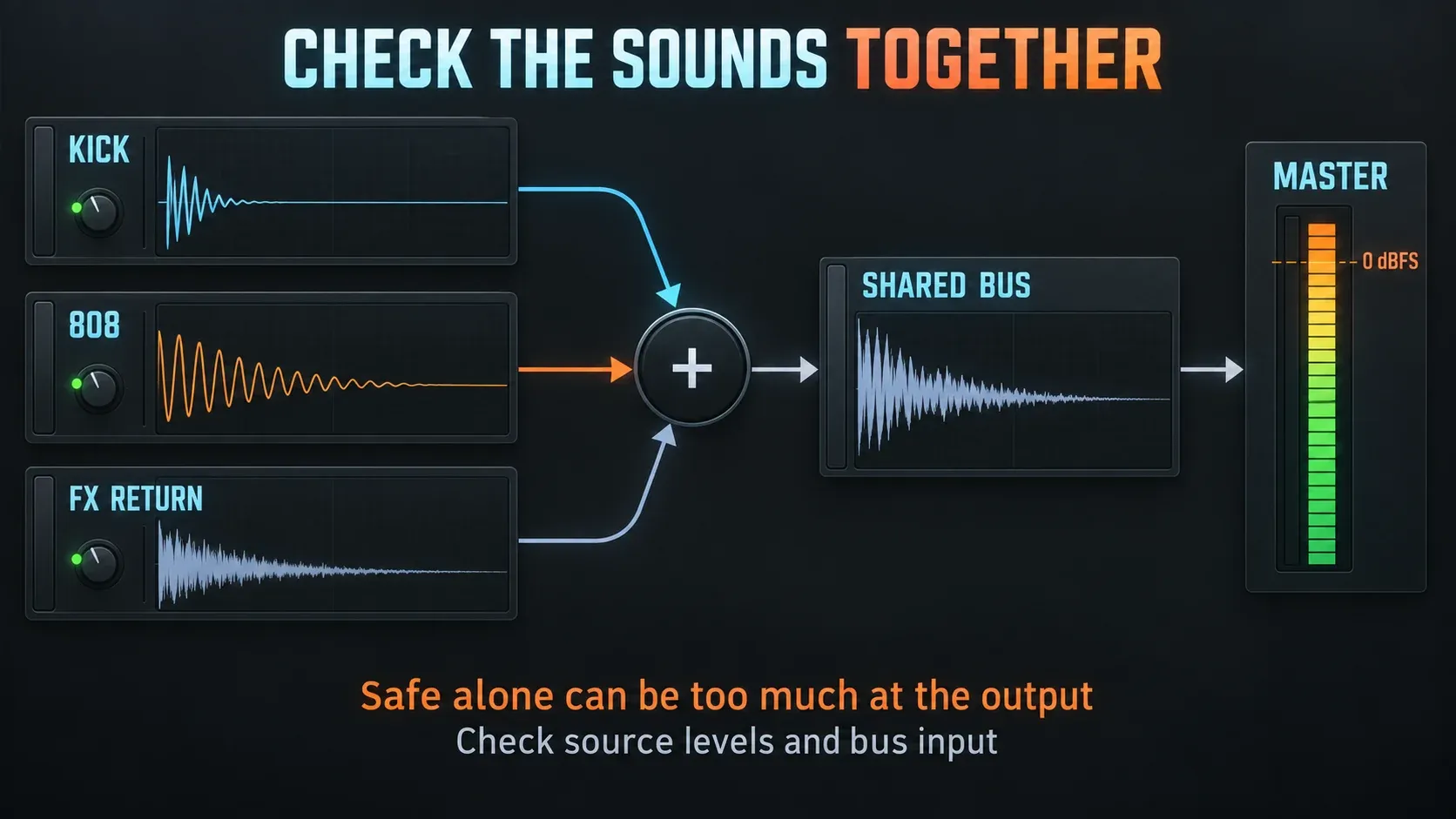
Two sounds can each be safe on their own and overload the output together. Loop a kick-and-808 overlap, listen to each source, then play both and watch their shared bus and the Master. How much the peak rises depends on their waveforms, timing and level, so no fixed number applies to every pair.
Lower the level going into an overloaded bus effect, or change how the parts overlap. The kick-and-808 mixing guide covers tuning and envelope choices. Don't high-pass useful bass just to clear a meter, and don't assume phase alignment always brings the peak down. Use sidechain ducking when the overlap needs space; it isn't an automatic cure for every red meter.
Long reverb tails and delay repeats also accumulate. If a return keeps growing, lower your monitoring level, stop playback and reduce the feed or feedback before testing again quietly. Inspect unintended loops as well as send and return levels. The reverb and delay send walkthrough helps separate each source's feed from the shared effect output.
Clipping or live crackling? Check the buffer evidence
If clicks mainly happen during live playback, look at the underrun counter while the problem occurs. Image-Line's Audio Settings documentation defines an underrun as the audio buffer running out of prepared data. That can cause clicks, pops or crackling without an amplitude overload.
The counter is a clue, not a verdict. It can increase while projects or plugins load without indicating an audible problem. Some driver-related underruns and settings can bypass it, so an unchanged count does not rule out a buffer issue. Listen for the fault and compare the same passage, rather than diagnosing from the lifetime total.
For that route, follow the crackling-audio checks, the high-CPU troubleshooting steps and the driver and buffer setup guide. Increasing the buffer won't rebuild clipped peaks, and lowering a fader won't fix a missed audio deadline.
Distortion below zero: check the source and monitoring path
A plugin can saturate inside its own model while its output stays below 0 dBFS. Lower its input or drive, check its own meters and compare before and after. Listen to an imported recording on a clean route at a low level. If the file itself is already clipped, later attenuation can't bring back the missing peaks. Replacing or re-recording the source is often the better fix; restoration may help mild damage, with no guarantee.
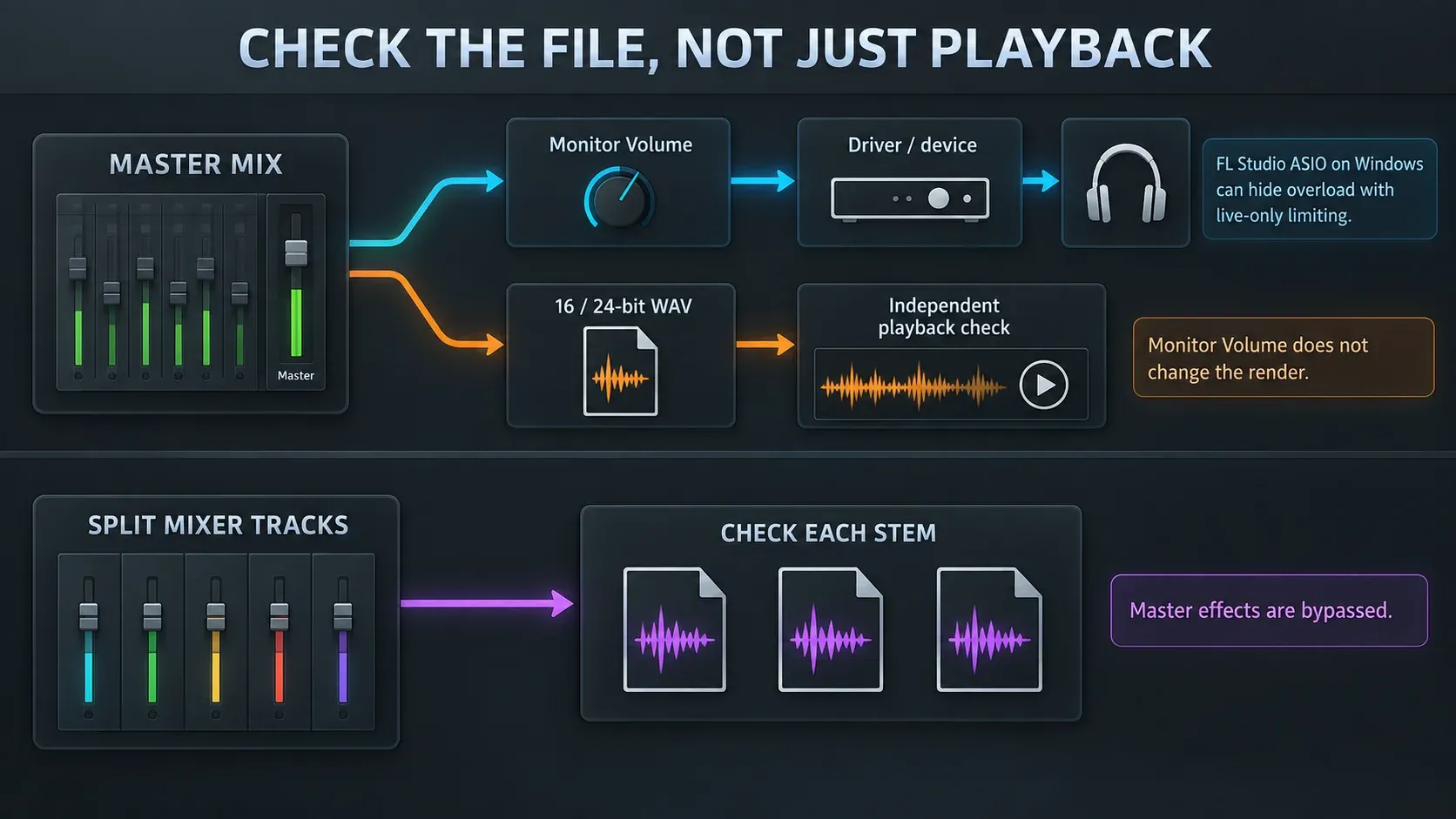
If a test WAV sounds clean elsewhere but live playback is rough, check the monitoring path at a low listening level: toolbar volume, interface controls, operating-system processing, headphones and speakers. According to the current toolbar reference, Monitor Volume changes the listening level, is saved per project and doesn't affect renders. So it can't fix an exported file.
On Windows, the FL Studio ASIO panel has Hard-clip output at 0dB (otherwise limiting will be applied). Image-Line explains that deselecting it lets a Windows limiter outside FL Studio act on live audio, which can hide an overload you'll then hear in a render. The switch doesn't change internal processing or rendered files, and it says nothing about other drivers or macOS. Keep the Master under control instead of relying on hidden playback limiting.
Use peak and true-peak checks for different questions
Use the Master peak meter for the final output. To look at a point inside the effects chain, put Wave Candy in Peak mode there. It shows instantaneous levels and maximum peaks at that slot, before later effects and the track fader, so it doesn't replace the final output meter. Changing its display Gain makes the dB readings relative to the input without turning down the audio. Its PPM, RMS, Vu and loudness-weighted modes respond differently and can't stand in for that instantaneous check.
A sample-peak reading below zero doesn't rule out every playback overload. Reconstructed peaks between samples can run higher, and conversion such as MP3 encoding can change peaks too. FabFilter's true-peak explanation describes this distinction. For final delivery, use a meter that explicitly offers true-peak measurement, check the finished file and meet the destination's requirements. An ordinary Peak mode won't guarantee true-peak safety. The true peak explainer on soundforgepro.com covers the same distinction.
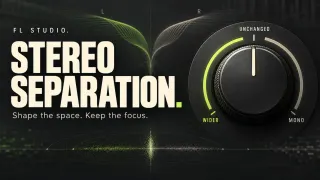
Peak safety and loudness are different targets. The LUFS and loudness guide covers perceived programme level. If the overload showed up after you changed the width, compare levels before and after that change; the stereo separation guide covers width and mono translation.
When the export is distorted but playback sounds clean
Export a short loud passage with the intended Insert and Master effects on, then play the WAV on its own at a comfortable volume. Keep extra limiting and gain changes out of the test player. A level-matched comparison tells you more than flipping between two different listening volumes.
The FL Studio export manual names 32-bit float as the native mix-engine format for further editing in compatible software. It can keep above-zero floating-point peaks for later attenuation, but it can't undo distortion a plugin already produced. A 16-bit or 24-bit integer WAV has a fixed full-scale limit, so check that version separately.
Check individual stems too. The Split mixer tracks export option skips the Master effects. A limiter guarding the full mix doesn't protect every individual fixed-bit track export. Check those tracks' levels and files instead of assuming a clean Master means every stem is safe.
Roughness in an MP3, OGG or M4A can come from the lossy codec and may have nothing to do with clipping. Differences in render settings or plugin behavior can change the result as well. Image-Line notes that glitches in offline-rendered audio aren't live buffer underruns. Use the export-settings walkthrough to compare format and processing choices, then play the whole finished file before release.
A clean check ends with the full mix
- The loudest passage is repeatable, and listening levels stay comfortable during bypass tests.
- The first unwanted distortion is identified before and after its stage, not inferred from a single red meter.
- The correction happens before that stage; the restored full chain still sounds right.
- Kick, bass, buses and tails have been checked together, including later loud sections.
- The Master and the intended finished file have controlled peaks without relying on live-only limiting.
- Individual fixed-bit stems are checked separately when exported.
For your next mixing decision, pick a route from the Mixing hub. If the noise is still there after the amplitude and export tests, use the Troubleshooting hub to look into the driver, plugin or playback problem. Change one thing at a time so you know which fix actually worked.
FL Studio clipping FAQ
How do I stop clipping in FL Studio?
Turn your listening level down, loop the loud section and work back from the Master. Compare before and after each suspect stage, lower the input that causes unwanted distortion, restore the full chain and check a short export.
Why does FL Studio sound distorted below 0 dB?
A plugin may be saturating internally, a source may already be clipped, or the monitoring path may be distorting. Live buffer problems are another possibility. A safe final meter doesn't prove every earlier stage is clean.
Is an Insert track above 0 dB clipping?
Not necessarily: FL Studio's floating-point mixer can carry that signal without cutting it off. Plugins can still distort, though, and a direct hardware output or fixed-bit export has a real output ceiling.
Can I fix clipping by lowering the Master fader?
Yes, if the mix is clean until the final output and only that level is too high. If a Master effect already distorts before the fader, reduce the signal entering that effect or change its settings.
Should I put a limiter or soft clipper on the Master?
Only if you want that processing. A limiter controls peaks and a soft clipper adds saturation that depends on level, and either one can change the sound. Neither repairs peaks already lost upstream.
Does increasing the buffer stop clipping?
It may help with live buffer underruns, but amplitude clipping is a different problem. Check the symptom, the driver and playback behavior. The underrun counter can miss some faults, so a zero count doesn't rule them out.
Why does the export clip when playback sounds clean?
Live-only limiting can hide an overload, especially with the relevant FL Studio ASIO setting on Windows. Fixed-bit output, render options and plugin behavior matter too. Play a short WAV outside FL Studio and check the processing used for that export.
Does a 32-bit float WAV fix clipped audio?
No. It can keep above-zero floating-point peaks for later attenuation in compatible software, but it can't restore peaks already clipped in a recording or processor. Check fixed-bit delivery files separately.
Can a file have true peaks above its sample peaks?
Yes. The reconstructed signal between samples can peak higher than the stored samples. Use explicit true-peak measurement when checking final delivery, since a sample-peak reading guarantees nothing here.
Can turning down a clipped recording repair it?
No: turning it down only makes the damaged waveform quieter. Restoration may help mild clipping, but it can't promise the original peaks back. Replace or re-record the source when you can.