FL Studio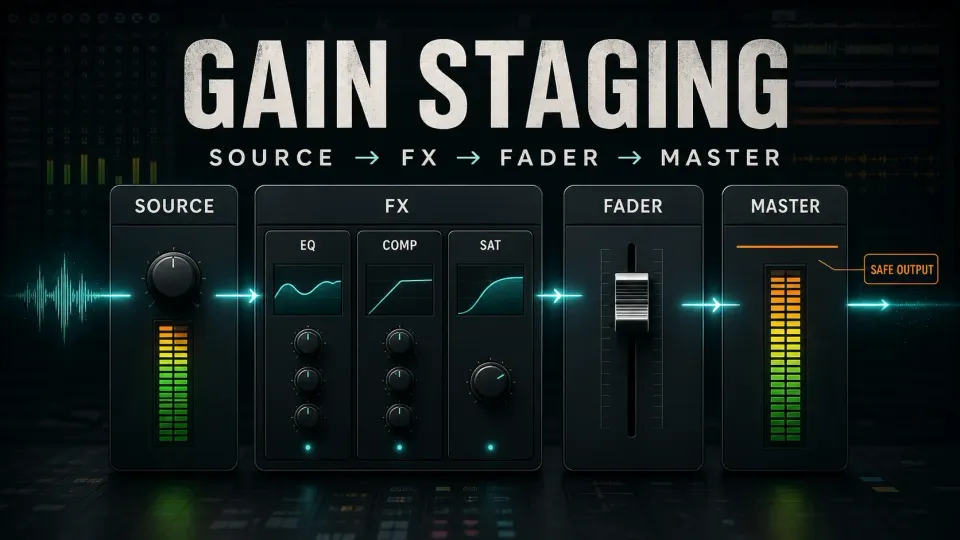
Gain staging in FL Studio means controlling the level at each point in the signal path. If an effect is getting too much level, turn the source down; if the processed sound just sits wrong in the song, use the Mixer fader. Then listen to the buses and the Master with the whole arrangement playing. Forget the idea that every track has to peak at −18, −12 or −6 dBFS.
Ask one question: where does the unwanted change first happen? A harsh compressor input, a loud but clean floating-point mix and a clipped microphone recording are three different problems. Pulling the same fader won't fix all three.
This guide covers desktop FL Studio, and the figures focus on the controls and signal paths behind each decision. If routing is new to you, start with the Mixer controls and routing guide.
Gain-stage the mix in eight decisions
- Check the route. Confirm which Mixer Insert receives each source, including any bus or parallel send.
- Choose an early control. Use Clip Gain, an instrument output or a trim before the effect that needs a different input level.
- Play a demanding section. Include loud notes, overlapping drums and phrase peaks rather than judging one quiet moment.
- Check one effect at a time. Work down the slots, compare bypassed and processed sound, and compensate unintended output jumps.
- Correct accidental drive upstream. Reduce the level before the processor causing unwanted distortion or excessive compression.
- Balance after processing. Use the Mixer fader to place the completed sound in the song.
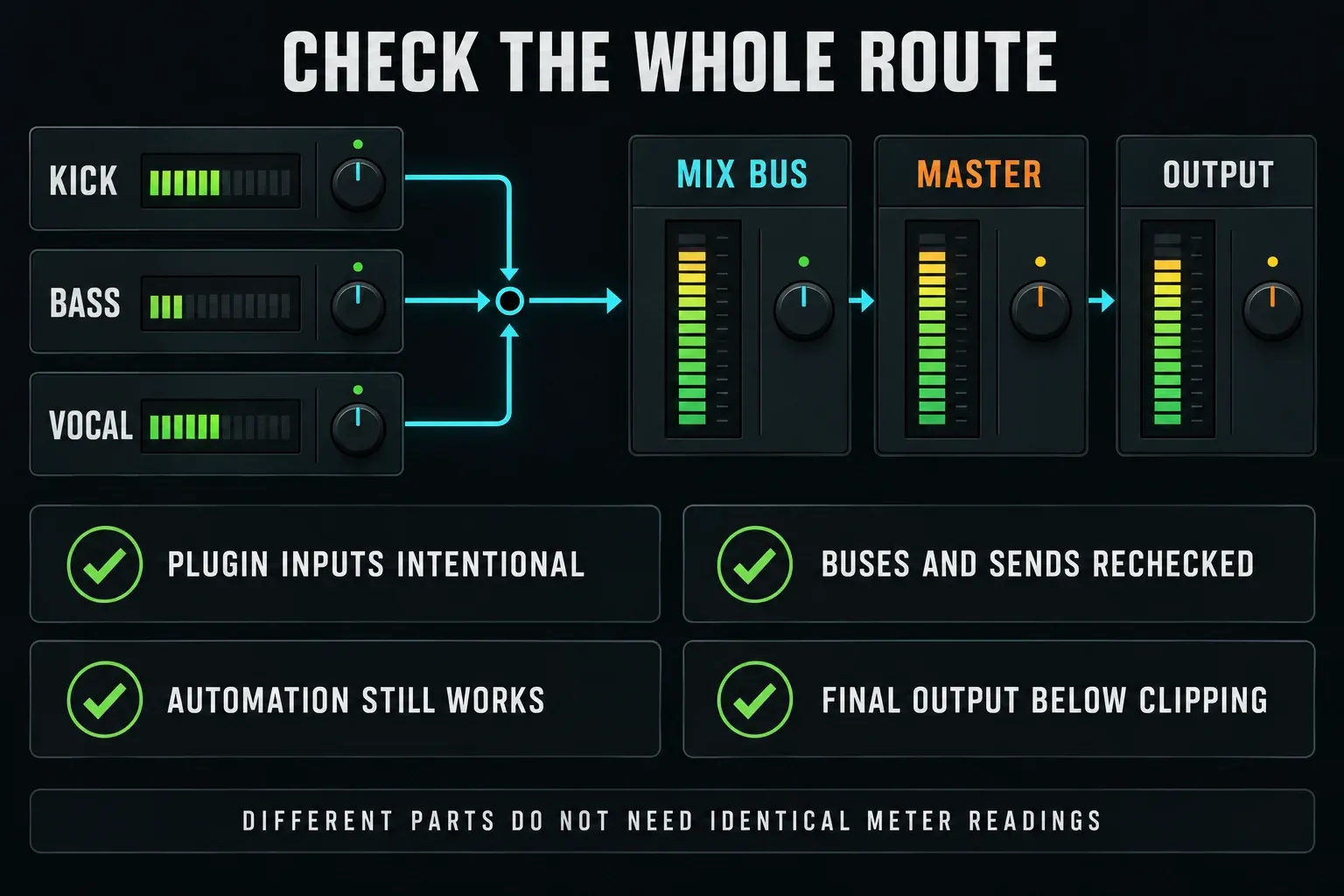
- Recheck shared paths. Listen to buses, sends and automation after significant level changes.
- Check the output. Keep playback and fixed-point exports below clipping; distinguish Master output level from the signal feeding its effects.
Rerun the relevant checks after an EQ boost, a change in compressor makeup gain or a routing edit. You're after predictable sound, and a neat row of faders tells you nothing about that.

Follow the signal, not the fader position
In the ordinary serial path, audio runs through the effect slots from top to bottom, then through the integrated Track controls on its way out of the Insert. Image-Line documents this order in Effects Slots. The Mixer fader sits after the effects, so pulling it down can't change what's already hit a compressor in Slot 3.
| Control | Useful for | Does not do |
|---|---|---|
| Audio Clip Gain | Changing one Playlist clip instance before Mixer processing | Repairing distortion already in the recording |
| Instrument output or Channel Volume | Adjusting a source before Mixer effects; response depends on the instrument | Guaranteeing identical behavior in every plugin |
| Trim in an effect slot | Changing what later slots receive | Changing the input of an earlier slot |
| Mixer fader | Balancing a processed track and its ordinary post-fader sends | Undoing distortion produced earlier |
| Master fader | Adjusting the combined output after Master effects | Reducing the input to those Master effects |
Picture a snare. If its transient is getting crushed by accident, turn down what feeds the compressor. If the processed tone is right but the snare dominates the chorus, pull the fader down instead. The first move changes the processing; the second changes the musical balance.
What floating-point headroom protects
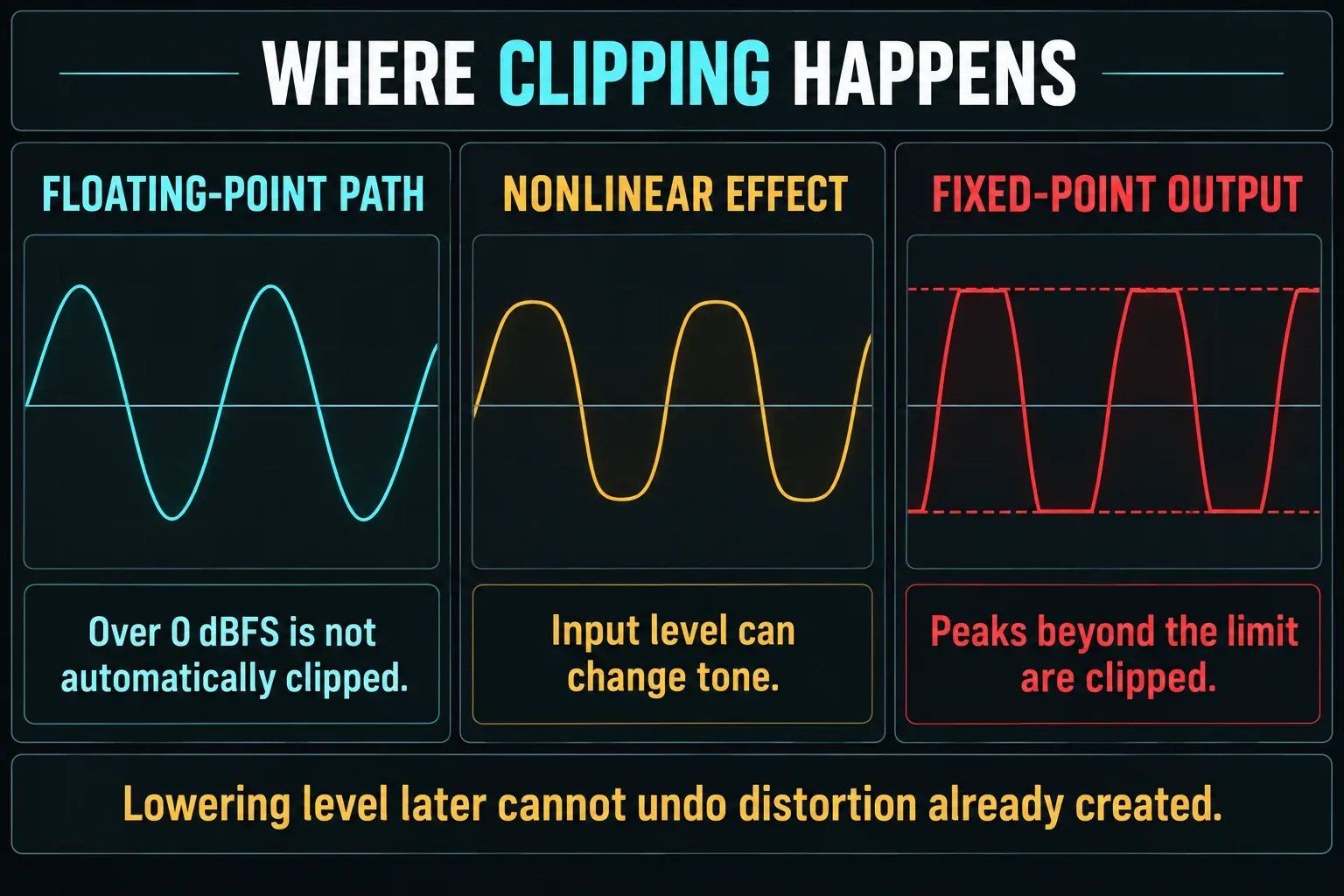
FL Studio's internal audio path runs in at least 32-bit floating point, so an Insert above 0 dBFS doesn't automatically mean a clipped waveform. Image-Line's Levels, Mixing & Clipping guide explains how that internal headroom differs from audio-device outputs and fixed-point rendering.
That doesn't mean nothing can distort inside the DAW. A saturator may reshape the signal on purpose, and a compressor's gain reduction depends on what you feed it and how it's set. Plugins can have their own limits too. Floating-point transport can't undo a change a processor has already made.
The limits that matter are the recording input, any level-sensitive processing and the final output. A 16- or 24-bit fixed-point file can't hold over-full-scale peaks the way a floating-point file can. An Insert routed straight to hardware needs its own output check too, even when the Master looks fine. Keep meters in a readable range while you work. Internal headroom is no excuse for a wildly hot chain.
If you can already hear distortion, go to the clipping diagnosis to track it down. This section is about getting each gain control's job straight before you hit that problem.
Choose the source control
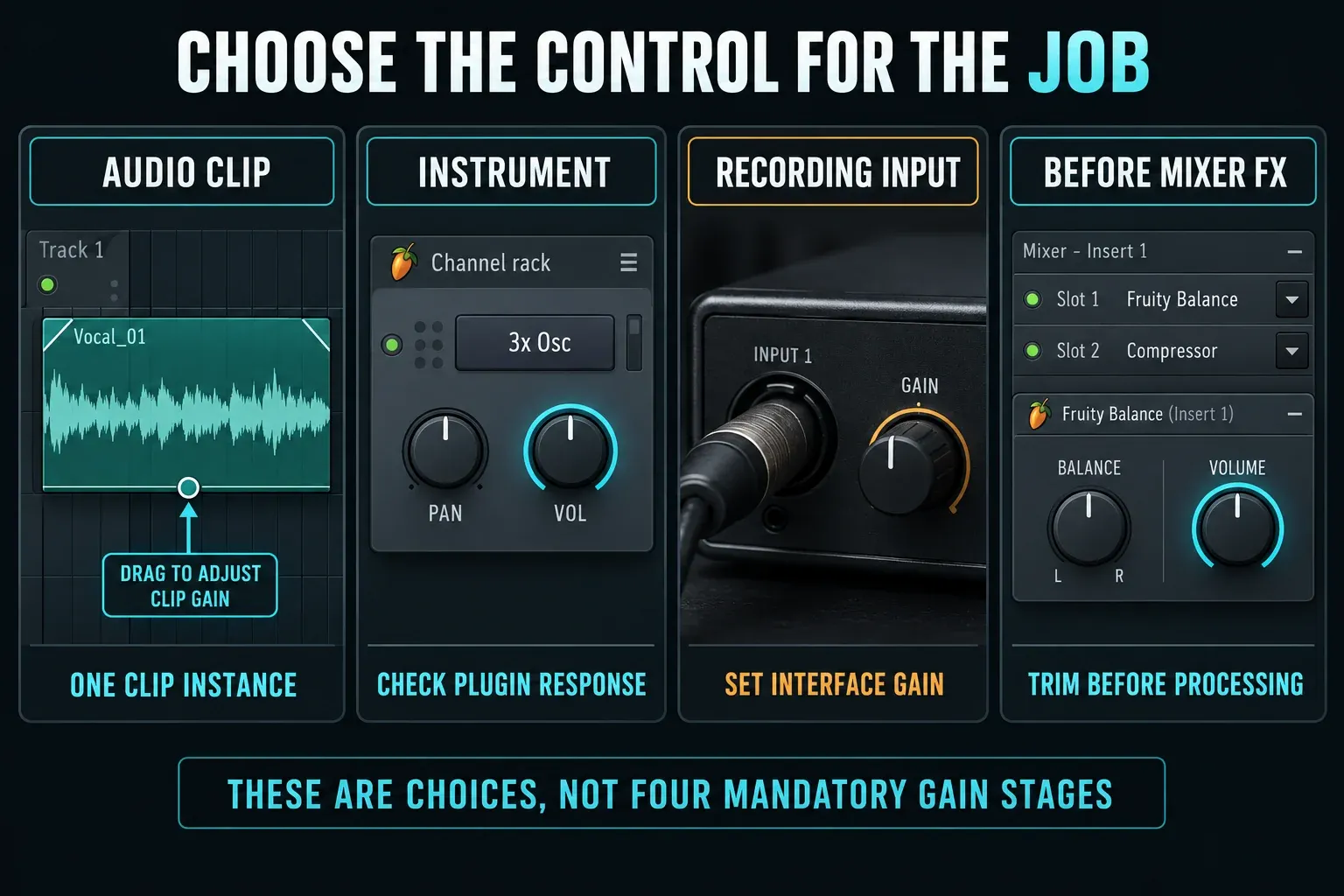
For one loud take or phrase in the Playlist, grab the small Gain handle on the lower edge of its Audio Clip and drag it vertically. It only affects that instance, unlike shared Channel Settings. Image-Line's Audio Clip controls document a range from +36 dB down to silence. If you can't see the handle, turn on the Playlist's fade-editing controls.
For an instrument, use its output or Channel Volume and watch the destination while you do. Channel Volume is a message to the plugin, and it doesn't always act as an independent trim on the final audio. Native instruments can apply it to note voices, while VST/AU instruments may handle it differently, as the Channel Rack Pan & Volume section explains. A knob percentage isn't a dBFS peak reading.
For a clear, unambiguous level stage before the Mixer effects, put Fruity Balance in a free slot ahead of them and adjust Volume. Leave Balance centered unless you also want to change the stereo balance. Its two-control interface is built for level automation. Slot 1 is handy, but what counts is where it sits relative to the processor. Never swap out a loaded effect just to free that slot. Keep the chain and insert or move controls on purpose.
For a microphone or guitar, set the interface input gain before you hit record. A software trim can turn playback down, but it can't bring back information lost to converter clipping. The vocal recording setup and guitar recording workflow walk through those input paths.
Read levels without chasing −18
A peak meter shows brief maximum levels. It says little about how loud two sounds feel. A sustained bass and a sharp snare can hit the same peak value and still have very different average levels. RMS averages the signal and VU responds more slowly, but neither can stand in for a peak target.
For a closer look, Wave Candy's metering modes include Peak, RMS and VU. Load the meter at the point you want to inspect and leave its display Gain neutral, with no boost or cut. Put it before a fader and it won't show that fader's later attenuation.
Advice about −18 dBFS usually refers to an average level or an analog-modelled plugin's calibration. It was never meant as a compulsory peak for every kick and vocal. The example in iZotope's gain-staging walkthrough is tied to the author's own plugins and hybrid chain. Check each processor's own reference level instead of copying one number into every track.
You can mix perfectly well with stock controls and meters. You don't need a paid “gain staging” plugin, and equal peak readings prove nothing about balance.
Level-match effects one at a time
Loop the same passage for every comparison. Bypass one slot, listen, switch it back on, then make up for any unintended jump with the processor's output or a trim after it. Judge the change at roughly equal perceived loudness. Peaks can legitimately differ after compression, and forcing them to match exactly can ruin the comparison.
To judge one processor, use that slot's own disable switch instead of the whole-track FX bypass, and keep an eye on what else is active. A later compressor can react differently to the change you're testing, so check the level right after the suspect slot and listen through the full chain as well.
The slot's Wet/Dry control can't replace output gain. It blends signals and can change the effect itself. An EQ boost, compressor makeup gain and saturator drive each do a different job. If the processor settings need work and level is only part of the problem, go to the Parametric EQ 2 controls or the Fruity Limiter compression guide.
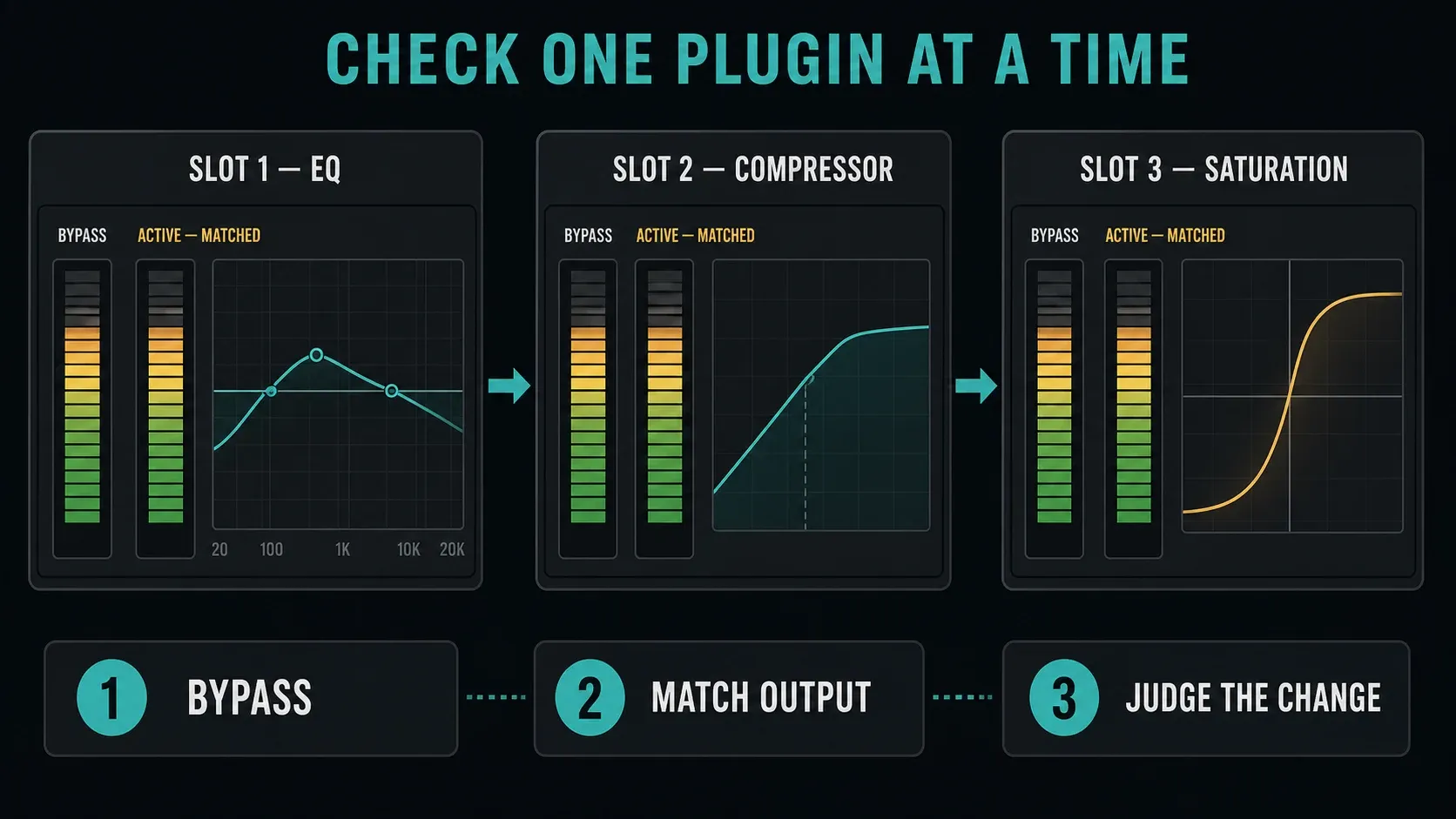
If a saturator sounds harsh because it's being fed too much, lower the source or add a trim before it. If the drive sounds right at a fair comparison level, keep it and balance afterward. Distortion you chose on purpose is fine. The 808 mixing workflow applies the same thinking to bass harmonics and kick balance.
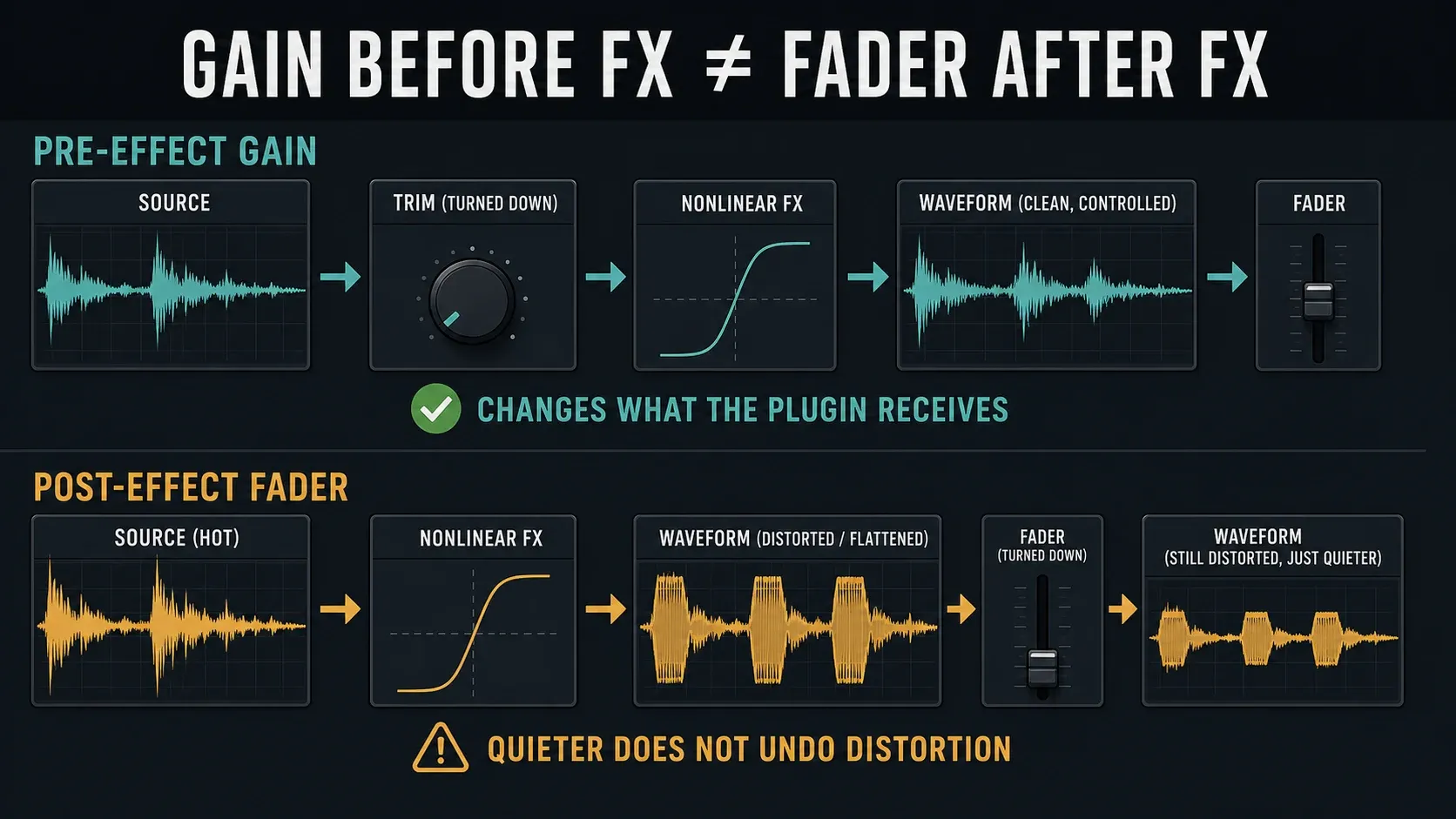
Keep faders and automation useful
Unity means 0 dB of gain, with no boost or cut. That's not the same as a signal peaking at 0 dBFS. Unity is a handy starting point, but the finished song doesn't have to respect it. Move an Insert fader where the balance needs it. If a tiny nudge near the bottom of its travel makes the part jump, try trimming earlier, then recheck any level-sensitive effects that now get the new level.
Automating the fader is perfectly valid. It just hands automation a control you might want to adjust later. Another option is Fruity Balance after the tone-shaping effects for phrase rides or fades, which leaves the Mixer fader free for broad balance changes.
Ride the level before a compressor and you change its input, and possibly its gain reduction. Ride it after and you change the finished compressed signal. Pick the behavior you want, since neither position is right every time. Once you've edited levels, play the automation itself back instead of assuming a static setting will stay where you left it.
Check buses, sends and double routes
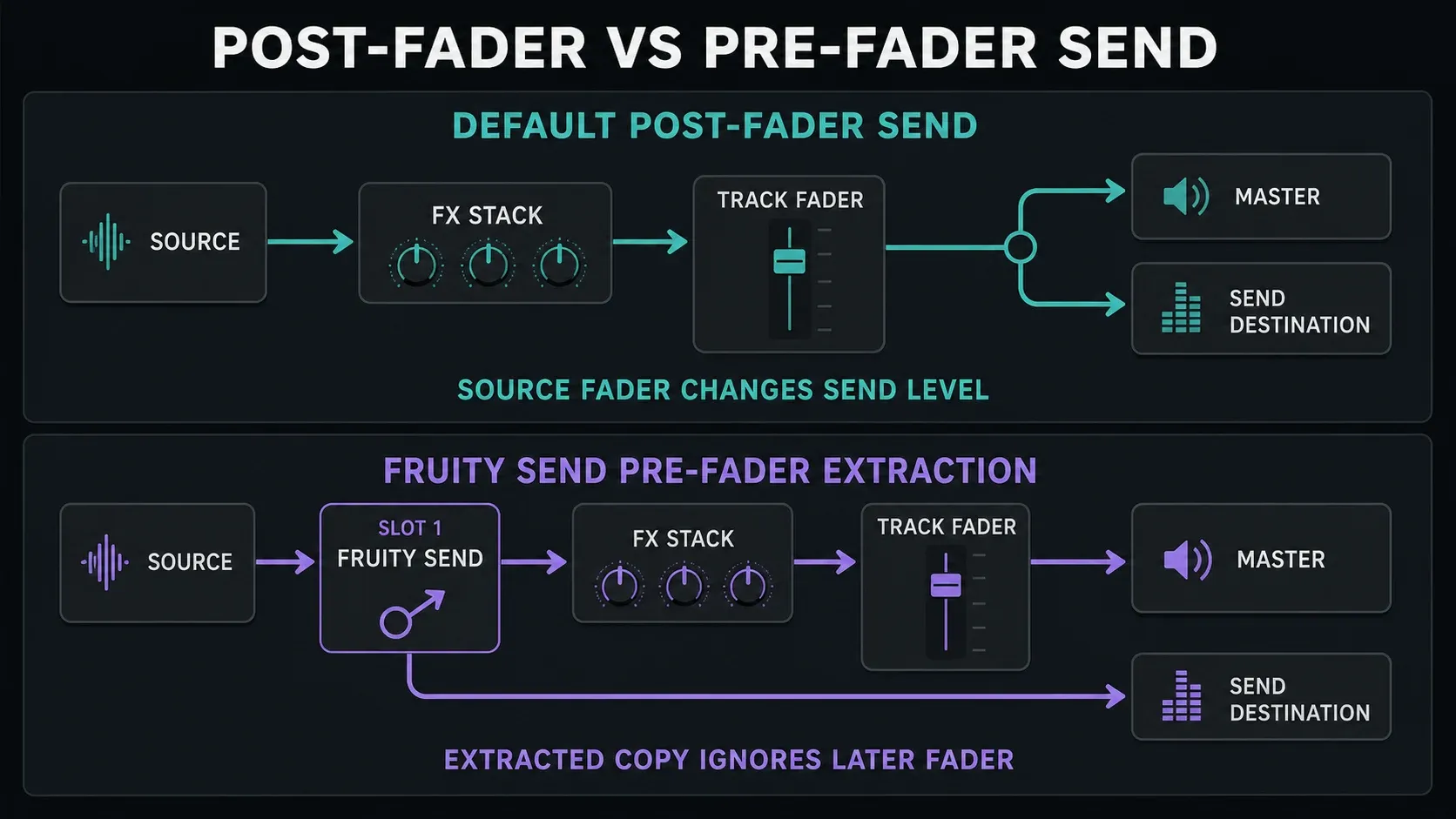
The ordinary sends in Image-Line's Mixer routing reference are post-fader, so pulling the source fader down also lowers what those destinations receive. On a simple linear reverb path, the direct and sent sound may drop together without shifting the wet/dry ratio. Other sources, nonlinear return processing and automation can still change the result.
When you route several sounds through a bus, check whether their direct Master routes are still on. An accidental direct path next to the bus can double how much of them you hear. If the parallel routing is intentional, leave it alone and don't switch paths off at random.
For a pre-fader send, Fruity Send picks up audio at its position in the effects stack. Link the destination and select it in Send to. Its Dry control defaults to 0%, so turn it up to full pass-through if you also want the source to keep flowing through its own track. If you don't want an extra ordinary post-fader audio send, use a sidechain-only routing link for the destination.
Pre-fader doesn't shield the send from every level change. Source gain and earlier effects still matter. If you need detector routing instead of an audible effect return, follow the sidechain setup guide.
The reverb and delay sends walkthrough picks up from here: setting an effect return's blend without mixing up its input level and its return level.
Set Master level without a magic number
Play the full arrangement, loudest sections included. Leave some working room so another level or EQ change doesn't immediately overload the output. A premaster doesn't have to peak at exactly −6 dBFS. If the receiving engineer gave you a specification, follow that.
If the summed signal is clean and only the final output is too hot, lowering the Master fader is a perfectly valid fix. If a Master compressor or saturator is being driven too hard, reduce the level before that processor instead. Don’t flatten a carefully balanced mix by pulling down random tracks just to avoid touching the Master. iZotope's headroom explanation also notes how automation and bus compression complicate late level changes.
The toolbar's Monitor Volume changes your listening level and leaves renders untouched, so turning the speakers down does nothing to the export. Don't trust how loud playback feels; check a rendered file too.
Final loudness and delivery requirements belong in the mastering workflow and the export settings guide. A peak below 0 dBFS is a useful mixing check, but it doesn't mean you've met every delivery specification.
Loudness measurement is a separate question from signal-path troubleshooting, so it gets its own page: the LUFS and loudness guide.
Recording level and pickup location
The recording pickup selector decides which point gets recorded. EXT takes the interface input directly, so you set its recording level at the interface, and the Insert fader has no say. MIX includes external and routed Mixer inputs before the slots; FX records after them; EQ includes Track EQ; LVL adds Level and Pan; POST also includes the Track mute state.
If a new recording is distorted, start with an unprocessed copy and check the interface input before anything else. A flat-looking waveform alone can't tell you why, since the source may have arrived already distorted or limited. If the input really clipped, lower the hardware gain and record again if you can. Leave the original untouched while you investigate.
Troubleshoot the first unwanted change
- A plugin sounds crushed: compare it bypassed, inspect its input and reduce earlier gain if the drive is unintended.
- The Insert exceeds 0 dBFS: inspect plugins and output routes before assuming the waveform is damaged.
- The Master is hot but clean: reduce final output, or trim before Master effects if their input needs reducing.
- A bus makes the mix unexpectedly louder: check duplicate direct routes and bus processing.
- A pre-fader send makes the source disappear: inspect Fruity Send's Dry pass-through and the source's routing.
- The level changes again on playback: check automation on the control you moved.
- Audio crackles or drops out regardless of level: use the separate crackling and underrun diagnosis; not every discontinuity is clipping.
Once the chain behaves predictably, head back to the Mixing learning path for EQ, compression and balance. If this is your first project, the Start here route covers setup and basic workflow before detailed mix decisions.
FL Studio gain staging FAQ
What level should every FL Studio track peak at?
No single peak level applies to every track. Use levels that suit the source and the processors that follow, then check the combined output with the full arrangement playing.
Do I need to gain-stage every track to −18 dBFS?
No. First check whether a recommendation means average level, peak level or one plugin's calibration. Those are different things, and −18 dBFS is not a universal per-track peak target.
Is an Insert above 0 dBFS automatically clipped?
No. FL Studio's floating-point internal path can represent over-full-scale levels, but plugins may alter or limit the signal and hardware or fixed-point output can still clip.
Should I use Channel Volume or the Mixer fader?
Use an earlier control to change what goes into the Mixer effects, and the post-effect fader for final track balance. Channel Volume behaves differently depending on the instrument, so an explicit trim before the effects is often clearer.
Where should Fruity Balance go?
Put it before the processor whose input you want to change. For fades separate from Mixer balance, place it after the tone-shaping effects. Use its Volume control for level changes.
Should bypassed and processed peaks match exactly?
Not necessarily. Compare the same passage at similar perceived loudness. Compression and other processing can change peaks without making the sound feel any louder or quieter.
Can I lower the Master instead of every track?
Yes, when the summed signal is clean and you only need lower final output. The Master fader cannot undo distortion or excessive compression already produced by its effects or earlier processing.
Must I leave exactly −6 dBFS before mastering?
No. Leave useful working room, avoid unintended distortion and follow any handoff specification. An exact −6 dBFS peak is not a universal mastering requirement.
Why does lowering Monitor Volume not change my export?
Monitor Volume sets your listening level and has no effect on the rendered level. Adjust the mix or the Master output as needed, then check the rendered file.