FL Studio
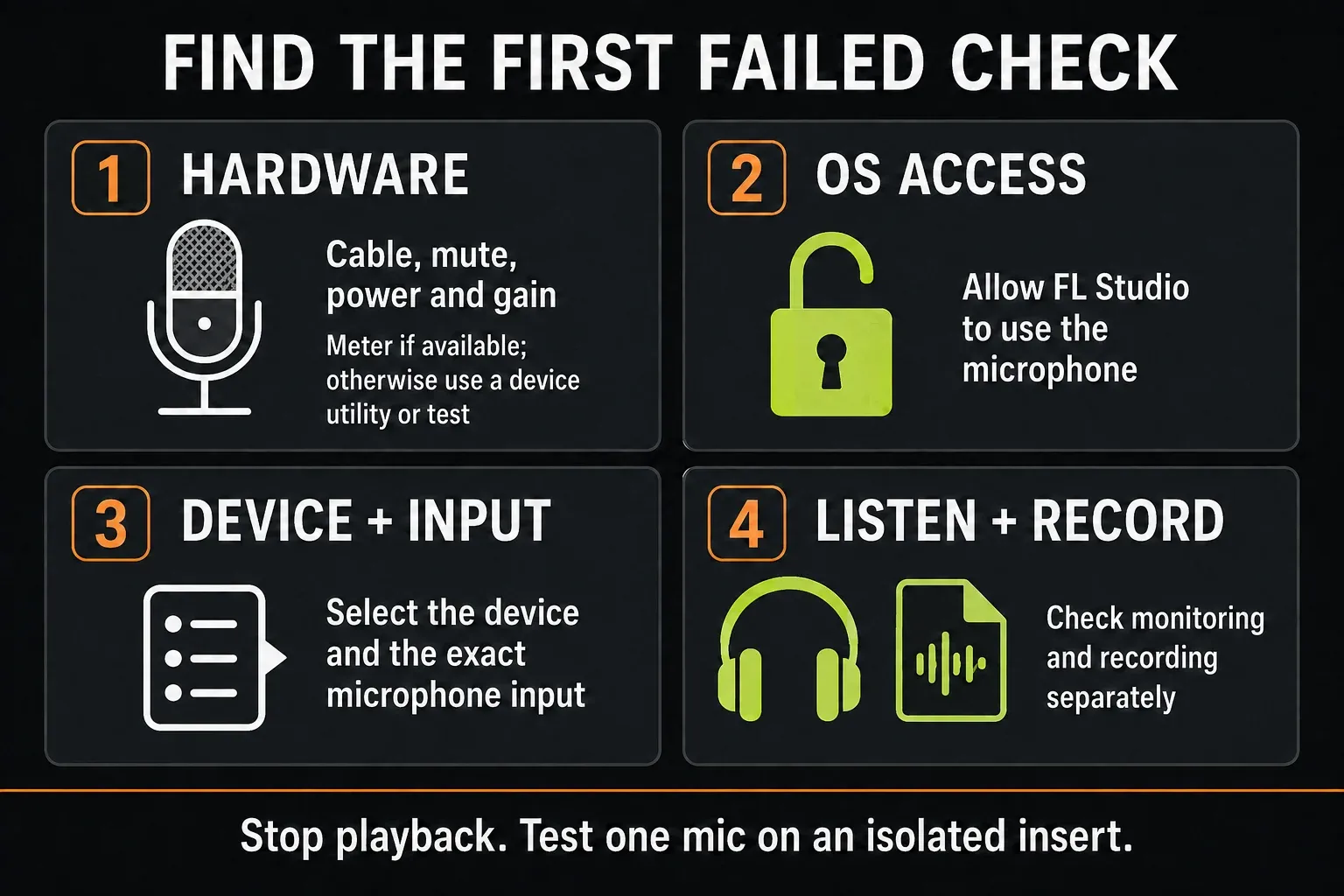
If your microphone is not working in FL Studio, first separate three problems: the input is missing, you cannot hear it, or nothing is being recorded. Stop the song and speak into the mic you mean to use. Check its hardware meter or an operating-system input test, then the FL Studio device and Mixer input you've selected. I leave the monitoring and recording controls for last, because they can't fix an input that never reaches FL Studio.
A moving Mixer meter only tells you something once you've isolated that microphone, because a beat, instrument or return can move the same meter. It works the other way too: a silent meter can come from the input-monitoring and meter-display settings, with nothing wrong with the cable. The checks below cover both traps.
Before restarting or opening a test project: save your work and keep the recorded audio files. External audio recording requires Producer Edition or higher. In the standard time-unlimited Trial, pick an edition with recording enabled; you can save projects, but you cannot reopen them until purchase and unlock. Keep any Trial session you need open while you decide whether a restart is worth losing access to it.
Check your microphone in eight steps
- Identify the source. Stop song playback, unmute the microphone and say a short phrase. Watch its input meter if the hardware has one; otherwise use the mic's utility or an operating-system input test.
- Allow microphone access. Check Windows desktop-app access or FL Studio's macOS permission. Save your work before restarting the app to apply a permission change, because standard Trial cannot reopen saved projects until purchase.
- Select the audio device. Open
Options > Audio settings. On Windows, choose the interface's native ASIO driver if there is one; on macOS, choose the Input and Output devices you intend to use. A USB mic may need a separate output selection. - Select the actual Mixer input. Use an unused insert (never the Master) and choose the socket the mic is plugged into. For a single mono source on one socket, pick its mono input instead of the stereo pair.
- Check the external signal, not the beat. Keep internal playback stopped. In the Mixer menu, enable
View > Always show external input levelsif you need to see the mic while input monitoring is set to Off or When armed. - Choose one listening path. Wear headphones. Either turn on FL Studio's Monitor external input, or use hardware direct monitoring with FL Studio's input monitoring Off. Leave the recording pickup on EXT for the external-input test.
- Prepare Playlist recording. Enable Audio in the main Record button's right-click filter, arm the insert's disk-recording control, select Song mode and enable
Mixer menu > Disk recording > Auto-create audio clips. - Record and listen back. For this manual start, turn Recording starts playback and Wait for input off. Arm the main Record button, press Play once, speak, then press Stop. Disarm recording and play the new clip back through the selected output.
If a step fails, work through its section below before you change the next part of the setup. Once speech records and plays back properly, the FL Studio audio-recording walkthrough takes you through a normal session.
Check the microphone and interface
If the interface has an input meter, watch the channel the microphone is plugged into while you speak. Check that the interface has power, the microphone isn't muted and the cable goes into a microphone input. On an interface with a combo socket, a quarter-inch line/instrument connection doesn't behave like its XLR mic input.
For a regular XLR mic setup, use an XLR-to-XLR microphone cable you know works. Change one thing at a time. I'd swap the cable first because it's the easiest part to rule out, then try another mic input, then the microphone if you have a compatible spare. A dark hardware meter after these checks tells you the problem is somewhere in this part of the chain, though not which piece has failed.
An inline booster or outboard processor brings its own gain and power needs. Only compare a direct connection when that's compatible with the mic, and set gain and phantom power correctly for each setup. Pulling out a powered booster without rethinking those settings isn't a fair test. Focusrite's microphone signal troubleshooting covers cable, input and booster checks in detail.
Use 48V only when the equipment requires it
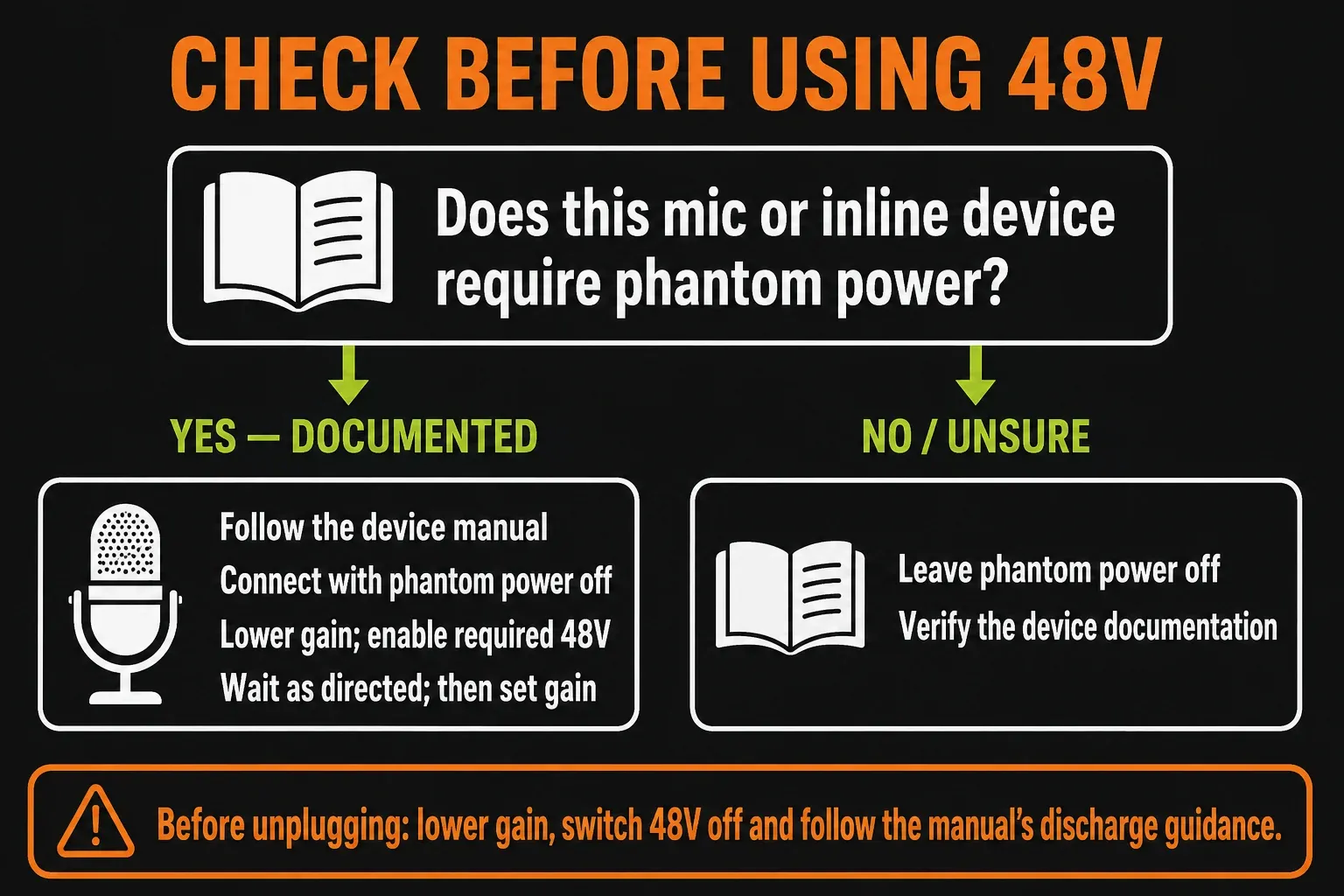
Read the power instructions for the microphone and any inline device. If something in the chain needs phantom power and the whole setup is compatible, connect it with phantom power off, lower the preamp gain, switch on the specified power, then set the gain. Before unplugging, lower gain and switch phantom power off. Follow any extra connection, settling or discharge instructions from that manufacturer.
Many studio condensers need phantom power, and a passive dynamic mic usually doesn't. Those rules of thumb don't give you permission to guess with an unfamiliar ribbon, a vintage mic, an adapter or an unbalanced device. Faulty wiring and unsuitable equipment can make phantom power unsafe, as Focusrite explains in its 48V safety guidance. If you're not sure what the gear needs, leave the power off until you've identified it.
If your microphone has no hardware meter
A USB microphone or a simple interface may have no visible input meter. Use the manufacturer's utility or an operating-system input test instead. On Windows 11, open Settings > System > Sound, select the exact microphone under Input, then use Start test, speak, Stop test and play it back. Microsoft's microphone-test instructions show that route.
Make sure the test is using the external mic and not the laptop's built-in one. A successful OS test confirms that particular input path, but FL Studio still needs its own permission and device selection. Close the test app before going back to a driver that can't share the device.
Allow microphone access in Windows
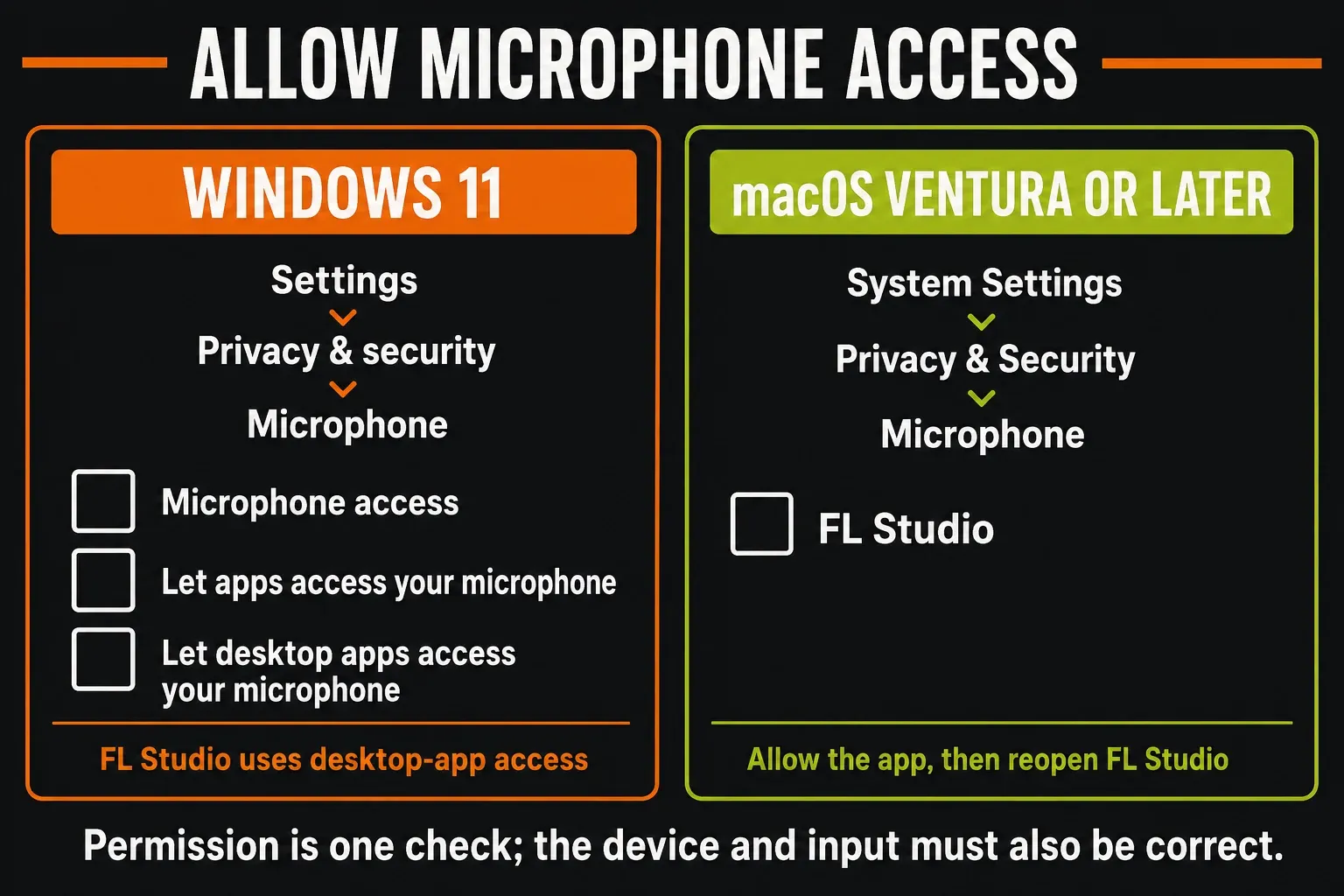
On Windows 11, open Settings > Privacy & security > Microphone. Check Microphone access, Let apps access your microphone and Let desktop apps access your microphone. FL Studio is a desktop application, so don't just look for an individual Microsoft Store-app toggle. Microsoft's permission guide explains the difference.
After a permission change, restart FL Studio once your work is safe to close. If Windows itself can't record the selected microphone, fix that input or device problem first. If another app can record it, note the exact device that app uses and compare it with FL Studio's Audio settings.
“It works in Discord” is a useful clue, but Discord may be using a different microphone or the Windows default device. Match the device name and the physical socket instead of assuming both apps are listening to the same thing.
Allow microphone access in macOS
On macOS Ventura or later, open System Settings > Privacy & Security > Microphone and allow FL Studio. This permission matters for audio coming through an external interface too. Apple's audio-app microphone permission instructions cover quitting and reopening the app after you grant access, plus the older System Preferences route. Protect your current session before you quit.
Image-Line's macOS microphone troubleshooting adds a check specific to recording: use Standard microphone mode on macOS 12 or later. Voice Isolation is built to change what the microphone picks up, which is the opposite of what you want for an unprocessed music recording.
On Apple Silicon, native and Rosetta launches can have separate permission states. The documented Rosetta workaround is for one specific case: FL Studio is missing from the permission list after an earlier Rosetta installation. Follow Image-Line's instructions for that case, then go back to running natively. Don't switch launch modes just because an input that's already authorized is silent.
Select the device that owns the input
Open Options > Audio settings. On Windows, external recording needs an ASIO driver; use the interface manufacturer's native ASIO driver when available. On macOS, choose the intended Core Audio input and output. The selected device determines which inputs FL Studio can offer in the Mixer, as described in the Audio Settings reference.
If an interface driver is selected, a separate USB microphone does not automatically become one of that interface's sockets. Likewise, selecting the built-in input or a default input can send you back to the laptop microphone. Choose explicit device names, then identify the correct input by speaking into that microphone alone.
Inputs are missing, greyed out or cannot be opened
Recheck recording eligibility, permission and the driver before rebuilding the Mixer. In ASIO4ALL's advanced panel, expand the device and activate the needed input and output beneath it. Enabling only the parent device is not enough. The current ASIO4ALL setup guide also explains that an unavailable endpoint may be held by another application.
Close other audio apps deliberately, then retry when the session is safe to restart. If the device still fails to open, check its supported sample rates and the selected rate in the driver/OS and FL Studio. Match a rate the devices actually support; switching every system to 44.1 or 48 kHz is not a universal repair.
ASIO4ALL is a Windows option, not a macOS driver. Its compatibility varies, and the dedicated current manual says to install it separately if needed. I'd stick with the interface's own native driver whenever one exists and keep the generic driver for cases where it doesn't, rather than adding drivers at random.
Use a USB microphone with a separate output
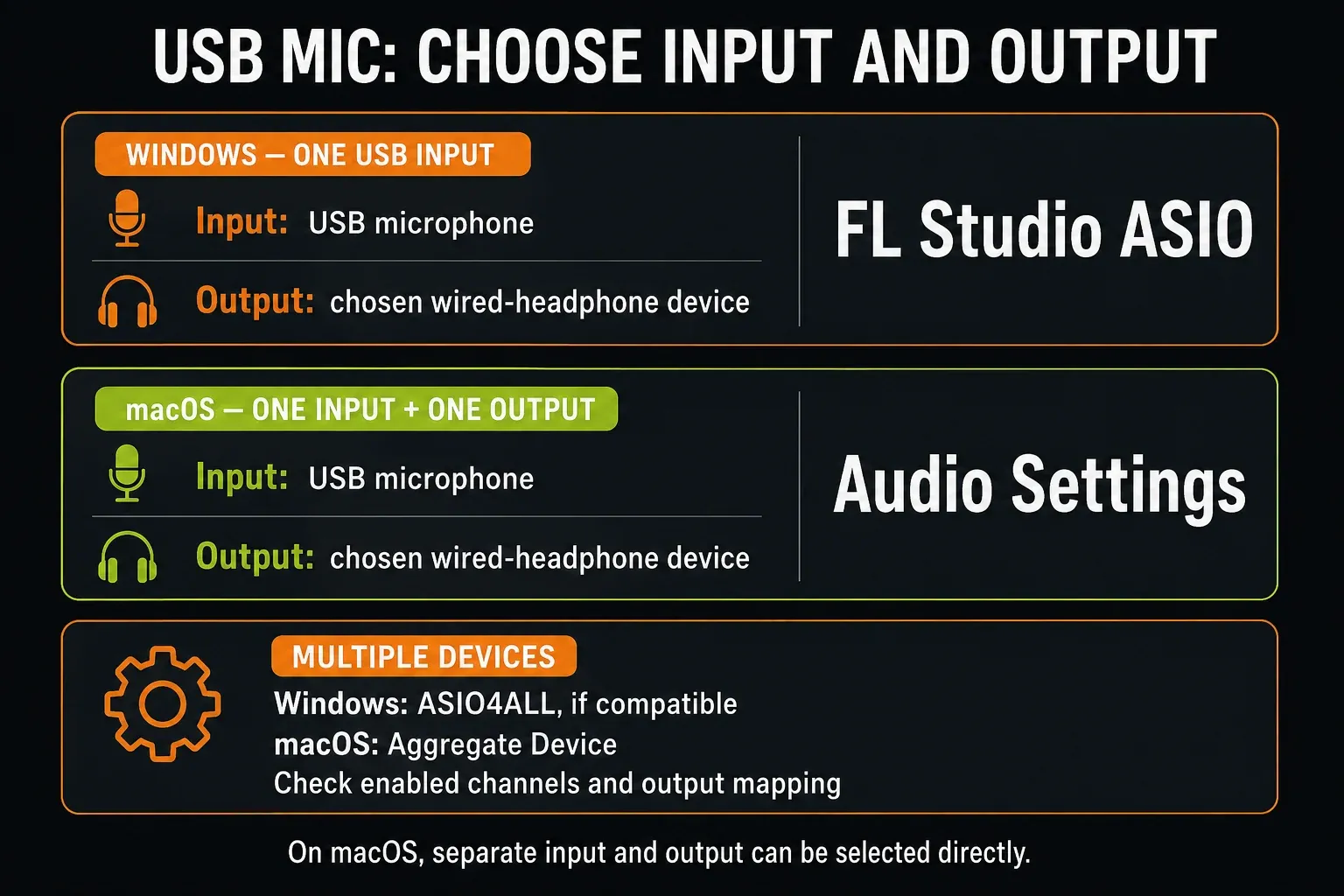
A USB microphone is its own audio device. Headphones plugged into another interface or the computer use another device. The current USB microphone instructions distinguish a single input/output pair from a larger multi-device setup:
- Windows, one USB mic and one output: select FL Studio ASIO, open its panel, choose the USB mic as Input and the headphone device as Output.
- macOS, one input and one output: select those devices directly in Audio settings. An Aggregate Device is not required just because the microphone and headphones use separate devices.
- Several input or output devices: ASIO4ALL on Windows or an Aggregate Device on macOS can expose multiple endpoints, subject to device compatibility.
If you do need an aggregate, keep track of its subdevice order and channel numbers. Apple's Aggregate Device instructions explain clock selection and Drift Correction for devices not supplying the clock. Use a common supported sample rate and verify the actual input number in FL Studio.
For the first diagnostic recording, I'd use wired headphones because they keep the listening setup simpler. Bring back Bluetooth or any additional devices once basic mic recording and playback have been checked.
Isolate the microphone in the Mixer
Choose an unused insert and select the physical input carrying the mic. For a single mono source on one socket, use the mono entry rather than a stereo pair with an empty side. A stereo microphone or a deliberate two-channel source needs the corresponding stereo setup; “one microphone” does not always mean one channel.
Stop internal playback and keep instruments, Audio Clips and other Mixer sends away from this test insert. The Mixer routing guide helps you check those assignments. Meter movement from the beat does not prove that the microphone reached FL Studio.
A silent meter can be a display or monitoring setting
In the Mixer menu, View > Always show external input levels allows peak meters to show the external input even when input monitoring is Off or When armed. Image-Line documents this in the Mixer menu reference. Enable it for this check, then speak and pause so you can recognize the response.
Hearing the mic through an interface's direct monitor confirms that listening path, not delivery to FL Studio. Check permission, device, socket and the meter-display setting before concluding that the DAW has no input. I trust a short recognizable recording more than a light that happens to move.
Input, recording and listening are separate choices
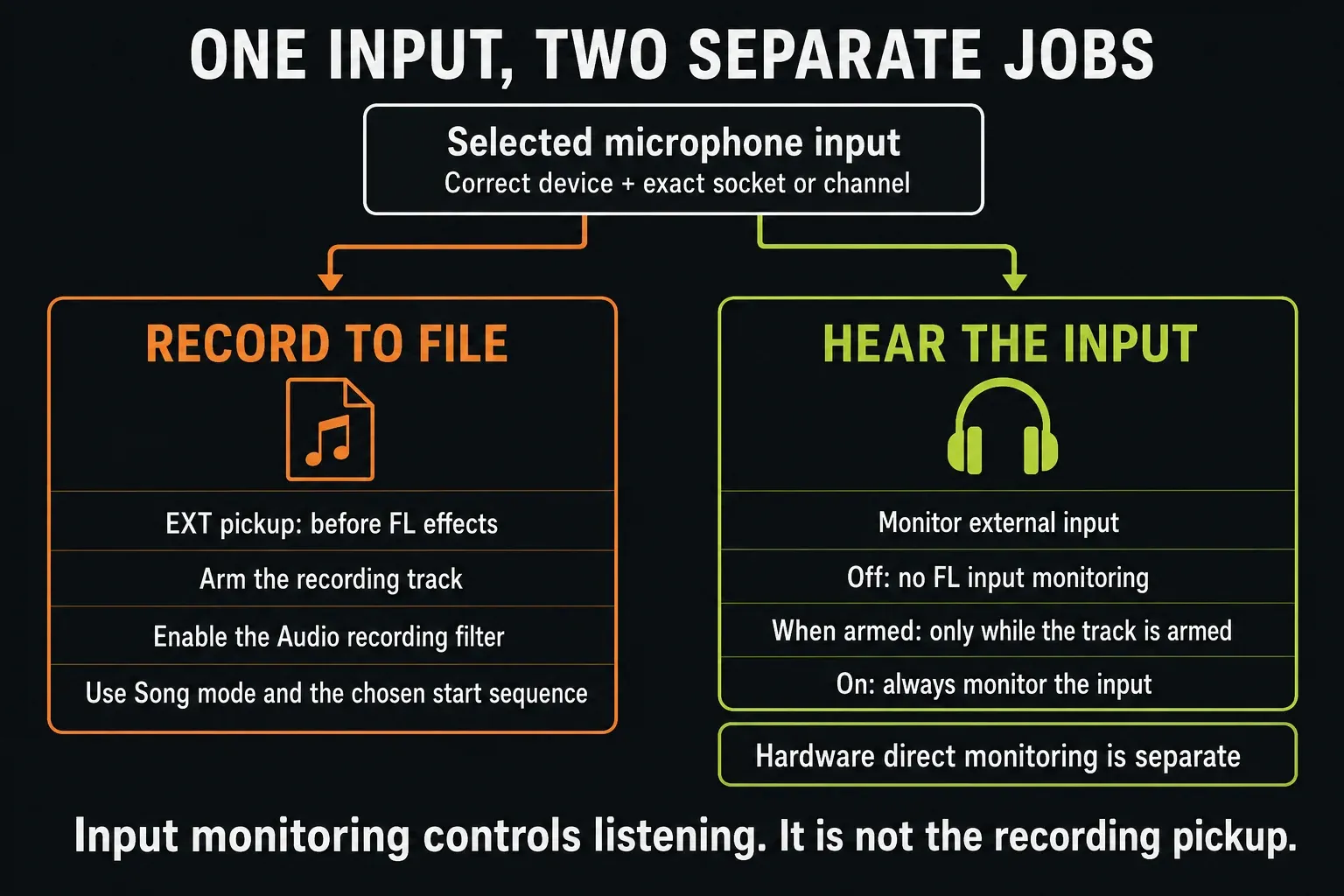
The selector immediately before the Mixer Input menu chooses the recording pickup. EXT captures the external input before FL Studio's insert effects and internally routed audio. It cannot remove processing already applied by a microphone, hardware processor or interface DSP before that input reaches FL Studio.
In the same selector menu, Monitor external input controls listening through FL Studio: Off turns it off, When armed turns it on while that Mixer track is armed, and On keeps it on all the time. These three options aren't recording pickup locations. The Mixer track controls keep that distinction clear.
The microphone arrives but you cannot hear it
Once the isolated input responds or a speech recording is confirmed, follow the listening path. For software monitoring, set Monitor external input to On, or to When armed with the track armed, then check the insert's route to the Master, the selected Master output and the headphone level.
For hardware direct monitoring, use the interface's own monitor control and leave FL Studio's input monitoring Off. Don't end up hearing both copies by accident, because the timing difference can sound like an echo or a hollow double. For a dry vocal take I'd pick direct monitoring, since it skips the software buffer; switch to software monitoring when you need to hear FL Studio effects while performing, because hardware monitoring doesn't pass through those plugins.
If the speakers work but the headphones don't, look at the interface's headphone and output routing. Leave the working mic socket alone while you sort out that output. For a delayed software monitor, the audio-settings and latency guide covers buffer and plugin-delay tradeoffs.
Speech reaches FL Studio but no Audio Clip appears
Check all four recording conditions: Audio enabled in the main Record button's right-click filter, the insert's disk-recording arm on, Song mode selected and Mixer menu > Disk recording > Auto-create audio clips enabled. Hearing the microphone doesn't switch any of those on.
For a predictable manual test, turn Recording starts playback off in the Record button's right-click menu and switch the toolbar's Wait for input off. Then arm main Record, press Play once, speak and press Stop. The transport controls explain why pressing Play a second time is a mistake if recording already started automatically.
Use an isolated insert with the EXT pickup for this test. You can tie a Playlist lane to it through Track mode > Audio track and the chosen Mixer insert. Without a specific link, look for the new clip on any lane with room, not only the lane you happened to select.
Edison records the mic but the Playlist does not
If Edison on the intended insert records recognizable speech from this microphone, the signal is reaching that effect slot. Focus on the disk-recording conditions above instead of reinstalling the driver. Edison has its own recording controls and keeps its recording in memory, so recording there alone won't create a Playlist clip. Send or save the audio you want from Edison.
If Edison is silent too, don't take the external peak meter as proof that audio reaches its effect slot. Recheck input monitoring and the path through that insert. For the simplest input test, use the EXT disk-recording procedure above, which captures the signal regardless of how you've set up software listening.
The recording is one-sided, noisy or distorted
One side only: a mono source may be routed through a stereo input pair. Choose the correct mono input and record a new test. Keep the original take, because a good performance with audio on only one channel isn't automatically ruined, and fixing the input for future takes doesn't mean deleting it.
Distortion or hiss: listen to the actual recording as well as the monitor. Check hardware gain, the cable, required power and any processing before FL Studio, then bypass insert effects to compare. EXT can't undo clipping that already happened in the hardware. Don't try to make up for an unpowered mic with extreme preamp gain.
Clicks and pops: once speech is actually being captured, follow the crackling-audio diagnosis. Buffer underruns, driver trouble and plugin load are separate questions from an input that never shows up.
Match the symptom to the next check
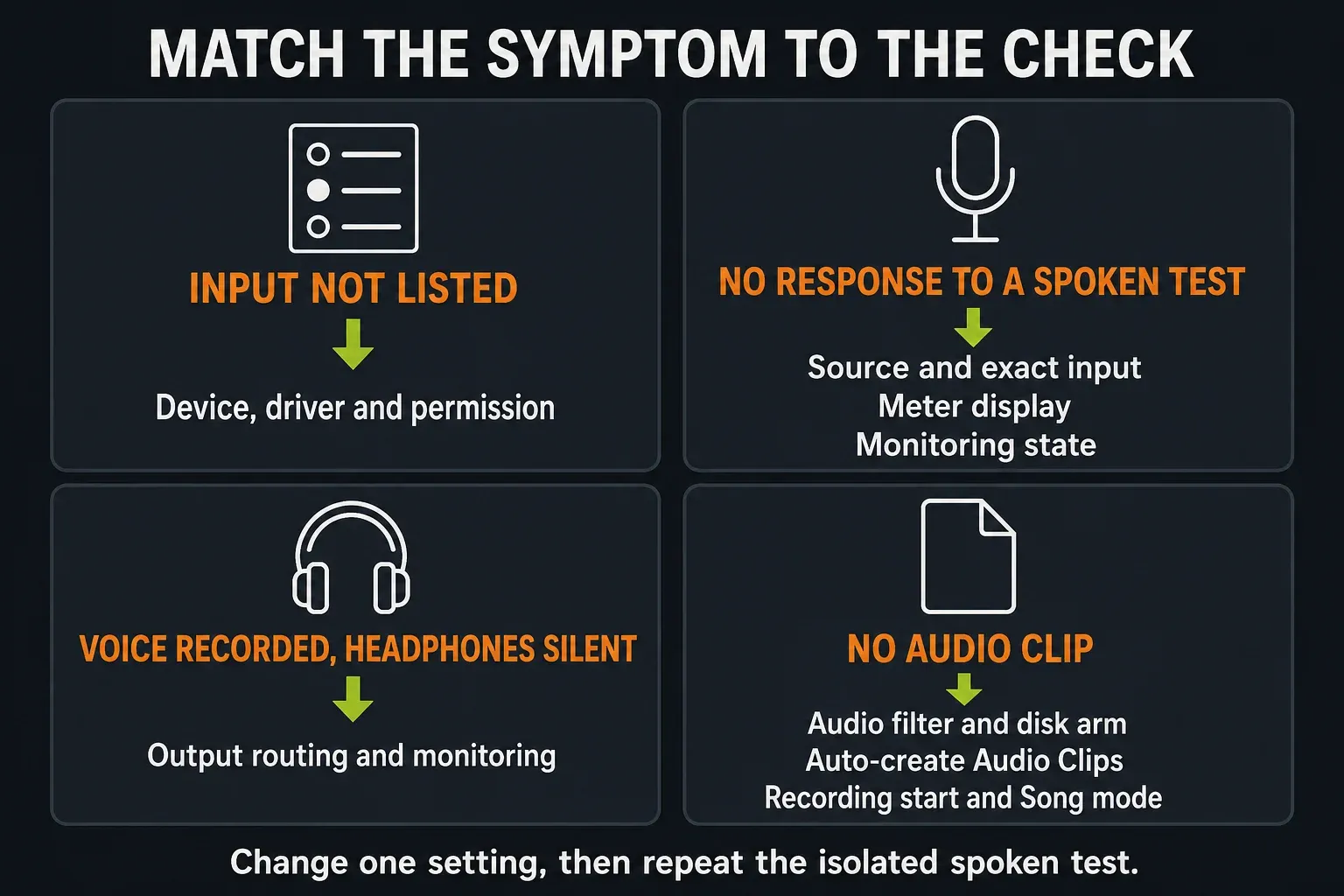
- No response at the hardware or selected OS input test: check mute, the connection, a compatible input, the documented power and gain. Not every device has a hardware meter.
- The input is missing from FL Studio: check edition eligibility, OS permission, selected device and active driver endpoints.
- The isolated mic seems absent from the Mixer: check its socket and the monitoring/meter-display controls before blaming the driver.
- A speech recording exists but headphones are silent: check the selected output and listening route.
- Speech reaches FL Studio but no Playlist clip appears: check the Audio filter, track arm, Song mode, clip creation and transport start state.
Before resetting or reinstalling FL Studio
Write down the microphone, interface, driver, input number and the exact error. Once your current project is safe to leave, compare an empty FL Studio project with a trusted OS or vendor input test. If only the existing project fails, look at its routing or settings before replacing any hardware.
A reset comes later, and it won't prove what caused the problem. Image-Line's reset instructions warn that custom MIDI, Audio, General and File settings go back to their defaults. Note those settings first and back up the project and audio separately, because saving an FLP doesn't keep all of the application's preferences. Diagnostics isn't available in standard Trial; the official page gives other options, but none of them get around the Trial project's reopen restriction.
If the fault is still there, give support the result of each checkpoint and the exact error text. That tells them far more than a list of settings changed at random.
Keep the working setup and return to recording
Save the speech test and its project, check that the audio file exists, disarm recording and listen back. On a licensed installation, reopen the project and check that the input and output you want still work. In standard Trial, check what you can in the open session without closing it just to run this check, and keep the saved work for after purchase.
For a vocal session, carry on with microphone placement and vocal takes. For a guitar mic or DI setup, use the guitar-recording workflow. When repeated passes are next, the loop-recording guide explains how to handle takes. If a different fault remains, pick its route in the FL Studio troubleshooting hub.
Frequently asked questions
Why is my microphone not showing in FL Studio?
Check recording eligibility, microphone permission and the selected audio device. On Windows, external recording needs an ASIO driver; in ASIO4ALL, enable the input you need under the parent device. A USB mic is its own device and won't show up as an input on another interface's driver.
Why can I hear the mic directly but see no FL Studio signal?
Direct monitoring only confirms the interface's listening path, not the DAW input. Check permission, device and Mixer socket. Also check Mixer menu > View > Always show external input levels, because without it, setting input monitoring to Off or When armed can affect the meter. Test with internal playback stopped.
Should I turn on 48V when the mic is silent?
Only when a device in the connected mic chain needs it and the whole setup is compatible. Read the equipment instructions, connect with phantom power off, lower gain before switching on the specified power, and lower gain and switch phantom power off again before unplugging. Unknown wiring, ribbons or unsuitable devices mean you check compatibility first; never guess.
Why does the Mixer meter move but no recording appears?
First confirm the meter is reacting to your mic and not to internal audio. Then enable the Audio recording filter, arm the insert for disk recording, select Song mode and enable Auto-create audio clips. For a manual Record-then-Play start, turn Recording starts playback and Wait for input off before you begin.
Can I use a USB mic and separate headphones?
Yes. For one input and one output on Windows, FL Studio ASIO lets you pick the USB mic and the headphone device separately. Current macOS FL Studio has separate Input and Output selectors as well. For a bigger multi-device setup, an Aggregate Device on macOS or ASIO4ALL on Windows is an option, as long as everything's compatible.
Can I test microphone recording in FL Studio Trial?
Yes, if you pick a Trial edition with external recording enabled, such as Producer. The standard time-unlimited Trial can save projects but cannot reopen them until purchase and unlock. Save the project and the audio, and keep any session you need open before following a restart or reopen instruction.