FL Studio
To export a full song from FL Studio, save the project, clear any Playlist time selection you didn't mean to make, and choose File > Export. Pick an audio format, set Mode to Song, leave Split Mixer Tracks off, and make sure every sound you want reaches the Master. For a finished song, start with Leave remainder so the ending has room to decay. Then render, and play the actual file in a media player before you send it.
Rendering turns the arrangement into audio, and that's all it does. It won't bring back a missing instrument or pick the right delivery specification for you. The sensible order is short: decide what you're sending, check the range and signal path, choose the format, then check the result.
Using the standard Trial? You can export audio and save an FLP, but you can't reopen that saved project until you purchase and unlock FL Studio. Your edition and plugin licenses also have to cover the plugins in the project. So keep the work you need open while you make and check your exports. Image-Line explains the difference in its Trial limitations; saving an FLP doesn't mean you can reopen it right away.
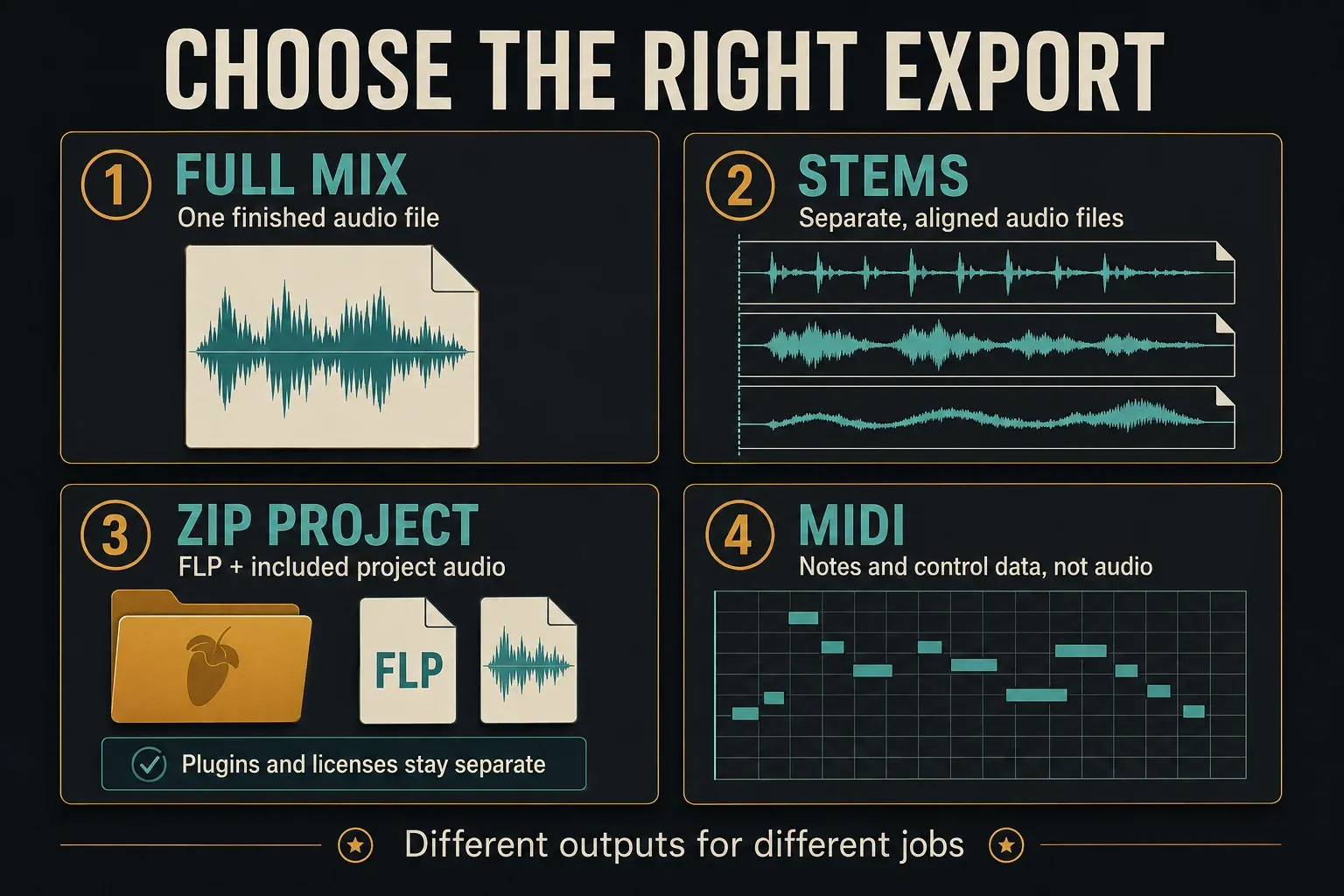
Choose what you need to send
| You need | Deliverable | Next step |
|---|---|---|
| One finished mix for listening or delivery | A full-song audio file | Follow the steps below |
| Separate drums, vocals or instruments | Aligned audio outputs | Use the stems export workflow |
| An editable FL Studio session | FLP plus required project audio | Check the zipped loop package and dependency checks |
| Notes and compatible control data | A MIDI file, not the sound | Follow the MIDI export guide |
A ZIP won't ship all the software you've installed. The project-format documentation separates the FLP and its included Sampler Channel/Audio Clip files from the external libraries that third-party plugins manage. Those libraries usually get left out unless the plugin's saved format embeds them, so whoever receives the project still needs suitable plugins and licenses.
Save a version and check the mix path
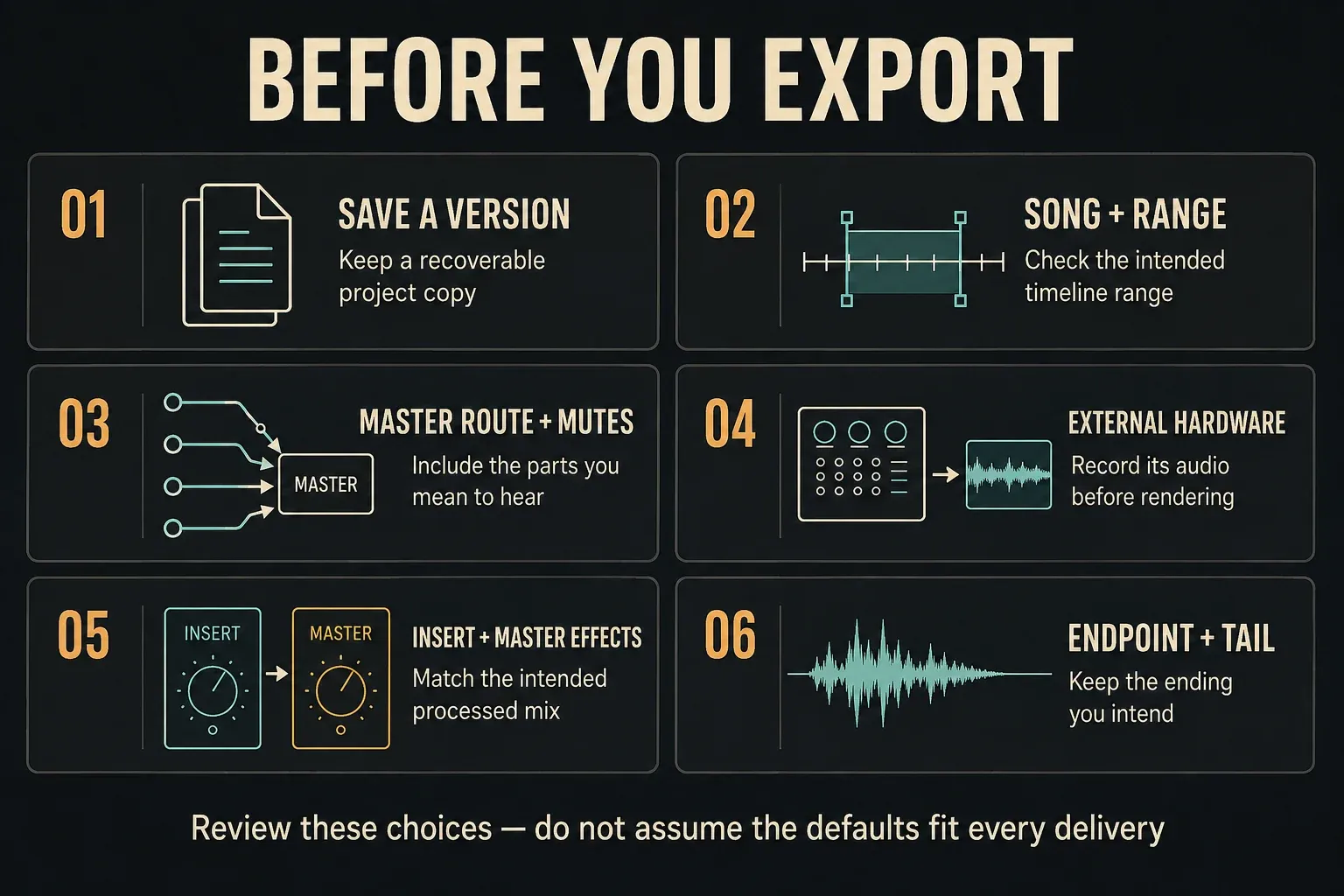
Use File > Save new version to keep the previous project version instead of writing over it. The File menu reference shows how the numbered copies work. In the standard Trial, that saved copy is something you reopen after purchase and unlock, so keep the current session open while you check your exports.
Give the audio file a useful name, like Night-Train_mix-03.wav or Night-Train_review-03.mp3, and save it to a folder you'll find again. A clear mix version helps a collaborator far more than yet another file called “final.”
- Play the arrangement in Song mode. Pattern mode is for the selected pattern, not the whole Playlist arrangement.
- Check the Master route and mutes. A normal full-mix render takes the Master output. A track routed elsewhere and never reaching the Master will be absent; muted Mixer tracks, including a muted Master, are excluded.
- Keep the intended effects. In the export dialog, check
Enable insert effectsandEnable master effects. Disabling either changes the processing included in the file. Leave both enabled when you want the processed mix you were hearing; deliberately dry deliveries are a different job. - Record external hardware first. Hearing a MIDI-controlled synth during playback does not mean its sound is inside the project. Record its audio and place it in the Playlist before the offline render.
- Check peaks and the ending. Avoid clipping a fixed-bit-depth output, and listen to the last reverb or delay rather than guessing where it stops.
The Export Project reference covers these render controls and the external-hardware limitation. When the routing itself needs work, go to the Mixer routing guide. If the mix needs limiting or a different loudness balance, handle that in the mastering workflow before you export another copy.
Set the exact song range
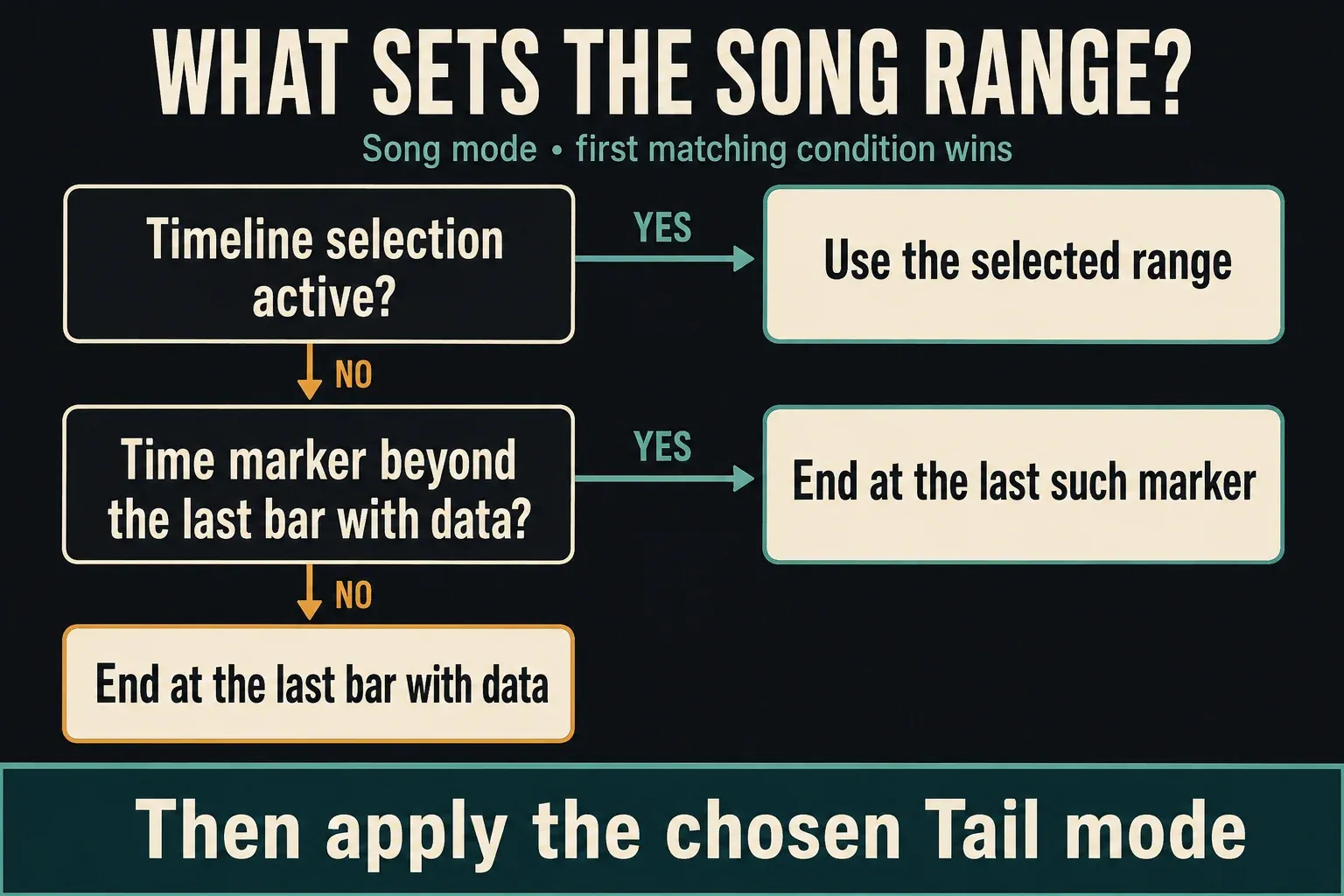
A highlighted time selection is often why a long project comes out as a short file. Song-mode export decides the range in this order:
- If there is a Playlist time selection, export that selected range.
- Otherwise, a time marker beyond the last bar containing Playlist data can define the endpoint.
- Without that later marker, use the last bar containing Playlist data.
Then the Tail setting handles any sound that keeps going past the chosen endpoint. These are fallbacks, tried one after another, and their lengths never get added together.
For the whole song
Clear any accidental time selection. One documented way is to double-click the Playlist's time ruler; the Playlist selection instructions explain how a time selection differs from selecting clips. Check that the highlight is gone before you open the export dialog. If a long decay still needs more room, the export documentation recommends placing a Repeat marker beyond the last Pattern, Audio or Automation Clip. That marker only extends the render endpoint. It won't duplicate the song inside the file.
For an excerpt or loop
Only keep a time selection when you want that section. Check its start and end against the ruler, because the selected clips can mislead you. Once you've sent the excerpt, clear the selection before your next full-song render. For more on arrangement and marker editing, see the Playlist guide.
Export a full song in nine steps
- Save a new project version. Use
File > Save new version. In standard Trial, keep needed work open because saved projects require purchase and unlock to reopen. - Choose one finished mix. Leave
Split Mixer Tracksoff for this job. - Confirm Song mode and the range. Clear an unintended Playlist time selection, or keep one only for a deliberate excerpt. Check any later endpoint marker.
- Check the sound reaching the Master. Review routing and mutes, and record required external hardware to audio before rendering.
- Open the export menu. Choose
File > Exportand the needed audio format, then choose a destination and useful file name. - Set the range, tail and effects. In the export dialog use
Mode: Song, normallyLeave remainder, and the insert/master effects settings that match the intended mix. - Match the delivery specification. Confirm the format, sample rate, bit depth or bitrate, and stereo/mono choice. Do not substitute a listening MP3 when someone requested a production WAV.
- Render and locate the file. Enable
Show file(s) when completeif useful, then clickStart. - Verify the actual export. Open it in a media player without closing the working project. Check the beginning, loudest section, missing parts, final decay, format and file name.
Choose WAV, FLAC or a listening copy
WAV for production handoff
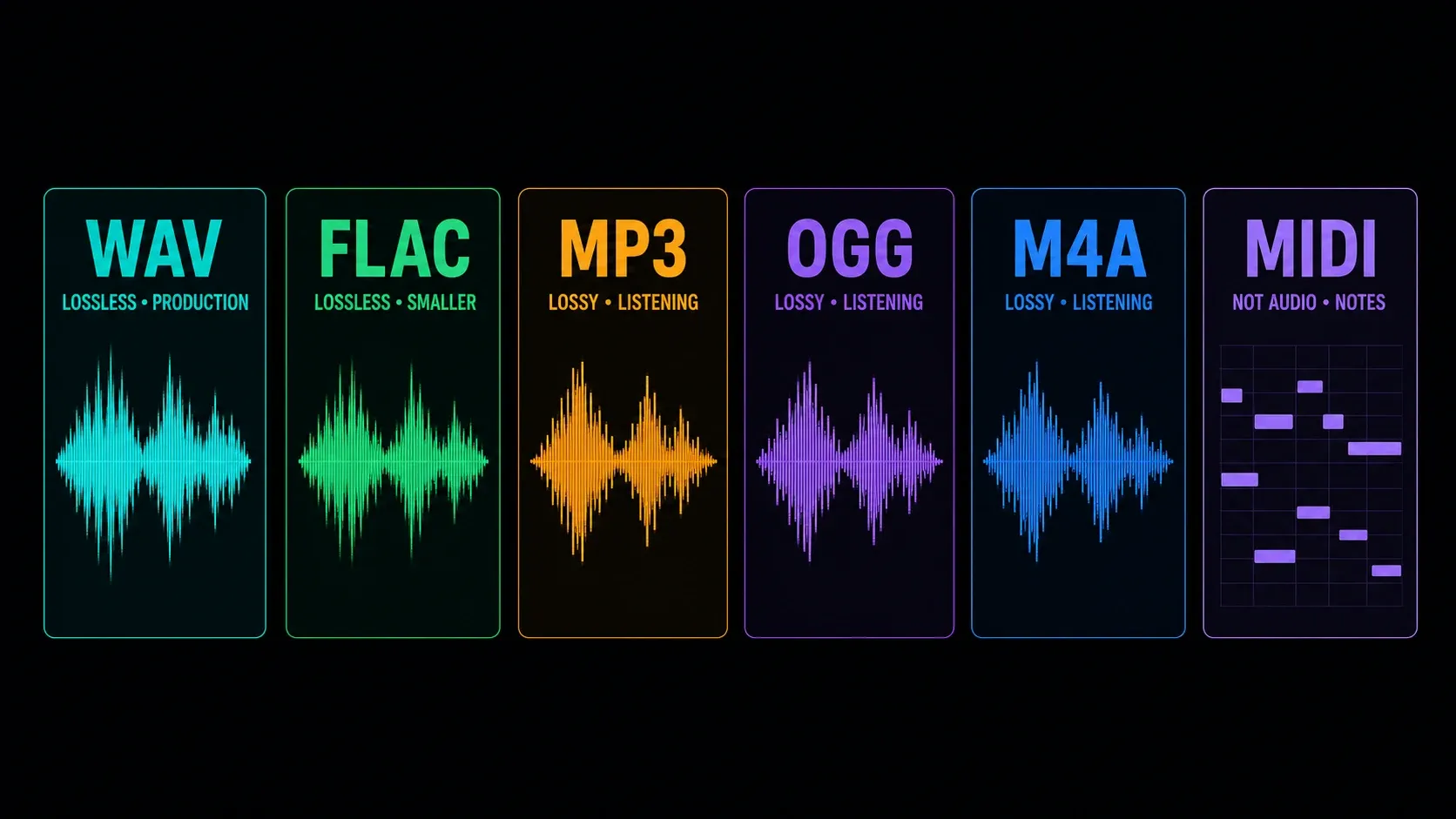
FL Studio's WAV export gives you uncompressed, lossless audio. That makes it a sensible starting point when another engineer or editor will keep working on the mix, but ask them for their required specification first. A 24-bit WAV they asked for serves them better than a surprise 32-bit file their software can't use. FL Studio also offers 32-bit float for compatible downstream processing, and 16-bit when the destination calls for it. More bits won't rescue a clipped recording or a weak mix.
FLAC for smaller lossless files
FLAC saves storage without throwing away any of the decoded audio. Image-Line's typical estimate is 20–30% smaller than the equivalent WAV, though your song may differ. The compression level changes how much encoding work happens and how big the file gets; it doesn't touch the decoded sound. Before you use FLAC for delivery, check that the receiving service or application accepts it.
MP3, OGG and M4A for convenient playback
FL Studio's MP3, OGG and AAC-in-M4A export options are lossy listening formats. A 320 kbps MP3 makes a handy review copy when compatibility matters, but the lossless file is the one to keep for further production. In this export dialog, MP3 supports 32, 44.1 and 48 kHz. MP3 can also add a little silence at the start, so stick with WAV whenever sample-accurate loop repetition or alignment matters.
MIDI is another thing entirely. It carries notes and compatible control data, but none of the sound from your synth preset, effects chain or finished Master. The file-format overview keeps audio exports, MIDI and project files apart.
Choose the tail for the job
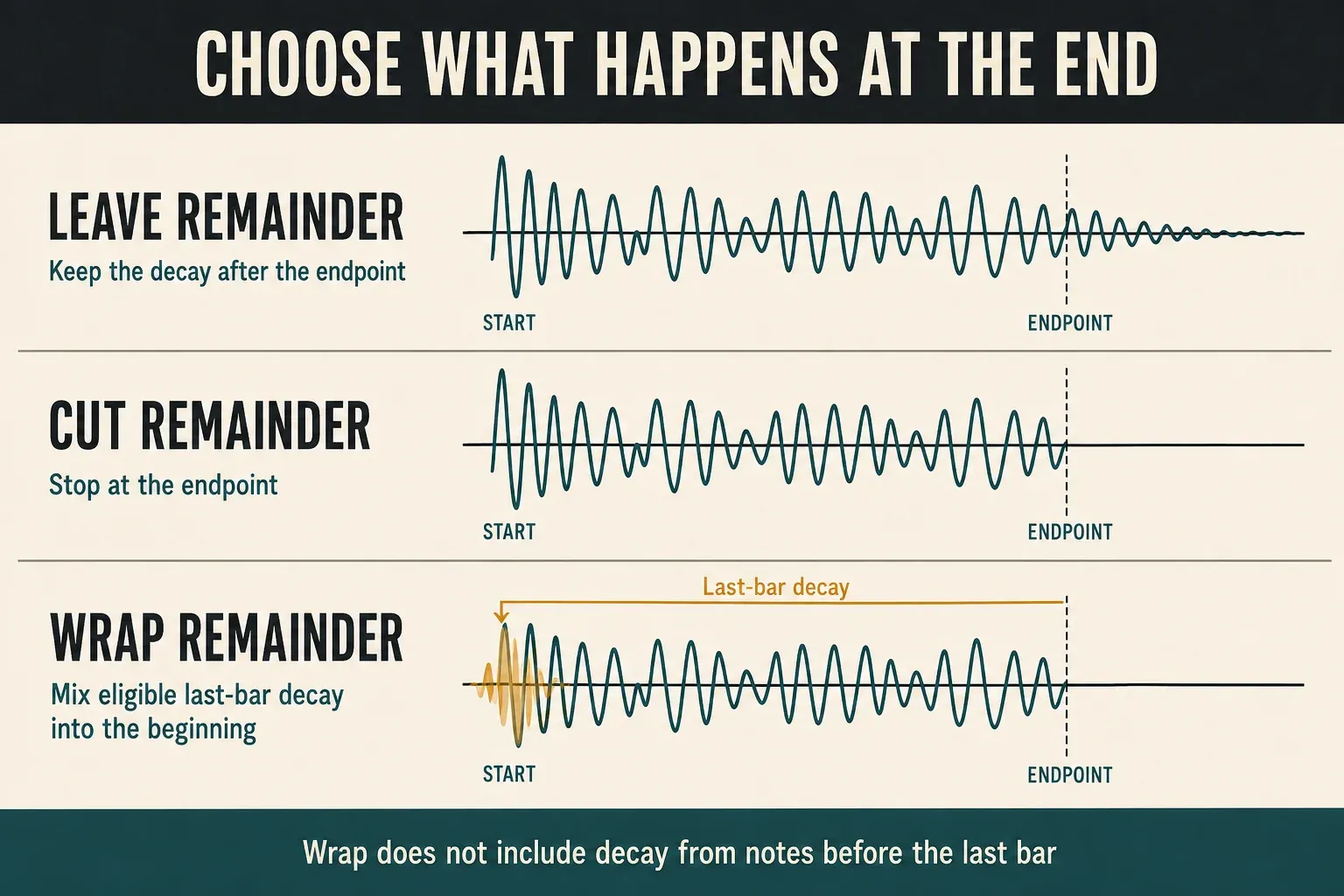
Leave remainder: let the ending decay
Leave remainder is the default, and it's a good starting point for a finished song: released notes and effects keep ringing past the endpoint. Listen to the result. If a long tail still stops too early, push the endpoint out with a later Repeat marker and render again.
Wrap remainder: handle a deliberate loop
Wrap remainder starts from the last bar and mixes qualifying decay back into the start of the loop. Decay from notes before that last bar isn't included. Loop the resulting WAV and listen to the seam, because switching to Wrap won't hide every join.
Cut remainder: stop at the boundary
Cut remainder stops right at the selected endpoint. That can chop off a reverb or released note that would otherwise keep going, so use it when the delivery needs that exact boundary and the ending was written for it.
Check quality settings without turning everything up
Start by matching the recipient's specification. You set the output sample rate in Options > Audio settings, and the Audio Settings reference has the details. Music projects often run at 44.1 kHz and video work usually at 48 kHz, but a rate someone specifically requested wins over either habit. For rate and device configuration, see the audio settings guide.
Render resampling matters when Sampler or Audio Clip audio is repitched or its sample rate changes, and it's set separately from live interpolation. HQ for all plugins affects supported native plugins and sends the relevant rendering notification to VST plugins. A third-party plugin may still have quality controls of its own. Changing these settings can change the result, so compare a short test section before you assume maximum settings always sound closest to playback.
The export dialog's Dithering control is documented for converting FL Studio's 32-bit internal audio to 16-bit WAV and MP3. If you use it, apply it once, at the final conversion, and never again to material that's already dithered. That guidance is specific to this control. Other audio workflows may dither at other bit depths.
For one stereo mix, leave Split Mixer Tracks off, and don’t enable Mono merged unless you really need a single combined channel. WAV marker options only matter when the next tool uses the marker data. The export settings guide goes deeper into destination choices and quality controls.
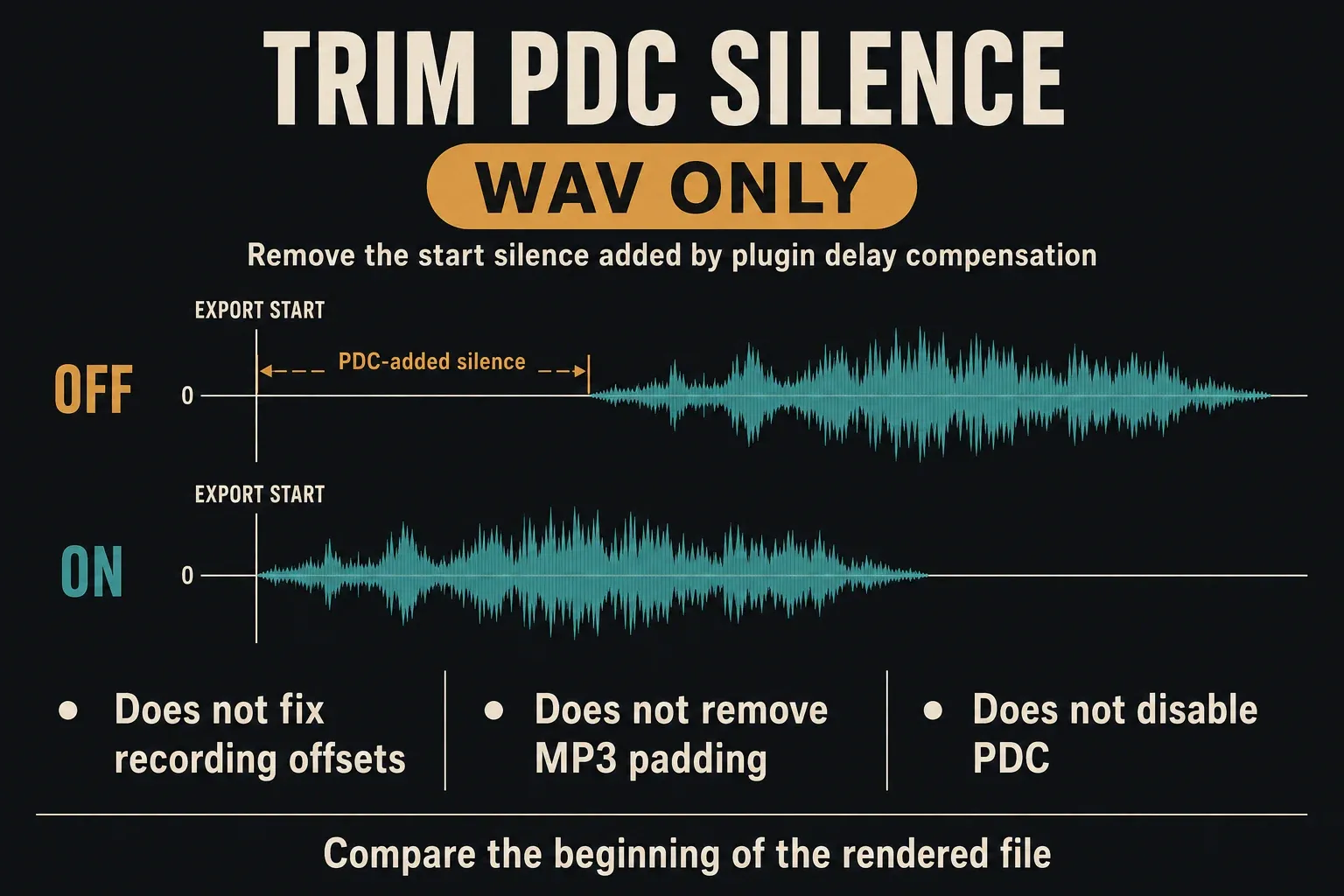
Trim PDC silence is a WAV-only start option
Trim PDC silence is on by default. It removes the extra starting delay that plugin delay compensation adds to a WAV render. Turn it off only when you deliberately need to keep that delay. It doesn't switch off compensation inside the mix, fix a recording offset or remove MP3 encoder padding. If the complaint is “the file starts late,” work out which of those problems you've got before you touch it.
Fix a short, missing or different export
| What you hear | What to check first |
|---|---|
| Only one pattern | Set export Mode to Song rather than Pattern. |
| Only part of the arrangement | Clear an unintended time selection, then inspect the later marker, last data bar and tail. |
| A synth or bus is missing | Check mutes and whether it reaches the Master. Record external hardware before offline rendering. |
| Reverb, processing or mastering has disappeared | Check Enable insert effects and Enable master effects, then the actual effect routing. |
| The final decay is cut off | Use Leave remainder or extend the endpoint with a later Repeat marker. |
| The file distorts but playback seemed clean | Check Master peaks and whether the live playback path was masking clipping. |
| An MP3 will not line up precisely | Use WAV for the alignment-sensitive job; WAV PDC trimming is not an MP3-padding fix. |
| The mix sounds different in another player | Check the player's and operating system's enhancements, then compare plugin quality and live/render interpolation. |
On Windows, the FL Studio ASIO driver's live limiting can hide an overload that's still there in the render, and other drivers don't all behave this way. Image-Line's export-versus-playback troubleshooting also covers playback enhancements and plugin differences. Check one cause at a time.
When you check levels, don't confuse the Master fader with the monitoring control. The mixing and clipping reference explains that Monitor Volume doesn't change rendered levels. Internal floating-point headroom doesn't protect a fixed-bit-depth output from clipping either. Check the Master, but there's no compulsory minus-six peak target for every delivery.
Listen to the file you will actually send
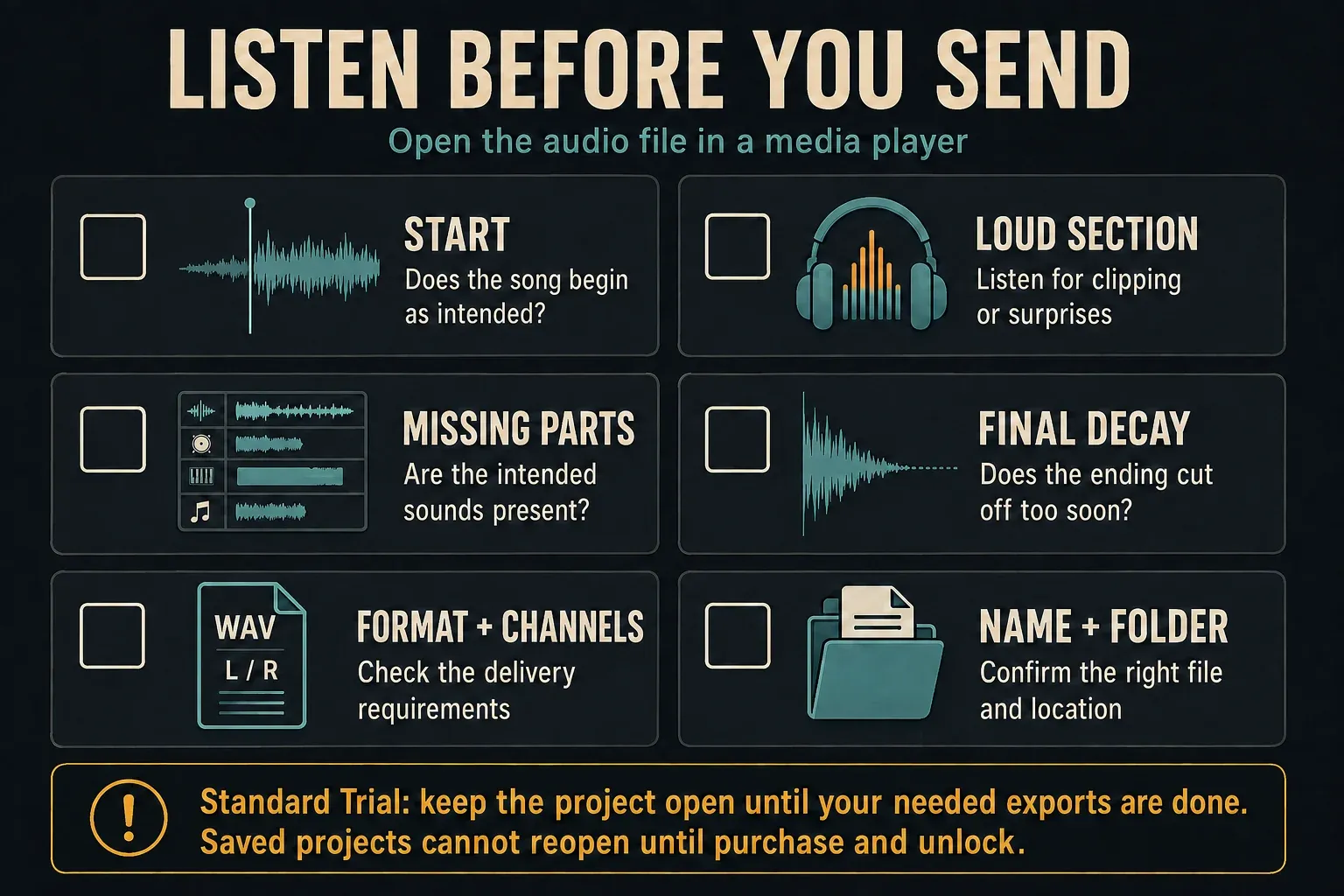
Open the exported file in a media player while the production session is still available. Listen to the first attack, a busy or loud section, any part that went missing before, and the final decay. Then confirm the format, channel layout, name and folder. A finished progress bar only proves the render ended. It can't tell you whether you picked the right mix.
If something's wrong, change the setting responsible and export a clearly named revision. Keep the only useful copy intact while you compare. In the standard Trial, finish the exports you need before you close work you can't reopen yet.
If you need an editable handoff instead of a finished audio file, Export & Collaboration has the right route for it. The Workflow guides cover saving and arrangement habits from earlier in the process.
Frequently asked questions
How do I export a full song from FL Studio?
Save the project, clear an unintended Playlist time selection and choose File > Export. Select an audio format, use Song mode, leave Split Mixer Tracks off and normally start with Leave remainder. Check Master routing and the insert/master effects options, render, then verify the actual file in a media player.
Should I export WAV or MP3?
Use the requested WAV specification for a production handoff or further editing. MP3 makes a convenient lossy listening copy but can never replace the lossless mix. Use WAV whenever sample-accurate loop repetition or alignment matters, because MP3 can add leading silence.
Why does FL Studio export only part of my song?
A Playlist time selection takes priority in Song mode. Clear an unintended selection and check for a marker beyond the last bar containing data. Without that later marker, the last data bar defines the endpoint; the Tail setting handles sound continuing beyond it. Pattern mode is a separate reason to get only one pattern.
Why are sounds or effects missing from my export?
Check mutes and whether the intended tracks reach the Master. Record external instruments to audio before offline rendering. If processing is missing, check Enable insert effects and Enable master effects as well as the effect routing.
Which Tail setting should I use?
Start with Leave remainder for a finished song. Wrap remainder is for a deliberate loop and only handles qualifying last-bar decay. Cut remainder stops at the chosen boundary, so use it only when that exact ending is intended.
Can I export a song in the FL Studio Trial?
Yes. The standard Trial allows audio export and saving projects, but reopening saved projects requires purchase and unlock, with edition and plugin licenses that cover the plugins used. Keep needed work open while you make and check your exports, because a saved FLP cannot be reopened in the Trial right away.