FL Studio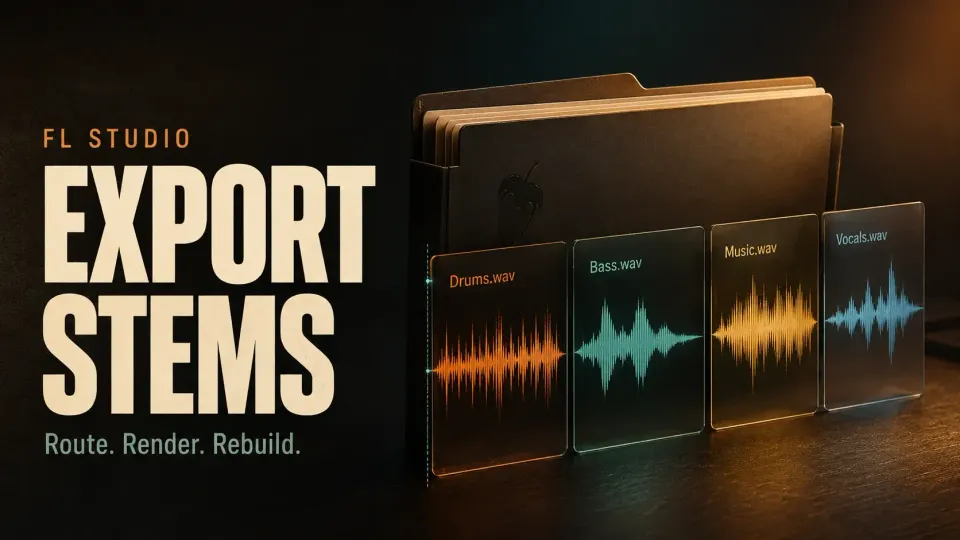
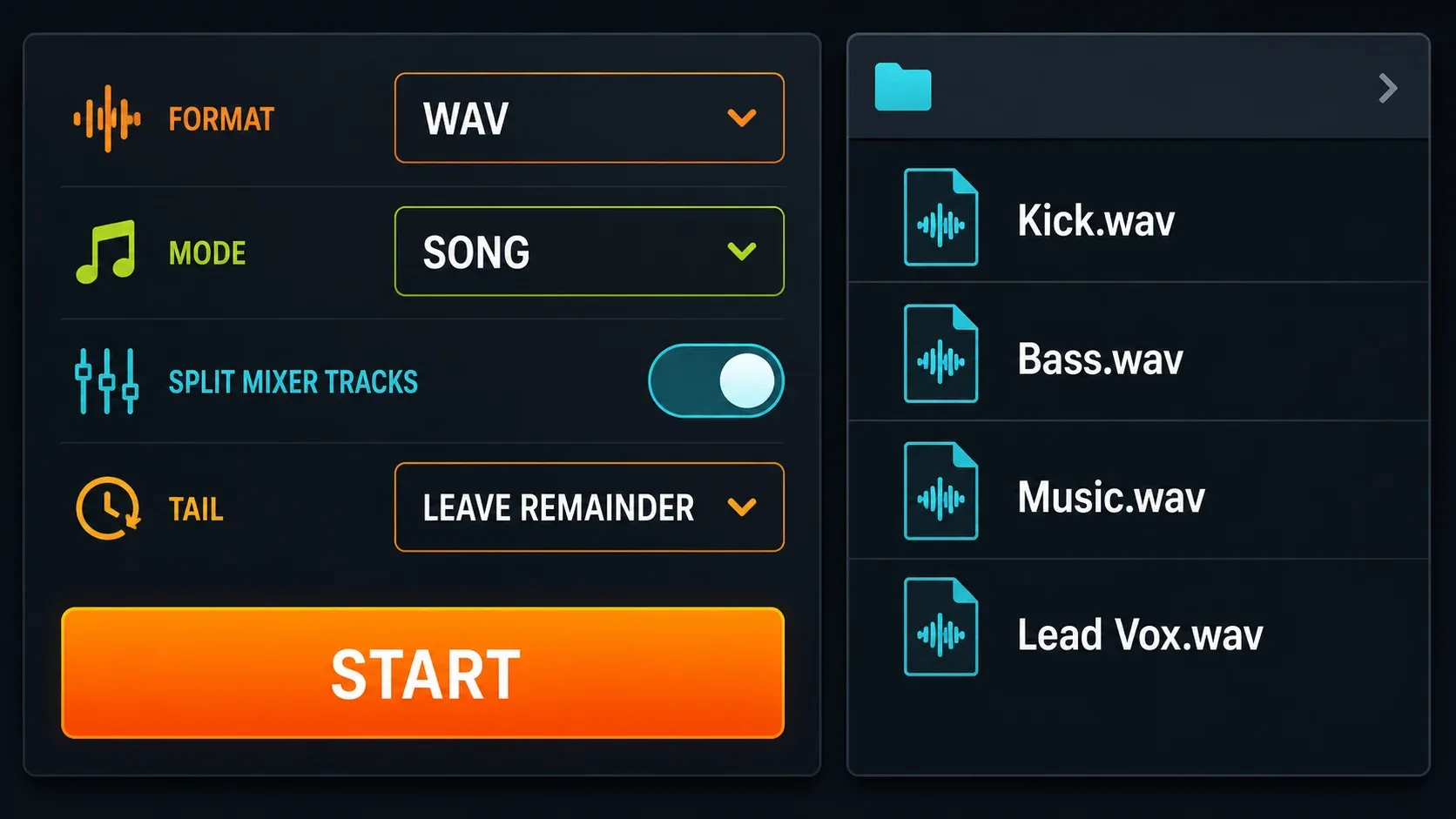
To export stems from FL Studio, route the sounds or groups you need to named Mixer tracks, choose File > Export > Wave file, set Mode to Song and enable Split Mixer Tracks. Use one deliberate song range, render the WAV files into a separate folder and check the delivery before sending it.
The important decision happens before the export window opens: are you delivering individual instruments, grouped buses, or a mix of both with separate effect returns? A folder full of rendered files isn't automatically something to play all at once. Split files also bypass the Master, so none of them inherits your Master effects.
Using the standard Trial? You can save and export, but cannot reopen saved projects until you purchase and unlock FL Studio. The edition and plugins you own must cover the project. Keep needed work open until its exports are complete; do not switch to a new project just to check the files. Image-Line explains these Trial restrictions. A separate audio application or the recipient can check the delivery without closing your session.
Decide what the recipient actually needs
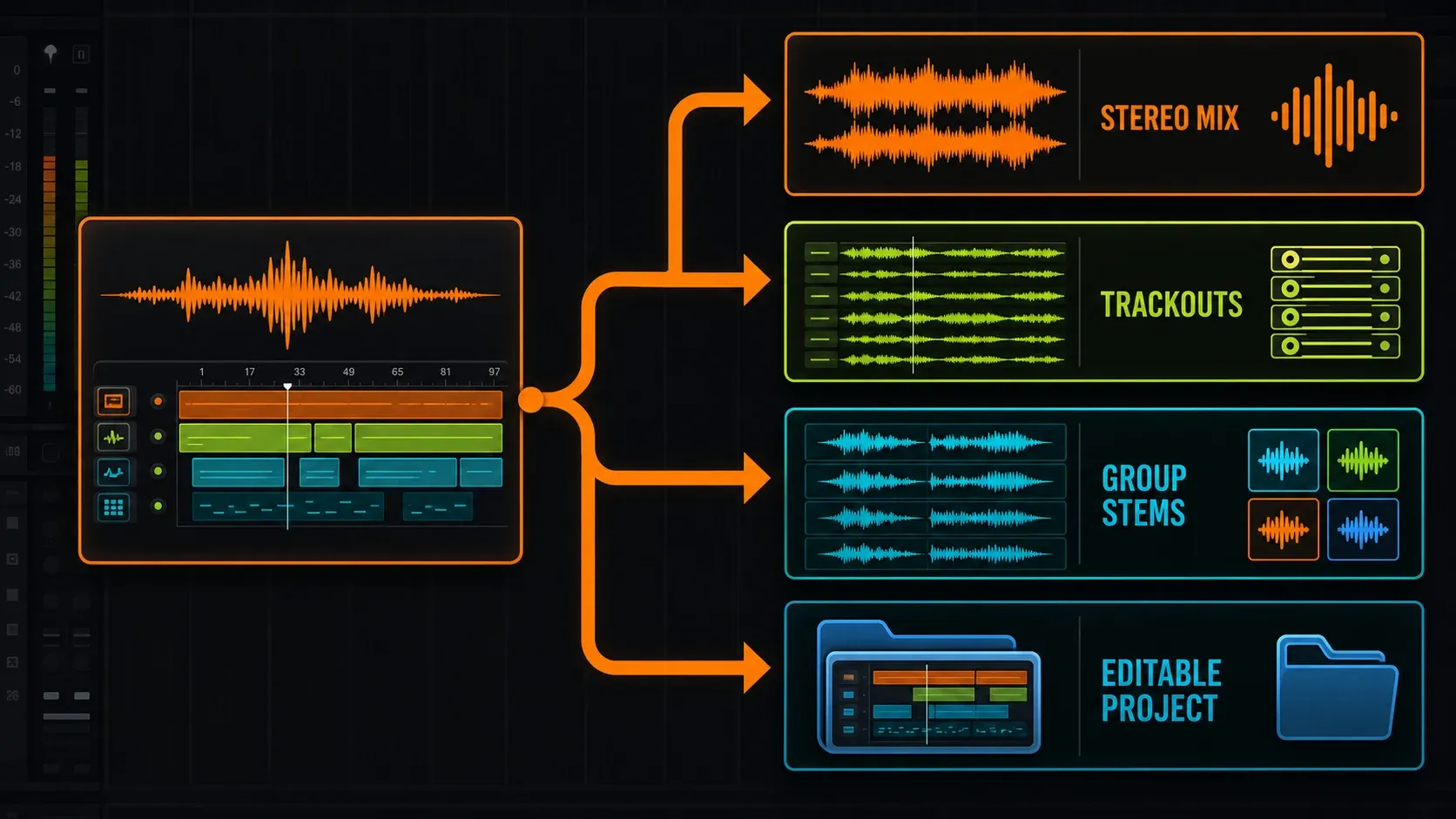
“Stems” can mean different things in a handoff. Here, trackouts means individual sources such as kick, snare and lead vocal, and grouped stems means broader parts such as drums, bass, music and vocals. Ask which set the recipient wants, then agree on printed effects and file specs. A copyable manifest should record the start/range, sample rate and bit depth, individual versus group layers, wet/dry state, returns, the reference mix that must not be summed again and any special sidechain notes.
| The next person needs | Send | Keep separate |
|---|---|---|
| A finished song to hear | A stereo mix | The multitrack delivery |
| Control over individual sounds | Named source trackouts | Containing buses offered as alternatives |
| Control over musical groups | Named group stems | The individual sources already inside them |
| Editable patterns and instruments | FLP and required assets | Rendered audio, which is no longer editable instrument data |
| Parts extracted from a stereo recording | A stem-separation workflow | Exporting routes from the original project |
Use the full-song export workflow for one listening file. If you only have a stereo recording, follow the stem-separation guide instead.
For an editable handoff, the zipped loop package guide covers collecting project assets. A ZIP won't give the recipient your plugins or licenses, though. Image-Line's project-format documentation separates included Sampler/Audio Clip samples from externally managed third-party sampler content; some plugin formats can embed their own data.
Understand what Split Mixer Tracks actually splits
Split Mixer Tracks creates separate WAV files from Mixer tracks. It won't make FLAC, MP3 or OGG trackouts. The current export reference also documents Master bypass, mute exclusions and the naming requirement for multi-output instruments.
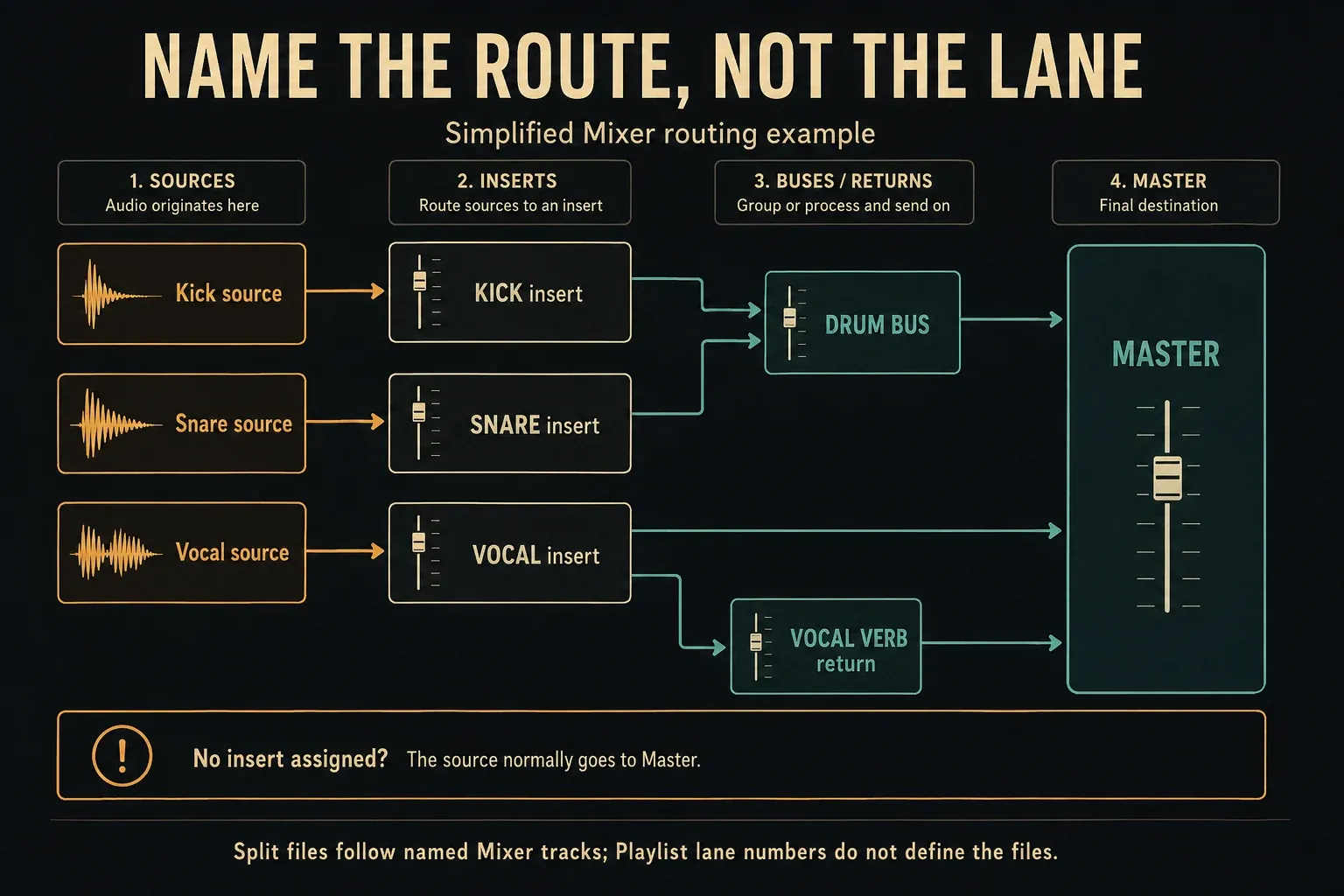
Playlist lane numbers aren't export boundaries. In the normal free-routing workflow, several lanes may trigger one instrument, or one pattern may trigger several instruments. Track Mode can tie a Playlist track to an instrument and Mixer route, but the split render still follows the Mixer. Check the actual connections instead of trusting the layout.
Assign and name the outputs you need
An instrument with no Mixer insert assignment normally goes straight to Master. You'll hear it in the full mix but won't get the separate insert file you were expecting. Route it to its own insert if it needs to be delivered on its own.
Name used inserts, buses and returns by their job: Kick, Lead Vox, Drum Bus, Vocal Verb. The Mixer documentation warns that multi-output destinations left with default Insert N names may not be recognized as used during split rendering. Use Rename / color on the Mixer track before exporting.
If you need help tracing these connections, start with the Mixer routing guide. For this handoff, the test is simple: can you trace each requested file back to a named Mixer output?
Choose trackouts, group stems and returns deliberately
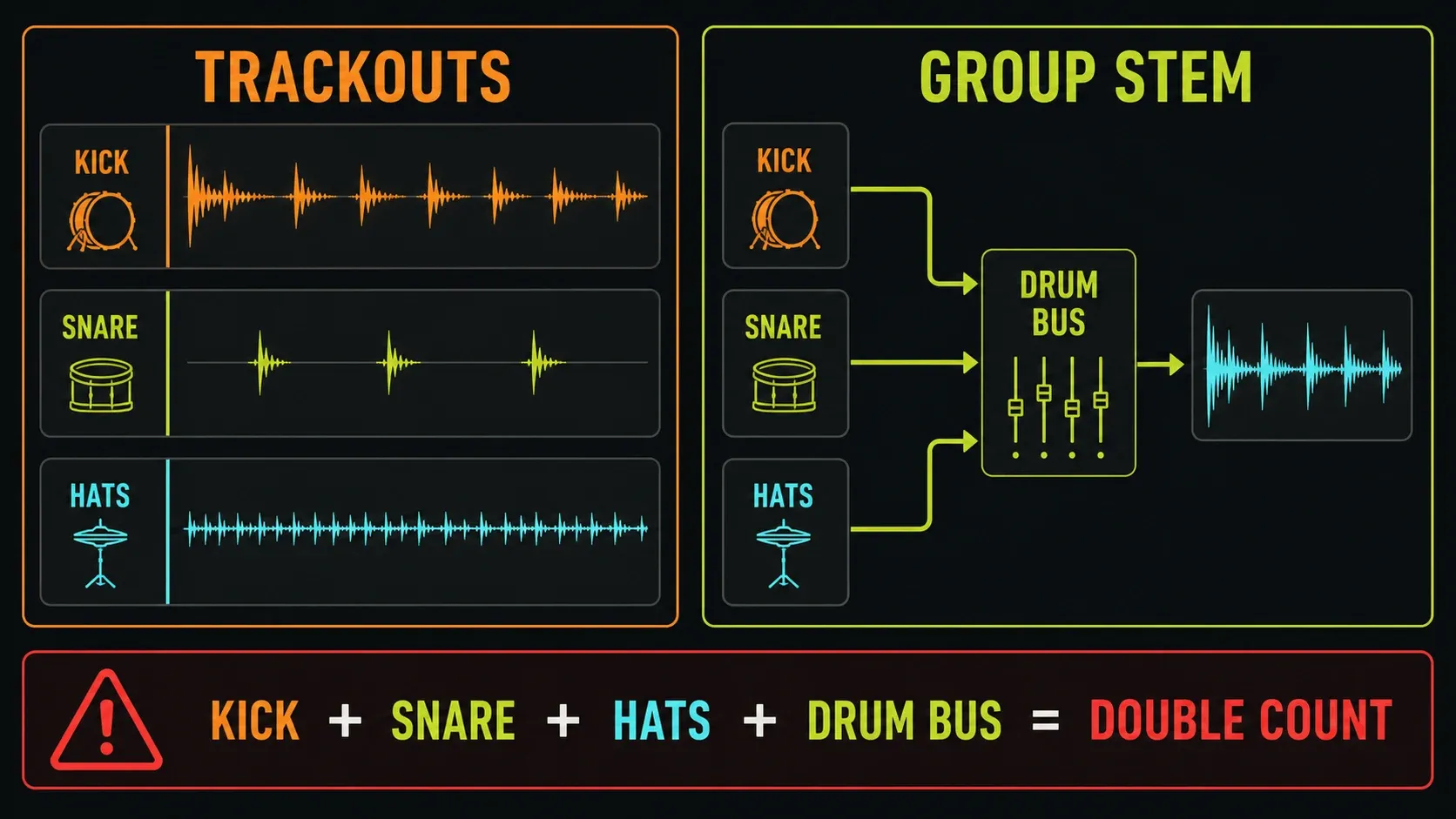
Do not add a containing bus to its children
Say Kick, Snare and Hats feed a Drum Bus. The bus file already holds their combined audio, including any processing on that bus. Play it alongside the three source files and those parts come in twice. Deliver the children for detailed control or the bus for the grouped sound, and label any alternative clearly.
A child file won't automatically include processing from the bus it feeds. If that processing defines the production, talk about a bus alternative or grouped delivery. Don't present untreated child files as an exact replacement for the processed group.
Keep an intended parallel return
A separate return isn't automatically a duplicate. If a dry vocal reaches Master directly while a wet-only reverb return also reaches Master, the intended rebuild needs both files. The same goes for a deliberately blended parallel-compression return. Dropping it just because it's parallel changes the mix.
Now change the route. If the vocal and its reverb already feed a delivered Vocal Bus, that bus includes the return, and adding the separate return again doubles its contribution. Write down which files make up the intended sum and which are alternatives. The useful question is “what's already inside this file?”, not “is this a bus or a return?”
Run the stem-export preflight
Use File > Save new version before you change the approved routing or effects. The File menu reference describes its numbered project copy. Saving still helps in Trial, but reopening that copy needs the purchase and unlock described above. Keep your delivery version easy to spot with the project-organization workflow.
- Confirm the requested files. Sources, groups, intended separate returns and reference-only alternatives.
- Check names, assignments and mutes. Muted Mixer tracks, including Master, are excluded from split export. Do not mute a route needed to feed another file simply because you do not plan to deliver its own WAV.
- Keep processing context intact. Leave needed automation and sidechain triggers active. Audition the affected destination rather than assuming a silent-looking trigger has no job.
- Record external instruments as audio. Offline rendering cannot capture the sound of a hardware synth merely from its MIDI instructions. Record its output, then route that audio to the named insert you need.
- Choose one range and effect state. Do not change the song selection or wet/dry plan halfway through a set.
Export stems from FL Studio step by step
- Save the delivery version. Use
File > Save new version; in standard Trial, keep needed work open until the exports are finished. - Choose the layer to deliver. Decide which sources or groups and separate returns belong together. Mark other buses and the stereo reference as alternatives.
- Check Mixer routes and names. Confirm each expected output, mute state, sidechain dependency and recorded hardware part.
- Set the song range. Clear an unintended Playlist time selection or deliberately select the exact shared range required.
- Open the WAV export. Choose
File > Export > Wave file, select a separate destination folder and setModetoSong. - Enable split export. Turn on
Split Mixer Tracks. SetEnable insert effectsaccording to the agreed pass; Master effects do not carry into each split file. - Set the tail and file specification. Start with
Leave remainderwhen the ending must decay, and use the agreed sample rate, bit depth and channel layout. - Render and inspect the folder. Start the export. Check the actual filenames and contents, not just the render-complete message.
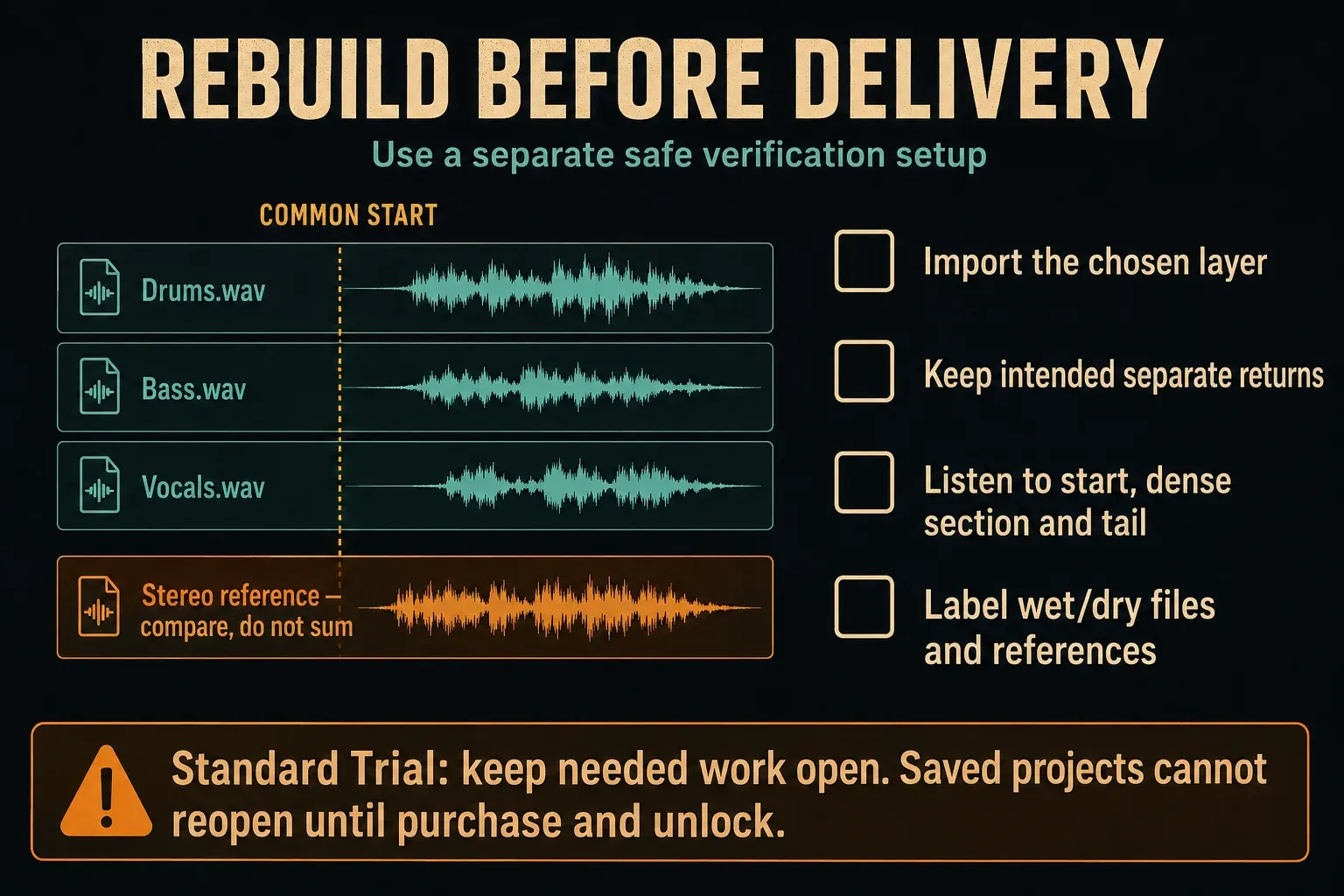
- Verify the intended rebuild safely. Put only the agreed files at a common start in a suitable separate verification setup; compare, rather than sum, the reference. Do not close needed Trial work to perform this check.
Decide how effects should print
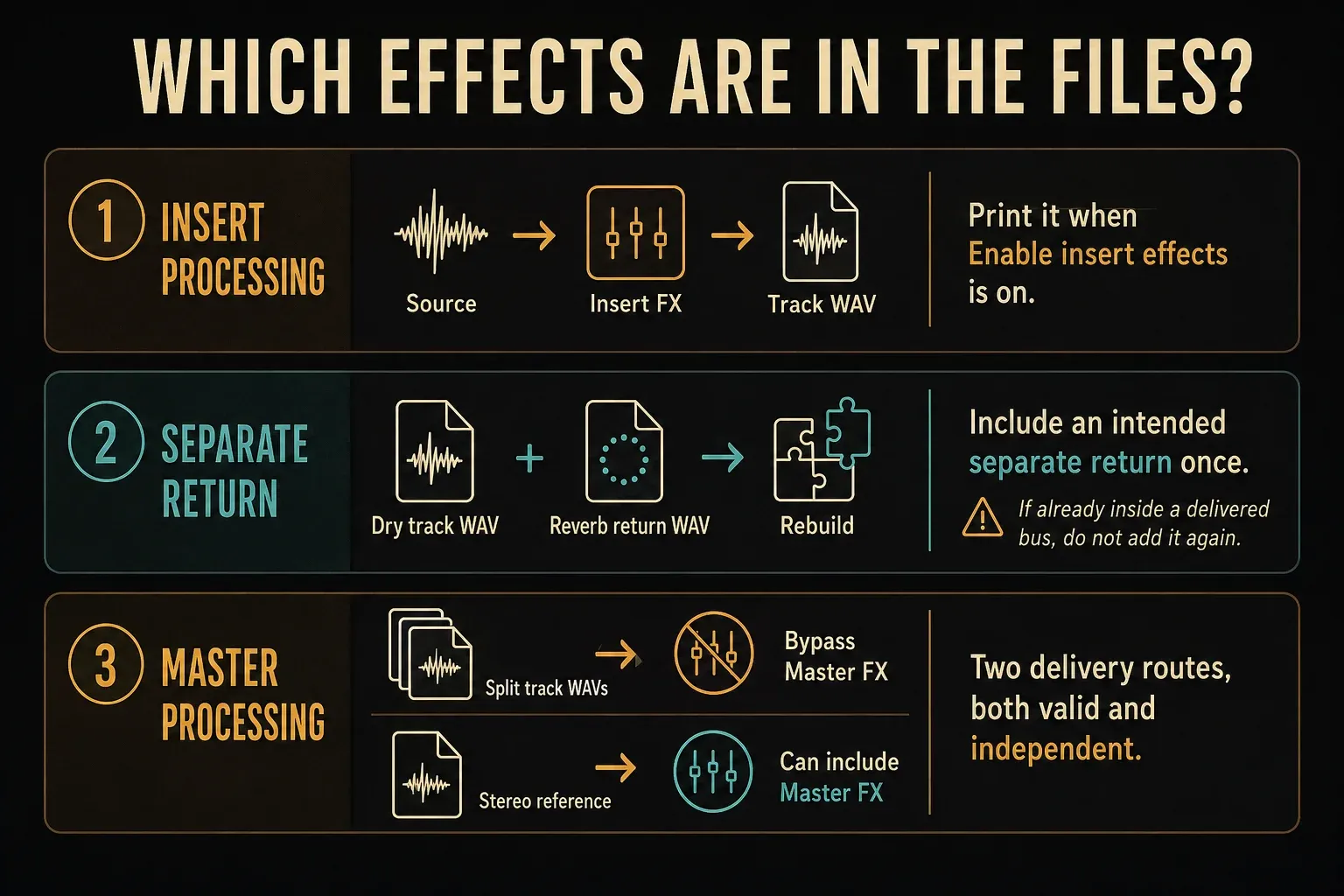
Insert bypass is not a raw-audio button
Enable insert effects decides whether insert-slot processing is included. Leave it on for a requested processed pass, and switch it off only when that matches the delivery. It can't undo effects already recorded into a source file, and it won't bypass an instrument's own sound design. Label the real processing state, instead of calling it “dry” because you unticked one box.
Set up wet-only returns intentionally
For the dry-vocal-plus-reverb example, make the reverb output wet-only inside the effect plugin. A Mixer slot mix knob at 100% doesn't do that on its own, since the plugin can still have its own dry/wet blend, as the effect-slot reference explains. Listen to the return by itself, then in the intended sum.
Master processing belongs in a separate reference
Enable master effects doesn't put Master processing into individual Split Mixer Tracks files. A separate stereo mix can include it. Label that mix reference, keep it out of the stem sum and explain why the rebuild may sound different. Don't promise a sample-identical match to a reference that has processing the delivered layer lacks.
Sidechains and Playlist exports need context
A sidechain-only connection isn't audible at its destination on its own, but a compressor or other receiving plugin may use it to change the printed sound. Keep the trigger in place while rendering. The sidechain setup guide helps if that processing isn't behaving as expected.
There's also a different route: File > Export > All playlist tracks. It renders Playlist tracks one after another and can include Master effects, so it's a separate tool from splitting the Mixer. Image-Line's Playlist export documentation explains grouping and why sidechain-triggering material has to stay in the right track or group. Pick that workflow only when its boundaries match the delivery.
Choose range, tail and PDC without losing alignment
The song range follows a set order. A Playlist time selection wins; without one, the last time marker past the last bar with data sets the end; otherwise the last data bar does. Tail handling then decides what happens to audio that runs past that boundary. The Playlist guide covers the selection and marker controls.
Leave remainder is the default tail choice and extends the render to catch decaying audio. If it still cuts off a tail, Image-Line recommends adding a Playlist Repeat marker after the last Pattern, Audio or Automation Clip to extend the render length. Cut remainder stops at the boundary. Wrap remainder is meant for loops, not an ordinary full-song handoff. Listen to the actual ending instead of assuming one setting suits every request.
Keep every delivered file on the same intended musical start. A vocal can hold silence before the singer comes in, so don't trim that away on its own. A common file start doesn't mean every instrument has to make sound on the first beat.
Trim PDC silence is on by default and applies to WAV exports. It removes the start silence added by plugin delay compensation, split files included. It doesn't disable PDC or fix audio that was recorded late. If one part is still offset, check the recording and the relevant plugin instead of nudging the whole set by eye.
Keep export quality inside the handoff specification
Agree on sample rate, bit depth and mono/stereo requirements. If nobody asked for a conversion, keeping the established project sample rate avoids a pointless change. Use a bit depth the recipient's tools support; neither 24-bit nor 32-bit float is a universal delivery rule.
Check the exported tracks themselves for clipping, not just the Master meter. Image-Line's levels guidance separates internal floating-point headroom from fixed-bit-depth files: an insert rendered to 16- or 24-bit output has to stay inside that output's range too. Nobody requires you to push every source up to 0 dB.
Don't normalize each file into a different relative balance unless someone asks for it. Keep conversion, resampling, HQ and dither decisions in the export-settings guide and the delivery spec, and don't treat a screenshot preset as a guarantee of quality.
Fix missing, silent, doubled or wrong stems
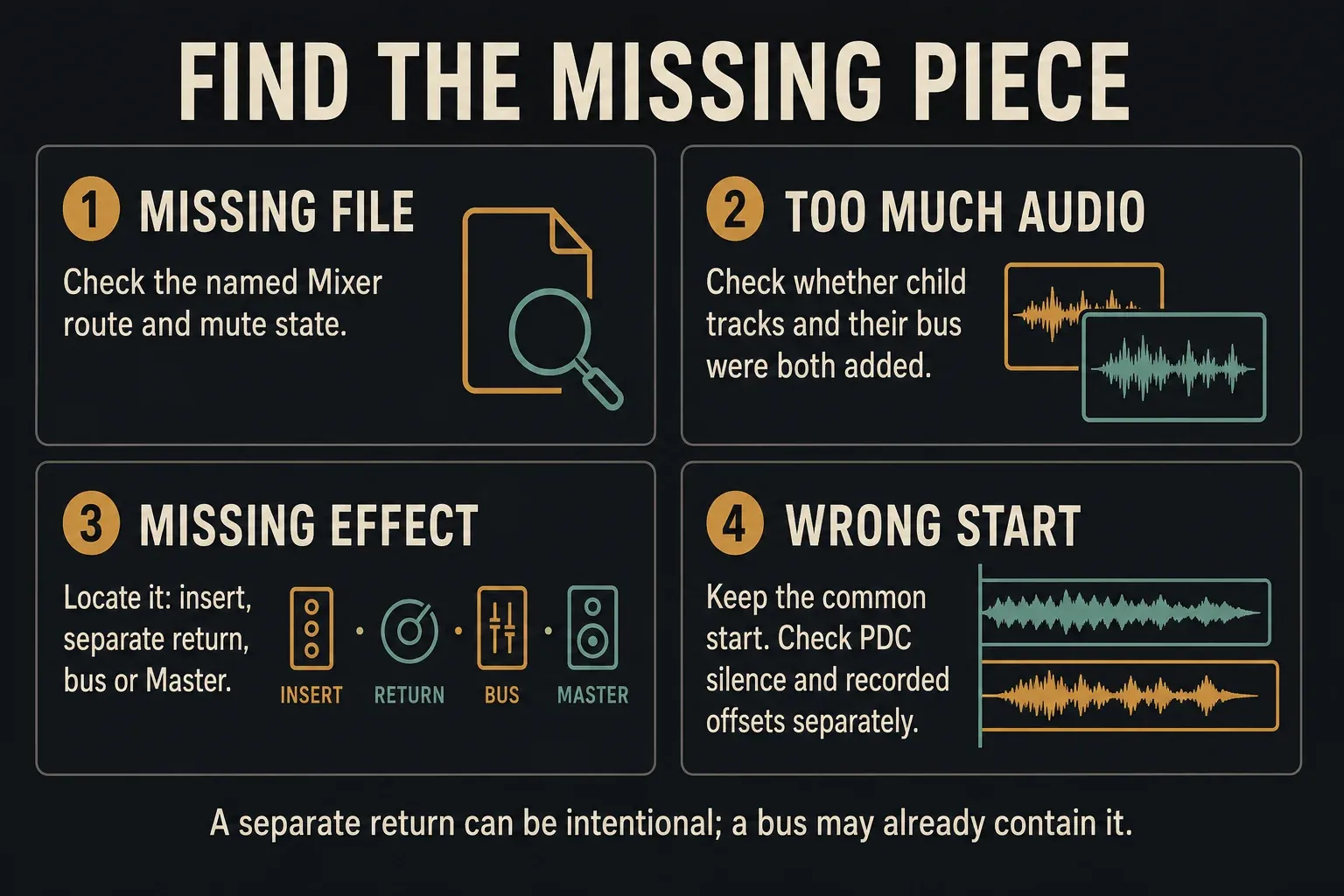
- Missing file: check the named Mixer route, mute state and multi-output destination names. A source going only to Master is not a separately assigned insert.
- Too much audio in the rebuild: check whether you added children plus their containing bus, a return already inside that bus, or the stereo reference.
- Missing effect: locate it on the source insert, a separate return, a group bus or Master. Deliver or explain the corresponding layer.
- Wrong sidechain behavior: confirm that the trigger and receiving processing remained active during the pass.
- Missing hardware part: record its audio before offline rendering.
- Cut-off ending: check the time selection, end marker and Tail setting.
- Wrong start: separate intentional leading silence, recorded offsets and rendered PDC silence before making changes.
Verify the folder without risking the original project
On a licensed setup that can reopen the source project, save it before you open a separate empty verification project. Check that the verification template has no extra Master processing or stray gain changes. In standard Trial, keep the needed project open and use another suitable application, or ask the recipient to run the multitrack check. A media player can inspect single files, but it can't prove the full sum is right.
- Import only the intended source/group layer and required separate returns at the same start, with no unintended stretching, gain or effects.
- Listen to the opening, a dense section and the ending. Check that every expected part and decay is present.
- Compare against the stereo reference, accounting for known processing differences. Do not play the reference as another stem.
- Investigate missing or repeated contributions rather than demanding a perfect null against a differently processed mix.
- Inspect filenames, format, channel layout and folder contents before delivery.
Include a short note with tempo, sample rate, bit depth, common start, wet/dry status and any reference-only files. For example: “Lead Vox plus Vocal Verb form the vocal balance; Vocal Bus is an alternative, not an extra track.” Adjust that note to your actual routing.
The Export & Collaboration hub ties audio delivery to editable project sharing. The Workflow hub covers the project habits that make the next handoff easier to organize.
Frequently asked questions
How do I export stems from FL Studio?
Route the required sources or groups to named Mixer tracks. Choose File > Export > Wave file, set Mode to Song and enable Split Mixer Tracks. Use one intended range, the agreed effects and file specification, then verify the delivered layer at a common start without closing needed Trial work.
Does Split Mixer Tracks include Master effects?
No. Individual split files bypass Master, regardless of Enable master effects. A separate stereo reference can include the Master chain; compare it with the stems rather than adding it to their sum.
Why is a Mixer track missing from the export?
Check mute states, routing and names. A source assigned only to Master has no separate insert of its own, while a multi-output destination left with a default Insert N name may not be recognized as used. Correct the relevant issue and repeat the same range.
Should I send dry or wet stems?
Ask the recipient and label the actual processing state. Insert effects can be included or bypassed, but bypass cannot undo effects already recorded into a source. Name separate returns and explain any bus processing absent from the source files.
Should parallel returns be included with stems?
Include a separate return when it belongs in the intended mix alongside the source files. Do not add it again if a delivered bus already contains it. Parallel routing alone does not make a return a duplicate or reference-only file.
Why do my stems sound too loud when imported?
You may have added child tracks and their containing bus, a return already included in a bus, or the stereo reference. Check the file list and verification project's gain and effects. Rebuild the intended layer first; do not automatically remove a necessary separate return.
Can I export stems in the standard Trial?
Yes, the standard Trial can export audio and save projects, but cannot reopen saved projects until purchase and unlock. The owned edition and plugins must cover the project. Keep needed work open until its exports are finished, and use a separate safe setup for verification.