FL Studio
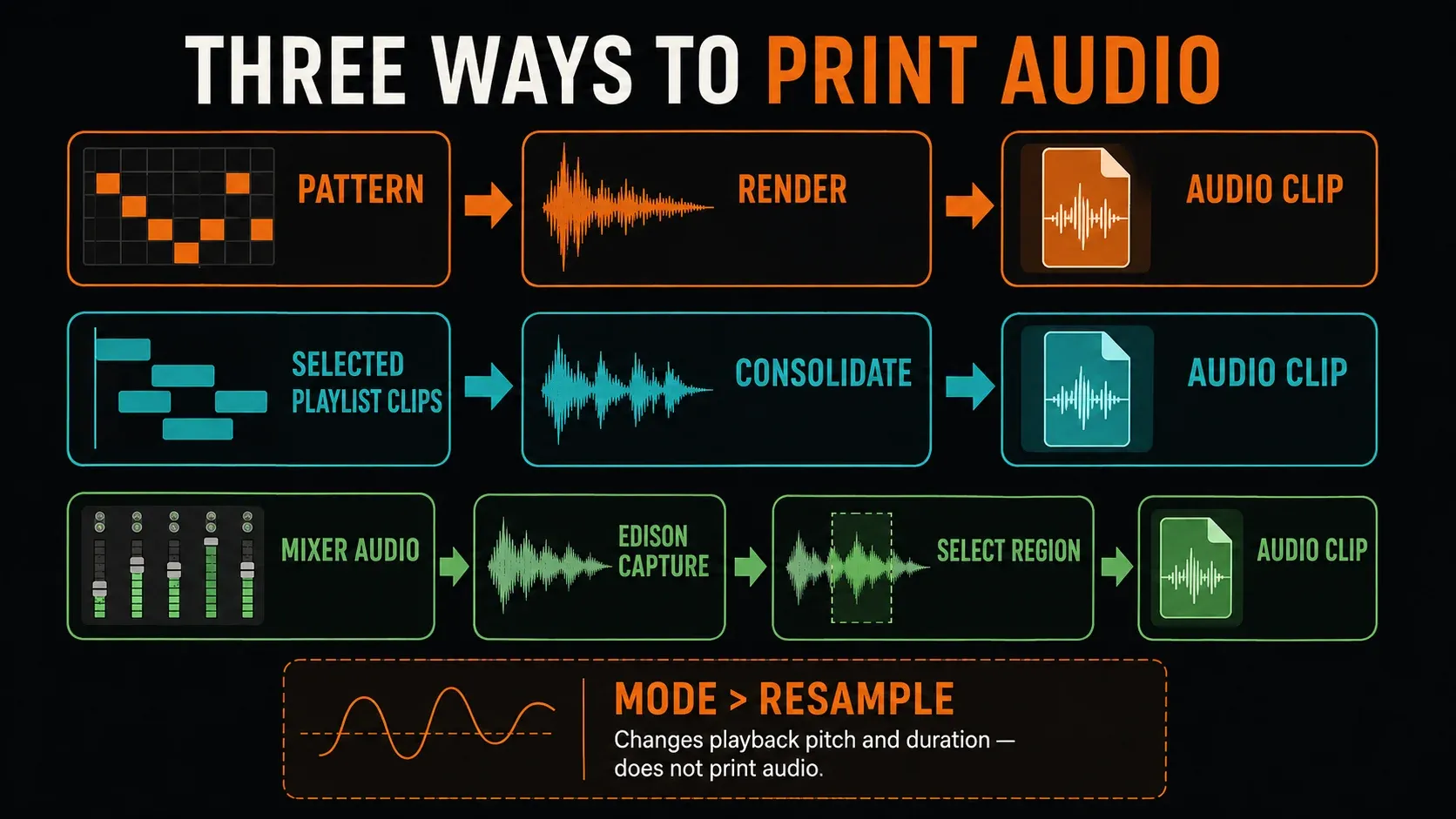
Your synth phrase sounds right, and now you want to chop the result instead of editing more MIDI. To resample audio in FL Studio, render a self-contained Pattern, consolidate clips in their Playlist context, or record the performance into Edison. Each route captures a different part of the project, so decide on the source and the effects first. Turning a sound into a waveform doesn’t automatically keep everything you heard.
Before committing: keep the project and its source files. The standard FL Studio Trial can save projects and export audio. It can’t reopen saved projects until you purchase and unlock it, though, so make the prints you need while the session is still open. Full recall also depends on your edition and any separate plugin licenses for the instruments and effects you used. You get Edison and audio recording with Producer Edition and above.
Choose what you want to resample
| What you need | Use | What to check |
|---|---|---|
| One self-contained synth or drum Pattern | Picker Panel: Render as audio clip | Channels triggered, render settings and fixed automation values |
| Edited clips and automation at their song position | Playlist consolidation | Selected clips, start rule, routing and effects |
| A live knob move or an unpredictable sound | Edison recording | Incoming signal, FX-slot position and recording duration |
| Pitch and duration changing together | Time stretching: Mode > Resample | This changes playback; render or record afterward to print it |
| A file at a different sample rate | Edison Sample Properties: Resample switch | This converts sample data, rather than bouncing a Pattern |
The first three options give you working audio from the project. The last two explain why the word “resample” also turns up in settings that do something else entirely. This guide sits in Samples & Audio Editing, and it’s about getting the right sound into a reusable file without losing the source.
Render a Pattern to audio in seven steps
- Preserve the source. Save a project version and keep its external samples. In standard Trial, finish needed audio exports before closing the session or removing trial instruments.
- Inspect the Pattern. Confirm which Channel Rack instruments it plays. If the sound depends on a Playlist automation move, use consolidation instead.
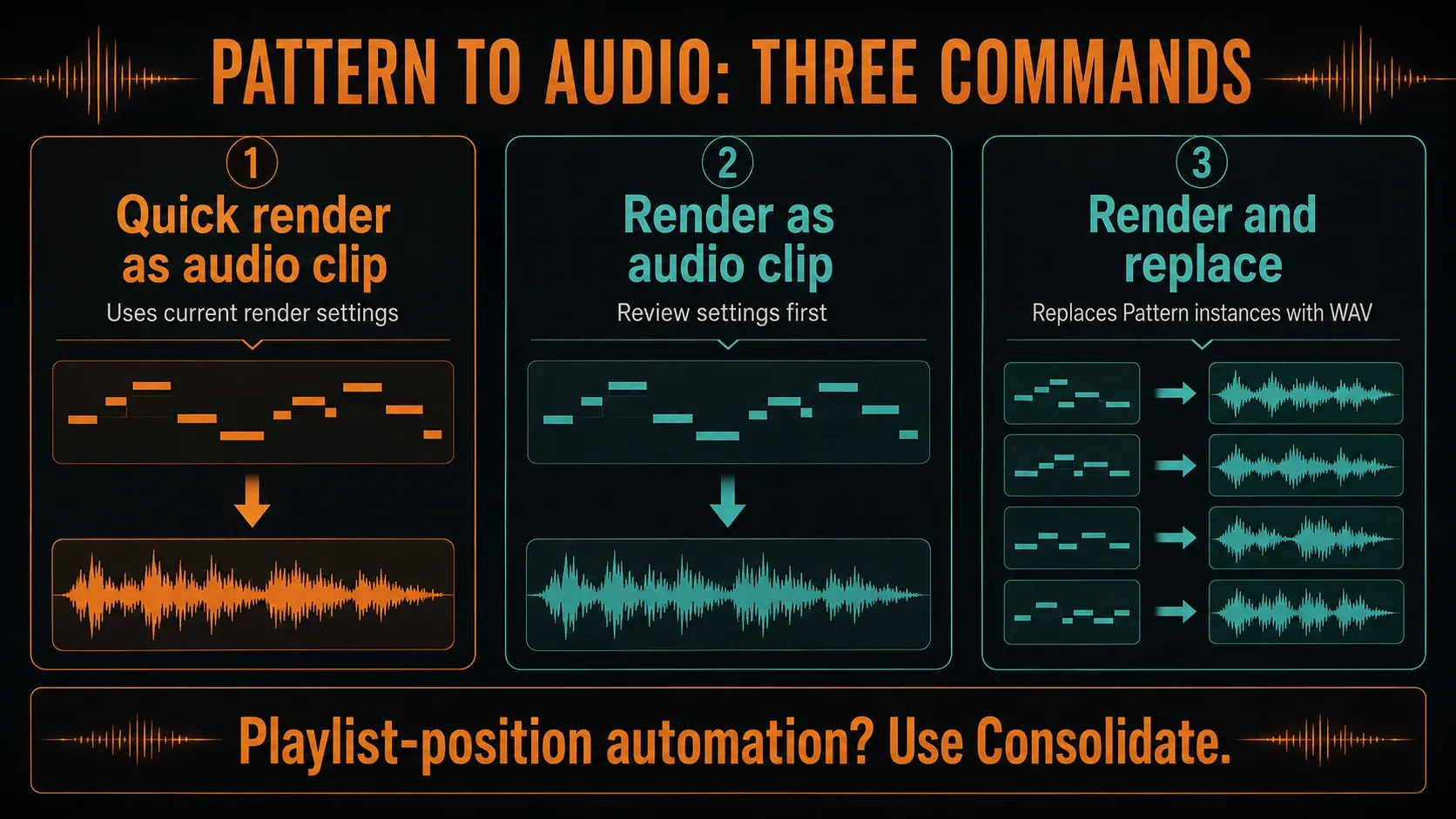
- Open the Picker Panel. Right-click the intended Pattern and choose
Render as audio clipso you can review the render settings. - Choose the printed processing. For a working print that includes its Insert effects but will pass through the existing Master again, use
Enable insert effectson andEnable master effectsoff. Check any bus or send dependencies too. - Check format and length. Use a production WAV format your next tool supports, review the reported render length, and choose the Tail behavior for a loop or one-shot.
- Name and place the result. Use a name such as
Bass_Distorted_01, then inspect the new Audio Clip’s Mixer destination before playback. - Compare one path at a time. Listen to the source and print separately at comparable loudness. Check the attack, processing and decay before disabling any source component; keep anything needed elsewhere in the song.
Quick render as audio clip skips the settings review and uses whatever render settings are current, so save it for when those settings already suit the sound. Render and replace lets you review settings too, then swaps every instance of the chosen Pattern in the Playlist for its WAV Audio Clip. The Picker Panel’s three render commands aren’t interchangeable: they differ in how much they commit you to.
Why a Pattern render can miss an automation move
A render from the Picker doesn’t play Playlist-position automation through the arranged passage. It grabs fixed automation values from the song start or the Playlist selection. That means a filter sweep that opens across the chorus can land in the print as one fixed filter setting. If the movement is part of the sound, put the Pattern where it belongs in the song and consolidate that material instead.
Consolidate selected clips in their Playlist context
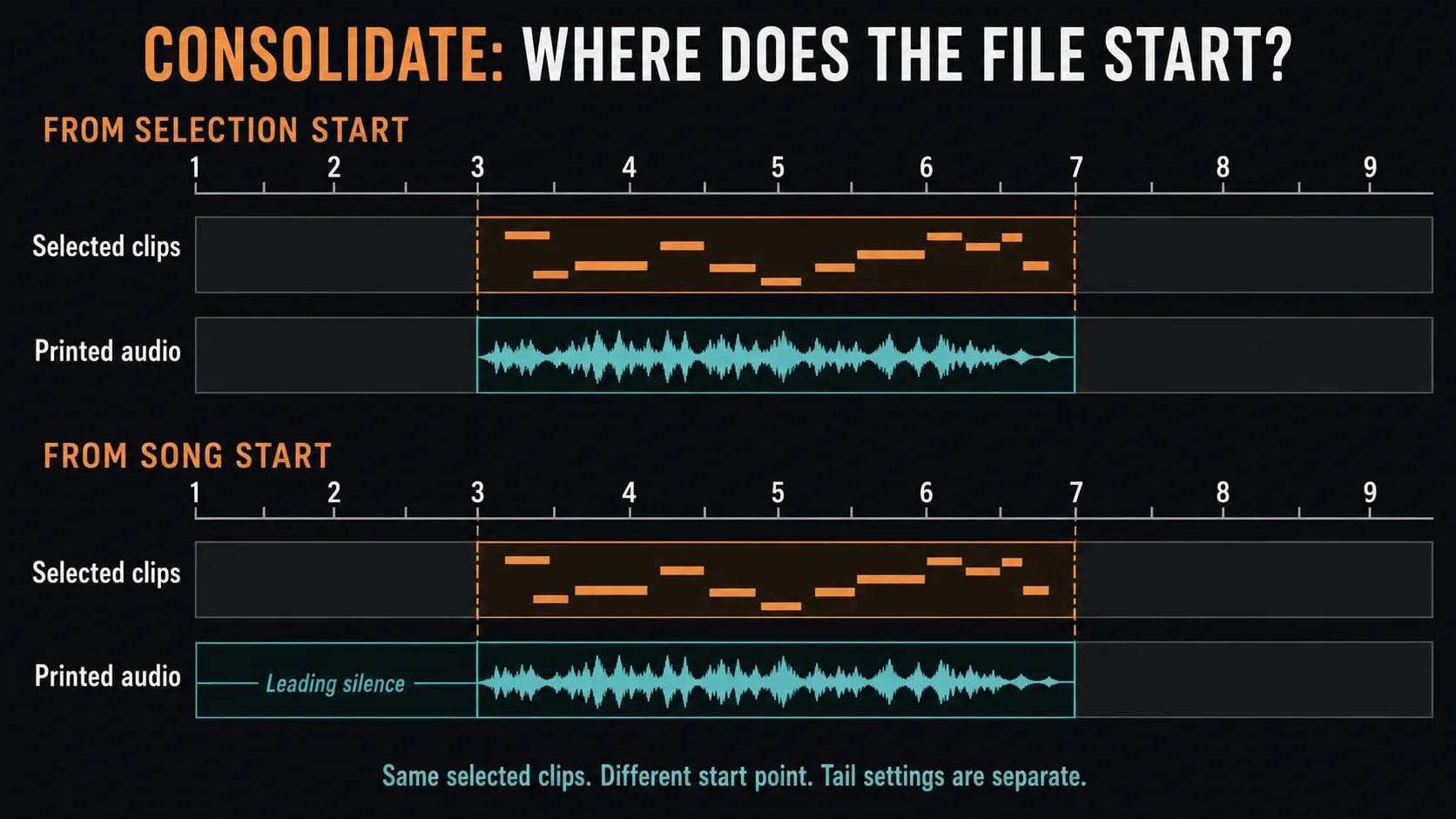
Select the actual Pattern and Audio Clips you want to combine, then open Playlist menu > Tools > Consolidate playlist selection. “Selection” here means selected clips. A highlighted strip of time isn’t enough. A timeline selection can affect where the render starts, but you still have to pick the material.
From selection startbegins at the first selected clip or timeline selection and runs to the last selected clip’s end, and the render’s tail handling matters too.From song startincludes the leading section from the Playlist beginning. Use it when the file must line up at bar 1 in another project.
Consolidating gives you an Audio Clip and mutes its source clips without deleting them. By the documented default, it captures the instruments and Audio Clips through their Mixer effects, leaves out Master effects and routes the result to the Master. Those effects options can be changed, so check the actual render dialog. The separate track-consolidation guide covers freezing in more detail.
To consolidate every clip on one lane, right-click the lane header and choose Consolidate this track. A Playlist lane isn’t a Mixer Insert, so keep the two apart when you check the resulting Audio Clip. If a lane holds several independently routed sounds, see the Playlist’s clip and track controls.
Keep the sidechain and send context
A Playlist render that relies on soloing can lose an audio sidechain fed by excluded material. Image-Line warns about this specifically with Export all playlist tracks and track groups: the trigger has to stay in the rendered context. Its suggested alternative is to arm the source and destination Mixer tracks you need and press Alt/Opt+R with the Mixer focused. Turning on Master effects won’t bring back a missing pump.
Decide, too, whether a parallel reverb or delay return belongs in the print. A wet return isn’t automatically an unwanted duplicate; it may be part of the mix you intended. The mistake is printing it and then adding the same processing a second time. If you need a full delivery set instead of one reusable sound, use the stem-export workflow.
Record a sound-design performance into Edison
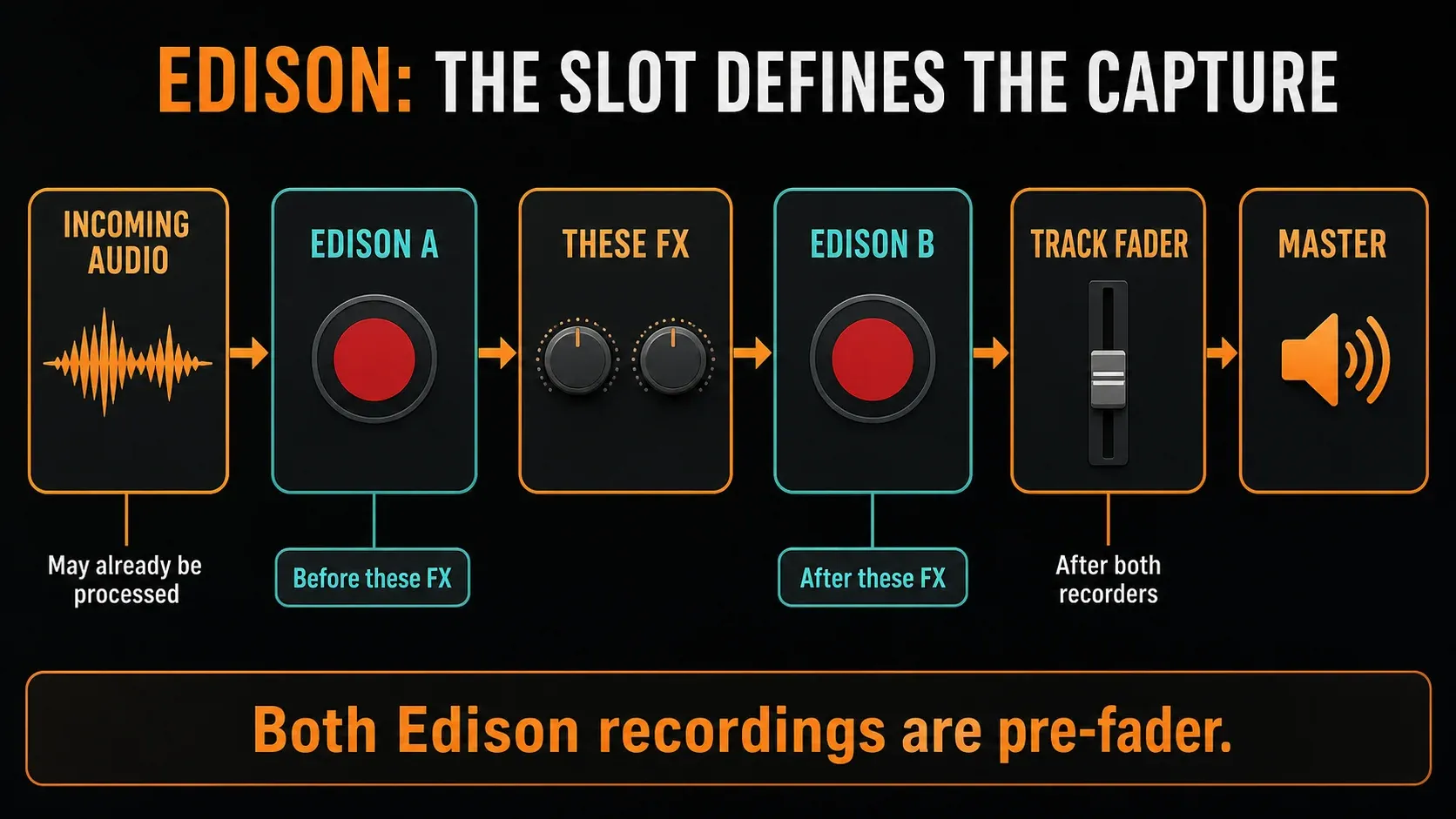
Reach for Edison when you want to capture one particular pass: a feedback sweep, a shifting effect mix, or a generator that may play differently next time. Select the Mixer track that receives the sound and press Shift+E. The Edison recording instructions say this loads Edison into the first empty FX slot, with host-slaved playback and On play recording ready to go.
- Check the incoming signal and the actual slot. “First empty” can be before, between or after existing processors. For this internal-audio route, you do not need to select a microphone input or arm Mixer disk recording.
- Set
Forlong enough for the passage and decay, and inspectAppendbefore recording over a window containing useful audio. Save an existing capture separately if you need it. - Check that Edison is armed and start playback from FL Studio’s main transport. Perform the changes and allow the wanted decay to reach the recorder.
- Stop the main transport and turn Edison’s Record button off. Disable host-slaved playback for independent auditioning so the capture does not unexpectedly play with the source.
- Save a full raw copy if you will need material outside the chosen region. Select the useful region without cropping away the rest, then use
Tools > Sequencing > Send to Playlist as audio cliporShift+Cwith Edison focused. - Inspect the new Audio Clip’s timing, tempo behavior and routing. Keep only the intended source or print audible during comparison; do not leave Edison playing a third copy.
Left-click the send button to send the selection, or the whole sample if nothing’s selected. A right-click does something else: it replaces the selected Audio Clip or Sampler Channel. You don’t need destructive trimming to send a selection. For a named copy on disk, use File > Save sample as with a new filename; the Edison File menu keeps ordinary WAV separate from compressed formats.
On input and Input are not the same recording mode
On input starts once audio crosses the trigger threshold you set, and it includes a pre-record buffer. Input also pauses during silence, which can break the continuous timing you wanted. For an arranged passage with deliberate gaps and a quiet tail, On play gives you a clearer start tied to the transport. Before any performance you can’t repeat, test a short pass.
With a finite For duration or file-size limit, recording wraps around once you pass it and overwrites older recorded audio. Ever is capped by available memory, which is far from infinite. Edison works in RAM, and editing can take up to four times the sample’s space. For long captures, skip the oversized Edison buffer and use a disk-recording or export workflow; the internal-audio recording reference explains those routes.
Dry and wet depend on the recording position
Put an Edison instance before your distortion and it records the signal before that distortion; put one after it and it records the distorted signal. Even the earlier capture isn’t necessarily completely dry, because the instrument or an upstream bus may already be processing the incoming audio. Both recordings happen before the Mixer track’s fader, so pulling the fader down doesn’t lower Edison’s capture level. Later FX, separate returns and the Master aren’t included automatically.
Audition a recording inside Edison and the effects after that slot still process its output, so compare through a path that doesn’t add unwanted processing a second time. The wider Edison guide covers its editing and playback controls. Here, keep the capture decision tied to the sound you need.
Use Resample mode for linked pitch and duration
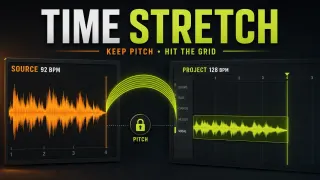
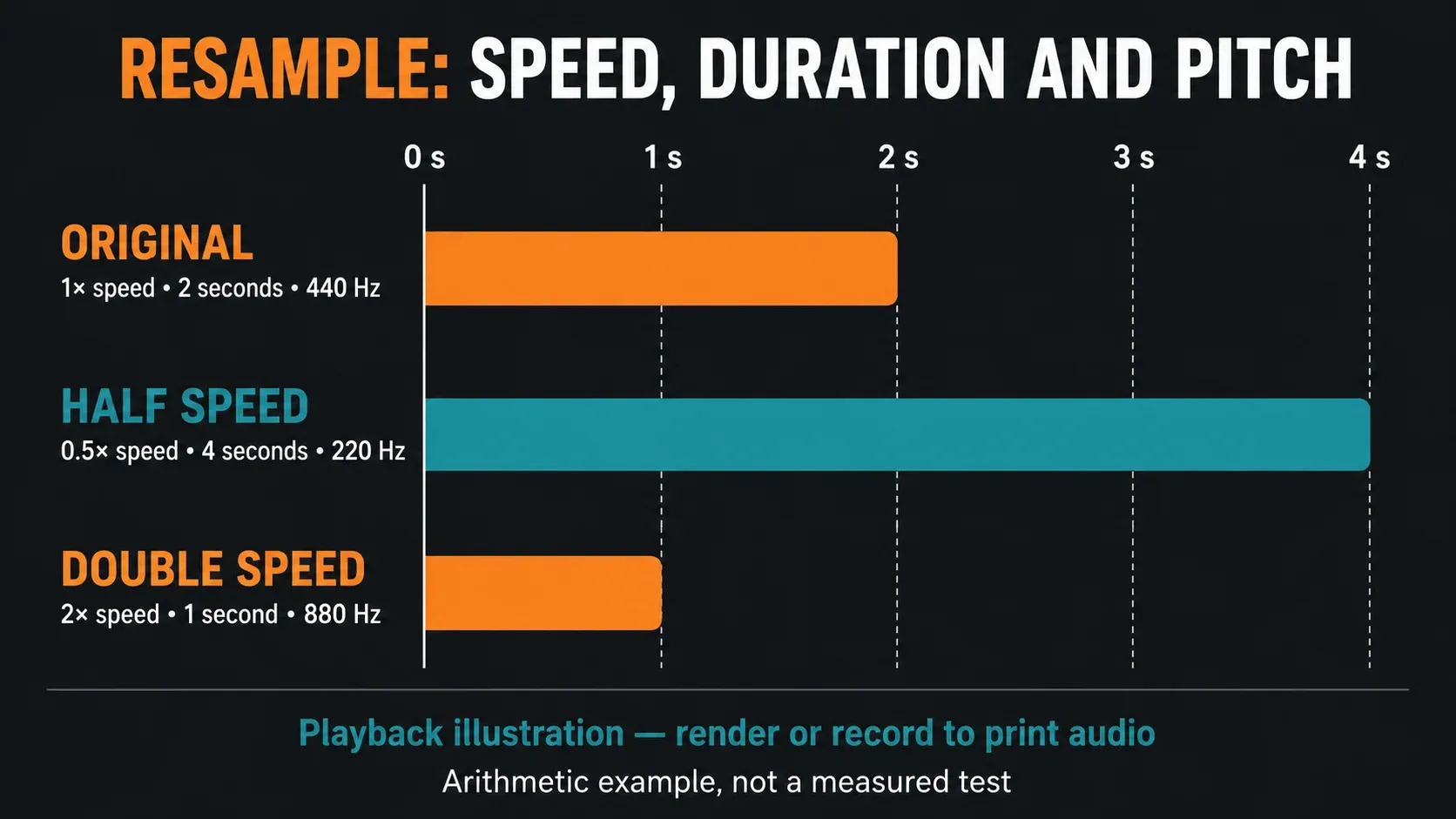
Time stretching > Mode > Resample is a playback method, and it never bounces anything. Slow the same material down and its pitch drops as it gets longer; speed it up and the pitch rises as it gets shorter. Play a two-second, 440 Hz tone at half speed, for example, and you get four seconds at 220 Hz. That’s simple arithmetic; we didn’t measure those numbers in FL Studio.
The Sampler’s TIME and Mode controls matter here. If TIME is linked instead of set to (none), an Audio Clip can change pitch when the project tempo changes or when you stretch its length. With TIME > (none), Audio Clips hold their pitch and duration through project-tempo changes. Don’t treat the time-stretching PITCH knob as a tape-speed control: turning it keeps the length and automatically switches Resample to Auto.
To change duration and keep the pitch, pick a suitable pitch-preserving stretch method. If you want the tape-style transformation as a new sound, render or record the resulting playback. If you’re unsure of the timing, check it with the source-BPM checking workflow before you write a tempo into the filename.
Changing sample rate is a separate operation
For real sample-rate conversion, open Format > Edit properties in Edison, or press F2 while Edison is focused. Set the Sample rate you need and turn on the Resample switch. According to the Sample Properties reference, that recalculates the sample data; with the switch off, changing the rate changes playback speed instead. Keep the original and save the converted result under another name.
Choose settings for the next editing step
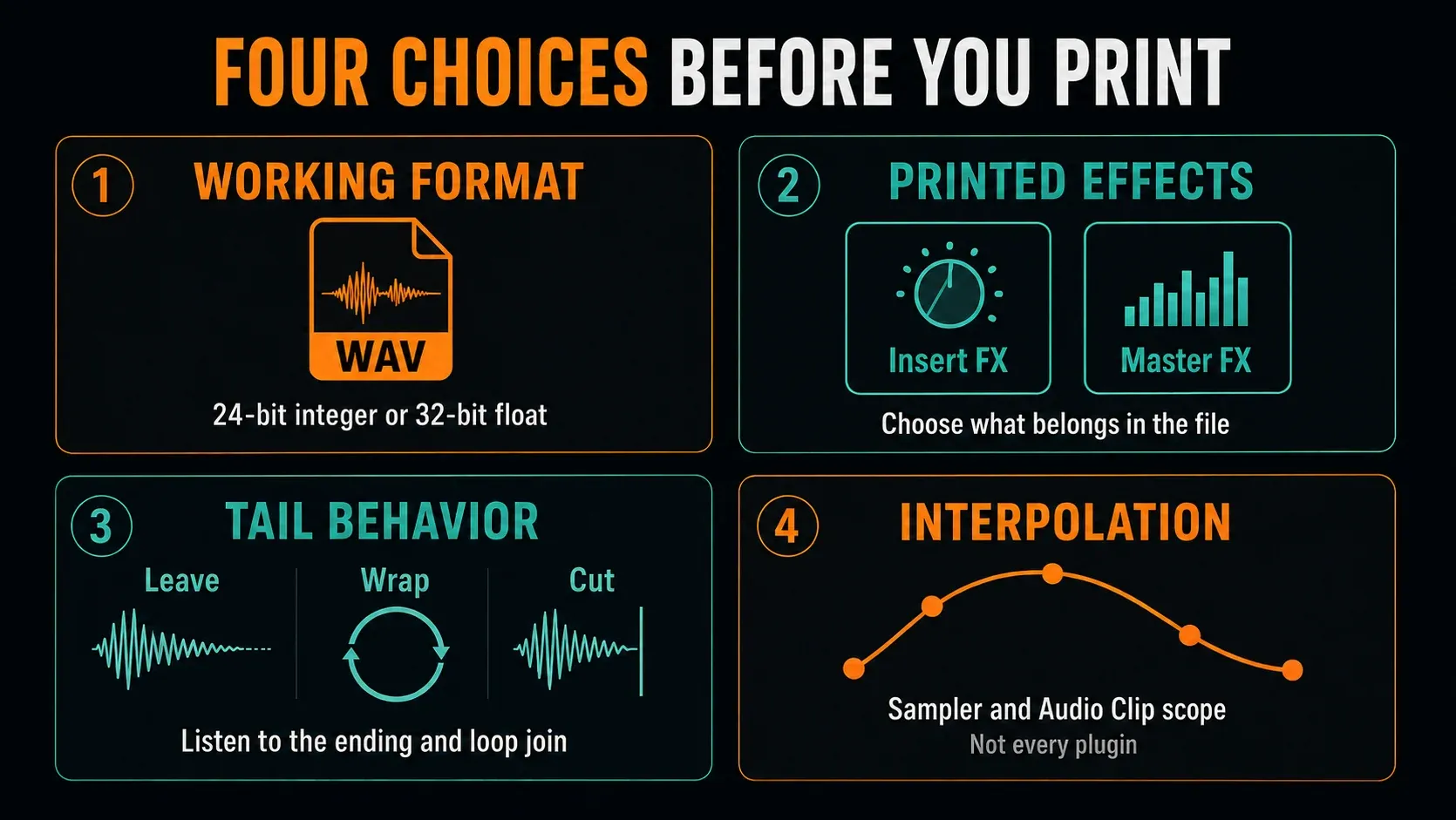
For production material, FL Studio’s WAV export gives you uncompressed, lossless audio. Pick 32-bit float when the next editor supports it and you’ve got more processing ahead, or 24-bit integer when the destination requires it. MP3 makes a poor working loop: on top of the lossy encoding, FL Studio’s conversion adds a little silence at the start. The export manual explains those format limits.
- Effects: decide which Insert and Master processing should be permanent. Do not bake in the Master and then replay the file through the same Master chain without accounting for it.
- Leave remainder: extends the render to capture decay. If a wanted tail is still cut, Image-Line recommends a Playlist Repeat marker after the final Pattern, Audio or Automation Clip to extend the endpoint.
- Wrap remainder: mixes decay into the beginning. It starts its tail calculation at the last bar, so notes before that bar contribute no wrapped tails. Listen across the join, because this option cannot guarantee a smooth loop.
- Cut remainder: ends at the chosen bar, selection or marker boundary. Use it only when that endpoint suits the material.
Render resampling quality picks the interpolation for Sampler and Audio Clip channels when their pitch or sample rate calls for in-between values. It isn’t a quality control for every synthesizer or effect. Live interpolation is set separately in Options > Audio settings, and different settings can change how transposed samples sound. Match them for a controlled comparison, and check plugin-specific quality settings on their own. The export-settings guide goes deeper into those choices.
Check the print before disabling its source
Compare the original and the print one at a time. Match loudness first, then listen to the first transient, an automated passage, the stereo image and the full decay. If the file changes after import, check clip gain, fades, pitch and stretching. A louder result doesn’t prove better rendering. And a random or state-dependent source may not come out the same on another pass.
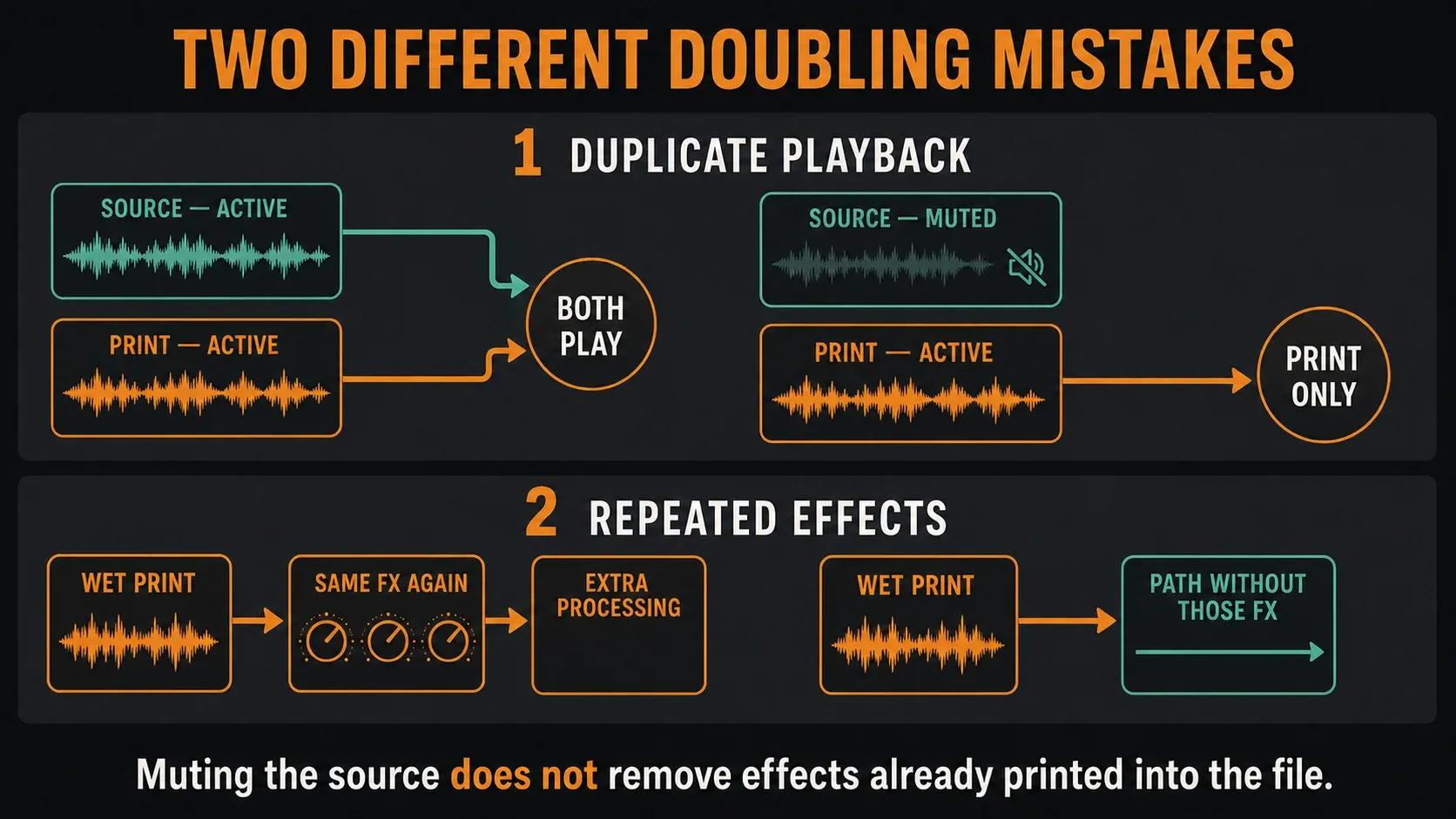
You can make two different doubling mistakes. Play the original next to its print and you double the material; send an already processed print through the same effects again and you add another processing pass. Muting the original fixes the first, but not necessarily the second. Trace the Audio Clip’s destination and any returns with the Mixer routing controls.
To save CPU, switch off only the generators and effects that nothing else in the song still needs. Muting source clips can already change the load, depending on the instrument and Smart Disable behavior, so the waveform alone won’t predict the saving. FL Studio’s Smart Disable settings act on inactive plugins during live playback, not during offline rendering. Check the real load; don’t assume every plugin that looks unused has stopped.
Troubleshoot the stage that changed the sound
| Symptom | Check next |
|---|---|
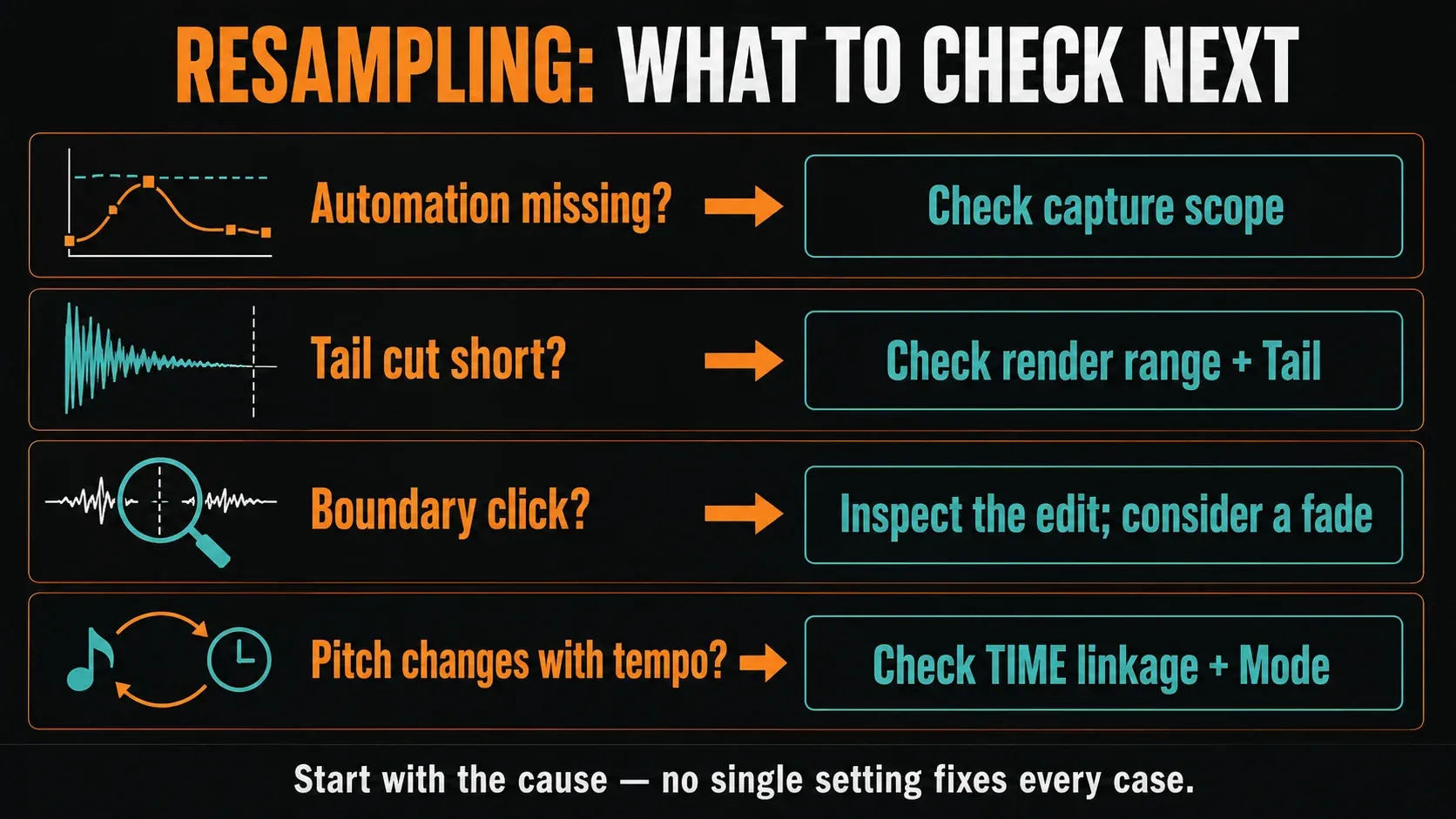
| Automation is missing | Was this a Picker Pattern render using fixed values? Consolidate the arranged clips and check relevant source context. |
| A sidechain or return disappears | Inspect what was selected or soloed and where the trigger/return comes from. Include the necessary signal path rather than switching on unrelated effects. |
| The file starts late | Distinguish song-start leading silence from PDC-added silence. Trim PDC silence applies to exported WAV and removes that PDC prefix; it is not a general recording-alignment repair. |
| The end is cut or the loop join clicks | Check render length and Tail, then inspect the actual boundary. A short fade or a suitable zero crossing may help; neither interpolation nor Wrap guarantees repair. |
| The clip changes pitch with project tempo | Check TIME linkage and Mode. Use Stretch when pitch must stay fixed during tempo changes, or retain Resample for intentional tape behavior. |
| CPU or crackling remains | Check which sources still run, then diagnose audio settings separately. Do not delete needed instruments simply because their clips are muted. |
For physical boundary edits, use the Edison sample-cleanup workflow. If playback still crackles once the print checks out and the unneeded sources are disabled, don’t keep rendering the same sound over and over; work through the audio-settings checks.
Keep a reusable file and a recoverable source
Name the result after its source, treatment and version, such as Pad_GranularWet_01.wav. Add tempo or key only when they’re verified and useful. Store the file with the project or in your sample library, and remember that saving a new FLP doesn’t independently back up every external sample. Before you crop, keep the raw recording in case later edits need more of its beginning or tail.
Save a repeatable routing and naming layout in a project template. The right place to stop is one checked Audio Clip plus a source you can go back to. Don’t settle for a deleted instrument you only hope the print captured correctly.
FL Studio resampling FAQ
What is the quickest way to resample a Pattern in FL Studio?
Right-click it in the Picker Panel and choose Quick render as audio clip when the current render settings are suitable. Use Render as audio clip to review settings first. For Playlist-position automation, consolidate the arranged clips instead.
Does consolidation include effects and automation?
Consolidation uses the selected clips in their Playlist context. Its documented default includes Insert effects, excludes Master effects and mutes the source clips. Review the actual render settings and any sidechain or return dependencies rather than assuming every audible path was included.
How do I record effects into Edison?
Load Edison after the effects you want in the recording and verify that the desired audio reaches that slot. It records before the track fader; later effects and the Master are not automatically included. Check recording mode and duration, then stop the transport and disarm Edison before transferring the selection.
Does Resample mode preserve pitch?
No. Resample couples playback speed with pitch and duration. With TIME linked to project tempo, an Audio Clip can change pitch when tempo changes. Choose an appropriate Stretch method to preserve pitch. Resample mode alone does not create a new audio file.
Is resampling the same as changing sample rate?
The term has both meanings. Producers often mean printing instruments or effects as new audio. In Edison Sample Properties, the Resample switch instead converts sample data to a chosen sample rate; with that switch off, changing the rate changes playback speed.
What format should I use for working resamples?
Use a production WAV: 32-bit float when supported for continued processing, or 24-bit integer where required. Avoid FL Studio’s MP3 export for alignment-sensitive loops because it is lossy and adds a small initial silence.
Can I resample audio in the FL Studio Trial?
The standard Trial can export audio and save projects, but cannot reopen saved projects until purchase and unlocking. Make needed prints before closing the session or removing trial instruments. Full recall requires the appropriate edition features and licenses for all plugins used, including any separately purchased plugins.