FL Studio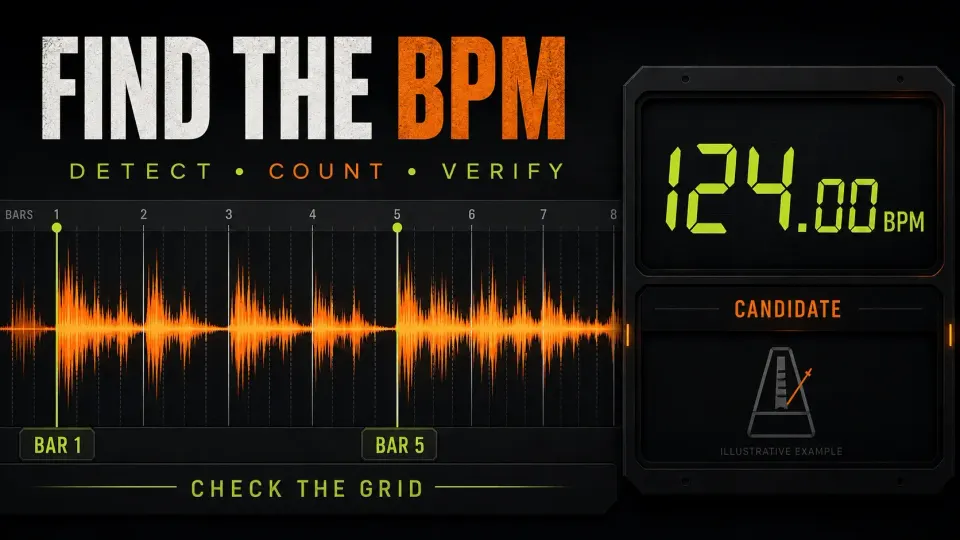
To find a sample’s BPM in FL Studio, open the Playlist Audio Clip menu and choose Detect tempo, select a plausible range, and note the result. Then check the original-speed audio against a grid set to that candidate tempo. Do not stretch the clip to the grid first: a stretched sample can line up perfectly even when your guess about its original BPM is wrong.
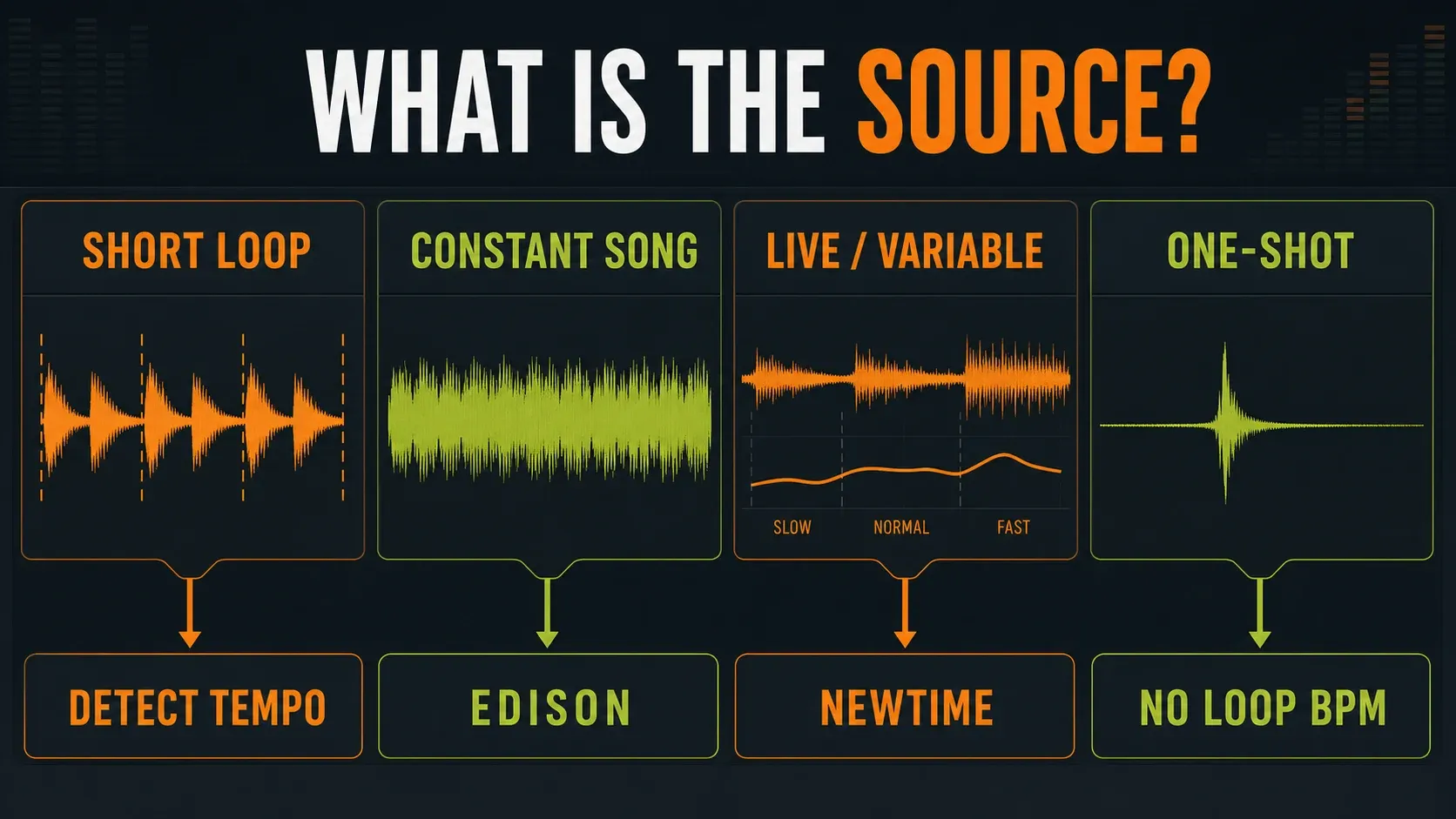
A short drum loop, an unaccompanied vocal and a live performance hand the detector very different evidence. Use the quick route below for a rhythmic loop. When you can pick out a complete phrase, switch to Edison’s beat-count method, and when a song drifts, fall back on local checks. Finding the source tempo is one decision; making the sample fit your track is another.
Before changing projects: the standard time-unlimited Trial can save and export, but it cannot reopen saved projects until purchase and unlock. To recall a project fully, your FL Studio edition and any separate plugin licenses have to cover every plugin you use. If you have Trial work you still need, keep it open. You can inspect a sample in Edison without touching the project tempo, or finish your exports before you start a separate test project. Edison and NewTime are included in Producer Edition and higher, though you don’t need the optional NewTime step to calculate BPM.
Choose the right BPM detection method
| Source | Start here | What still needs checking |
|---|---|---|
| Short rhythmic loop | Playlist Audio Clip menu: Detect tempo | Downbeat, beat count and later alignment at original speed |
| Full song with steady tempo | Edison’s constant-tempo analysis | Several sections, not just the first bar |
| Live or changing-tempo performance | Local beat-count checks; Edison’s variable-tempo analysis as another estimate | Whether one BPM is useful across the recording |
| Single kick, clap or other non-rhythmic one-shot | No loop BPM to establish from that hit alone | The tempo of the sequence in which you use it |
An acapella can carry a clear pulse, but breaths, held notes and pickups don’t always land on beats. If the matching original mix is available, use its rhythmic sections as a reference and confirm that the vocal comes from the same recording and edit. Without a steady pulse or a known beat count, a detector’s number is a guess, so don’t present it as certain.
Detect and check a loop in eight steps
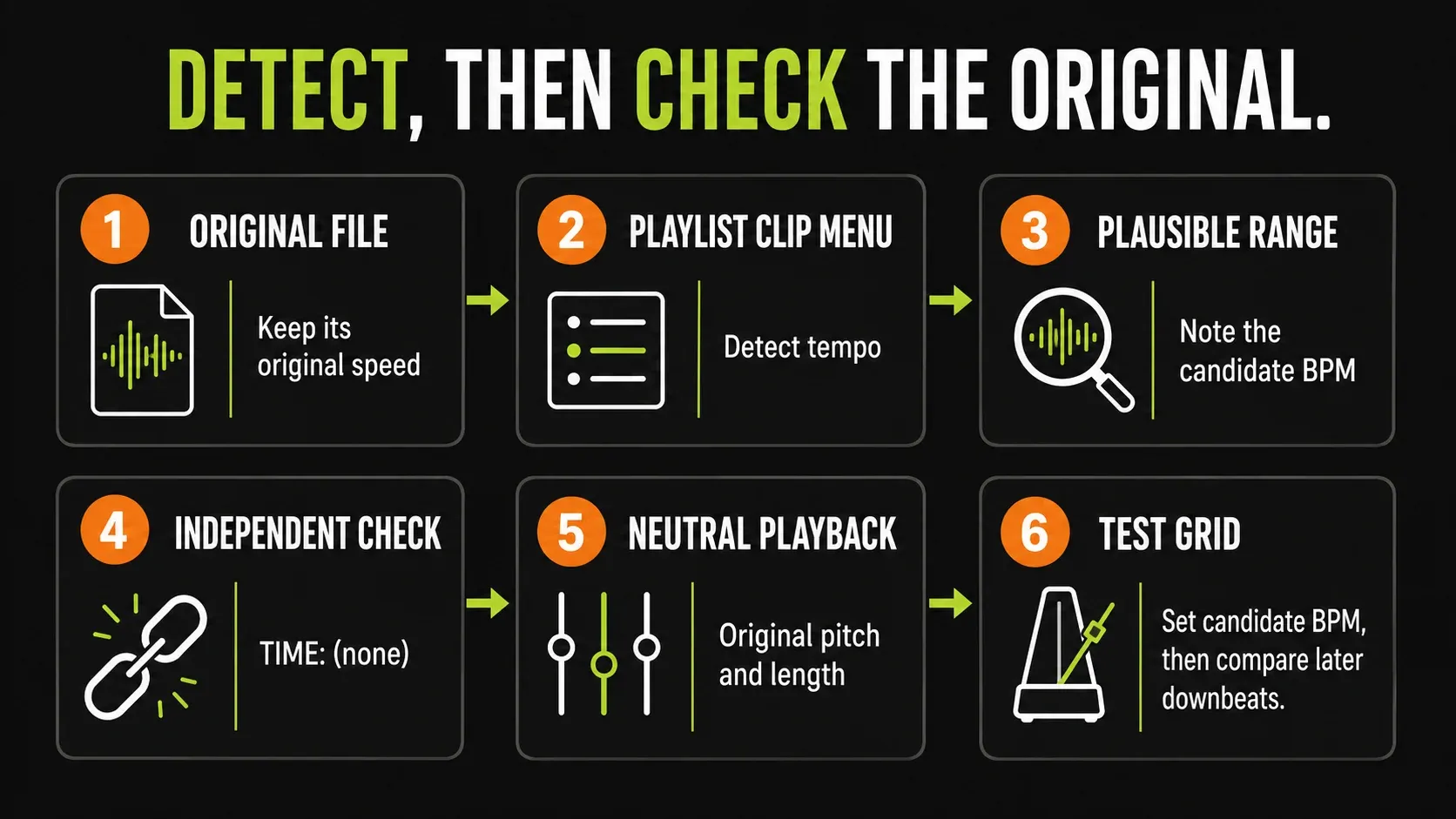
- Protect the current session and original file. Use a separate test project only when doing so will not strand needed Trial work. Keep the original audio unchanged; a new FLP alone is not a separate copy of that audio file.
- Load the original as a fresh Audio Clip. Drag the file into the Playlist’s clip area. Avoid a previously warped, pitch-shifted or stretched copy when measuring the source tempo.
- Open the clip’s menu and choose
Detect tempo. Use the small menu at the top-left of that Audio Clip, not the similarly named waveform command in Channel settings. - Choose a plausible tempo range. Count the pulse first, and keep half/double-time possibilities in mind. A range is a hypothesis, not a guarantee of accuracy.
- Write down the candidate. Decline the offer to change an existing arrangement’s project tempo while you are still analyzing the file.
- Restore an independent original-speed check. In the test clip’s
Channel settings, reset time-stretchPITCHandMUL, then right-clickTIMEand choose(none). Check that clip pitch, main pitch and automation are not changing playback, and that you are not using a stretched clip variant. Listen against the original file. - Set the test project grid to the candidate BPM. Use a constant tempo, with transport Half speed off. Place the real first downbeat on a bar boundary; move the clip rather than stretching its edge to make it fit.
- Compare later musical boundaries. Listen with the metronome and check corresponding beats in the middle and near the end. If they drift, revise the candidate or use the manual/local methods below. Record both the BPM and the region that supports it.
It matters which command you use. The Playlist reference says its Detect tempo command offers to set the project tempo, while Fit to tempo adapts the sample to the project. The Sampler waveform’s Detect tempo command works differently: after detection it adjusts the Channel’s TIME property, so that adjusted playback can no longer serve as independent evidence of the source BPM.
Image-Line’s sample-speed troubleshooting procedure gives you the Pitch/Multiplier reset and the TIME > (none) controls. Use them on your analysis copy and leave the arrangement alone. A stripped-down project template can speed up future checks, but look over its tempo, automation and processing first.
Read the grid without confusing offset and tempo
That first visible transient might be a pickup, a breath or some noise before the music starts. Line up a downbeat you can pick out by ear, then compare the same musical position further on. When the file opens with a pickup, put its first full downbeat on a later bar boundary so the pickup has room to sit before it.
The directions below assume three things: the source plays at its original fixed speed, the first downbeat is aligned, and the project grid is set to your candidate BPM. They don’t work for audio that’s already been stretched to fit.
- A constant offset throughout: inspect placement and the chosen downbeat before changing BPM.
- Later source beats arrive progressively before their grid lines: the candidate grid is too slow; try a higher BPM.
- Later source beats arrive progressively after their grid lines: the candidate grid is too fast; try a lower BPM.
- Some sections align while others wander: inspect local timing, edits and beat interpretation; one constant value may be insufficient.
- Only every other beat seems to agree: compare half- and double-time interpretations before fine-tuning decimals.
Go by the rhythm, and don’t trust the clip’s last edge. Silence, a reverb tail or an arbitrary trim can put the file boundary somewhere misleading. If clip placement and snapping get in the way, the Playlist guide explains both controls.
Keep justified decimals, not false precision
A small gap like 123.97 versus 124 BPM can add up over a long recording. If repeated, well-defined boundaries support a decimal result, keep it, and don’t assume every commercial release sits on a whole-number tempo. Still, three decimal places don’t prove the detector measured the performance that precisely.
Use Edison for a full song or a second opinion
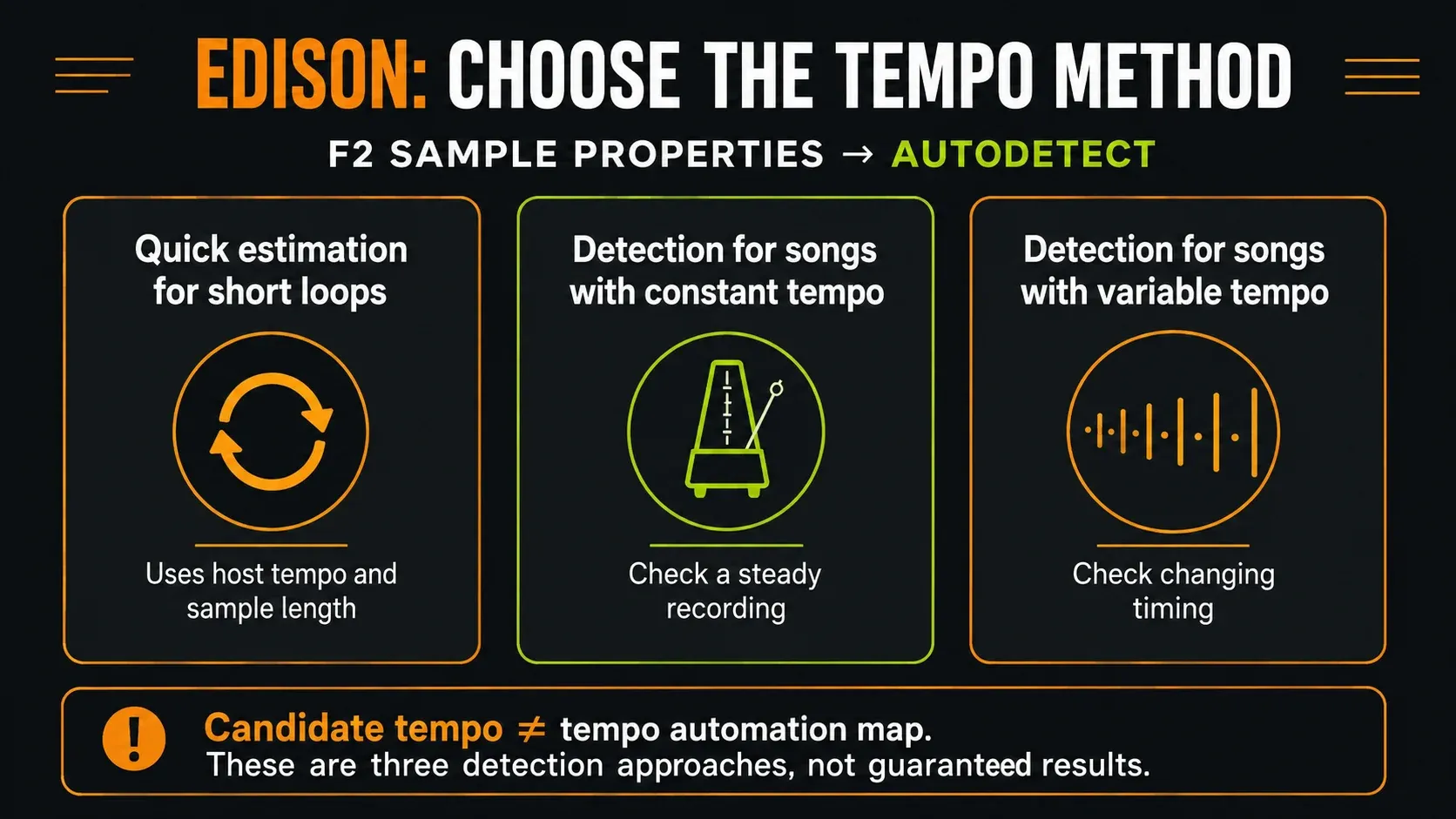
Load the original file in Edison, give its window focus and press F2 for Sample Properties. Under Autodetect, pick the kind of analysis that matches the material:
- Quick estimation for short loops: an estimate using the host tempo and sample length. Do not treat it as independent confirmation of those assumptions.
- Detection for songs with constant tempo: analysis intended for steady-tempo material.
- Detection for songs with variable tempo: analysis tuned for performances without a constant tempo. It does not turn a single BPM field into a project tempo-automation map.
The Sample Properties documentation also covers the display grid: Synced follows the project tempo, and Free follows the sample’s tempo. A grid drawn from stored or detected information just shows that same value back to you, so it can’t confirm it. Check the real beat boundaries before you accept the number.
Calculate BPM from a known number of beats
BPM = beat intervals × 60 ÷ duration in seconds. Reach for it when you can count a phrase reliably but the automatic estimates disagree. Measure the original audio, never a stretched render. Your selection should run from one known beat boundary to the matching boundary after the complete phrase.
For example, four bars in 4/4 contain 16 quarter-note intervals. Measure from the start of bar 1 to the start of bar 5, not just to the last hit in bar 4. If that stretch lasts 7.742 seconds, 16 × 60 ÷ 7.742 ≈ 124 BPM. That calculation is just an illustration, and the answer is only as good as the boundaries you picked and the duration you measured.
Calculate BPM from a measured phrase
Count beat intervals, not waveform hits. Four complete bars in 4/4 contain 16 quarter-note intervals, measured from the start of bar 1 to the start of bar 5.
This is a calculation from your measurements. It does not detect beats or confirm the source tempo. Check another original-speed phrase before accepting the result.
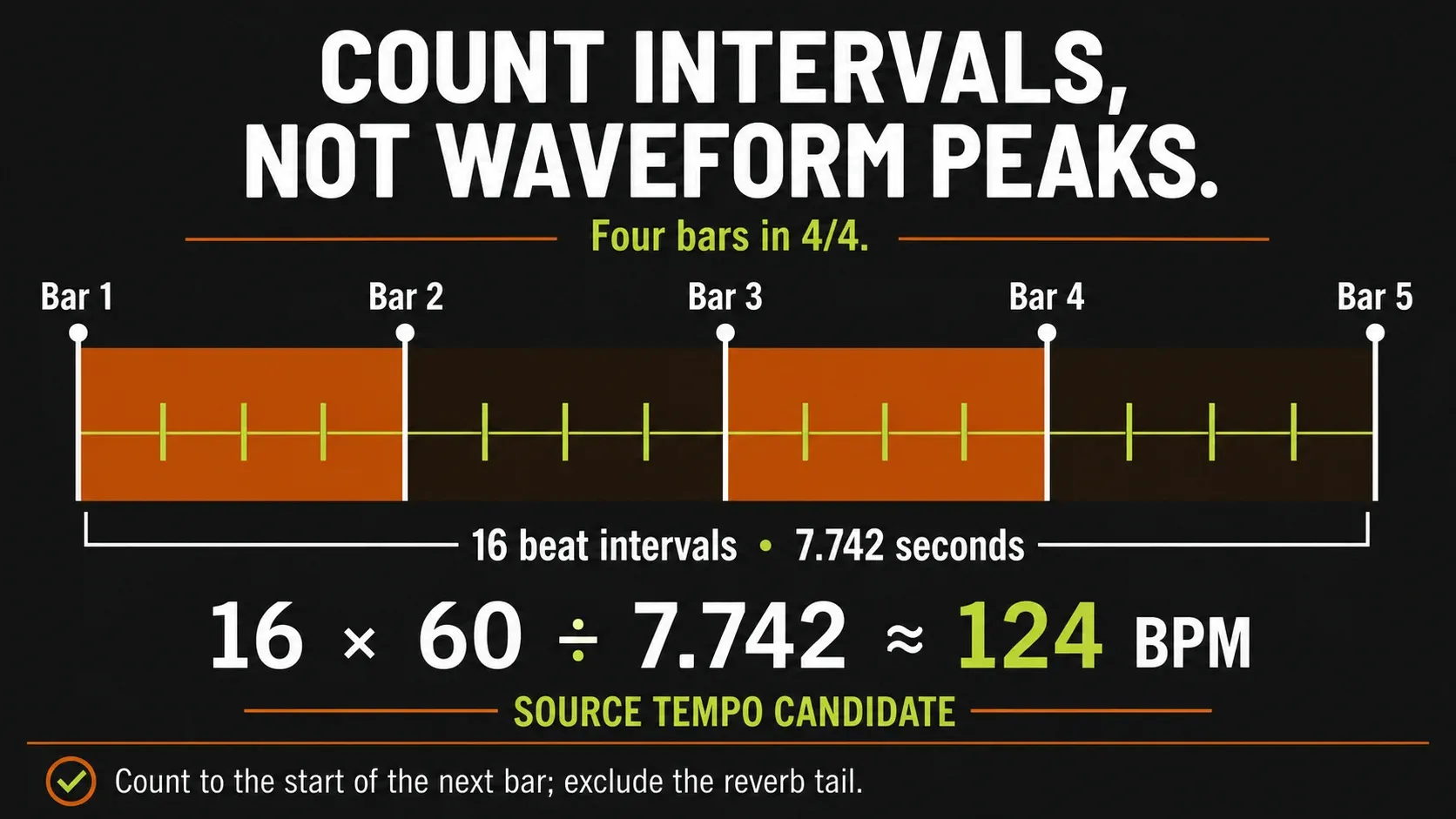
In Edison, select the phrase of known length, open F2 > Sample Properties and type the beat count into Selection (beats). If nothing is selected, the corresponding field describes the whole sample instead. Compare the BPM you get with the automatic estimate, then repeat on another suitable phrase. Never enter a count of waveform peaks: one beat can hold several attacks, or none at all.
You don’t have to crop or overwrite the source to measure a selection. If the file needs editing later, protect it first. The Edison sample-editing guide covers selections and safe file copies. Leading silence or a trailing reverb belongs to the recording, but not necessarily to the musical interval you’re measuring.
Use Tap Tempo and resolve half-time results
Right-click the main tempo display and choose Tap. With Sync switched off in the tap window, play the original-speed, unsynchronized clip and tap along to a steady pulse. According to the Toolbar manual, the project tempo starts changing after the second tap, and with Sync on, taps can also reset the downbeat and repitch Audio Clips already locked to the grid.
Tap is not a read-only detector. Even with its Sync option off, changing the project tempo can affect other tempo-linked material, so run it in the protected test setup above and keep it away from an arrangement you need to leave alone. Let several taps settle on a candidate, write it down, and check it against a counted phrase. If you’re on the Trial, the manual Edison selection method means you don’t have to abandon an open project just to run this test.
Decide between 70 and 140 BPM
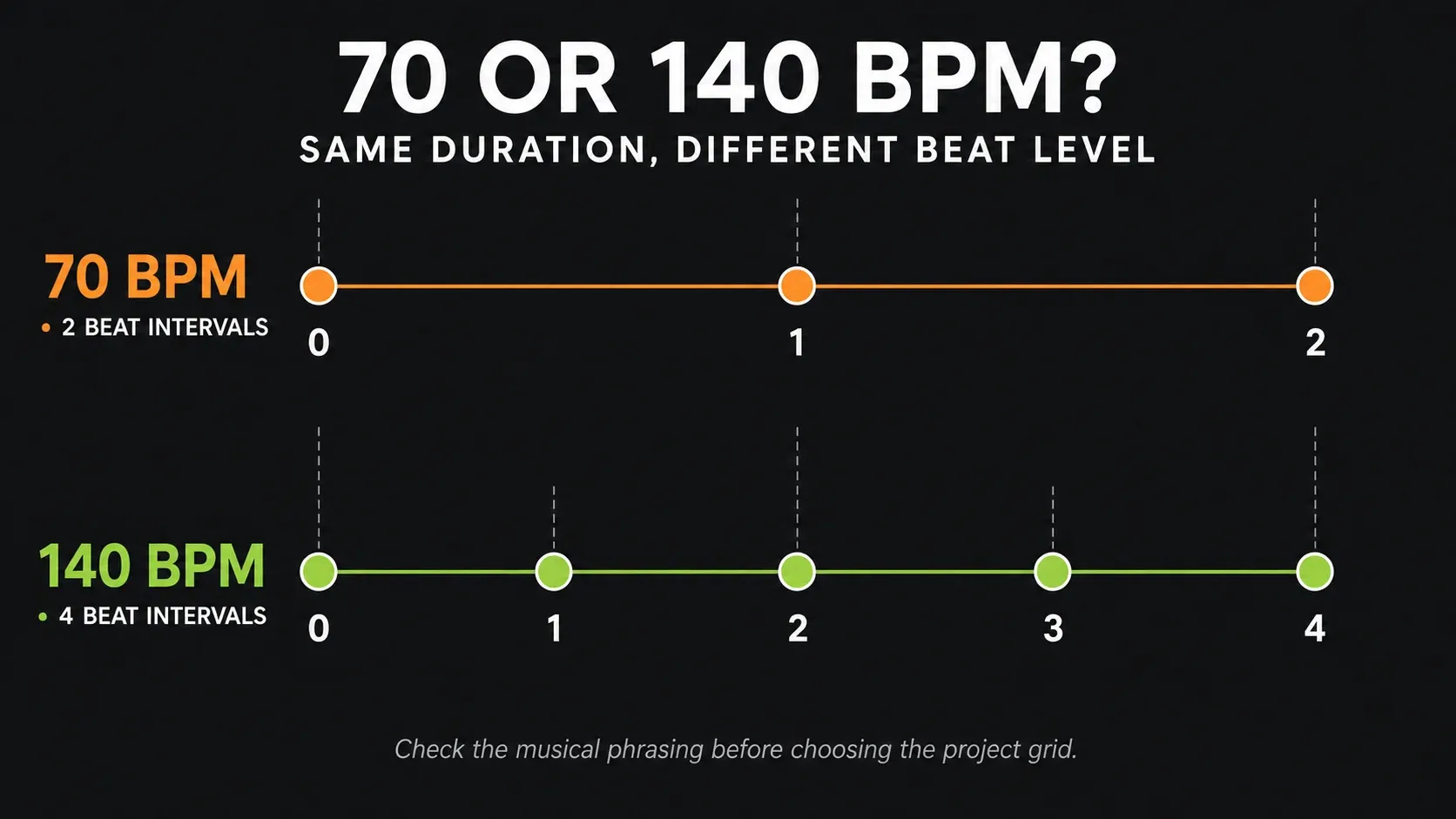
Two beat intervals at 70 BPM take the same time as four at 140 BPM, so the detector may have picked a different metric level instead of an unrelated tempo. Listen to both readings, count the bars, and keep the one that makes the intended phrase and rhythmic divisions make sense.
Edison’s Limit control offers ranges for correcting half/double results, but it can’t fix real local drift. Don’t “fix” 70 into 140 by speeding up the original recording. First decide which grid reading you really want.
Separate embedded BPM, detected BPM and project BPM
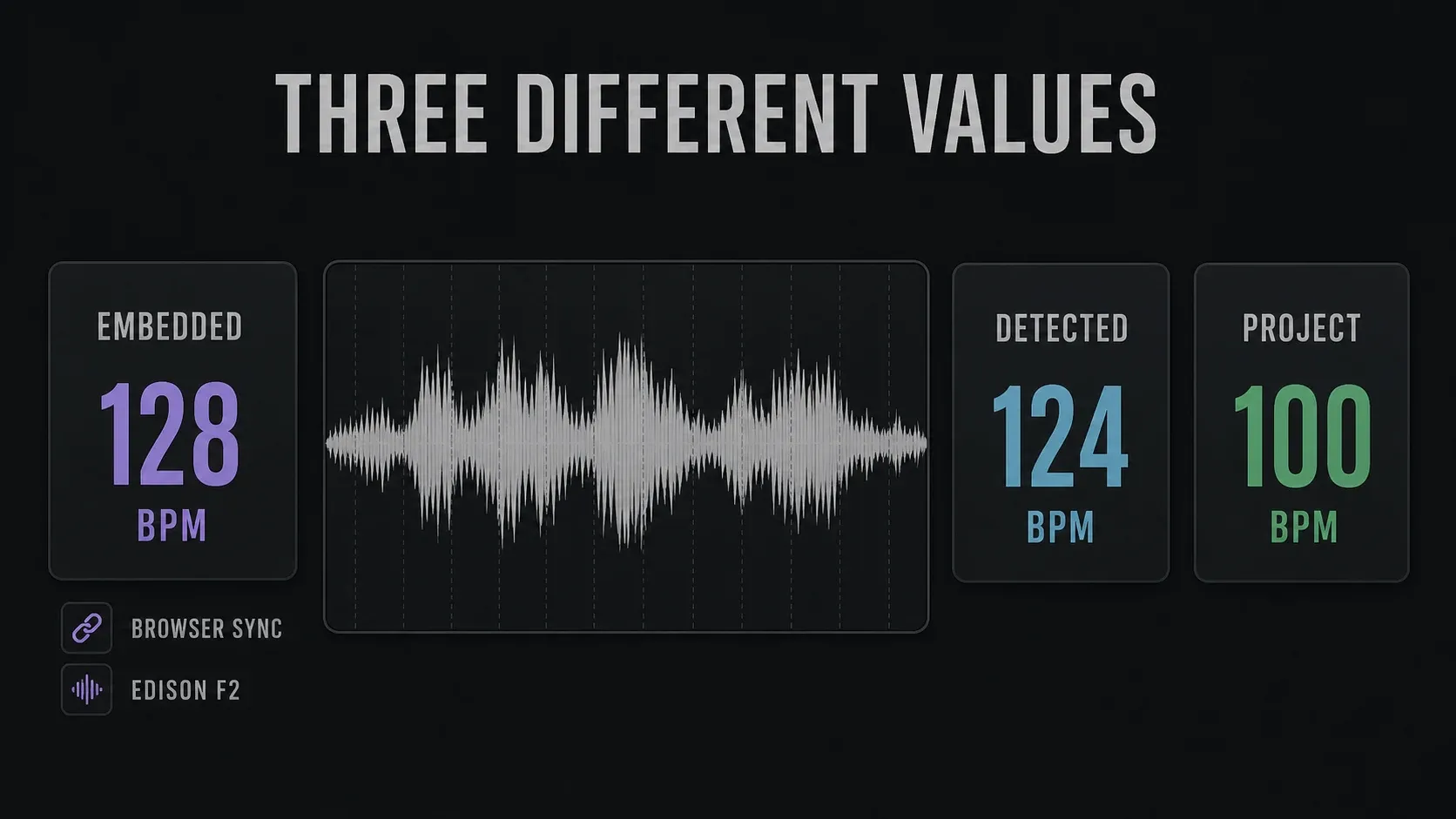
Embedded BPM is information saved with the file. Detected BPM is a candidate from analysis. Project BPM controls the session grid. These three can disagree. A filename like “loop_128” is a hint, never proof of how the audio is timed.
In Options > General settings, Read sample tempo information decides whether supported tempo and tempo-sync metadata gets used. The General Settings reference lists its effect on Browser preview, Playlist and Sampler time stretching. So wrong information can change what you hear before you’ve deliberately fitted anything to tempo.
Audit Browser Sync before blaming detection
For an original-speed comparison, check the preview’s Sync state and any speed or key changes that are active. In the Sounds tab, the BPM multiplier offers half, normal and double speed, and it stays on once you apply it. What it does when you transfer to a project depends on the relevant settings. One-shots are left out of the loop BPM/Sync behavior.
The Browser documentation describes related mouse-over controls for local audio previews, and they generally need suitable metadata to work. Not every file exposes or responds to every Sounds control. When the preview and the Playlist disagree, compare them against the unchanged file itself. Our Browser guide covers the wider preview workflow.
Once you’ve confirmed a wrong tempo tag, fix a separate working copy through Edison’s Sample Properties instead of overwriting a library original that has no backup. Turning off Read sample tempo information is an optional diagnostic with wide effects, and you don’t have to leave it off. Keep imported libraries organized with the sample-pack setup workflow, and write down any corrections so you don’t end up discovering them all over again.
Handle live recordings and variable tempo
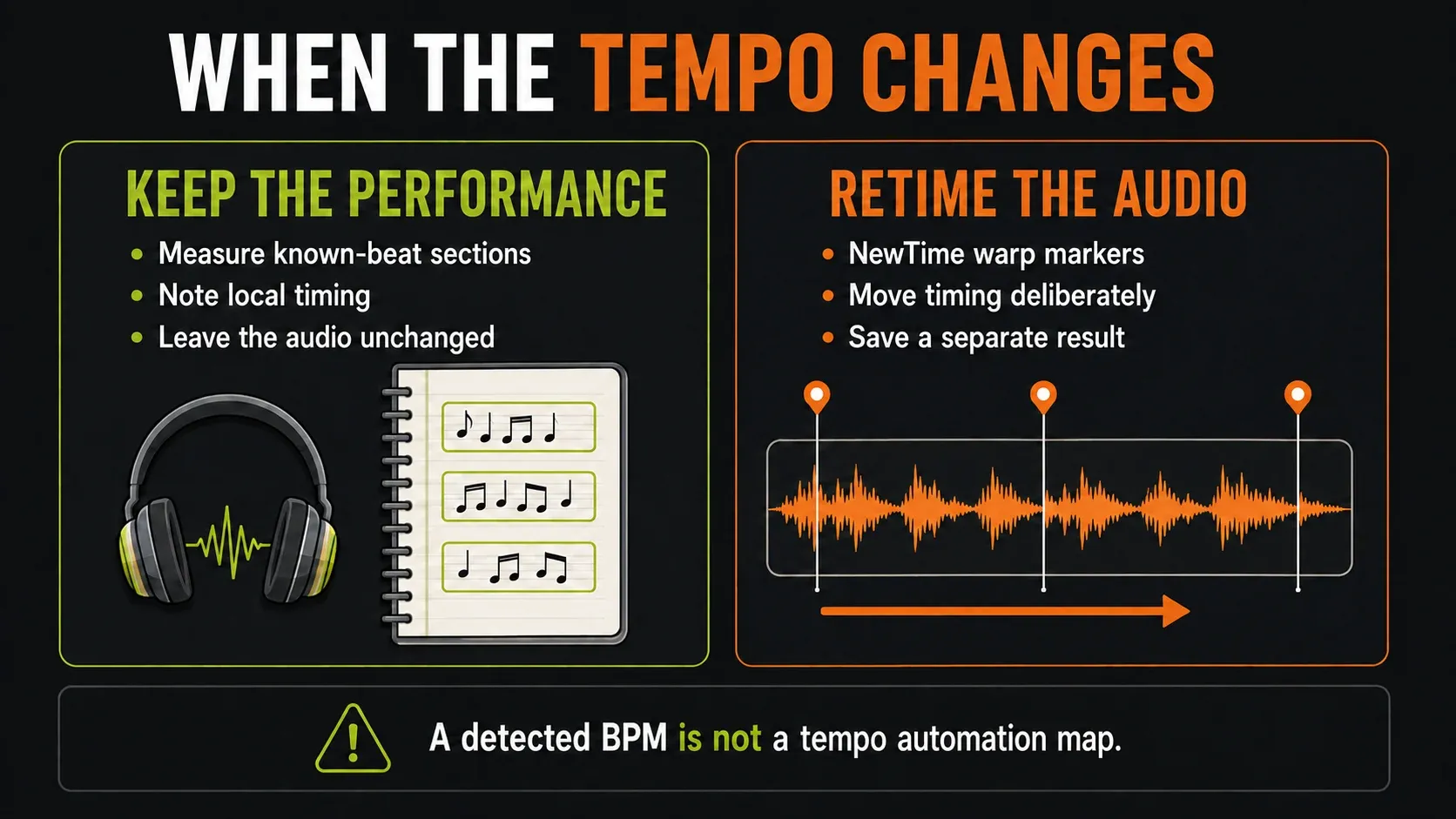
When several known-beat selections give different values, first rule out a wrong count, a pickup, an edit or a change in playback speed. Once you’ve confirmed that the local timing really varies, one average BPM can’t describe every section. Measure shorter musical regions and note their boundaries and approximate tempos. Don’t keep rounding the whole song again and again until its ending happens to fit.
Next, decide whether to keep the performance as it is or change it. If you keep the timing, you may end up arranging to local landmarks and planning any project tempo changes separately. Retiming the audio is an editing job. NewTime gives you downbeat and warp markers, and moving warp markers changes the audio timing. Its detected or embedded tempo display and its marker detection won’t export a complete tempo-automation map for you.
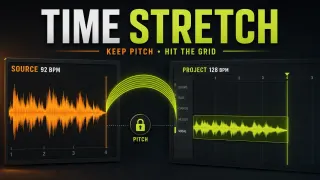
If your next step is adapting a steady loop to another BPM, measure it first and only then follow the time-stretch workflow. For separately triggered slices, use Slicex. When you commit edits to new audio, the resampling workflow helps you keep the source and the rendered result apart. These are follow-up choices. None of them is an extra detection step.
Troubleshoot an implausible BPM result
| Symptom | Check next |
|---|---|
| Result equals the project tempo suspiciously often | Which method ran? Quick loop estimation uses host tempo; synced or stretched playback can also conceal a mismatch. Use a known-beat selection. |
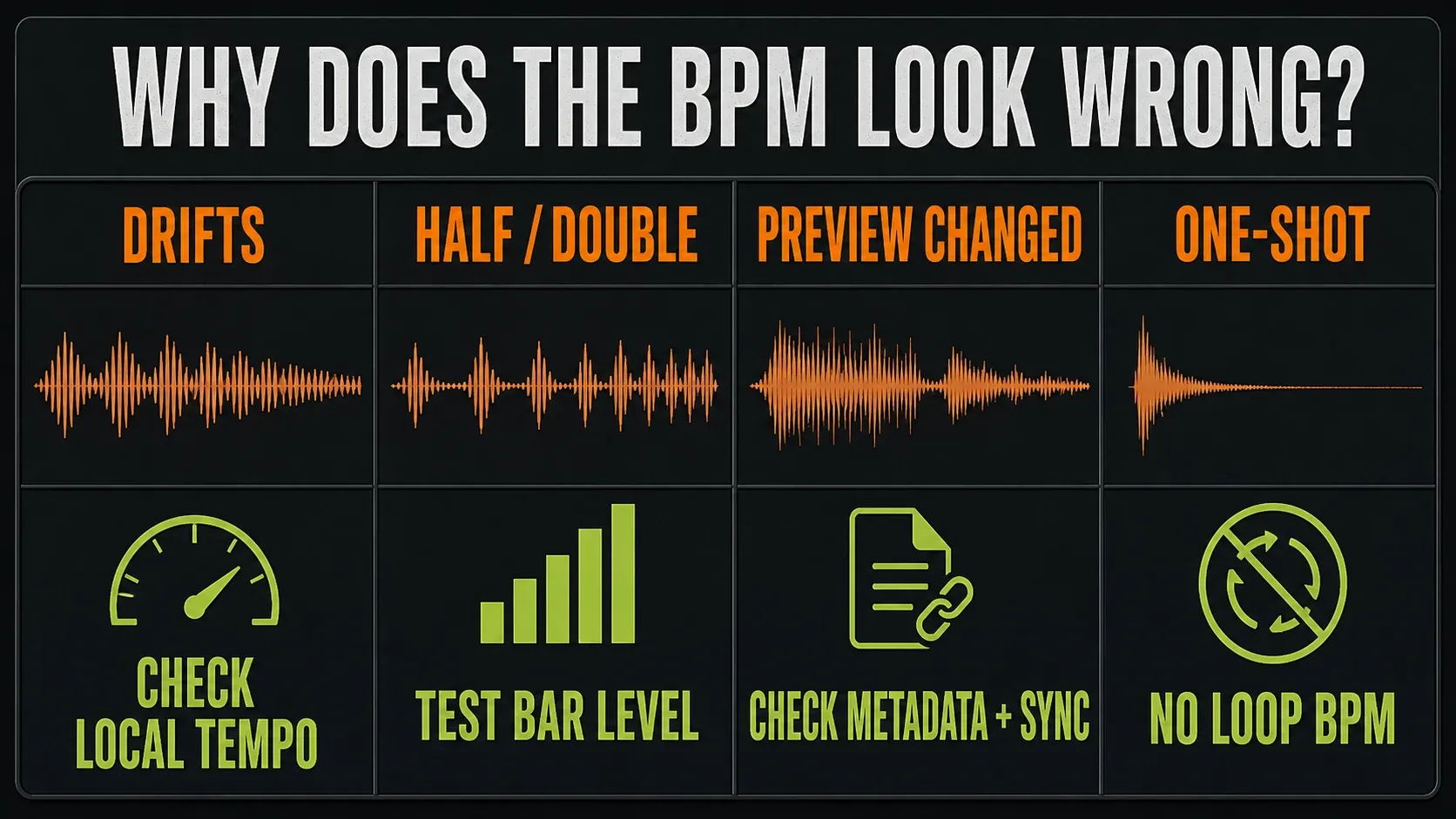
| Exactly half or double the expected value | Count the phrase at both metric levels before changing the recording’s speed. |
| Start fits, later beats drift | Establish original-speed playback and the correct downbeat, then compare candidate decimals and local sections. |
| Preview and imported clip sound different | Check metadata, Browser/Sounds Sync, multipliers, pitch and the clip’s TIME setting. |
| Single hit or sparse vocal gives an implausible number | Find a longer rhythmic passage or matching reference; do not force a loop BPM from insufficient evidence. |
| Playback crackles or stalls | Fix playback stability before judging rhythm; do not compensate for dropouts by changing BPM. |
For that last case, go through FL Studio’s audio settings. The Samples & Audio Editing guides cover the broader order of selecting, checking and editing source audio.
Frequently asked questions
How do I find a sample’s BPM in FL Studio?
Use the Playlist Audio Clip menu’s Detect tempo command and choose a plausible range. Note the candidate, then compare original-speed audio against a constant grid set to that BPM. Align a real downbeat and check later beats; do not stretch the clip to make this verification pass.
Why does FL Studio detect 70 BPM instead of 140?
The detector may be choosing a different metric level. Two beat intervals at 70 BPM occupy the same duration as four at 140. Compare the phrase and bar count at both values; Edison’s Limit ranges can help correct a half/double interpretation.
Can I calculate BPM manually in Edison?
Yes. Select an exact number of beat intervals in the original audio, open Sample Properties with F2, and enter that count in Selection (beats). The calculation is beat intervals × 60 ÷ seconds. Four bars in 4/4 contain 16 intervals, measured through the start of the following bar.
Does Detect tempo change the project or stretch the sample?
The Playlist clip-menu command offers to set the project tempo. The similarly named Sampler waveform command automatically adjusts the Channel’s TIME property. Fit to tempo is the separate command for adapting audio to the project. Always check original-speed playback before validating source BPM.
Can FL Studio detect changing tempo in a live recording?
Edison includes analysis for variable-tempo songs, but one BPM value may not describe the whole performance. Compare known-beat selections in several sections. NewTime can retime audio with warp markers; do not treat its displayed estimate as an automatically exported project tempo map.
Can I check BPM without leaving my current Trial project?
You can inspect a sample in Edison and use a known-beat selection without changing project tempo. Keep needed Trial work open: the standard Trial cannot reopen saved projects before purchase and unlock. For full recall, your FL Studio edition and any separate plugin licences must cover the plugins used. Save and export needed work before switching projects.
Is BPM the same as sample rate or musical key?
No. BPM counts musical beats per minute, sample rate counts digital audio samples per second, and key describes tonal organization. A single non-rhythmic one-shot tells you nothing about the tempo of the sequence you will build from it.