FL Studio
NewTime is FL Studio's time-warping editor: it moves individual beats, syllables and chords inside one audio recording instead of stretching the whole clip. Open it from a Playlist clip's menu with Time-warp sample, correct the source Tempo, set the Downbeat Marker on the first real beat, and move only the Warp Markers that fix a timing problem. Finish with Quantize time or a groove template, check the result with Slaved Playback, and send one corrected clip to the Playlist. My rule is tempo and downbeat before any marker, because a wrong grid turns every later move into compensation, and a marker on every transient makes the take stiff.
Reach for NewTime when the timing inside the material needs repair: a vocal phrase that drifts, a guitar part with one late chord, a percussion loop that needs a different groove, or a live passage that has to follow the project tempo. If a clip only needs to get shorter or longer overall, a Playlist stretch is quicker. For pitch, note and vibrato correction, use NewTone.
This workflow keeps the musical shape intact while giving you precise control over attacks, bar lines and phrase boundaries. It finishes with one clean transfer to the Playlist, so the corrected audio doesn’t get stretched a second time.
Choose NewTime for internal timing changes
NewTime is a time-manipulation editor built for slicing, warping and correcting audio against a musical grid. Image-Line introduced it in FL Studio 20.6 and includes it with Producer Edition and higher editions. The current NewTime manual documents the marker, groove, sync and Playlist-transfer controls used here.
What matters is internal timing. A Playlist stretch changes the length of a clip as a whole, while NewTime lets one attack move and another stay put. That’s exactly what you need when the start and end already land correctly but the notes in between don’t.
- Use Playlist stretching when the whole clip needs one proportional tempo change. Our FL Studio time-stretch guide covers that clip-level workflow.
- Use NewTime when beats, syllables or chords need different amounts of movement inside one recording.
- Use NewTone when the main problem is pitch, note length, formant or vibrato. See the NewTone guide for that job.
Don’t open NewTime just because a file has a different BPM. If a clean four-bar loop only needs to follow the song tempo, a correct clip tempo and one Playlist stretch are all it takes. NewTime earns its place when the performance itself needs timing decisions.
Open NewTime from a clip, a channel or a file
NewTime opens with the audio you want to fix already loaded. In the Playlist, open an audio clip's menu and choose Time-warp sample; Channel Settings for a Sampler channel list the same command as Edit in time warper. Both open NewTime with the current sample, and after editing you drag the sample from the editor onto the Channel Preview window to put it back on that channel. To start from a file instead, use File > Load sample (Ctrl+O) inside NewTime. I'd open it from the clip menu whenever the take already sits in the arrangement, because that loads the exact sample the clip plays.
Image-Line's edition comparison lists NewTime as Producer Edition and up and NewTone as Signature Bundle and up. Producer Edition therefore gets the timing editor without the pitch editor, which matters if your vocal plan includes tuning. The FL Studio edition guide covers what each edition adds and how upgrades work.
Read the NewTime window from left to right
The editor makes more sense once you split it into five working areas:
- Waveform and grid: the audio, bar lines and marker positions.
- Tempo and Sync controls: the source BPM and project-tempo relationship.
- Marker tools: detection, Warp Markers, Downbeat Marker and Snap.
- Groove controls: groove-template loading and the Groove amount.
- Transport and handoff: Slaved Playback, selection and Send to Playlist.
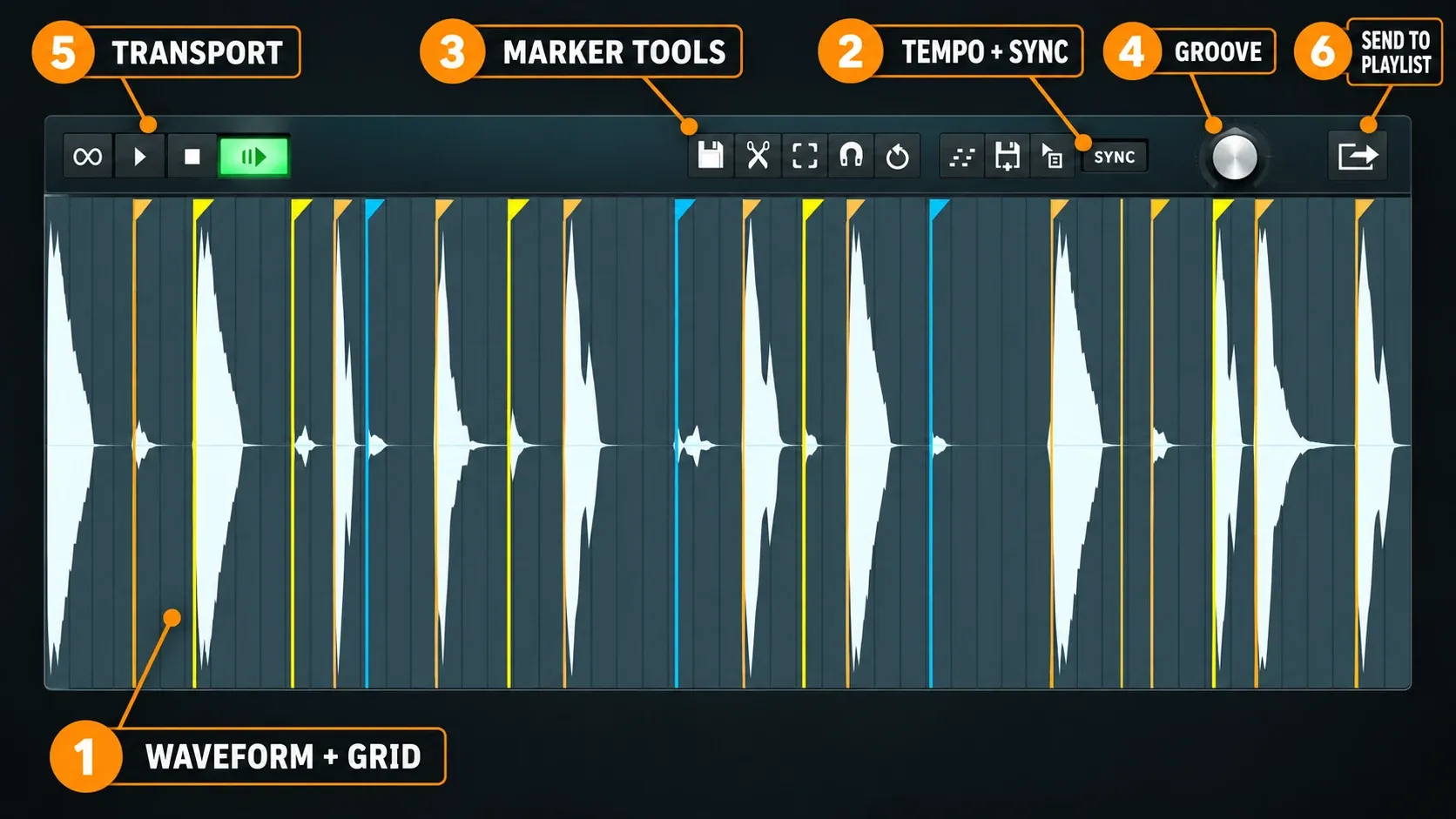
Keep those jobs apart. Tempo describes the source. The downbeat tells NewTime where a musical bar starts. Warp Markers decide which moments can move. Groove and quantization decide where the selected timing points should go. The transport and Playlist controls let you check the result and commit it.
Load a clean source and identify the musical unit
Drag an audio file into NewTime or send prepared audio from an FL Studio editing workflow. If the recording still has a long count-in, stray silence, clicks or unwanted material, clean that up first. The Edison editing guide is the better place for destructive trimming and repair.
Before you touch any markers, work out what the file represents. Is it one bar, four bars, a verse line, or a free performance with no fixed bar length? Count the beats and find the first unmistakable pulse. A loop labeled “120 BPM” can still start before the first kick or hold pickup notes, so treat file names as clues, not proof of the downbeat.
For vocals and melodic phrases, listen for the consonants, pick attacks or chord changes that define the rhythm. Sustained vowels and reverb tails make poor timing references, because their visible waveform energy can carry on long after the musical event began.
Correct the source BPM before moving audio
The source BPM controls how NewTime lays the loaded performance against its grid. If the value is wrong, bar lines drift and every later edit ends up compensating for a bad map.
Open Edit properties, press F2, or right-click Tempo to correct the value. Then compare the known length of the material with the bars on screen. A four-bar loop should fill four bars before you start detailed warping.
Once the Tempo value matches the file, press Sync on the toolbar to sync the sample to the project tempo. With the File menu option Use project tempo on load enabled, NewTime syncs each loaded sample to the project tempo instead of the tempo stored in the file. My default is to leave it off for a take I'm about to repair, because the file's own tempo is the first thing to check. When you can't tell what that tempo is, the BPM detection guide separates embedded, detected and project BPM.
Choose marker detection according to the material:
- Transient: useful for drums, percussion and parts with clear attacks.
- Tempo: useful when beat boundaries and musical timing are the stronger guide.
- None: useful when automatic markers create clutter and you want to place anchors manually.
Detection gives you a starting map, but it can’t tell which hits matter musically. Remove or ignore markers that land on noise, breaths, reverb movement or weak waveform changes.
Set the true Downbeat Marker
A Downbeat Marker marks the start of a bar. Select the existing Warp Marker on the true first beat, right-click it and set its type to Downbeat Marker. If no marker exists there yet, add a Warp Marker first, then change its type.
If the downbeat lands near the bar line but not on it, Edit > Snap to downbeat snaps it to the start of the bar.
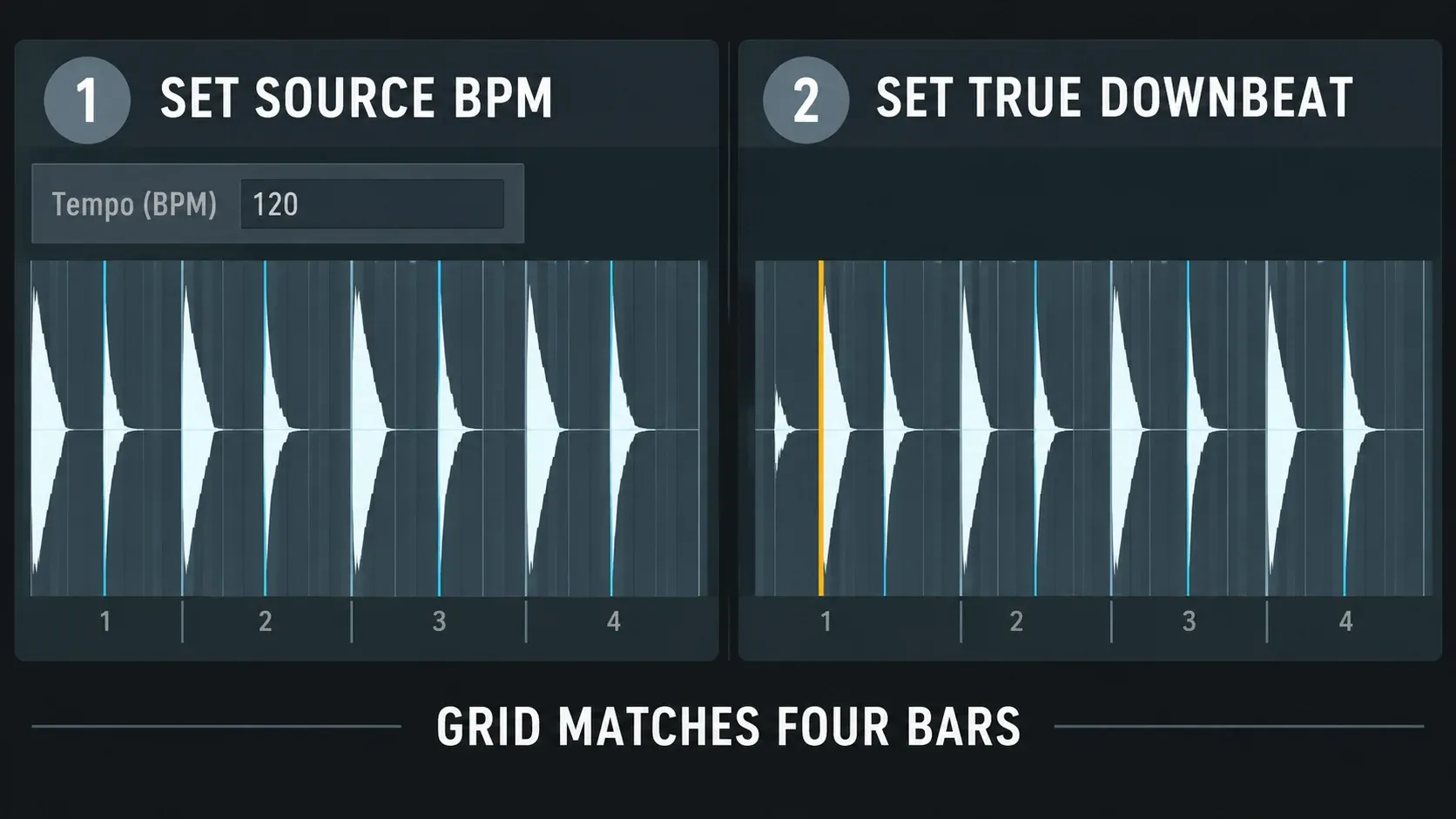
This step affects far more than the first line on the screen. Downbeat placement shapes how NewTime lays out the automatically detected beat-boundary markers. Put it one beat late and the whole map shifts, and quantization can then push events into positions that look mathematically neat but sound musically wrong.
Pickup notes need extra care. If a vocal comes in before beat one, the first audible syllable isn’t necessarily the downbeat. Set the downbeat at the real bar start and let the pickup sit before it. The same goes for guitar slides, drum fills and breaths that lead into a phrase.
Build a small set of useful Warp Marker anchors
Shift+Click or double-click adds a Warp Marker. Double-clicking a marker removes it. Moving one stretches the audio on both sides, which is why marker placement matters as much as marker movement.
Think in pairs. One marker protects a stable point; the next marker moves the event that is early or late. If you drag a late snare without a nearby anchor, the previous and following material share the stretch over a wider region. That works for a smooth phrase, but it can also pull a good attack away from the grid.
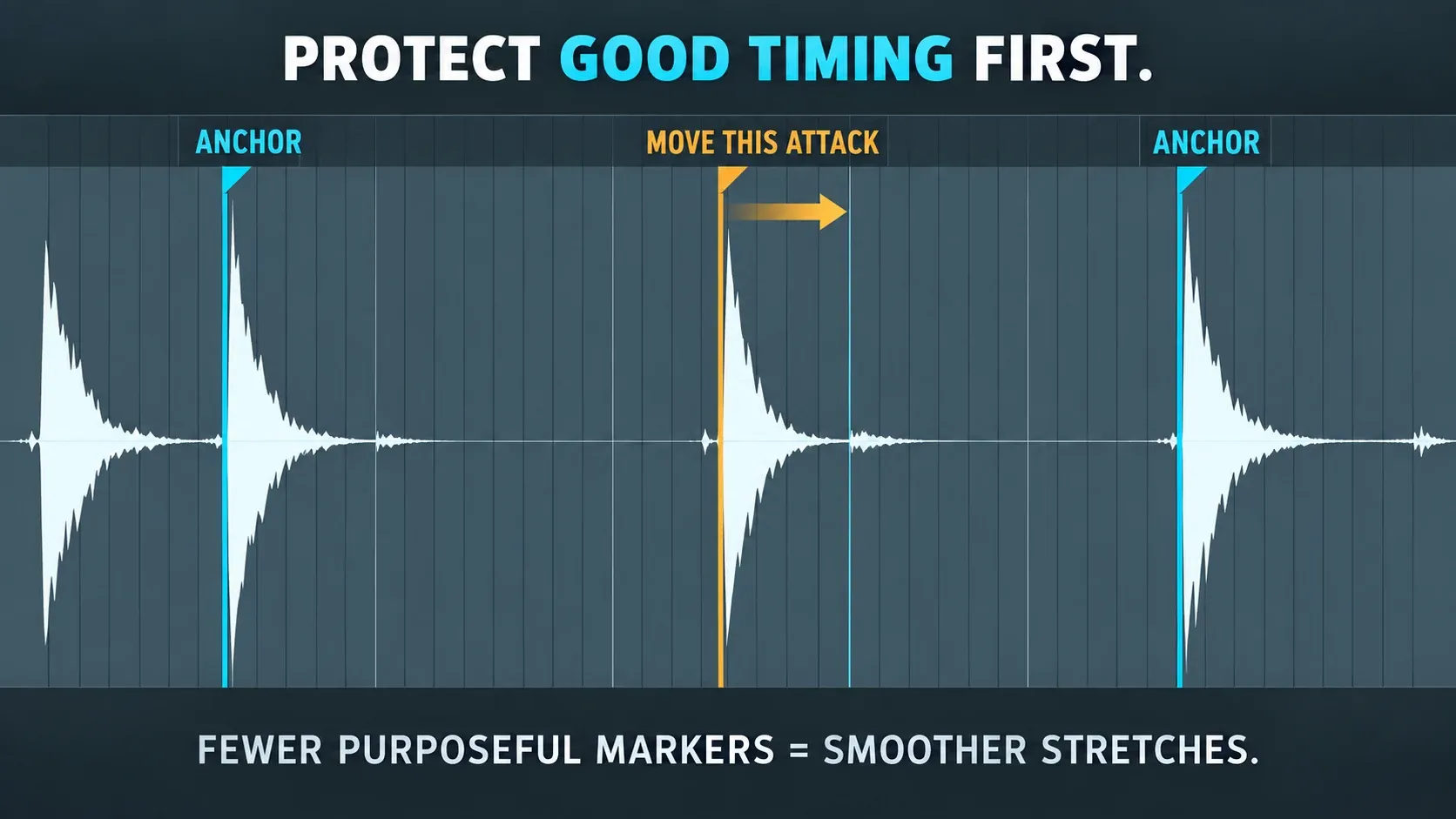
Use anchors at meaningful boundaries: the beginning of a consonant, the attack of a chord, a kick transient, or the start of a new phrase. Avoid placing multiple markers inside one sustained note unless that note itself changes rhythmically.
Snap offers Beat, 1/2, 1/3, 1/4, 1/6 and 1/8-beat divisions. Choose a division that matches the phrase. Hold Alt while moving a marker when the performance needs a position between grid lines. This is useful for a laid-back vocal or a drum hit that should remain slightly behind the beat.
To move a whole passage, click and drag between two markers: the region moves and the audio on either side warps to fit. Hold Alt to disable Snap during that drag.
Re-time a melodic loop with Shift markers
Alt+Click any existing marker to turn it into a Shift marker. Every Shift marker follows the Shift knob, so the whole group moves in unison and stretches the audio on both sides of each marker. The NewTime manual recommends this for re-timing melodic loops, especially audio with an on-the-beat 1/8 or 1/4 note rhythm. My test: if the loop's notes all sit on those beats, one knob move does the work of dragging every marker by hand.
Choose hard quantization or groove, not both by habit
Edit > Quantize time moves Warp Markers to the grid. It is the direct choice for obvious timing repair: a kick that should be exactly on beat one, stacked vocals that must share consonant attacks, or a rhythmic effect that depends on strict subdivisions.
Quantize time handles audio inside NewTime. For MIDI notes and chopped Playlist clips, the FL Studio quantize guide covers Shift+Q, the Quantizer and Slicex.
A groove template solves a different problem. After loading one, groove markers appear and the Groove knob moves the active Groove-type markers toward or away from that pattern. It does not move every Warp Marker. This can preserve or introduce a repeated push-and-pull relationship instead of forcing every event to the straight grid.
To build your own template, load a one-bar audio file or time-select the first bar of a longer clip, add or edit Warp Markers where the feel sits, then save it from the Groove controls. The manual recommends building groove patterns from a sixteenth-note loop. When that .groovepat file loads as a Groove Template, its one-bar pattern applies to every bar in the file, and Warp Markers within 1/4 beat of a template marker turn yellow and come under the Groove knob.
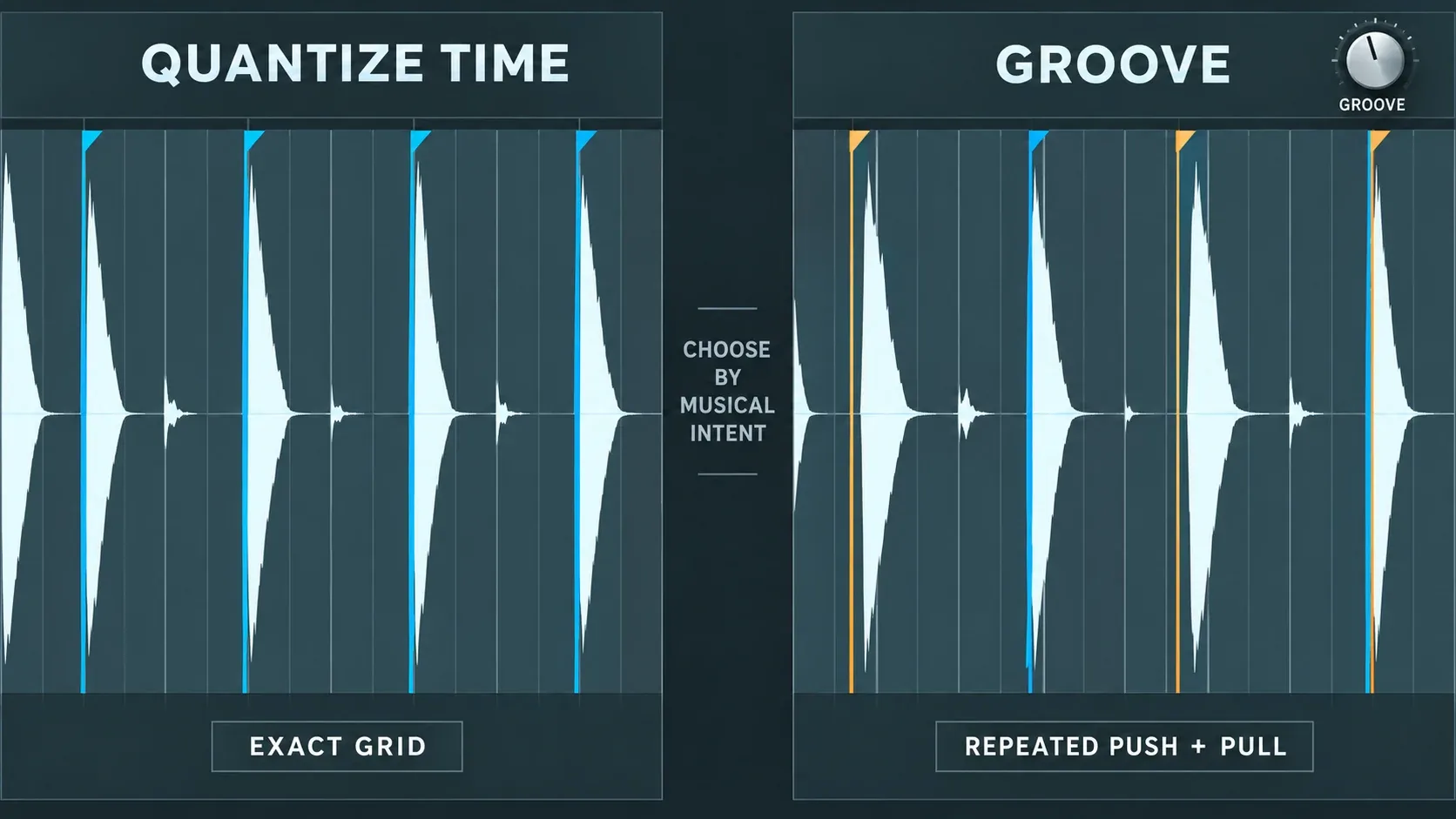
My practical rule is simple: repair structural timing first, then decide whether feel remains. Put the bar start and critical ensemble hits where they belong. Leave smaller deviations alone unless they sound distracting. A performance can be consistent without every attack sharing the same distance from a grid line.
If quantization produces too much movement, undo it with Ctrl+Alt+Z and reduce the marker set. Automatic detection can create markers on details that do not need independent timing, and I'd delete those rather than quantize them. The cleanest edit comes from fewer anchors and smaller moves.
Audition with Slaved Playback in Song Mode
Timing can sound convincing on its own and wrong against the arrangement. Turn on Slaved Playback to line up NewTime’s transport and bar position with FL Studio and the Playlist while the project is in Song Mode.
Slaved Playback sits on H or the link icon. To start from a later point in the song, make a selection in the Playlist from where NewTime should begin. Turn on Ignore space bar key as well: when NewTime has focus, the space bar would otherwise play it alone instead of with the project.
Loop the surrounding section and listen for three things:
- Does the corrected attack agree with the drums or bass?
- Did moving one event make the phrase before or after it feel rushed?
- Do sustained notes, breaths and ambience still flow naturally across the edit?
Keep your comparisons short. First listen to the critical attack, then listen through the whole phrase without watching the grid. Visual alignment helps, but the arrangement decides whether the move works.
Send one corrected result to the Playlist
Send to Playlist transfers the selected region or the complete material. With a Downbeat Marker in place, NewTime can line that point up with the start of a Playlist bar. Check the selection before sending, because a leftover selection can send only part of the performance.
Two icons give you more control over the handoff. Drag Drag selection onto a compatible spot in FL Studio, such as the Playlist or a channel, to copy the selection there; Send selection to Playlist places it in the Playlist directly. With nothing selected, both copy the entire sample. Create Score works from the detection: left-click it to send the detected score to a Piano Roll in the selected channel and pattern, or right-click it to copy the score to the MIDI clipboard.
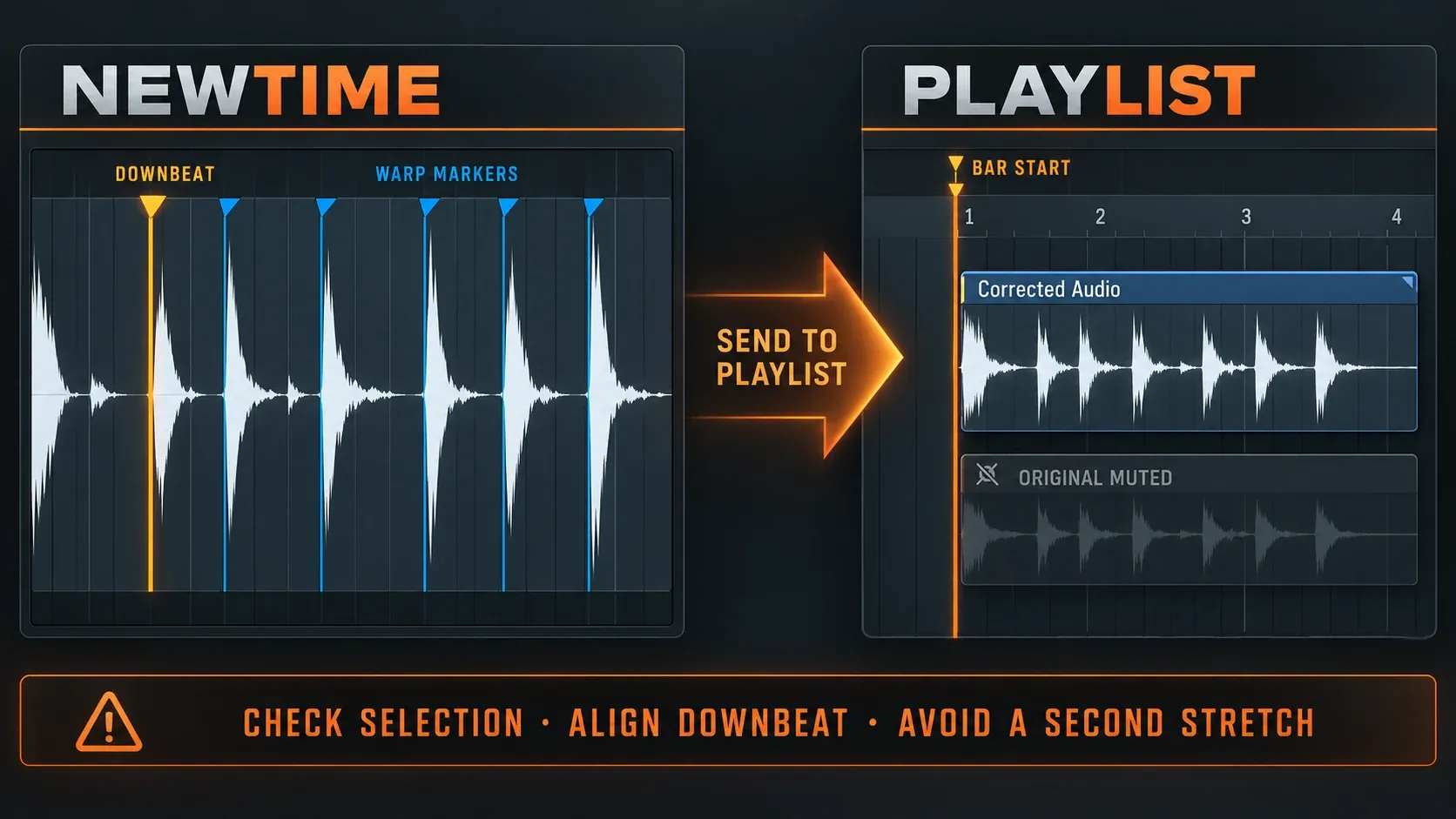
After transfer, treat the new clip as the committed timing version. A normal drag or send doesn’t keep NewTime’s editor markers, but saving the sample to a file does, which helps when the editable marker map has to survive outside the current editor session.
To keep the marker map, use File > Save sample as (Ctrl+S) and save a standard WAV or a lossless WavPack file; the manual warns against MP3, Ogg Vorbis and compressed WAV for archived project samples. In a saved file the Downbeat Marker aligns with the start of the nearest bar when the sample is dragged or sent to FL Studio.
Place the result in context with the Playlist workflow guide. Keep the original recording muted on a nearby track or in a clearly named backup lane until the edit is approved.
Prevent a second tempo stretch
A common handoff mistake goes like this: you fix the timing in NewTime, send the result to the Playlist, then trigger another automatic stretch because the destination clip still carries an unsuitable tempo reading.
The cause is the clip's stretch mode. FL Studio's changelog sets Resample as the time-stretch mode for audio NewTime sends to the Playlist, and a Resample audio clip changes pitch when the project tempo changes or when its length is physically stretched. Dragging a clip's edge stretches it according to its time-stretch settings, so a tidy-up drag retunes the edit too. Tempo data stored in the .wav can also stretch a clip to fit the project, depending on the Read sample tempo information option in General settings, as the audio clip reference notes.
Check the transferred clip before changing its length or tempo settings. If it already lines up with the project, leave it alone. Don’t drag its edge into Stretch behavior just to tidy up the visual boundary. Trim silence or use slip editing when the audio itself should stay unchanged.
If the project tempo has to change later, decide which stage owns that change. Either reopen the editable NewTime source and make a new version, or apply one controlled Playlist stretch to the committed clip. Stacking several time processes makes it much harder to tell where an artifact came from.
For a finished NewTime edit, my default is no clip stretching at all: open the clip's channel settings, right-click the TIME knob and choose (none), which keeps the audio clip at a constant pitch and duration whatever the project tempo does. The Sampler channel settings reference gives (none) as the fix for an audio clip that keeps stretching. If the tempo will be automated later, choose Mode > Realtime > Stretch instead, which keeps vocals and other rhythmic samples in key and in time as the tempo moves.
Fix an offset grid before fixing notes
If every marker looks consistently early or late, suspect the Downbeat Marker before moving individual events. An offset downbeat shifts the musical reading of the whole file. Delete it or reassign it at the true bar start, then review the automatic markers again.
When the marker spacing is right but the whole file sits early or late, press Ctrl+A to select all slices and move the audio relative to the grid as one block. I'd do that before touching a single marker, because one offset move keeps every internal relationship intact.
If the grid starts correctly but drifts by the end, suspect the source BPM. Correct the tempo value and look at the map again, instead of building dozens of compensating Warp Marker moves around a tempo mismatch.
Remove markers when the audio sounds nervous
Too many markers chop the waveform into lots of short stretch regions. That can make sustained vocals, guitars, cymbals and ambience sound unsettled even when the attacks sit right on the grid.
Keep the markers that protect a bar start, a phrase boundary or an essential attack. Remove markers that just trace every visible transient. Then make the smallest timing change that solves the problem you hear.
To clear several markers at once, Ctrl+Click and drag across them and tap Delete. To shift a marker without stretching the audio, double-click it to remove it, then Shift+Click the new position to add a fresh Warp Marker. Choosing None under Edit > Marker detection clears every marker when the map is past saving.
When one note needs a big move, listen on both sides of it. Add a stabilizing marker only where it protects material that was already right. You’re after controlled movement, not the densest possible edit.
Troubleshoot NewTime by symptom
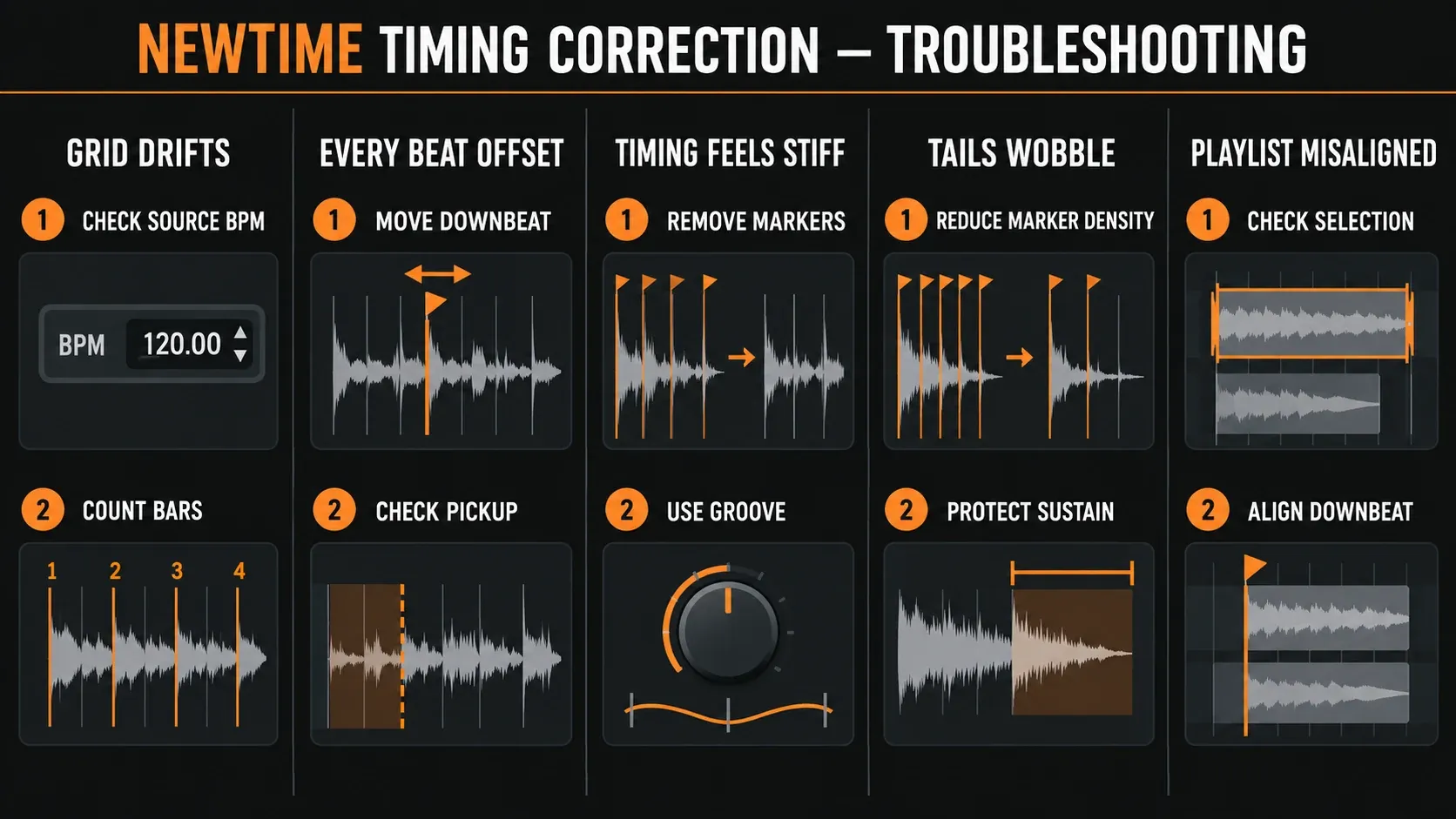
The grid matches at the start but drifts later
Correct the source BPM before editing more markers. Confirm the number of beats and bars in the source. A small tempo error becomes a large positional error over a long phrase.
Every beat is offset by the same amount
Move or recreate the Downbeat Marker at the true start of the bar. Check for pickup notes or leading silence that made the first audible event look like beat one.
Quantize makes the performance stiff
Undo the move, remove nonessential markers and quantize only structural attacks. Use a suitable groove template when the intended timing follows a repeated swing or pocket rather than a straight division.
Sustained notes or tails wobble after an edit
Reduce marker density around the sustain. Move anchors away from low-information parts of the waveform and keep the largest stretch across a smoother region.
A marker will not land where the phrase needs it
Select a finer Snap division or hold Alt to move without Snap. Do not choose a smaller grid merely because it is available; choose the rhythmic level the event uses.
The transferred clip starts on the wrong Playlist beat
Check the Downbeat Marker and the current selection before Send to Playlist. Make sure the destination bar is the intended musical start, then transfer again.
Only part of the audio reaches the Playlist
Clear an accidental selection or deliberately select the complete region before sending. NewTime transfers the selection when one is active.
Detection misses the transients on a vocal or guitar take
Set Edit > Marker detection to None and place Warp Markers by hand with Shift+Click on consonants, pick attacks and chord changes. A guitarist on the Image-Line forum describes the same routine when NewTime doesn't pick up the transients of a recorded part. My rule for a sung take is to start from None, because a hand-placed map stays small.
The clip changes pitch or length after Send to Playlist
Audio sent from NewTime uses Resample, which changes pitch whenever the clip is stretched by a tempo change or an edge drag. Right-click the TIME knob in the clip's channel settings and choose (none) for a finished edit, or switch Mode to Realtime > Stretch when the tempo will be automated.
Use this NewTime checklist before committing the edit
- Identify the file length, meter and true first downbeat.
- Correct the source BPM before moving markers.
- Choose Transient, Tempo or None for marker detection.
- Convert the correct Warp Marker into the Downbeat Marker.
- Keep only anchors that protect important attacks or phrase boundaries.
- Use a Snap division that matches the rhythm; hold Alt for intentional offsets.
- Choose Quantize time for strict correction or Groove for a repeated timing feel.
- Audition with Slaved Playback against the arrangement in Song Mode.
- Check the selection and Downbeat before Send to Playlist.
- Keep the original recording until the corrected version is approved.
- Avoid applying a second stretch to audio that already fits the project.
NewTime sounds most transparent when the grid is correct and the marker map stays small. Set up the bar structure, protect what already works, move the few events that don’t, and judge the result inside the song. That keeps the performance intact while fixing the timing listeners notice.
Frequently asked questions
Where is NewTime in FL Studio?
Open an audio clip's menu in the Playlist and choose Time-warp sample, or choose Edit in time warper in a Sampler channel's settings. Both load the current sample into NewTime. Inside NewTime, File > Load sample (Ctrl+O) opens any file from disk.
Which FL Studio edition includes NewTime?
Producer Edition and up, according to Image-Line's edition comparison. Fruity Edition doesn't include it, and NewTone, the pitch editor, starts at Signature Bundle.
What is the difference between NewTime and NewTone?
NewTime is a time-warping editor for slicing, warping and time-correcting audio. NewTone is a pitch-correction editor that also time-aligns vocals. Use NewTime when the timing is the problem and NewTone when notes are out of tune.
How do I sync a sample to the project tempo in NewTime?
Correct the sample's Tempo value with Edit properties (F2) first, then press Sync on the toolbar. With the File menu option Use project tempo on load enabled, NewTime uses the project tempo instead of the tempo stored in the sample.
Why does my clip stretch again after Send to Playlist?
Audio sent from NewTime uses Resample as its stretch mode, so an edge drag or a tempo change shifts its pitch, and tempo data in the file can stretch it to fit the project. Right-click the TIME knob in the clip's channel settings and choose (none) for a finished edit.
Does NewTime keep warp markers after sending audio?
No. The Drag selection and Send to Playlist icons normally strip the markers. Save the sample with Save sample as (Ctrl+S) as a WAV or WavPack file to keep them.