FL Studio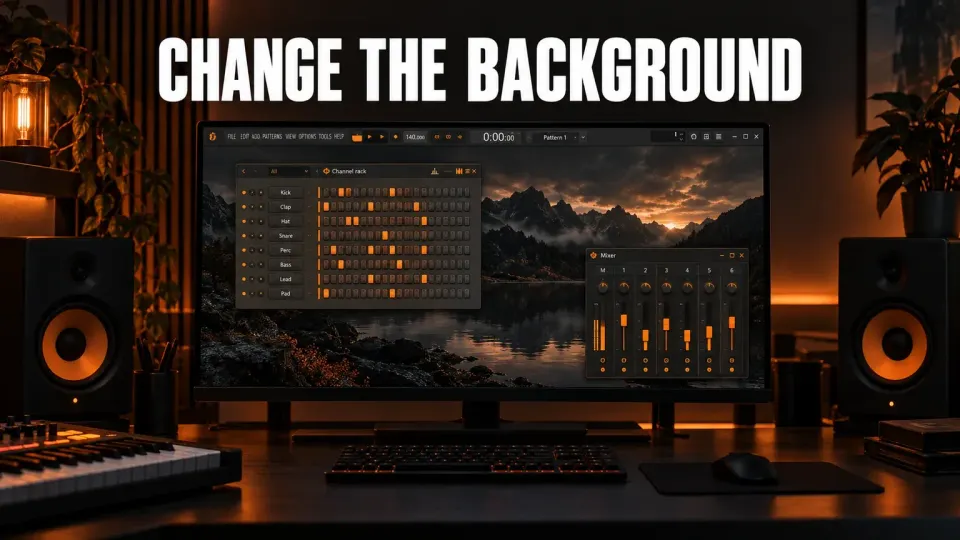
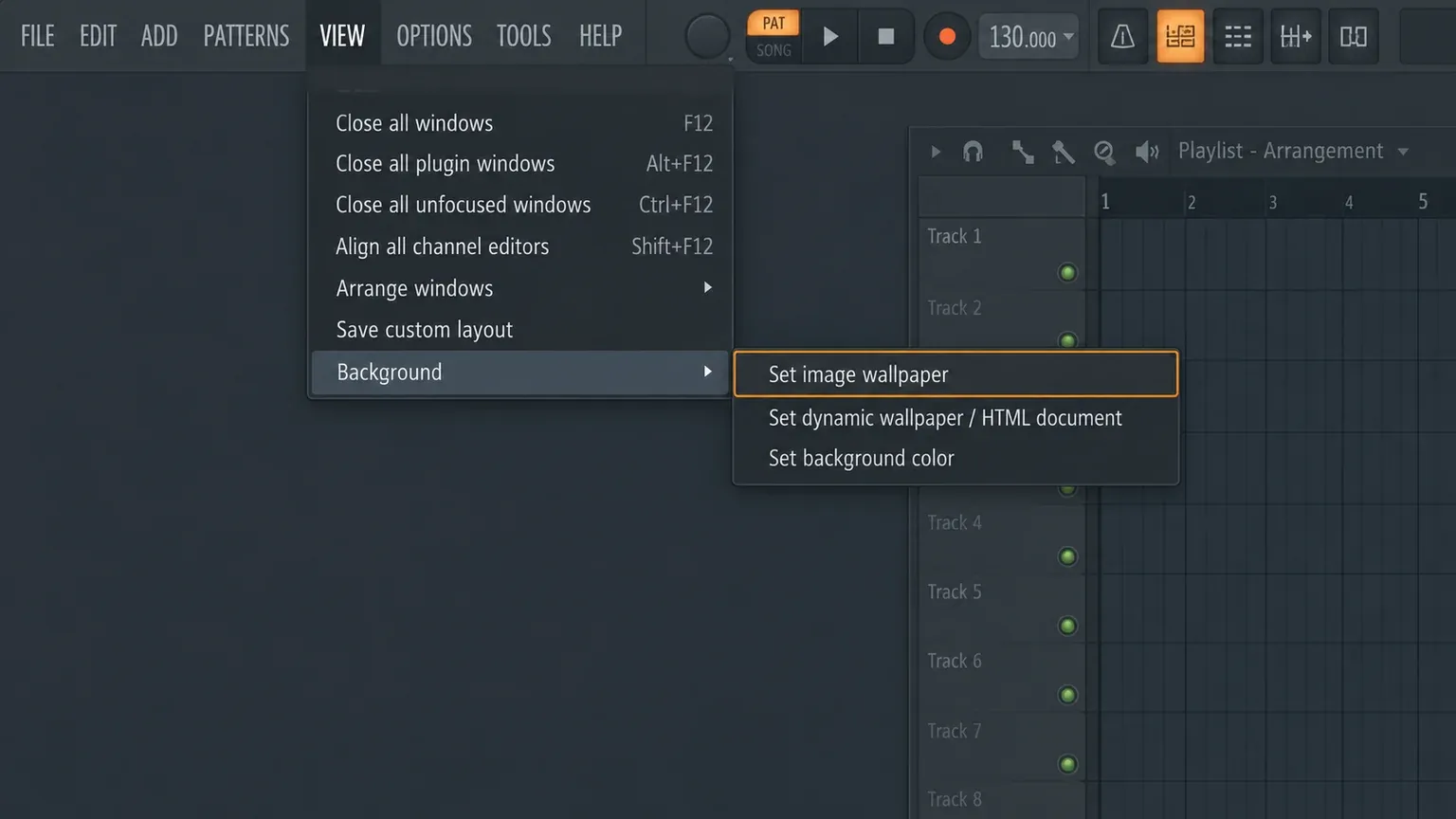
To change the FL Studio background, open the View menu, point to Background and choose Set image wallpaper, then pick your image. Set background color in the same menu gives you a plain color instead. To change the color of the whole interface, open Options > Theme settings (or press F10 and click the Theme tab), pick a preset or turn the Hue, Saturation, Brightness and Contrast knobs, then click Save preset so the look sticks.
"Background" means three different things in FL Studio: the wallpaper behind all the windows, the colors of the interface itself, and the picture or grid inside the Playlist. Each has its own setting, and a saved theme ties them together, which explains most of the "my background disappeared" questions further down.
Which setting changes what
Image-Line's View menu reference and its Theme settings page cover everything in this table. On a Mac, read Ctrl as Cmd and Alt as Opt.
| What you want | Where to find it |
|---|---|
| A picture behind all FL Studio windows | View > Background > Set image wallpaper |
| A plain color behind the windows | View > Background > Set background color |
| A dynamic wallpaper or an HTML page | View > Background > Set dynamic wallpaper / HTML document (Windows only) |
| A different color for the whole interface | Options > Theme settings, or F10 and the Theme tab |
| A picture inside the Playlist only | Drag a .png image onto the Playlist |
| Remove that Playlist picture | Playlist menu > View > Remove background picture |
| Different grid lines or shading in the Playlist | Playlist menu > View > Grid color, Grid contrast, Time segments |
| The factory look back | Theme tab > Reset, or click the Default theme |
How to change the FL Studio background image
- Click View in the main menu at the top left of FL Studio.
- Point to Background. It sits in the menu's Layout section, next to the layout save options.
- Choose Set image wallpaper and select an image file.
- Close or shrink a few windows. The wallpaper only shows in the parts of the workspace that no window covers, so a full-screen Playlist hides it completely.
- Press F10, open the Theme tab and click Save preset. Background images and settings are saved with the theme, so this is what keeps your wallpaper when you switch themes later.
The manual doesn't list which image formats the main wallpaper accepts. PNG is the format Image-Line documents for Playlist pictures, so that is what I would export. Pick something dark and low in detail: FL Studio draws its windows over the wallpaper, and a busy photo makes window edges and the empty workspace harder to read.
The wallpaper can also do a job. Professoar's 2019 video on the FL Studio background image sets a chart of musical scales as the wallpaper, so the notes are always on screen while you write. FL Studio can now mark the notes of a key right in the Piano roll, which our scale highlighting guide explains.
How to change the background color
View > Background > Set background color changes the color of the desktop background, meaning FL Studio's own workspace behind the windows, not the windows themselves. Like any interface element whose color you can change, it uses FL Studio's color selector, which has Circle, Box and Preset modes plus fields for exact HSL and RGB values, as the interface basics page describes.
If you want the panels, buttons and editors darker or lighter, the background color won't do it. That is the theme's job, covered below.
Dynamic wallpaper and HTML backgrounds on Windows
Set dynamic wallpaper / HTML document is a Windows-only option. Image-Line describes dynamic wallpapers as .txt files that you can edit in a standard text editor. They display FL Studio version information, blur when FL Studio is not the active app and adjust to the interface scaling settings. The same menu item can load an HTML document as the background.
It is not a slot for a video file. The manual doesn't document dropping an MP4 loop in there, so I wouldn't plan a setup around it. On a Mac, use an image wallpaper or a plain color; the dynamic option is not available. If the wallpaper looks wrong after you change the size of the interface, our multiple monitors guide walks through FL Studio's display scaling options.
How to change the Playlist background
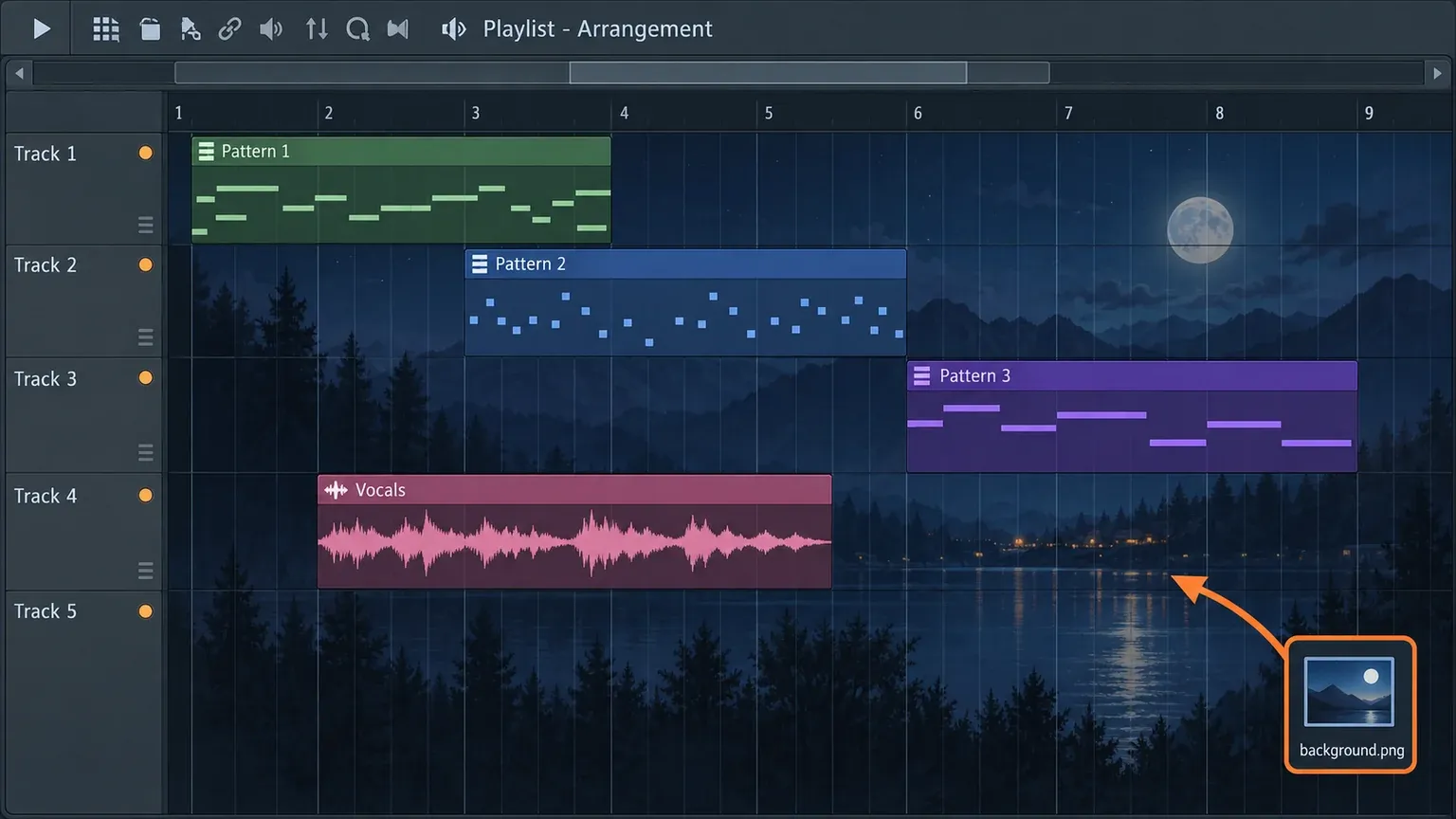
The Playlist has its own picture and grid settings, separate from the main wallpaper. According to the Playlist manual page, you can drag and drop .png images onto the Playlist to create a background image. To get rid of it, open the Playlist menu (the small arrow at the top left of the Playlist window) and choose View > Remove background picture.
The same View submenu controls how the empty Playlist looks:
- Grid color (Ctrl+Alt+G on Windows) opens a dialog for choosing the Playlist grid color.
- Grid contrast sets the grid to High, Medium or Low contrast.
- Invert grid switches the bar lines from light to dark.
- Track separators shows or hides the lines between tracks.
- Time segments changes the background shading. The default shades by Bars; the Markers option shades the regions between your markers instead.
- Behind clips sets the clip background: Nothing (transparent), Plain, Cel, Glass, Aqua, Solid or Shadow.
The Piano roll has a matching View > Grid color option. For everything else in the Playlist window, see our Playlist guide.
FL Studio themes: change the color of the whole interface
Themes recolor the interface itself: panels, buttons, meters, step buttons and text. Image-Line added the Theme editor as one of the headline features of FL Studio 21, released in December 2022, so any version from 21 onward has it, including the current FL Studio 2026 release.
Open the Theme settings
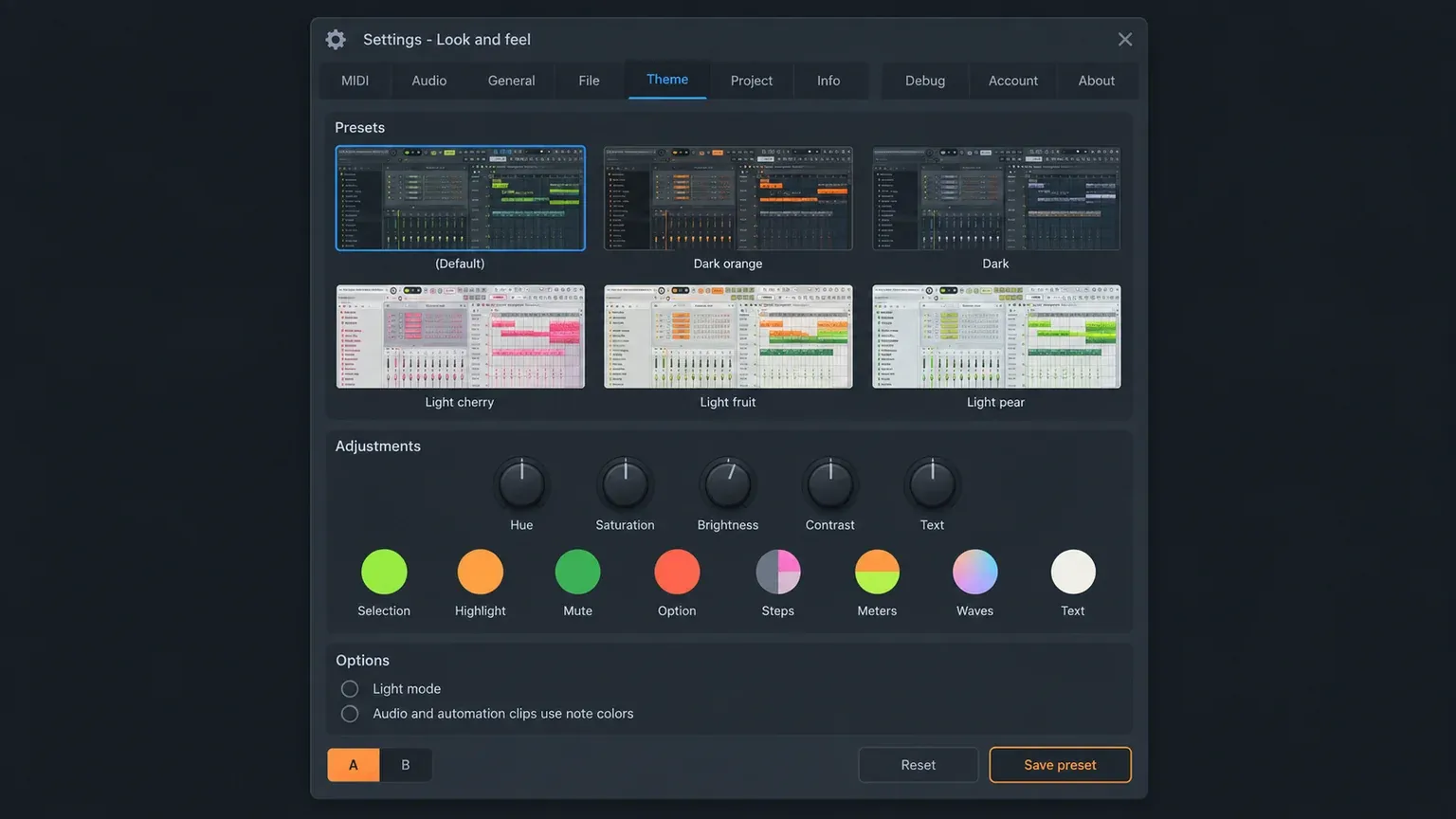
Choose Options > Theme settings from the main menu. The F10 key opens the Settings window on its MIDI tab, and the Theme tab is a click away in the same window. The tab has three areas: Presets at the top, the Adjustments knobs and color pickers, and Options.
Pick a preset
Click a theme badge to load it. The manual's own figure shows (Default), which is the familiar dark gray, along with presets such as Dark orange, Dark, Light cherry, Light fruit and Light pear; your list can differ by version and by what you have downloaded. To delete a theme, hover over its badge and click the Delete icon.
Adjust it with the knobs
- Hue sets the overall color tint.
- Saturation sets how intense the colors are.
- Brightness sets the overall lightness.
- Contrast sets the difference in brightness between interface elements.
- Text sets the brightness of all text.
Turn these slowly. Image-Line notes that thousands of interface elements update as you move them, so fast moves feel extremely laggy. That lag is expected, not a sign that something is broken.
Fine-tune with the color pickers
The row of color pickers under the knobs sets individual colors:
- Selection for selected items, such as Mixer and Playlist tracks.
- Highlight for highlights such as toolbar buttons.
- Mute and Option for the two kinds of LEDs.
- Steps for the odd and even step buttons in the Channel rack.
- Meters for each dB band of the level meters.
- Waves for the frequency-to-color map in waveforms. These colors only show when Colorful waveforms is turned on in Options > General settings.
- Text for an exact text color. Set the Text knob back to default first, because the two work together.
Light mode, clip colors and A/B
Light mode keeps some interface elements visible when you push the settings to an extreme light or dark look. Turn it on if anything vanishes while you experiment. Audio and automation clips use note colors makes automatically colored audio and automation clips follow the note color palette.
The A and B switches hold two themes at once. Load or edit one theme in A and another in B, flip between them to compare, and whichever is selected when you save becomes the preset.
Save, reset and what a theme remembers
Save preset stores your settings as a new theme, and Accept applies them. Reset returns everything to the defaults, and so does clicking the Default badge.
A saved theme carries more than its knob positions. Image-Line lists three other things that are saved with it automatically: note colors, the Playlist and Piano roll Grid color, and the View > Background image or settings. Piano roll note color palettes can also be loaded and saved on their own from the Piano roll menu under View > Note colors.
Where themes are stored, and how to get more
The manual lists three theme folders, shown here as it prints them for Windows. Themes from all three appear together in the Presets area.
- User: Documents\Image-Line\FL Studio\Settings\Themes, for themes you save in the editor.
- Default: FL Studio N\Artwork\Themes inside the install folder, where N is your version number.
- Downloaded: Documents\Image-Line\Downloads\Themes, for themes downloaded from Image-Line through the Browser.
The Themes page names the download route as Browser > Library > Themes. The current Browser manual page describes it as the Presets library, where badges mark items as Free, Owned or Installed, and it saves all downloaded content, themes included, under Documents > Image-Line > Downloads. Our Browser guide explains the Browser's tabs.
To share a theme, copy its file from the User folder into the same folder on the other computer, then check the wallpaper there: the background settings travel with the theme, but an image stored only on your machine may not.
For a walk through the whole look of FL Studio, Image-Line's official video Design your own theme (November 2025) covers the Playlist, the Piano roll, setting up a theme, General settings and the toolbar in under five minutes.
Background and theme problems
The wallpaper is set but you can't see it
Windows sit on top of the wallpaper. Shrink or close the Playlist, Mixer and Channel rack and it appears. Options > General settings also has Transparent windows, which makes inactive windows see-through, but Image-Line's General settings page recommends leaving it Off, and I agree: a readable Mixer matters more than a visible wallpaper.
The wallpaper disappeared after you changed the theme
The theme you clicked brought its own background settings, because a theme stores the View > Background image or settings. Set your wallpaper again, open F10 > Theme and click Save preset. From then on, loading that theme brings your wallpaper back with it.
The dynamic wallpaper option is missing
You are on a Mac. Set dynamic wallpaper / HTML document is Windows only; Set image wallpaper and Set background color work on both systems.
The background options are greyed out
An FL Studio 24 user reported on Image-Line's forum in September 2024 that every option under the background menu was greyed out. The manual doesn't describe a disabled state for these items, so there is no documented fix. Note your exact FL Studio version and build number and send them to Image-Line support.
The text became hard to read
Open the Theme tab, set the Text knob back to default, then raise Contrast or turn on Light mode. If the theme is too far gone, click Reset or the Default badge and start again from a preset.
Waveforms still aren't colored
The Waves color picker only has an effect when Options > General settings > Colorful waveforms is set to Color map or Multiband.
Color channels, Mixer tracks and notes
Channel and Mixer track colors aren't on the list of things a theme saves; you set them where you work. In the Channel rack, press F2 on a channel to rename and recolor it, or select several channels and use Channels > Color selected > Gradient or Random; the Channel rack guide has the details. In the Mixer, right-click a track label and choose Rename / color, or press F2, as covered in our Mixer guide. Note colors live in the Piano roll, and our Piano roll guide explains how they work.
If you only change one thing, make it this: set the wallpaper and theme you like, then press F10 and click Save preset. That single step is what makes your FL Studio look the same tomorrow.