FL Studio
To reset FL Studio settings on Windows or Mac, open Help > Diagnostics, preserve your work and close FL Studio, then select Reset FL Studio settings and click Start in the Diagnostics tool. Reopen FL Studio and restore your audio device, MIDI configuration and file locations.
I recommend a full reset when the application setup is the problem. If you only lost a window or changed the interface size, try the smaller fix first. A reset also removes configuration you may want to keep.
Choose the reset that matches the problem
FL Studio has several controls with “reset” in their name. They affect different things. Use this table before changing anything.
| What went wrong | Start here | What it changes |
|---|---|---|
| The Mixer, Playlist or another window is off-screen | View > Arrange windows > Into workspace | Brings windows into the visible FL Studio workspace. |
| You want the original window arrangement | View > Arrange windows > Realign or Desktop (default) | Restores an arrangement without resetting your whole audio/MIDI setup. |
| Interface scaling makes the application difficult to use | The separate Reset FL Studio DPI scaling action in Diagnostics | Targets scaling rather than every preference. |
| Several application settings are wrong or the setup behaves unpredictably | Reset FL Studio settings in Diagnostics | Returns custom MIDI, Audio, General and File settings to defaults. |
| Your custom projects or presets disappeared from the Browser after a reset | Check the existing User data folder location | Restores access to files that may still be in their original folder. |
The Arrange windows commands are the right first move for a layout problem. Diagnostics also offers a separate DPI scaling reset. Neither is a reason to discard a working audio setup.
Before resetting: preserve the session and your settings
Save a copy of your current project before closing the application. Keep that copy separate from the version you are troubleshooting. If you use the standard Trial, export any audio you need while the project is still open: the Trial can save projects but cannot reopen them until purchase. Saving an FLP alone does not make it reopenable in the Trial.
Next, record the configuration you will need to rebuild. Image-Line specifically recommends screenshots of the Audio, General and Files settings before a reset. I would also record your MIDI inputs and outputs, especially if a controller uses a script or specific port assignment.
- Audio: the selected device/driver, sample rate, buffer configuration and important input/output choices.
- MIDI: enabled devices, controller type and port assignments.
- Files: the exact User data folder path and any extra Browser search folders.
- General: interface scaling, preferred startup project/template and other settings you deliberately changed.
Back up your actual User data folder before proceeding. The default is under your user account’s Documents > Image-Line folder, with an FL Studio subfolder, but a custom location takes priority. Check the path inside FL Studio rather than assuming the default is in use. Back up samples stored elsewhere too; an external sample library is not automatically included just because a project uses it.
If the session already contains missing audio, the missing-samples recovery guide is the more useful next step. Resetting preferences will not locate a sample you moved to another drive.
Reset settings when FL Studio opens
This is the recommended Diagnostics route on both desktop platforms. The tool runs separately, so leave Diagnostics open when you close FL Studio.
- Preserve your work and configuration. Finish the checks above before closing the session.
- Open Help > Diagnostics. Allow the initial checks to finish.
- Close FL Studio. Do this before starting the reset.
- Select Reset FL Studio settings. Check the label carefully. Reset user data folder, Reset FL Studio DPI scaling and Fix FL Studio song project are separate actions.
- Click Start. When the reset finishes, launch FL Studio and rebuild the important settings listed below.
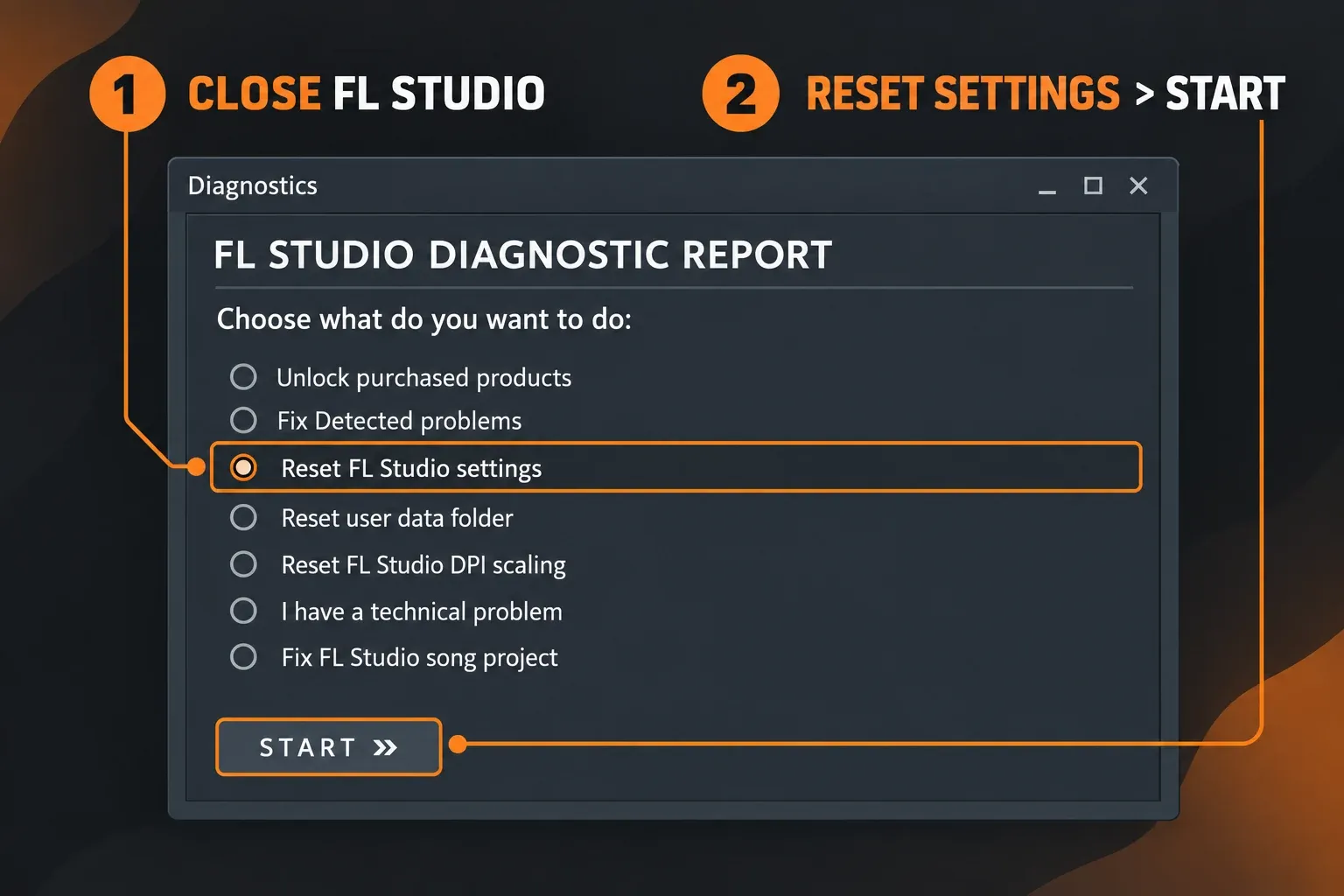
Expect custom MIDI, Audio, General and File settings to return to defaults. Do not immediately reapply every old preference. Restore the essentials, check whether the original problem remains, then add the rest gradually. That makes it easier to spot a setting that brings the problem back.
Open Diagnostics if FL Studio will not launch
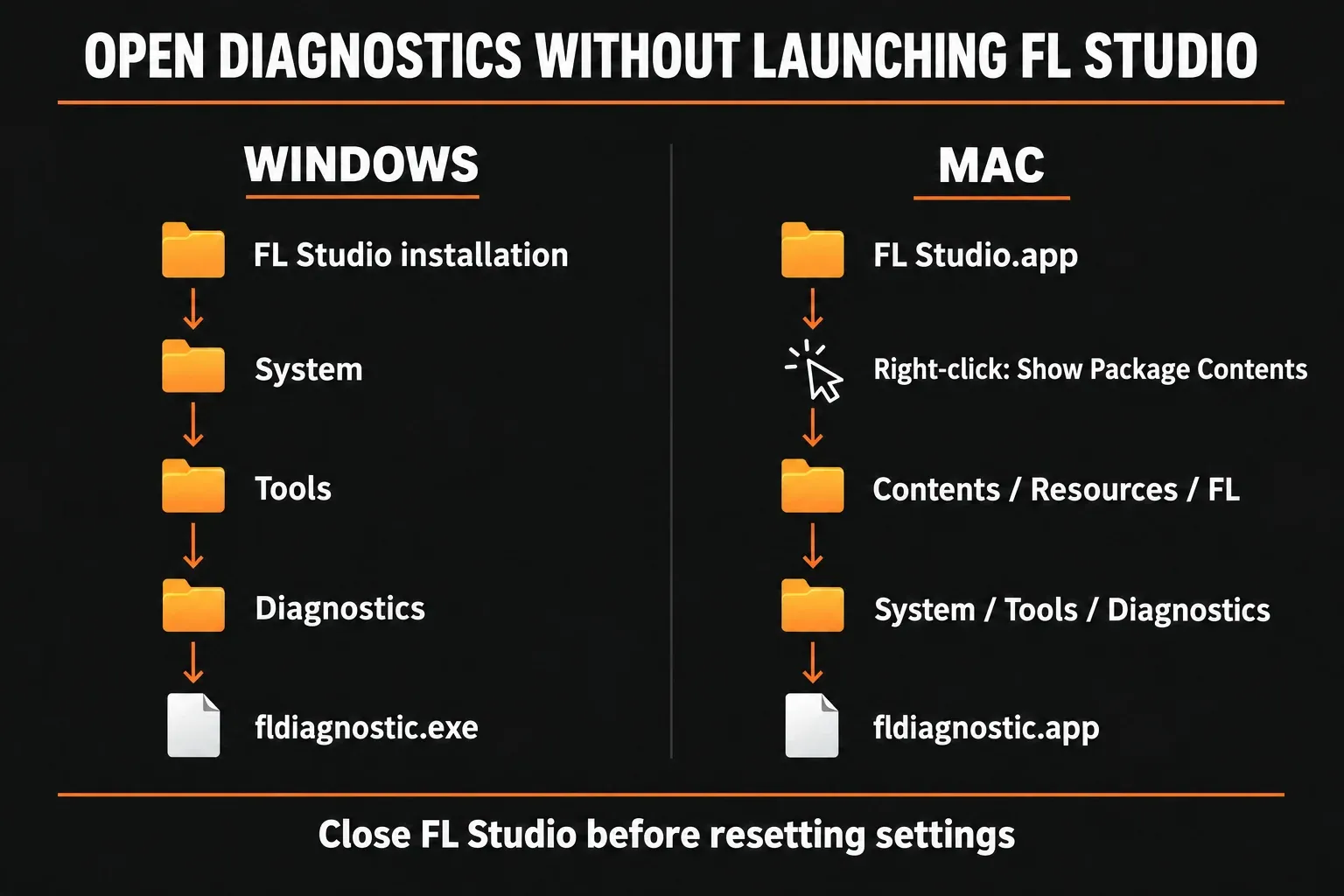
You can open the same tool from the installation without reaching the Help menu. Use the installation of FL Studio you are actually troubleshooting; an old tutorial’s version-numbered folder may point to a different copy.
Windows
- Right-click your FL Studio shortcut and choose Open file location. Locate the actual FL Studio installation folder.
- Inside that installation, open System > Tools > Diagnostics.
- Open
fldiagnostic.exeand allow its initial checks to finish. - With FL Studio closed, choose Reset FL Studio settings and click Start.
The relative path is System/Tools/Diagnostics/fldiagnostic.exe. You do not need to guess whether your installed version lives in an FL Studio 20, 21 or another named folder.
Mac
- In Finder, open Applications and locate FL Studio.
- Control-click or right-click the application and choose Show Package Contents.
- Open Contents > Resources > FL > System > Tools > Diagnostics.
- Open
fldiagnostic.app. With FL Studio closed, select Reset FL Studio settings and click Start.
Using the Trial, or still unable to open Diagnostics?
The standard FL Studio Trial does not include Diagnostics. Its absence is a licensing limitation, not proof that the installation is broken. Image-Line’s reset instructions describe installer-based settings removal for Windows and a separate manual preferences route for macOS.
Windows Trial: preserve files before using the installer
After saving your project, exporting needed audio and backing up your files, follow the Windows Trial route on the official reset page. It describes uninstalling with Remove settings checked and reinstalling the current version, or choosing Clear under Settings during installation.
Those are Windows installer controls. Do not look for them in the Mac installer or delete your music folders to imitate them. For the broader download and installation steps, use the Windows and Mac installation guide.
Mac manual fallback: the preferences location matters
The documented manual reset removes preference files from ~/Library/Preferences/Image-Line. This is the Library folder inside your user account. It is different from the Documents > Image-Line folder that holds your user content.
- Preserve your session, export needed audio if you are in the Trial, and close FL Studio.
- In Finder, use Go > Go to Folder and enter
~/Library/Preferences/Image-Line. - Copy the contents to a dated backup folder outside that preferences location. Confirm that the copy exists before removing anything.
- Move the original files from that exact preferences folder to Trash. Keep both the backup and Trash contents while checking the result.
- Launch FL Studio and restore your essential configuration. Missing preference files are recreated with default values.
I would use Diagnostics first when it is available. If you cannot positively identify the preferences folder, stop at this point and use Image-Line support. A broad cleanup of everything named “Image-Line” can remove material you intended to keep.
Restore sound, MIDI and file locations after the reset
A successful reset is only the start of recovery. Check the application in an empty project before opening a copy of your working session. Rebuilding the setup in this order keeps a project-specific fault from confusing the result.
Audio first
Open Audio settings and select the output device or audio interface you intend to use. Restore the relevant sample-rate and buffer choices, then play a quiet sound through the expected output. If meters move but you hear nothing, inspect the selected device and output routing before resetting again. The audio-settings guide covers driver and latency choices in detail.
Then restore the existing User data folder
Open File settings and compare the User data folder path with the one you recorded. If a reset changed it, your projects, recordings or plugin database may stop appearing in the expected view even though their files remain in the old location. Image-Line explains that pointing User data back to the existing folder restores access.
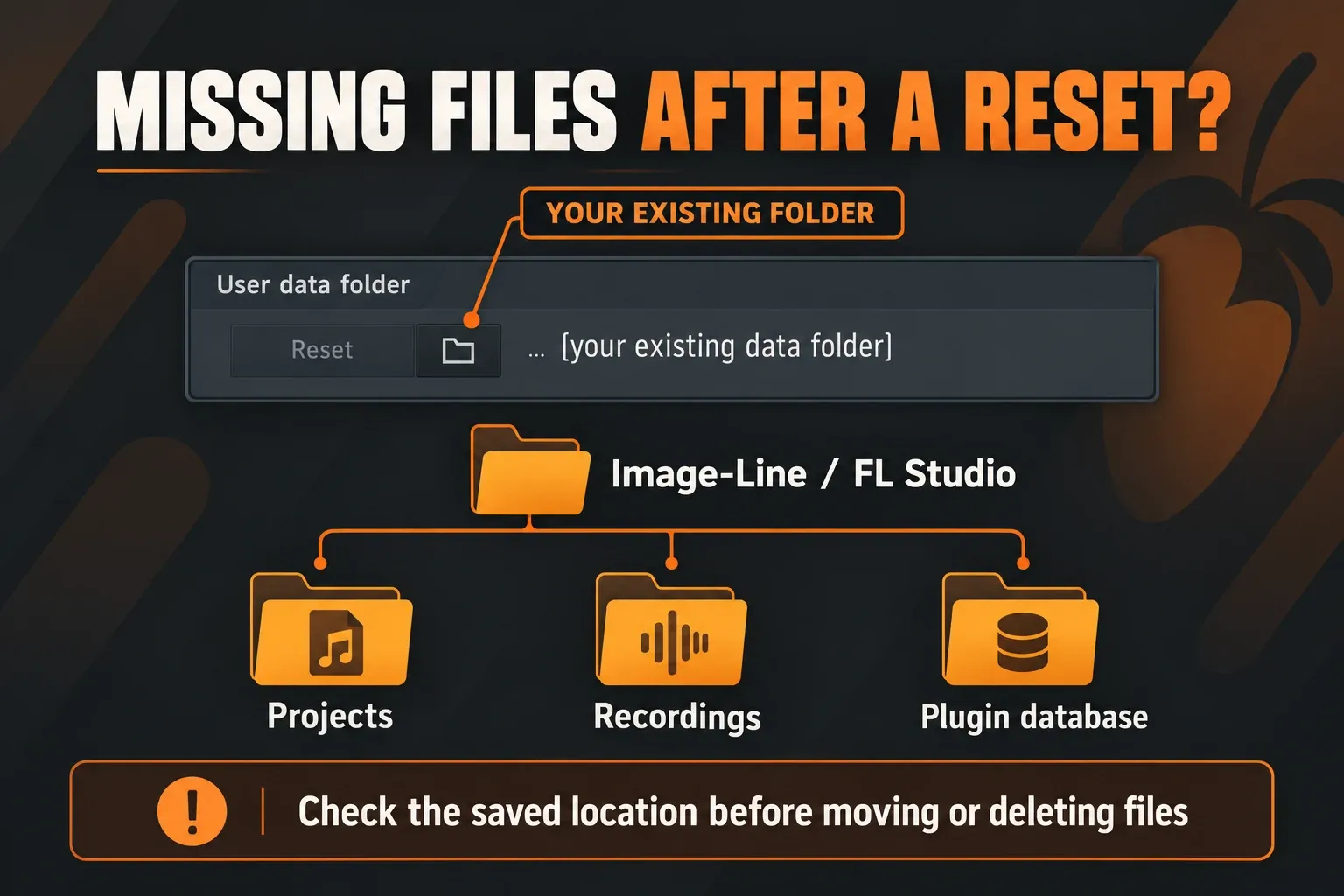
The Reset control beside User data folder returns that location to its default and can offer to copy data there. Do not use it casually while trying to recover a custom location. Verify both paths and keep the backup. The plugin database stores scan information and favorites; it is not a backup of the installed third-party plugins themselves.
Restore extra Browser search folders separately if your samples live outside User data. Keep the working User data folder on a reliable local location; the manual advises against cloud-synced, network and removable locations for active user data.
Finish with MIDI and General preferences
Re-enable the MIDI devices you use and restore their controller types and ports. Check that the intended instrument responds before opening a large project. Then restore preferred scaling and startup behavior. General settings has separate Default template and Startup project choices, so a different startup session does not by itself indicate lost projects.
If resetting does not solve the problem
Change the next diagnostic step to match what still fails. If an empty project works but one saved session does not, investigate that project and its plugins. If samples are missing, verify their actual disk locations. If the audio device is unavailable, investigate the device, driver and operating-system permissions rather than repeatedly discarding the same preferences.
Keep the backup until your working project opens correctly, its samples are present and your intended audio/MIDI setup works. My rule here is simple: restore only what you need first. A familiar layout can wait until you can hear the project and find its files.