FL Studio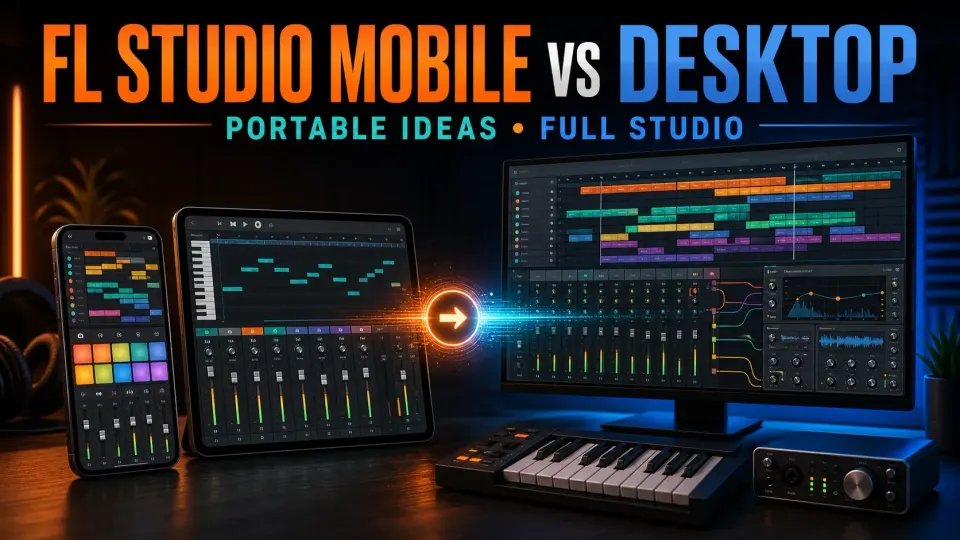
Choose FL Studio Mobile for touch-first writing on a phone or tablet, and Desktop for computer plugins, detailed editing and bigger recording setups. Either one can take a song all the way to a finished mix. I'd pick by what the next project needs, not by the name: Mobile is a separate app, not a Desktop edition, so moving editable work between them takes some care.
The short FL Studio Mobile vs Desktop answer
| Decision | FL Studio Mobile | FL Studio Desktop |
|---|---|---|
| Best role | Portable writing and complete touch-first projects | Detailed arranging, computer plugins and larger recording setups |
| Current platforms | iOS, Android and compatible Chromebooks; Mobile also has desktop/plugin forms | Windows and macOS |
| Instruments and effects | Curated Mobile instruments, effects, sounds and optional content | Edition-dependent stock tools plus supported VST, VST3, AU on Mac, CLAP and native plugins |
| Audio recording | Capable, but dependent on the mobile device, OS and interface | Producer Edition or higher; input and driver compatibility still matter |
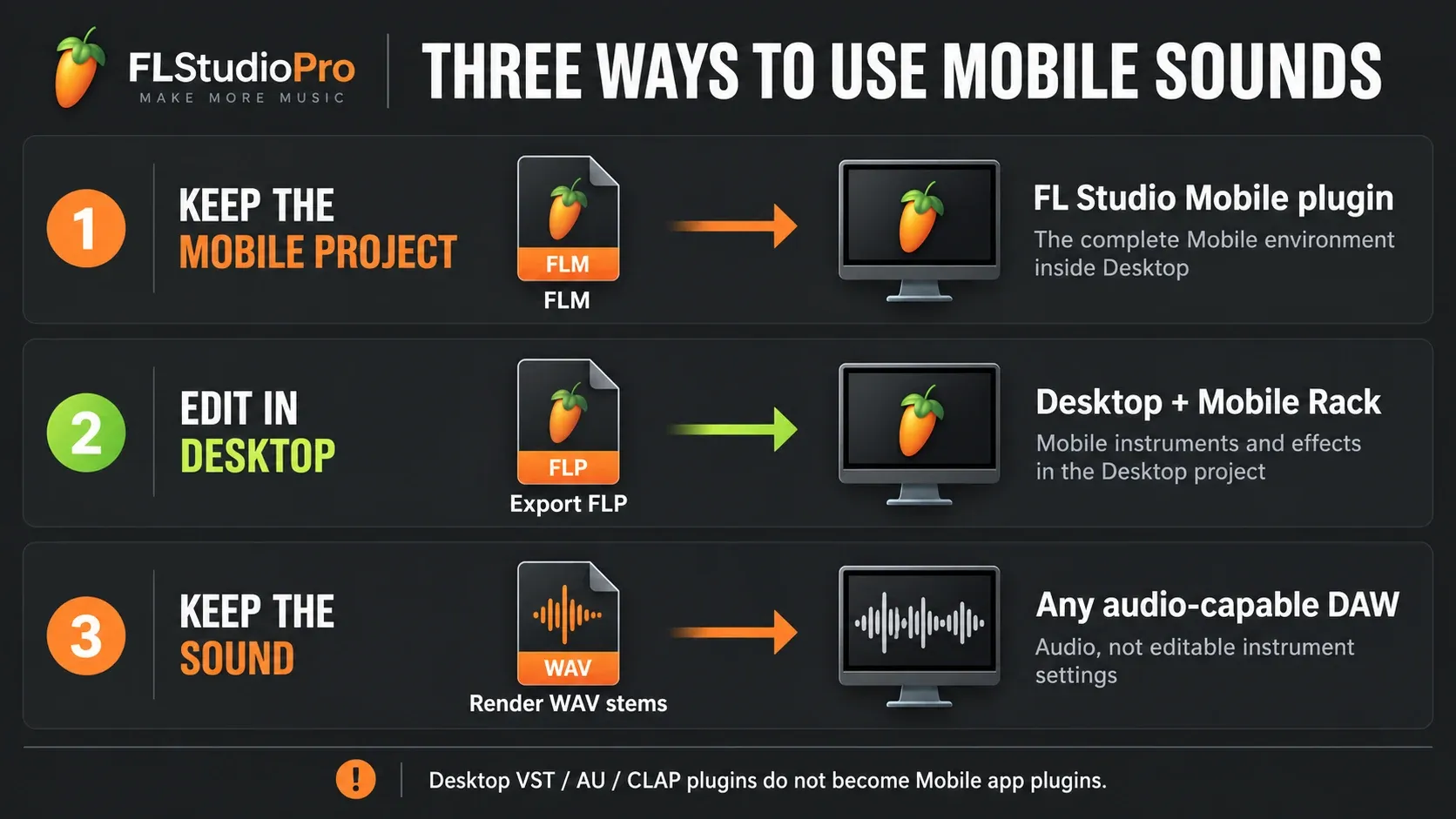
| Project format | FLM for native Mobile work; can export FLP, audio and MIDI | Exported Mobile FLP uses Desktop Mobile Rack; FLM opens inside the whole Mobile plugin |
| Choose it when | Portability and immediacy matter most | Computer-only plugins, detailed editing or recording inputs are essential |
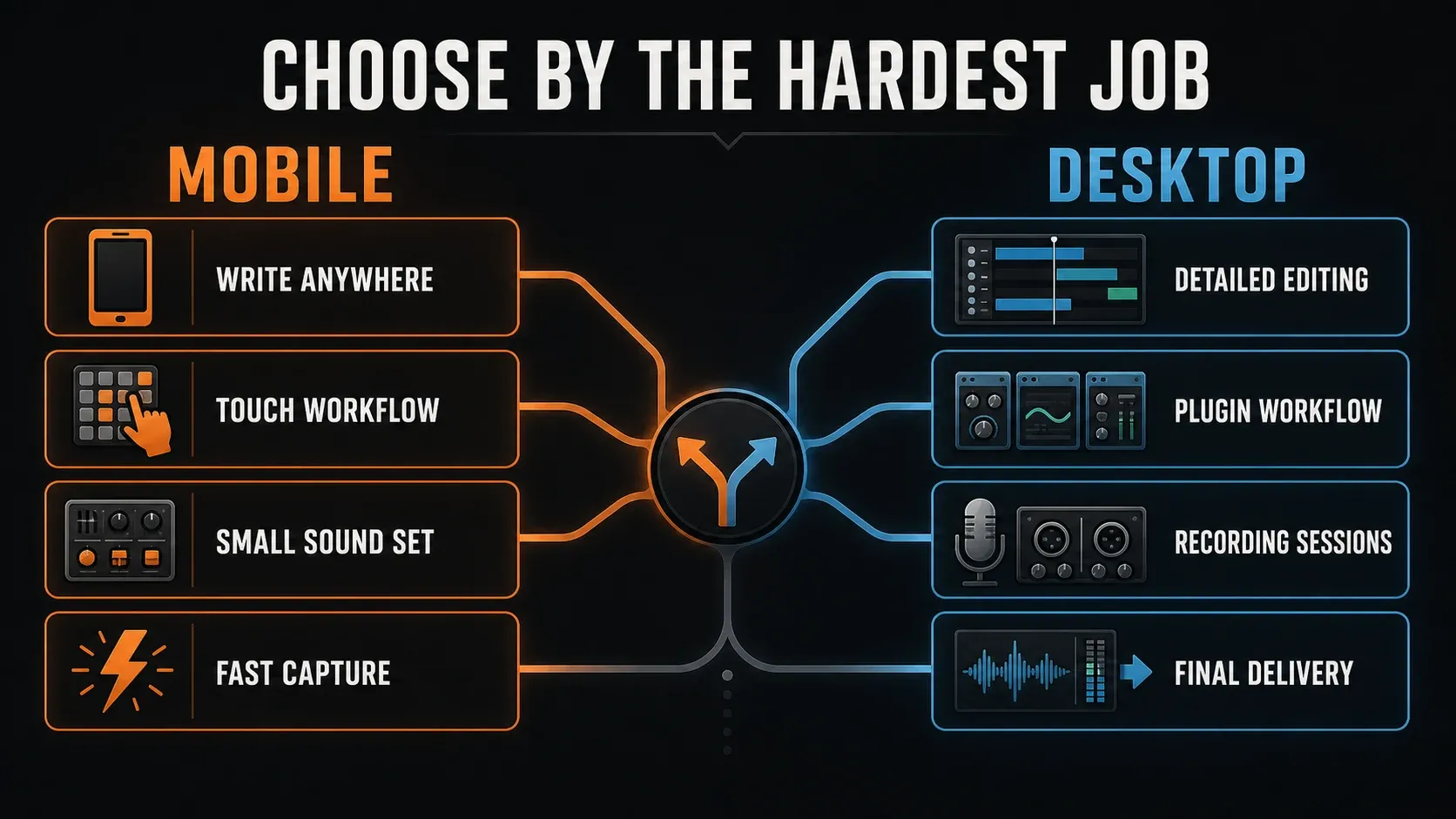
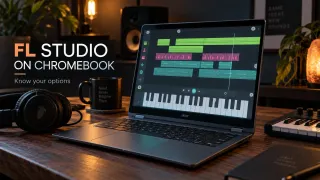
Image-Line’s current FL Studio Mobile page lists the app for iOS, Android and Chromebook, and describes audio recording, automation, an advanced mixer and FLP export. The system requirements guide covers the supported computer baseline for Desktop. Mobile does run on ChromeOS, but the Windows/macOS application still has no Chromebook version; the Chromebook guide explains why.
They share a name, not the same production surface
Mobile is built around touch, small screens and the limited resources of a phone or tablet. Its Playlist, Piano Roll, rack, mixer and automation tools are laid out to keep a song editable without a mouse or a pile of floating windows. The current product page advertises eight instruments, more than 1,000 sounds and over 30 effects. Those numbers describe the current Mobile offer. The Desktop plugin list is a different, larger story.
Desktop is made for a keyboard-and-mouse workstation, with more storage, more ports and more room for plugin windows, mixer routes and detailed arrangement. The stock tools you get depend on your edition, so check the edition comparison before you buy. If you compare a Mobile feature list with “Desktop” as though every Desktop edition unlocked every Image-Line plugin, you’ll end up with a misleading picture.
None of this tells you anything about sound quality. A careful Mobile arrangement can render a strong mix, and a careless Desktop session can still sound poor. The divide I'd watch is scale: how many edits, routes, external devices, third-party tools and recall dependencies a project can comfortably carry.
Choose Mobile when capture speed matters most
Mobile earns its place when the alternative is losing the idea. A phone can hold a drum pattern, a chord progression, a sung reference, a bass line and a rough arrangement long before you reach a computer. Put the same project on a tablet and you get more screen space. A compatible Chromebook can also be a handy, low-friction Mobile host, as long as its Android-app and audio behavior suit the job.
Mobile can also be a complete home for your music if your songs fit its included instruments, effects and touch workflow. The official app supports audio recording, editable automation, a mixer, custom samples and several export formats, so you don’t need Desktop just to finish a short beat. What you do need is to test the exact phone, tablet, USB interface, headphones and storage path before you promise anyone a vocal session.
- Use Mobile for commuting, travel, couch writing, quick field capture and touch performance.
- Keep the sound palette deliberately small when the song will later move to Desktop.
- Name tracks and save versions while the arrangement is still readable on a small screen.
- Export a reference WAV whenever the current balance or sound choice matters.
Choose Desktop when the project must grow
Desktop is the practical pick when a project leans on third-party instruments, several recording inputs, detailed take editing or large sample libraries. With the extra screen space, you can see a Playlist, Mixer and plugin window at once. It can’t promise that a particular interface, old plugin or driver will work, though, so check each component you need before you move a deadline-sensitive session.
If you’re a beginner with a suitable computer, don’t buy Mobile hoping it will “unlock” Desktop later. Follow the installation guide, then try a small, representative session with the beginner workflow. Under the current Desktop trial rules, the edition you select decides which functions you get. Export a listening copy before you close: a trial project can be saved, but you can’t reopen it until you purchase and unlock FL Studio. Audio recording requires Producer Edition or higher. A plugin outside your licensed edition can also stay in trial mode, so avoid reopening and overwriting its only project copy before you unlock it.
Desktop plugins are the biggest capability boundary
Image-Line’s Desktop plugin format list covers VST, VST3, CLAP and native plugins on Windows and macOS, with 64-bit Audio Units added on macOS. Mobile has no general host for computer plugins; its instruments and effects run inside the app’s own rack. The documented iOS IAA/Audiobus options are inter-app connections, and they’ll never let you install a Windows VST on an iPhone.
My rule: if the song depends on a specific computer synth, start that part on Desktop. If you only need its musical role while you write, use a Mobile instrument and decide later whether to swap it. Keep a rendered copy before you change an important sound. The plugin installation guide is for Desktop only; the Mobile app can’t use it.
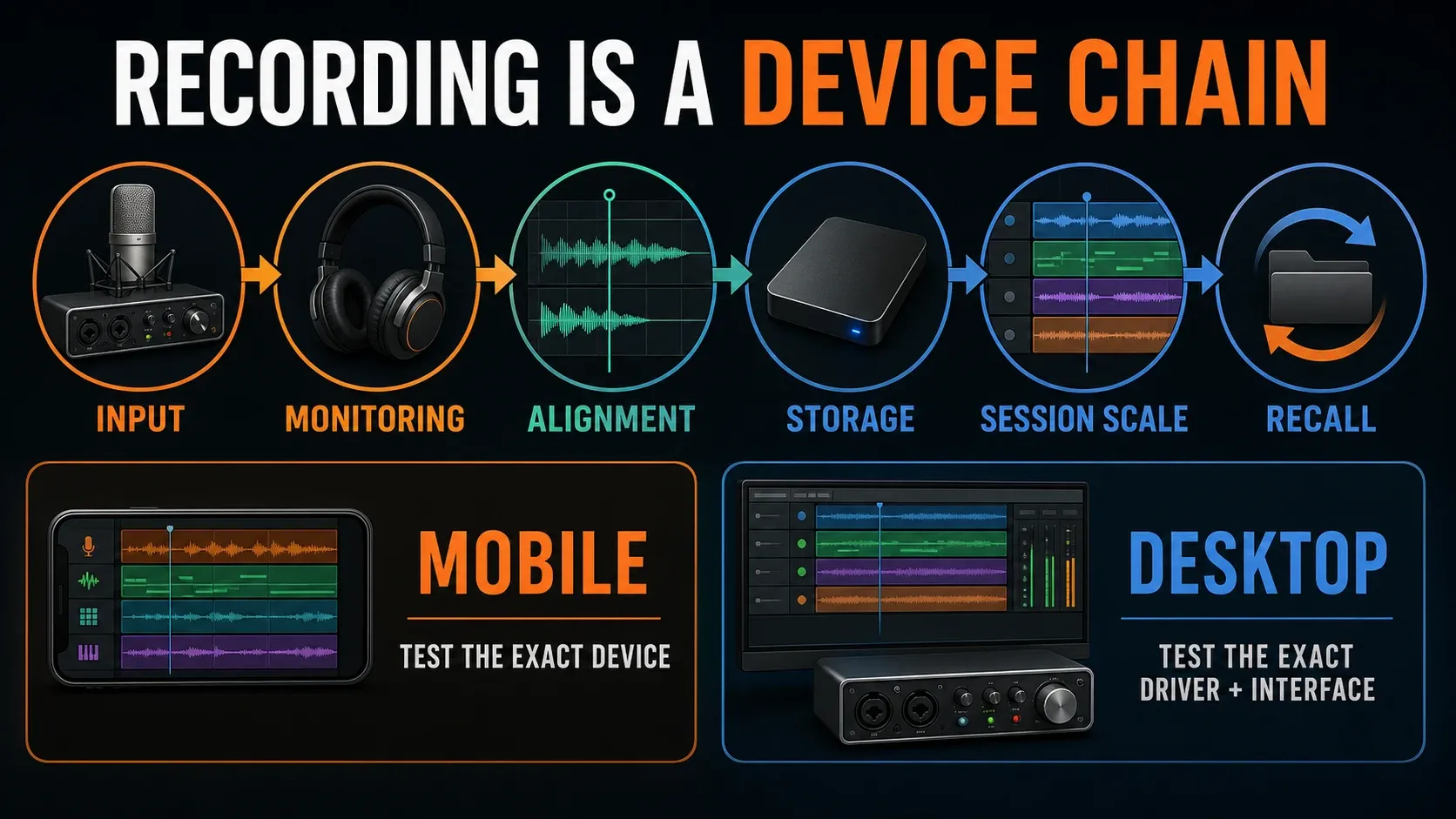
Recording and mixing depend on the whole device chain
Mobile can record vocals and instruments, and its current product page also lists Pitcher 2 for real-time pitch processing. Before you commit to a take, test the microphone or interface with the actual device, listen on headphones and check that the recording lands in time. A feature list can’t tell you whether your particular USB adapter supplies enough power or whether the monitoring feels comfortable.
If you record several microphones or edit takes over and over, Desktop gives you a roomier place to work. Make sure your edition supports recording and your interface exposes the inputs you need, then run the audio settings workflow with a real input before the session. A laptop on its own won’t remove monitoring delay.
Mobile has automation, effects and mixer controls, grouped FX routes included. Moving to Desktop pays off when your mix needs a specific computer-only meter, processor or editing workflow. Buses alone are no reason to switch. I'd finish one arrangement with the tools you already have before deciding another screen will fix the mix.
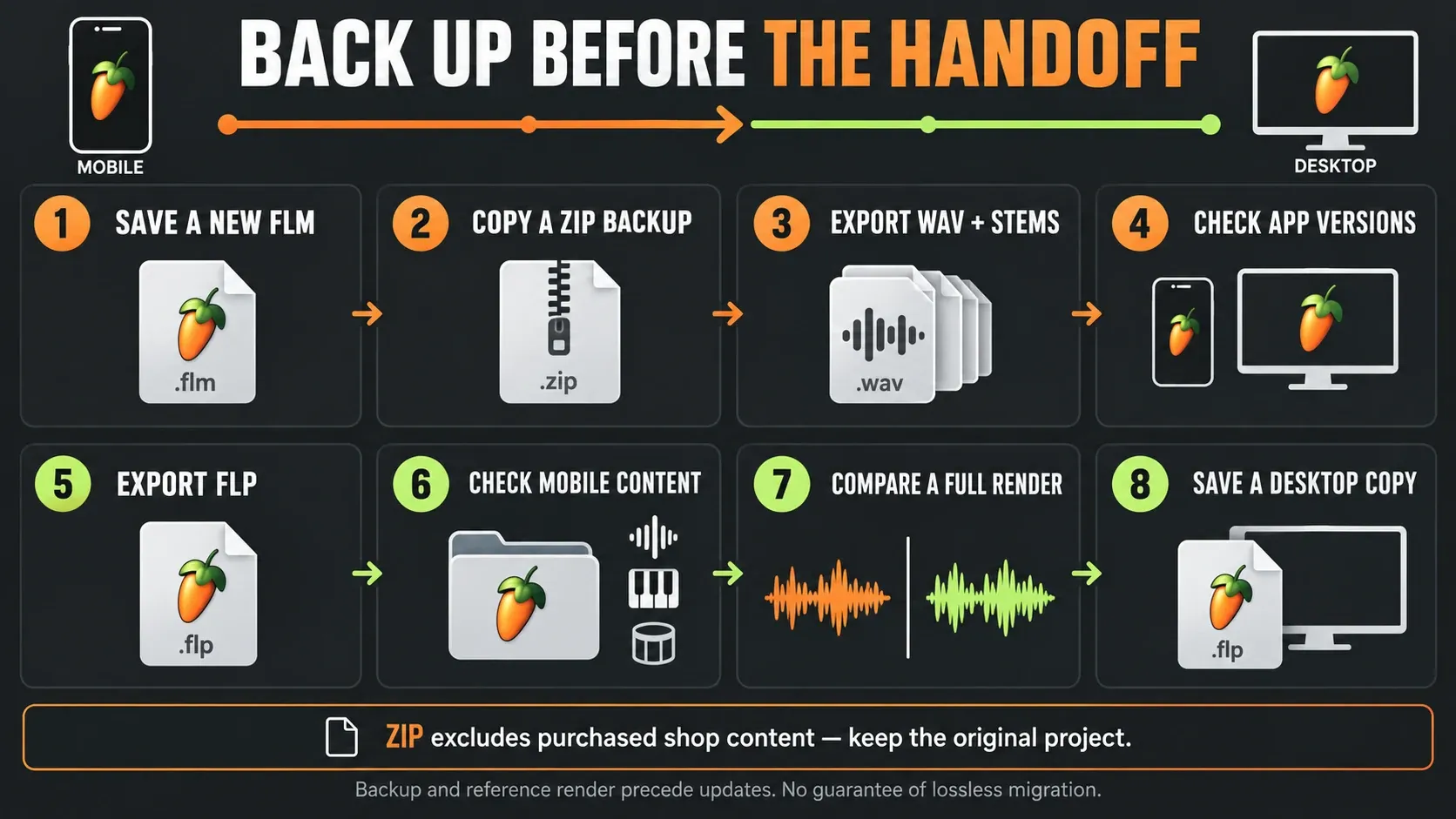
Move a Mobile project to Desktop in eight steps
The current Mobile save-format manual keeps native FLM, exported Desktop FLP and a Mobile ZIP archive apart. Use separate copies for the whole handoff. The checks below are precautions, and some projects will still change a little on the way across.
- Save a new FLM. Keep the original untouched and give the working copy a distinct name.
- Copy a ZIP backup. Save a Mobile ZIP and copy it outside the device. It bundles the project and used samples, but excludes purchased shop content.
- Export WAV and stems. Preserve a reference mix and separate parts using Split mixer tracks. Listen to the exported files before proceeding.
- Check app versions. With those backups secured, check the current Mobile app and Desktop build. Update a working copy’s environment if needed; do not make the only project your update test.
- Export FLP. Choose FLP in Mobile’s save formats, transfer the export to the computer and open that copy in Desktop.
- Check Mobile content. Confirm the required instruments, purchased content, custom samples and recordings are available. Investigate missing sounds before replacing them.
- Compare a full render. Listen against the Mobile reference, checking timing, automation, balance and the ending. A file opening without an error is not a complete listening check.
- Save a Desktop copy. Branch the project under a new name. With the host and required plugins unlocked, reopen and check it before further editing. Trial users should retain exports and defer saved-project reopening until licensed.
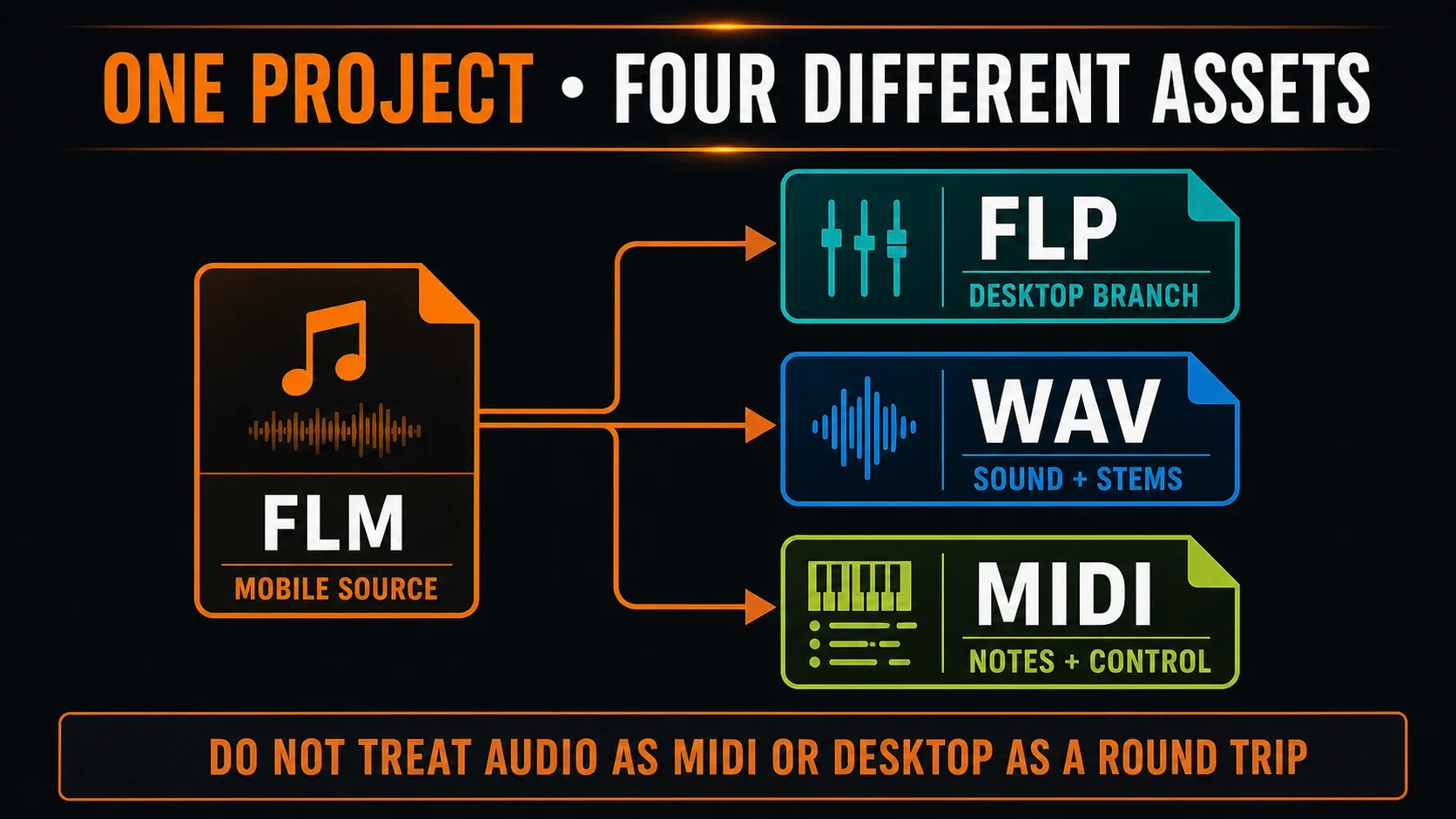
If you only need the notes, Mobile MIDI export covers the first 16 tracks; export the rest separately, or reorder them and export again. MIDI doesn’t contain the sounds. When you rebuild a part with another instrument, the MIDI export guide and Desktop MIDI import guide explain the difference.
Know what survives—and what still needs checking
You have two editable Desktop routes. An exported FLP opens in Desktop with Mobile Rack instruments and effects. A native FLM opens inside the whole FL Studio Mobile plugin instead, which hosts the whole Mobile environment within Desktop. That older plugin page still carries a blanket compatibility warning. Read it as guidance for native FLM, and stick with the newer documented FLP export.
The whole Mobile plugin can exchange its FLM work with the app, but anything you add outside it in Desktop stays out of that Mobile project. Image-Line’s sharing instructions also warn that the plugin starts with a limited library, so bring over the Mobile content you need. Network sharing and sync don’t replace a separate backup. To package the resulting Desktop branch with its audio, use the zipped loop package workflow; that’s not the same as saving a Mobile ZIP.
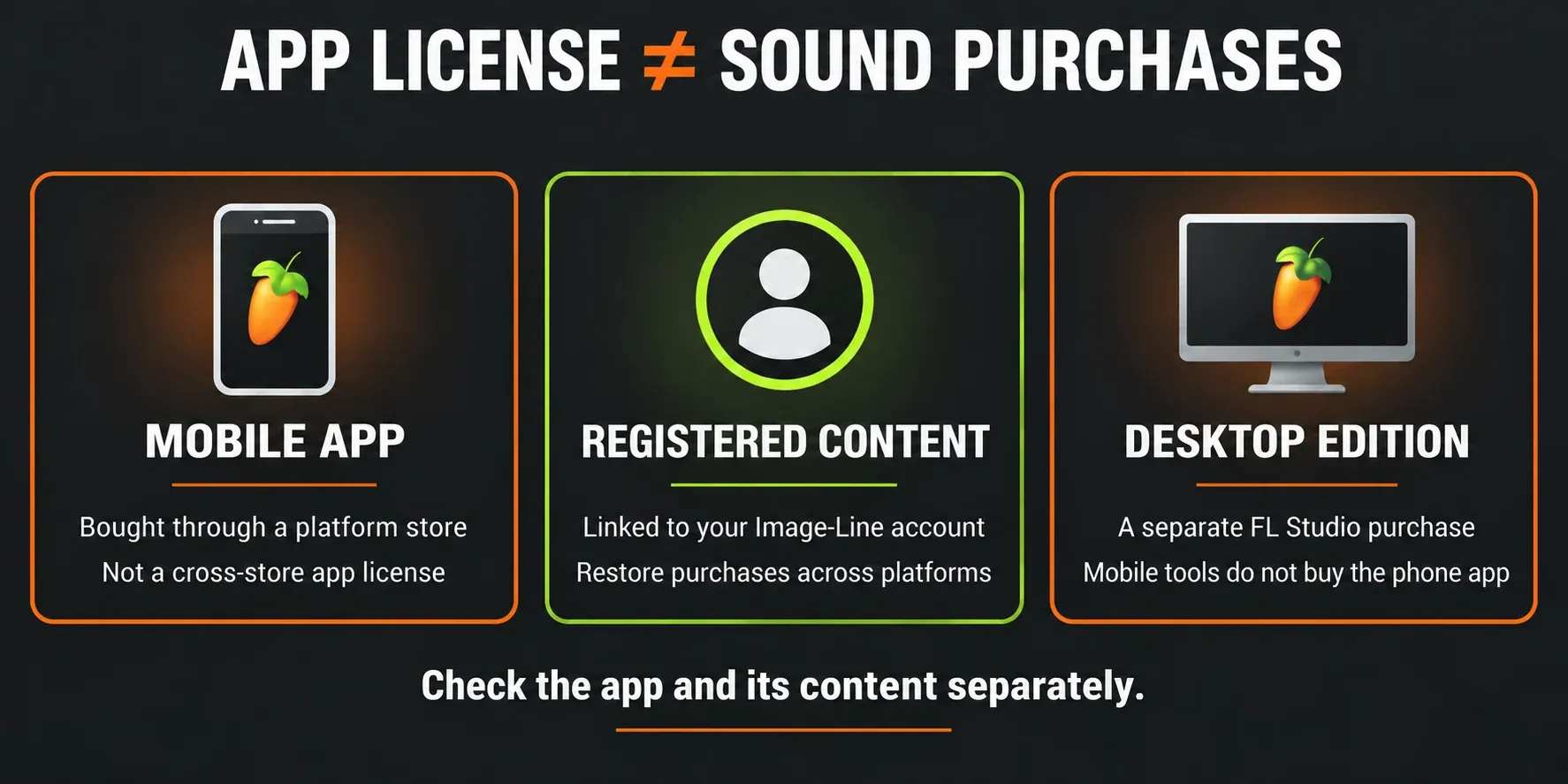
Budget for two products, not one universal license
Budget for the Mobile app and a Desktop edition separately. A Mobile store purchase doesn’t unlock Desktop, and the Mobile tools included with Desktop don’t buy you the phone app. Image-Line’s cross-store licensing explanation says an app purchase can’t move between the Android, iOS and Windows stores. Just don’t stretch that rule to cover every purchased sound.
Additional content works differently. The current SHOP restoration instructions say to register both the app and its content to your Image-Line account, then use Home → Shop → Restore purchases. Registered content can be unlocked across platforms, so check the app license and its sound purchases separately. On Desktop, Mobile Rack supplies the Mobile instruments and effects, but whether the sample libraries are available still matters.
Store prices and regional taxes change, so compare the live checkout screens on the day you buy. If you’re really headed for Desktop, pick its edition by your recording and plugin needs and leave the Mobile price out of it. The Compare & Buy hub keeps those purchasing decisions separate from this platform comparison.
Use a two-stage workflow when both fit
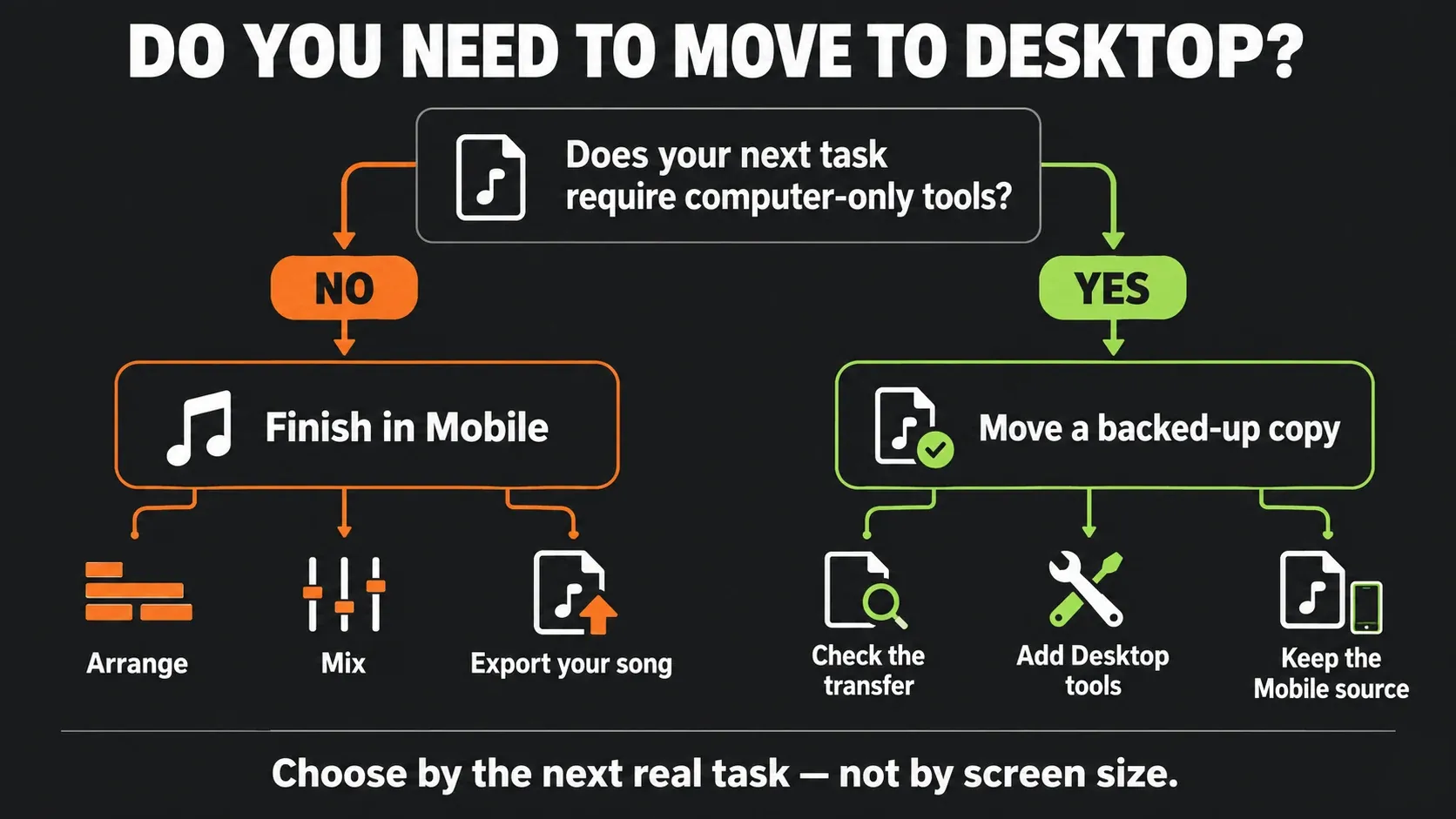
You can keep a song in Mobile right through its final export. If you do want computer-only tools, move a copy while there’s still time to compare the result. I'd use an eight-bar sketch as the transfer test before you commit a whole arrangement. That’s a starting point, not a limit on track length.
If you only want one environment, I’d pick whichever handles your hardest recurring task. A musician who travels with a tablet and lives in the included rack can reasonably stay in Mobile. A producer whose songs depend on third-party plugins and detailed vocal editing should start on Desktop. For device-specific decisions, head to the Platforms hub next; the Start Here hub carries on into the first complete Desktop project.
FL Studio Mobile vs Desktop FAQ
Is FL Studio Mobile the same as FL Studio Desktop?
No. Mobile is a touch-first music production app with its own FLM project environment, instruments, effects and store distribution. Desktop is the Windows/macOS DAW with edition-dependent tools and broad plugin hosting. They can exchange projects, yet they remain two different products.
Can FL Studio Mobile make a full song?
Yes. Mobile supports sequencing, audio recording, automation, mixing and exports including FLP, WAV, MP3, AAC, FLAC and MIDI. Whether it should be your finishing environment depends on the project’s recording, plugin, routing and delivery needs.
Can FL Studio Mobile use VST plugins?
No. The Mobile app does not host VST/VST3, AU or CLAP plugins the way Desktop does. Its own rack and the documented iOS inter-app connections work differently. Use Desktop for any project that requires computer plugins.
Can I open an FL Studio Mobile project on Desktop?
Yes: export FLP to use the project with Desktop Mobile Rack, or load native FLM inside the whole FL Studio Mobile plugin. These are different routes. Keep backups and compare the result with a rendered reference.
Can a Desktop FLP go back to FL Studio Mobile?
An expanded Desktop FLP is not a Mobile project you can simply send back. The whole Mobile plugin can share its own FLM work with the app, but Desktop-only additions stay outside that Mobile project. Move individual parts deliberately as audio or MIDI.
Does buying FL Studio Desktop include the Mobile app?
No. Desktop’s included Mobile tools do not include a purchase of the separate store app. Registered Mobile sound content can be restored across platforms through the Image-Line account; this does not transfer the app license.
Is FL Studio Mobile good for recording vocals?
It can record vocals and includes pitch tools, but the real result depends on the device, microphone or interface, monitoring, storage and alignment. Test the complete chain on headphones before you rely on it for a long or deadline-sensitive session.
Should a beginner start with Mobile or Desktop?
Start with Mobile when a phone, tablet or Chromebook is the device you will actually use. Start with Desktop when you have a suitable Windows/Mac computer and expect third-party plugins, detailed recording or larger mixes. Choose for your next real project and forget abstract ideas of what looks professional.
Choose the environment that handles your next real session, and keep a separate source copy if you move the project. For device-specific choices, continue with Platforms & Mobile.