FL Studio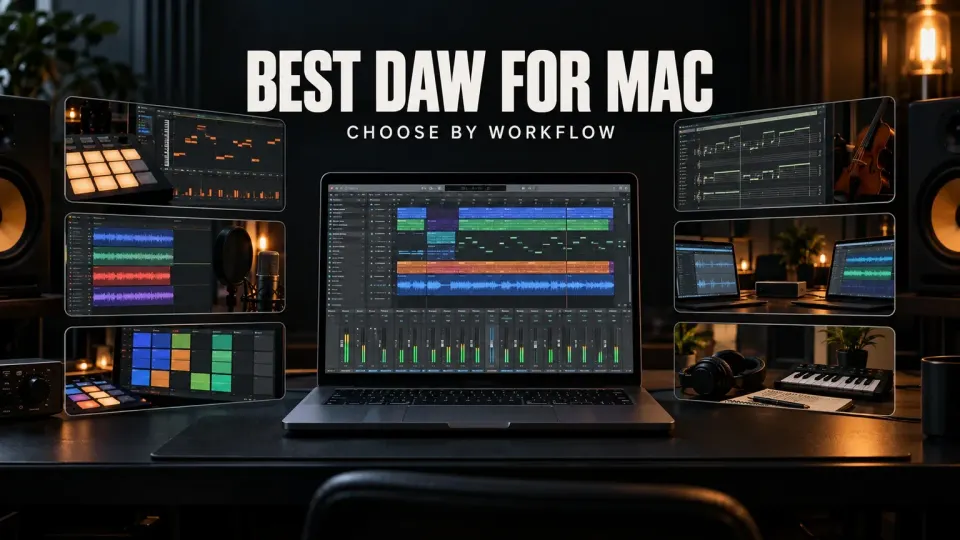
Logic Pro is the best all-round DAW for most people buying a current Apple silicon Mac. FL Studio is the better choice for pattern-based beatmaking and anyone who moves projects between Mac and Windows. Ableton Live is strongest when Session View and performance matter. REAPER is the value pick and the first DAW I would investigate for an older Intel Mac.
That shortlist is only useful after one compatibility check. The “best” DAW can still be the wrong purchase if your macOS version is unsupported, an essential plugin is Intel-only, or your audio interface driver stops at an older operating system. Check the Mac first, then choose the workflow.
Best DAW for Mac: the quick verdict
| DAW | Best for | Mac fit | Main caution |
|---|---|---|---|
| Logic Pro | Best overall on a current Mac | Deep Apple integration and Apple silicon focus | Mac-only; current version needs a recent macOS release |
| FL Studio | Beats, Piano Roll, patterns and Mac/Windows work | Intel and Apple silicon; one license covers Mac and Windows | Its pattern, Playlist and Mixer relationships take time to organize |
| Ableton Live | Electronic production, clip launching and performance | Current Intel and Apple silicon support | Edition cost and third-party plugin architecture need checking |
| REAPER | Value, customization, recording and older Macs | Exceptional documented macOS range with Intel and ARM builds | Requires more personal setup and does not provide the same bundled instrument world |
| Pro Tools | Commercial studios, detailed editing and native session exchange | Native Apple silicon with a documented Rosetta path for legacy needs | AAX compatibility and plan choice can define the real cost |
| Cubase | MIDI composition and structured linear production | Native Apple silicon in current versions | Legacy VST2 projects may require Rosetta and extra planning |
| GarageBand | Free first DAW on a supported current Mac | Simple Apple-native starting point | Current version requires Apple silicon and recent macOS |
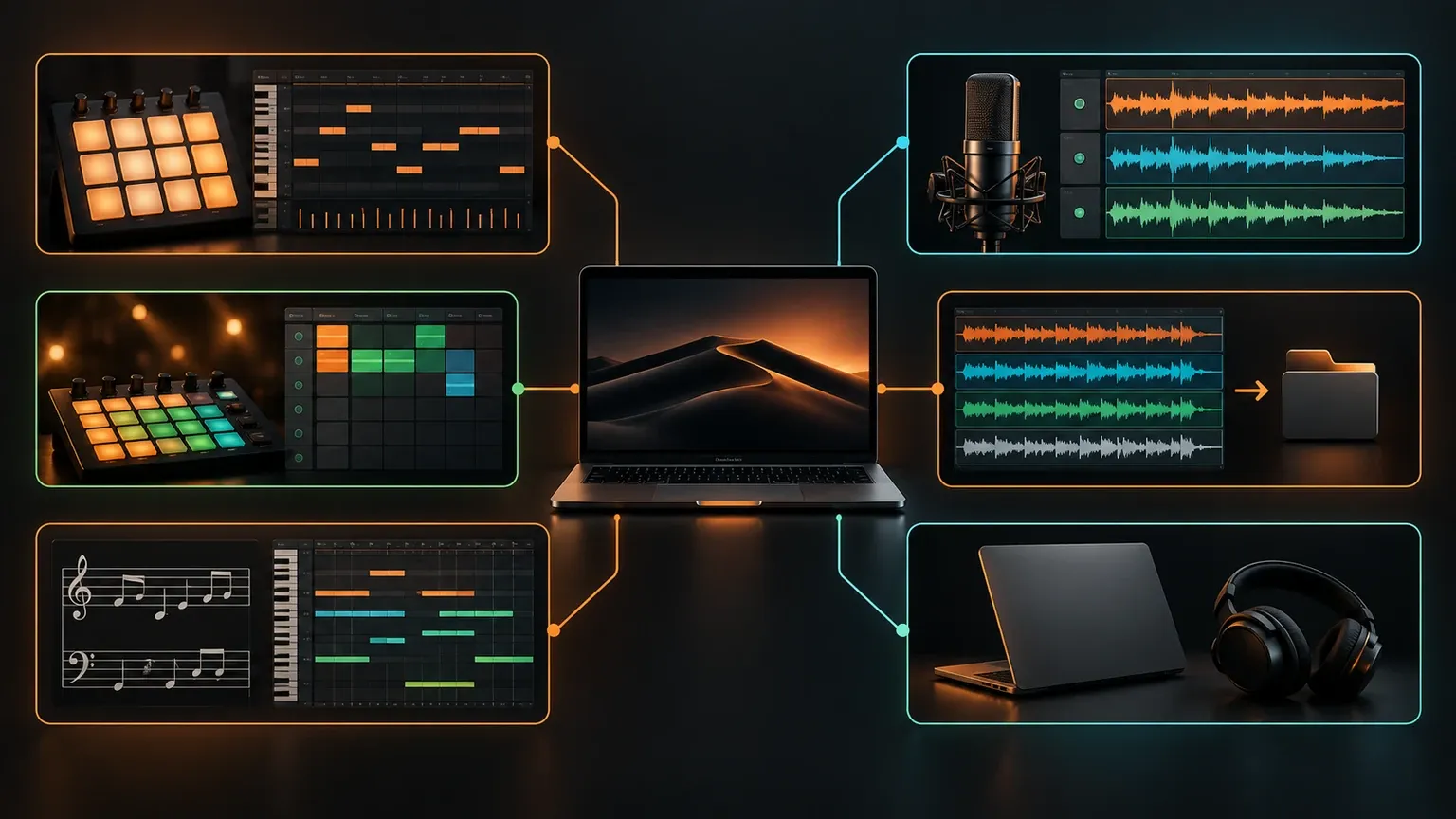
I would not pick from price or feature count alone. A ninety-minute trial with the same interface, plugins and source files will reveal more than a chart with two hundred rows. The rest of this guide narrows that trial to DAWs that fit the machine and the work.
Check your Mac before you compare DAWs
Open Apple menu → About This Mac and record the processor or chip, macOS version, memory and free storage. If the window says Apple M-series, you have Apple silicon. If it names an Intel processor, you have an Intel Mac. That one detail changes which current versions and legacy plugins are realistic.
Then list the software and hardware that must survive the move: virtual instruments, effects, sample libraries, controller software, interface drivers and old sessions. A DAW can launch natively while one required plugin forces a Rosetta workflow or blocks the project entirely. Our Apple silicon plugin guide explains that distinction for FL Studio, but the same architecture problem affects every host.
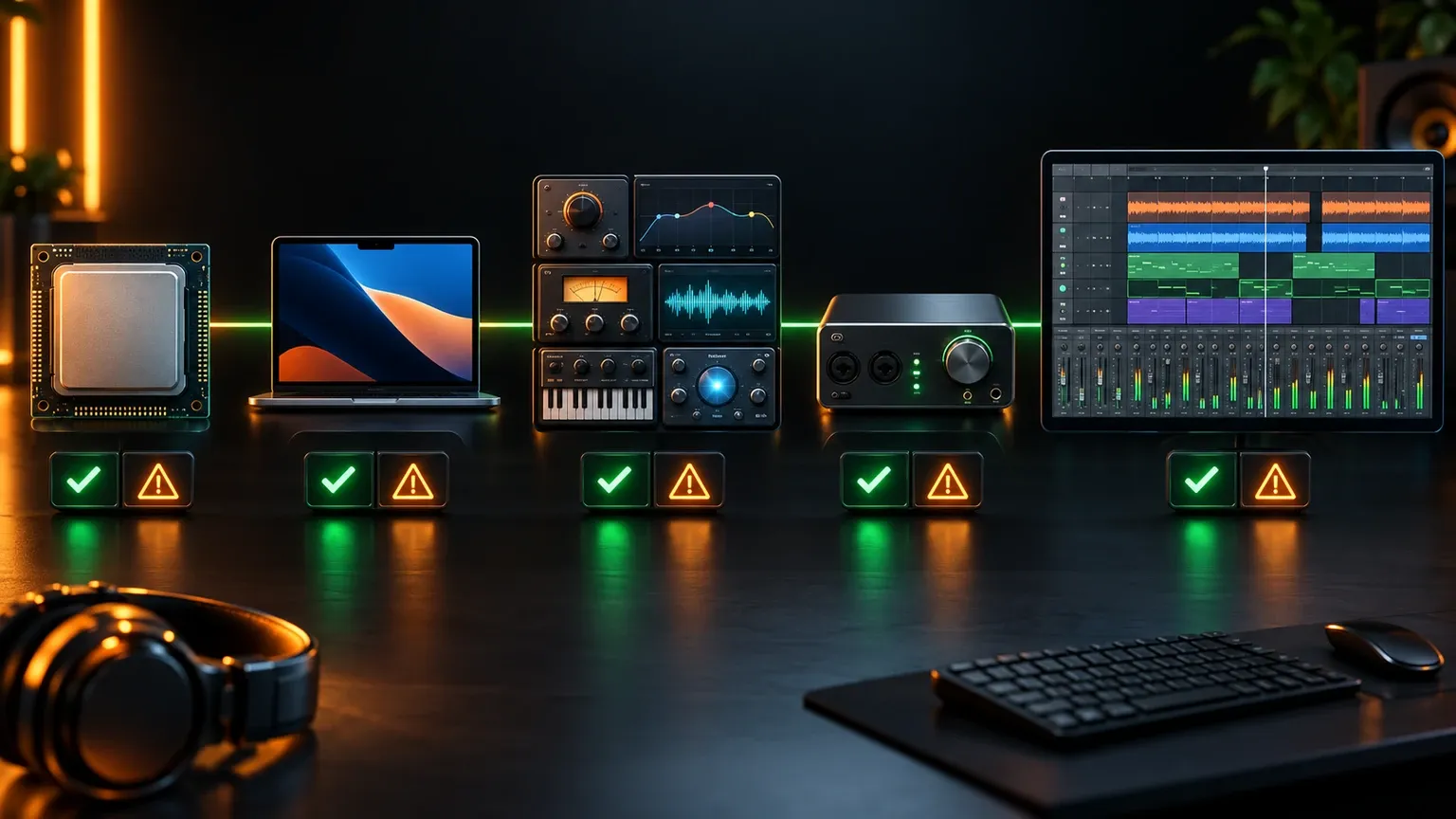
Use this five-part gate:
- Processor: Apple silicon or Intel.
- Operating system: the exact macOS version, not merely “a recent Mac.”
- Plugins: required format and architecture for every essential instrument and effect.
- Hardware: current drivers or class-compliant support for the audio interface, controller and any DSP system.
- Projects: a plan for sessions that depend on discontinued plugins or a different DAW.
Do not update macOS on a production machine simply because the update is available. Ableton’s Mac compatibility guide tells users to verify Live, processor, plugins, third-party software, hardware and drivers first. Steinberg gives the same practical warning on its macOS Tahoe compatibility page.
Logic Pro is the best overall choice for a current Apple silicon Mac
Logic Pro is the default recommendation when the buyer owns a supported modern Mac, expects to stay on macOS and wants one environment for songwriting, recording, MIDI, editing and mixing. It is designed around Apple hardware, includes a large instrument and effect collection, and removes the cross-platform compromises that a Windows-compatible DAW must preserve.
Apple’s current Logic Pro page lists Apple silicon and macOS 15.6 or later, with a $199.99 US standalone purchase. Logic is also part of Apple Creator Studio, currently listed at $12.99 per month or $129 per year in the US. Check the current App Store and regional terms before paying because requirements and prices can move.
The weakness is the same integration that makes Logic attractive: it is Mac-only. If a collaborator works on Windows, the exchange usually becomes audio stems and MIDI instead of a shared native Logic project. Old Macs can also fall outside the current macOS requirement long before the hardware becomes useless for audio.
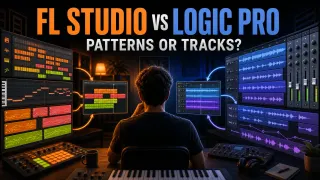
Choose Logic when the Mac is current, the collaborators are Mac-based or accept stem exchange, and you want a broad production system without assembling the core instrument library yourself. Read our FL Studio vs Logic Pro comparison if those are your final two options.
FL Studio is best for patterns, Piano Roll work and Mac/Windows continuity
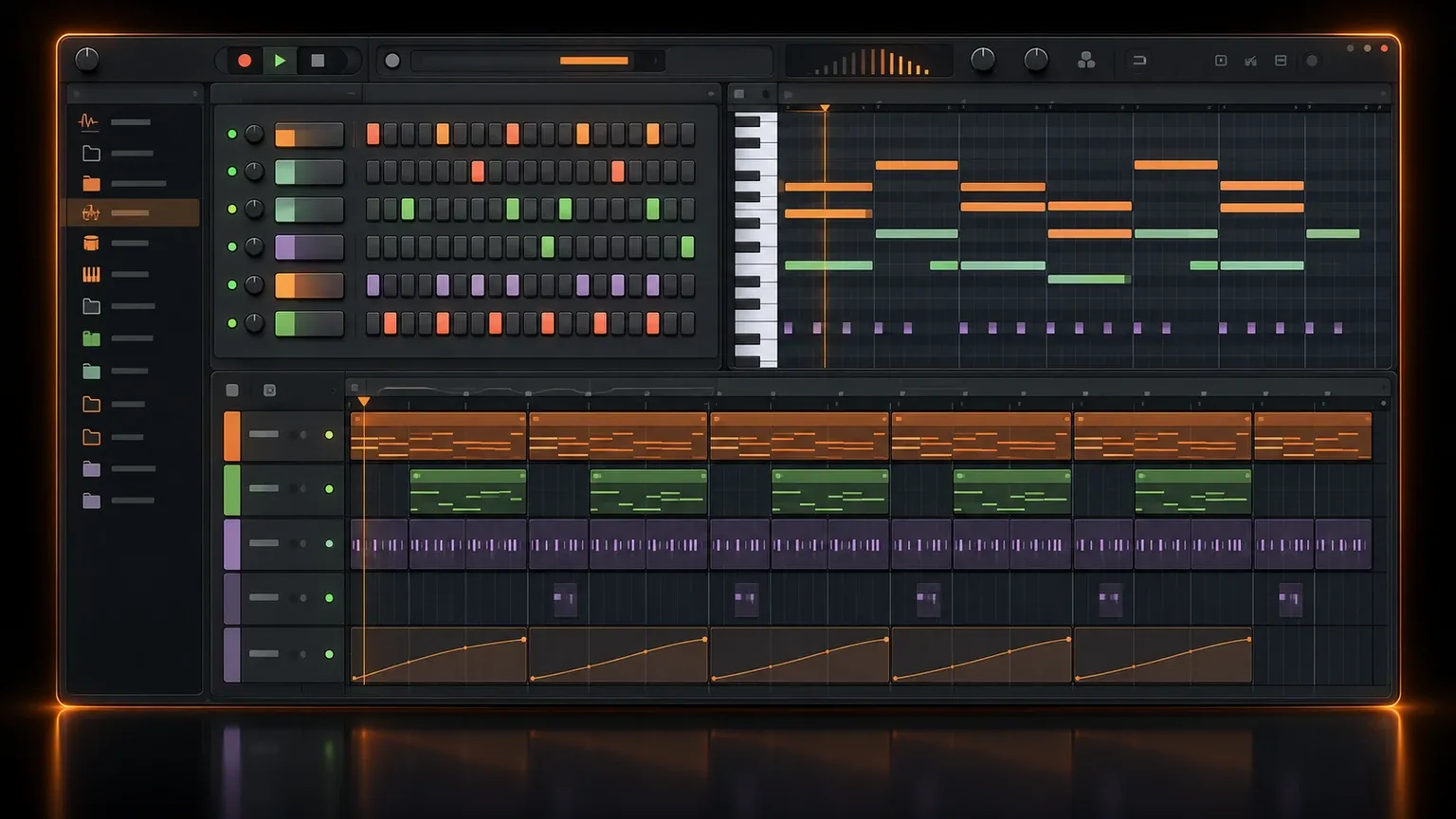
FL Studio makes the strongest case when music begins with drum steps, short MIDI ideas, samples and repeated patterns. The Channel Rack, Piano Roll and Playlist turn a small musical idea into an arrangement quickly. That workflow suits beatmakers and electronic producers who think in reusable sections before they think in recorded tracks.
Image-Line’s current download requirements support macOS 10.15.7 or newer on Intel and Apple silicon. The edition comparison lists VST2, VST3, Audio Unit and CLAP support on macOS. One FL Studio license covers Mac and Windows, and Lifetime Free Updates apply to the edition you own.
That cross-platform license does not make every project automatically portable. An Audio Unit used on Mac will not load on Windows. If the same plugin exists as VST3 on both systems, that format usually gives the handoff a better chance, but version, preset and sample-library differences can still break it.
FL Studio also has a fully functional trial that does not expire, although saved trial projects cannot be reopened until the program is purchased. That is enough to evaluate the workflow before choosing an edition. Our FL Studio system requirements guide covers the difference between the published minimum and a practical production setup, and the installation guide handles the Mac setup.
Ableton Live is best for Session View and performance
Ableton Live earns its place when clips, loops, improvisation and performance are central rather than occasional. Session View lets musical ideas run as clips before they become a fixed timeline, while Arrangement View handles the finished song. That two-view relationship is a stronger reason to buy Live than a generic claim that it is good for electronic music.
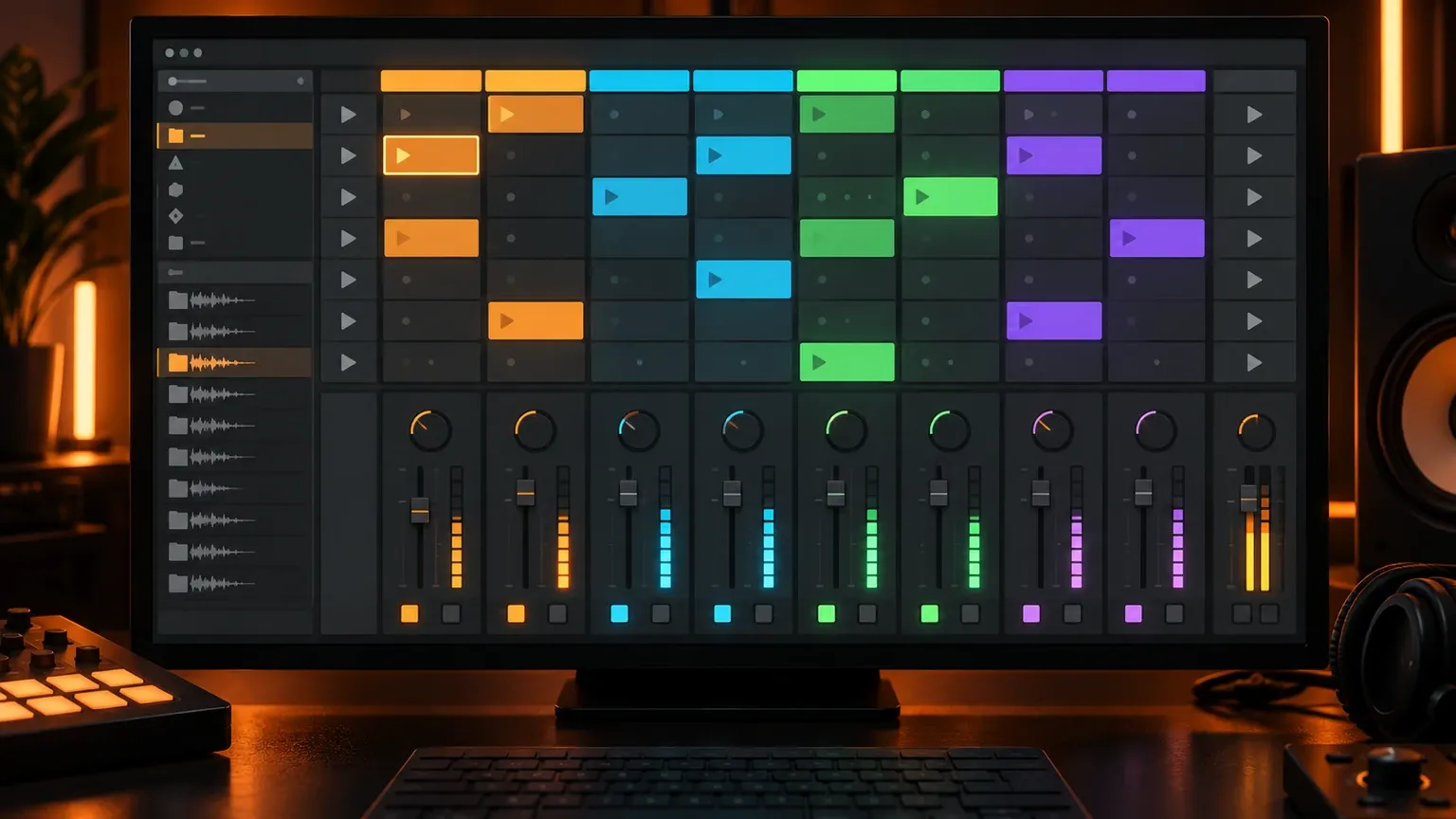
Ableton’s current Mac guidance covers both Intel and Apple silicon, with supported macOS versions depending on the exact Live release. Its macOS plugin documentation lists AU, VST2 and VST3. Ableton recommends VST rather than AU when a project must move between Mac and Windows, provided both computers own the same plugin version.
Choose Live when the clip grid changes how you write, when a set will be performed from the DAW, or when audio warping and fast resampling are repeated parts of the job. If you only arrange linearly and never launch scenes, another DAW may deliver the needed tools for less money. Our Ableton vs FL Studio comparison goes deeper into that workflow choice.
REAPER is the best value and the first option to check for an older Mac
REAPER is difficult to beat on license cost, download size, customization and documented operating-system reach. Cockos currently offers a $60 discounted license for eligible users, a $225 commercial license and a fully functional 60-day evaluation. The REAPER download page lists support from macOS 10.5 through macOS 26, with Universal, Intel and ARM64 builds.
That does not mean every plugin or interface on a 2008 Mac will work. It means the DAW itself gives an old machine a credible route that current Apple apps may not. The complete system still depends on compatible plugins, drivers and storage performance.
REAPER is especially strong for recording, editing, routing and users willing to build their own environment. The tradeoff is that it does not arrive as the same curated production world as Logic, FL Studio or Ableton Live. A new producer may need to add instruments, sounds, templates and shortcuts before it feels personal.
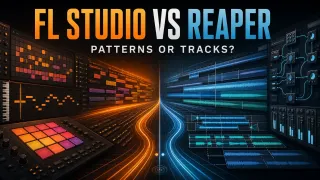
Choose REAPER when budget matters, when an Intel Mac cannot run the current version of a larger competitor, or when deep routing and customization are benefits rather than chores. Our FL Studio vs REAPER guide compares its linear recording model with FL Studio’s pattern workflow.
Pro Tools is best when studio session exchange is a requirement
Pro Tools is the practical choice when clients or facilities expect a native Pro Tools session, not merely final WAV files. Its strengths are dense audio editing, take management, recording workflows and compatibility with studios that already organize projects around Pro Tools.
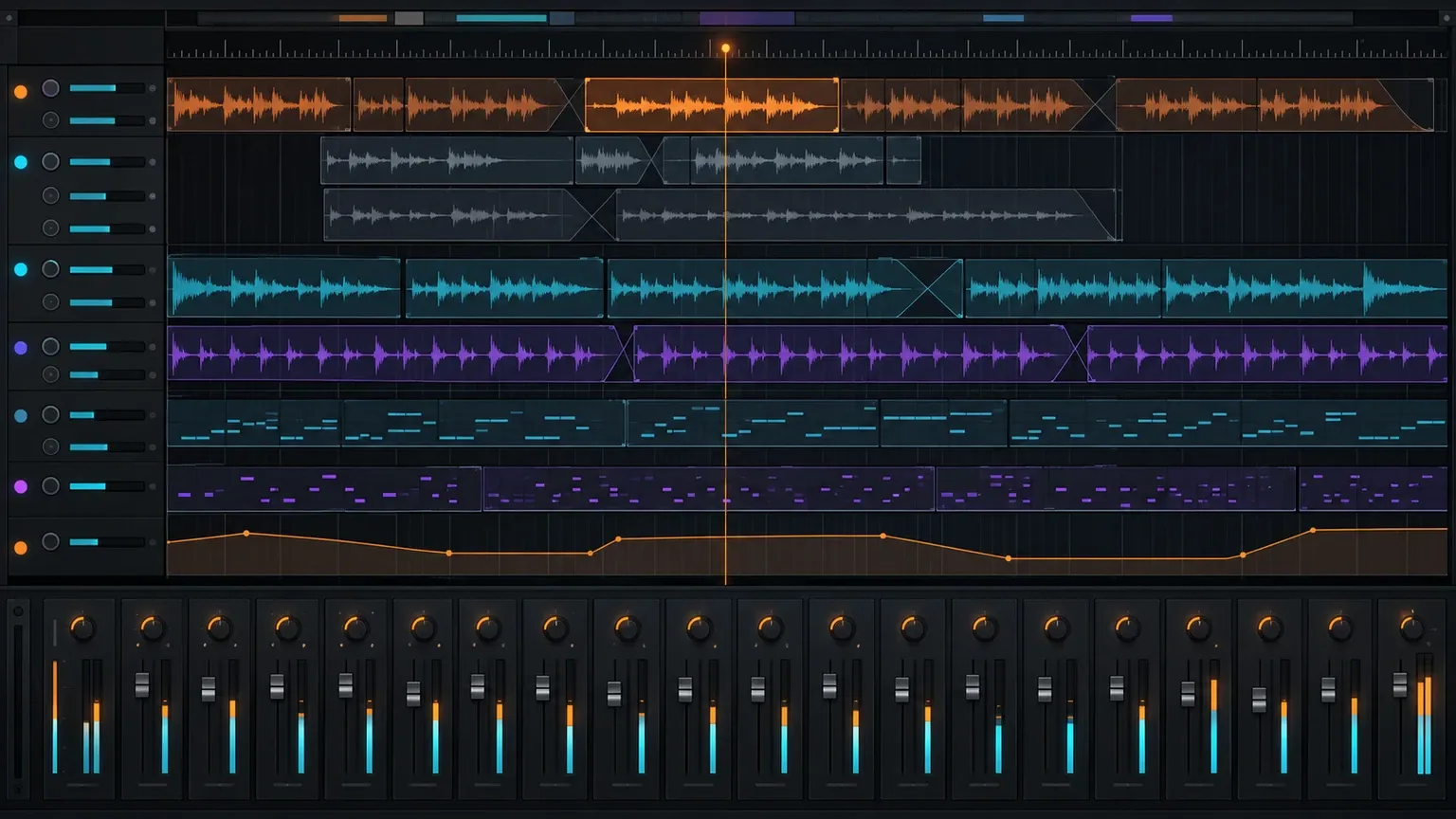
Avid offers Intro, Artist, Studio and Ultimate tiers on its current Pro Tools page. Pro Tools uses 64-bit AAX plugins. Avid documents native Apple silicon support and a Rosetta launch path when older dependencies still require it. The exact Pro Tools release, macOS version, audio hardware and every required AAX plugin need to agree.
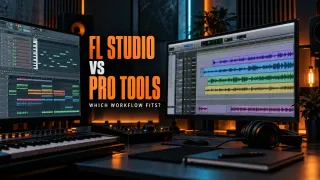
Do not choose Pro Tools because “professional” sounds safer. Choose it when the people receiving or sending the session require it, or when repeated comping and waveform edits are the core job. A solo beatmaker who only delivers stereo mixes does not receive the same value. Our FL Studio vs Pro Tools comparison covers the workflow and stem handoff in detail.
Cubase is a strong choice for MIDI composition and a structured timeline
Cubase combines deep MIDI tools with a conventional track-based arrangement. It suits composers, keyboard-led producers and users who want detailed note work without giving up the visual discipline of a linear recording session.
The compatibility question matters more than the headline feature set. Steinberg’s Apple silicon guidance says native Cubase supports VST3 plugins that are Apple-silicon native or Universal. VST2 plugins require Rosetta, and Cubase 14 and later no longer enable VST2 by default.
Choose Cubase when MIDI editing, composition and a track-centered arrangement all carry real weight. Before moving an old library, inventory every VST2-only instrument and effect. A DAW upgrade is cheap compared with discovering that the sound at the center of an unfinished project no longer opens.
GarageBand is the best free start on a supported modern Mac
GarageBand is the cleanest free recommendation for someone who owns a compatible current Mac and needs to learn recording, software instruments, loops and arrangement without buying a DAW first. It also creates a sensible path to Logic Pro.
The current Mac App Store listing is free but requires Apple silicon and macOS 15.6 or later. That removes GarageBand from many older-Mac recommendations even though older versions once ran there.
Apple documents that a GarageBand project can open in Logic Pro, but a project saved in Logic cannot reopen in GarageBand. Treat the move as one-way once Logic-specific changes are saved. Choose GarageBand for a free start, not as a promise that every future session will remain interchangeable.
Apple silicon is the easy part; old plugins are the hard part
Current DAWs generally support Apple silicon well. The risk lives in the dependency chain: one discontinued effect, an Intel-only instrument, an old sample-library manager or an interface control panel can decide whether a project opens correctly.
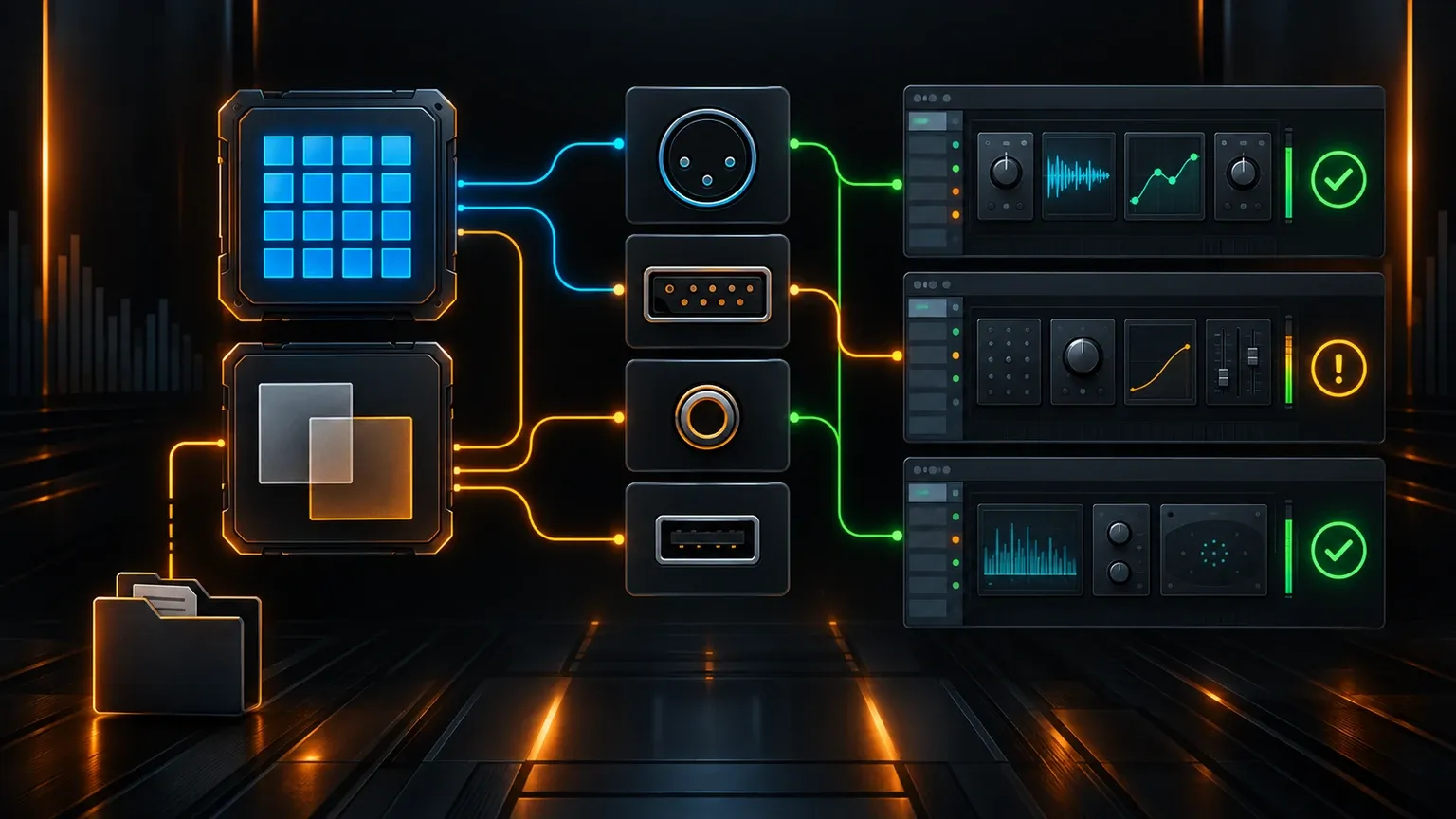
Plugin formats are host-specific:
- Logic Pro and GarageBand: Audio Units.
- FL Studio on Mac: AU, VST2, VST3 and CLAP.
- Ableton Live on Mac: AU, VST2 and VST3.
- REAPER on Mac: AU, VST, VST3, CLAP and its own JSFX system.
- Pro Tools: AAX.
- Cubase: VST3 for the clean native Apple silicon route; legacy VST2 needs special handling.
Rosetta can keep some Intel-era software alive, but it should be a deliberate bridge rather than an invisible dependency. Document which sessions need it. Print irreplaceable instruments to audio. Save plugin presets separately. Keep the old Mac or a complete bootable backup until the important archive has been checked.
Your audio interface can overrule the DAW choice
A DAW that supports macOS 26 does not make an abandoned interface driver support macOS 26. Check the manufacturer’s exact model page, because a product family may contain several hardware revisions with different support dates.
For class-compliant USB devices, confirm whether every input, output, routing feature and control-panel function works without a vendor driver. For DSP systems, verify the hardware, driver, plugin format and DAW version as one set. A native DAW cannot load an unavailable DSP plugin or communicate through a broken control panel.
If the interface is essential and the vendor stops at an older macOS release, keeping that stable operating system may be the correct production decision. Security and internet exposure still matter, so an old studio Mac should have a clear maintenance role rather than drifting into unsupported everyday use.
How to move old projects to a new Mac or DAW
Migration should preserve sound first and editability second. Native project files are convenient, but consolidated audio is the durable record when formats, licenses and processors change.
- Inventory the archive. List DAW versions, plugin formats, sample libraries, external drives and interface drivers.
- Open priority sessions on the old system. Do this before disconnecting licenses or updating anything.
- Collect the media. Copy or consolidate every referenced audio file and document the sample rate and tempo.
- Print fragile instruments and effects. Keep dry and processed audio when the sound may need later revision.
- Export MIDI and presets. MIDI preserves notes; presets preserve some sound-design intent when the instrument survives.
- Move licenses deliberately. Deactivate only after the source project and exported safety files have been checked.
- Verify the new system in a copy. Keep the original project untouched until the migrated version passes an audible comparison.
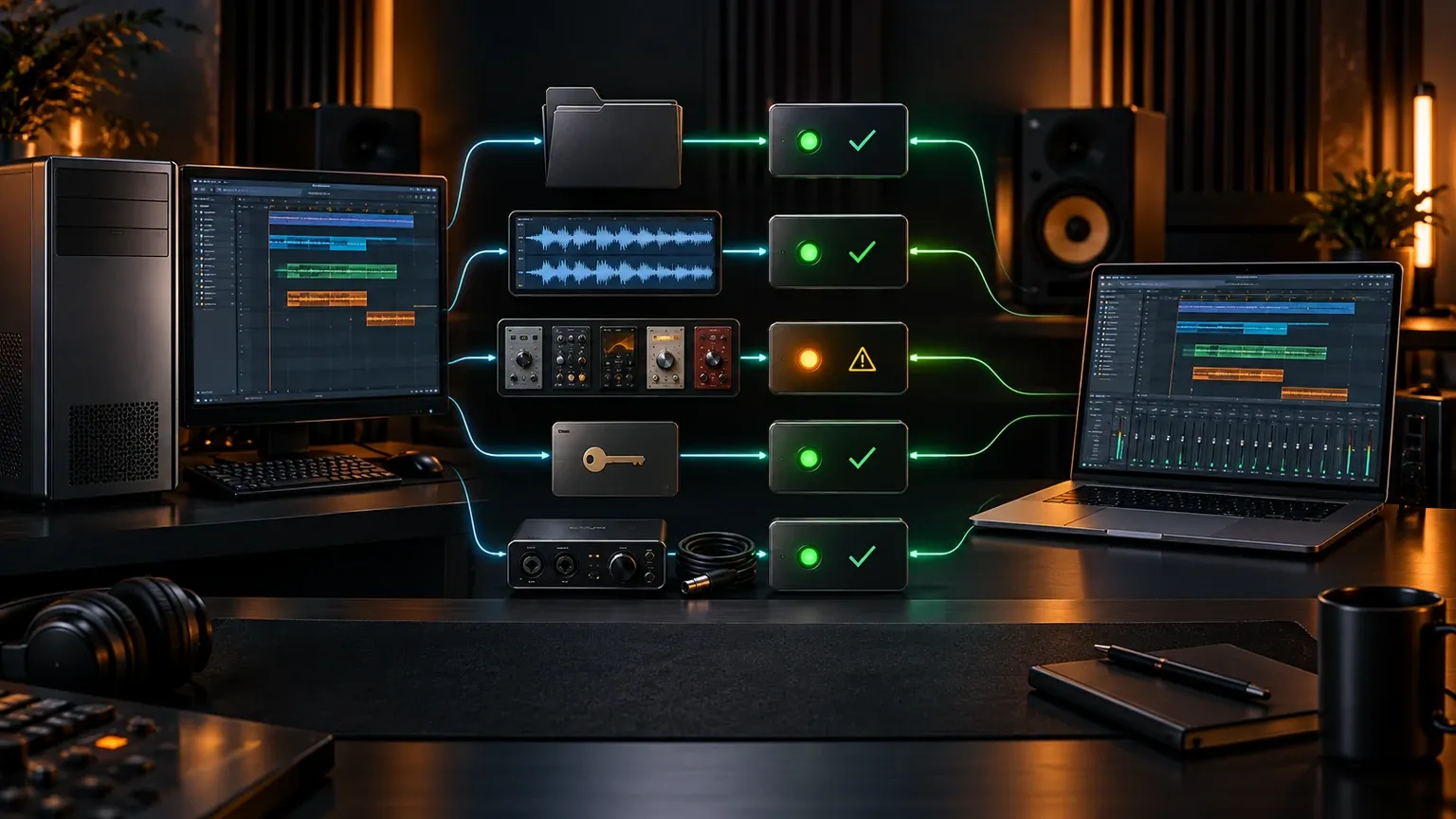
When changing DAWs, assume the native project will not transfer. Exchange aligned audio stems, MIDI, tempo and meter information, markers, a rough mix and notes about printed effects. The receiving session can then reproduce the musical structure without pretending two DAW formats are equivalent.
Run one trial project before you buy
Use the same files and hardware in every candidate. Spend sixty to ninety minutes, not ten. Create an eight-bar idea, record two audio takes, edit one phrase, automate a transition, add a send effect, duplicate a song section and export a mix plus separated files.
Then reopen the project and score what can be observed:
- How many setup and routing decisions appeared before making music?
- Could you see where the sound, take, automation and output were owned?
- Did the second arrangement revision remain understandable?
- Could the export package open in a blank session with the correct timing?
- Did every required plugin and interface feature work in the intended native or Rosetta mode?
Do not score the DAW by visual novelty or a feature you did not use. The best choice removes friction from the task that already consumes your time.
What I would choose
For a new Apple silicon Mac with no cross-platform requirement, I would start with Logic Pro. It offers the broadest complete Mac-centered environment at a straightforward standalone price.
For beats, detailed MIDI and projects that may move between Mac and Windows, I would choose FL Studio and standardize third-party plugins around cross-platform formats. For clip-based writing or performance, I would choose Ableton Live. For an older Mac, a tight budget or a highly customized recording system, I would begin with REAPER.
I would choose Pro Tools only when studio session exchange or editing-heavy recording work makes it necessary. I would choose Cubase when MIDI composition and a conventional timeline both matter. I would use GarageBand when the goal is to begin free on a supported modern Mac and move to Logic later.
The final purchase should survive all five gates: processor, macOS, plugins, interface and projects. If it fails one of them, the product at the top of a roundup is not the best DAW for your Mac.