FL Studio
Yes, FL Studio runs natively on a Mac, on both Intel and Apple Silicon models, from the same official installer and with the same free trial as the Windows version. One license covers both systems. The minimum is macOS 10.15.7 with 4 GB of RAM, and Image-Line’s recommended setup is macOS 13 or newer on an Apple Silicon Mac with 8–16 GB of RAM and an SSD.
Speed isn’t the problem on a current Mac: the native build uses less than half the CPU of the old Rosetta build in the one published comparison below. What you’ll notice is that FL still behaves like a Windows program. Menus sit inside its window, F-key shortcuts fight macOS for the top row, audio goes through Core Audio and Intel-only plugins run through a bridge. I’d happily make FL Studio the main DAW on an M-series Mac if its Channel Rack and Piano roll are why you want it. If you’d rather have an app that follows every Mac habit, try Logic Pro first.
How well does FL Studio run on a Mac?
The clearest number comes from Morningdew Media’s M1 MacBook Pro test. FL Studio’s demo song “Right Night Feeling” used about 55% of the CPU in FL Studio 20.8.3, which ran through Rosetta 2 translation, and about 23% in the native 20.8.4 build. That’s one machine, one project and one published measurement, so read it as the size of the native gain rather than a figure for your own Mac.
| Test result | Conditions | Outcome |
|---|---|---|
| Native vs Rosetta CPU load | M1 MacBook Pro, demo song “Right Night Feeling”, FL 20.8.3 under Rosetta 2 vs native FL 20.8.4 | About 55% CPU vs about 23% |
| Mac vs Windows feel | Long-form user report on the Image-Line forum | Performance “give-or-take the same” as a comparable Windows system |
| Cost of an Intel plugin in Apple Silicon mode | Image-Line optimization guidance for bridged plugins | About 2% extra CPU per bridged plugin |
The other evidence points the same way. A detailed Image-Line forum post on FL Studio and macOS rates performance on macOS as “give-or-take the same as it would be on a comparable Windows system” and puts its complaints where they belong: how well FL keeps up with macOS conventions. Image-Line’s FL Studio 2026 What’s New page also lists an Apple Silicon change: macOS now uses the Audio Workgroups API, which reduces the risk of underruns when audio CPU usage suddenly jumps.
Stability reports are more mixed. The forum thread “How Is FL Studio on Mac STILL This Broken?” opens with four complaints: random crashes, more than ten a day by the poster’s count; projects stuck at “Opening: Fruity Wrapper”; crashes when inserting plugins, usually third-party ones; and shortcuts that stop working after a Browser search. Image-Line staff replied by asking which FL Studio version the poster used. Two of those four problems involve plugins and their wrapper, which is why I’d check plugins first on any Mac where FL misbehaves.
My verdict: on an Apple Silicon Mac with native plugins, FL Studio is a full production setup, not a compromise. Its weak spots are Intel-only plugins and an interface that ignores some Mac conventions. Plan for both and the Windows version has no real advantage over it.
Who should pick FL Studio on a Mac?
Pick FL Studio if you want its pattern workflow and Piano roll, if you share projects with Windows users, or if you already own a license. Your license already works on the Mac, and paid editions include Lifetime Free Updates, so moving systems costs nothing.
Look at another DAW first if Mac-style menus and shortcuts matter more to you than FL’s workflow. Our best DAW for Mac comparison covers the main options, and FL Studio vs Logic Pro goes through the trade-off in detail. You don’t have to choose all or nothing: FL Studio also loads as a plugin, as a VST in Windows and macOS hosts or as an AU in macOS hosts.
Intel Macs are still supported. Even so, if you’re buying a Mac for FL Studio, I’d buy Apple Silicon. It’s Image-Line’s recommended platform, and the Rosetta 2 layer that runs Intel software on M-series Macs has an end date, covered in the plugin section below. Our FL Studio system requirements page helps size RAM and storage.
What’s different from FL Studio on Windows?
The project files, plugins and features are the same. The differences sit at the edges, where FL meets macOS.
Keys: Cmd for Ctrl, and Fn for the F-keys
Image-Line’s shortcut list maps the Windows keys like this: Ctrl becomes Command (Cmd), Alt becomes Option (Opt), Backspace is delete, Delete is fn+delete and Insert is fn+return. So Ctrl+S on Windows is Cmd+S on a Mac. The window shortcuts stay on the function keys: F5 toggles the Playlist, F7 the Piano roll and F9 the Mixer.
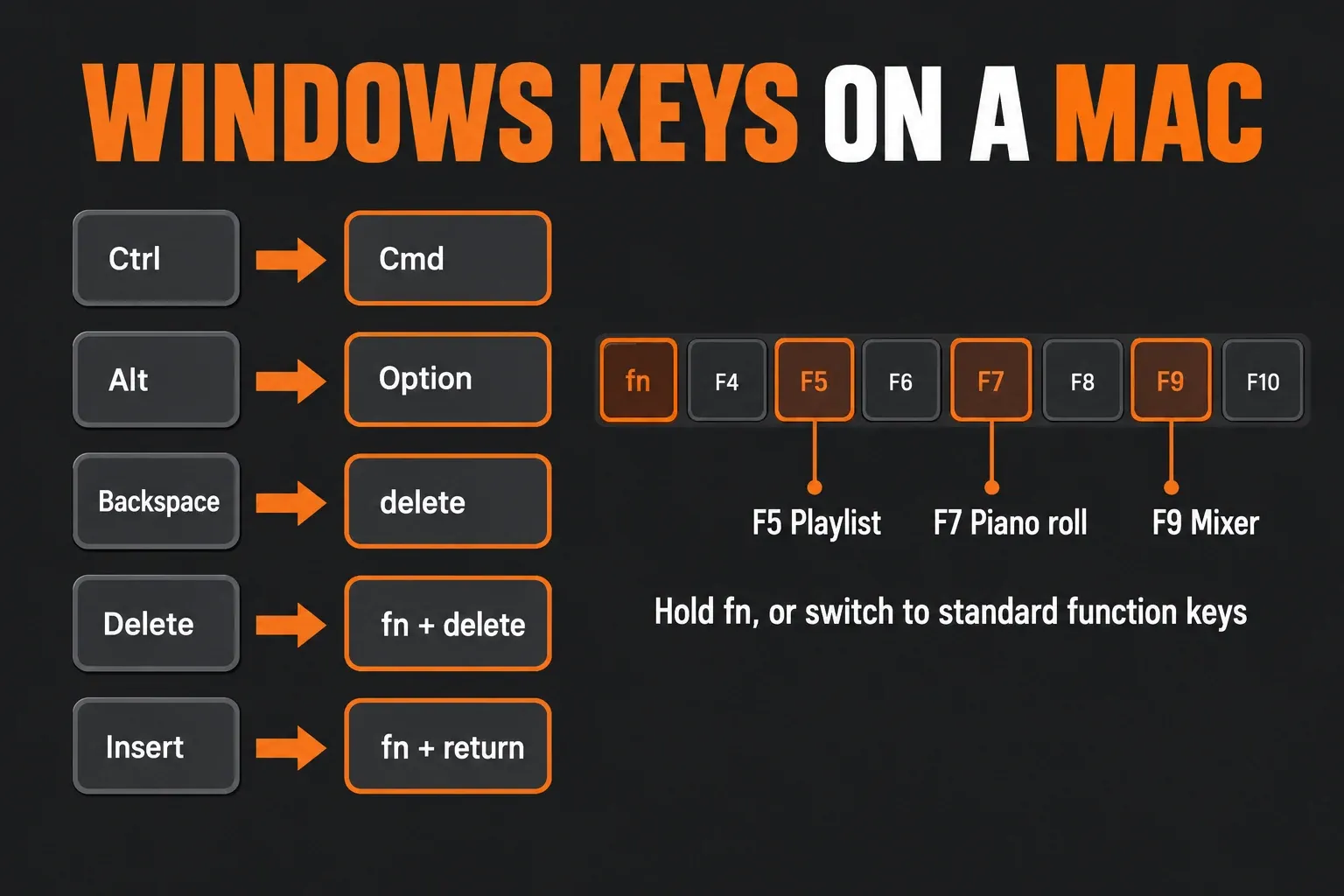
That’s where the friction starts. Mac keyboards use the top row for brightness, volume, Mission Control and similar features by default, so F5 won’t reach FL unless you hold Fn (Globe). The forum post above describes pressing F5 for the Playlist and triggering Siri instead, or pressing F10 and muting the Mac’s entire audio output. I’d switch the row over before the first session: on macOS Ventura or later, open Apple menu > System Settings > Keyboard, click Keyboard Shortcuts, choose Function Keys and turn on “Use F1, F2, etc. keys as standard function keys”. Apple’s function-key guide covers older macOS versions.
Two habits won’t change. FL keeps its menus inside its own window rather than in the macOS menu bar, and the same post reports right-click menus opening on the wrong screen with several displays. Neither stops work. Our FL Studio shortcuts list has the full reference, and FL Studio on multiple monitors covers window layout across screens.
Audio: Core Audio, two device menus and a buffer that works backwards
There’s no driver to install on a Mac. Core Audio works out of the box, and you choose your interface in Options > Audio Settings. On macOS that page has separate input and output device menus, so you can record from one device and listen through another. For more than two devices, the Audio Settings manual page says to combine them as an aggregate device in macOS Audio MIDI Setup (in the Utilities folder) and select that device in FL.
The buffer advice is the opposite of what Windows users learn. For Apple Silicon, Image-Line lists 128, 192, 256, 512 and 1024 samples, with 128 as the starting point, because a short buffer keeps the performance cores active. Intel and AMD CPUs do better with longer buffers, and the same page suggests 10–20 ms (440 to 880 samples) for them. On an M-series Mac I’d start at 128 and step up to 192, then 256, only when you hear problems. Going straight to 1024 out of Windows habit can make things worse.
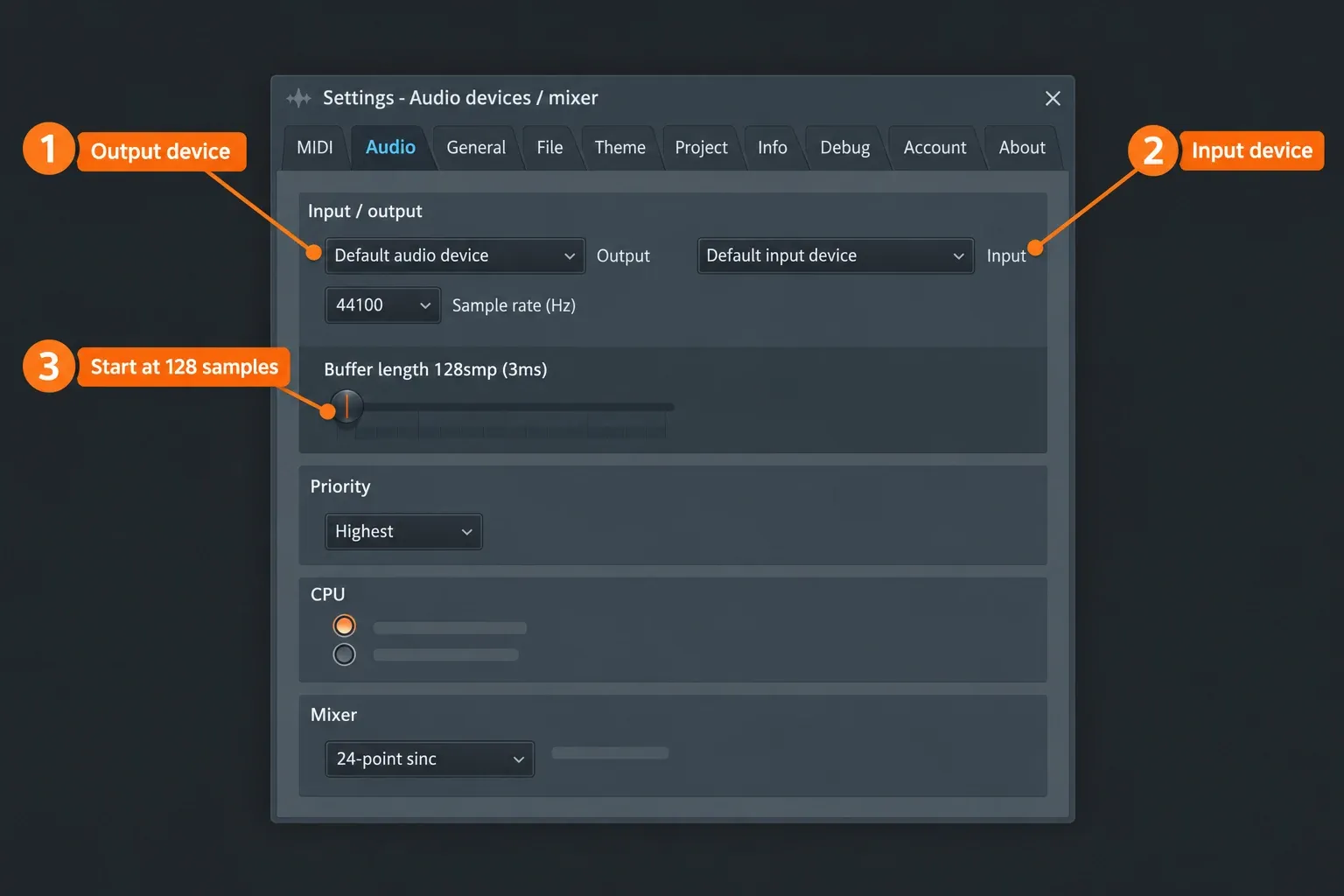
Image-Line’s performance optimization page adds a few Mac-specific fixes for crackles:
- Connect the interface straight to a USB port on the Mac, not through a hub.
- Keep the sample rate at 48 kHz or lower, and the same in FL and on the interface. A 192 kHz session needs more than four times the calculations of 44.1 kHz.
- Turn off Low Power Mode in System Settings > Battery (or Energy Saver on older macOS), and keep a laptop on its charger.
- If crackling during recording won’t go away, try aggregating even a single audio interface. Image-Line says this can fix otherwise unsolvable crackling.
If the noise survives those checks, our crackling audio fixes and audio settings guide take it from there.
Plugins: VST on both systems, AU only on Mac, and the Intel bridge
FL Studio on a Mac loads VST, VST3, CLAP and AU plugins. AU is a macOS-only format and doesn’t support MIDI output, and FL Studio 2026 lists AU plugins at the end of the More plugins list to encourage VST for compatibility. Install plugins with their own installers into the default folders under /Library/Audio/Plug-Ins, then run a scan. FL doesn’t look in custom locations unless you add them.
FL Studio runs natively on Apple Silicon since version 20.8.4, and on an M-series Mac it has two modes. In Apple Silicon mode, FL bridges Intel-only plugins automatically; bridged plugins use more CPU and can be less stable. In Rosetta mode, FL and every plugin run under macOS’s Intel emulation, so all plugins should work, but everything uses more CPU. The optimization page puts the bridge cost at about 2% per plugin: “a couple won’t matter but 10+ definitely will.” Help > About shows which mode you’re in.
I’d keep FL in Apple Silicon mode and replace Intel-only plugins with native versions instead of moving the whole setup into Rosetta. The Rosetta route has a deadline: according to Image-Line, Apple will drop Rosetta 2 support after macOS 27, with near-total removal in macOS 28 in 2027. After any mode switch, open Options > File Settings > Manage plugins and run Find installed plugins with Verify plugins. Our Apple Silicon plugin guide walks through switching modes and rescanning, and plugin not showing handles anything that still won’t appear. New to third-party plugins? Start with how to install plugins in FL Studio.
Permissions, iCloud and where your files live
macOS asks before FL can use the microphone or your Documents folder. If recording stays silent, open System Settings > Privacy & Security > Microphone and allow FL Studio. Image-Line’s Apple Silicon article adds a useful trick: if FL Studio isn’t in that list, start it once in Rosetta mode so macOS asks for permission, then switch back. Documents access sits under Privacy & Security > Files and Folders. Our microphone not working guide covers the rest of the recording checks.
Keep FL’s files off iCloud Drive. Image-Line’s cloud storage article links synced folders to crashes such as “Unable to open file”, plugin errors, duplicate plugin entries and missing recordings, and the File Settings manual says your user data must sit on a local drive. iCloud’s Desktop & Documents sync would put the default ~/Documents/Image-Line/FL Studio folder in the cloud, so turn it off: open System Settings, click your name, then iCloud > Drive (or iCloud Drive), and switch off Desktop & Documents Folders. Files that end up only in iCloud can be recovered at icloud.com. For backups that don’t interfere, see FL Cloud project backup.
Don’t store your own files inside the FL Studio app either. Updates replace the entire app, and Image-Line’s download page tells Mac users to keep projects in ~/Documents/Image-Line/FL Studio/ instead.
One plugin is missing on macOS: Speechsynth isn’t compatible, and FL shows a message if you try to load one of its presets.
Can you move projects and a license between Windows and Mac?
Yes. Image-Line’s licensing answer says a license works on both Windows and macOS, and you can install it on any computers you own as long as you’re the only user. Projects are identical across both platforms: copy the .flp or zipped .zip project to the other machine and open it as normal.
Three rules decide whether it opens cleanly:
- Version: a project from an older FL Studio opens in a newer one, never the other way round. Even a 20.1 project won’t open in 20.0, so update the older machine first.
- Edition: if the other machine has a lower edition, features from the higher edition behave as they do in Trial mode there.
- Plugins: install the same plugin format on both systems, either VST, VST3 or CLAP. AU plugins won’t load on Windows, and FL won’t find their VST versions automatically.
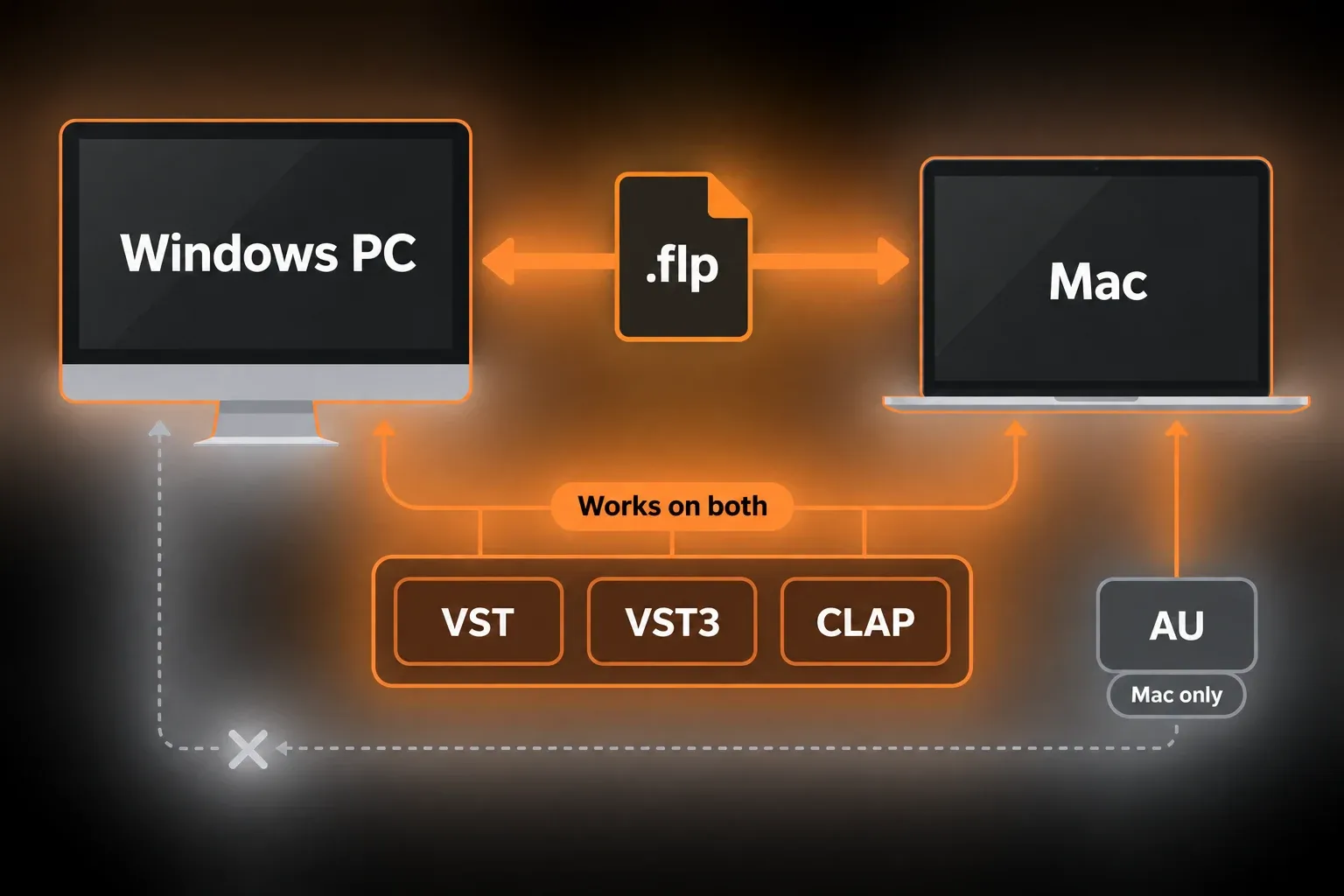
That last rule is the one that bites. If a Windows machine or collaborator is involved at all, I’d build every Mac project with the VST or VST3 version of each plugin from day one, since swapping formats later means rebuilding those channels. When you’re replacing the computer itself rather than sharing projects, moving FL Studio to a new computer covers the reinstall and plugin list.
Set up FL Studio on a Mac in this order
- Download the Mac installer from Image-Line’s download page, open the .dmg and drag FL Studio to Applications. If macOS blocks the first launch, go to System Settings > Privacy & Security and click Open Anyway. The FL Studio install guide has the full steps.
- If you own a license, sign in to your Image-Line account from FL’s Help menu. Without it, FL runs as the trial.
- Allow microphone and Documents access when macOS asks.
- Open Options > Audio Settings, pick your interface for input and output, and set the buffer to 128 samples on Apple Silicon.
- Check Help > About for Apple Silicon or Intel mode, then run Find installed plugins and Verify plugins in Options > File Settings > Manage plugins.
- Make sure ~/Documents/Image-Line isn’t synced to iCloud Drive.
- Turn off Low Power Mode and plug the laptop in for sessions.
- Switch the top row to standard function keys so F5, F7 and F9 reach FL.
If FL still runs heavy after that, FL Studio high CPU fixes is the next stop. If a setting goes badly wrong, resetting FL Studio’s settings puts it back to defaults without touching your projects.
Frequently asked questions
Is FL Studio free on Mac?
The trial is free on Mac, just as on Windows. It’s fully functional and never expires, but projects you save can’t be reopened until you buy a license. Our FL Studio editions comparison shows what each paid version adds.
Do I need to buy FL Studio again for a Mac?
No. One license works on Windows and macOS, on any computers you own, as long as you’re the only user. Install the Mac version and sign in with the same Image-Line account.
Can a Mac open FL Studio projects made on Windows?
Yes, if the Mac runs the same or a newer FL Studio version and the project’s plugins are installed there in the same format, VST, VST3 or CLAP. Missing plugins are the usual reason a project opens incomplete.
Does FL Studio still work on Intel Macs?
Yes. The Mac installer supports Intel and Apple Silicon from macOS 10.15.7. For a new purchase, I’d still pick an Apple Silicon Mac with macOS 13 or newer, which is the setup Image-Line recommends.