FL Studio
FL Studio Desktop does not run natively on ChromeOS. FL Studio Mobile can run on a compatible Chromebook through Google Play. They are two different applications; you are not choosing between two ways to install the same desktop program. Before you pay for anything, check which app your Chromebook can actually install and which project workflow you need.
If you want to make beats with Mobile's instruments, record ideas and export audio, a compatible Chromebook can do the job. If you depend on a particular Windows plugin or a collaborator's Desktop project, Mobile will not stand in for that setup. For Desktop, a supported Windows or Mac computer is the more direct route.
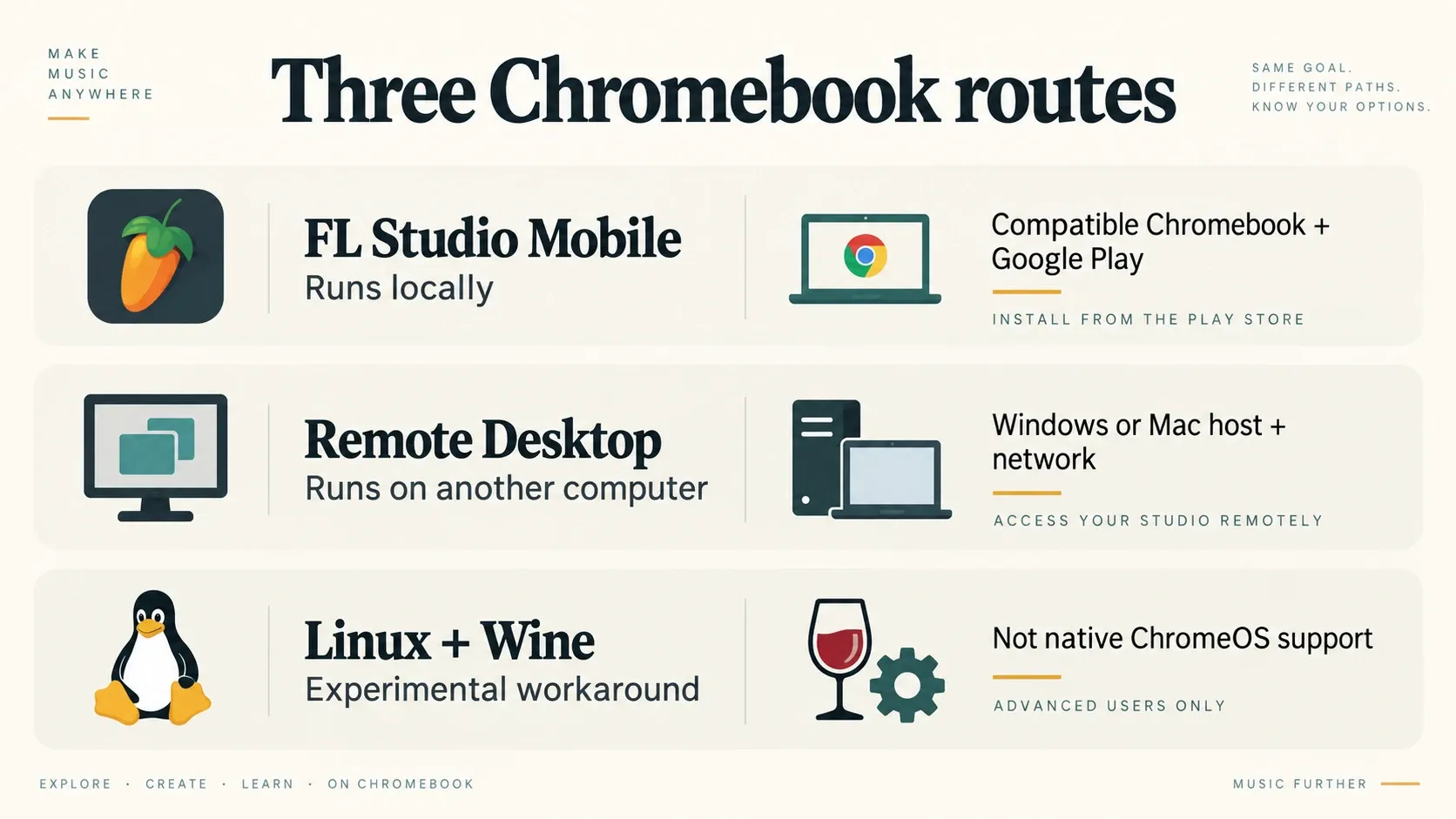
The three ways people mean “FL Studio on Chromebook”
Image-Line's ChromeOS support answer separates Desktop from Mobile. That is why one guide says “yes” and another says “no”: they are often talking about different products.
| Route | Where the music app runs | What to check |
|---|---|---|
| FL Studio Mobile | Locally on a compatible Chromebook | Google Play access, exact device compatibility and whether Mobile covers your needs |
| Remote access to Desktop | On a separate Windows or Mac host | Host availability, permissions, network, audio routing and response time |
| Linux and Wine | Through additional compatibility layers | An experimental setup, not native or guaranteed ChromeOS support |
A fast processor does not change which operating system an installer supports. Image-Line's official Desktop installers target Windows and macOS, and downloading the Windows installer onto a Chromebook will not turn it into a ChromeOS application. Use our Desktop system requirements guide when you choose the computer that will actually run it.
What Mobile gives you and what it does not
FL Studio Mobile is a music-production app with its own instruments, effects, arrangement tools, recording and automation. It is much more than a remote control for Desktop: you can work on a song locally and export the result without Desktop running on another computer.
Still, the shared “FL Studio” name does not mean a Desktop tutorial's plugin, menu or project will behave the same way. Mobile has its own environment, so don’t buy it expecting to install your Windows VST collection. Our Mobile versus Desktop comparison covers the wider workflow differences. The question here is narrower: can your Chromebook run the app you need?
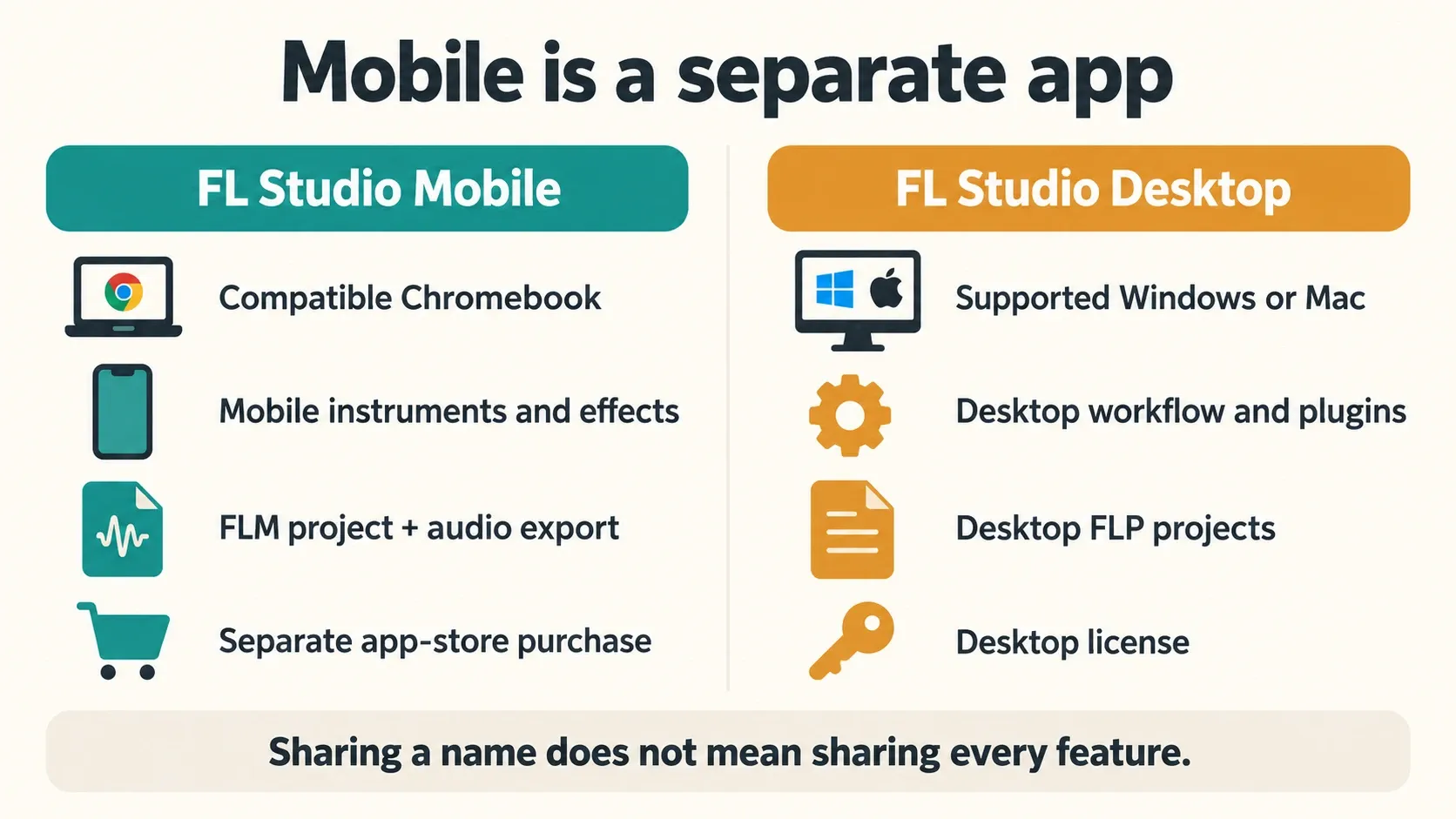
Buying Mobile in the app store is separate from buying a Desktop edition. The free Mobile plugin for FL Studio Desktop is another way to use Mobile projects inside the host, and it does not give you the Chromebook app-store license. Check the price shown to your own Google account before you buy, since a price quoted in a video may come from another region or date. A higher Desktop edition will not add native ChromeOS support either.
Check your Chromebook before buying Mobile
Open the official FL Studio Mobile listing by Image-Line on the Chromebook you actually plan to use. Seeing the public listing on another computer does not confirm that this device can install the app.
Google's Android app instructions for Chromebooks explain that only some Chromebooks support Android apps, and that not every Android app works on every device. Start by updating ChromeOS, then check Apps and the Google Play preferences in Settings. Labels shift between ChromeOS updates, so follow Google's current instructions if yours look different.
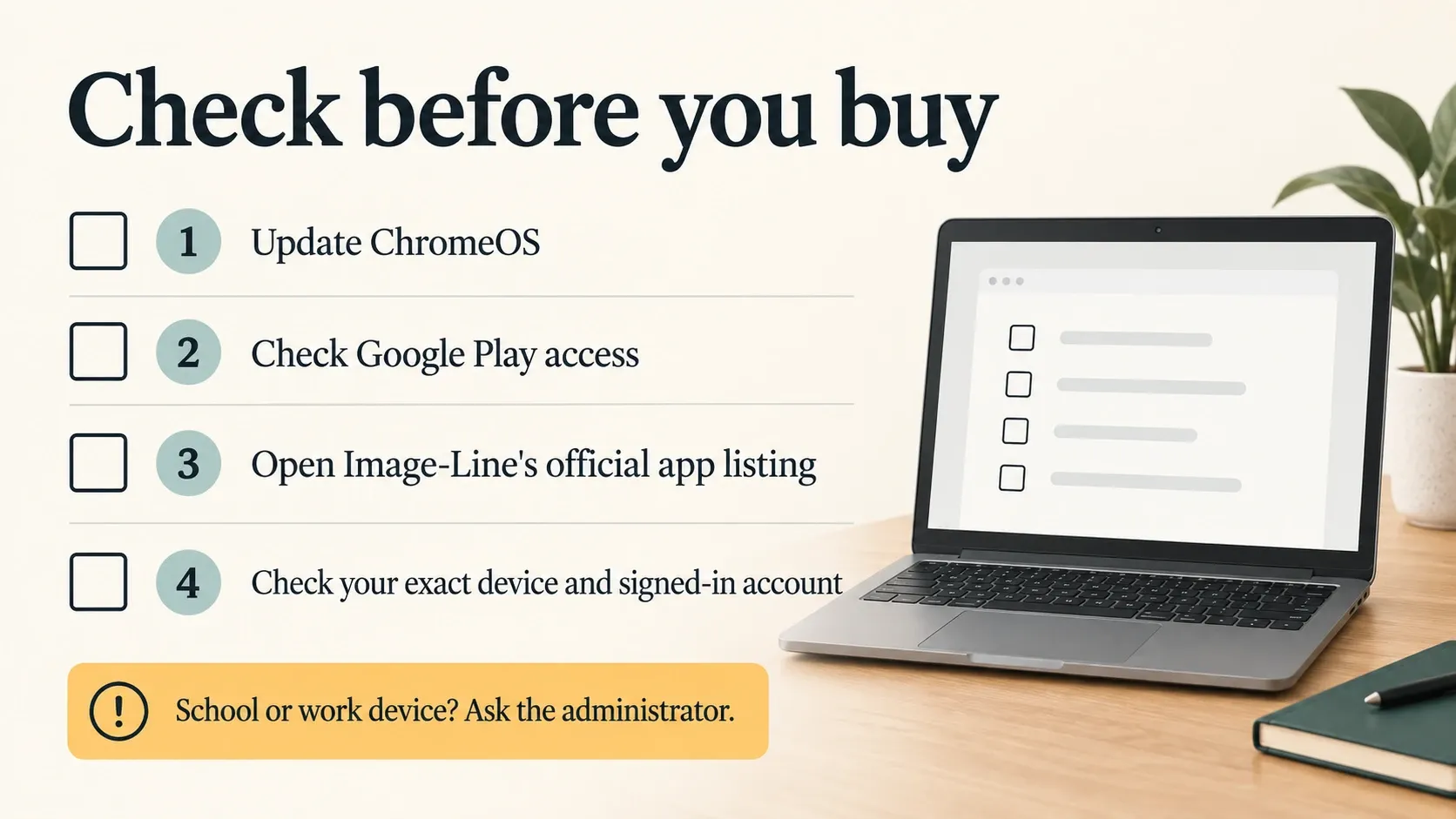
Check the signed-in account as well. Google says Play Store apps are available to the first account signed in on the Chromebook, so a missing install option may come down to the account or the device; the app has probably not disappeared.
On a school or work Chromebook, the administrator may restrict Google Play, individual apps or Linux, so ask for the approved route. Never remove management, enable developer mode or install an unofficial APK to get around those limits. If the app you need is unavailable on that managed machine, use an authorized compatible device instead.
Check your first Mobile project in eight steps
Run this on a short project before you bring in a large sample library or count on the Chromebook for a deadline. These are checks for you to perform on your own equipment; we did not benchmark any hardware.
- Update ChromeOS. Install available system updates and restart if prompted. Keep existing work backed up before making system changes.
- Check Google Play compatibility. Use the intended Chromebook and signed-in account to confirm that Image-Line's official FL Studio Mobile app is available. Resolve managed-device restrictions with the administrator.
- Install the official Mobile app. Review the store price and device eligibility before purchase. Do not substitute the Windows installer or a third-party APK.
- Start a short project. Open Mobile and create a small arrangement using an included instrument or sound. Keep the first check simple enough that you can identify which part fails.
- Test sound and any required input. Play the arrangement through your intended output. If you need recording or a MIDI controller, check that connection in the app too; built-in playback alone does not validate external hardware.
- Save a named FLM project. Use the Home panel's song-saving options to keep a native Mobile project. Give this test a distinct name so it cannot overwrite something valuable.
- Close and reopen that FLM. Confirm the saved project returns with the expected arrangement and sounds. Do not delete the project or uninstall the app as part of this check.
- Export and play a WAV. Export audio from the Home panel, locate the resulting file and play it outside Mobile. Then keep a separate backup of the project and any samples you need.
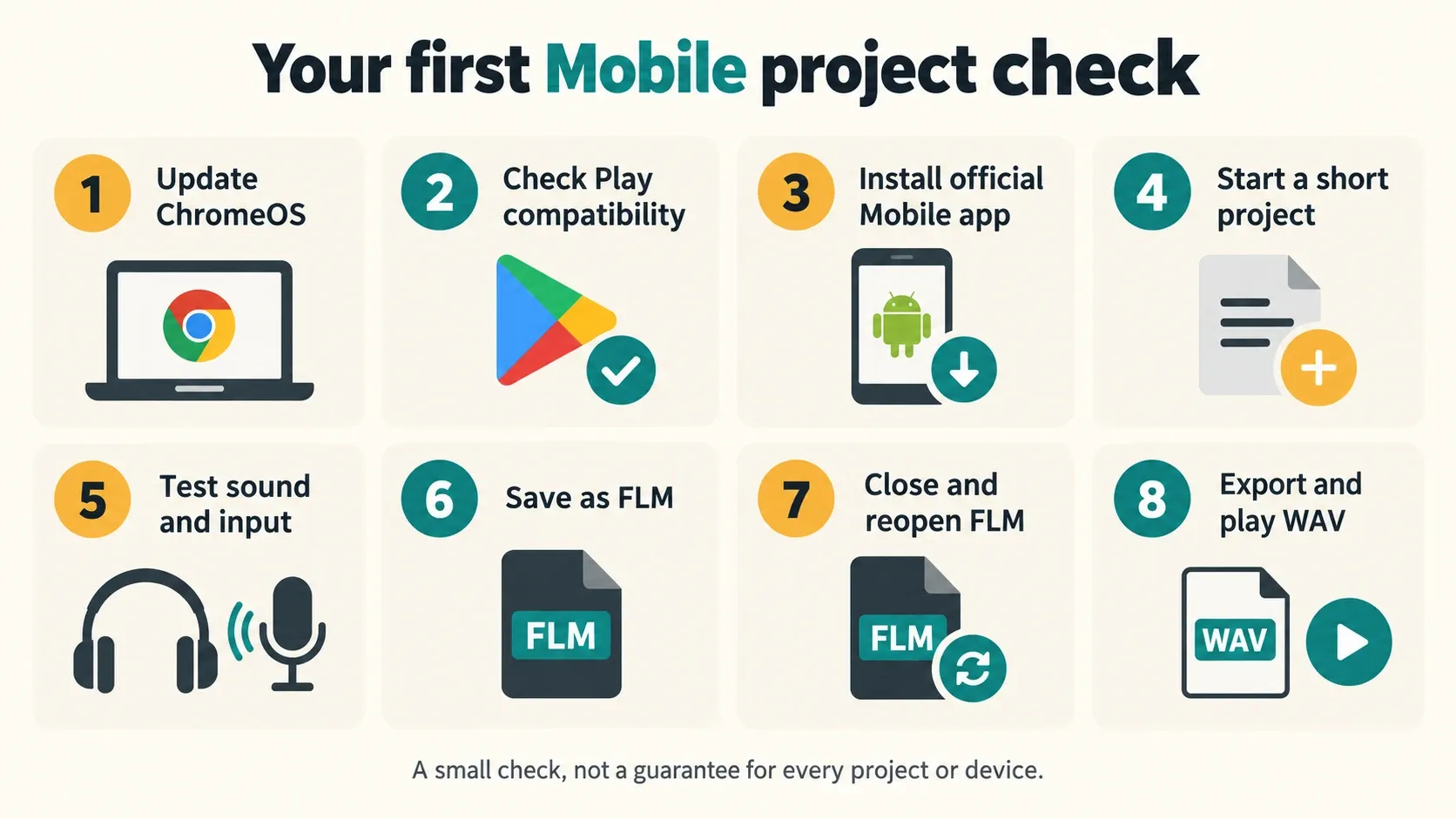
The Mobile Home panel manual documents the project and export formats. Passing this small check gives you a solid starting point, though large projects, USB devices and later app updates may still behave differently.
Import samples, then protect the project files
For your own audio, use Mobile's file-import controls and the system file picker. Google explains that Android apps can reach Chromebook downloads once the right file permissions are granted. If a sample does not show up, check its location and the app's permissions before you decide the audio file is broken.
Follow the Mobile file-management instructions instead of copying an old Android storage path from a tutorial. Storage access varies between operating systems and Android versions, and no hard-coded folder path works everywhere.
Back up before uninstalling Mobile, turning off Google Play or resetting the Chromebook. Image-Line warns that deleting the app removes its local files, and Google warns that turning off Play Store erases Android app data and settings. So reinstalling is a risky first troubleshooting step when the only copy of a song lives inside the app.
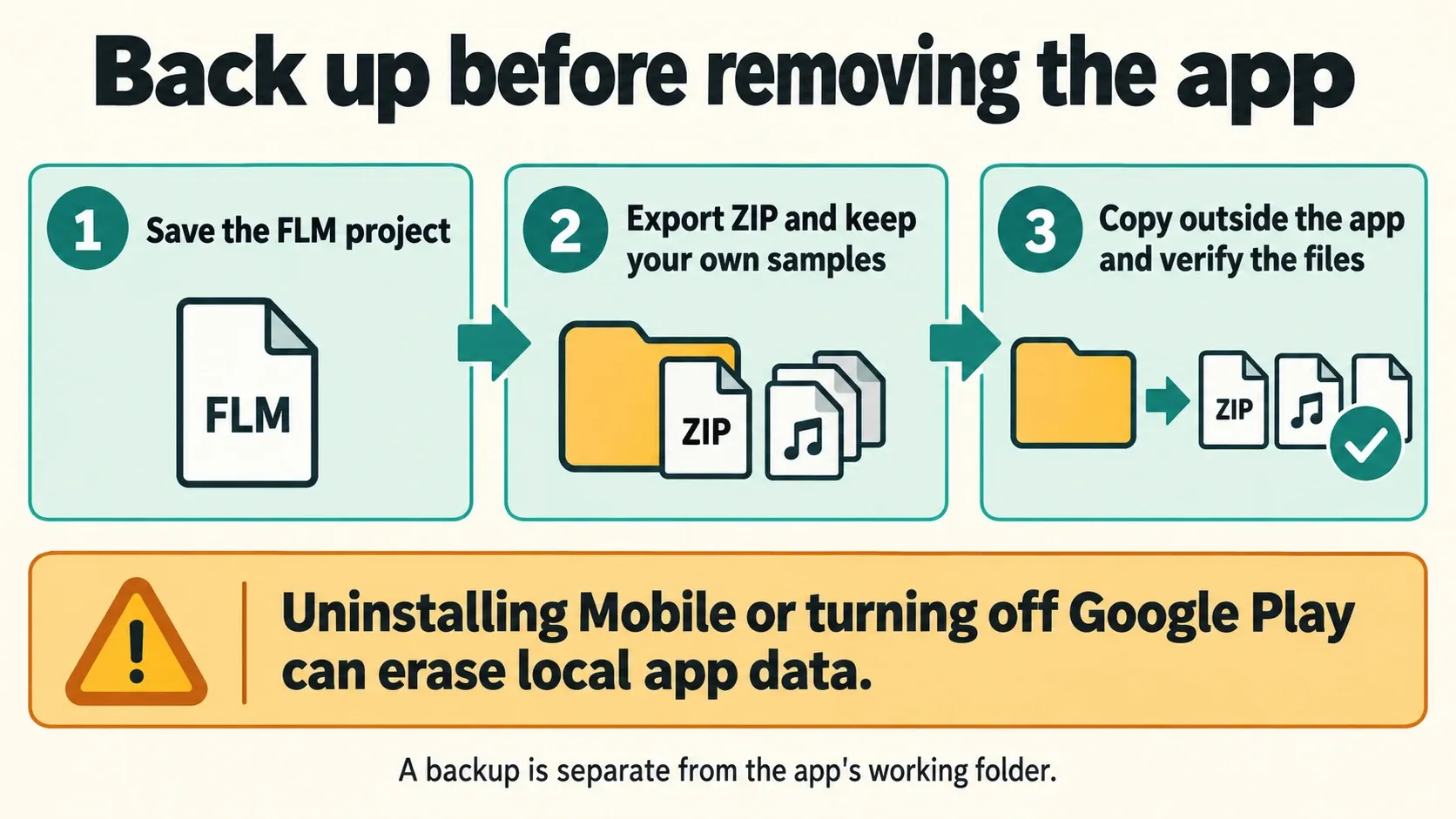
Keep the FLM project, export a ZIP where it makes sense, and copy the backup somewhere separate from the app's working folder. Then check that the files are really there and usable. A filename sitting in a cloud folder does not prove that every sample your song depends on made it across.
Moving a Chromebook project to Desktop
Pick the file that suits the job. There is no need to convert through every format in turn.
| File | What it is for | Important limit |
|---|---|---|
| FLM | Saving and reopening the native Mobile project | Keep this original even when exporting something else |
| ZIP | Bundling a project with the used samples | The manual excludes purchased shop content from this bundle |
| FLP | Exporting for Desktop using Mobile Rack instruments | Not a promise of unrestricted interchange with every Desktop project or plugin |
| WAV | Keeping rendered audio to listen to or arrange elsewhere | Audio does not retain the original editable instrument and note structure |
| MIDI | Transferring notes, tempo and supported basic controller data | It does not contain the sound; the manual limits full-project export to the first 16 tracks |
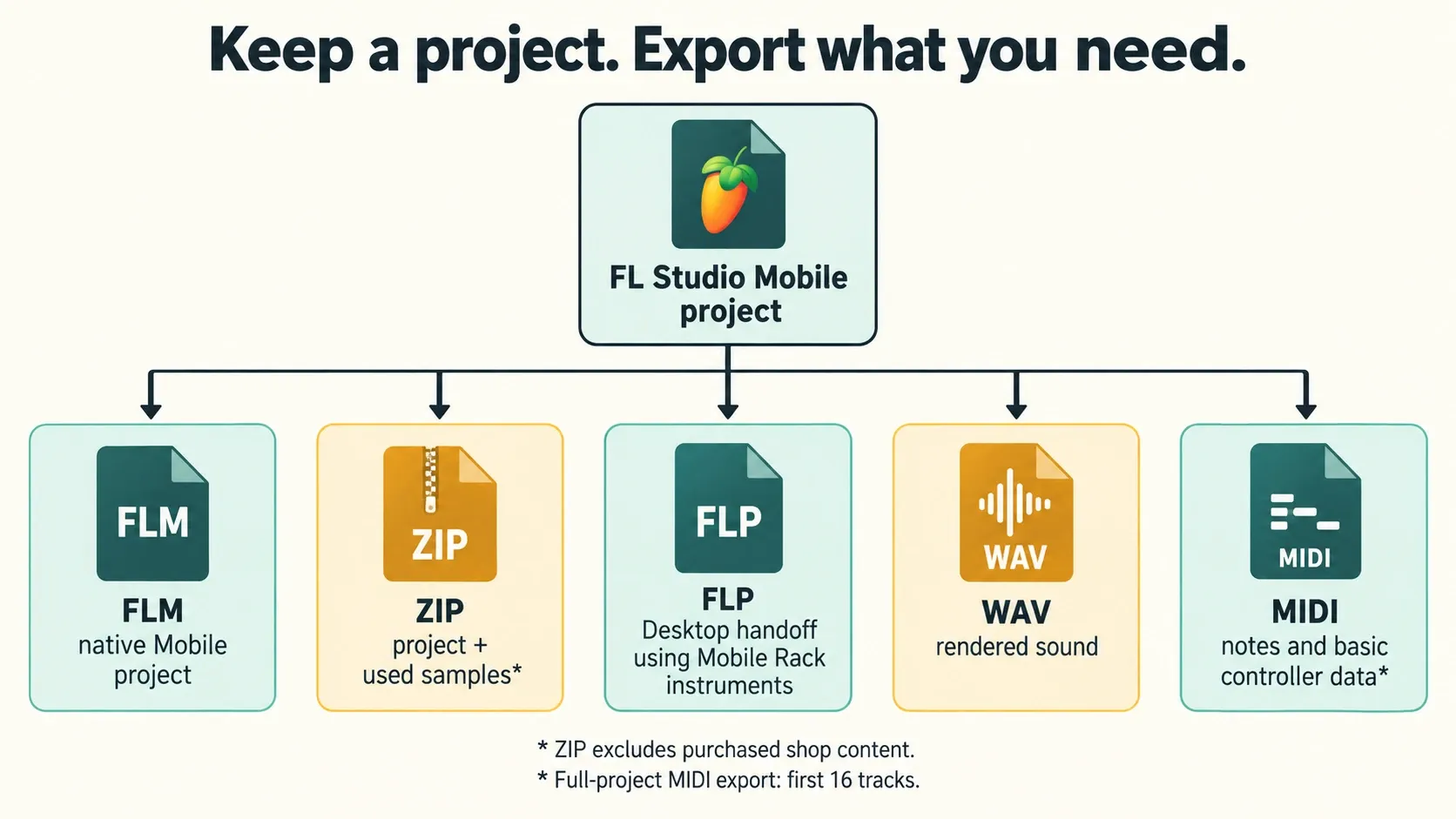
The current Home panel manual explicitly documents FLP export using Mobile Rack instruments. Save your FLM first, then look at the export options in your installed version of Mobile. If an older build lacks the documented option, check for official updates and the manual before reaching for some unrelated online conversion tool.
On the destination computer, open the exported project and compare its playback with a reference audio export. Keep your source project and samples until you have checked the transfer. For note-based handoffs, our MIDI export guide and MIDI import guide explain the Desktop side; their menus do not apply to Mobile.
One licensing trap matters here: the Desktop trial cannot reopen saved project files until it is unlocked. That restriction has nothing to do with the Mobile save-and-reopen check above. Sort out the destination license before you depend on repeated Desktop project recall.
Audio interfaces and MIDI controllers need a device check
The official Play listing advertises USB audio-interface support and class-compliant MIDI-controller support. That still does not guarantee every Chromebook, adapter, controller or connection will work. Before buying accessories, confirm that your exact combination is recognized and works in Mobile.
Test the task you actually plan to do. Hearing a song is different from recording a microphone, and entering notes is different from playing comfortably while monitoring. Start with a simple project and one required device. If the connection fails, check power, cables, permissions and the device's own documentation before adding more equipment.
Our Desktop audio-settings guide becomes relevant if you move to a Windows or Mac host. Its ASIO instructions do not apply to ChromeOS, and its buffer advice does not describe the controls Mobile offers.
Remote Desktop: the Chromebook is the client
You can use a Chromebook to reach another computer through a remote-access service. Google's Chrome Remote Desktop instructions cover the browser client, host setup and access requirements. FL Studio Desktop still runs on the host rather than on the Chromebook, and you still need the appropriate software license.
How useful that setup is depends on the network, response time and audio routing. It may suit some editing tasks, but timing-sensitive playing and monitoring need their own check, and a remote session may not carry audio or pass through your local interface the way you expect. For recording, working directly on the host with its local audio setup takes the remote link out of the equation.
The host has to be available, and school or workplace policies may block remote access as well. This route only makes sense if you already have, or plan to keep, another suitable computer. It will not turn a Chromebook into that computer.
Why Linux and Wine are not the default recommendation
Google's Linux-on-Chromebook instructions describe a development environment available on supported devices. Turning it on does not make ChromeOS into Windows. Wine is a compatibility layer for Windows applications, and it raises its own questions about the CPU, audio, drivers and plugins.
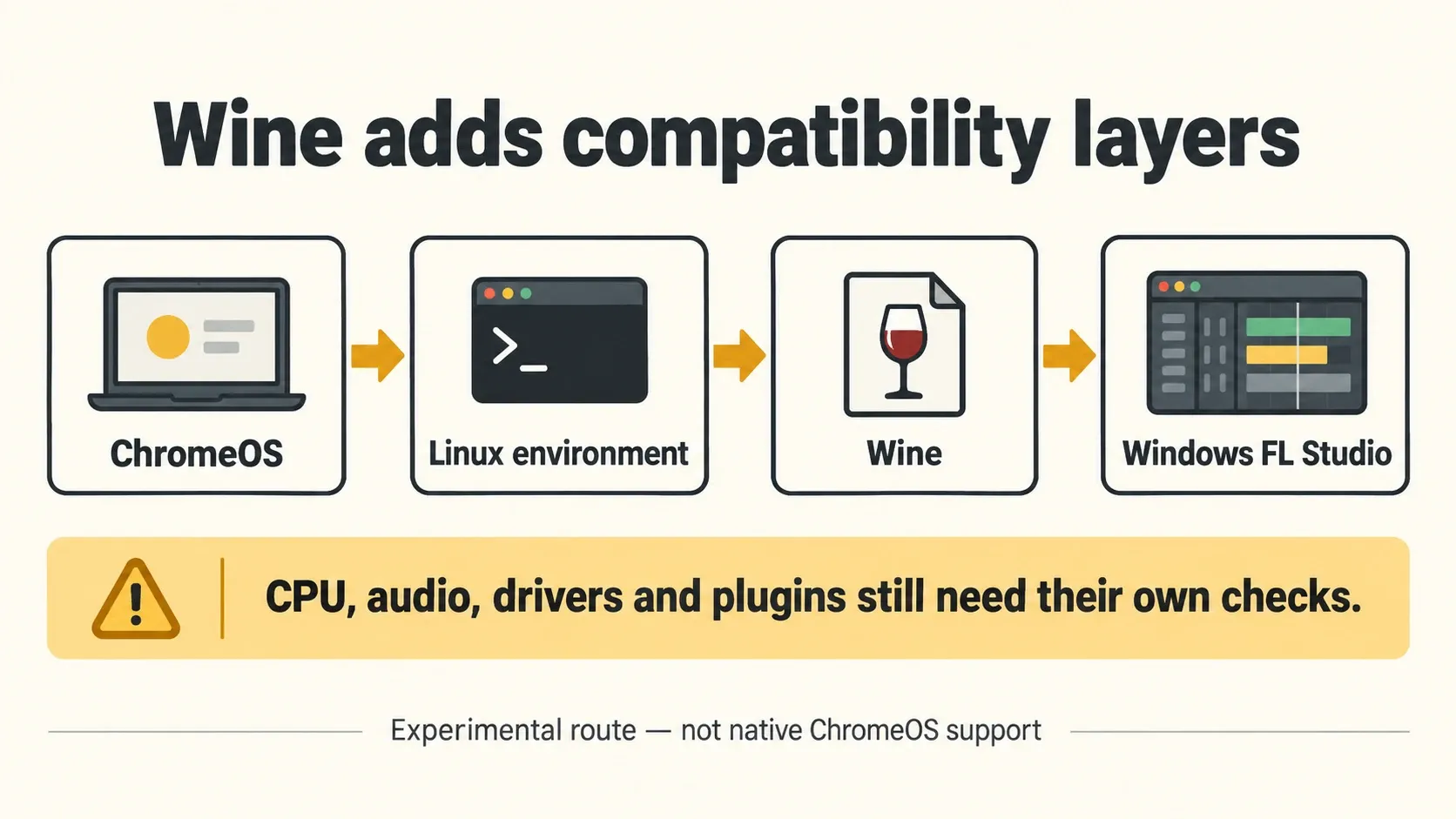
A video of one installation proves nothing about your model, ChromeOS version and plugin collection. If you want to investigate this route, treat it as an experiment, and don’t build a promise of a reliable recording setup on it. We have not tested a Wine installation or measured latency on your Chromebook.
The deeper workaround questions live in our FL Studio on Linux guide. If you simply want to use Desktop, follow the Windows or Mac installation guide on a supported host instead.
Which route should you choose?
If you already own a compatible Chromebook and want a local music app, check Mobile's store compatibility and workflow first. If a particular Desktop plugin or project is essential, choose a supported host that meets that requirement. Remote access makes sense when a separate host is already part of your setup and the connection suits the task.
For the next platform decision, use the Platforms & Mobile hub. If you are about to spend money, the Compare & Buy hub helps you keep the app, edition and computer decisions apart. Buy the product that fits the work you need to do, whatever the familiar icon says.
Frequently asked questions
Can I install FL Studio Desktop directly on ChromeOS?
No. Image-Line provides Desktop installers for Windows and macOS, not a native ChromeOS installer. FL Studio Mobile is the separate local option for compatible Chromebooks.
Does every Chromebook support FL Studio Mobile?
No. Check Google Play availability and the official Image-Line app listing on your exact device and signed-in account. Android-app support alone does not guarantee that a particular app is compatible.
Can I use FL Studio on a school Chromebook?
Only through a route your administrator allows and your device supports. Google Play, individual apps, Linux or remote access may all be restricted, so ask the administrator instead of trying to bypass device management.
Does buying FL Studio Desktop include the Chromebook app?
Mobile is a separate app-store purchase. Check its current listing and your device eligibility before paying; a Desktop edition does not provide native ChromeOS support.
Can FL Studio Mobile use my Windows VST plugins?
Don’t plan on installing your Windows VST collection in Mobile. It has its own environment of instruments and effects and does not replace the Desktop plugin workflow.
Can I move a Mobile project to FL Studio Desktop?
The current Mobile Home panel manual documents FLP export using Mobile Rack instruments. Keep the original FLM, preserve needed samples and check the exported project on the destination setup. This is not unrestricted compatibility with every Desktop project or plugin.
Does MIDI export preserve the sound of my Mobile song?
No. MIDI transfers notes, tempo and supported basic controller data, not the instruments' rendered sound. The Mobile manual limits full-project MIDI export to the first 16 tracks; use an audio export when you need to preserve how the song sounds.
Will reinstalling Mobile keep all my projects?
Don’t count on it. Image-Line warns that deleting the app removes local files, and Google says turning off Play Store erases Android app data. Back up your projects and the samples they need outside the app before removing it.
Is remote Desktop the same as running FL Studio on Chromebook?
No. The application runs on another host, while the Chromebook accesses the session. Network response and audio routing affect suitability, especially for timing-sensitive playing or monitoring.
Is Linux and Wine an officially supported Chromebook installation?
No. It is an experimental compatibility route and has nothing to do with native ChromeOS support. A successful setup on one device says nothing about another device, audio interface or plugin collection.