FL Studio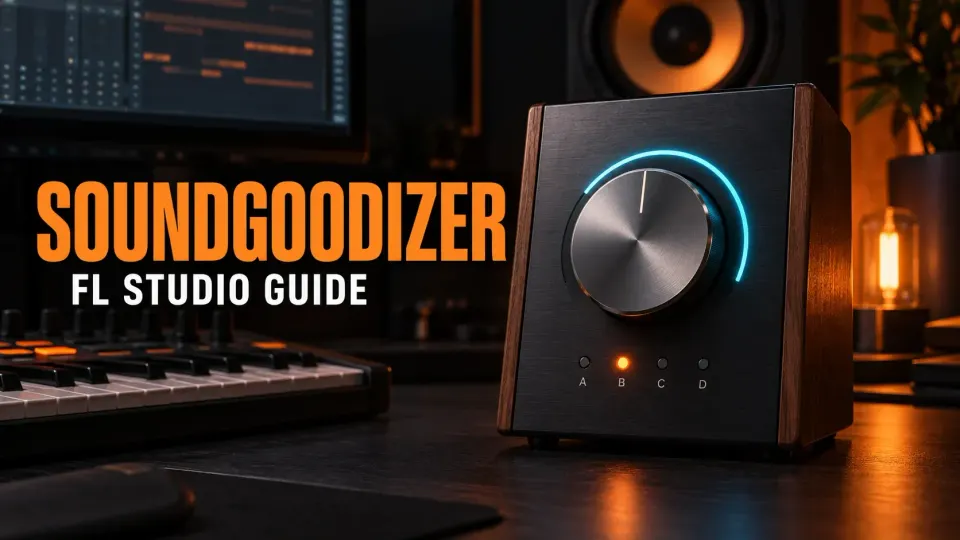
Soundgoodizer is a simplified stereo maximizer and enhancer built on the Maximus processing engine. You choose one of four configurations—A, B, C or D—and use the large Amount knob to blend the Low, Mid and High compressor output with the input. That simplicity is useful when a preset already pushes a sound in the right direction. It becomes risky when extra loudness is mistaken for a better mix.
The right way to use Soundgoodizer is to define one goal, audition all four modes at a restrained Amount, match the active and bypassed levels, and keep the setting only if the sound improves at a comparable loudness. There is no reliable universal map that says A is for vocals, B is for drums or D is for bass. The official Soundgoodizer manual documents four Maximus configurations, but it does not assign each letter to a required instrument.
What Soundgoodizer actually does
Soundgoodizer packages a complex dynamics setup behind five controls: the four configuration buttons and Amount. The hidden processing can change density, peak behavior, tonal balance and perceived loudness together. That is why one turn can sound dramatic, and why the result is harder to diagnose than a conventional compressor with visible threshold, ratio, attack and release controls.
The plugin is best understood as a fast preset audition tool. It answers a narrow question: does one of these four prepared Maximus configurations improve this source with a small blend? It does not answer which band is being controlled, how quickly gain reduction reacts or whether saturation is contributing. For those decisions, open Maximus.
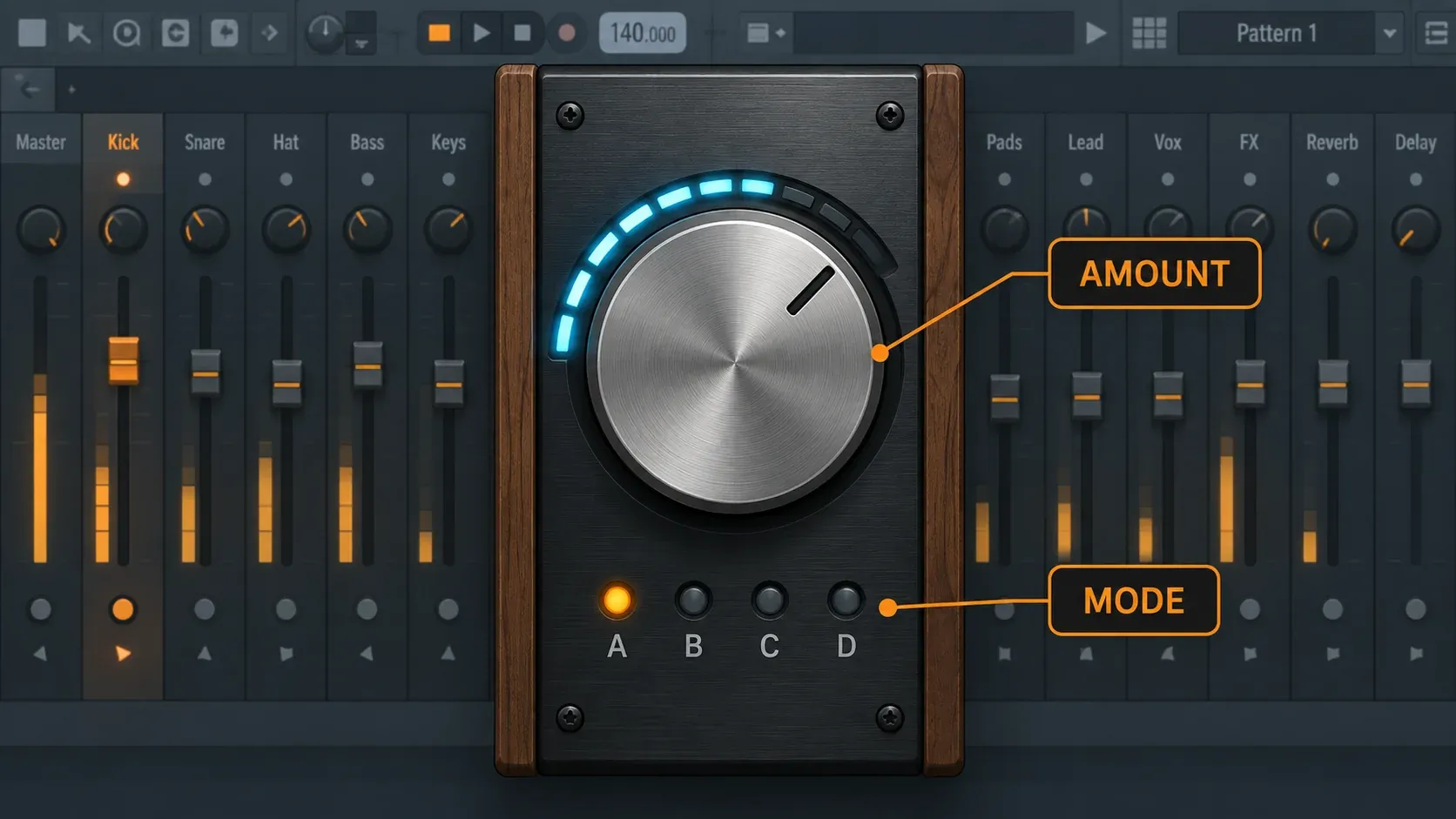
What the Amount knob controls
Amount is more specific than a generic plugin wet/dry knob. Image-Line says it controls the same parameter as LMH Mix in Maximus. In the Maximus documentation, LMH Mix blends the plugin input with the output of the Low, Mid and High compressors before the final MASTER stage.
For practical use, the distinction means that Amount changes how much of the preset’s band processing enters the result. Zero is the clean starting point. Turning clockwise brings in more of the selected A–D configuration. It should not be treated as a percentage of a fully transparent parallel effect, because the preset can contain several kinds of level-dependent processing.
Start at zero every time you change mode. Raise Amount slowly until the intended change becomes clear. If the track becomes exciting but loses transient shape, low-end separation or vocal focus, back down. A setting is finished when the problem is solved, not when the knob reaches a familiar position.
How to choose between A, B, C and D
Ignore mode charts that promise a fixed instrument for every letter. The source, arrangement and level feeding the plugin determine how a configuration reacts. A mode that helps one vocal can flatten another; a mode that tightens one drum loop can make a different loop smaller.
Use the same short routine for every source:
- Loop the busiest passage where the problem is easiest to hear.
- Name one target, such as firmer peaks, more stable body or clearer forwardness.
- Select A and raise Amount only far enough to hear the change.
- Return Amount to zero, select B and repeat. Do the same for C and D.
- Keep the two modes that move closest to the target.
- Compare those finalists at a matched output level.
- Remove Soundgoodizer if neither mode solves the stated problem without a larger tradeoff.
This procedure is faster than memorizing undocumented labels because it makes the decision from the material in front of you. It also prevents a loud first impression from ending the comparison too early.
Level-match the bypass before judging
Processed audio often seems clearer, wider or more exciting simply because it is louder. Soundgoodizer can create that trap quickly. A useful bypass comparison therefore needs similar perceived loudness on both sides.
FL Studio gives you several places to compensate level. You can lower the Mixer effect-slot mix, adjust downstream gain or use another transparent level control after Soundgoodizer. The exact method matters less than the result: the active and bypassed versions should feel similarly loud before you decide which one has better punch, tone and separation.
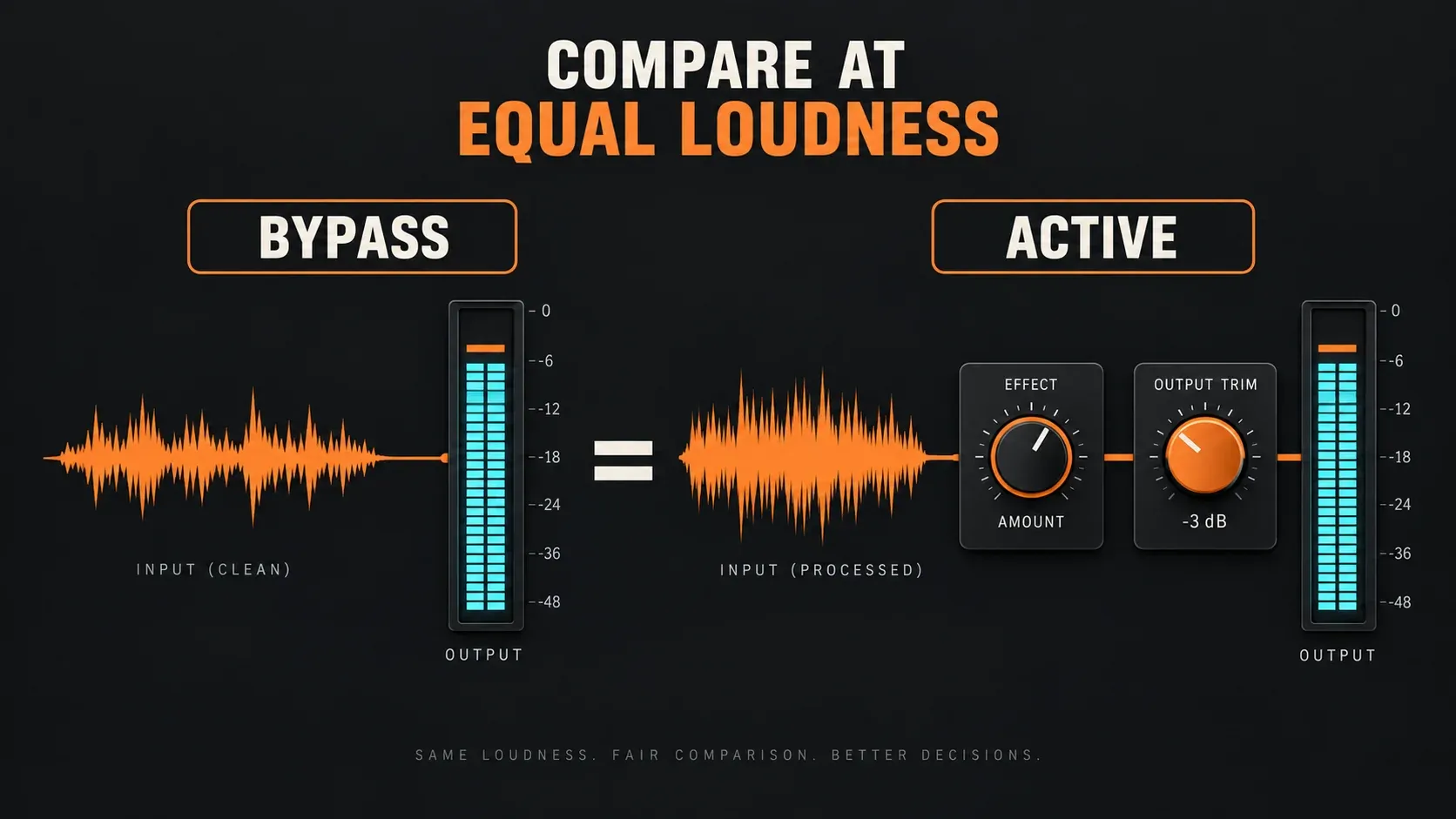
Listen for consequences rather than spectacle. Does the kick still have a clear front edge? Does the bass keep distinct notes? Does the vocal remain intelligible when the full arrangement enters? Does the snare gain body without pulling cymbals forward? If the only dependable benefit disappears after level matching, the plugin is not helping that source.
Using Soundgoodizer on drums
On a drum channel or bus, Soundgoodizer can make the kit feel denser and more immediate. The cost can be smaller transients, louder room tone or exaggerated cymbals. Judge the kick and snare attack separately from the average loudness of the loop.
Begin on the drum bus after the basic balance is working. Audition A–D with a low Amount and listen through a section that contains the loudest kick, snare and cymbal combination. If the bus starts pumping around the kick or the hi-hats become sharp, reduce Amount or remove the processor. A bus problem caused by one drum may be easier to fix on that individual Mixer track.
Using Soundgoodizer on bass and 808s
Bass benefits when level becomes more stable without erasing the difference between notes. It suffers when extra density turns the low end into a constant block. Compare the quietest and loudest notes, then check the bass against the kick rather than in solo.
If the low end already clips or overloads the next processor, correct the level first. The FL Studio gain-staging guide explains how to create headroom before dynamics processing. Soundgoodizer should shape an intentional signal; it should not hide a chain that is too hot.
For an 808, pay attention to the transient and pitch envelope. A dramatic setting may make the tail louder while softening the attack, which can feel powerful alone and less defined in the arrangement. If you need separate control over low sustain and upper harmonics, Maximus or a clearer split-band chain is easier to direct.
Using Soundgoodizer on vocals
On vocals, a small Amount can bring the voice forward, but the preset may also raise breaths, room noise and sibilance. Make the decision in the chorus or densest section, where consonants and tone must survive the instrumental.
Soundgoodizer is not a replacement for cleaning the recording, controlling obvious peaks or handling harsh esses. The vocal-mixing workflow covers the complete order of corrective and creative decisions, while the FL Studio de-essing guide handles level-dependent sibilance directly. If Soundgoodizer makes the vocal brighter and the esses jump out, fix the actual sibilance problem instead of stacking more broad processing.
Using it on instruments and buses
On synths, guitars, keys and sample buses, Soundgoodizer works best when you can name the missing quality. A thin sustained part may need steadier body. A layered synth bus may need firmer peaks. A rhythmic part may need to stay present at lower level. Those are testable goals.
Avoid inserting it across every channel by habit. Four different hidden dynamics configurations across several tracks can make later balancing unpredictable. If a source already passes through compression, limiting, clipping or heavy saturation, check whether Soundgoodizer adds a distinct benefit or simply increases the processing stack.
My rule is simple: use the smallest number of opaque stages possible. When the result needs explanation, replace a mystery layer with a tool whose controls show the decision.
Where Soundgoodizer belongs in the chain
Placement depends on what should trigger its preset processing.
- After corrective EQ: useful when unwanted rumble or resonances should not drive the dynamics.
- Before creative saturation or clipping: useful when Soundgoodizer should stabilize the source feeding that color stage.
- After sound design effects: useful when delays, reverbs or modulation are part of the signal you want to densify.
- Before a final level control: useful for level-matched bypass and predictable gain into the next bus.
These are starting positions, not fixed laws. Move the plugin only when the change answers a clear question: should the reverb tail trigger it, should the distortion receive a steadier input, or should corrective EQ remove a problem before compression reacts?
Should you use Soundgoodizer on the master?
You can audition it on the master, but the tolerance for hidden tradeoffs is much smaller. The preset now reacts to the entire mix, so a strong kick, bright cymbal or loud vocal can influence the whole result. Keep Amount restrained, compare at equal loudness and check the loudest section as well as a quieter verse.
Do not use it to rescue a balance problem. If the vocal is buried, the bass masks the kick or the high end is harsh, return to the mix. The broader FL Studio mastering guide shows how final dynamics fit with headroom, tonal balance and export checks.
If the master improves only because it becomes louder, remove the plugin. If one frequency range needs different treatment, move to Maximus so the decision is visible and adjustable.
Signs that the processing is too strong
Back off Amount or remove Soundgoodizer when you hear any of these changes:
- Kick and snare attacks become smaller even though the average level rises.
- Bass notes merge into one sustained mass.
- Hi-hats, breaths or room noise move forward faster than the useful signal.
- The track feels exciting in solo but occupies too much space in the mix.
- Active sounds better only until the two versions are level-matched.
- A downstream limiter, clipper or bus compressor begins working much harder.
These are not proof that Soundgoodizer is a bad plugin. They show that the selected preset and amount are solving the wrong problem, or that the source needs a more specific processor.
When to switch from Soundgoodizer to Maximus
Image-Line provides the four Soundgoodizer configurations as Maximus presets A, B, C and D. Open the matching preset in Maximus when you like the direction but need to understand or adjust the process. This is the cleanest path from a fast one-knob choice to deliberate control.
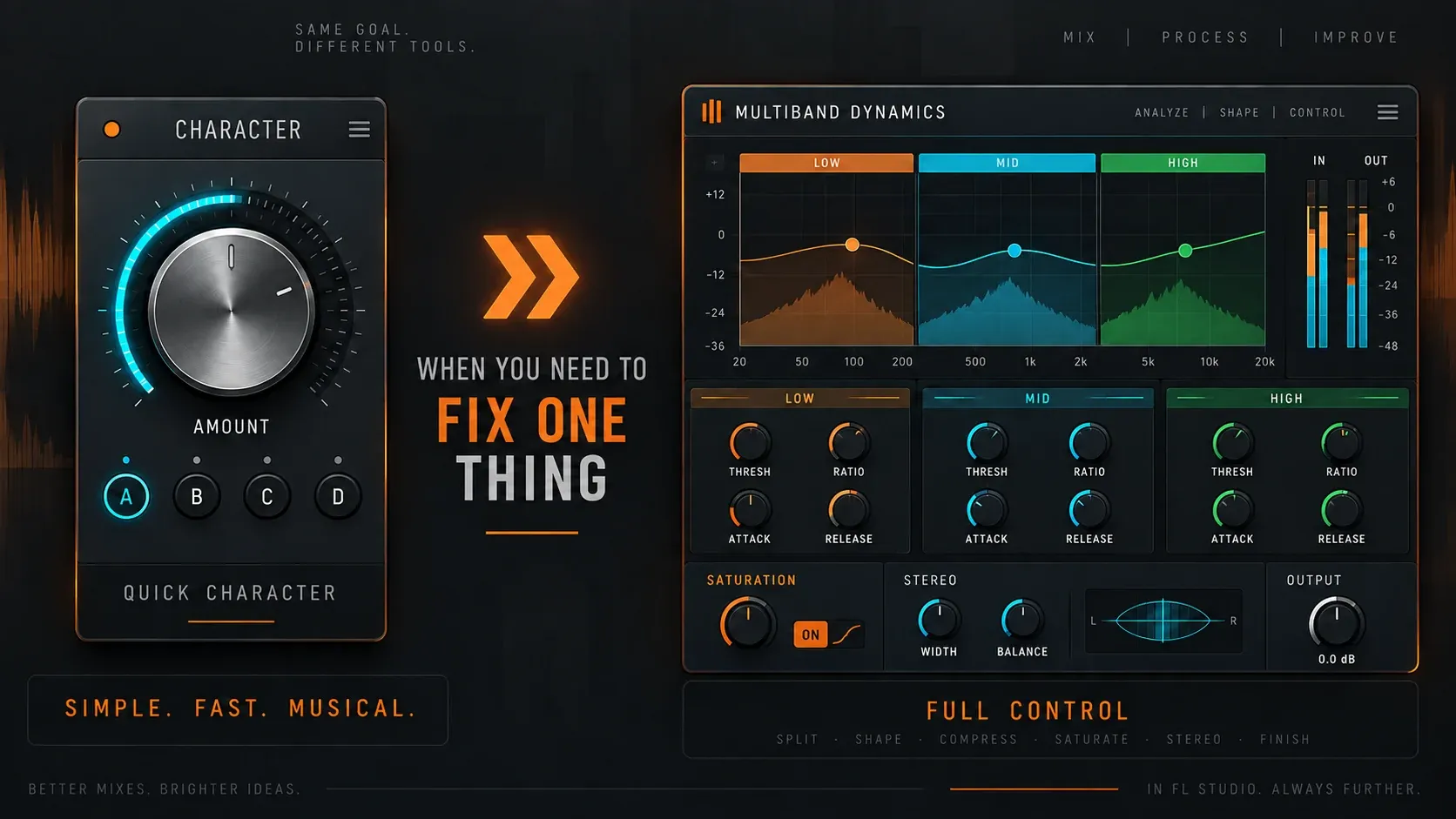
Switch to Maximus when you need to change crossover bands, compression curves, attack, release, look-ahead, saturation or output behavior. The complete Maximus guide explains the signal path and starts with a controlled single-band setup before adding multiband processing.
Soundgoodizer is the right tool when a restrained preset works and the result survives a fair bypass. Maximus is the right tool when you can describe the problem more precisely than “make it better.”
A practical Soundgoodizer checklist
- Define one audible goal before inserting the plugin.
- Start Amount at zero for each A–D mode.
- Audition all four modes on the busiest relevant passage.
- Keep the two closest options and compare them at similar loudness.
- Check transients, low-end separation, vocal clarity and noise.
- Check the result in the full mix, not only in solo.
- Use Maximus when the hidden preset needs a specific correction.
- Remove the plugin when level matching removes the benefit.
That is the whole method: use Soundgoodizer for speed, but make the decision with the same discipline you would apply to any dynamics processor.