FL Studio
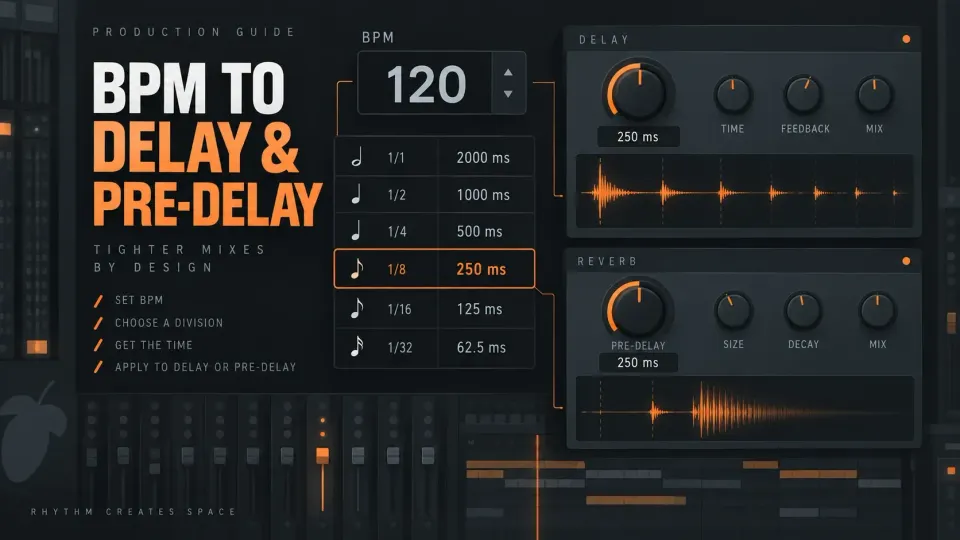
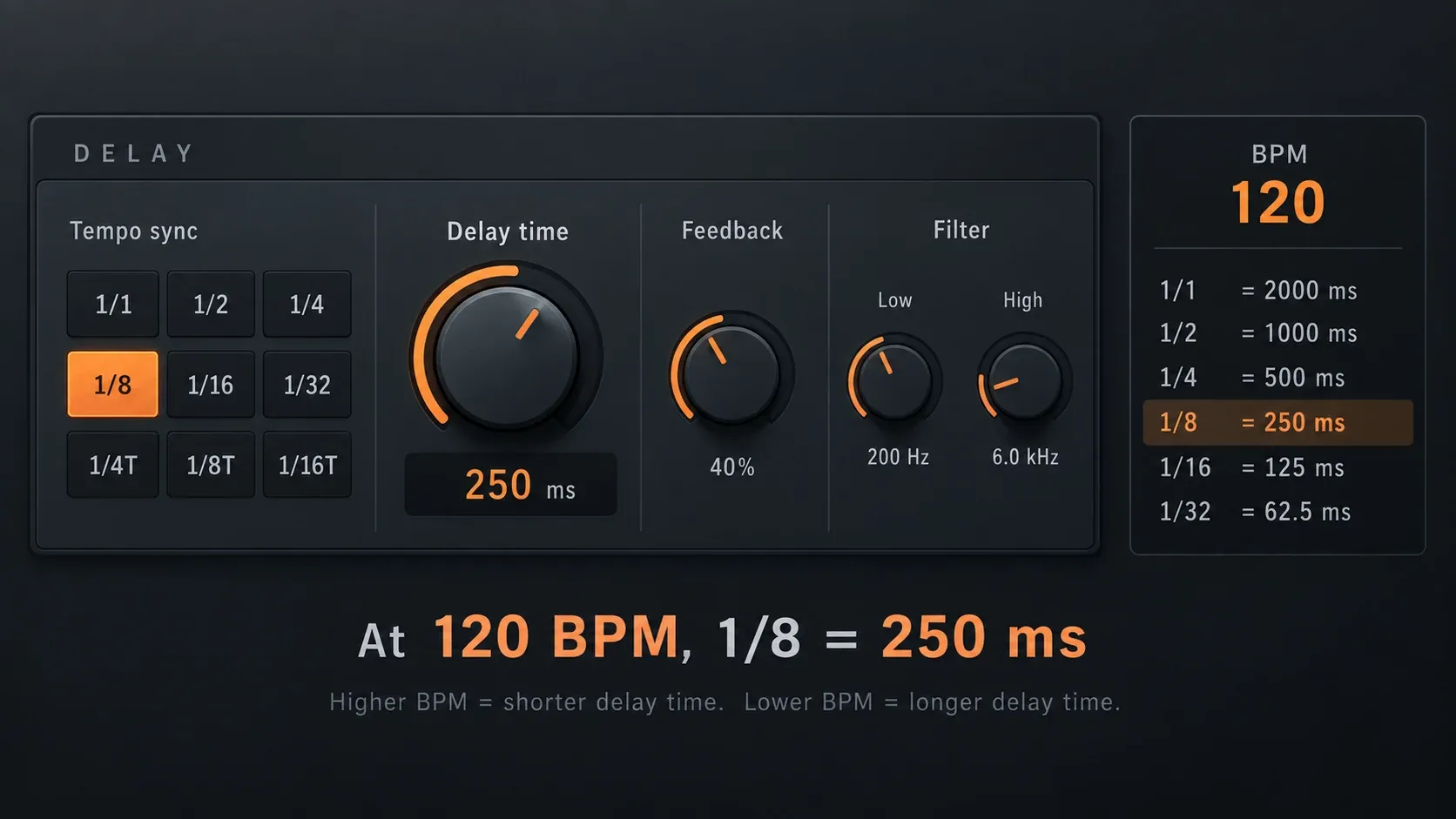
 A quarter note lasts 60,000 divided by the BPM in milliseconds, so at 120 BPM it is 500 ms, an eighth is 250 ms and a dotted value is 1.5 times its straight note. In FL Studio, keep Tempo Sync on in Fruity Delay 3 for repeats that follow the song, and type the millisecond value only with sync off, where the Time knob stops at 1000 ms. For Fruity Reeverb 2, read the pre-delay from the short rows below or turn on its TEMPO switch for a tempo-based pre-delay.
FL Studio delay and reverb calculator
Use the musical divisions for tempo-synced delay repeats. For pre-delay, a short value such as the sixteenth triplet gives a reference for separating the dry sound from the first reverb reflection. Press Tab to reach a value and Enter or Space to copy it.
Type the tempo shown in the FL Studio toolbar, and the values update as you type or when you press Calculate. The tool takes whole or decimal tempos from 20 to 300 BPM, so a tempo set with the fine tune field goes in as shown, and it rounds every result to two decimals with a Copy button next to each value.
How the timing calculation works
In milliseconds, one quarter note lasts 60,000 divided by the BPM, the formula the Sengpielaudio tempo and delay time calculator uses: 60,000 divided by 120 BPM gives 500 ms. A half note is twice that length, an eighth is half and a sixteenth a quarter of it, and a whole note at 120 BPM lasts 2000 ms, one 4/4 bar.
Dotted values multiply the related straight value by 1.5, and triplets take two thirds of it. That is the math behind every row, and it gives a repeat or spacing value without deciding whether the effect fits a vocal, a drum hit or a chord.
Use the calculator as a translator. It turns the tempo of your FL Studio project into a value to type into an effect or compare with one. Feedback, wet level, filtering and how much space the arrangement can carry stay mix decisions.
Delay divisions for Fruity Delay 3
The Fruity Delay 3 manual gives Time two ranges: 1 to 1000 ms with Tempo Sync off, and 1/48 of a step to 16 steps, one bar, with Tempo Sync on. Each dot around the knob is one step, a sixteenth of a bar, and with Tempo Sync on, right-clicking the knob opens a Set menu of musical values. A sixteenth is 1 step, an eighth 2 and a quarter 4.
| Division | Steps with Tempo Sync on | What the repeat does | Where it fits |
|---|---|---|---|
| Quarter | 4 | One repeat after each beat | Echoes that should be easy to count in a sparse part |
| Eighth | 2 | Faster repeats between beats | Short vocal, synth or percussion movement |
| Dotted eighth | 3 | A syncopated 3/16 feel | Rhythmic repeats that weave around straight eighths |
| Eighth triplet | 1 1/3 | A rolling triplet subdivision | Triplet phrasing or a swing-like repeat |
| Sixteenth | 1 | Tight repeats | Texture and density, with feedback kept low |
I keep Tempo Sync on for repeats inside a song, because the echoes keep time with the project tempo, tempo automation included, and land in the same musical spot after a tempo change. I type milliseconds only for a fixed delay or a plugin without sync, because a typed value stays fixed while the tempo moves, and Fruity Delay 3 caps it at 1000 ms. Start with the division that matches the grid of the phrase, then shape it with feedback, mix and filtering.
With Tempo Sync off, the 1000 ms cap decides which calculator values fit. At 120 BPM a half note lands on the cap, so a whole note needs Tempo Sync at that tempo, where the knob reaches 16 steps, one bar.
| Value | At 120 BPM | Fits with Tempo Sync off from |
|---|---|---|
| Quarter note | 500 ms | 60 BPM up |
| Dotted quarter | 750 ms | 90 BPM up |
| Half note | 1000 ms | 120 BPM up |
| Whole note | 2000 ms | 240 BPM up |
The modulation Rate in Fruity Delay 3 runs from 0 to 20 Hz. For a wobble that follows the tempo, divide 1000 by the millisecond value: a quarter note at 120 BPM gives 2 Hz and a whole note 0.5 Hz. A sixty-fourth at 120 BPM works out to 32 Hz, above the range of the knob.
Fruity Delay 2 TIME readings for each value
Fruity Delay 2 shows TIME in steps and 48ths of a step, so a quarter note reads 4:00. The Fruity Delay 2 manual says the setting is tempo based and divides each step, a sixteenth note, into 48, which puts every dotted and triplet value on a whole reading. In Fruity Delay Bank, tempo based time forces the echoes to sync with the BPM.
| Calculator value | TIME (steps:48ths) | At 120 BPM |
|---|---|---|
| Half note | 8:00 | 1000 ms |
| Quarter note | 4:00 | 500 ms |
| Eighth note | 2:00 | 250 ms |
| Sixteenth note | 1:00 | 125 ms |
| Dotted quarter | 6:00 | 750 ms |
| Dotted eighth | 3:00 | 375 ms |
| Dotted sixteenth | 1:24 | 187.5 ms |
| Quarter triplet | 2:32 | 333.33 ms |
| Eighth triplet | 1:16 | 166.67 ms |
| Sixteenth triplet | 0:32 | 83.33 ms |
Dotted and triplet values are useful when straight repeats feel obvious
A straight eighth repeats every half of a quarter note. A dotted eighth lasts three sixteenths, so its repeat shifts against a straight eighth grid. Three triplet eighths fill the time of an eighth-note pair. The difference looks tiny in the calculator and sounds obvious in a repeated phrase: the echoes stop marching on the same subdivisions as the source.
Use dotted timing when the repeat should cut across the midpoint of the beat, and triplets when the phrase already moves in threes. I shorten the division before I lower feedback, because a crowded phrase comes from where the repeats land, and less feedback thins every repeat without moving one of them.
Reverb pre-delay is the gap before the room arrives
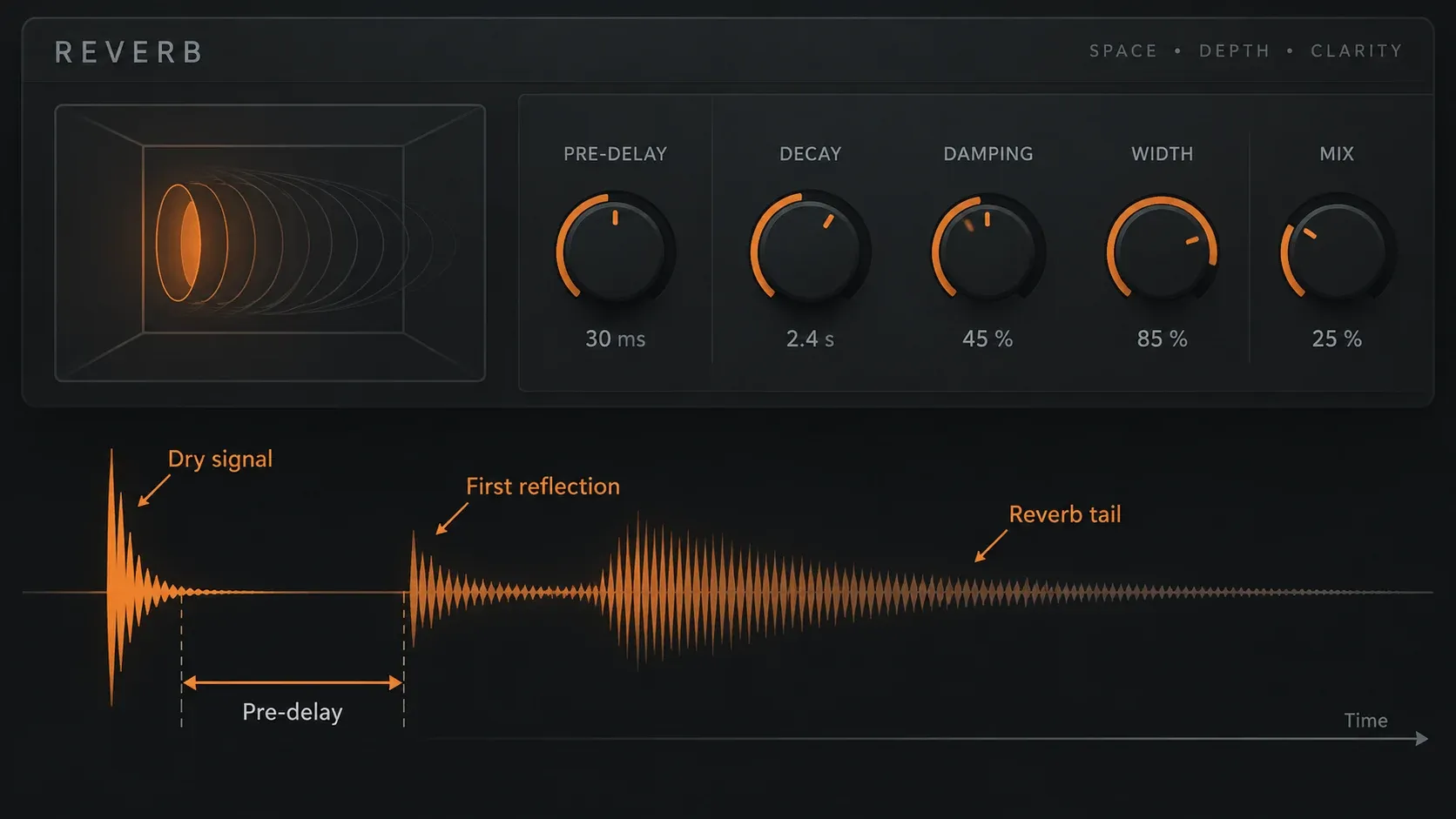
Delay repeats and reverb pre-delay answer different questions. A musical delay creates a recognizable copy of the source after a chosen interval. Pre-delay holds the room back after the direct sound, so the attack lands before the reverb tail fills the space.
The Fruity Reeverb 2 manual defines DELAY as the time between the direct input signal and the first reverb reflection, and its TEMPO switch makes that pre-delay tempo based. The millisecond rows matter for a fixed pre-delay or a reverb without sync. Image-Line suggests modest values for small rooms, rising with room size, and notes that pre-delay creates a slap-back echo that can add atmosphere and muffle the signal.
How three calculators split a reverb at 120 BPM
Another Producer's delay and reverb time calculator, the WavMonopoly pre-delay calculator and the Nick Fever delay calculator all split a reverb into pre-delay and decay, with decay equal to the total length minus the pre-delay. Their pre-delays differ, and the table sets them side by side at 120 BPM.
| Space and length | Total | Another Producer | WavMonopoly | Nick Fever |
|---|---|---|---|---|
| Hall, 2 bars | 4000 ms | 62.5 ms | 62.5 ms | not listed |
| Large room, 1 bar | 2000 ms | 31.25 ms | 31.25 ms | not listed |
| Small room, half note | 1000 ms | 15.63 ms | 15.63 ms | 31.25 ms |
| Tight ambience, quarter note | 500 ms | 3.91 ms | 7.81 ms | not listed |
For the half-note room the three give a median pre-delay of 15.63 ms, with a range of 15.63 to 31.25 ms. Another Producer and WavMonopoly set the pre-delay to 1/64 of the total length for the hall and both rooms. I start a reverb at the 1/64 split, because two of the three calculators use it for every room size above a quarter note. The ratio holds at any tempo, so the calculator rows read straight across: the Thirty-second note row is the pre-delay for a two-bar hall, the Sixty-fourth note row for a one-bar room and the One-hundred-twenty-eighth note row for a half-note room.
Fruity Reeverb 2 builds tails of up to 20 seconds, and Image-Line defines DEC as the time the signal takes to fall by 60 dB. I set DEC from the Whole result when the tail has to clear before the next bar, because one bar of decay brings a hit on the downbeat 60 dB down by the next one. At 120 BPM the Whole note row reads 2000 ms, two seconds.
Put the number in the right FL Studio workflow
I put both effects on sends with dry at zero, because Image-Line sets the dry level to 0 for Fruity Reeverb 2 and Fruity Delay 2 on a send, and Fruity Delay 3 with Dry at zero plays only the processed signal. A Mixer send lets one delay or reverb serve several channels, and its return can be filtered and automated on its own.
An insert fits when the effect is part of one sound and should travel with that channel. On either route the calculated time says when the repeat or first reflection starts, and the dry/wet balance decides how loud it sits.
Use the FL Studio reverb and delay sends guide for the routing decision, and return here when you need a tempo-derived number. The FL Studio tools hub collects the free calculators in one place.
When the calculated value does not sound right
The repeat is in time but still feels wrong
Check the subdivision of the phrase before you change the delay level. A quarter-note repeat can be in time and still smother the next vocal consonant. I high-pass the wet signal before I touch the time, because Image-Line says a high-passed wet output keeps the delay from turning muddy, and the filter sits in the feedback loop, so each echo gets filtered again. If the repeats still crowd the phrase, step down to an eighth, dotted eighth or triplet and pull feedback down until the last repeat leaves room for the next phrase.
The reverb makes the attack disappear
Turn the return down first. I lengthen pre-delay when the attack blurs, because the gap lets the dry hit land before the room arrives. If the dry signal is soft, a long gap can make the room sound detached from it, so filter the return on the send and keep the source channel easy to follow.
The tool rejects the BPM
The tool accepts whole or decimal tempos from 20 to 300 BPM and rejects a blank, non-numeric or out-of-range entry with the prompt to enter a BPM from 20 to 300. The tempo display in the FL Studio toolbar runs from 10 to 522 BPM, so a project can sit outside that range. Below 20, enter twice the tempo and read one size longer: the half note at 30 BPM equals the quarter note at 15. Above 300, enter half the tempo and read one size shorter: the eighth note at 260 BPM equals the quarter note at 520.
The timing changes when the project tempo changes
A tempo-synced delay follows the project, so its repeats move with every tempo change. Switch to a fixed millisecond value only when the repeat has to stay put while the tempo moves.
Choose the number, then make the mix decision
If the tempo of a sample or a reference track is unknown, the FL Studio tap tempo guide shows how to tap it in first. The Fruity Reeverb 2 guide covers size, diffusion, the tail and the send setup once the pre-delay is set. Every FL Studio edition includes Fruity Delay 2, Fruity Delay 3, Fruity Delay Bank and Fruity Reeverb 2, and the FL Studio editions guide compares what the higher tiers add.
FL Studio delay and reverb calculator FAQ
How many milliseconds is a quarter note at 120 BPM?
500 ms. A quarter note is 60,000 divided by the BPM. At 120 BPM an eighth is half of that, 250 ms, and a dotted eighth is 375 ms.
What pre-delay fits a reverb at a given tempo?
Start at 1/64 of the reverb length: 31.25 ms for a one-bar room and 62.5 ms for a two-bar hall at 120 BPM. Another Producer and WavMonopoly both use that split for the hall and both rooms.
Why won't Fruity Delay 3 take a long millisecond value?
With Tempo Sync off its Time knob runs from 1 to 1000 ms. A half note fits from 120 BPM up, and a whole note below 240 BPM needs Tempo Sync, which reaches 16 steps, one bar.
What is a dotted eighth in Fruity Delay 2?
3:00, three steps and no 48ths. A quarter note reads 4:00 and an eighth triplet 1:16.
How long should reverb decay be for one bar?
Use the Whole note result, 2000 ms at 120 BPM. Image-Line defines DEC in Fruity Reeverb 2 as the time the signal takes to fall by 60 dB.
Which FL Studio editions include these delay and reverb plugins?
Every edition. Image-Line lists Fruity Delay 2, Fruity Delay 3, Fruity Delay Bank and Fruity Reeverb 2 as included in all editions.
Can the calculator handle a tempo below 20 or above 300 BPM?
Not directly. Below 20 BPM, enter twice the tempo and read one size longer, and above 300 BPM, enter half the tempo and read one size shorter. The FL Studio toolbar tempo runs from 10 to 522 BPM.