FL Studio
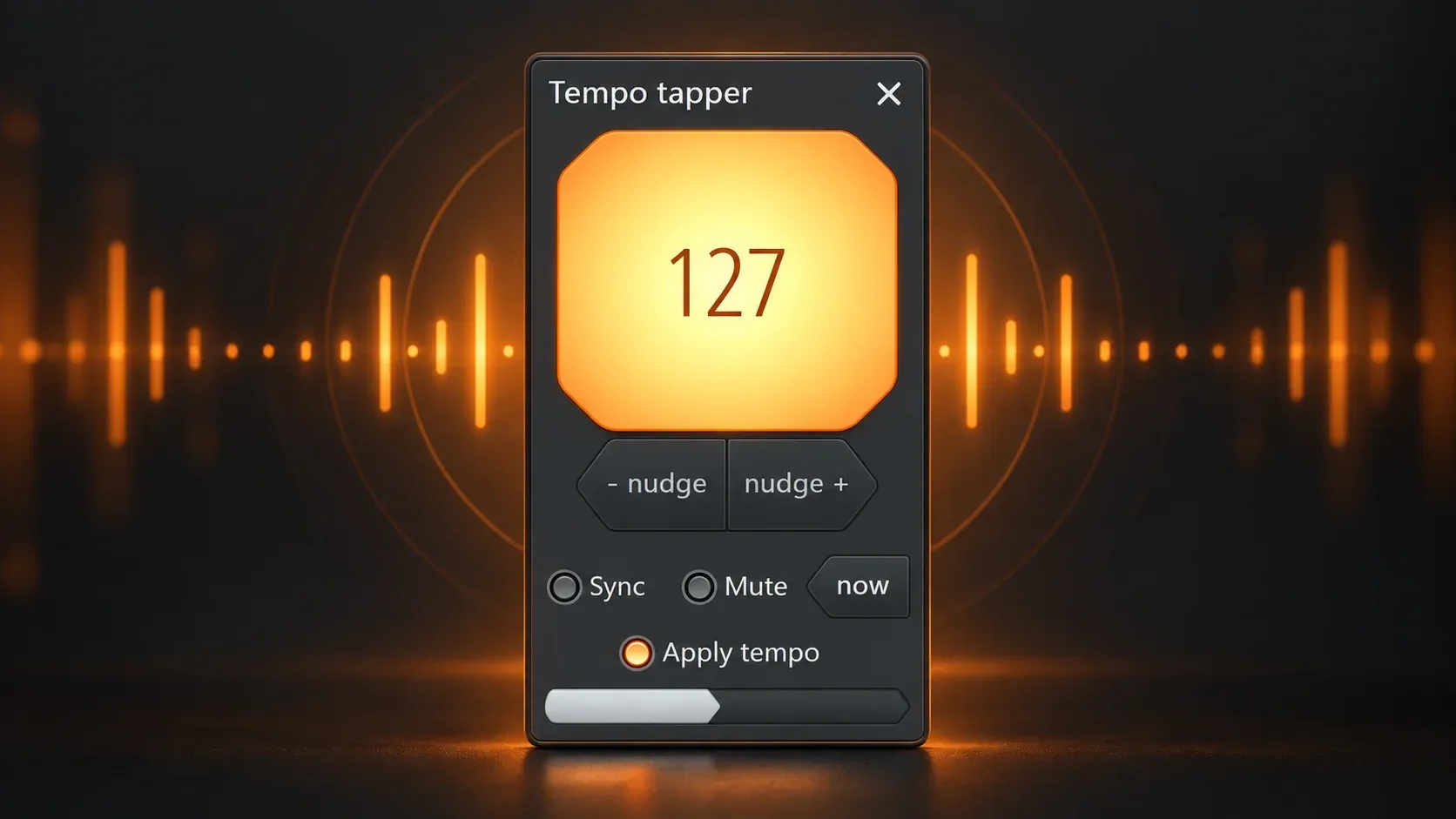
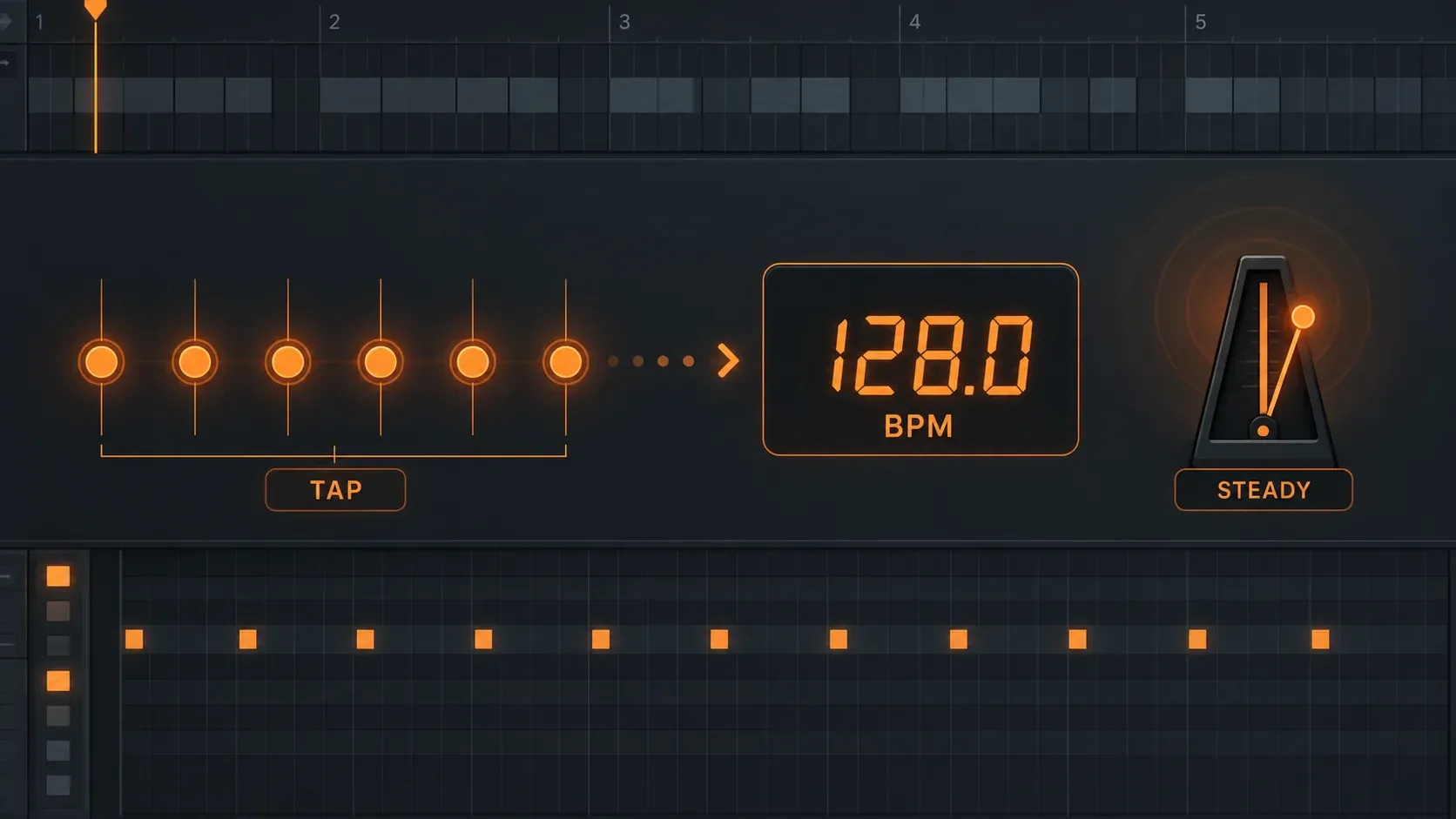
Quick answer: open View > Tempo tapper in FL Studio, then click the large tap area in time with the beat you hear. Leave Apply tempo on to set the project BPM, or turn it off to read the beat without changing your project tempo. With it on, FL Studio begins adjusting the tempo after the second tap. Keep tapping on the same pulse until the reading becomes useful, then check the grid against a musical phrase.
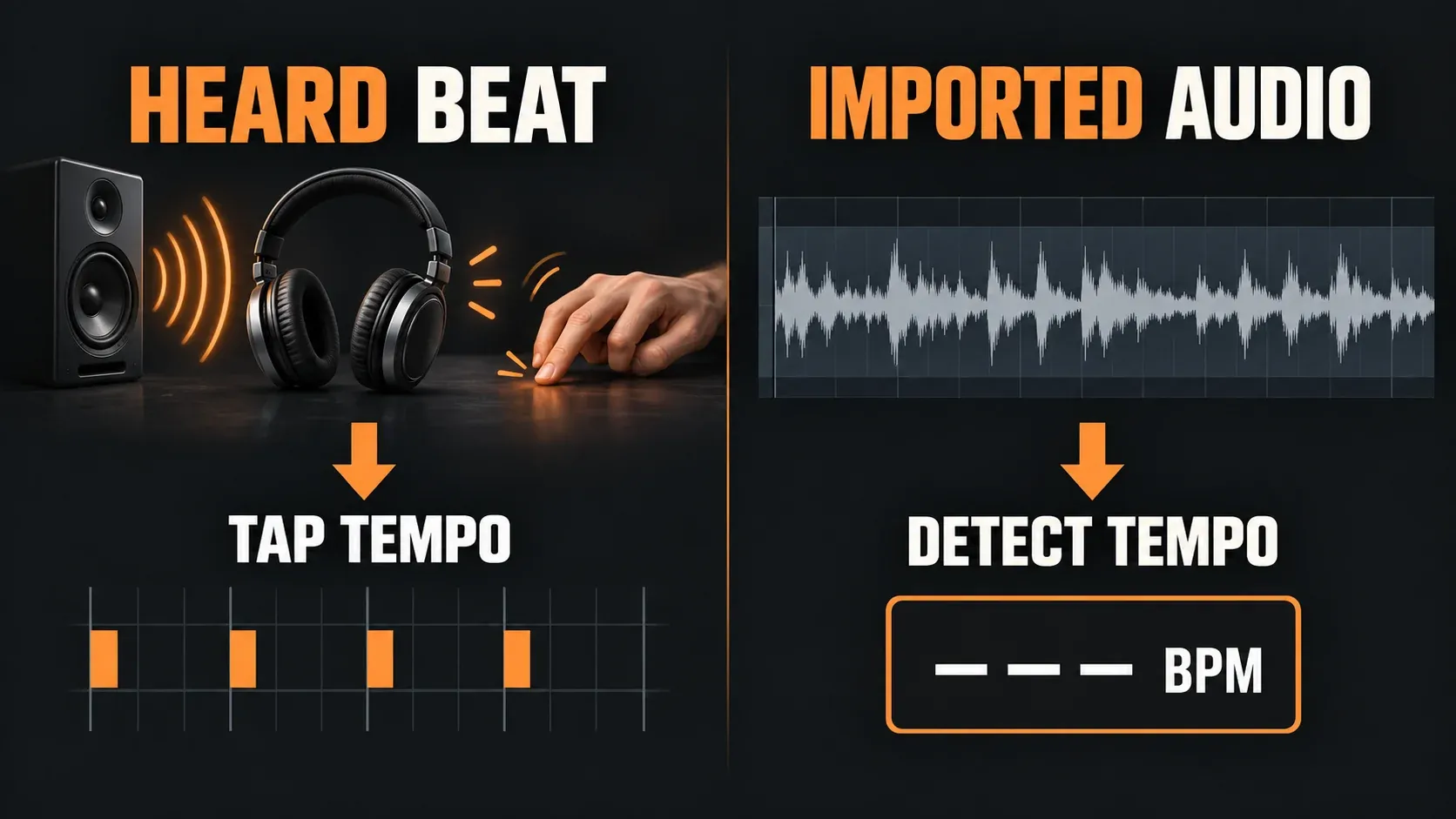
This is the right tool when you are matching a project to a beat outside the Playlist: a record playing beside you, a live musician, a DJ feed, or a reference track you are following by ear. It is a different job from analyzing an audio file that is already inside FL Studio. For that case, use the Detect BPM workflow for an imported clip.
How to open Tap Tempo in FL Studio
Open the main menu and choose View > Tempo tapper. The Tempo Tapper window can be opened while the project is playing, so you can follow an external source without stopping the arrangement. Put the window where you can reach it, but keep enough attention on the actual pulse: the first useful result comes from your timing, not from clicking as fast as possible.
Choose one clear beat to follow. A kick, snare, hi-hat, or metronome pulse is easier to track than a busy section with fills and syncopation. Tap once per beat and keep the spacing even. If you tap every other beat, you will get a value near half the intended tempo. If you tap subdivisions, FL Studio may give you a value near double the one you wanted.
If you only want a BPM reading, clear Apply tempo first. The Image-Line release notes document this Tempo Tapper checkbox and its remembered state. When you do want the project to follow your taps, turn it on: FL Studio begins adjusting the tempo after the second click. Two taps are still not enough for a dependable reading. Treat the early number as a direction and continue for several consistent taps, especially when the source has a loose live feel or a weak downbeat.
How many taps do you need?
Stop when the result is stable enough for the musical decision you are making. A short loop with a strong kick may settle quickly. A live performance with small timing variations needs more taps and a little judgment. You are looking for a useful project tempo, not a claim that every hit in a human performance happened at one exact BPM.
If the value keeps moving, check your tapping before blaming the tool:
- follow the same part of the beat each time;
- tap at the main pulse instead of a fast subdivision;
- keep your hand relaxed and let the source lead;
- listen for the point where the groove feels like one beat per click;
- pause and begin a new run of even taps if you changed from quarter notes to subdivisions.
What to do when the BPM is half or double
Half-time and double-time readings are normal musical interpretations, especially with slow hip-hop, halftime drum and bass, trap hi-hats, and patterns built from eighth or sixteenth notes. The number can be mathematically consistent and still describe the wrong musical pulse.
Use the project grid and your ears together. If the kick lands every two grid beats when you expected one, try the doubled BPM. If the grid feels twice as fast as the phrase, try the halved BPM. Then listen to a full bar or two instead of judging the first click. The correct value is the one that makes the main accents, bar lines, and repeated phrase land naturally.
Do not force every song into one interpretation. A producer may work at 70 BPM for a halftime feel or at 140 BPM for the same material viewed as a faster grid. Choose the value that matches the editing, sequencing, and automation work you plan to do.
Use +/- nudge when the source is drifting out of phase
Tap Tempo also includes +/- nudge controls. Holding one temporarily speeds up or slows down the project so it can catch a live source that is slightly ahead or behind. When you release the control, the project returns to its set speed.
That makes nudge useful for alignment, not for replacing the project BPM. Imagine that your project is set correctly, but an external playback source is a little late. A short nudge can bring the beats back together without turning a temporary timing correction into a new stored tempo.
Use a new Tap Tempo result when the project should actually adopt a different BPM. Use nudge when the underlying tempo is already the value you want and the immediate problem is phase or timing drift.
What Sync changes
The Sync option affects more than the number in the tempo field. With Sync enabled, each tap resets the downbeat and repitches Audio Clips to align with the tapped BPM. Image-Line's Tempo tapper documentation also describes using a single tap to realign FL Studio playback to an external source.
That can be useful when the clips are already prepared for the grid and your goal is to bring the project back to the start of a bar. It can also be the wrong choice when you are only trying to read a beat. Clear both Apply tempo and Sync when you want to estimate BPM without changing the project tempo or resetting the downbeat. Enable Sync only when you intentionally want the downbeat or prepared clips to follow your taps.
If you turn Sync on, make the change in a controlled project state. Audio clips need to be synced or locked to the grid before this behavior can do what you expect. If the audio is free-running, stretched with an unsuitable method, or already offset for a creative reason, a tap can create a new timing problem instead of solving the old one.
Tap Tempo versus Detect tempo
These commands answer different questions:
- Tap Tempo: “What tempo am I hearing or following right now?”
- Detect tempo: “What tempo can FL Studio estimate from this audio clip?”
- Fit to tempo: “How should this clip be adapted to the project tempo?”
Start with Tap Tempo when the source is outside the project or when you need a quick musical estimate before building the arrangement. Use Detect tempo when the source file is already loaded and you want FL Studio to analyze it. Use Fit to tempo only after you have decided which project BPM and clip relationship you actually want.
This separation prevents a common mistake: stretching an imported sample until it fits the grid, then treating the stretched result as proof of its original tempo. The Image-Line Playlist manual lists Detect tempo and Fit to tempo as separate actions for a reason. Detection is about estimating a source value; fitting is about changing the clip's relationship to the project.
A practical Tap Tempo routine
For a clean start, use this sequence:
- Open View > Tempo tapper. Clear Apply tempo for a reading only; turn it on to set project BPM. Keep Sync off unless you also mean to reset the downbeat.
- Choose the main pulse you want the grid to represent.
- Tap evenly for several beats, beginning after you have found the groove.
- Check whether the number describes the main beat or a half/double-time subdivision.
- Keep Sync off unless you want tapping to reset the downbeat or retime prepared Audio Clips.
- Use +/- nudge for a short live alignment correction when the stored BPM is already right.
- Verify the project grid against a full phrase before arranging to it.
If your source is an imported loop or song, switch to the FL Studio Detect BPM guide instead of tapping indefinitely. It covers source-tempo checks, manual beat counting, and the difference between finding a tempo and fitting audio to it.
The useful distinction
Tap Tempo is a fast way to give FL Studio a musical starting point. Its result becomes more useful when you tap the same pulse, check for half or double time, and keep temporary nudge corrections separate from a new project BPM. Treat Sync as an intentional timing control, not as a harmless extra switch. Then choose Detect tempo when the audio itself is already in the Playlist.