FL Studio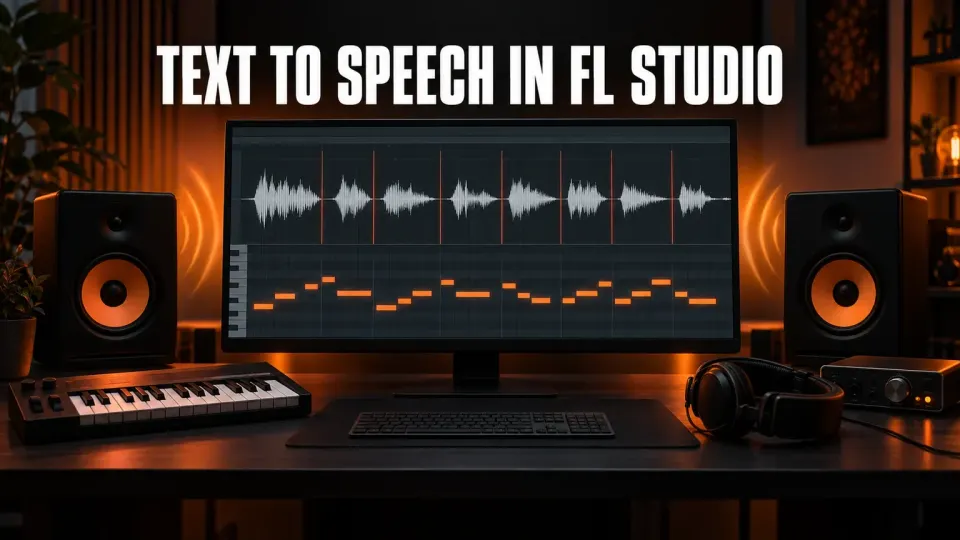
FL Studio's text to speech tool is the Speech Synthesizer, and it isn't in the plugin list because it isn't a plugin. To open it on Windows, show the Browser with Alt+F8, open the Speech folder and drag any speech preset onto an empty channel in the Channel Rack. The Speech dialog opens. Type your text, click the speaker button to listen, adjust the voice, then click Accept. On an empty channel the phrase lands in Fruity Slicer with each word on its own slice. The Speech Synthesizer comes with every FL Studio edition but runs on Windows only; on a Mac you make the phrase with another tool and import the audio.
Most people find this tool through a short video, then go looking for it under Add one or the plugin picker and come back empty-handed. That's expected: Image-Line built it as a pop-up dialog that turns typed text into audio, not as an instrument you load. Below I cover both ways to open it, what every control in the dialog does, the text tricks that change pitch per word, what to do with the word slices after Accept, how to save the phrase as a file, what to check when the Speech folder seems to be missing, and what a Mac user can do instead.
Why Speech isn't in the plugin list
Image-Line's manual page for the Speech Synthesizer says it plainly: the speech synth "is not a stand-alone instrument so does not appear in the add-plugin list". It is a dialog that processes text to audio and renders the result as sliced audio. You reach it through speech presets, small files with the .speech extension, and those live in the Browser rather than in the plugin menus.
That's why the Add one menu and the plugin picker in the Channel Rack never show it, however far you scroll. Older tutorials that say "Channels, Add one, Speech synthesizer" describe a menu route that matches neither method in the current manual. The confusion isn't new either: in a June 2015 Image-Line forum thread, an FL Studio 12 user couldn't find Speech when adding a channel, and the reply pointed to the Speech folder under the All tab in the Browser.
Two facts are worth knowing before you start. The FL Studio edition comparison lists the Speech Synthesizer as "Included in all editions", so there's nothing extra to buy or download. The same entry marks it "Windows only".
Open the Speech Synthesizer from the Browser
This is the route I'd use every time, because it works in every edition:
- Show the Browser. If it's hidden, press Alt+F8. Our guide to the FL Studio Browser covers its tabs and layout if you rarely use it.
- Open the Speech folder. Look in the folder list of the All tab, the Browser's default view, and expand Speech to see the presets.
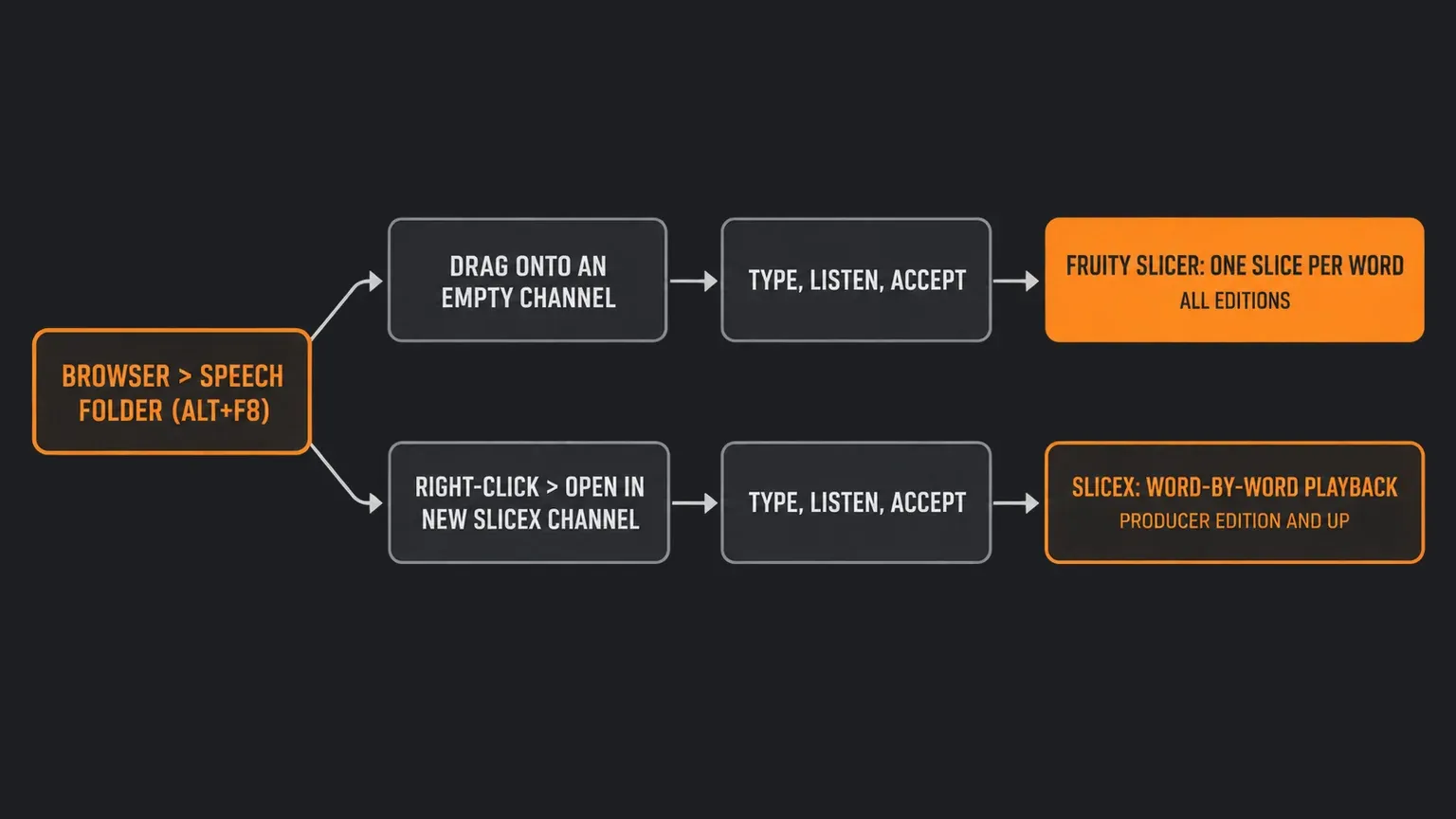
- Drag a preset onto an empty channel. Drop it on an empty spot in the Channel Rack. Image-Line's page on speech presets says that if you start with an empty channel, "the audio will be saved into an instance of the Fruity Slicer".
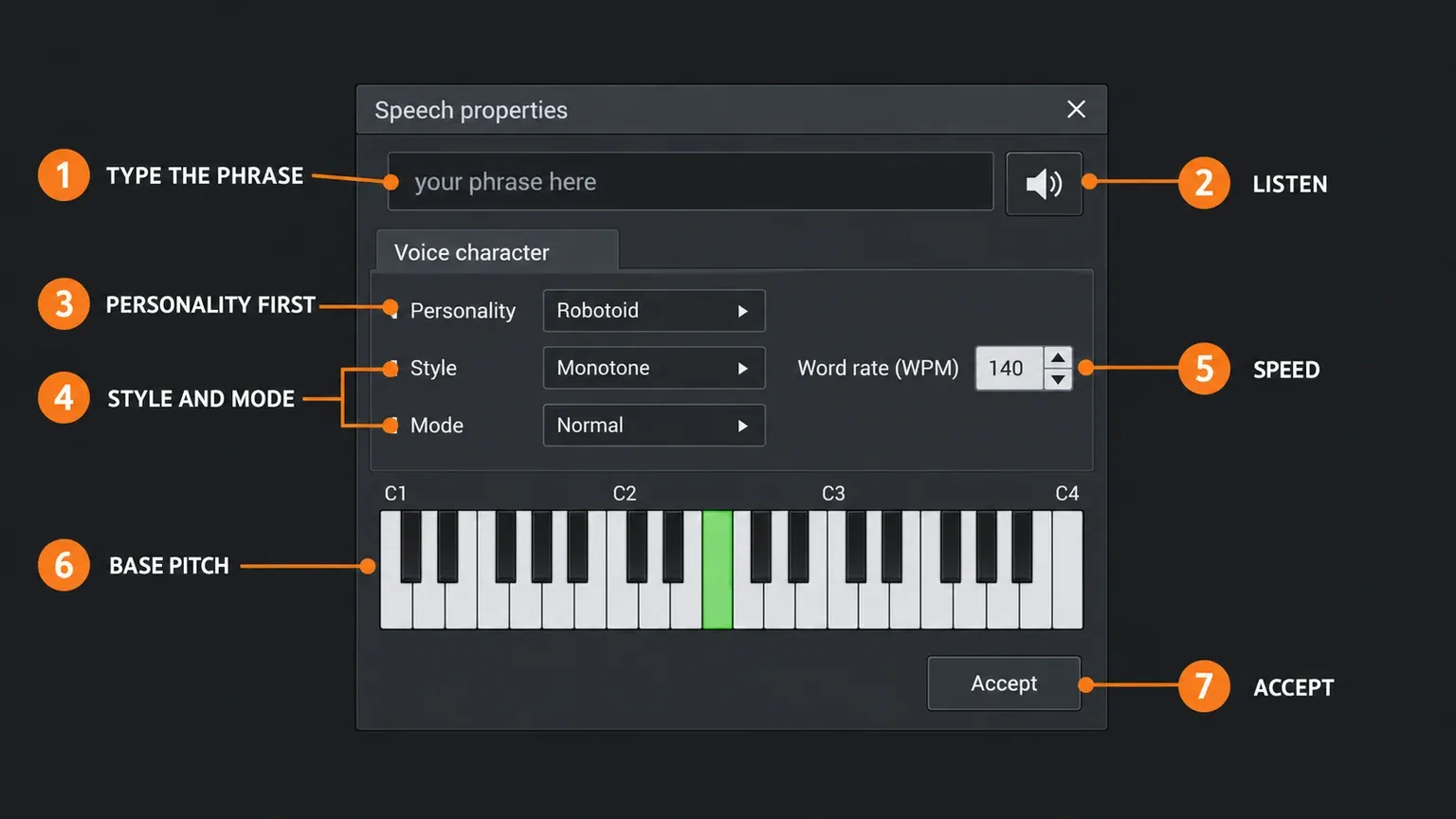
- Write your phrase. The Speech properties dialog opens. Replace the text, click the speaker button to listen, and change the voice settings until it sounds right.
- Click Accept. FL Studio renders the phrase into the channel. If you changed any settings, it asks you to save the preset under a new name. Saving it is worth the two seconds, because you can drag that preset in again later.
Any preset works as a starting point, since you replace its text anyway. Pick one whose voice is close to what you want and you'll spend less time in the dialog.
The right-click route: Fruity Slicer or Slicex
The manual's second method skips the drag. Right-click a speech preset in the Browser's Speech folder and choose "Open in new Fruity Slicer Channel" or "Open in new Slicex Channel". FL Studio creates the channel for you and opens the same dialog. According to the manual, either plugin gives you word-by-word playback.
The catch is the edition. Fruity Slicer comes with every edition, while Slicex is listed for Producer Edition and up, so on Fruity Edition I'd pick the Fruity Slicer option. Our Slicex guide explains what the extra region and pad controls give you over Fruity Slicer.
| Where the preset goes | What you get | Edition |
|---|---|---|
| Dragged onto an empty channel | A Fruity Slicer channel with one slice per word | All editions |
| Right-click > Open in new Fruity Slicer Channel | The same result in a new channel | All editions |
| Right-click > Open in new Slicex Channel | A Slicex channel with word-by-word playback | Producer Edition and up |
| Dragged onto an existing Sampler or Granulizer channel | The phrase becomes that plugin's sound; no word slices | All editions |
The last row comes from the manual's list of plugins that accept speech presets: Sampler, Granulizer, Fruity Slicer and Fruity Scratcher. Dropping a preset on a channel that already holds one of them applies the phrase to that plugin. Only the two slicers split it into words, so use Sampler or Granulizer when you want the whole phrase as one sound.
What each control in the Speech dialog does
The dialog is small, and the order you touch the controls matters more than any single setting. The one trap is Personality: per the manual, choosing a personality also resets the other voice settings to that personality's defaults. Pick it first, then shape the rest.
| Control | What it does | When I'd change it |
|---|---|---|
| Speech text box | The text the engine turns into speech | Always; this is your phrase, including any pitch markers |
| Speaker button (Listen) | Previews the phrase with the current settings | After every change, before you Accept |
| Personality | Changes the timbre of the voice and resets the other voice settings to its defaults | First, before Style, Mode or rate |
| Style | Monotone/Sing keeps one pitch for every word; Natural imitates speaking intonation; Random picks a random pitch for each word | Monotone/Sing for melodies, Natural for spoken tags, Random for glitchy chants |
| Mode | Normal uses natural noise levels; Breathy mixes in more noise; Whispered uses noise only | Whispered for a quiet tag over a beat |
| Word rate | Sets the speed of the voice | When the phrase has to fit a bar or a gap |
| Pitch keyboard | Sets the base pitch of the voice; click a key | To put the voice in the key of your track |
| Accept | Applies the preset to the selected channel and asks for a new preset name if you changed settings | When the preview sounds right |
Image-Line's speech presets page still describes an older layout, with a pitch semitone menu and a pitch octave display instead of the keyboard. If your dialog looks like that, the job is the same: those two controls set the base pitch.
Text tricks: pitch per word, smoother phrasing and singing
The text box understands two kinds of formatting, both documented on the Speech Synthesizer page.
Pitch per word. Put a number in parentheses right after a word to shift that word by that many semitones. The manual's example is "Semitone up(1), 2 semitones down(-2)": with a base pitch of F#, the word "up" is sung on G and "down" on E. The offsets are relative to the base pitch you set on the keyboard, so you can move the whole line into a new key with one click and keep the melody.
Smoother phrasing. Replace spaces with underscores, as in "This_is_example_sentence", for more natural speech patterns. The cost is slicing: Fruity Slicer treats an underscored sentence as a single word and may not slice it properly. I'd keep underscores for short groups you never need to split, and leave normal spaces wherever you want separate slices.
Singing in tune. When someone asked in a June 2020 Image-Line forum thread whether text to speech can sing in tune, one reply said to "Add (x) after words", with x as the number of semitones, and another suggested to "Time stretch the vowels and use a vocoder". Combined with the Monotone/Sing style, which uses the same pitch for every word unless you mark it, the markers let you write a simple melody straight into the text box:
Get up(2) get(4) down(-1)That line is an example of the syntax, not a preset. Image-Line describes the output as computerized or vocoder-like vocals, so expect a robotic effect rather than a sung lead. For anything closer to real singing, the vocoder route at the end of this page goes further.
After Accept: working with the word slices
When the phrase opens in Fruity Slicer, the manual says the sentence is sliced automatically so that each word sits in its own slice, and a BeatSlicer grid file (.zgr) is generated for it. From there, Image-Line's Fruity Slicer page documents everything you need to turn words into a part:
- Get the words into the Piano Roll. The Dump beat to piano roll button writes one note per slice. Normal matches the phrase length at the current tempo, Reverse plays the word order backwards, and Random scatters the slices. With Auto Dump on, Fruity Slicer writes the notes for you after loading. Then move, repeat or delete words in the Piano Roll like any other notes.
- Change pitch and length. The PS slider shifts every slice up to 12 semitones up or down. The TS slider stretches the slices by up to 400% while keeping the pitch.
- Pick the right stretch method. Fruity Slicer has a Speech method that the manual describes as "optimized for speech", and it points you to Monophonic for singing.
- Fix clicks. If slices click when they start or stop, DeClick applies very short fades to each slice.
- Pull out a single word. Drag a slice from the slice properties window onto a Sampler channel or anywhere else that accepts a .wav file. That's the quickest way to turn one word into a playable one-shot.
- Edit one word in detail. Open in Edison sends the current slice to Edison. Edison comes with Producer Edition and up, so this one isn't available in every edition; our Edison guide covers what you can do there.
Save the phrase as an audio file
The phrase lives inside the Fruity Slicer channel until you save it. The menu under Fruity Slicer's open-and-slice-a-sample button has two save options:
- Save processed sample saves the audio with its slice information. The manual notes that only .wav files can hold slice markers, so keep it as a WAV.
- Save original sample saves the audio without slice information.
I'd save the processed version. The manual says that when a sample already contains slice markers, Fruity Slicer uses them instead of guessing, so the words come back as separate slices next time you load the file. If you've already built a part with effects and want it as one audio clip, render it instead; our guide to resampling audio in FL Studio compares rendering a pattern, consolidating clips and recording the output.
Can't find Speech? Check these first
- The Browser is hidden. Press Alt+F8 to show it again.
- You're looking in the plugin menus. Add one and the plugin picker won't list it, because it isn't a plugin. Go to the Speech folder in the Browser instead.
- You can't spot the folder. In the Browser, press Ctrl+F and type speech, then F3 to jump to the next match. If the results show only files, turn on Search for folders in the Browser menu so the folder itself shows up. The Browser page of the manual lists both search options.
- A preset you just saved isn't there. Click Refresh content in the Browser. It rereads all folders and shows files created after FL Studio started.
- A tutorial shows a different menu. If the steps say Channels, Add one, Speech synthesizer, they're from an older version. FL Studio 12 users ran into the same wall in 2015 and 2016, and the answer was the same: the Speech folder in the Browser.
- You're on a Mac. The Speech Synthesizer isn't available there. The next section covers the alternatives.
Text to speech in FL Studio on a Mac
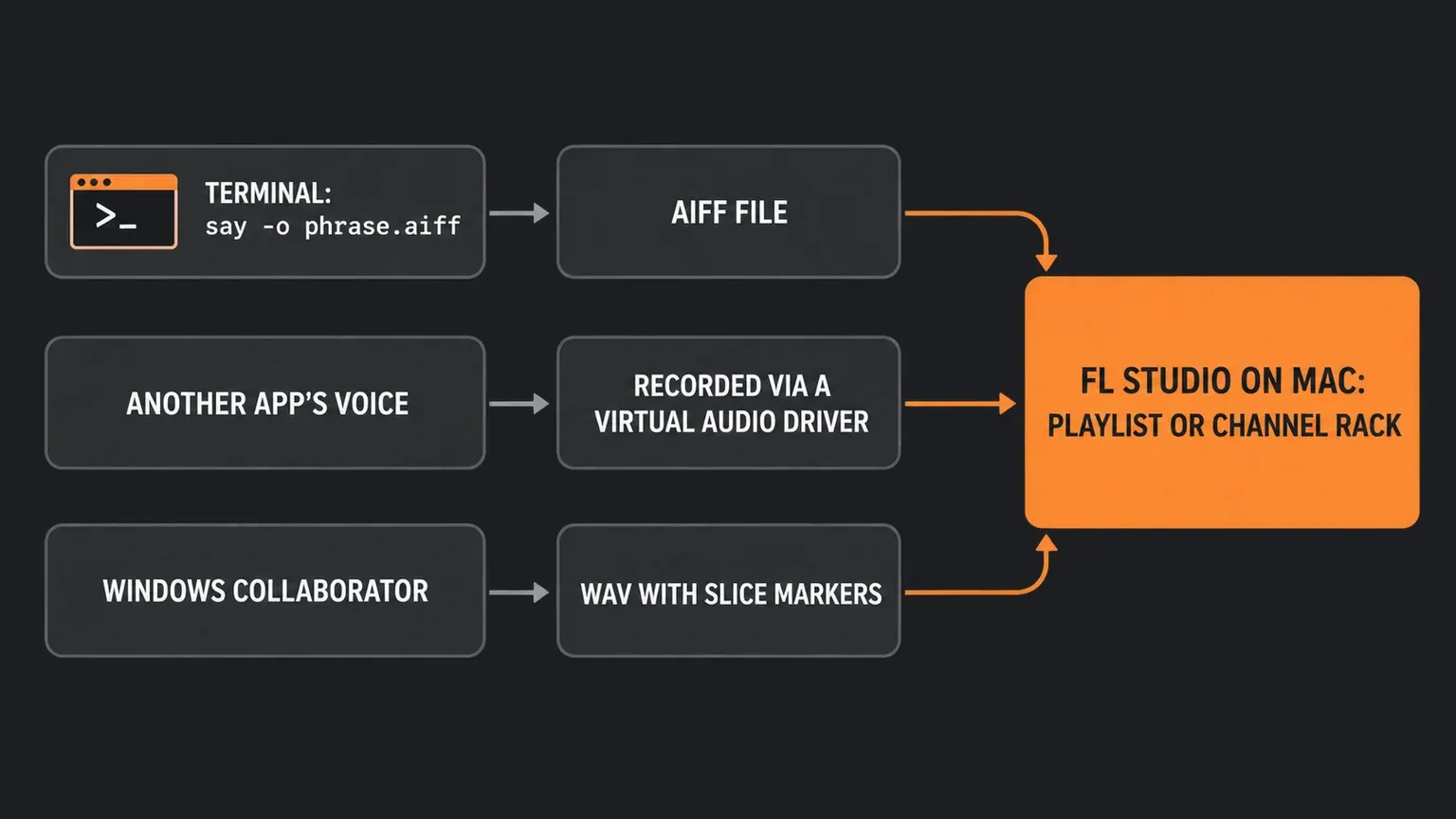
The edition comparison marks the Speech Synthesizer as Windows only, and Image-Line's forum has said so for years. In September 2019, a reply in a thread asking whether speech synth works on Mac said "Speech is currently not supported on macOS". In April 2020, an Image-Line site admin replied in a thread about Speech Synth on FL Studio 20 for Mac that "Speechsynth uses code not available for macOS". Mac users in that thread kept asking well after that. So on a Mac you create the speech elsewhere and bring the audio into FL Studio. Three routes work with documented tools:
1. macOS's own say command. macOS includes a Terminal command that speaks text and can write it to an audio file. The say command reference documents the options; a basic line looks like this:
say -o phrase.aiff "your phrase here"The -o option writes the speech to a file instead of playing it, and AIFF is the default format, which the say manual page says "should be supported for most voices". Add -v with a voice name to change the voice (say -v '?' lists the voices installed on your Mac) and -r to set the rate in words per minute. Image-Line lists AIFF among the audio formats FL Studio reads, so drag the file into the Playlist or the Channel Rack as described in our guide to importing audio into FL Studio. You won't get automatic word slices this way, so cut the words yourself in the Playlist or, in Producer Edition and up, in Slicex.
2. Record another app. If you prefer a voice from another app or website, play it into FL Studio and record it. On macOS that usually means a virtual driver such as BlackHole or a physical loopback, which our guide to recording computer audio in FL Studio sets up step by step.
3. Ask a Windows user. If you collaborate with someone on Windows, they can make the phrase in the Speech Synthesizer and send it as a WAV saved with Save processed sample. The slice markers travel with the file.
Creative uses worth trying
- Feed a vocoder. A typed phrase makes a clean modulator for Vocodex, with a synth as the carrier. Vocodex is listed for Producer Edition and up, and our Vocodex guide explains the carrier and modulator setup.
- Make a texture. Drop a speech preset on a Granulizer channel and use the phrase as raw material for pads and stutters instead of words.
- Phone or radio voice. Cut the lows and highs hard with an EQ so only a narrow middle band remains. Our Fruity Parametric EQ 2 guide shows how to set high-pass and low-pass bands.
- Producer tag. Type the tag, try Whispered mode, save the preset under the tag's name, and you can drag the same voice into every new project.
- Chants and glitches. Random style plus Dump beat to piano roll with the Random preset turns one sentence into a shuffled vocal rhythm.
Quick answers
Is the text to speech in FL Studio free?
It's included in every FL Studio edition on Windows, so there's no separate plugin to download or buy.
Why does my whole sentence play as one slice?
Check for underscores. Fruity Slicer treats an underscored sentence as a single word. Use spaces between the words you want sliced apart.
Can I change the words after clicking Accept?
Drag the preset onto the channel again, change the text in the dialog and click Accept. If you saved your settings as a named preset, start from that one so the voice stays the same.
Does the Speech Synthesizer work in FL Studio for Mac?
No. Image-Line lists it as Windows only. Make the phrase with the say command or another app, then import the audio.
Next time Speech seems to have vanished, skip the plugin menus. Open the Browser, find the Speech folder and drag a preset onto an empty channel; everything else on this page builds from that first drag.