FL Studio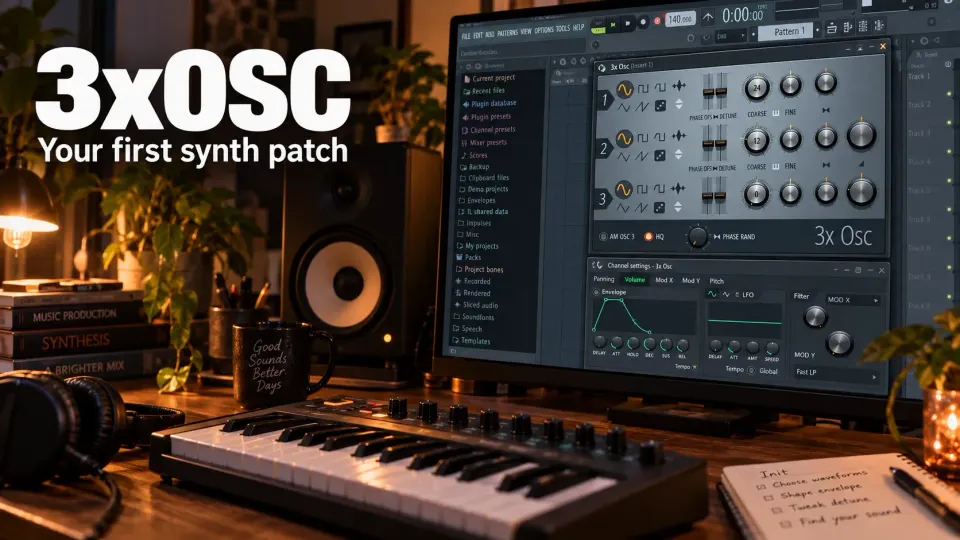
3xOSC makes far more sense once you find the other half of the instrument. Its three oscillator rows create the raw sound. FL Studio's Channel Settings add the volume envelope, filter and LFOs that turn it into a playable bass, pluck or pad. So the envelope hasn't gone missing. It lives outside the little generator panel.
For your first patch, keep one saw audible, write a short phrase, shape the volume and close a low-pass filter. Only then blend in a second oscillator. That way you'll hear exactly what each change adds, and you'll finish with a usable sound to carry into your next sound-design lesson.
What 3xOSC does—and what your licence includes
Image-Line describes 3xOSC as a subtractive synthesizer feeding the integrated Sampler. You pick and mix oscillator shapes, then shape that material with the Channel envelope and filter. Simple subs, plucks, leads, pads and noise layers all make sensible first jobs.
The current edition comparison includes 3x OSC in every FL Studio edition, so you don't need an upgrade for this instrument. An included instrument doesn't unlock the host, though: trial FL Studio can save projects but cannot reopen them until you buy FL Studio. Export audio before you close a trial session, and check the licence of any extra effects you add.
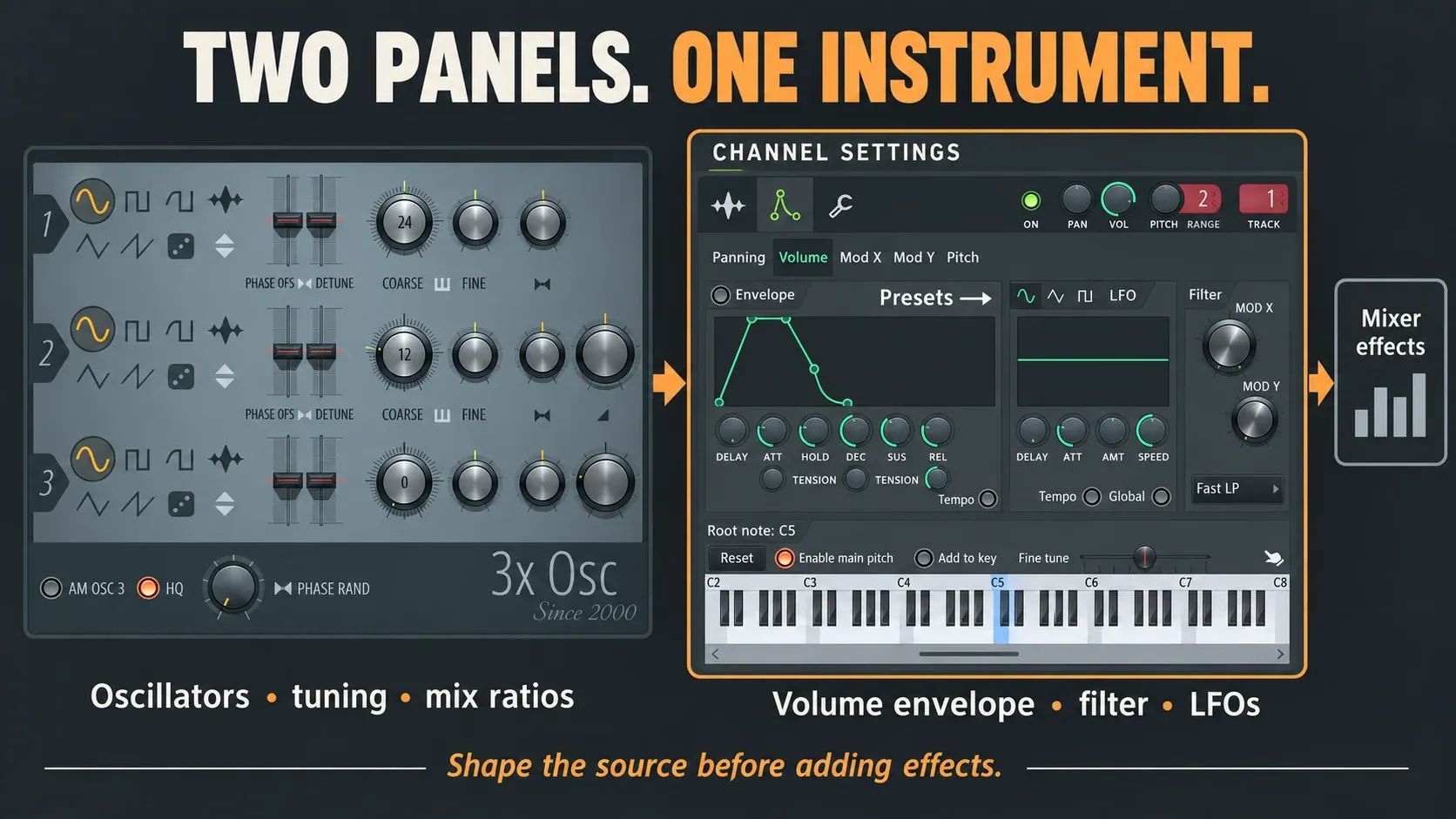
Load a clean channel and hear one source
Add 3xOSC from the Channel Rack and open its Channel button. Start from a fresh channel here, because a saved preset can carry envelope, filter and miscellaneous settings you won't see in the oscillator panel. In the Piano Roll, write a one- or two-bar phrase with both short and held notes, plus a chord if you're building a pad.
Keep AM OSC 3 off. Set the OSC 2 and OSC 3 Mix Level knobs to zero, pick a saw on OSC 1, and start with centred pan, neutral stereo detune and no added phase randomness. There’s no OSC 1 solo button, so don’t go looking for one: turning down the other two mix controls leaves OSC 1 on its own.
Use the Mixer routing guide to put the channel on a named insert, and keep its effects bypassed while you learn the source. Keep the listening level comfortable, too. A bright saw doesn't have to be loud for you to hear what the filter changes.
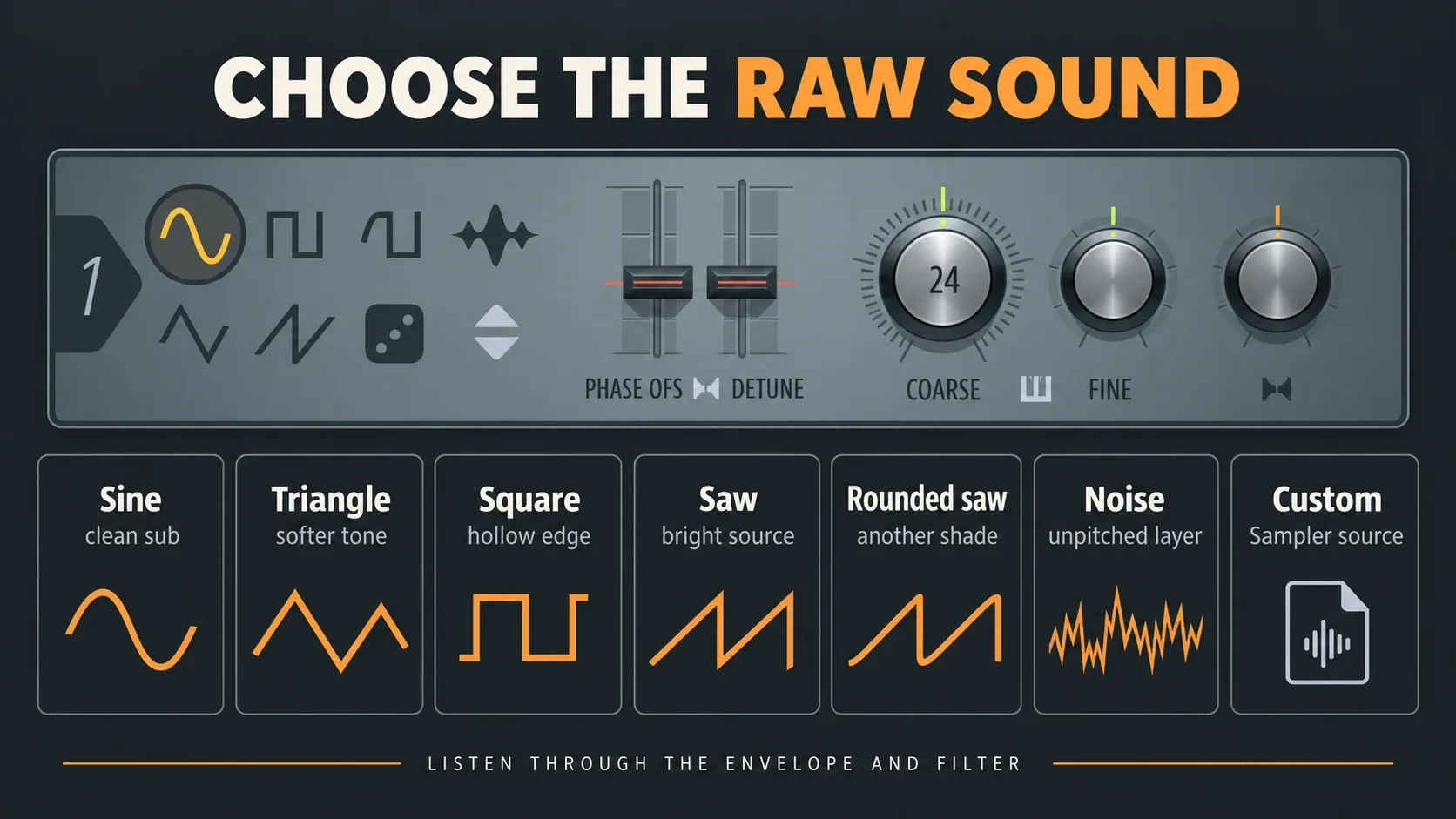
Choose a waveform for the sound you need
You get seven choices: sine, triangle, square, saw, rounded saw, noise and Custom. Start with sine for a clean sub, triangle for a softer tonal layer, or saw when you want an obviously bright source to filter. Square has a hollow character of its own, and rounded saw is one more shade worth hearing. No genre rule says where either one belongs.
Noise gives you an unpitched layer for a breath, transient or riser. Custom uses the sample loaded in the Channel's Sampler Settings. That works quite differently from scanning a wavetable in a dedicated wavetable synth.
Switch shapes while the same phrase plays, and trim the output level where needed so the comparison stays fair. Filtering can turn a bright source soft, and later distortion can add harmonics to a plain sine. Pick whatever material helps the next stage do its job.
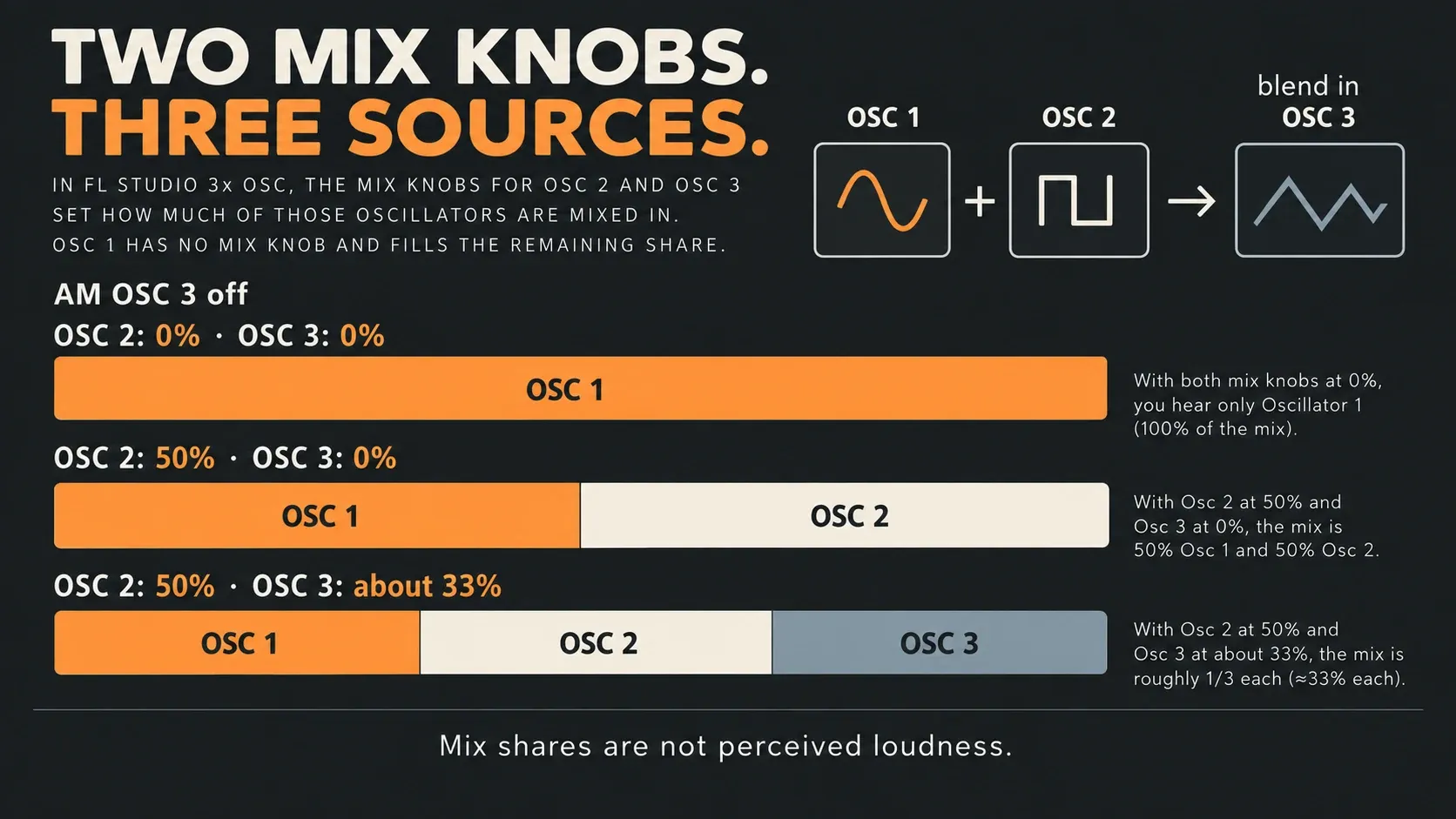
Coarse, Fine and the two Mix Level knobs
Coarse tuning covers −24 to +24 semitones per oscillator, and Fine covers −1 to +1 semitone. Set musical intervals with Coarse, such as a second source one octave below the first. Save Fine for small pitch differences and audible beating between layers. Fine-tuning two sources won't make their sum stereo on its own; pan and left/right differences decide that.
The Mix Level knobs set proportions, and OSC 1 doesn't get a Mix Level knob of its own. OSC 2 takes its share from OSC 1 first. OSC 3 then takes a share from the combined OSC 1+2 pair. Here's how that works with AM OSC 3 off:
| OSC 2 Mix | OSC 3 Mix | Resulting source shares |
|---|---|---|
| 0% | 0% | OSC 1 only |
| 50% | 0% | Half OSC 1, half OSC 2 |
| 50% | About 33% | Approximately one third of each oscillator |
These numbers are mix shares. They don't promise equal perceived loudness, because waveform, tuning and phase still shape the combined sound. If OSC 1 seems to get quieter as you bring in OSC 3, that's expected: OSC 3 is shrinking the first pair's share. On a bass, add only enough of the extra layer to make its role audible. Equal thirds are a handy demonstration, nothing more.
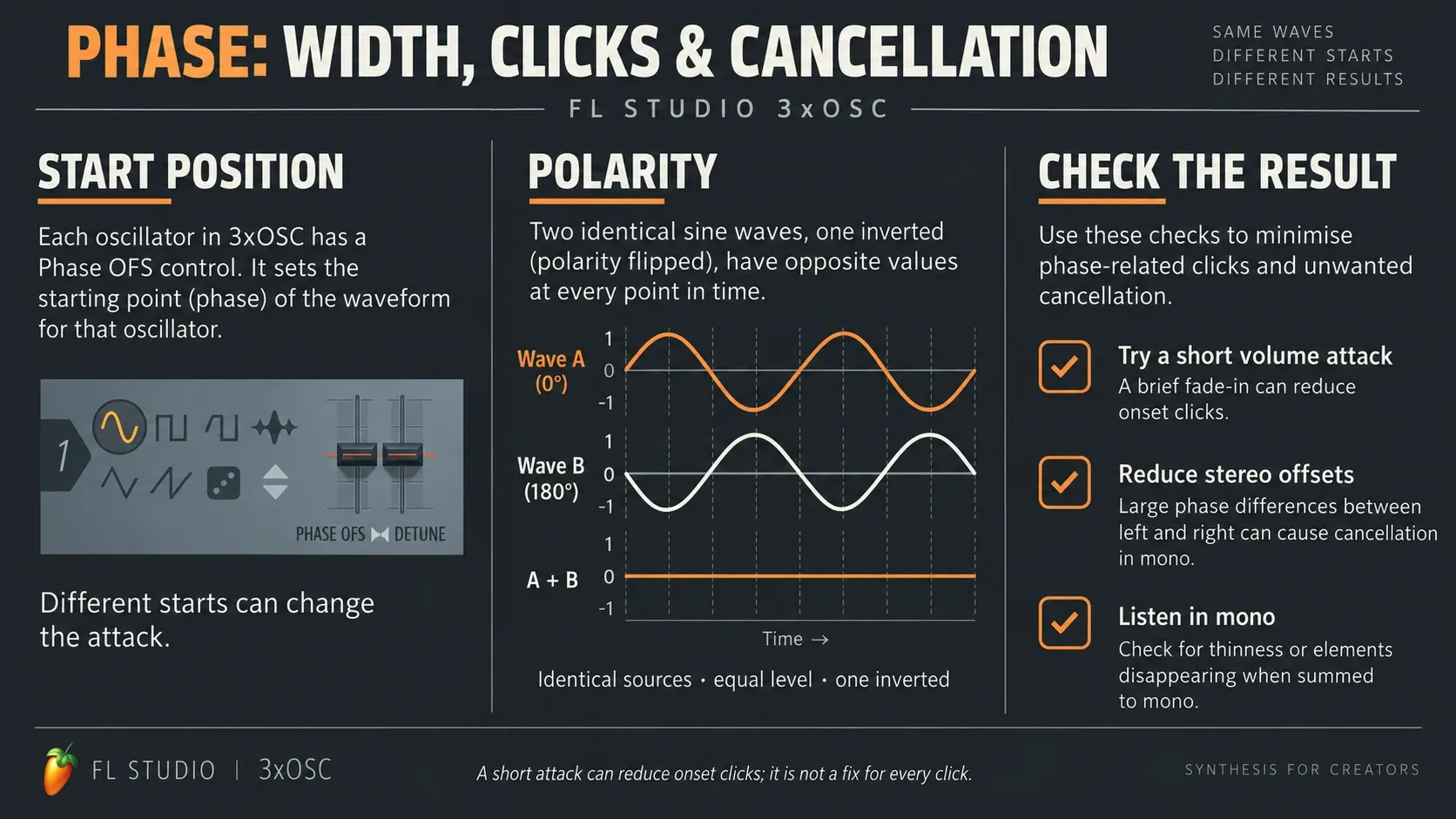
Phase OFS, Detune, Phase Rand and Invert
Phase OFS sets where the oscillator starts and lets you use different offsets for the left and right channels. Detune gives the two stereo channels slightly different frequencies; its middle position switches that off. Phase Rand adds randomness to the stereo phase of all oscillators. So you're making three separate decisions: start offsets, ongoing frequency differences and randomness.
On a steady sub, keep stereo differences modest and compare repeated notes in mono. A pad can go wider, but widen it gradually and listen to a chord with left and right summed. If the important part thins out, pull back the stereo offsets or detune before you reach for more processing.
Invert flips polarity. Two otherwise identical, equally mixed sources can cancel when one is inverted. A small Fine difference produces moving phasing instead, because the sources no longer stay opposite through the note. That's one possible reason a patch suddenly goes silent, though not the only one.
The 3xOSC manual also warns that stereo phasing can cause an onset click when it starts the waveform away from zero. Put a short attack on the volume envelope and listen again. That can soften the jump without an obvious fade-in, but it won't fix every click elsewhere in the project.
Build your first 3xOSC patch in eight steps
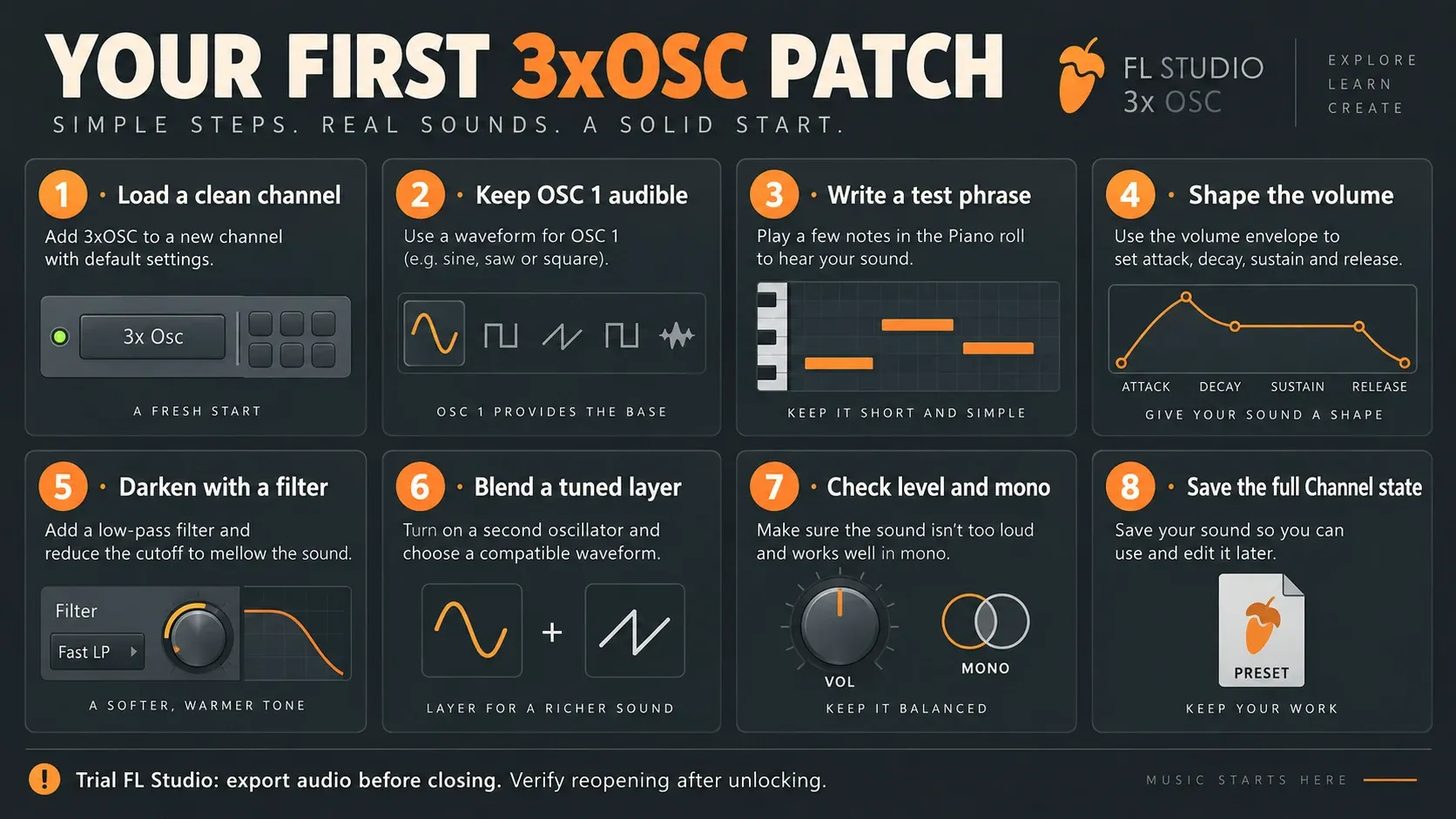
- Load a clean channel. Add a fresh 3xOSC, route it to a named Mixer insert and bypass insert effects. If FL Studio is in trial mode, plan to export audio before closing.
- Keep OSC 1 audible. Leave AM OSC 3 off, set OSC 2 and OSC 3 Mix Level to zero, and select a saw on OSC 1. Keep the stereo controls neutral initially.
- Write a test phrase. Use short and held notes across the range of the intended part. Use a chord as well for a pad.
- Shape the volume. Open Envelope / Instrument Settings, select Volume and enable its envelope switch. Start with short delay and hold, a quick attack, a falling decay, a useful sustain level and a release that fits the gaps.
- Darken with a filter. Choose Fast LP, keep resonance low and reduce Mod X until the saw softens. Compare with the brighter source so you can hear the change.
- Blend a tuned layer. Bring in OSC 2, use Coarse to place it one octave below OSC 1, and leave Fine neutral at first. Adjust its Mix Level to support the main source; keep OSC 3 out.
- Check level and mono. Compare the same phrase at similar loudness, test repeated attacks and listen in mono. Reduce the extra layer or stereo changes if the patch becomes less clear.
- Save the full Channel state. Open Plugin Menu and choose Save channel state as... in its Channel section. Give the patch a clear name. In licensed FL Studio, test the saved state in a separate channel and reopen a separate project copy. In trial FL Studio, export audio before closing and defer the project-reopening test until unlocked.
If a change makes the patch worse, stop and compare it with the previous state. An octave layer might just be too strong for the phrase, and a long release might overlap the next note. Both are easier to hear with the effects still bypassed.
Where the volume envelope lives
Click the cog to open Detailed Wrapper Settings, then choose Envelope / Instrument Settings and the Volume target. Switch the envelope on at its top left. A curve drawn while that switch is off does nothing.
The Instrument Settings documentation describes four envelopes: Volume, Mod X, Mod Y and Pitch. Panning gets an LFO but no envelope. This tab belongs to Sampler instruments and Sampler plugins, so you won't find it on every third-party synth.
On the Volume envelope, Delay waits before the attack, Attack raises the level, Hold keeps the peak for a moment, and Decay falls toward Sustain. Sustain is a level, not a duration. Release shapes the tail after you let go of the note. A pluck usually wants a quick attack, short hold, falling decay, low sustain and a controlled release. A pad calls for a slower attack and a longer tail.
Listen with the MIDI note lengths you plan to use. A low sustain can let a note fade while the key is still down, and a long release can run into the next bass note. In Tempo mode the time controls follow project tempo, but sustain stays a level. Where an envelope offers AMT, a centred amount switches its effect off even if a curve is drawn.
Filter cutoff, resonance and a useful LFO
By default, Mod X in Instrument Settings controls filter cutoff and Mod Y controls resonance. Start with Fast LP and low resonance, then lower the cutoff to darken a bright source. With Fast LP, Mod X at 100% and Mod Y at 0%, filtering is bypassed. That's only true for this low-pass case. A high-pass filter at maximum cutoff can leave very little sound.
For a pluck that starts brighter, use a Mod X envelope with a nonzero amount. Let the volume envelope handle the note's overall level and the filter envelope handle brightness. With those two jobs kept apart, a quiet note is much easier to diagnose.
You get five LFO targets: pan, volume, cutoff, resonance and pitch, each with sine, triangle and square shapes. You won't hear any modulation until AMT moves away from zero. Tempo syncs the time controls, and Global lets the LFO run continuously instead of restarting with each note. Try a gentle pitch LFO for vibrato or a volume LFO for tremolo, and take it out if the phrase loses focus.
When the movement belongs to the arrangement, like a filter opening across several bars, use an Automation Clip. Global LFO mode only changes how notes restart the LFO. It doesn't draw a Playlist automation curve.
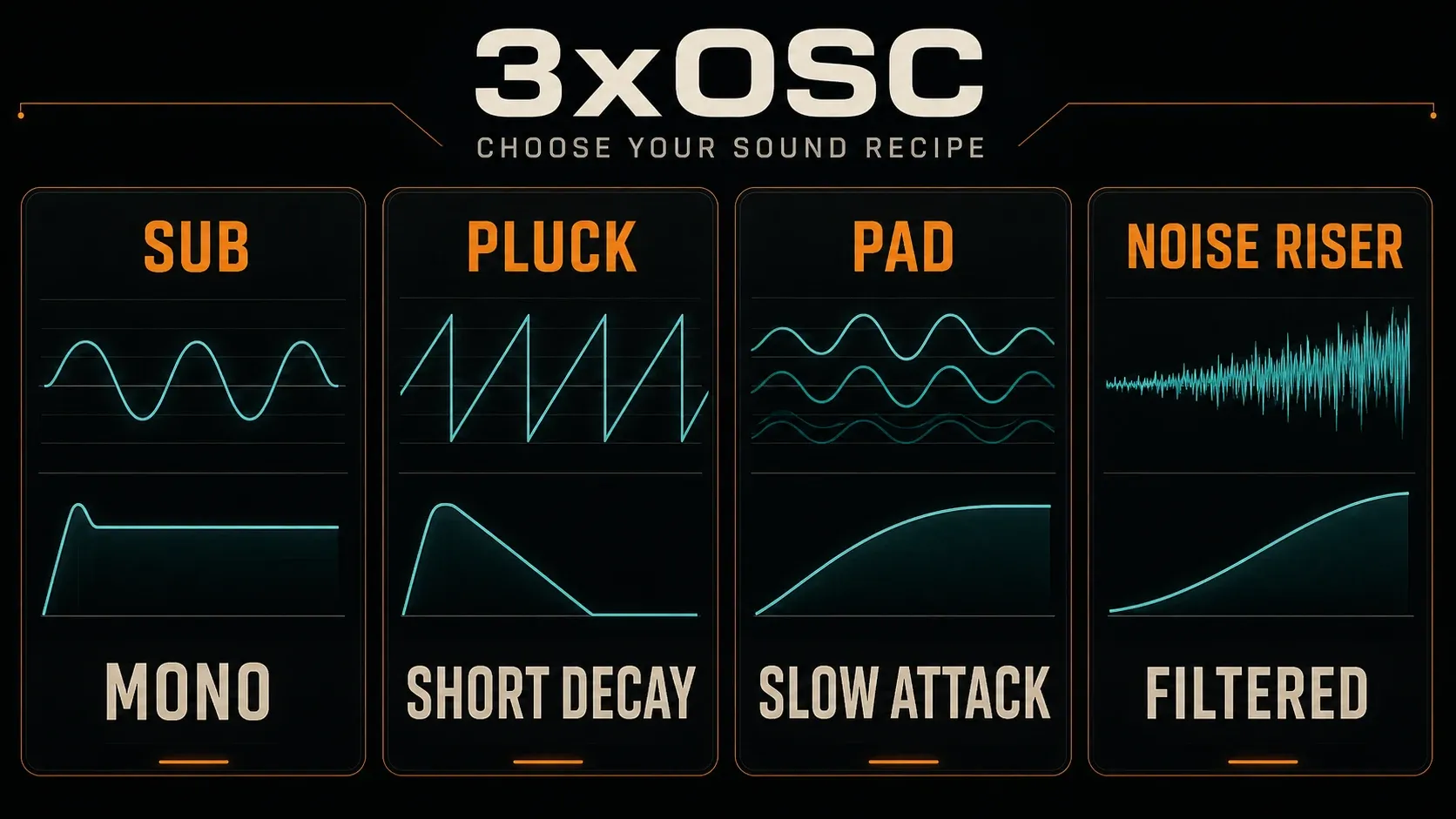
Four starting sounds worth saving
Sub: use one sine, modest stereo settings, a short anti-click attack and a release that fits the gaps between notes. Once that works, the dedicated 3xOSC 808 guide covers the pitch drop and harmonic shaping. If an existing 808 is out of tune, use the separate 808 tuning workflow.
Pluck: pick saw or square, with a quick attack, short hold and decay, low sustain and a controlled release. Close a low-pass filter, then try a small filter envelope for a brighter start. Let the rhythm decide the decay instead of copying some arbitrary time.
Pad: blend related sources, slow the volume attack and give it a longer release. A little Fine separation creates beating, while controlled stereo detune or pan differences add width. Check the dry chords in mono before you reach for chorus or reverb.
Noise riser: pick noise, give it enough note length and envelope time, and automate filter cutoff or level across the bars you need. Put it on its own channel so you can shorten or mute the riser without touching a tonal patch.
When to use AM OSC 3, Custom and HQ
AM OSC 3 turns oscillator 3 into an amplitude modulator for oscillators 1 and 2. Wait until you understand the ordinary mix before you switch it on. It can produce more complex tones, and the result depends on the sources and their tuning. Turn AM off again when you compare the normal Mix Level examples above.
Custom reads the sample loaded in Sampler Settings. Keep the original audio available and test recall before you move or delete it: saving a preset doesn't mean every external dependency got packaged. If you want wavetable scanning and a more visual modulation workflow, continue with Vital in FL Studio.
HQ turns on high-quality anti-aliased oscillators. Image-Line notes two things here: the standard oscillators apply anti-aliasing during rendering, so live playback and an export can sound different, and legacy projects load with HQ off. Audition high notes and compare the result in your real project instead of copying the switch position from another project or counting on a fixed CPU saving.
Fix silence, clicks, mud and unexpected CPU use
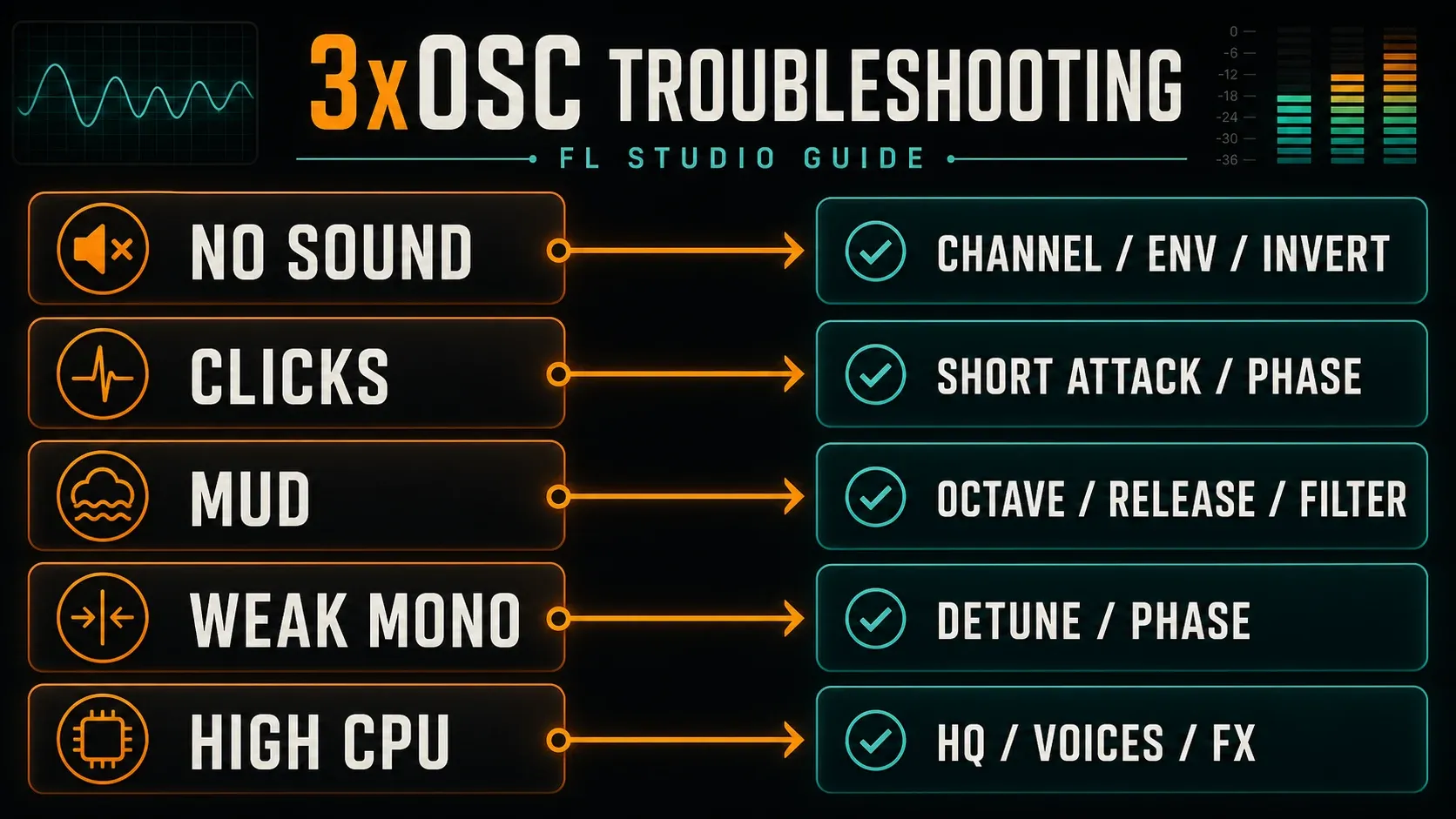
No sound: check that notes reach the correct channel, that the channel and its Mixer route are audible, and that the volume envelope isn't holding the level at zero. Then go back to one source with AM off and simplify any inversion. Check the filter type and cutoff before you decide the generator is broken.
Clicks: try a short volume attack, reduce stereo phase offsets and listen to one oscillator alone. Mud: shorten the release and remove low layers you don't need. Weak mono: reduce left/right differences, then rebuild only as much width as the part needs. These steps help you isolate the problem, but none of them guarantees a diagnosis.
High CPU: compare HQ, overlapping notes, long releases and downstream effects one at a time. The Miscellaneous Channel Settings includes a maximum-polyphony control, though limiting voices can change how the part plays. For system-level causes, work through the broader FL Studio high-CPU checklist.
Save the whole patch, including its envelope
Open Plugin Menu at the top left of the instrument window and choose Save channel state as... in the Channel section. Channel is only a section heading there. It isn't another submenu to open. The Wrapper's menu documentation separates this full Channel state from a narrower plugin preset, and the state includes the Channel settings that complete a 3xOSC sound. Any Mixer effects chain sits outside that instrument state, so keep the project or save that processing on its own.
Image-Line's default 3xOSC presets show up under Channel presets / 3x Osc in the Browser. That's where the defaults live, but you're free to save custom presets elsewhere. The separate Envelope Presets menu saves only an envelope, not the whole synth patch.
Give the state a useful name and load it into a separate test channel, then check waveforms, tuning, mix, envelope and filter against the same phrase. If you're on licensed FL Studio with licensed plugins, also reopen a separately named project copy. Keep the original project and any Custom source audio intact. On a trial, export audio before closing and leave the project-reopening test until FL Studio is unlocked.
Choose the next synth by the missing control
Stay with 3xOSC as long as its source, envelope and filter controls can finish the part. When the real job is picking and adapting a preset, use FLEX. Harmor is the pick for additive processing and resynthesis. To build a Reese bass with Sytrus's operators and filters, follow the Sytrus Reese tutorial.
The stock-plugin learning order and the Plugins hub help you choose without piling up overlapping tools. Before you pay for extra access, check the edition guide. 3xOSC itself already comes with every edition.
3xOSC questions
Is 3xOSC included in every FL Studio edition?
Yes. Image-Line lists 3x OSC in every edition. Trial FL Studio still cannot reopen saved projects until you buy FL Studio; export audio before closing a trial session.
Where is the ADSR envelope in 3xOSC?
Open Detailed Wrapper Settings with the cog, then Envelope / Instrument Settings and Volume. Enable the envelope switch at the top left. Alongside attack, decay, sustain and release, this envelope has delay and hold controls.
How do I hear only oscillator 1?
Keep AM OSC 3 off and set the OSC 2 and OSC 3 Mix Level controls to zero. OSC 1 then occupies the full oscillator mix; it has no separate Mix Level knob.
Why does oscillator 1 get quieter when I add oscillator 3?
OSC 3 takes a share from the combined OSC 1+2 mix. For roughly equal thirds, set OSC 2 to 50% and OSC 3 to about 33%, with AM off. Those ratios do not guarantee equal perceived loudness.
Which waveform should I choose first?
A saw makes filtering easy to hear, sine is a clean starting point for a sub, triangle gives a softer tonal layer, and noise suits unpitched effects. Choose for the role first, then shape the envelope and filter.
Why does 3xOSC click at note onset?
Stereo phase offsets can start the waveform away from zero and cause a click. Try a short volume-envelope attack and simpler phase settings on a single oscillator. Other clicks may come from somewhere else entirely.
What is the difference between Fine tuning and stereo Detune?
Fine adjusts an oscillator's pitch within −1 to +1 semitone. Stereo Detune applies different frequencies to its left and right channels. Fine differences between layers can create beating without necessarily creating stereo width.
Can 3xOSC use a custom waveform?
Yes. Custom uses the sample loaded in the Channel's Sampler Settings. Keep that source available and test recall; do not assume a saved preset has packaged every external dependency.
Why does the filter or LFO seem inactive?
Check the target, enable any envelope you are using and move its amount away from zero where available. LFO AMT at zero applies no modulation. Fast LP also bypasses filtering with Mod X at 100% and Mod Y at 0%.
How do I save a complete 3xOSC preset?
Open Plugin Menu and choose Save channel state as... in its Channel section to preserve the Channel settings as well as the generator. Test it in a separate channel; reopen a project copy only with FL Studio and its used plugins licensed. Trial users should export audio before closing.