 FL Studio
 Independent FL Studio guides · not affiliated with Image-Line
FL Studio tutorials, mixing guides and honest fixes
Exact menu paths and a straight recommendation wherever there is a real choice to make. Every edition from Fruity to All Plugins, from your first beat to a finished master.
- Lifetime free updates included
- Four paid editions · compare →
- Runs on Windows & macOS
- Free trial, no time limit

Start with these guides
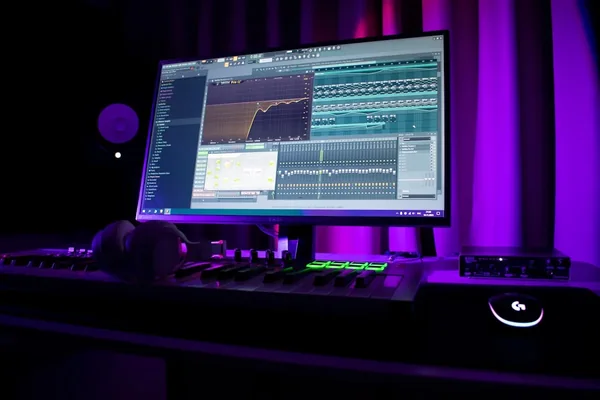
FL Studio Tutorial for Beginners: First Track in One Session
Install, Channel Rack, Piano Roll, one simple mix and an export that doesn't clip. The whole path in a single sitting, with every menu path written out.
Read the guide →Then read these
 Fruity, Producer, Signature or All Plugins?9 min
Compare the included tools and check which editions let you record audio.
Fruity, Producer, Signature or All Plugins?9 min
Compare the included tools and check which editions let you record audio.
 Set up your audio before it crackles8 min
Choose a driver, set the buffer for your session and diagnose crackling without guessing.
Set up your audio before it crackles8 min
Choose a driver, set the buffer for your session and diagnose crackling without guessing.
 Shortcuts you'll actually use daily9 min
Editing, playback, Piano Roll and Mixer shortcuts, grouped by the job you want to do.
Shortcuts you'll actually use daily9 min
Editing, playback, Piano Roll and Mixer shortcuts, grouped by the job you want to do.
What are you trying to do?
Make it sound right
Design the sound
Fix a problem
FL Studio guides, grouped by the job
Fast for patterns. Different for everything else.
FL Studio thinks in patterns: sketch a loop in the Channel Rack, arrange it in the Playlist, then keep refining. That pattern-based route can feel unusually quick for beats and loop-led music. It is an editorial observation, not a universal speed claim: recording and comping large live sessions may suit a different DAW better.
Image-Line's Lifetime Free Updates cover future FL Studio updates for the edition you own. Moving to a higher edition, buying optional plugins and subscribing to FL Cloud are separate purchases. Start with the edition guide before giving Image-Line any money.
FL Studio shines when
- Beats, loops and pattern-based writing
- Fast idea-to-loop sketching
- Piano Roll–heavy melodic work
- Future updates to the edition you own
Look elsewhere when
- Recording full live bands daily
- Heavy audio comping workflows
- Notation and scoring for players
Fruity can't record audio. Recording, Edison, Sytrus, Slicex and stem separation start at Producer — the practical baseline for most producers. Edition comparison →
Latest guides
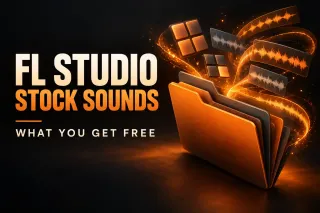 Does FL Studio Come With Sounds? What You Get Free9 min read
Yes. Every edition, Fruity included, installs royalty-free drums, instrument samples, loops and vocals under Browser > Packs. Here’s what your edition changes, what FLEX and FL Cloud Free add without paying, and which stock content you can’t put in a release.
Does FL Studio Come With Sounds? What You Get Free9 min read
Yes. Every edition, Fruity included, installs royalty-free drums, instrument samples, loops and vocals under Browser > Packs. Here’s what your edition changes, what FLEX and FL Cloud Free add without paying, and which stock content you can’t put in a release.
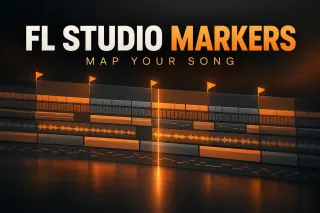 FL Studio Markers: Add, Name and Use Time Markers9 min read
Press Alt+T in the Playlist, name the marker and drag it into place. Here’s what each marker type does, how to jump between markers live and why a stray marker makes exports longer.
FL Studio Markers: Add, Name and Use Time Markers9 min read
Press Alt+T in the Playlist, name the marker and drag it into place. Here’s what each marker type does, how to jump between markers live and why a stray marker makes exports longer.
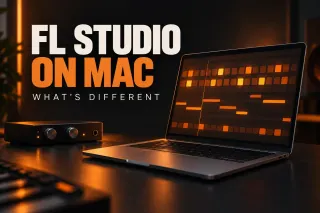 FL Studio on Mac: How Well It Runs and What’s Different10 min read
FL Studio runs natively on Intel and Apple Silicon Macs, and one license covers Windows and macOS. Here’s how it performs, what changes from Windows and how to set it up.
FL Studio on Mac: How Well It Runs and What’s Different10 min read
FL Studio runs natively on Intel and Apple Silicon Macs, and one license covers Windows and macOS. Here’s how it performs, what changes from Windows and how to set it up.
 How to Change Key in FL Studio: Transpose a Whole Project7 min read
Transpose melodic Patterns by one semitone interval, apply the same shift to Audio Clips, and keep unpitched drums unchanged. Check shared sources before repeating edits.
How to Change Key in FL Studio: Transpose a Whole Project7 min read
Transpose melodic Patterns by one semitone interval, apply the same shift to Audio Clips, and keep unpitched drums unchanged. Check shared sources before repeating edits.
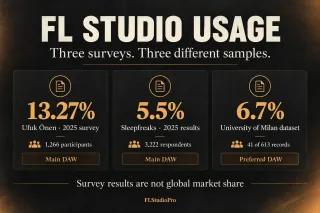 FL Studio Statistics: Usage Surveys and Market Share6 min read
FL Studio took 13.27% in Önen’s 2025 main-DAW poll and 5.5% in Sleepfreaks’ 2025 results. These audience surveys do not establish global market share.
FL Studio Statistics: Usage Surveys and Market Share6 min read
FL Studio took 13.27% in Önen’s 2025 main-DAW poll and 5.5% in Sleepfreaks’ 2025 results. These audience surveys do not establish global market share.
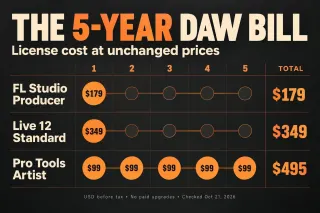 DAW Cost Comparison: 3–5-Year Prices and Calculator10 min read
Compare FL Studio, Ableton Live, Cubase, Fender Studio Pro, Logic Pro, REAPER and Pro Tools over 1–5 years. Adjust purchase prices, subscriptions and optional upgrades in the calculator.
DAW Cost Comparison: 3–5-Year Prices and Calculator10 min read
Compare FL Studio, Ableton Live, Cubase, Fender Studio Pro, Logic Pro, REAPER and Pro Tools over 1–5 years. Adjust purchase prices, subscriptions and optional upgrades in the calculator.
 How to Reset FL Studio Settings on Windows and Mac7 min read
Open Help > Diagnostics, close FL Studio, select Reset FL Studio settings and click Start. Back up first, then restore audio, MIDI and file paths.
How to Reset FL Studio Settings on Windows and Mac7 min read
Open Help > Diagnostics, close FL Studio, select Reset FL Studio settings and click Start. Back up first, then restore audio, MIDI and file paths.
 How to Sync Vocals in FL Studio: Match BPM and Fix Drift8 min read
Sync vocals to an FL Studio project with the right BPM, a clean first phrase, pitch-safe stretching and NewTime fixes for timing drift.
How to Sync Vocals in FL Studio: Match BPM and Fix Drift8 min read
Sync vocals to an FL Studio project with the right BPM, a clean first phrase, pitch-safe stretching and NewTime fixes for timing drift.
Useful first. Verifiable where it matters.
Every guide starts with the answer and the menu path you need to act on it. Edition, pricing, compatibility and menu-path claims come from Image-Line's manual and support pages, linked at the sentence they support, so any of them takes one click to check.
I'd rather show the evidence than ask you to trust me. For measured questions such as stem-separation quality, the guide names the published benchmark and its conditions, then shows where FL Studio lands against the alternatives. When FL Studio changes, the correction goes into the visible article and its structured data together.
Covered: the current FL Studio release on Windows and macOS, with platform differences called out instead of assumed. Sourcing and corrections are explained in the Editorial Policy.

Written by Eric Norris
FL Studio producer and editor responsible for practical guides and fact-checking.

Before you download anything
Is FL Studio free?
The standard trial is time-unlimited and lets you save projects and export audio. Reopening your saved projects requires a paid FL Studio license. Restoring every plugin also depends on which Image-Line edition or plugin licenses you own, plus any third-party licenses. Audio recording starts at Producer.
Which FL Studio edition should I buy?
Producer is a sensible starting point if you need audio recording, Edison, Sytrus, Slicex or stem separation. Signature adds tools such as Gross Beat, Pitcher and Hardcore. Compare the included plugins with what you will actually use before paying for All Plugins.
Does FL Studio run on Mac?
Yes — natively since FL Studio 20 in 2018, and it runs native on Apple Silicon since version 20.8.4. It uses Core Audio on macOS; ASIO4ALL is a Windows-only tool and isn't needed on a Mac.
Are FL Studio updates really free for life?
Yes, with an important boundary: future FL Studio updates are free for the edition you own. Upgrading to a higher edition, buying optional plugins and subscribing to FL Cloud can still cost extra.
Is FL Studio good for beginners?
Yes, especially for pattern-based music. Start with one drum pattern, arrange it in the Playlist and learn the Mixer on a short project before adding more plugins. The beginner tutorial follows that path.
Why is my FL Studio audio crackling?
Crackling often means buffer underruns, but the cause can also be the audio driver, mismatched sample rates, a heavy plugin, a USB connection or an Apple Silicon-specific setup issue. Check Options → Audio Settings; on Windows prefer the interface maker's native ASIO driver. On Apple Silicon, Image-Line recommends starting at 128 samples and stepping up only as needed. At 44.1 kHz, 512 samples equals about 11.6 ms for one buffer, not the system's full real-world latency.