How to Install VST Plugins in FL Studio
Install VST plugins in FL Studio without duplicate menus, missing plugins, or mystery scan folders.
Short answer: install the plugin, open Options > Manage plugins, add the install folder if needed, run Find installed plugins, then favorite the plugin so it appears in the normal picker.
Step 1: Know where the plugin was installed
The installer usually chooses a VST3 or VST2 folder. Do not click through blindly. Write down the path or leave it at the vendor default if you know FL Studio already scans it.
Duplicate plugin paths create duplicate plugin entries. One clean folder is easier to troubleshoot than five half-remembered folders.
Step 2: Scan with Plugin Manager
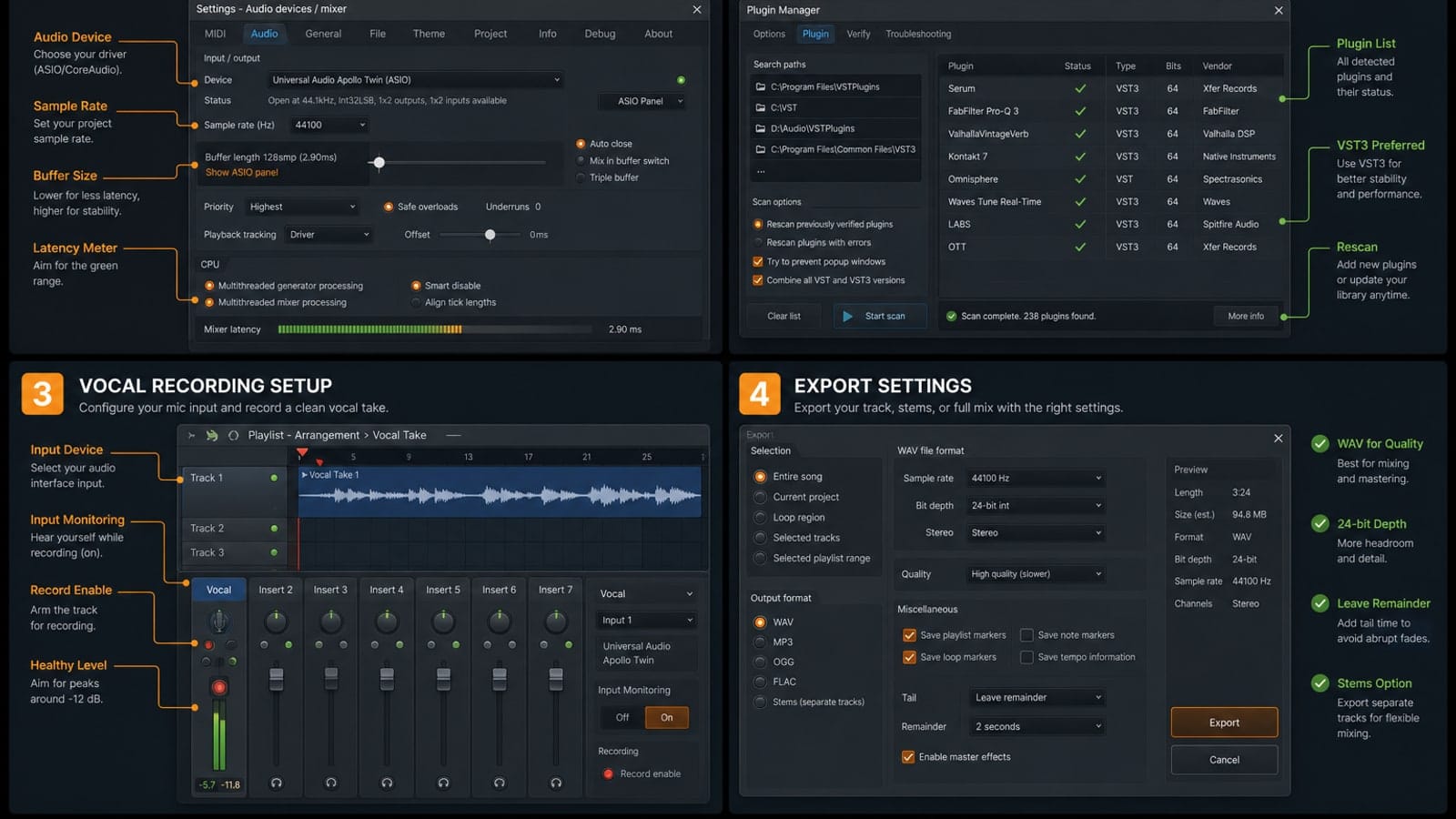
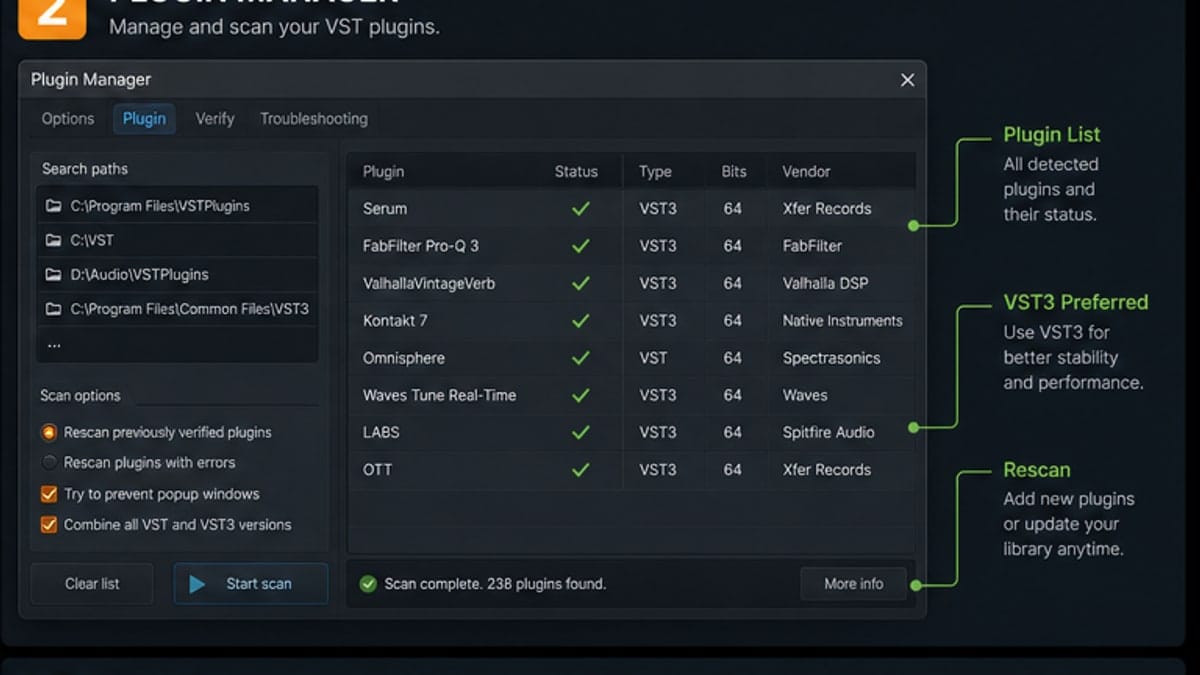
Open Options > Manage plugins. Add the folder if it is not already in the search path list. Then click Find installed plugins. Orange or highlighted entries usually show newly detected plugins.
Step 3: Favorite only plugins you will use
Finding a plugin is not the same as keeping your menu usable. Star the instruments and effects you actually want in the picker. Leave duplicates and unused versions unfavorited.
If the plugin still does not show up
- Check whether you installed VST3 but scanned only a VST2 folder.
- Make sure the plugin is supported on your operating system and CPU.
- Rescan plugins with errors once.
- Restart FL Studio after a stubborn install.
- Check whether the plugin appears in Plugin Manager but is not starred.
Beginner rule: fewer plugins, cleaner projects
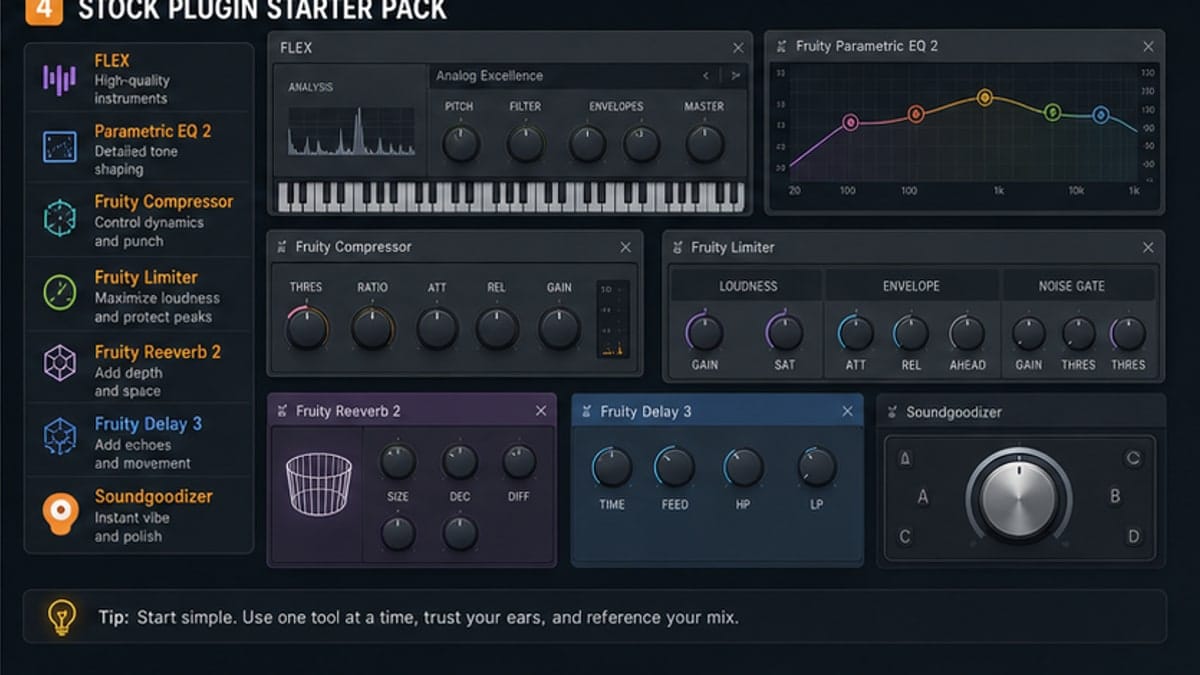
Install tools slowly. A small set of reliable plugins is better than a huge folder full of demos and duplicates. Learn Parametric EQ 2, Fruity Limiter, Reeverb 2, and FLEX before turning the plugin menu into a junk drawer.
Sources and reference pages
Image-Line external plugins manual, Image-Line Plugin Manager reference.
Plugin safety before real sessions
Never test a brand-new plugin inside an important project first. Some installers trigger activation windows, scan slowly, or crash on first load. Use an empty FL Studio project, load the plugin, play one note or audio loop, save a test project, close FL Studio, reopen it, and confirm the plugin still loads.
This tiny test catches most annoying issues before they land in a song you care about. It also tells you whether the plugin needs a content library, login, license file, or extra download.
How to handle duplicate plugin entries
Duplicates usually happen when FL Studio finds VST2 and VST3 versions, 32-bit and 64-bit versions, or the same plugin in several folders. Keep the newest stable version and hide the rest from favorites. Do not delete files from system folders unless you know exactly what installed them.
If a plugin appears twice and one version crashes, favorite only the working one. The goal is not a perfect database. The goal is a plugin picker you can trust during production.
FAQ
Where do I install VST plugins for FL Studio?
Install VST plugins into a folder that FL Studio scans, such as a dedicated VST3/VST folder or the vendor default. Then add that folder in Plugin Manager and scan.
Why is my plugin not showing in FL Studio?
The usual causes are wrong plugin folder, 32-bit/64-bit mismatch, failed scan, unsupported format, or the plugin being found but not favorited in the picker.
Should I install VST2 or VST3?
Use VST3 when available unless a specific plugin behaves better as VST2. Keep one clean install path so you do not scan duplicate versions.
Do I need third-party plugins to start?
No. FL Studio stock plugins are enough for learning. Install third-party tools only when you know what job they solve.
Windows and macOS plugin path habits
On Windows, VST3 plugins often install to a shared VST3 folder, while older VST2 plugins may ask you to choose a folder. On macOS, plugins usually install into system or user Library audio plugin folders. The exact path is less important than consistency: FL Studio must scan the folder where the plugin actually lives.
A clean beginner setup uses one VST3 path and one optional VST2 path. Avoid scattering plugins across Downloads, Desktop, old DAW folders, and vendor-specific folders unless you know why.
Scan options that matter
Rescan previously verified plugins is useful when a plugin updated but still looks stale. Rescan plugins with errors is worth trying after fixing a failed install. Combining VST/VST3 or 32/64-bit versions can reduce menu clutter, but check duplicates manually if a plugin appears twice.
Test new plugins in an empty project
After installing a plugin, open an empty project and load it once before using it in a real song. This catches authorization prompts, missing content libraries, CPU spikes, and crashy plugins before they touch an important session.
How to keep the plugin picker usable
Do not favorite every discovered plugin. Favorite the tools you actively use. A clean picker is faster than a giant plugin library. If you are learning, favorite one EQ, one compressor, one reverb, one delay, and one instrument at a time.