FL Studio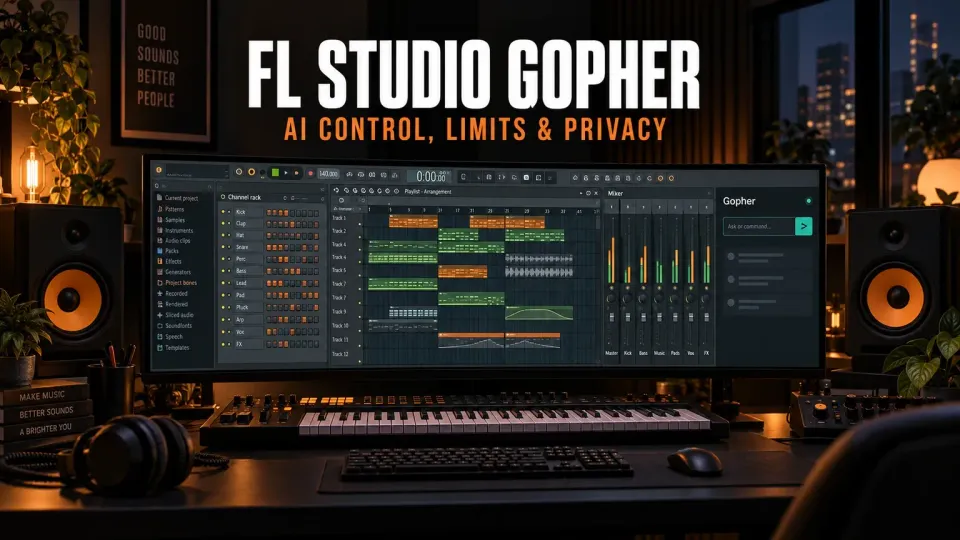
FL Studio Gopher is an experimental assistant that can answer FL Studio questions and perform a limited set of project actions after you approve access. In FL Studio 2026 it can open major windows, change tempo, manage channels, organize Playlist and Mixer tracks, route audio, add supported effects and create Piano roll scripts. It cannot freely control every plugin or make a finished production decision for you.
The useful way to think about Gopher is not “AI makes my track.” It is a natural-language control layer over specific functions that FL Studio exposes. Give it one named target, one action and one measurable result. Then inspect the project yourself.
What changed in FL Studio 2026
Earlier Gopher coverage often describes a documentation chatbot that answers questions about editions, plugins and system requirements. That still explains part of the feature, but the current assistant can also act on a project. Image-Line’s FL Studio 2026 release page highlights track organization, level changes, audio routing and Piano roll or VFX script creation.
The distinction matters. Asking “What does sidechain compression do?” is an information request. Asking “Route the kick to Mixer track 7” requests a project change. The second type should trigger an access decision and deserves the same review you would give a manual routing edit.
How to open Gopher and approve project access
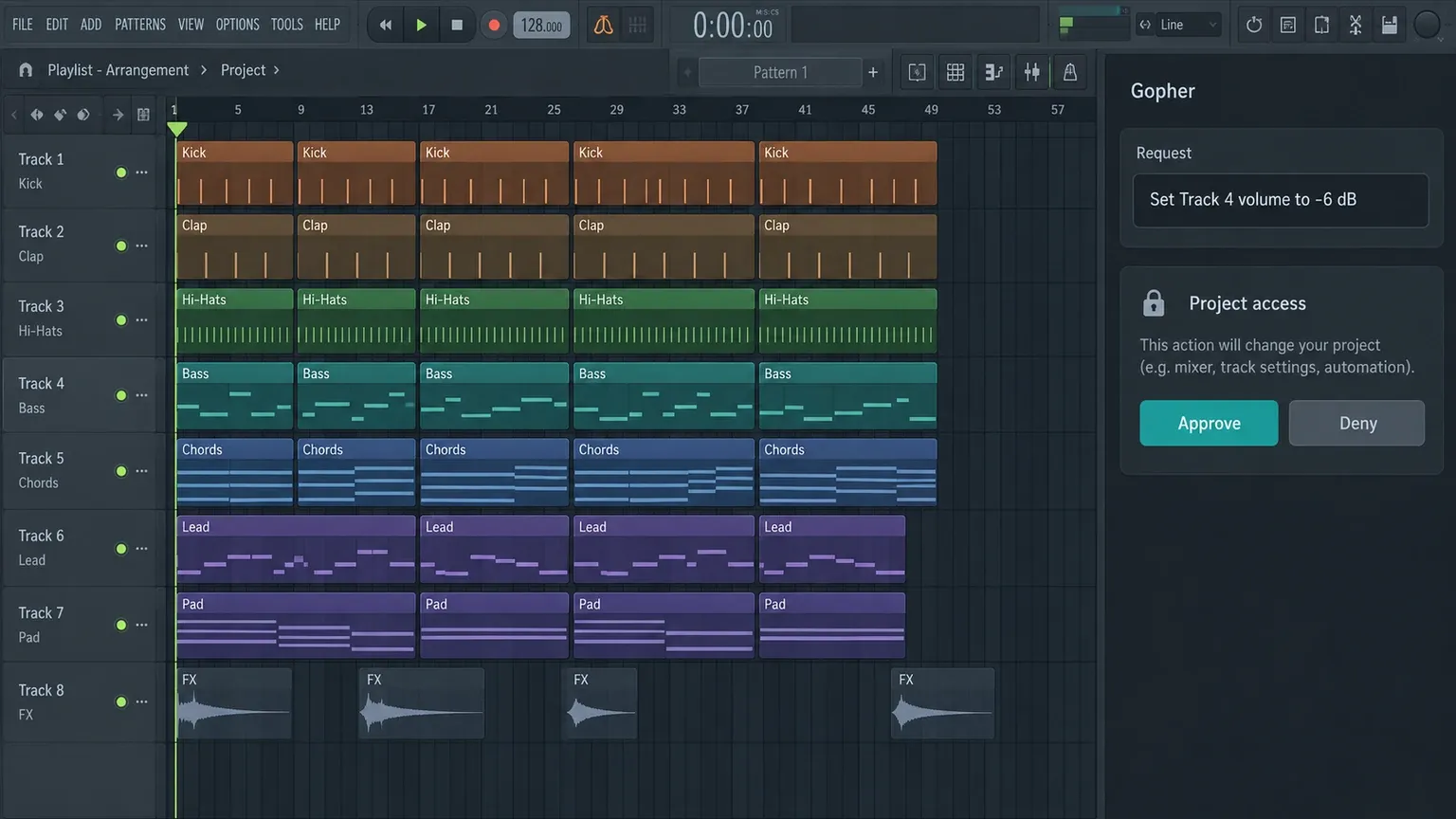
Open the Gopher tab in FL Studio and enter a question or command. Gopher does not become active merely because FL Studio is open. According to the current Gopher control reference, it activates when you open its tab and interact with it.
When a request needs project information or control, FL Studio shows Approve and Deny beneath the message. Approve only after the request matches what you intended. Deny if the scope is broader than expected, if the target is ambiguous, or if the project is not a disposable copy.
I would save a separate version before the first project-changing command. Use a clear filename such as TrackName_before-gopher.flp. That gives you a known return point even if a change does not behave like a normal single-step edit.
What FL Studio Gopher can control
The current control list is useful but easy to overread. These are defined operations, not unrestricted access to every element in FL Studio.
| Area | Current useful actions | Example bounded command |
|---|---|---|
| Windows | Open Piano roll, Channel Rack, Mixer, Playlist or Browser; identify interface elements | Open the Mixer |
| Transport | Play, stop, read or change tempo | Change the project tempo to 124 BPM |
| Channel Rack | Add, select, rename, remove, mute or solo channels; set volume, pan and color; populate steps | Rename the FLEX channel to Bass |
| Plugins | Change parameters that a plugin publishes to FL Studio | Set the published Mix control in Fruity Reeverb 2 to 20% |
| Piano roll | Quantize notes; save and run scripts; create Python-based scripts | Quantize the selected notes |
| Playlist | Rename and color Playlist tracks | Rename Playlist tracks 1 to 4 Drums, Bass, Chords and Lead |
| Mixer | Set level and pan; mute, solo, rename and color tracks; route channels and tracks; add or remove slot plugins; reset tracks | Route the 808 Kick channel to Mixer track 7 |
Channel Rack tasks are a good first use
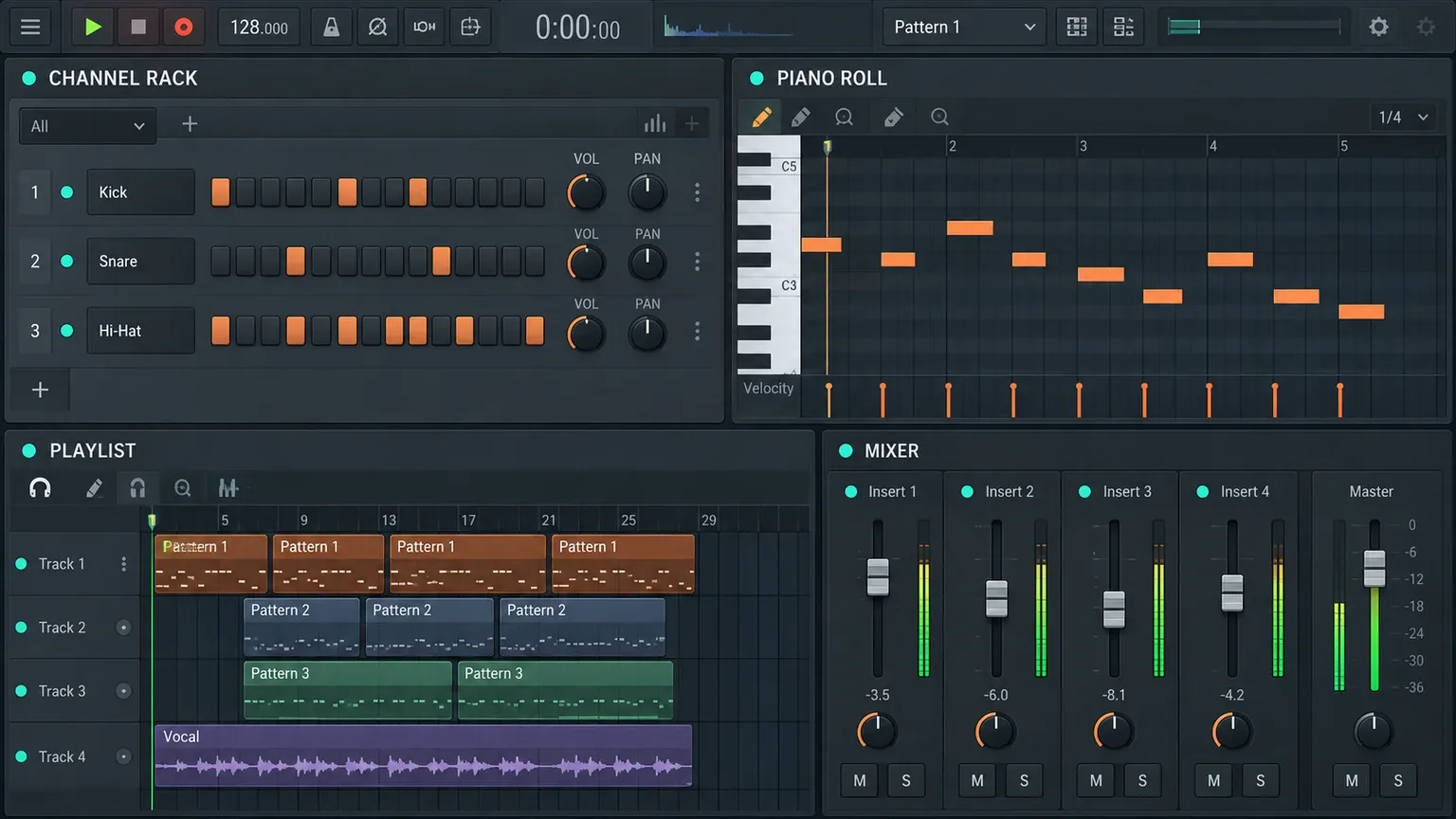
Renaming, coloring, muting and routing clearly identified channels are strong starter tasks. Their targets are visible, and the result is easy to check. “Rename FLEX to Bass” is safer than “clean up my instruments” because the first command defines both the target and the change.
Gopher can also populate Step Sequencer steps. Keep the musical instruction concrete. A command such as “Add four quarter-note kick steps to the current pattern” is easier to verify than “make the drums hit harder,” which mixes composition, sound choice and processing into one vague goal.
Mixer actions save navigation, not judgment
Gopher can route a channel to a Mixer track, route one Mixer track to another, change track level or pan, and add a named plugin to a named slot. Those operations can remove repetitive clicking. They do not decide whether the routing is musically correct, whether a send should be pre- or post-fader, or whether the level balances against the rest of the song.
If routing is the confusing part, read our FL Studio Mixer guide before delegating it. A natural-language command is easier to review when you understand the signal path it is supposed to create.
Piano roll scripts are powerful and require the closest review
Gopher can quantize notes and create Python-based Piano roll scripts for mathematical or creative note operations. It can also save and run those scripts. This is useful for repeatable transformations, but a script can change many notes at once. Read the described behavior, save a copy and test it on a short selected passage first.
Our Piano Roll guide explains the underlying note tools. The assistant can shorten the path to an operation; it does not replace listening for altered timing, range, velocity or harmony.
What Gopher cannot reliably do
Gopher is experimental, and Image-Line says the control set is still being expanded and refined. Treat the documented list as the current boundary, not a promise that every natural-language request will produce a valid action.
- It cannot control every plugin parameter. Plugin changes depend on which controls the plugin publishes to FL Studio. A control visible in a custom plugin interface may still be unavailable to the host.
- It does not hear the mix like a producer. A numeric level change can be executed, but the assistant cannot replace your monitoring, references or arrangement judgment.
- It does not resolve ambiguous names safely. “Bass,” “Bass 2” and “Sub Bass” are different targets. Name the exact channel or track.
- It cannot turn a broad creative request into one objectively correct result. “Make the chorus exciting” has no fixed control sequence.
- It is not a complete automation layer for FL Studio. Anything outside the exposed controls may require manual work or a separate supported script.
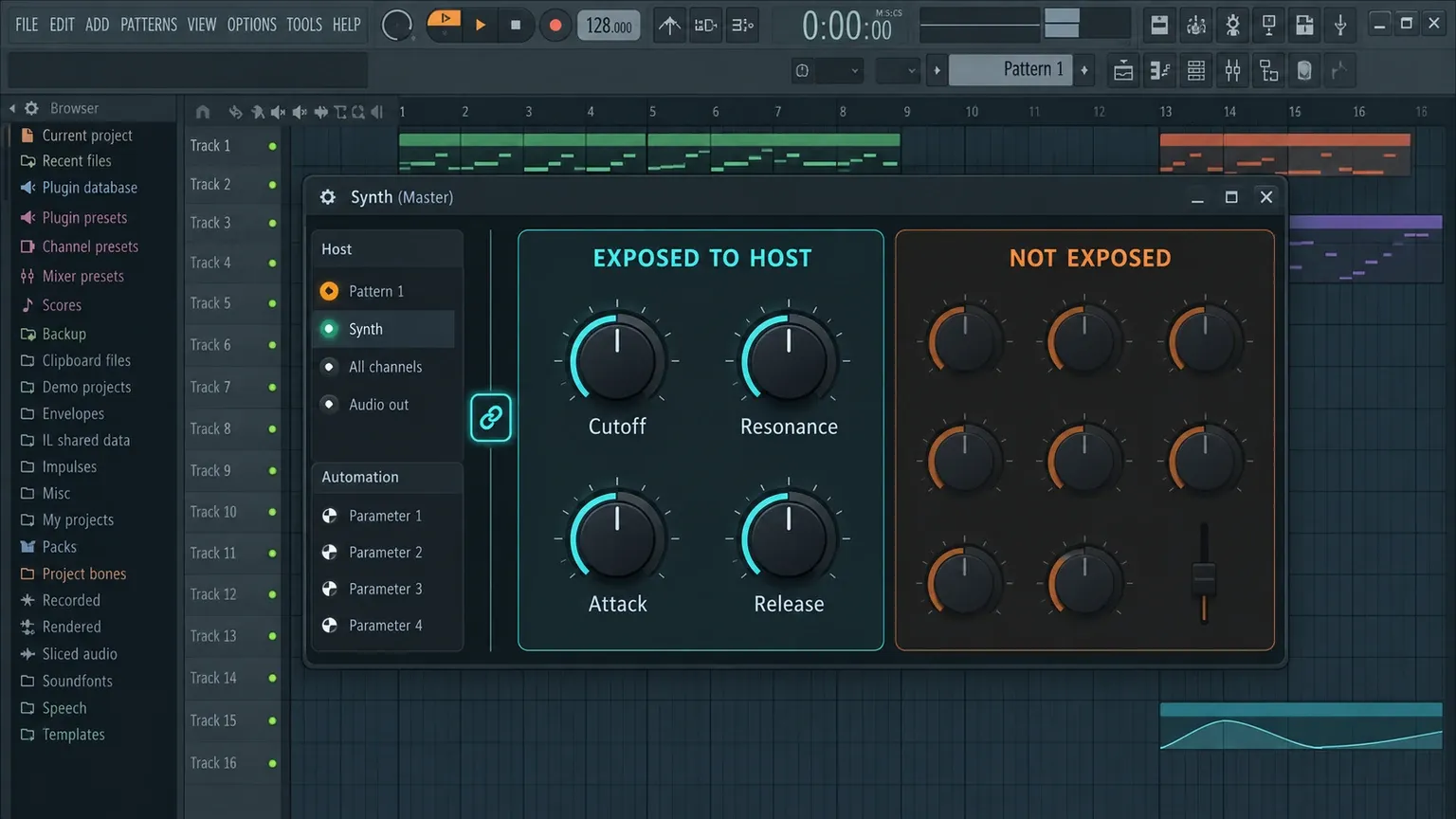
If a command fails, do not keep rephrasing it into an increasingly broad request. Check whether the requested action appears in the current control list. If it does not, use the normal interface. If it does, reduce the request to one target and one change.
How to write commands Gopher can verify
The most reliable pattern is:
Action + exact target + exact value or destination.
| Weak request | Better request | Why it is better |
|---|---|---|
| Fix my mix | Lower Mixer track 6 by 3 dB | One target and one measurable change |
| Organize everything | Rename Playlist tracks 1–4 Drums, Bass, Chords and Lead | Defines the tracks and final names |
| Make the bass wider | Pan Mixer track 7 15% right | Requests a documented control rather than a subjective outcome |
| Add some reverb | Add Fruity Reeverb 2 to Mixer track 8, slot 3 | Names the plugin, track and slot |
| Humanize these notes | Create a Piano roll script that offsets selected note start times within a user-set maximum | Defines the transformation and keeps its range adjustable |
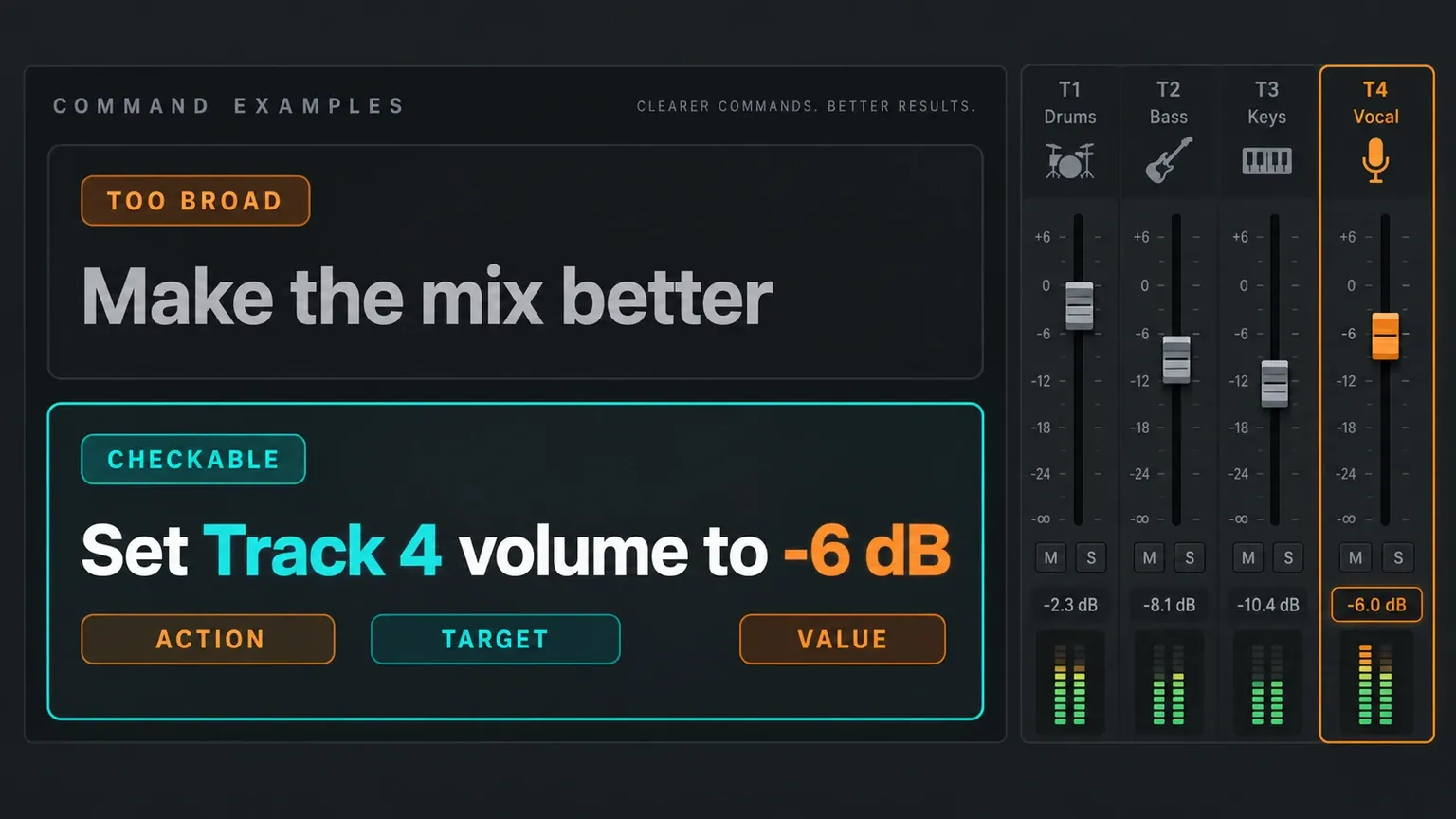
Use the names already visible in the project. If two channels have similar names, include the Mixer number, Channel Rack position or another unique identifier. For routing, name both the source and destination. For a plugin slot, include the Mixer track and slot number.
Do not combine a long chain into one message when the intermediate state matters. “Rename the channel, route it, add compression, change the color and balance the level” creates several points of failure. Run one change, inspect it, then continue.
A safe workflow for project-changing commands
I recommend a four-stage loop for every new type of Gopher action.
- Save a separate project copy. Preserve the original before approving access.
- Ask for one bounded task. Use an exact name, number, value or routing destination.
- Inspect and listen. Check the affected Channel Rack, Playlist, Piano roll or Mixer area, then play the relevant section.
- Keep the change or restore the copy. Do not build more edits on top of a result you have not accepted.
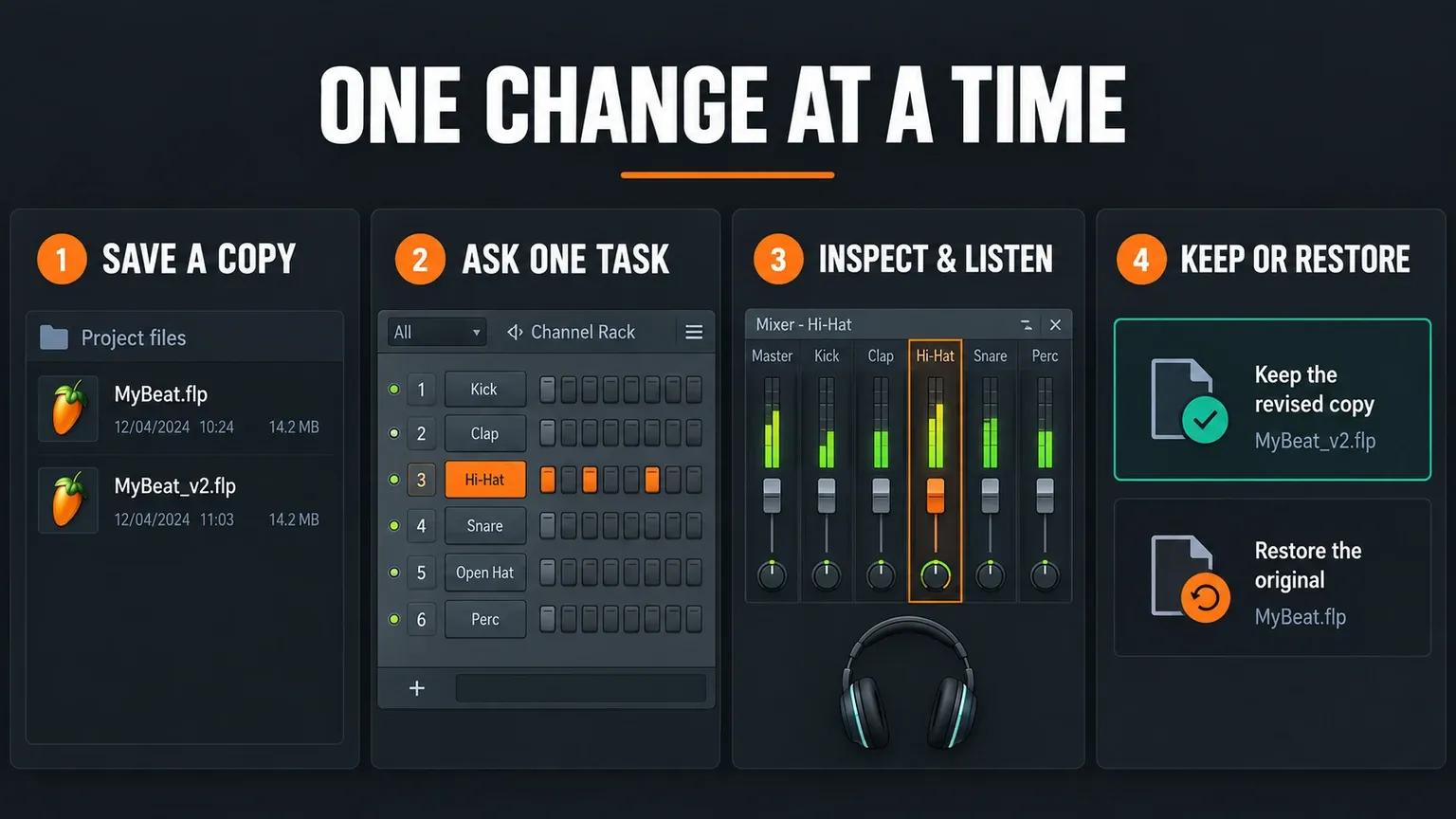
This loop is intentionally slower than issuing ten commands at once. It is still faster than diagnosing a project after several names, routes and plugin slots changed together. Once a command type behaves predictably in your project, you can reuse the same structure with new targets.
How to check the result
Verification depends on the action. A response saying “done” is not the check.
- Rename or color: open the relevant rack, Playlist or Mixer and confirm the exact target.
- Volume or pan: confirm the numeric control and listen in context at a stable monitoring level.
- Routing: select the source and trace the enabled destination routes in the Mixer.
- Plugin insertion: confirm the plugin name, Mixer track, slot and default state.
- Step Sequencer: inspect the active pattern and verify the intended channel.
- Piano roll script: test a small note selection, compare before and after, and check edge cases before using it on a full part.
For new FL Studio users, the broader beginner tutorial helps identify which window owns each change. Gopher can open a window for you, but you still need to recognize the result.
Why a command may fail
The request is outside the control list. Check the official reference. If the action is absent, use the interface rather than inventing more prompts.
The target is ambiguous. Rename similar channels first or include track numbers. “Route Bass” is unclear when the project contains Bass, Bass Layer and Sub Bass.
The plugin does not publish the parameter. Move the control manually or use an automation method the plugin and FL Studio support. The visible knob alone does not prove Gopher can reach it.
The wrong window or selection is active. Open the intended window, select the notes or channel explicitly, then repeat the smaller request.
The result is technically correct but musically wrong. Restore the saved version or reverse the change manually. A successful command can still be a poor production choice.
Gopher privacy: what stays local and what is logged
Image-Line says your music, sounds, scores and project files remain on your machine. When you approve a project action, Gopher may read the information required for that task, such as channel names, plugin names and settings. The company says that project data is used only during the active session and is not retained after it ends.
That does not make the conversation private. Image-Line’s Gopher privacy explanation says queries and responses are logged and can be reviewed by staff to understand what users ask and whether the assistant answered correctly. It also says customer data from Gopher is not used to train, develop or refine AI systems.
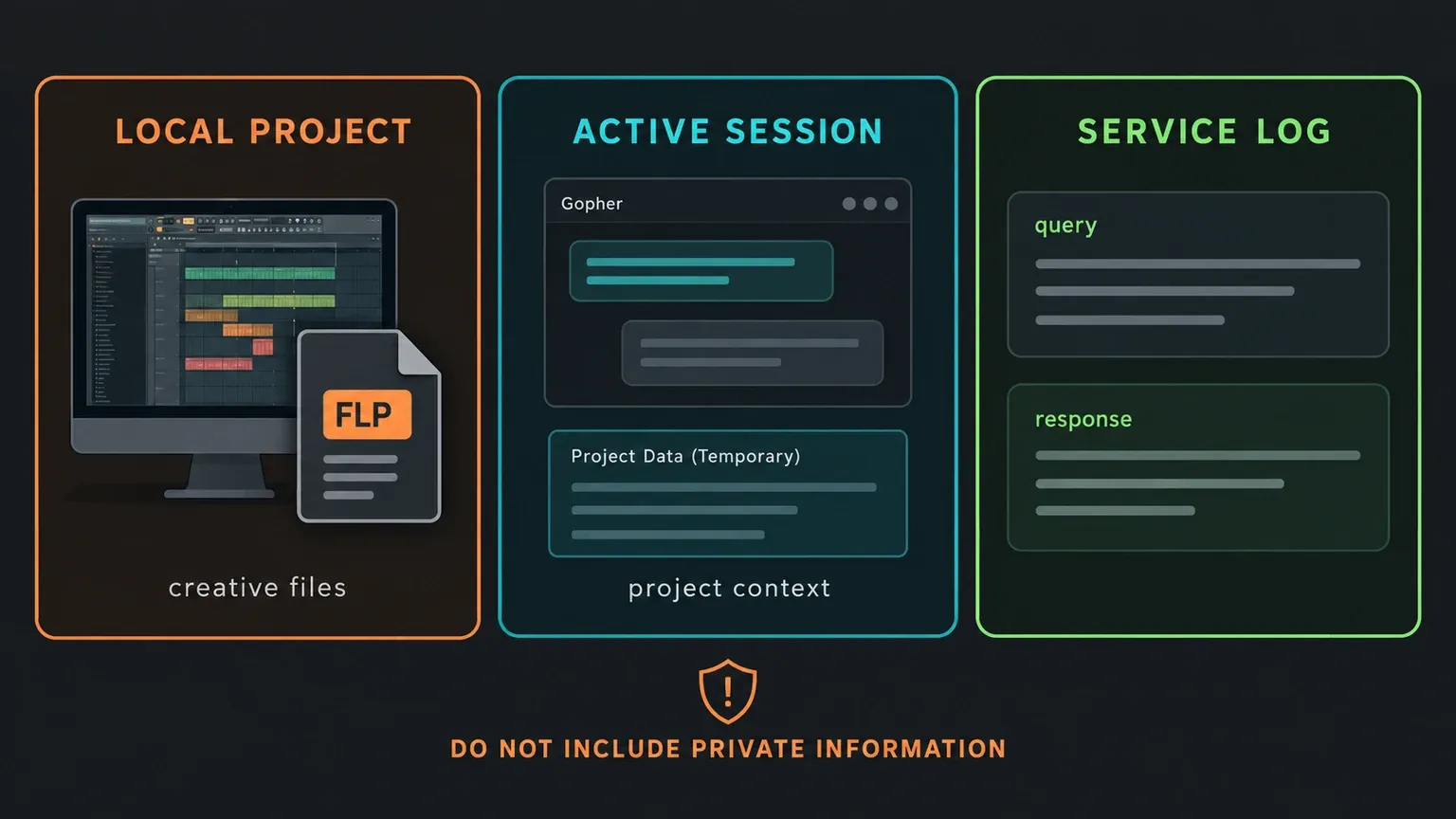
The practical rule is simple: do not enter passwords, license keys, unreleased client details, personal information or anything else you would not want in a service log. Use is optional, and Gopher is not active until you interact with it.
When Gopher is useful and when manual control is faster
Gopher makes the most sense for visible, bounded and repetitive work: opening the right window, renaming a group of tracks, applying exact colors, setting a known BPM, routing named channels, adding a named stock effect to a named slot, or creating a narrowly defined note script.
Manual control is usually faster when you are already looking at the correct knob, when the target depends on listening, when a third-party plugin hides the needed parameter, or when the request is creative rather than operational. Dragging one fader while the loop plays is better than writing three prompts about “more energy.”
My position is to use Gopher as a project operator with a short leash. Let it remove navigation and naming friction. Keep arrangement, tone, balance and final approval with the person listening. That matches the feature’s current experimental scope and gives you a result you can actually verify.
For the rest of the release, see our FL Studio 2026 guide. Gopher is one of the most consequential additions, but it works best when its documented controls are treated as a boundary rather than an invitation to delegate the whole session.