FL Studio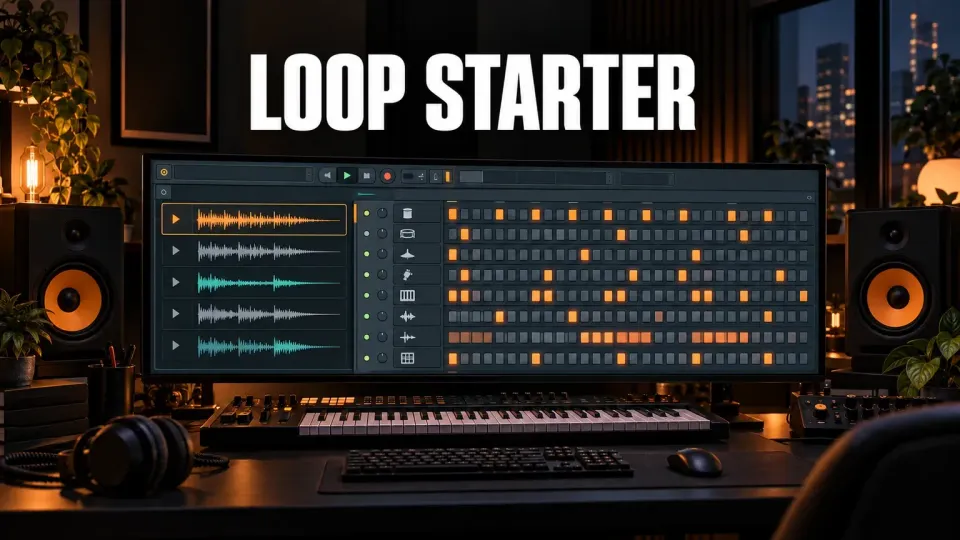
FL Studio Loop Starter builds a genre-based starting stack inside the Channel Rack. It combines FL Cloud loops with editable one-shot patterns, keeps every part on its own lane, and lets you replace, lock or rearrange the pieces before sending them to the Playlist. The result is a sketch, not a finished beat.
That distinction is the whole point. A random stack can remove the blank-page problem, but it becomes useful only when you decide which rhythm, texture or melodic fragment deserves to survive. Loop Starter gives you separate parts so you can make that decision without flattening everything into one audio file.
What Loop Starter creates
Open Loop Starter from the Channel Rack. FL Studio loads a group of audio channels and Step Sequencer lanes chosen for the selected genre. Some lanes contain full loops. Others contain one-shot drums or percussion with steps already placed.
The current Image-Line Channel Rack manual describes the feature as a source of musical ideas built from FL Cloud samples. Each part stays accessible, so you can audition it alone, change its pattern, replace the source or remove it.
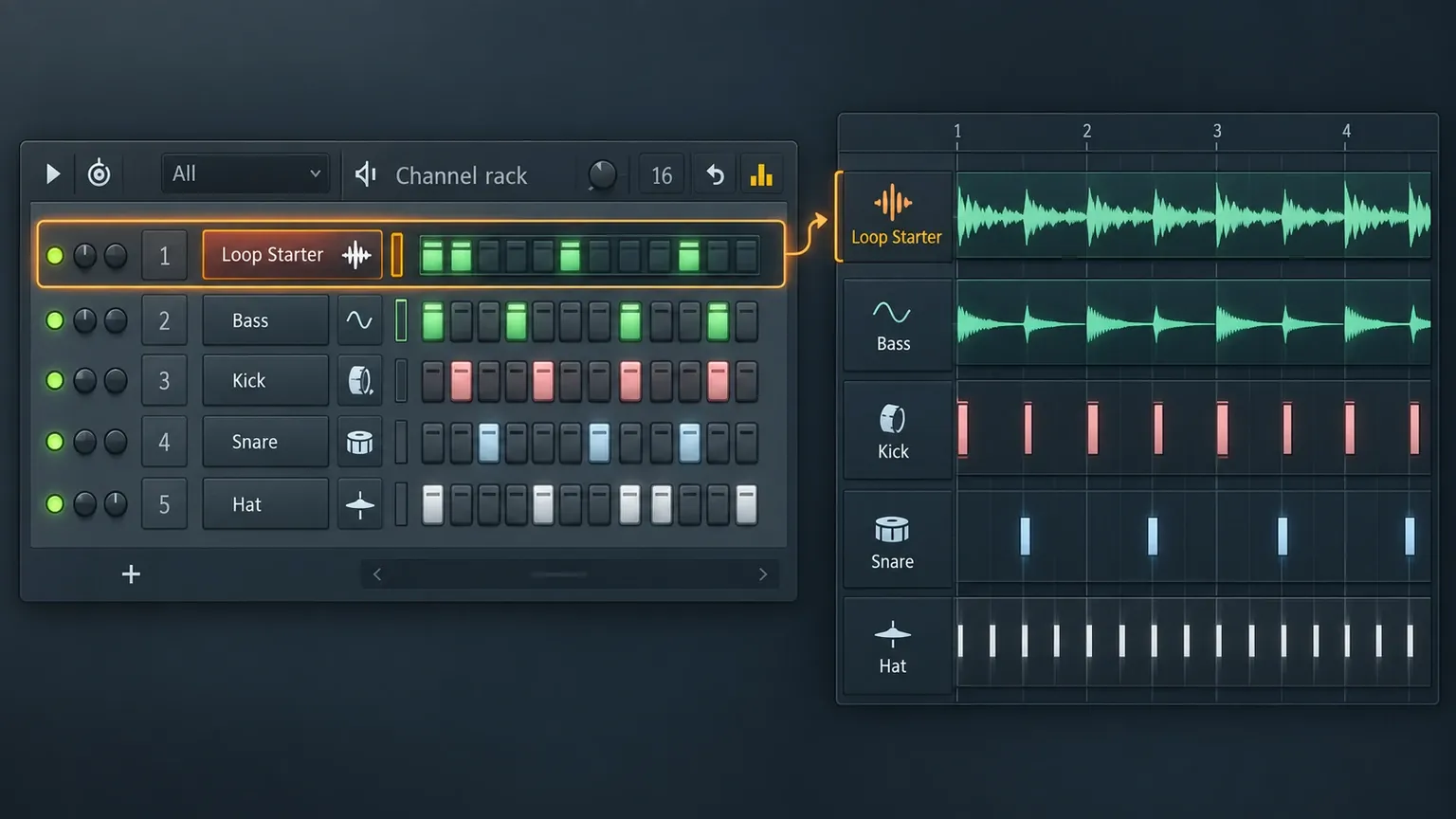
I would not judge the first stack as a complete groove. Listen for one useful anchor: a kick pattern, a percussion pulse, a bass phrase or a texture. Once one part earns its place, lock it and build around it. That is faster than rerolling everything while hoping for a perfect combination.
Set genre, tempo, key and scale before rerolling
The setup controls narrow the sample pool and determine how the stack fits the project.
| Control | What it changes | When to use it |
|---|---|---|
| Genre | Chooses the style used for loops, one-shots and initial patterns | Pick the nearest rhythmic language, then edit rather than treating the label as a rule |
| Auto tempo | Sets a typical tempo for the selected genre | Useful in a blank project; turn it off when the project BPM is already decided |
| Key | Sets the root note used for melodic material | Match an existing song or choose the tonal center before auditioning many loops |
| Scale | Defines the scale used when melodic loops are transposed | Keep bass and melodic choices aligned with the intended harmony |
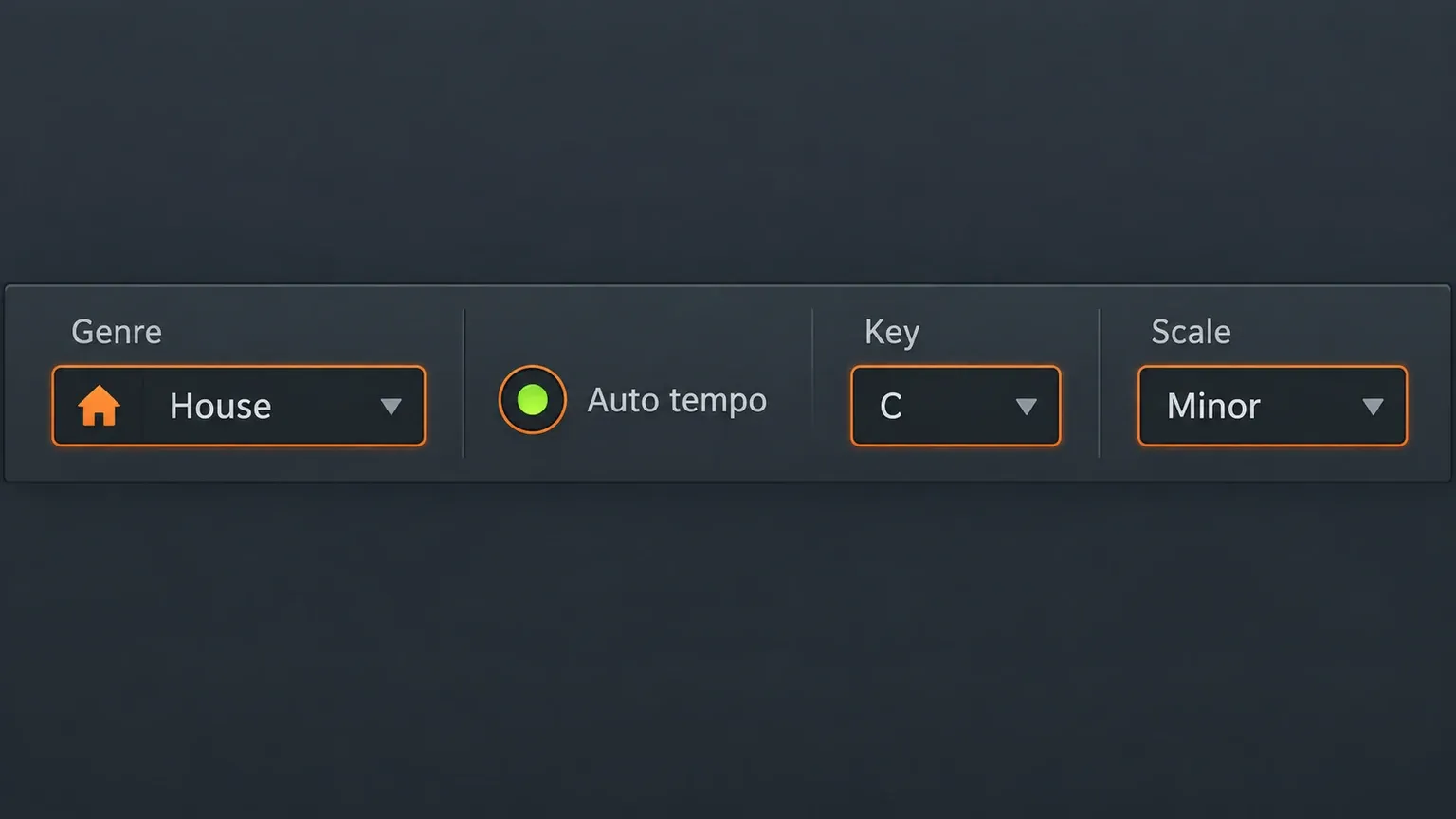
Auto tempo deserves care. In a new file, a typical genre BPM is a sensible preview setting. In an existing project, changing the project tempo just to suit a starter stack can disturb work that already fits. Keep the song’s tempo and use Loop Starter as the visitor.
Key and Scale help melodic loops fit the selected tonal center, but transposition does not guarantee good harmony. A sample can be technically in key and still clash through chord movement, bass notes or pitch artifacts. Solo the melodic lanes together and listen across the full loop before keeping them.
Loops and one-shots need different editing
A loop lane carries a repeating audio phrase. A one-shot lane holds an individual hit such as a kick, snare, clap or hat, and Loop Starter can place steps for it. They may sound like one groove during preview, but they offer different kinds of control.
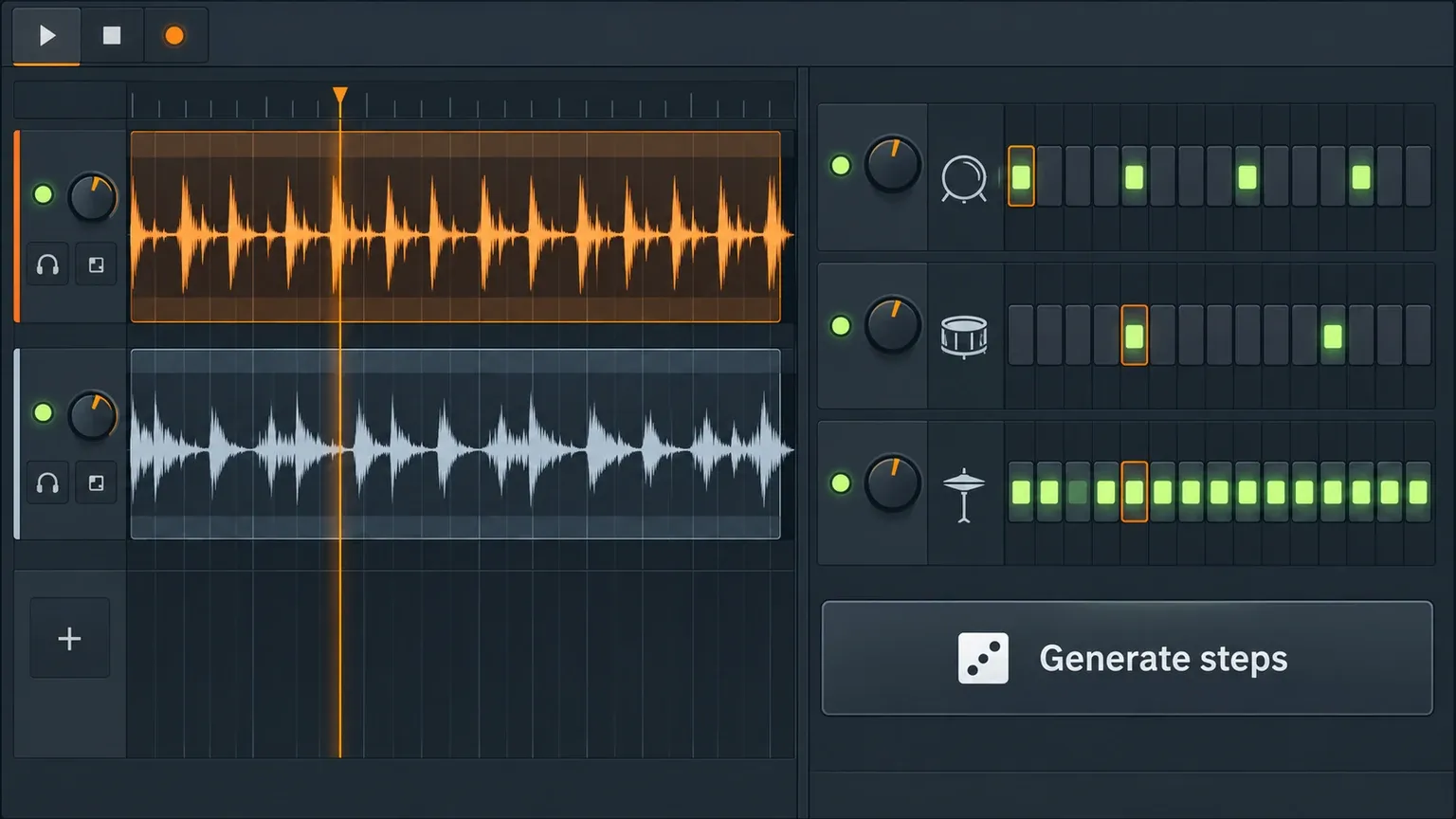
With one-shots, the pattern is the editable idea. Move a snare, remove every second hat, change the kick spacing or make a new variation in another pattern. Generate steps can provide another starting pattern, but the Step Sequencer remains the place where you create emphasis and silence.
With loops, the source phrase carries more of the identity. You can replace it, retrigger it from the Piano roll or move the resulting clip in the Playlist. If a loop dominates the stack, change that lane before changing five smaller drum details.
Replace the whole stack or only one channel
The large dice control replaces the current combination. A dice control on an individual lane changes only that part. Use the large reroll while nothing matters yet. Switch to per-channel replacement as soon as one or two parts work.
Right-click a good channel and choose Locked. A locked lane stays in place while the rest of the stack changes. This is the control that turns random browsing into directed selection: preserve the anchor, then search around it.
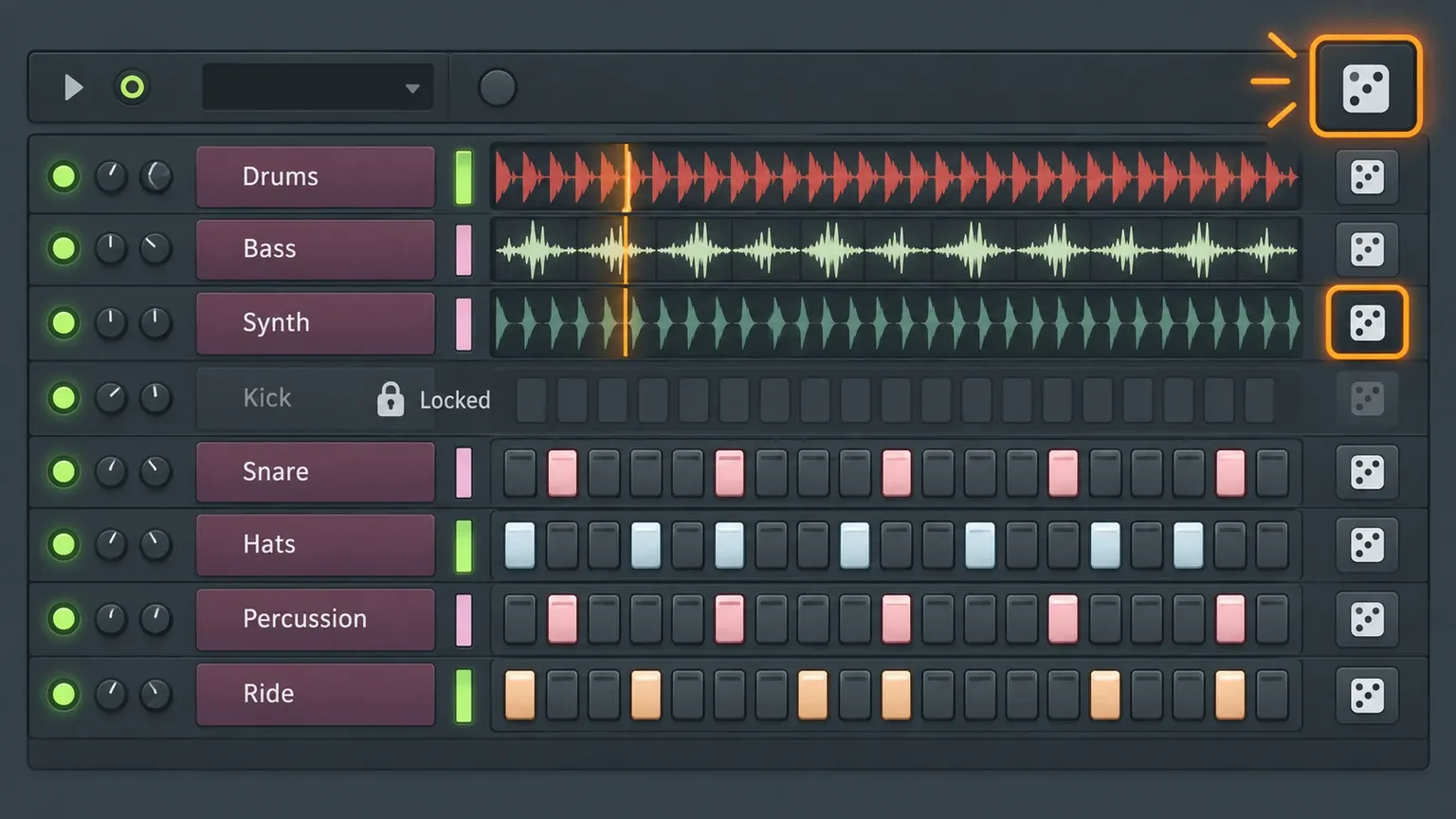
A practical order is rhythm first, low end second, harmony third and decoration last. If the kick and bass relationship is wrong, a better texture will not rescue it. If the core already moves, one atmospheric loop may be enough; filling every available lane usually makes the sketch harder to arrange.
Use Find similar before abandoning a useful role
Sometimes the part is right but the sound is wrong. Find similar samples searches for alternatives related to the current sample. That is more focused than replacing the entire stack because it preserves the role you already accepted.
You can also drag your own sample into Loop Starter. For loops, useful BPM, root-note and loop-point information helps FL Studio place and transpose the audio more predictably. A mislabeled melodic loop can behave badly even when the selected key is correct, so fix the sample metadata or choose a cleaner source.
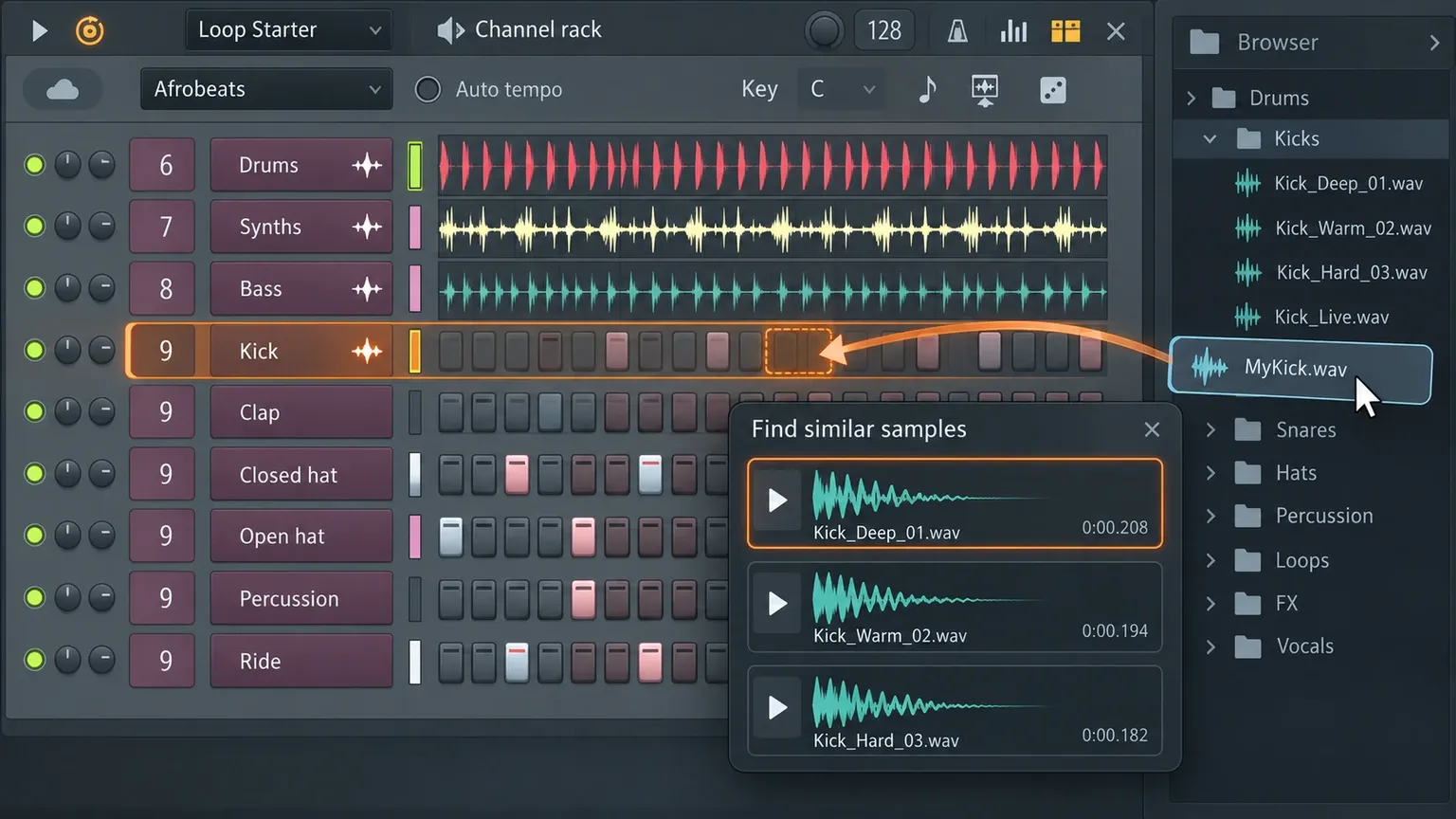
This is also where originality starts. Replace the most recognizable melodic phrase, rewrite at least one drum lane, and remove any part that merely fills space. You do not need to replace every sound on principle. You need enough decisions that the final arrangement reflects your rhythm, harmony and pacing rather than the first random draw.
Send the parts to Playlist and stop looping
When the stack has a useful core, send it to the Playlist. Image-Line’s manual notes that if the Playlist already contains material, the result is placed at the current playhead position. Set the playhead deliberately before the handoff so the clips do not land in the wrong section.
Do not duplicate the same four or eight bars across the whole song. First create contrast:
- begin with fewer parts than the full stack;
- delay the bass or kick to define an entrance;
- remove one high-frequency loop before a transition;
- split a phrase and use only its strongest fragment;
- write a second drum pattern rather than copying the first;
- change the final bar so the section points forward.
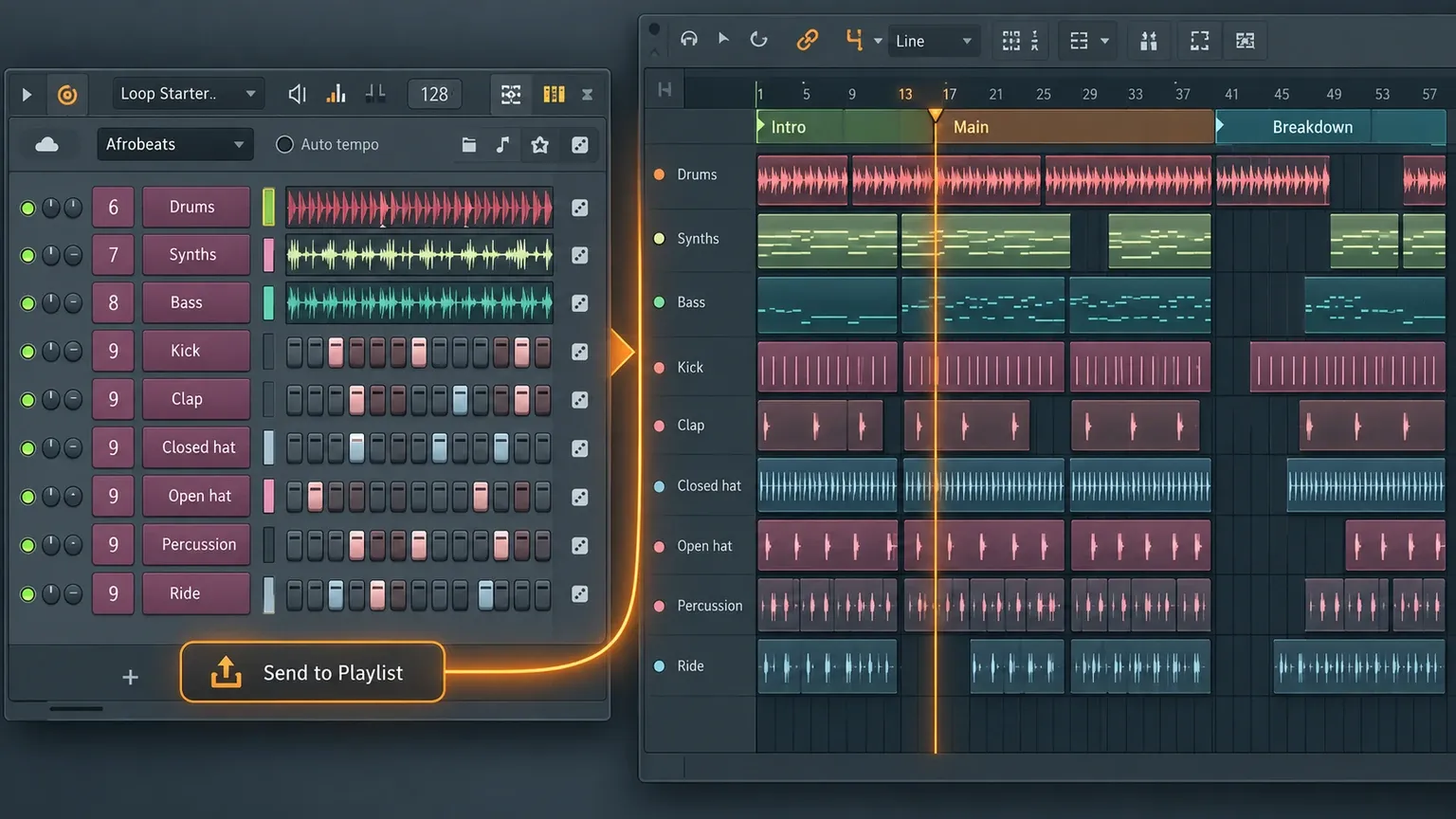
The waveform button can open a loop in the Piano roll. Notes can retrigger the loop with different pitch and level values, which is useful for turning one phrase into shorter calls, fills or tonal variations. This does not make Loop Starter a MIDI generator. The audio remains the source; the notes control when and how that source plays.
A workflow for turning the starter into your track
- Set the project context. Decide the tempo, root and scale before auditioning many stacks.
- Reroll until one anchor appears. Choose one part that establishes the groove or tonal direction.
- Lock the anchor. Replace the other channels individually instead of resetting useful work.
- Rewrite a one-shot pattern. Change spacing, accents or density so the rhythm stops sounding like the default draw.
- Replace or transform the dominant loop. Use Find similar, your own sample, a shorter slice or Piano roll retriggering.
- Remove a lane. Space is an arrangement decision. A smaller stack often leaves more room for a lead or vocal.
- Send to Playlist and make sections. Build an intro, main section and lower-density contrast before adding more sounds.
- Add material outside Loop Starter. A chord part from the Chord Progression Tool, a recorded phrase or a manually programmed pattern can move the track beyond the starter palette.
My rule is that every kept lane needs a reason. “It arrived with the stack” is not a reason. “It creates the offbeat pulse that the bass answers” is. That test makes deletion easier and keeps the arrangement readable.
FL Cloud access, credits and sample rights
Loop Starter draws from FL Cloud. Image-Line’s current FL Cloud FAQ explains that the free tier provides access to a basic sample library, while a paid subscription opens the full library. The Loop Starter materials available to your account can be used without spending sample credits.
Image-Line states in its copyright and sample-use guidance that FL Cloud sounds are cleared for commercial use under the service terms. Keep the license evidence that applies when you download material, especially if a client, label or distributor may ask where a sample came from.
If a subscription ends, samples you already downloaded or used remain available according to the FL Cloud account FAQ. The wider paid library is no longer available for new browsing after access lapses. Those terms can change, so check the live account page before relying on them for a future project.
Why FL Studio may list unused samples when you close the project
Loop Starter can audition many files while you search. When you close a project, FL Studio may show a long list of previewed samples that were not used in the saved arrangement and offer to remove them. That cleanup prompt is expected behavior.
Read the list before confirming. The aim is to clear downloaded audition files that never became part of the project, not to delete sounds you intentionally kept. Save the project first and keep any sample that is still referenced by a lane or clip you plan to revisit.
Common mistakes
Rerolling after a good part appears. Lock the useful lane. Global randomness is efficient only while every part is disposable.
Trusting key matching without listening. Root and scale narrow the problem; they do not resolve every chord, bass movement or transposition artifact.
Keeping every lane. A full stack can sound impressive in isolation and leave no room for a lead, vocal or transition.
Calling the first stack original. The separated channels make editing possible, but they do not perform the editing for you.
Staying in the Channel Rack too long. Once the core works, move to Playlist. Arrangement exposes whether the idea can create tension, release and section changes.
Using Loop Starter when the song already has a clear identity. If the project has a defined groove, harmony and sound palette, direct sample search or manual programming may be faster. Loop Starter is strongest when you need a direction, not when you already have one.
Is Loop Starter worth using?
Yes, when the blank project is the problem and you want editable parts rather than a flattened idea. It is less useful when you expect one click to produce a distinctive track.
The feature earns its place by making rejection cheap. You can hear several roles together, keep one, replace another and discard the rest. Treat the first stack as raw material. The producer’s work begins when the random result stops changing and deliberate arrangement starts.
For the other major additions around this workflow, see our FL Studio 2026 guide.