FL Studio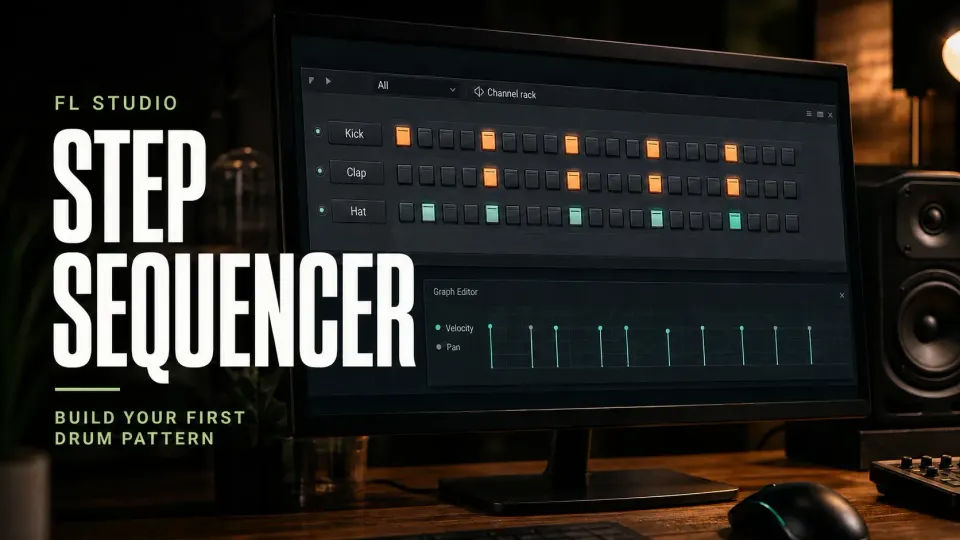
The FL Studio Step Sequencer is the clickable drum grid inside the Channel Rack. Put a kick, clap and closed hi-hat on separate rows, choose a Pattern, switch to PAT and turn on the hits you want to hear. A mouse is enough to build a useful loop; you don't need a MIDI keyboard for this exercise.
Start with the one-bar example below. Then change its length, soften a few hats and find out why gray steps sometimes keep repeating. This is the controls tutorial in our Beatmaking & Drums route. Once the controls make sense and you want musical variations, move on to writing drum patterns.
Find the Step Sequencer and choose a Pattern
Press F6, or click the Channel Rack button in the toolbar. Use the button if your keyboard sends a media action instead of F6. Glance at the Pattern selector before clicking any steps, because you're editing the selected Pattern, which isn't always the one you last placed in the Playlist.
Use Patterns > Find next empty (F4) and name the new Pattern Drums A. Image-Line's Patterns menu reference separates this from renaming the current Pattern with F2. Picking an empty Pattern doesn't remove your existing instruments from the rack.
- Channel: the sound source on one row, such as a Sampler holding a kick.
- Step: a trigger position for that row. Each step represents a sixteenth note.
- Pattern: the selected collection of note and automation data; several Channels can contribute to it.
- Pattern Clip: an instance of that Pattern on the Playlist timeline.
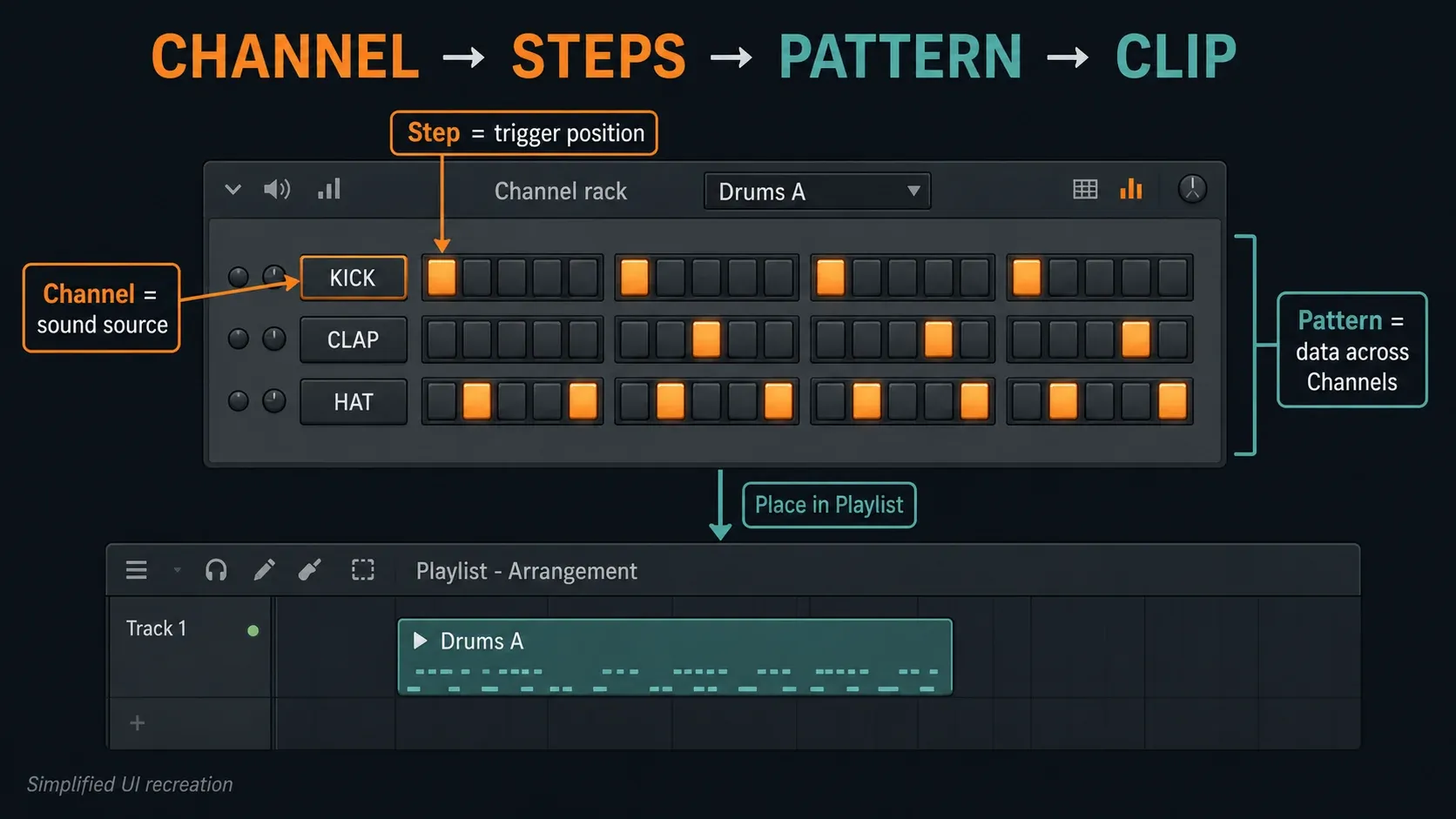
The Channel Rack guide explains its selection lights, groups and routing. For now, focus on the sound's row and the Pattern name; there's no need to reorganize the whole project.
Add drum sounds without replacing the wrong Channel
Choose three short one-shots: a kick, a clap or snare, and a closed hi-hat. Drag each file from the Browser into the empty area below the Channel rows, not onto an existing Channel button, and check that each drop creates a new row. You can also right-click the sample in the Browser and choose Open in new channel, as documented in the Browser file menu.
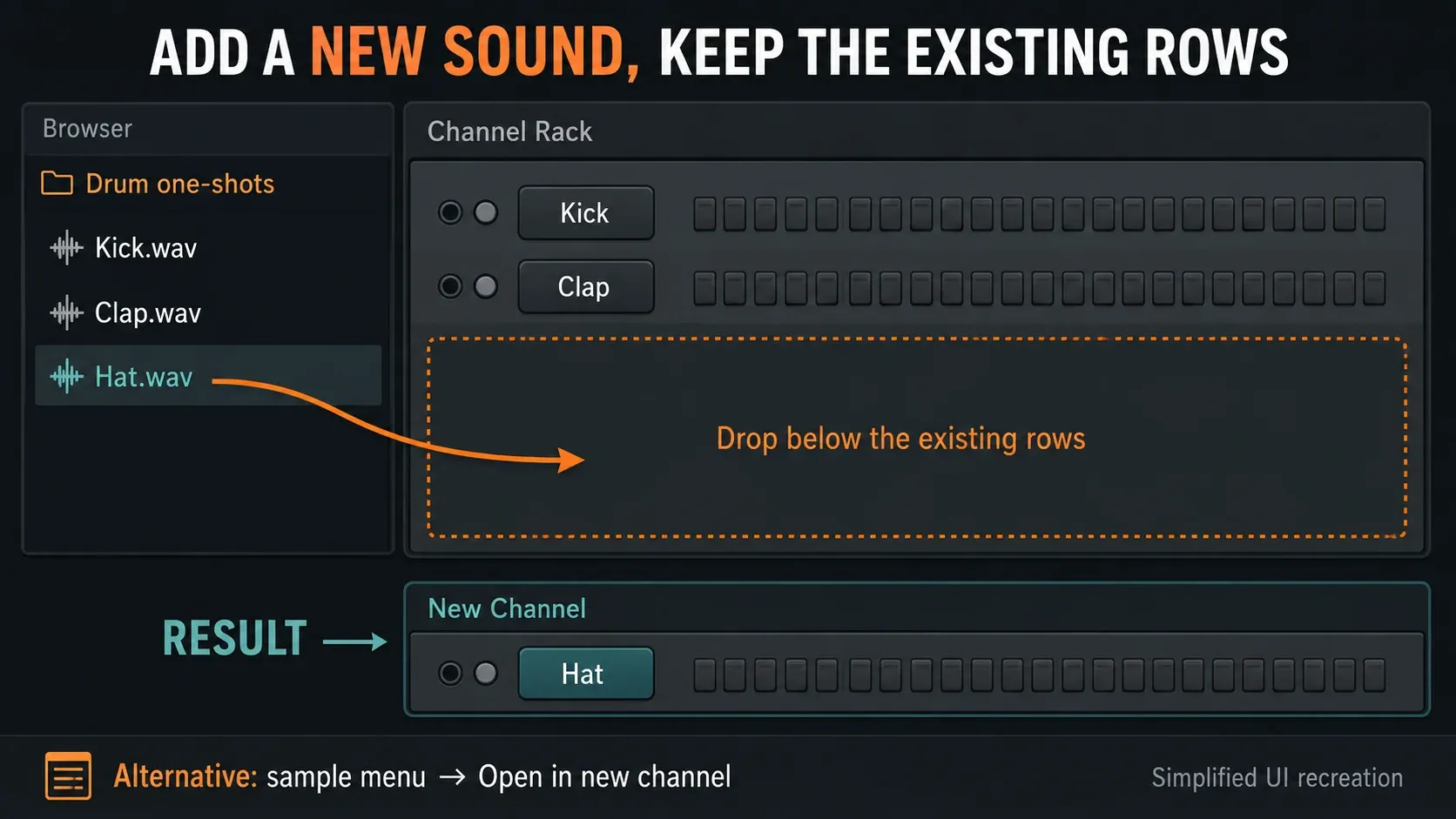
If your template already has the three sounds, just use those rows. To swap a Sampler's sound on purpose, open that Channel and use its sample-file control; its existing rhythm doesn't become a new Pattern. Listen again after the swap, because a longer tail or a different attack can change how the rhythm feels.
Can't find the files? The Browser guide covers finding and auditioning sounds, and adding sample packs covers folders. Keep that setup separate from programming the steps.
Program a one-bar drum Pattern
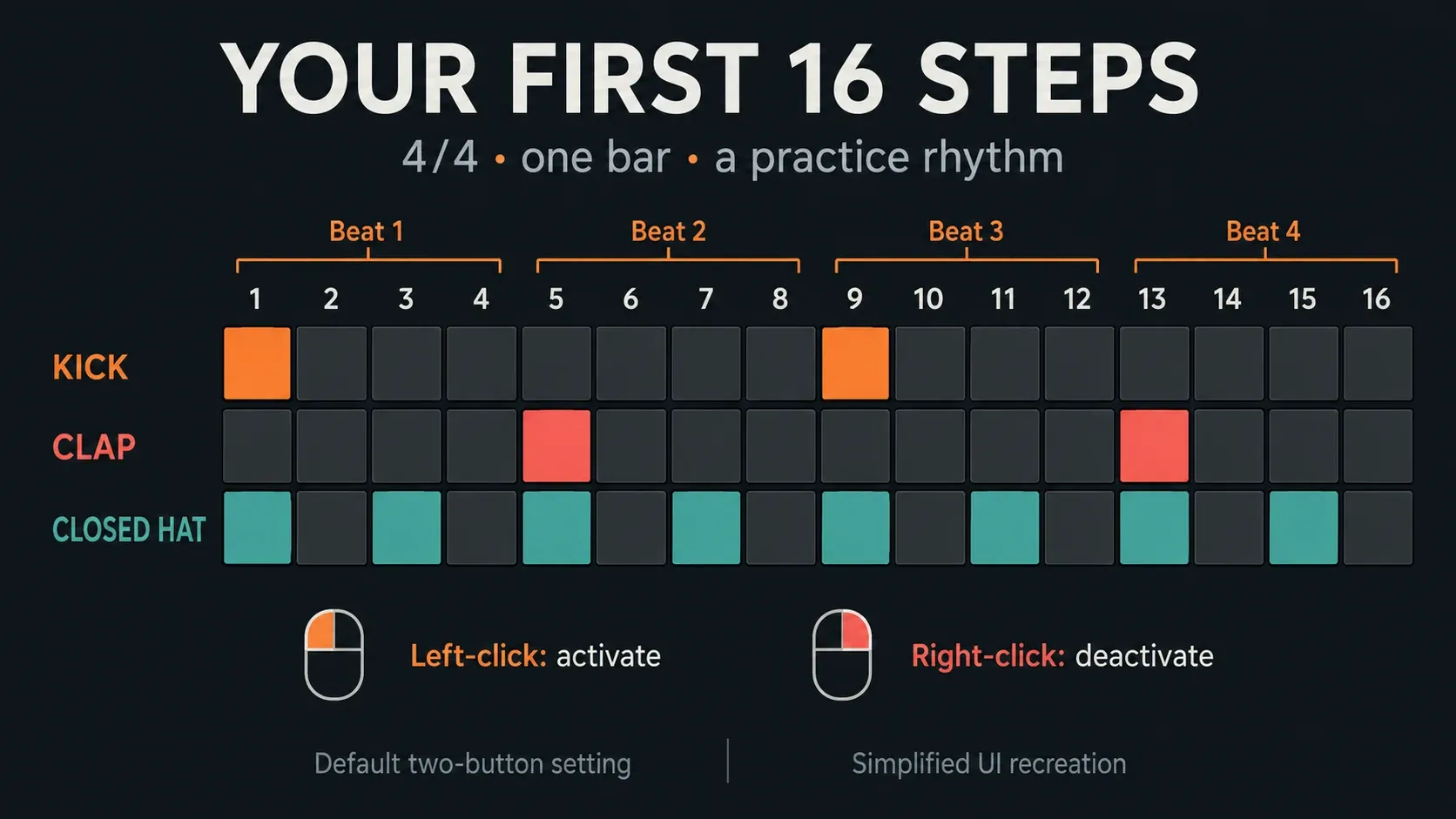
Use a 4/4 project for this example. Sixteen sixteenth-note steps make one bar, and steps 1, 5, 9 and 13 are the four beat starts. The other columns are subdivisions, not extra beats.
- Open the Channel Rack, select an empty Pattern and name it Drums A.
- Load a kick, clap and closed hi-hat into three separate Sampler Channels.
- Switch to PAT mode and set Pattern Length to 16 steps in the 4/4 practice project.
- Activate kick steps 1 and 9, clap steps 5 and 13, and hat steps 1, 3, 5, 7, 9, 11, 13 and 15.
- Start playback. Under the default mouse setting, left-click adds a step and right-click removes one; listen after each change.
- Open the hat's Graph Editor and lower a few velocity bars, leaving those steps active.
- Place Drums A as a Pattern Clip in the Playlist and switch to SONG to hear the arrangement.
- Save the project. In the standard trial, export a listening copy before closing because saved projects cannot be reopened until FL Studio is purchased.
| Sound | Active steps | What to listen for |
|---|---|---|
| Kick | 1, 9 | A clear start on beats 1 and 3 |
| Clap or snare | 5, 13 | An answer on beats 2 and 4 |
| Closed hi-hat | 1, 3, 5, 7, 9, 11, 13, 15 | An even eighth-note pulse |
This is a deliberately plain practice rhythm, not a recipe for every genre. Remove kick step 9, listen, then put it back. That tiny change makes the link between a lit button and the sound obvious. For bass, melody and arrangement around the loop, follow making a complete beat; the beginner tutorial covers the wider first-project setup.
Check the playback mode: Image-Line's transport controls separate PAT, which plays the selected Pattern, from SONG, which plays the Playlist. An empty Playlist is no reason to rebuild a perfectly good drum Pattern.
Check the mouse setting: in General Settings, turning off Use both mouse buttons in Step sequencer makes left-click toggle a step on and off. If your clicks behave differently from a tutorial, check this before you decide your installation is broken.
Extend the grid: Pattern length versus Channel looping
To practice two bars in 4/4, set Pattern Length to 32 steps. Drag the rack's lower-right edge to show more of the grid. A wider window only makes steps visible; you still have to choose the musical length. You can also right-click the Pattern Length control to pick a length in bars.
With the control on Auto, the Pattern follows the end of the last bar that contains data, so notes on another Channel can explain a longer loop. The current Channel Rack reference documents a maximum of 512 Step Sequencer steps; use Piano Roll for longer note sequences instead of expecting the step grid to grow forever.
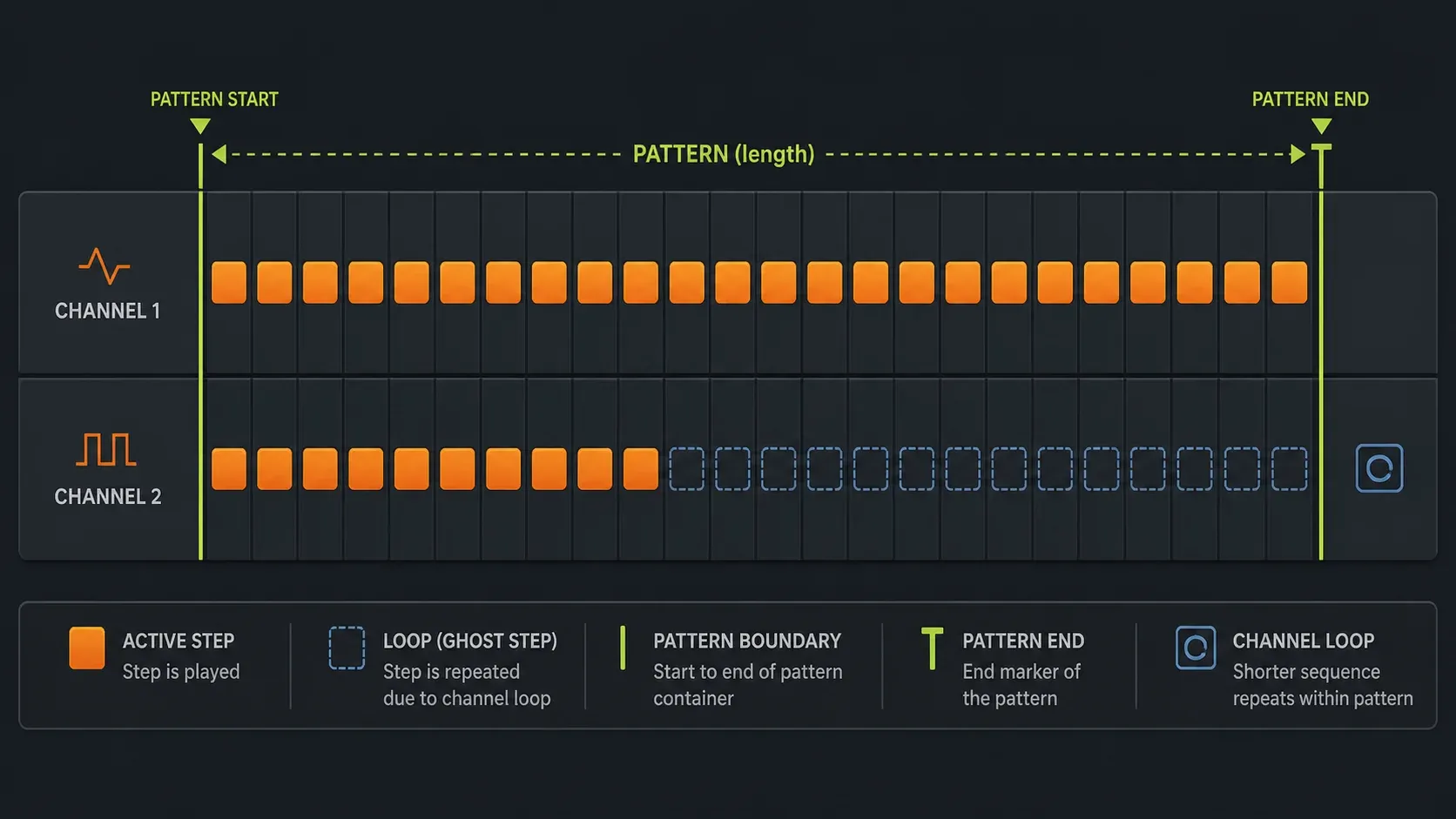
Channel looping is a different setting. A short row can repeat inside the longer Pattern. Ghost steps show the repeated continuation, not a second set of manually entered hits. Open the loop control's advanced options to inspect an individual Channel's loop point. Choose Don't loop for that Channel if the repetition is unwanted. Burn to pattern converts looped ghost steps to real step data; do not use it merely to hide a confusing display.
If switching to 32 steps gives you two identical halves, check looping before you add more hits. If the second half is empty, write a variation there or loop the shorter row on purpose. Repeating Pattern Clips across a song is another layer, covered in looping and varying Patterns.
Edit velocity and timing in the Graph Editor
Right-click the hat's Channel button and choose Graph editor, or use the rack's Graph Editor control. Select Velocity, then drag the bars for a few active hat steps down. Leave enough level to hear the contrast. No universal percentage makes a hat sound human.
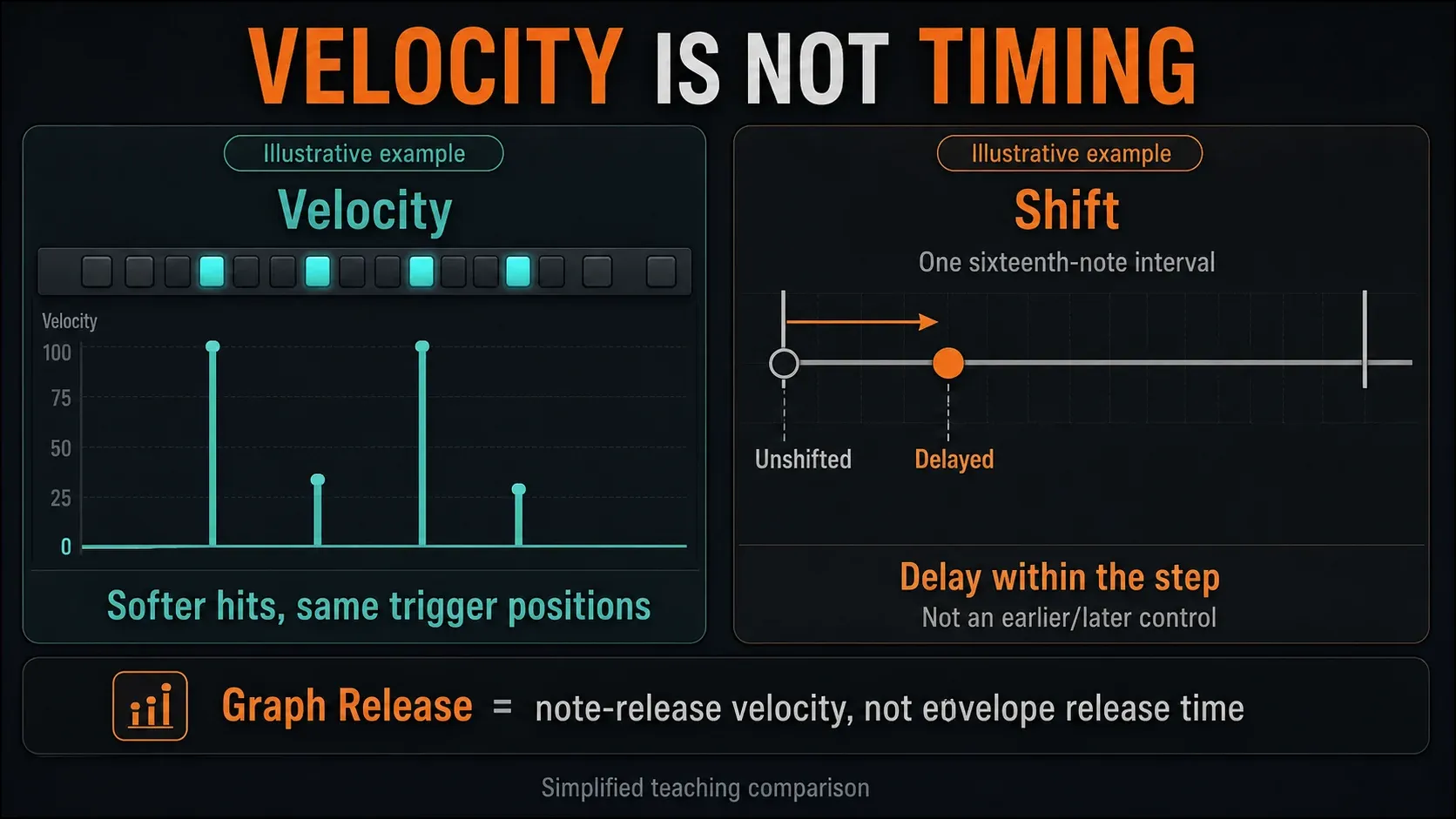
Try softer hats on steps 3, 7, 11 and 15 while keeping 1, 5, 9 and 13 stronger. It's an optional accent exercise, not a fixed mix setting. Listen with the kick and clap playing, since a hat pattern that sounds great solo can get distracting in the full loop.
- Velocity changes each hit's velocity; the instrument determines its response.
- Pan changes the note's pan information. Some third-party instruments ignore it or other per-note properties.
- Note and Fine pitch change pitch information; use Piano Roll when you need a readable melodic part.
- Release is note-release velocity, not the Sampler's release-time envelope knob.
- Shift delays the step's start within its subdivision. It is not a negative/positive nudge control. For a hit before a grid position, move the note in Piano Roll, or deliberately delay the preceding step.
- Rep retriggers a step. For a roll with individually drawn note positions and lengths, use Piano Roll.
If changing a property makes no audible difference, first check whether the instrument supports it. The Mute removed steps option matters too: when it's on, deactivated steps keep their note-property data as muted notes, so a step you turn back on may remember your old edit.
For broader timing changes, use the swing and groove guide. Global swing and a Channel's response to it work differently from manually delaying one step.
Fill every few steps or try Advanced Fill
Right-click the Channel button (the name of the sound, not a step square). Its Fill each 2/4/8 steps commands provide regular starting patterns. Try Fill each 2 steps on a fresh hat sequence, then remove the hits you do not need. Save a version or copy your Pattern before applying a fill to a rhythm you want to keep.
Choose Advanced fill from the same Channel menu for more control. The Advanced Fill reference describes Manual editing, Fill every and Euclidean distributions. Sequence length sets the number of positions, and Step count sets the active hits. Rotate the result if its starting point doesn't suit the phrase.
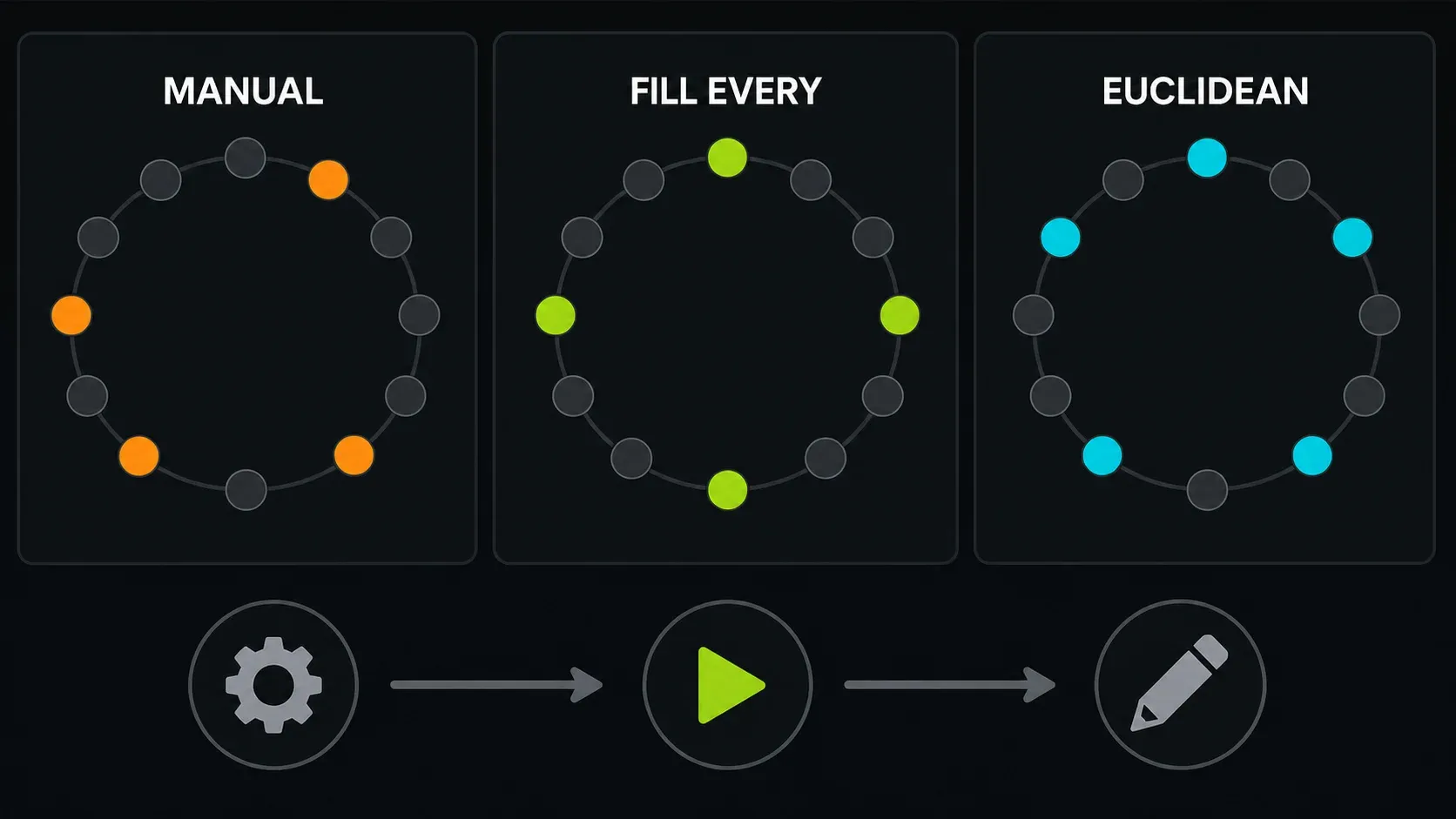
Accept sends all Channels created in the tool back to the Step Sequencer. Check the other Channels if you edited more than one. A generated sequence shorter than the Pattern can loop automatically to fill it, so look at the Channel loop control if you hear extra repetitions. Even spacing is a good starting point, but it doesn't prove the rhythm works with your other sounds.
When to switch to Piano Roll or Playlist audio
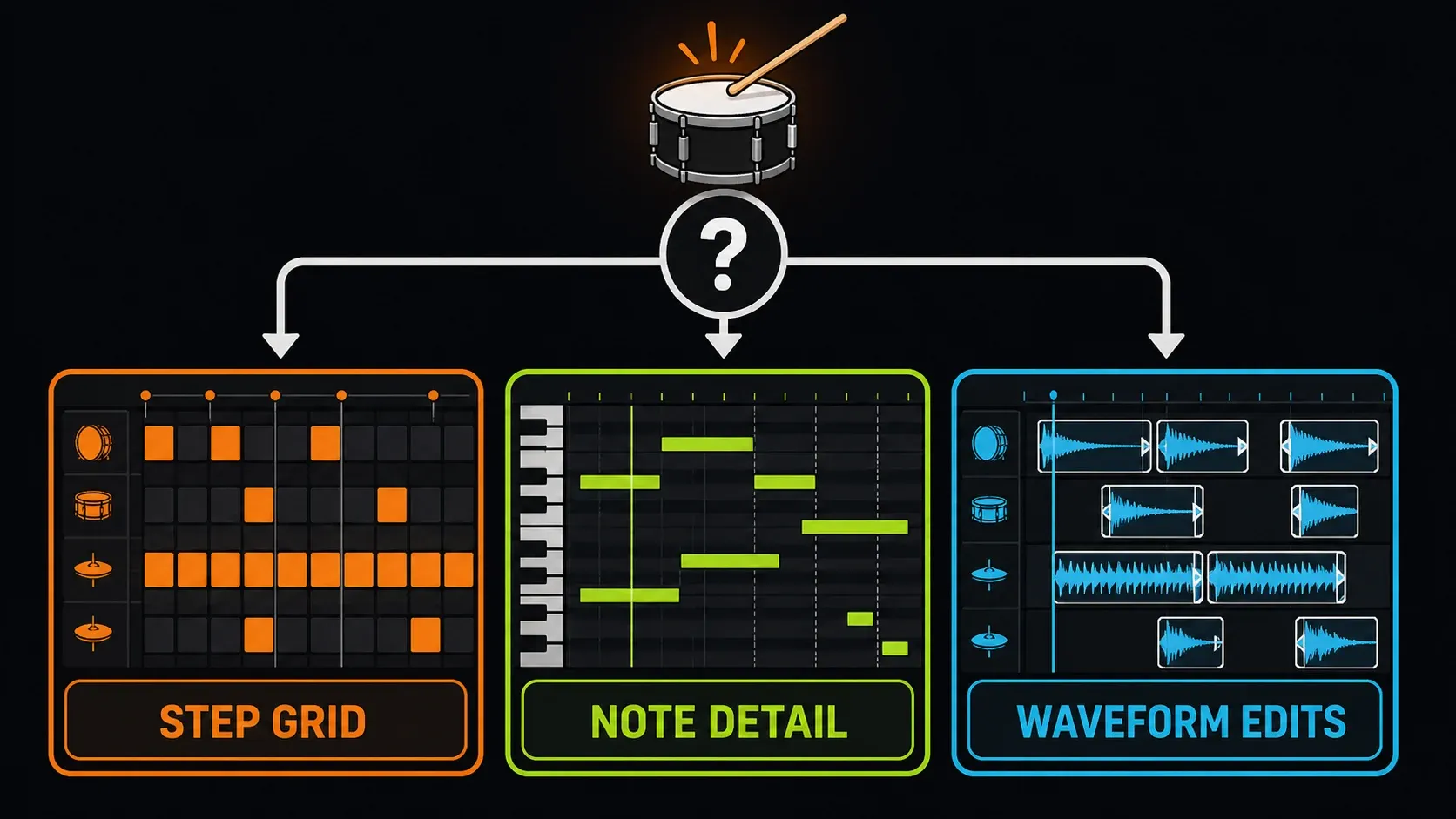
Stay with steps for short, on-grid drum triggers. Switch to Piano Roll when you need to see pitch, note duration, off-grid placement or a detailed roll. Put audio in the Playlist when your next edit depends on seeing and cutting the waveform. You're choosing the right editor for the edit, and none of these is more professional than the others.
Steps don't send a conventional note-off, so a long sound may keep going after the trigger. Piano Roll gives you editable note durations, but shortening a note won't force every instrument to stop: Image-Line's Sampler documentation explains that its samples carry on after note release unless the volume envelope is enabled. The envelope's release then shapes the tail.
Step data and Piano Roll notes both still belong to a Pattern. If a row turns into a miniature note preview, your notes haven't vanished. Click that preview to open Piano Roll. Converting existing notes back to steps can throw away note lengths and require quantization, so save a separate version first, and don't flatten a finished melodic part just to get the old-looking buttons back.
Put the Pattern in a song and save it safely
Select Drums A in the Playlist's Pattern picker and place it on the timeline, then switch to SONG. Reusing the same Pattern makes its copies share note edits. For an independent rhythmic variation, use Make unique on the Pattern Clip you want to change before editing its hits. That separates the Pattern data but not the underlying instrument, so replacing the shared kick sample can still affect both Patterns.
The Playlist guide covers placement and variations. For the next song-building task, the Workflow hub takes you from a working loop to an arrangement.
Save an FLP while the idea is still intact. In the standard FL Studio trial, saving and exporting are allowed, but reopening a saved project requires buying FL Studio. Export a listening copy before you close, keeping in mind that audio can't replace editable Pattern data. A separate trial-only plugin may also need its own licence, whether it comes with your edition or is bought separately.
Fix missing buttons, silence and unexpected repeats
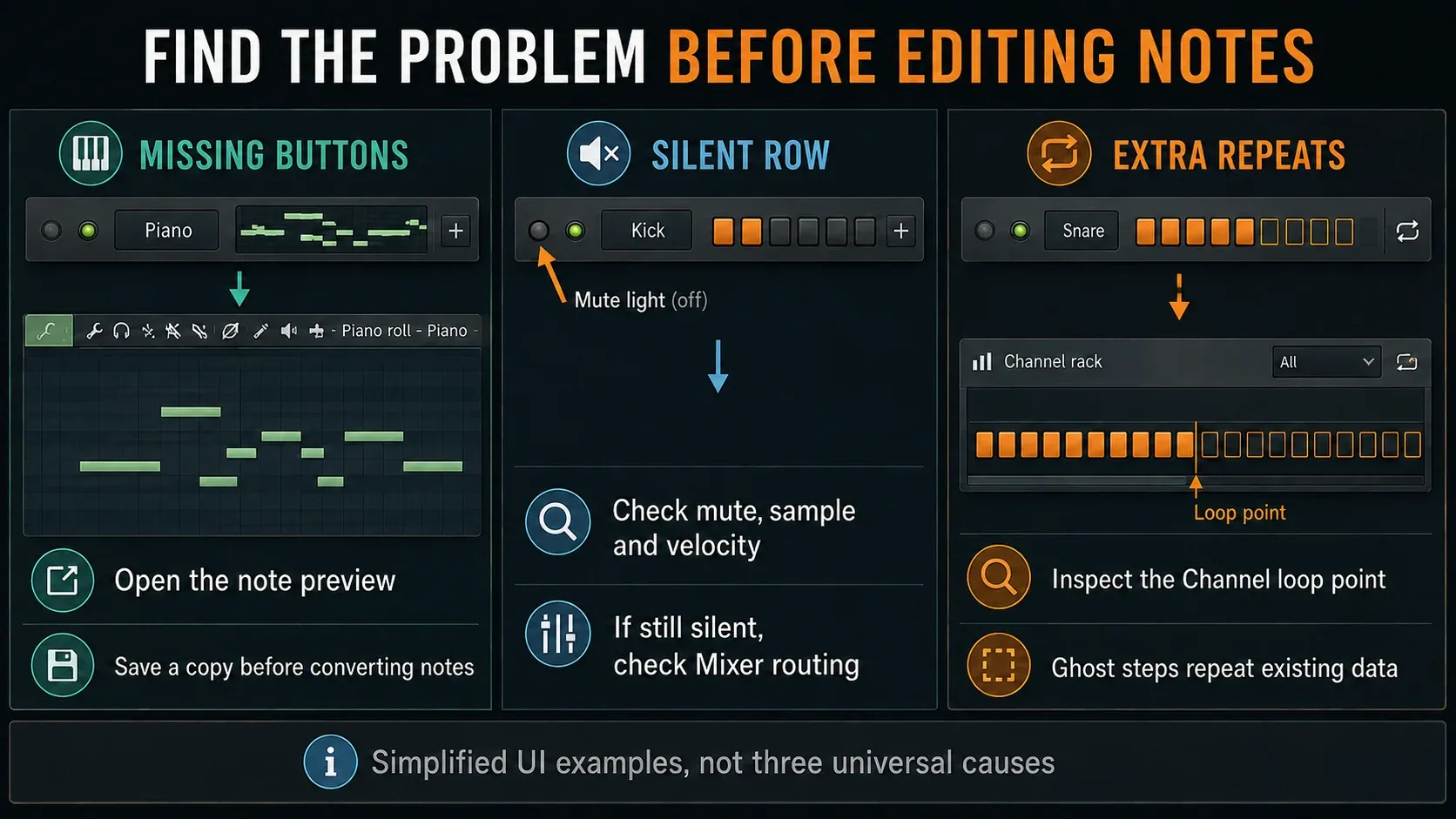
- The wrong music plays: check PAT versus SONG and the Pattern selector before editing notes.
- A whole Channel row is missing: set the rack's display filter to All. A filtered-out Channel is not deleted.
- Notes appear instead of step buttons: open the Piano Roll preview. Preserve the note lengths before attempting conversion.
- One row is silent: check its mute light, active steps and velocity. Open the Channel to confirm that its sample is loaded; clicking its name opens the instrument and doesn't necessarily audition a hit. Then check the Channel's Mixer route if the source is present but still silent.
- Nothing starts when you press Play: check whether Wait for input is enabled. Disable it for mouse-programmed playback, or provide the expected input.
- More hits play than you entered: inspect ghost steps and that Channel's loop point, including any loop created by Advanced Fill.
- The loop is too short or long: inspect Pattern Length, Auto and data on other Channels. Resize the rack to see more steps.
- A long sample keeps ringing: check note duration and the instrument's volume envelope, not Graph Editor Release velocity.
If a whole project has no output, use the no-sound troubleshooting guide. Reinstalling FL Studio is a poor first response to one muted drum row.
FL Studio Step Sequencer FAQ
Where is the Step Sequencer in FL Studio?
It is the step-button grid inside the Channel Rack. Press F6 or use the Channel Rack toolbar button. If a row shows a miniature Piano Roll instead, click that preview to inspect its notes.
How do I add or remove steps?
With the default two-button setting, left-click activates a step and right-click deactivates it. Disable Use both mouse buttons in Step sequencer in General Settings if you prefer left-click to toggle both states.
How many steps make one bar?
In 4/4, sixteen sixteenth-note steps make one bar and 32 make two bars. Other time signatures change that relationship. Pattern Length controls the Pattern boundary; Auto follows the end of the last bar containing data.
Why are there ghost steps after my drum pattern?
A shorter Channel sequence can loop inside the longer Pattern. Ghost steps indicate that repeated continuation. Check the Channel's loop point and disable looping if the repetitions are unwanted.
Where is Fill each 2 steps?
Right-click the Channel button that displays the sound's name, not one of its step squares. The Channel menu contains Fill each 2/4/8 steps and Advanced fill.
Can Graph Editor Shift move a step earlier?
Shift delays a step's start; it is not a signed earlier-or-later control. To place a hit before a grid position, move it in Piano Roll or deliberately delay the preceding step.
Does Graph Editor Release shorten a sample?
No. It is note-release velocity, not envelope release time. For a Sampler sound that should follow note duration, use Piano Roll and enable the volume envelope, then adjust its shape and release.
Does making a Pattern unique give it separate drum sounds?
No. Make unique separates the Pattern's note data. The Patterns can still use the same instrument Channels, so changing a shared sample or instrument setting can affect both.