FL Studio
For a telephone effect in FL Studio, put Fruity Parametric EQ 2 on the voice's Mixer insert and remove both ends of the frequency range: a high-pass filter cuts the lows, and a low-pass filter cuts the highs. Leave enough midrange for the words to stay clear. Add distortion only if the part needs a rougher speaker character.
I would start with EQ alone. Get the thin voice working against the full mix, match its level, then decide whether it needs grit or a moving filter. This is a tone-shaping effect; pitch correction is a separate decision.
Make the basic telephone tone with EQ 2
Work from a recorded vocal or other audio clip. Open its Channel settings and assign its Mixer/FX target to the insert you want to process. The Channel-to-Mixer routing controls determine where its sound goes; an ordinary Playlist lane is not a separate effects channel.
- Load Fruity Parametric EQ 2 into an empty effect slot on that insert. Keep the other bands flat while building the basic sound.
- Right-click Band 1's token, choose Type → High pass, and move its frequency to around 500 Hz as a starting example.
- Right-click Band 7's token and choose Type → Low pass. Start around 3.5 kHz.
- Use each band's Order setting to choose the slope. Try the standard 2 order first, then a steeper option if too much low or high content remains.
- Play the phrase with the backing track. Lower the high-pass cutoff if the voice has lost too much body; raise the low-pass cutoff if the words are hard to follow.
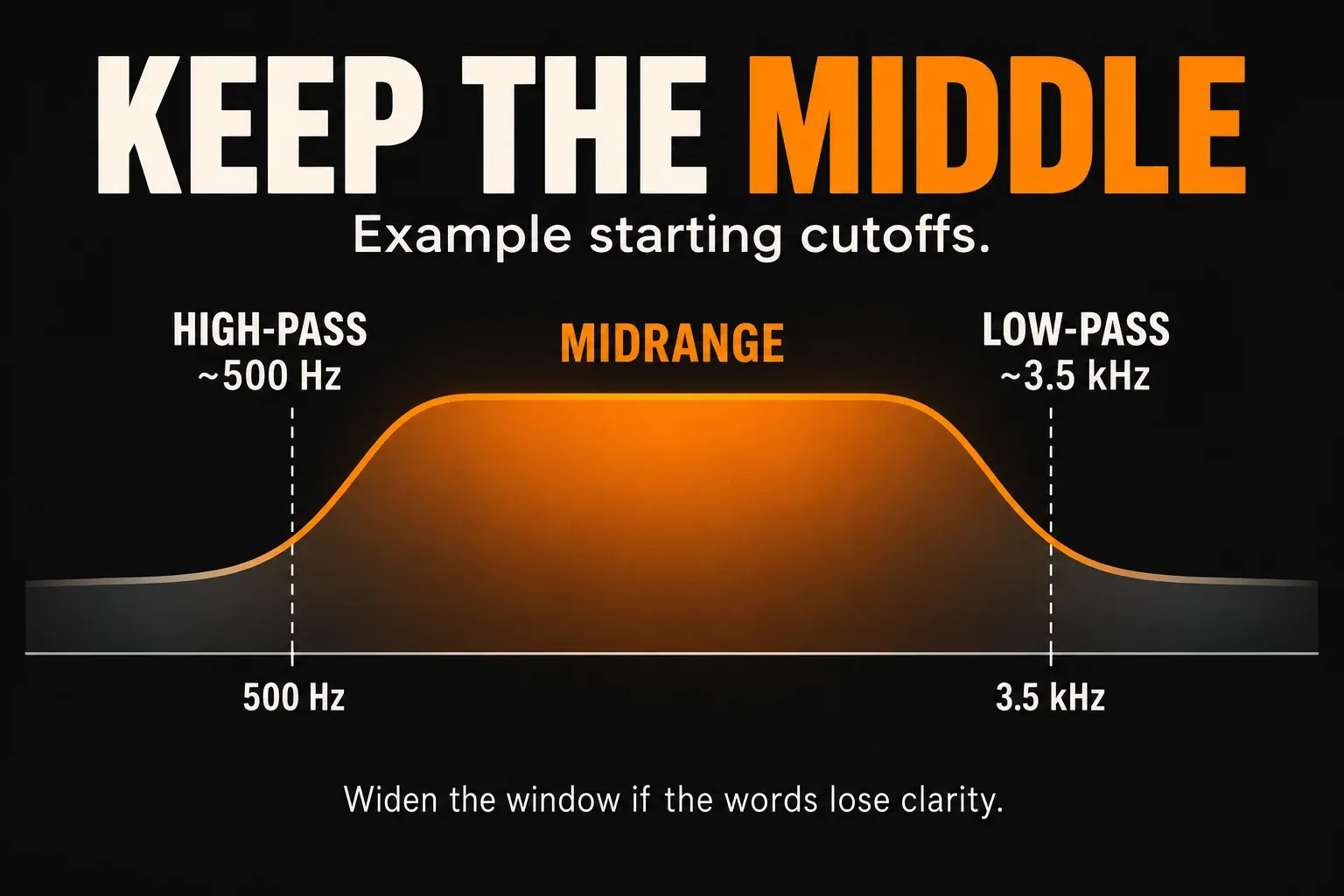
In the EQ 2 filter documentation, High Pass removes low frequencies and Low Pass removes high frequencies. Order changes the slope; it is a different choice from moving the cutoff. The standard 2 slope is 12 dB per octave, while Steep 4, 6 and 8 provide progressively steeper filtering.
The two filters let you set the lower and upper edges independently. A Band Pass filter is another way to isolate a region, but you do not need to change both bands to Band Pass for this recipe. If the controls are unfamiliar, the broader Parametric EQ 2 guide explains the band types and frequency controls.
Watch the gain controls. Dragging a shelf down reduces an entire end of the spectrum to a lower level; it does not create the same response as a high-pass or low-pass. EQ 2 also disables the band gain fader for pass filters. Adjust the band's frequency to move the cutoff.
Choose how narrow and nasal it should sound
The example above is a starting tone, not a preset you must preserve. Keep the high-pass and low-pass well apart while learning the effect. Moving their cutoffs close together can leave too little voice to carry the words.
| Musical direction | What I would change |
|---|---|
| Thin telephone-style response | Start with the two cuts. Keep distortion off until the restricted voice is clear in the mix. |
| Softer radio-style intro | Open the frequency window a little and keep the texture restrained. Let the later full-range section supply the contrast. |
| Rough megaphone-style line | Try a narrower midrange focus and some distortion. Reduce harshness and match the output level before judging it. |
| A more hollow or nasal accent | Try one modest Peaking-band boost inside the surviving range. Move it deliberately; remove it if consonants become sharp. |
Those are musical directions, rather than promises to reproduce a particular device. Audiotent's telephone-vocal example also starts by limiting both ends with EQ, then suggests narrow midrange boosts for character. I would add one only after hearing a specific need for it. Random peaks can make an already narrow voice tiring.
Bring the processed level close to the unprocessed level when comparing. Cutting frequency content can make the vocal feel quieter; compensating with a big boost can turn a useful texture into the loudest thing in the section. Use the Mixer fader for the part's final place in the song. The vocal mixing guide covers the surrounding lead-vocal balance.
Add grit with Fruity Fast Dist, then control the result
For a clean phone tone, stop at the EQ. If the line needs a rough edge, load Fruity Fast Dist in the next slot. Keep monitoring level low while changing the drive; do not judge a louder setting as automatically better.
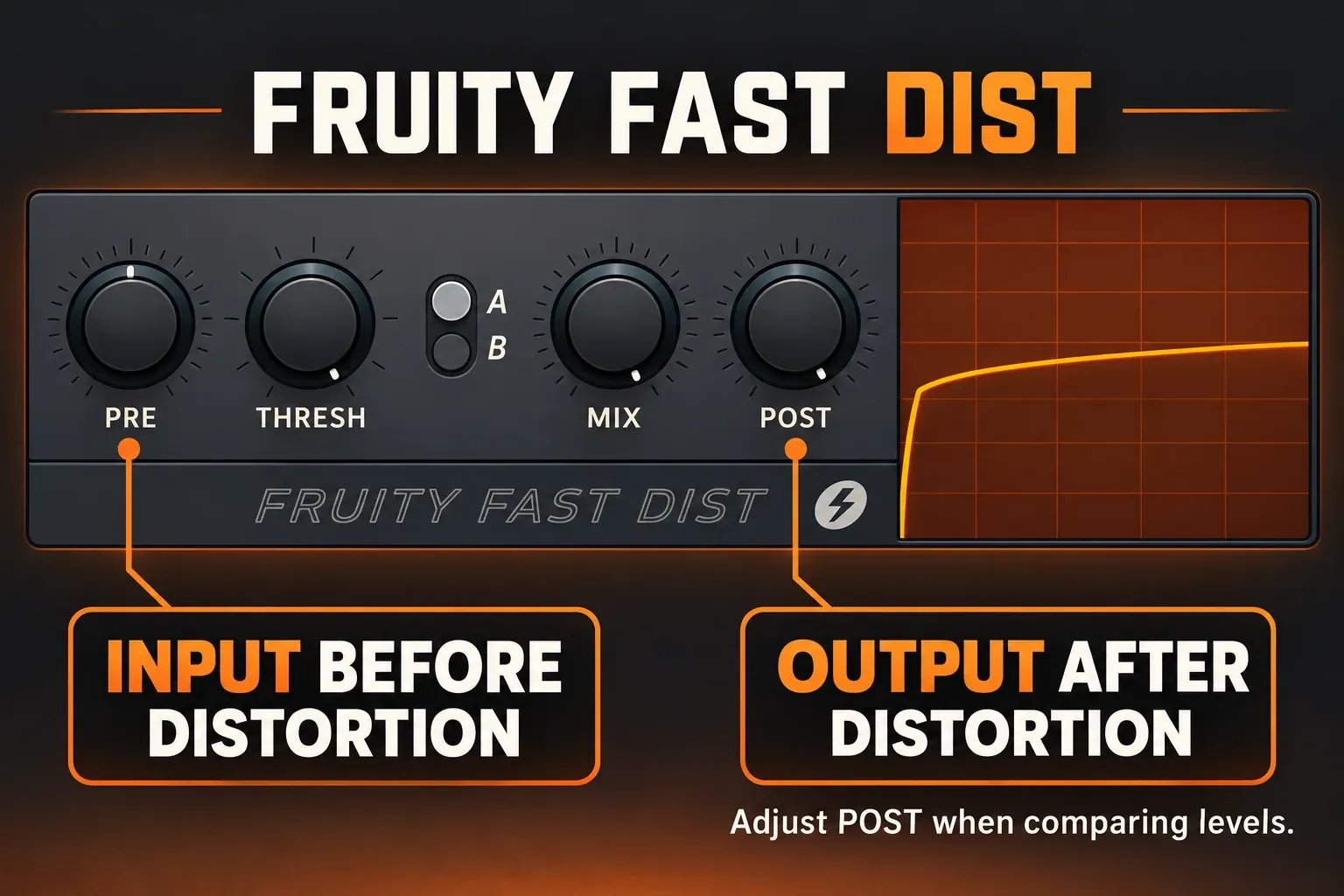
- PRE: adjusts the level before distortion. Its middle position is 100% input level; raising it can push the signal into the distortion range.
- THRESH: changes both where distortion starts and the strength of the waveshaping.
- A/B: selects between two distortion types. Choose the one that fits the phrase.
- MIX: blends the plugin's unprocessed input with its distorted version. Fully right gives only the distorted version.
- POST: adjusts level after distortion. Turn it down if the result is too loud.
These are the functions defined in the Fast Dist control reference. Its MIX control blends with the signal entering Fast Dist. When EQ 2 is before it, that “dry” input has already been filtered; it is not a separate full-range copy of the original vocal.
Compare the phrase with Fast Dist enabled and disabled, adjusting POST for a fair level comparison. If the driven result is too fizzy, try a second EQ after Fast Dist and soften the top there. That gives you three distinct jobs in order: first EQ sets the voice feeding the drive → Fast Dist adds texture → final EQ shapes the resulting tone. Keep the last EQ only if it solves a problem you can hear.
Leave the Mixer effect-slot mix at 100% for this straightforward chain. Image-Line's effect-slot guidance recommends controlling wet/dry inside the plugin and notes that blending a delayed processed signal with dry audio can cause phase cancellation. The slot mix is not a substitute for choosing the right filter.
Use the effect on one phrase, or open it into the next section
Keep just one line on a separate route
For a fixed telephone phrase, put that phrase on its own Audio Clip channel and Mixer insert. If it is a sliced copy of a clip used elsewhere, choose Make unique from the clip menu before changing its channel assignment. Image-Line documents Make unique as creating another Audio Clip channel while reusing the source file.
Keep the insert's normal audible route to the Master. If you also send a full-range copy to the Master, that copy will blend back into the thin voice. Check the routing before making the filters more extreme.
Open the frequency window with automation
For an intro that grows into a full voice, automate the cutoff frequencies rather than their gain faders. EQ 2's lower FREQ controls are automatable. Band 1's FREQ moves the high-pass edge; Band 7's FREQ moves the low-pass edge in this setup.
- Set the starting telephone tone. Select the transition's time range in the Playlist if you want the Automation Clips limited to that range.
- Right-click Band 1's FREQ control and choose Create automation clip. Repeat for Band 7's FREQ control.
- Right-click inside each Automation Clip to add points and drag them into place. For the opening transition, move the high-pass cutoff downward and the low-pass cutoff upward, widening the window through the phrase.
- Adjust the envelopes while checking the linked FREQ controls. Automation point values run from 0 to 1; do not type a frequency such as 3500 into a point's numeric value.
- Play from before the transition and check the song's beginning. Make sure both filters start at the intended tone and finish where you want them.
The Automation Clip controls describe point editing, time selection and initialized starting values. Widening the cuts restores more of the vocal's range; it does not by itself turn off Fast Dist or remove other processing. If the next section should be clean, give its phrase a clean route or also control the distortion amount.
Fix a telephone effect that is not working
- It sounds almost unchanged: confirm the clip reaches the processed Mixer insert, both filter bands are enabled, and their types are High pass and Low pass. Check for a separate dry path.
- It sounds muffled rather than thin: check the low-frequency cut too. A low-pass alone darkens the top without removing the low end.
- The words disappear: widen the gap between cutoffs, reduce any narrow boost and lower the distortion.
- Every phrase gets the effect: inspect the shared Audio Clip channel and Mixer assignment. A new ordinary Playlist lane does not isolate processing.
- Automation changes level instead of tone: check whether it controls FREQ or a gain fader.
- The gritty part jumps out of the mix: reduce Fast Dist POST and compare at a matched level before changing the EQ again.
A short, clearly different phrase often gives the next full-range line enough impact. Keep the words understandable and choose how much contrast the arrangement needs.