FL Studio
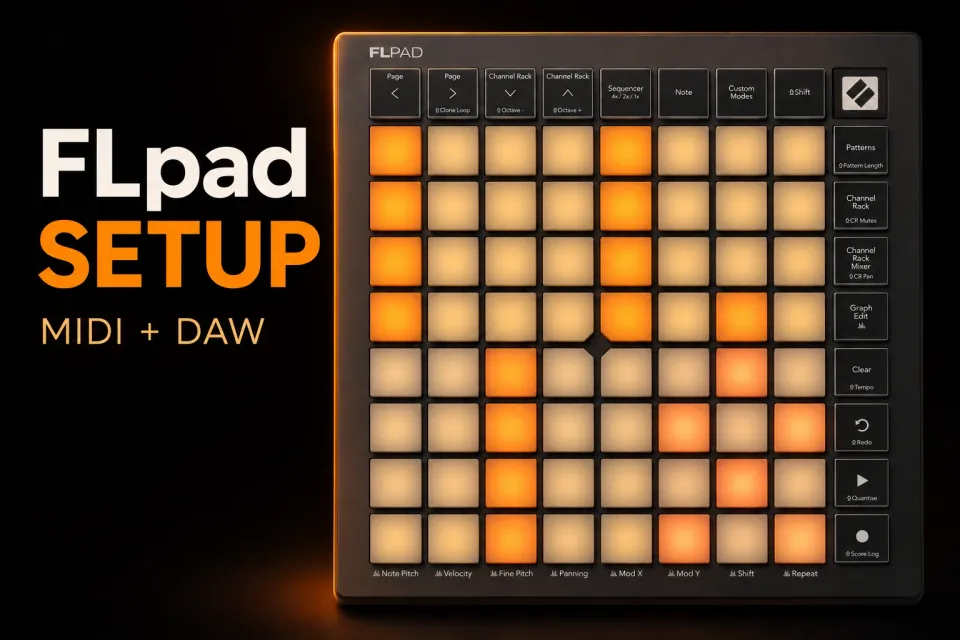
Connect FLpad by USB, open Options > MIDI Settings, and let FL Studio detect it. If the grid won't access its performance views, enable both controller inputs, assign the matching MIDI and DAW scripts for your model, and match each input's port number to its corresponding output. Use two different, unused numbers above zero. I'd check those two pairs before changing pad mappings: a working note input doesn't prove the DAW connection is set up.
The dedicated integration requires FL Studio 26.1.6 or later on desktop, according to Novation's model-specific setup instructions. These steps cover both FLpad and FLpad Mini on Windows and macOS; the dedicated scripts aren't supported in FL Studio Web or FL Studio Mobile.
Connect the controller and check automatic detection
Plug the controller into your computer with a USB data cable. One cable carries both power and data. Before opening FL Studio for the first time, visit Novation Components, select FLpad or FLpad Mini, and open the Updates tab. Follow the device instructions to bring its firmware up to date. Novation requires this first-connection update even if you skip Easy Start; missing firmware updates can leave features unavailable.
Then open FL Studio. Automatic detection should assign the control scripts, so there's no reason to replace a working setup with a generic controller mapping.
Open Options > MIDI Settings. You need the controller's two input ports and their corresponding outputs. Windows names the second input MIDIIN2; macOS identifies the two connections as MIDI and DAW. The device name also distinguishes FLpad from FLpad Mini.
If the device isn't listed, check that it's connected and powered, then click Refresh device list. That button looks for hardware. Update MIDI scripts downloads controller support, so use it when the ports exist but the FLpad scripts are missing. Those are separate checks.
Assign the MIDI and DAW scripts for your model
Select a controller port in the lower Input panel and turn on Enable. Set Controller type for that input, then repeat for the other input. The official FLpad setup walkthrough explicitly separates the full-size and Mini scripts. Choose the names for the hardware in front of you.
| Controller | Main MIDI input | Second / DAW input |
|---|---|---|
| FLpad | Novation FLpad MIDI | Novation FLpad DAW |
| FLpad Mini | Novation FLpad Mini MIDI | Novation FLpad Mini DAW |
On Windows, the main input is named FLpad MIDI or FLpad Mini MIDI. Assign its MIDI script there. Select MIDIIN2 (FLpad MIDI) or MIDIIN2 (FLpad Mini MIDI) for the DAW script. The corresponding second output is named MIDIOUT2.
On macOS, assign the MIDI script to the device's MIDI input and the DAW script to its DAW input. The pairing rule is the same as on Windows; don't look for a Windows-style MIDIIN2 label on a Mac.
If the required names aren't in Controller type, click Update MIDI scripts at the bottom of the window, then check the list again. Confirm the FL Studio version before downloading an unrelated controller script. I'd keep FLpad on its dedicated integration because its sequencer and Channel Rack views need more than ordinary note messages.
Match each input to its output
The red Port values identify the connections inside FL Studio. They aren't MIDI channels. Image-Line's MIDI Settings manual explains the input and output controls; Novation adds the FLpad-specific requirement to use distinct, matching pairs and avoid port zero.
- Select the main MIDI input. Give it an unused port number, for example 30.
- Select the matching main MIDI output in the upper Output panel. Give it that same number: 30 in this example.
- Select the second / DAW input. Use a different unused number, for example 31.
- Select the corresponding DAW output. Match that number: 31 in this example.
Thirty and thirty-one are examples, not mandatory assignments. If another controller already uses either number, choose another unused pair. Keep MIDI input/output together on one value and DAW input/output together on the other. Giving both inputs the same number defeats that separation.
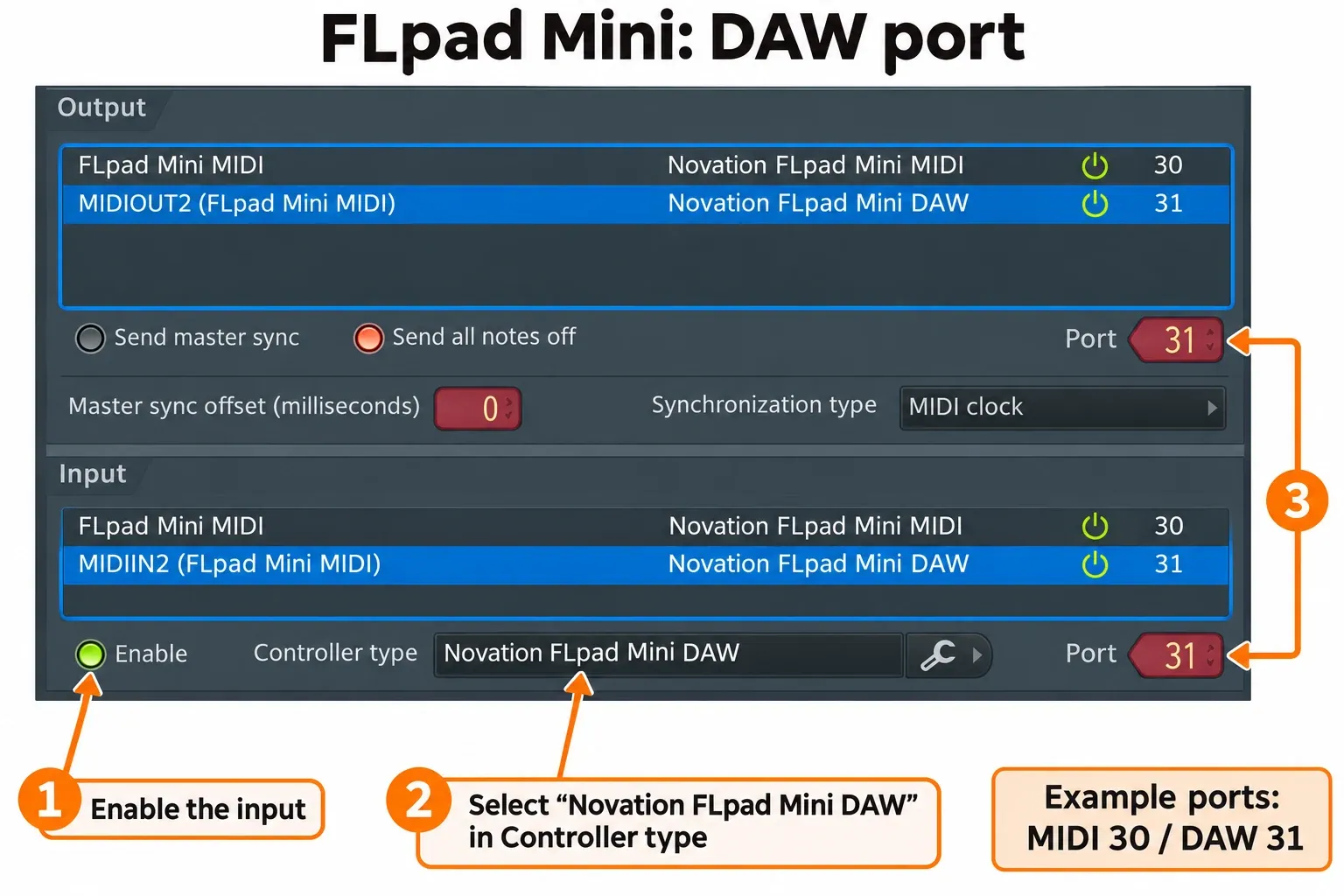
Finish the manual setup by selecting the DAW output and enabling Send master sync. Enable Pickup (takeover mode) near the bottom of the window, then click Refresh device list. These finishing settings are listed in Novation's manual-installation steps.
Check the sequencer and Note view
Use a disposable pattern for this check so you can add steps without changing an arrangement you want to keep. Switch FL Studio to Pattern mode, then load a sample or instrument in the Channel Rack, select it, and press the controller's Sequencer button. Add a step on the grid and check that the corresponding step changes in FL Studio. Press Play to hear the pattern.
Then press Note and play the selected instrument. These are different jobs: Sequencer edits steps, while Note view plays MIDI notes. The performance-view guide shows how the views follow the selected Channel Rack instrument. If that selection is unfamiliar, the Channel Rack and pattern workflow explains what you're controlling.
I'd check a view change next because a pad that plays one sound can still leave the integration incomplete. You should be able to move between the controller's performance views after setup. Don't start building custom pad maps to repair missing factory views.
Fix the part that's missing
Neither port appears
Check power and the USB connection, then refresh the device list. If FL Studio still receives no MIDI input, continue with the MIDI device detection checks. There's no useful controller-type selection to make until the operating system exposes the device ports.
Ports appear, but FLpad scripts don't
Check for FL Studio 26.1.6 or later and run Update MIDI scripts. Recheck the exact model names in the table. A generic controller choice can pass notes without providing FLpad's integrated views.
Notes work, but performance views don't
Revisit the second input first. Confirm it's enabled, assigned to your model's DAW script, and paired with its second output on the same unused port number. Then check the main MIDI pair. This is the specific symptom Novation gives for incomplete automatic setup.
Steps change in FL Studio, but you hear nothing
Click the same instrument in FL Studio and check its audio output. If it stays silent there too, follow the no-sound signal-path checks. A visible step change tells you the controller is reaching FL Studio; the selected sound and audio route need a separate check.
The Mini doesn't respond to harder playing
FLpad Mini has fixed-velocity pads. The full-size FLpad has velocity-sensitive pads, as shown in Novation's hardware comparison. Reassigning the scripts won't add velocity sensitivity to the Mini.
If views are still missing after the firmware update and both port pairs are correct, give Novation support your exact model, OS, FL Studio version, both Controller type selections and all four port assignments. Those details make a setup fault much easier to identify than a photo of an unresponsive grid.